wheel HONDA INSIGHT 2022 Owner's Manual
[x] Cancel search | Manufacturer: HONDA, Model Year: 2022, Model line: INSIGHT, Model: HONDA INSIGHT 2022Pages: 609, PDF Size: 18.48 MB
Page 137 of 609
136
uuGauges and Driver Information Interface uDriver Information Interface
Instrument Panel
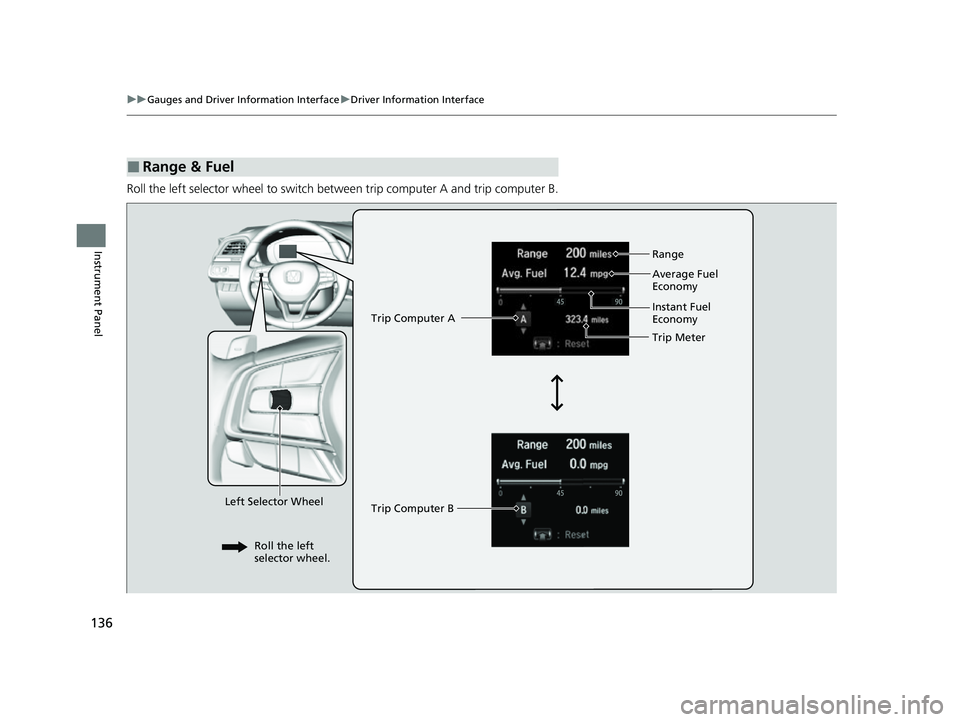
Roll the left selector wheel to switch between trip computer A and trip computer B.
■Range & Fuel
Left Selector Wheel Trip Computer A
Trip Computer B
Trip Meter Range
Average Fuel
Economy
Instant Fuel
Economy
Roll the left
selector wheel.
22 INSIGHT HMIN-31TXM6300.book 136 ページ 2021年2月24日 水曜日 午後3時45分
Page 138 of 609
Continued137
uuGauges and Driver Information Interface uDriver Information Interface
Instrument Panel
■Trip meter
Shows the total number of miles or kilomete rs driven since the last reset. Meters A
and B can be used to measure two separate trips.
Resetting a trip meter
To reset the trip meter, display it, press the left selector wheel and then select Reset.
u The trip meter is reset to 0.0.
■Average fuel economy (Avg. Fuel)
Shows the estimated average fuel economy of each trip meter in mpg or l/100 km.
The display is updated at set intervals. Wh en a trip meter is reset, the average fuel
economy is also reset.
■Instant fuel economy
Shows the instant fuel economy as a bar graph in mpg or l/100 km.
■Range
Shows the estimated distance you can trave l on the remaining fuel. This estimated
distance is based on the vehicle’s current fuel economy.
1 Trip meter
Switch between trip meter A and trip meter B by
rolling the left selector wheel.
Resetting the trip meter in the Range & Fuel, the trip
meter in the sub display resets at the same time.
1 Average fuel economy (Avg. Fuel)
You can change when the average fuel economy is
reset.
2 Customized Features P. 326
22 INSIGHT HMIN-31TXM6300.book 137 ページ 2021年2月24日 水曜日 午後3時45分
Page 139 of 609
138
uuGauges and Driver Information Interface uDriver Information Interface
Instrument Panel
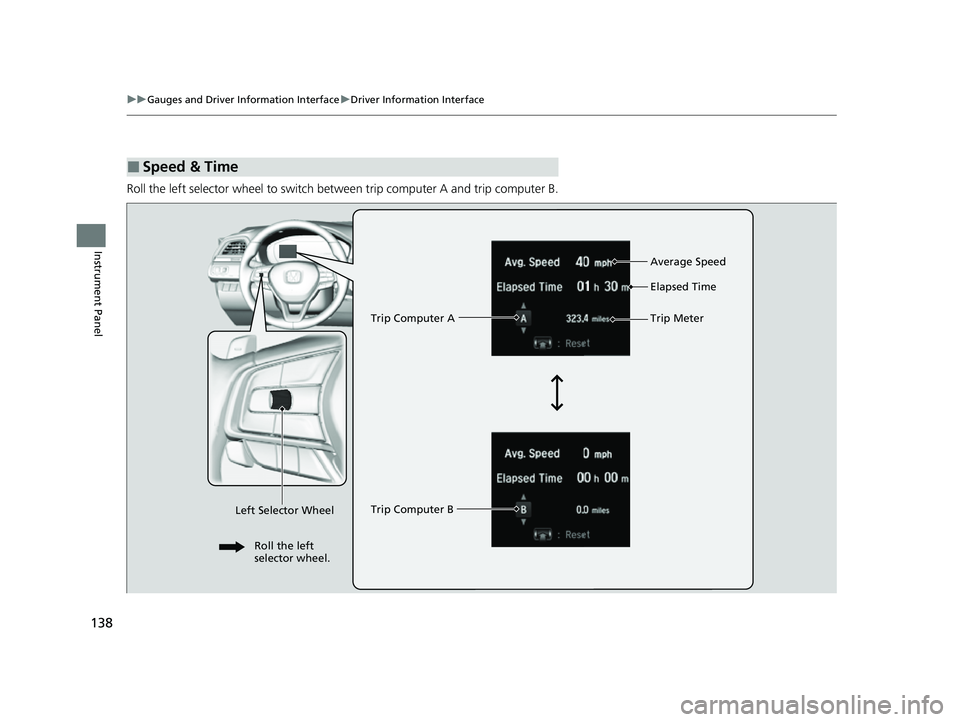
Roll the left selector wheel to switch between trip computer A and trip computer B.
■Speed & Time
Trip Computer A
Trip Computer B Trip Meter Average Speed
Elapsed Time
Left Selector Wheel
Roll the left
selector wheel.
22 INSIGHT HMIN-31TXM6300.book 138 ページ 2021年2月24日 水曜日 午後3時45分
Page 141 of 609
uuGauges and Driver Information Interface uDriver Information Interface
140
Instrument Panel
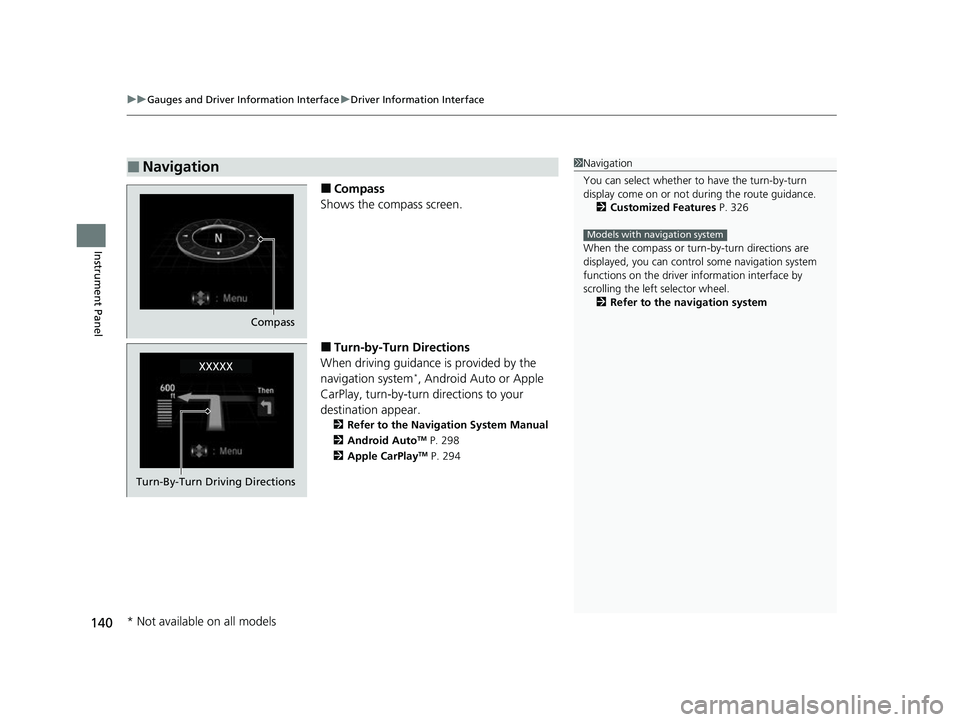
■Compass
Shows the compass screen.
■Turn-by-Turn Directions
When driving guidance is provided by the
navigation system
*, Android Auto or Apple
CarPlay, turn-by-turn directions to your
destination appear.
2 Refer to the Navigation System Manual
2 Android AutoTM P. 298
2 Apple CarPlayTM P. 294
■Navigation1Navigation
You can select whether to have the turn-by-turn
display come on or not dur ing the route guidance.
2 Customized Features P. 326
When the compass or turn-by-turn directions are
displayed, you can contro l some navigation system
functions on the driver information interface by
scrolling the left selector wheel.
2 Refer to the navigation system
Models with navigation system
Compass
Turn-By-Turn Driving Directions
* Not available on all models
22 INSIGHT HMIN-31TXM6300.book 140 ページ 2021年2月24日 水曜日 午後3時45分
Page 146 of 609
Continued145
uuGauges and Driver Information Interface uDriver Information Interface
Instrument Panel
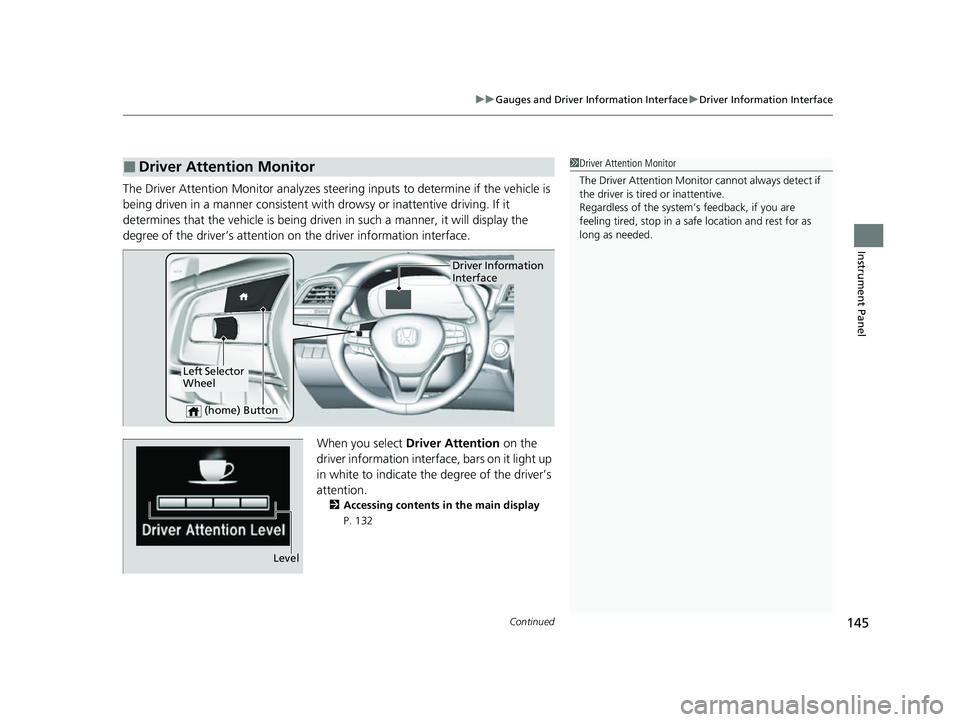
The Driver Attention Monitor an alyzes steering inputs to determine if the vehicle is
being driven in a manner consistent with drowsy or inattentive driving. If it
determines that the vehicle is being driven in such a manner, it will display the
degree of the driver’s attention on the driver information interface.
When you select Driver Attention on the
driver information interface, bars on it light up
in white to indicate the degree of the driver’s
attention.
2 Accessing contents in the main display
P. 132
■Driver Attention Monitor1 Driver Attention Monitor
The Driver Attenti on Monitor cannot always detect if
the driver is tired or inattentive.
Regardless of the system’s feedback, if you are
feeling tired, stop in a safe location and rest for as
long as needed.
Driver Information
Interface
Left Selector
Wheel
(home) Button
Level
22 INSIGHT HMIN-31TXM6300.book 145 ページ 2021年2月24日 水曜日 午後3時45分
Page 147 of 609
146
uuGauges and Driver Information Interface uDriver Information Interface
Instrument Panel
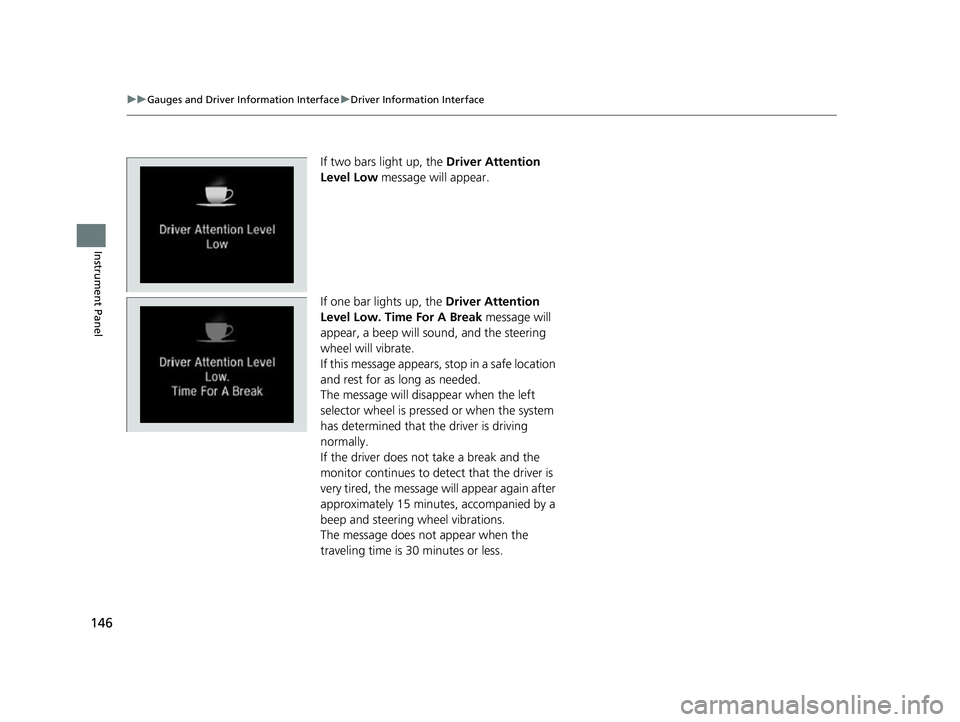
If two bars light up, the Driver Attention
Level Low message will appear.
If one bar lights up, the Driver Attention
Level Low. Time For A Break message will
appear, a beep will sound, and the steering
wheel will vibrate.
If this message appears, stop in a safe location
and rest for as long as needed.
The message will disappear when the left
selector wheel is pressed or when the system
has determined that the driver is driving
normally.
If the driver does not take a break and the
monitor continues to dete ct that the driver is
very tired, the message will appear again after
approximately 15 minutes, accompanied by a
beep and steering wheel vibrations.
The message does not appear when the
traveling time is 30 minutes or less.
22 INSIGHT HMIN-31TXM6300.book 146 ページ 2021年2月24日 水曜日 午後3時45分
Page 150 of 609
Continued149
uuGauges and Driver Information Interface uDriver Information Interface
Instrument Panel
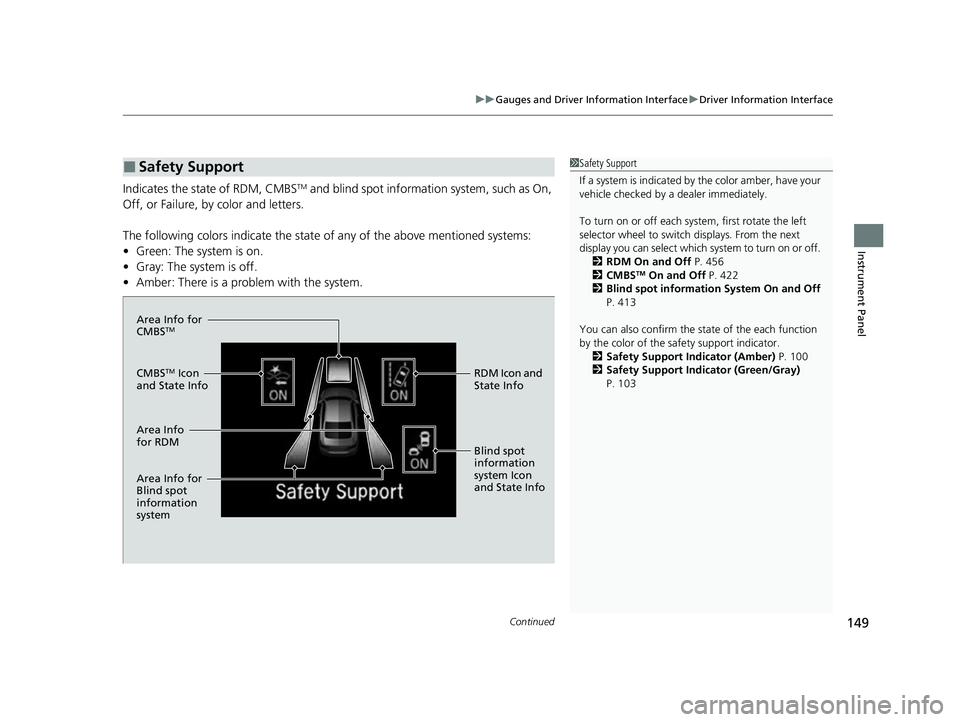
Indicates the state of RDM, CMBSTM and blind spot information system, such as On,
Off, or Failure, by color and letters.
The following colors indica te the state of any of the above mentioned systems:
• Green: The system is on.
• Gray: The system is off.
• Amber: There is a problem with the system.
■Safety Support1Safety Support
If a system is indicated by the color amber, have your
vehicle checked by a dealer immediately.
To turn on or off each system, first rotate the left
selector wheel to switch displays. From the next
display you can select which system to turn on or off. 2 RDM On and Off P. 456
2 CMBS
TM On and Off P. 422
2 Blind spot information System On and Off
P. 413
You can also confirm the st ate of the each function
by the color of the sa fety support indicator.
2 Safety Support Indicator (Amber) P. 100
2 Safety Support Indicator (Green/Gray)
P. 103
Area Info for
CMBSTM
CMBSTM Icon
and State Info RDM Icon and
State Info
Area Info
for RDM
Area Info for
Blind spot
information
system
Blind spot
information
system Icon
and State Info
22 INSIGHT HMIN-31TXM6300.book 149 ページ 2021年2月24日 水曜日 午後3時45分
Page 152 of 609
Continued151
uuGauges and Driver Information Interface uDriver Information Interface
Instrument Panel
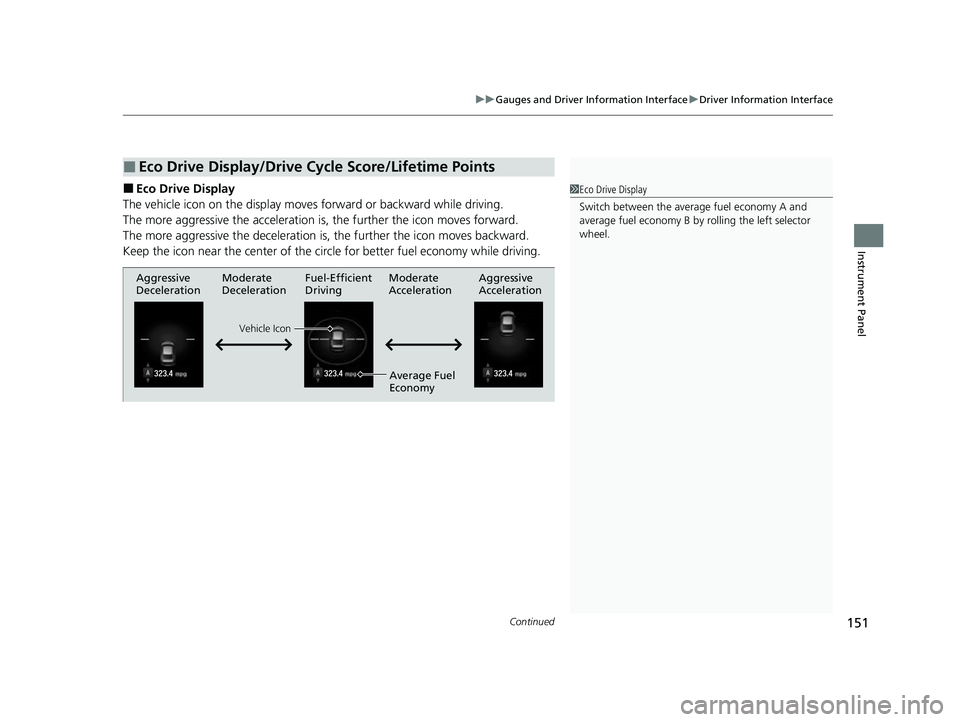
■Eco Drive Display
The vehicle icon on the display moves forward or backward while driving.
The more aggressive the acceleration is , the further the icon moves forward.
The more aggressive the deceleration is , the further the icon moves backward.
Keep the icon near the cent er of the circle for better fuel economy while driving.
■Eco Drive Display/Drive Cycle Score/Lifetime Points
1Eco Drive Display
Switch between the average fuel economy A and
average fuel economy B by ro lling the left selector
wheel.
Aggressive
Deceleration Fuel-Efficient
Driving Aggressive
Acceleration
Moderate
Deceleration Moderate
Acceleration
Average Fuel
Economy
Vehicle Icon
22 INSIGHT HMIN-31TXM6300.book 151 ページ 2021年2月24日 水曜日 午後3時45分
Page 154 of 609
153
uuGauges and Driver Information Interface uDriver Information Interface
Instrument Panel
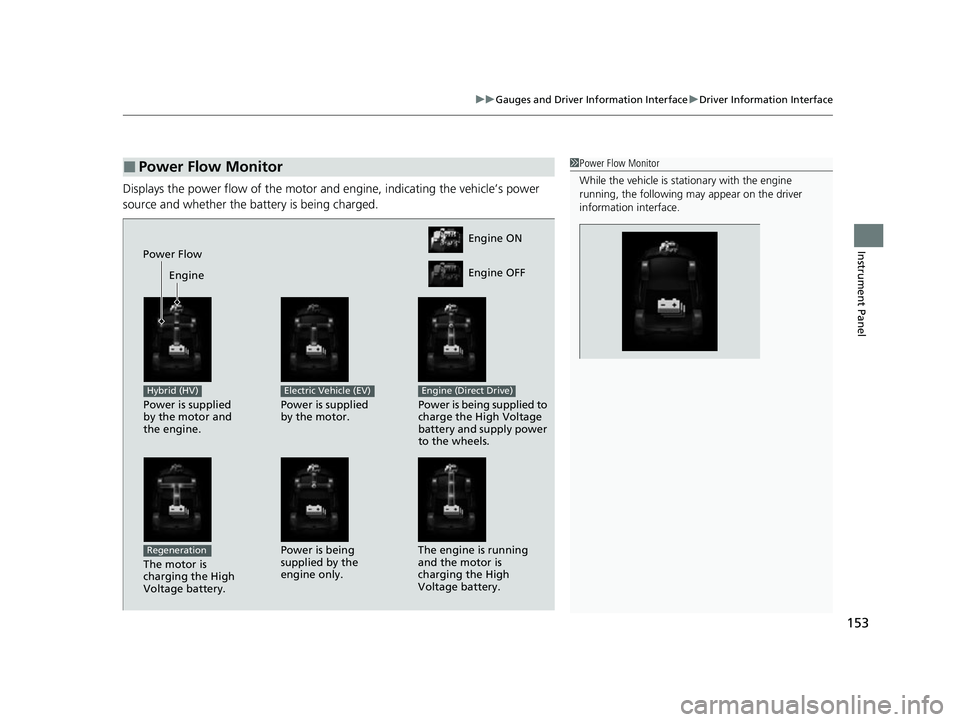
Displays the power flow of the motor an d engine, indicating the vehicle’s power
source and whether the battery is being charged.
■Power Flow Monitor1 Power Flow Monitor
While the vehicle is stat ionary with the engine
running, the following ma y appear on the driver
information interface.
Engine ON
Engine OFF
Power Flow
Engine
Power is supplied
by the motor and
the engine.
Hybrid (HV)
Power is supplied
by the motor.
Electric Vehicle (EV)
Power is being supplied to
charge the High Voltage
battery and supply power
to the wheels.
Engine (Direct Drive)
The motor is
charging the High
Voltage battery.
RegenerationPower is being
supplied by the
engine only. The engine is running
and the motor is
charging the High
Voltage battery.
22 INSIGHT HMIN-31TXM6300.book 153 ページ 2021年2月24日 水曜日 午後3時45分
Page 156 of 609
155
Controls
This chapter explains how to operate the various controls necessary for driving.
Clock.................................................. 156
Locking and Unlocking the Doors Key .................................................. 157
Low Keyless Remote Signal Strength ... 159
Locking/Unlocking the Doors from the Outside .......................................... 160
Locking/Unlocking the Doors from the Inside ............................................. 167
Childproof Door Locks ..................... 169
Auto Door Locking/Unlocking .......... 170
Opening and Closing the Trunk ....... 171
Security System
Immobilizer System .......................... 174 Security System Alarm...................... 175
Opening and Closing the Windows ... 177
Moonroof*................................................ 180Operating the Switches Around the
Steering Wheel POWER Button................................. 181
Turn Signals ..................................... 184
Light Switches.................................. 185
Fog Lights
*...................................... 188
Daytime Running Lights ................... 188
Auto High-Beam .............................. 189
Wipers and Washers ........................ 192
Rear Defogger/Heated Door Mirror Button ........................................ 194
Brightness Control ........................... 195
Adjusting the Steering Wheel .......... 196
Adjusting the Mirrors Interior Rearview Mirror ................... 197
Power Door Mirrors ......................... 198
Adjusting the Seats .......................... 199
Interior Lights/Interior Convenience
Items ................................................ 207
Climate Control System Using Automatic Climate Control .... 216
Automatic Climate Control Sensors ... 222
* Not available on all models
22 INSIGHT HMIN-31TXM6300.book 155 ページ 2021年2月24日 水曜日 午後3時45分