bluetooth HONDA ODYSSEY 2019 (in English) Owner's Guide
[x] Cancel search | Manufacturer: HONDA, Model Year: 2019, Model line: ODYSSEY, Model: HONDA ODYSSEY 2019Pages: 767, PDF Size: 47.46 MB
Page 358 of 767
356
uuAudio System Basic Operation uNear Field Communication (NFC)*
Features
Near Field Comm unication (NFC)*
Near Field Communication (NFC) allows you to connect your phone to the audio
system easily via Bluetooth®.
NFC enables two devices to communicate in close proximity, within about 2 inch (40
mm).
The following features are available:
• Bluetooth ® setup
• Image transfer for wallpaper
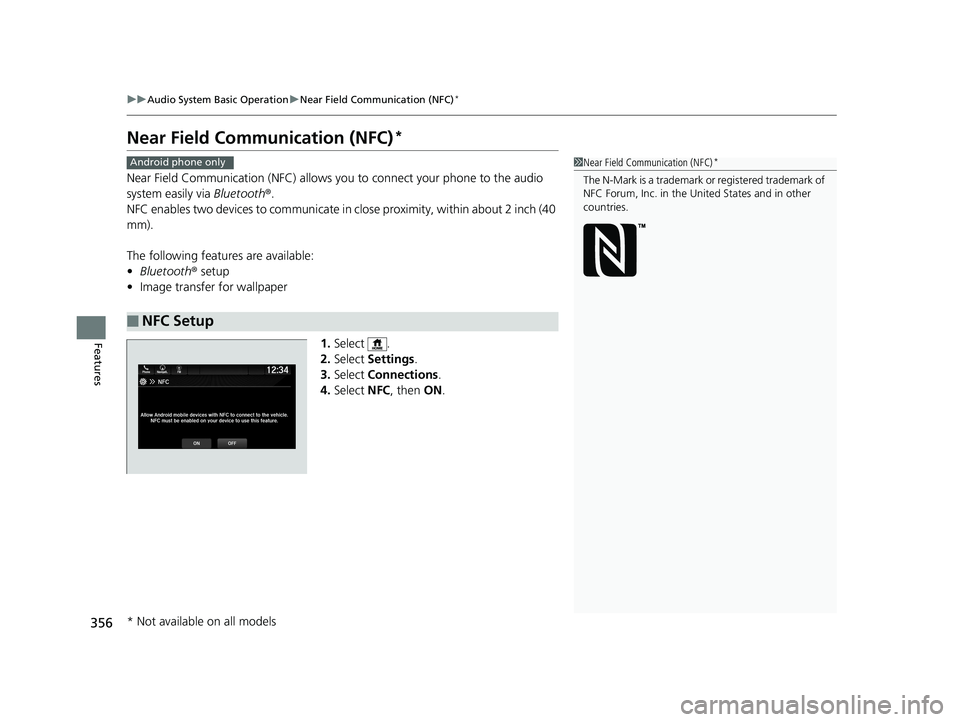
1.Select .
2. Select Settings .
3. Select Connections .
4. Select NFC, then ON.
■NFC Setup
1Near Field Communication (NFC)*
The N-Mark is a trademark or registered trademark of
NFC Forum, Inc. in the United States and in other
countries.
Android phone only
* Not available on all models
19 ODYSSEY-31THR6120.book 356 ページ 2018年12月6日 木曜日 午後4時35分
Page 359 of 767
357
uuAudio System Basic Operation uNear Field Communication (NFC)*
Continued
Features
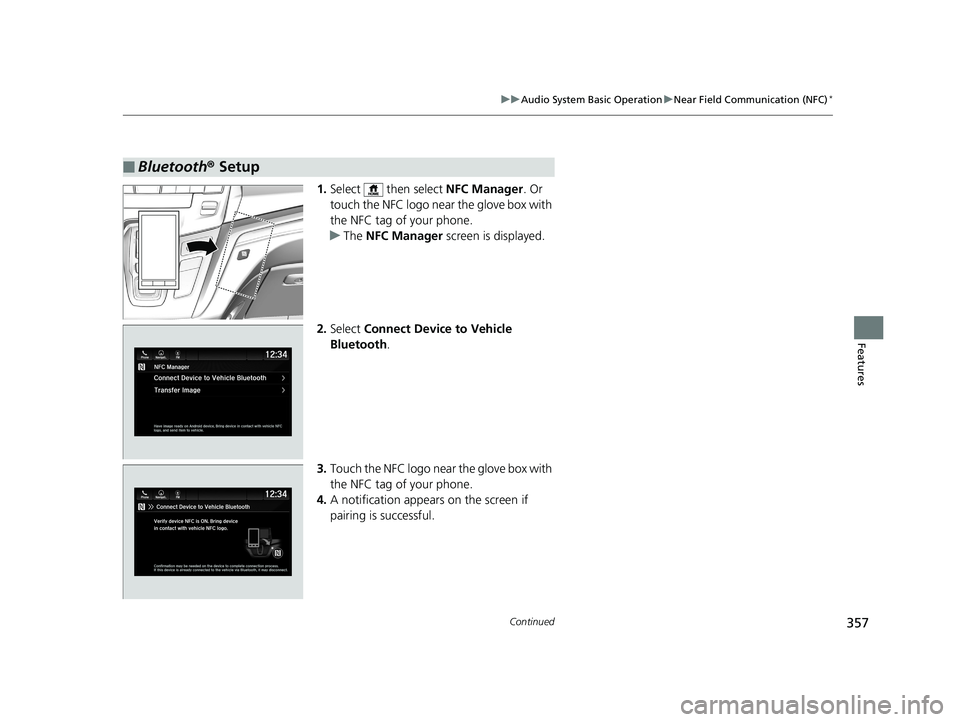
1. Select then select NFC Manager. Or
touch the NFC logo near the glove box with
the NFC tag of your phone.
u The NFC Manager screen is displayed.
2. Select Connect Device to Vehicle
Bluetooth .
3. Touch the NFC logo near the glove box with
the NFC tag of your phone.
4. A notification appears on the screen if
pairing is successful.
■Bluetooth ® Setup
19 ODYSSEY-31THR6120.book 357 ページ 2018年12月6日 木曜日 午後4時35分
Page 361 of 767
359
uuAudio System Basic Operation uSiri Eyes Free
Features
Siri Eyes Free
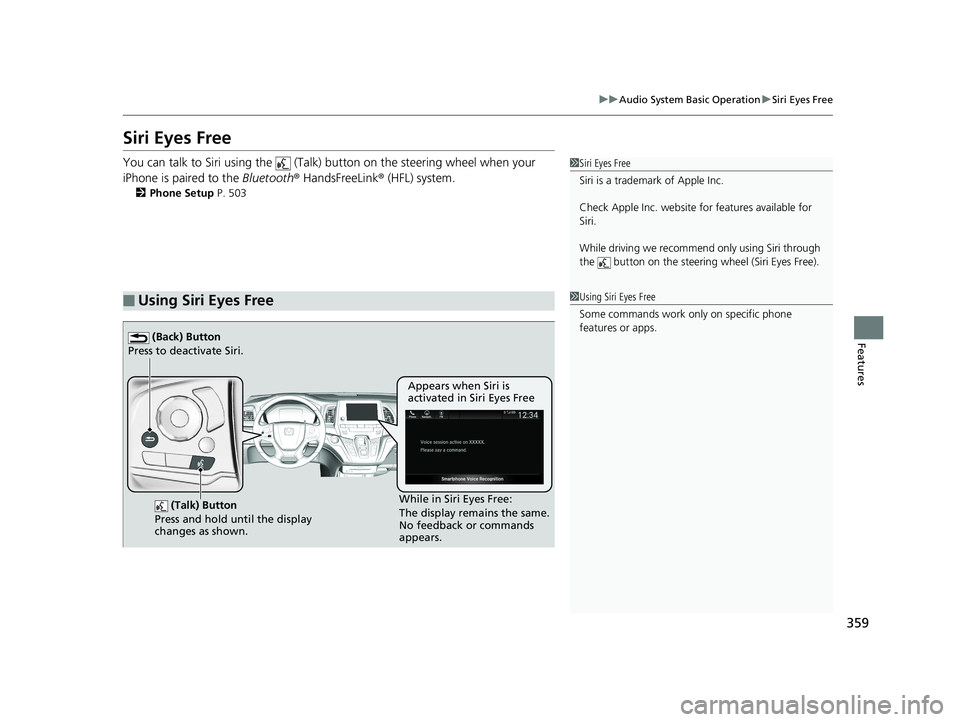
You can talk to Siri using the (Talk) button on the steering wheel when your
iPhone is paired to the Bluetooth® HandsFreeLink ® (HFL) system.
2Phone Setup P. 503
■Using Siri Eyes Free
1Siri Eyes Free
Siri is a trademark of Apple Inc.
Check Apple Inc. website for features available for
Siri.
While driving we recomme nd only using Siri through
the button on the steering wheel (Siri Eyes Free).
1Using Siri Eyes Free
Some commands work only on specific phone
features or apps.
(Talk) Button
Press and hold until the display
changes as shown.
(Back) Button
Press to deactivate Siri.
While in Siri Eyes Free:
The display remains the same.
No feedback or commands
appears. Appears when Siri is
activated in Siri Eyes Free
19 ODYSSEY-31THR6120.book 359 ページ 2018年12月6日 木曜日 午後4時35分
Page 362 of 767
360
uuAudio System Basic Operation uApple CarPlay
Features
Apple CarPlay
If you connect an Apple CarPlay-compatible iPhone to the system via the front USB
port, you can use the audio/information scr een, instead of the iPhone display, to
make a phone call, listen to music, view maps (navigation), and access messages.
2USB Ports P. 261
■Phone
Access the contact list, make phone calls, or listen to voice mail.
■Messages
Check and reply to text messages, or have messages read to you.
■Music
Play music stored on your iPhone.
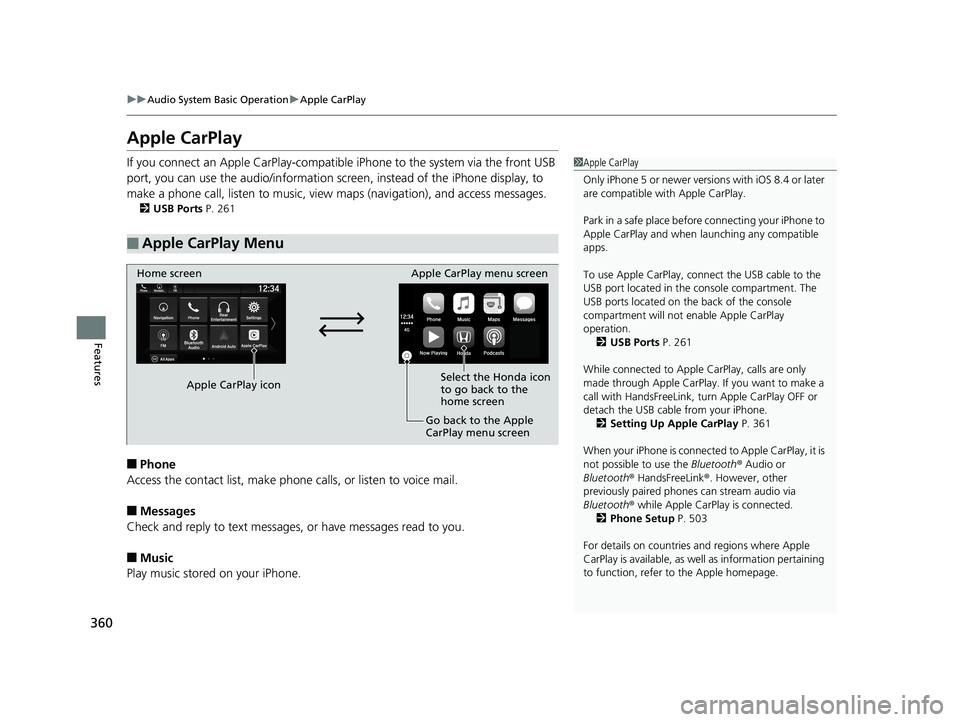
■Apple CarPlay Menu
1Apple CarPlay
Only iPhone 5 or newer versi ons with iOS 8.4 or later
are compatible with Apple CarPlay.
Park in a safe place before connecting your iPhone to
Apple CarPlay and when launching any compatible
apps.
To use Apple CarPlay, connect the USB cable to the
USB port located in the console compartment. The
USB ports located on the back of the console
compartment will not enable Apple CarPlay
operation. 2 USB Ports P. 261
While connected to Apple CarPlay, calls are only
made through Apple CarPlay. If you want to make a
call with HandsFreeLink, tu rn Apple CarPlay OFF or
detach the USB cable from your iPhone. 2 Setting Up Apple CarPlay P. 361
When your iPhone is connected to Apple CarPlay, it is
not possible to use the Bluetooth® Audio or
Bluetooth ® HandsFreeLink ®. However, other
previously paired phones can stream audio via
Bluetooth ® while Apple CarPlay is connected.
2 Phone Setup P. 503
For details on c ountries and regions where Apple
CarPlay is available, as well as information pertaining
to function, refer to the Apple homepage.
Home screen
Apple CarPlay icon Apple CarPlay menu screen
Go back to the Apple
CarPlay menu screen
Select the Honda icon
to go back to the
home screen
19 ODYSSEY-31THR6120.book 360 ページ 2018年12月6日 木曜日 午後4時35分
Page 365 of 767
363
uuAudio System Basic Operation uAndroid Auto
Continued
Features
Android Auto
When you connect an Android phone to the audio system via the front USB port,
Android Auto is automatically initiated. When connected via Android Auto, you can
use the audio/information screen to access the Phone, Google Maps (Navigation),
Google Play Music, and Google Now functions. When you first use Android Auto, a
tutorial will appear on the screen.
We recommend that you comple te this tutorial while safely parked before using
Android Auto.
2 USB Ports P. 261
2 Auto Pairing Connection P. 365
1Android Auto
To use Android Auto, you need to download the
Android Auto app from Google Play to your
smartphone.
Only Android 5.0 (Lollipop) or later versions are
compatible with Android Auto.
Bluetooth A2DP cannot be used with Android Auto
phone.
Park in a safe place befo re connecting your Android
phone to Android Auto and when launching any
compatible apps.
To use Android Auto, connect the USB cable to the
USB port located in the console compartment. The
USB ports located on the back of the console
compartment will not enable Android Auto
operation.
2 USB Ports P. 261
To directly access the Android Auto phone function,
press Phone on the home screen.
2 Auto Pairing Connection P. 365
When your Android phone is connected to Android
Auto, it is not possible to use the Bluetooth® Audio.
However, other previously paired phones can stream
audio via Bluetooth ® while Android Auto is
connected.
2 Phone Setup P. 503
19 ODYSSEY-31THR6120.book 363 ページ 2018年12月6日 木曜日 午後4時35分
Page 394 of 767
392
uuGeneral Information on the Audio System uLicense Information*
Features
The Bluetooth ® word mark and logos are registered trademarks owned by Bluetooth
SIG, Inc. and any use of such marks by DENSO CORPORATION is under license.
Other trademarks and trade names are those of their respective owners.
This product is protected by certain intelle ctual property rights of Microsoft. Use or
distribution of such technology outside of this product is prohibited without a
license from Microsoft.
■Bluetooth
■Windows Media
19 ODYSSEY-31THR6120.book 392 ページ 2018年12月6日 木曜日 午後4時35分
Page 448 of 767
446
uuCustomized Features u
Features
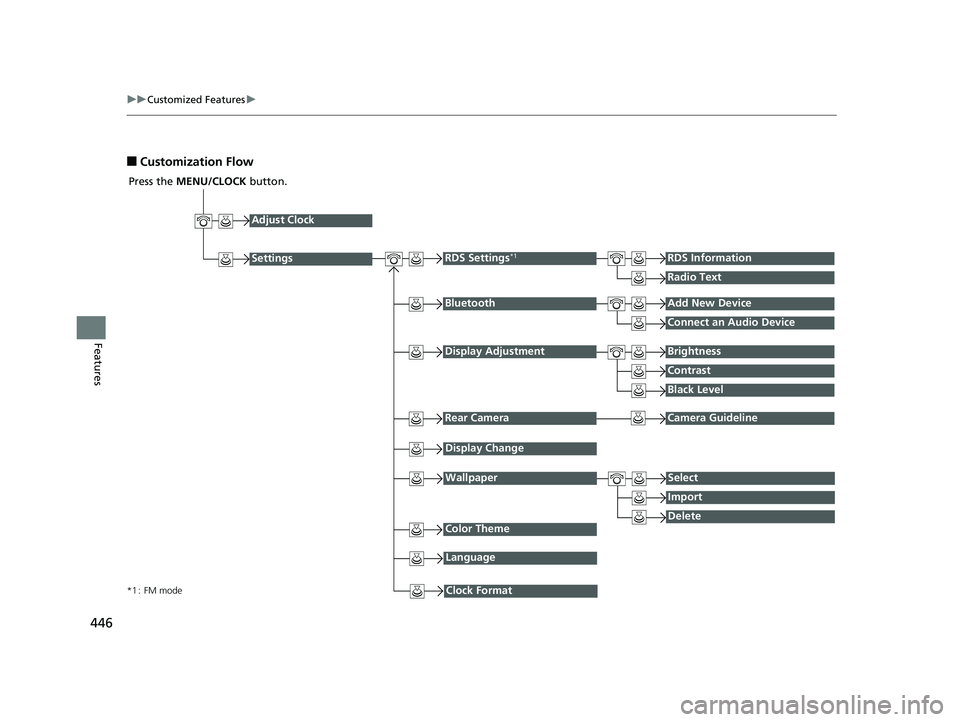
■Customization Flow
Press the MENU/CLOCK button.
Adjust Clock
BluetoothAdd New Device
Connect an Audio Device
Display AdjustmentBrightness
Contrast
Black Level
Rear CameraCamera Guideline
RDS Settings*1RDS Information
Radio Text
Display Change
WallpaperSelect
Import
DeleteColor Theme
Language
Clock Format*1 : FM mode
Settings
19 ODYSSEY-31THR6120.book 446 ページ 2018年12月6日 木曜日 午後4時35分
Page 449 of 767
447
uuCustomized Features u
Continued
Features
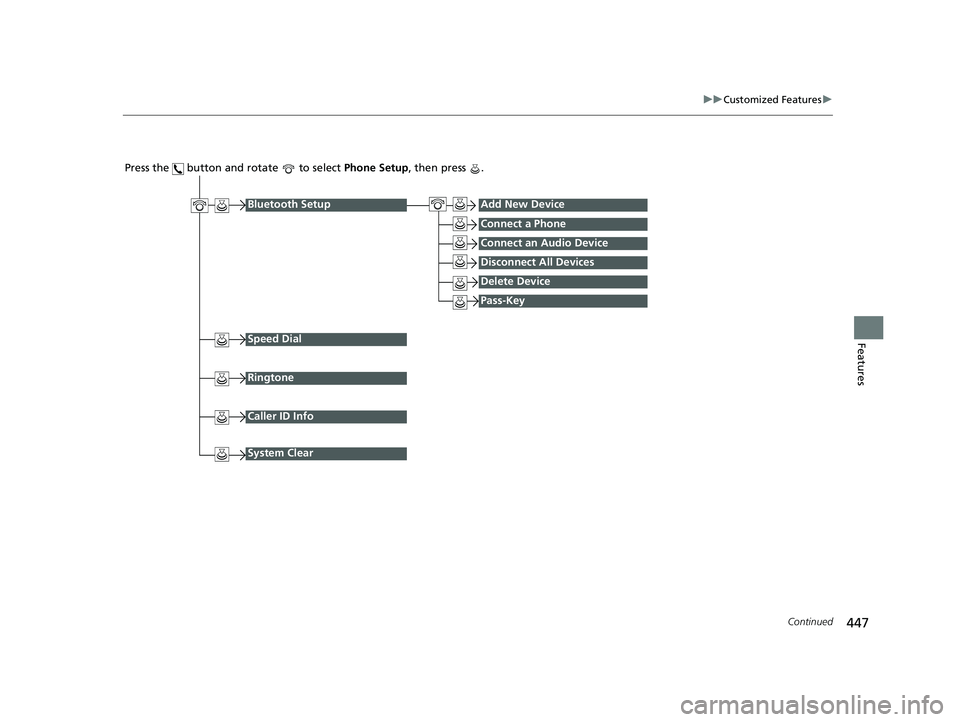
Press the button and rotate to select Phone Setup, then press .
Ringtone
Bluetooth SetupAdd New Device
Connect a Phone
Connect an Audio Device
Disconnect All Devices
Delete Device
Pass-Key
Speed Dial
Caller ID Info
System Clear
19 ODYSSEY-31THR6120.book 447 ページ 2018年12月6日 木曜日 午後4時35分
Page 450 of 767
448
uuCustomized Features u
Features
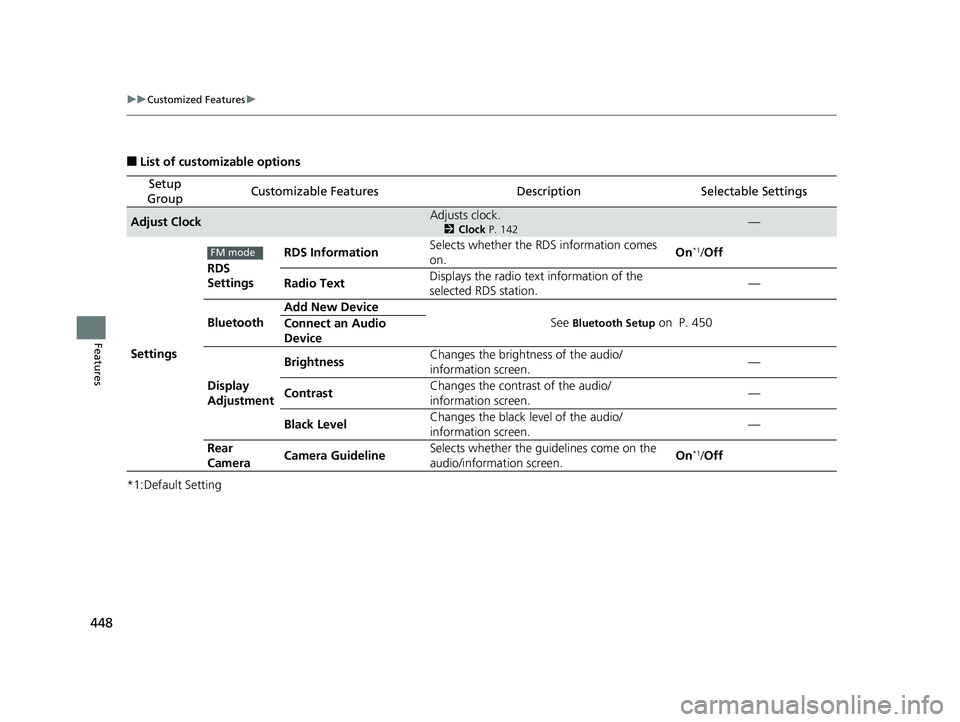
■List of customizable options
*1:Default Setting
Setup
GroupCustomizable FeaturesDescriptionSelectable Settings
Adjust ClockAdjusts clock.
2 Clock P. 142—
Settings RDS
Settings
RDS Information
Selects whether the RDS information comes
on. On
*1/
Off
Radio Text Displays the radio text information of the
selected RDS station. —
Bluetooth Add New Device
See
Bluetooth Setup on P. 450
Connect an Audio
Device
Display
Adjustment Brightness
Changes the brightness of the audio/
information screen. —
Contrast Changes the contrast of the audio/
information screen. —
Black Level Changes the black level of the audio/
information screen.
—
Rear
Camera Camera Guideline Selects whether the guidelines come on the
audio/information screen. On
*1/
Off
FM mode
19 ODYSSEY-31THR6120.book 448 ページ 2018年12月6日 木曜日 午後4時35分
Page 452 of 767
450
uuCustomized Features u
Features
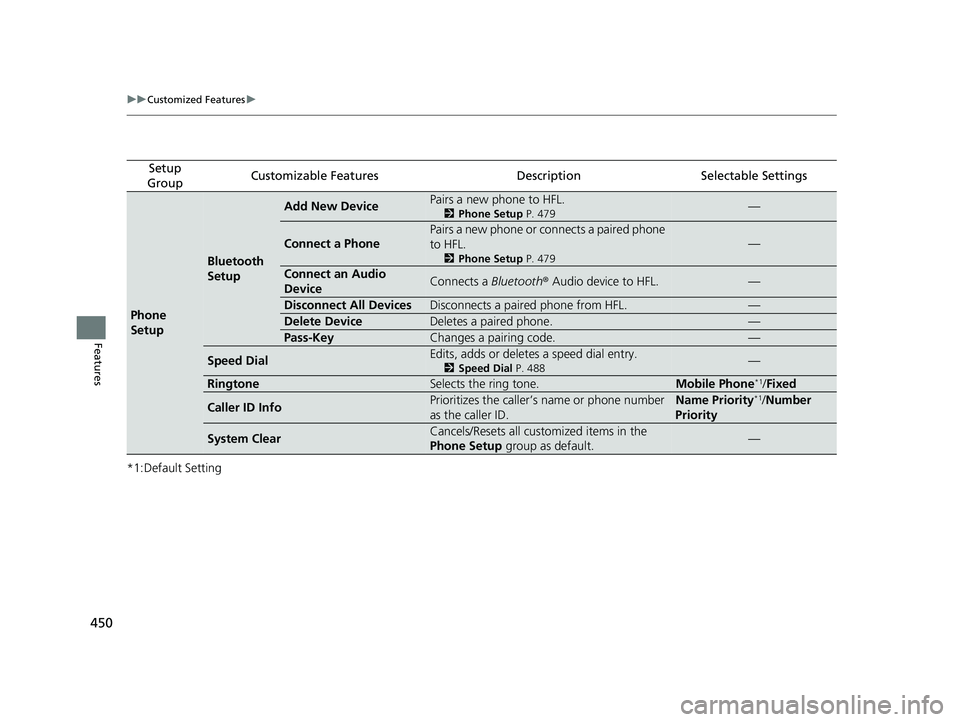
*1:Default Setting
Setup
GroupCustomizable FeaturesDescriptionSelectable Settings
Phone
Setup
Bluetooth
Setup
Add New DevicePairs a new phone to HFL.
2 Phone Setup P. 479—
Connect a Phone
Pairs a new phone or connects a paired phone
to HFL.
2Phone Setup P. 479
—
Connect an Audio
DeviceConnects a Bluetooth® Audio device to HFL.—
Disconnect All DevicesDisconnects a paired phone from HFL.—
Delete DeviceDeletes a paired phone.—
Pass-KeyChanges a pairing code.—
Speed DialEdits, adds or deletes a speed dial entry.
2Speed Dial P. 488—
RingtoneSelects the ring tone.Mobile Phone*1/Fixed
Caller ID InfoPrioritizes the caller’s name or phone number
as the caller ID.Name Priority*1/Number
Priority
System ClearCancels/Resets all customized items in the
Phone Setup group as default.—
19 ODYSSEY-31THR6120.book 450 ページ 2018年12月6日 木曜日 午後4時35分