USB port HONDA ODYSSEY 2021 (in English) Owner's Guide
[x] Cancel search | Manufacturer: HONDA, Model Year: 2021, Model line: ODYSSEY, Model: HONDA ODYSSEY 2021Pages: 787, PDF Size: 48.31 MB
Page 377 of 787
375
uuAudio System Basic Operation uApple CarPlay
Continued
Features
Apple CarPlay
If you connect an Apple CarPlay-compatible iPhone to the system via the USB port,
you can use the audio/information screen, in stead of the iPhone display, to make a
phone call, listen to music, view maps (navigation), and access messages.
2USB Ports P. 277
■Phone
Access the contact list, make phone ca lls, or listen to voice mail.
■Messages
Check and reply to text messages, or have messages read to you.
■Music
Play music stored on your iPhone.
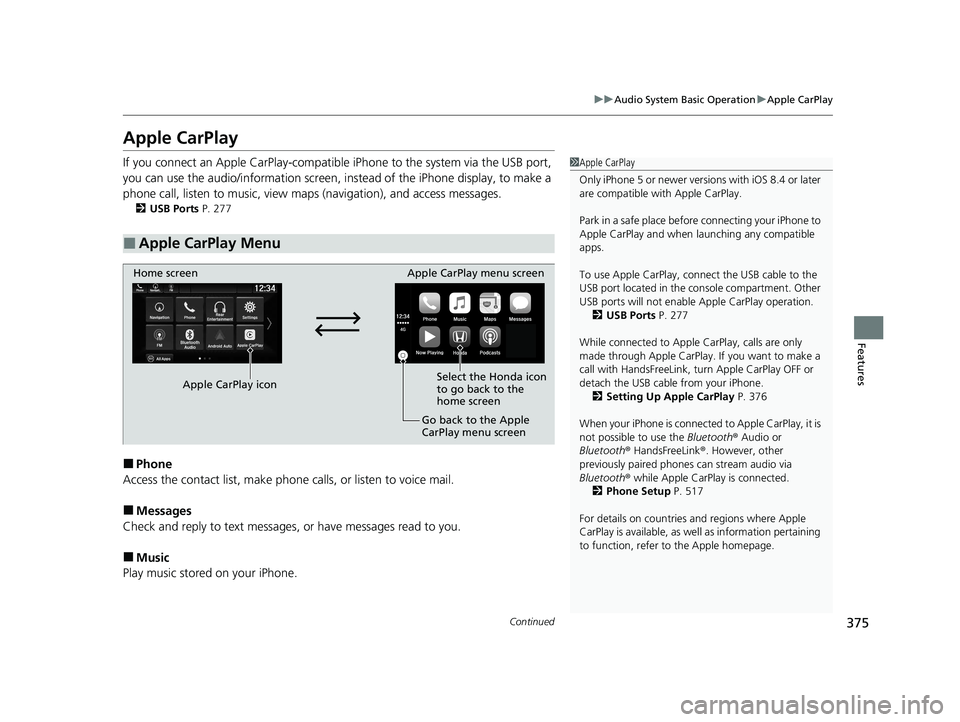
■Apple CarPlay Menu
1 Apple CarPlay
Only iPhone 5 or newer versi ons with iOS 8.4 or later
are compatible with Apple CarPlay.
Park in a safe place before connecting your iPhone to
Apple CarPlay and when launching any compatible
apps.
To use Apple CarPlay, connect the USB cable to the
USB port located in the co nsole compartment. Other
USB ports will not enable Apple CarPlay operation.
2 USB Ports P. 277
While connected to Apple CarPlay, calls are only
made through Apple CarPlay. If you want to make a
call with HandsFreeLink, tu rn Apple CarPlay OFF or
detach the USB cable from your iPhone.
2 Setting Up Apple CarPlay P. 376
When your iPhone is connected to Apple CarPlay, it is
not possible to use the Bluetooth® Audio or
Bluetooth ® HandsFreeLink ®. However, other
previously paired phones can stream audio via
Bluetooth ® while Apple CarPlay is connected.
2 Phone Setup P. 517
For details on c ountries and regions where Apple
CarPlay is available, as well as information pertaining
to function, refer to the Apple homepage.
Home screen
Apple CarPlay icon Apple CarPlay menu screen
Go back to the Apple
CarPlay menu screen
Select the Honda icon
to go back to the
home screen
21 US ODYSSEY-31THR6310.book 375 ページ 2020年6月17日 水曜日 午後2時46分
Page 378 of 787
uuAudio System Basic Operation uApple CarPlay
376
Features
■Maps
Display Apple Maps and use the navigation function just as you would on your
iPhone.
Only one navigation system (pre-installed navigation or Apple CarPlay) can give
directions at a time. When you are using one system, directions to any prior
destination set on the other system will be canceled, and the system you are
currently using will direct you to your destination.
After you have connected your iPhone to the system via the USB port, use the
following procedure to set up Apple CarPlay. Use of Apple CarPlay will result in the
transmission of certain user and vehicle information (such as vehicle location, speed,
and status) to your iPhone to enhance th e Apple CarPlay experience. You will need
to consent to the sharing of this information on the audio/information screen.
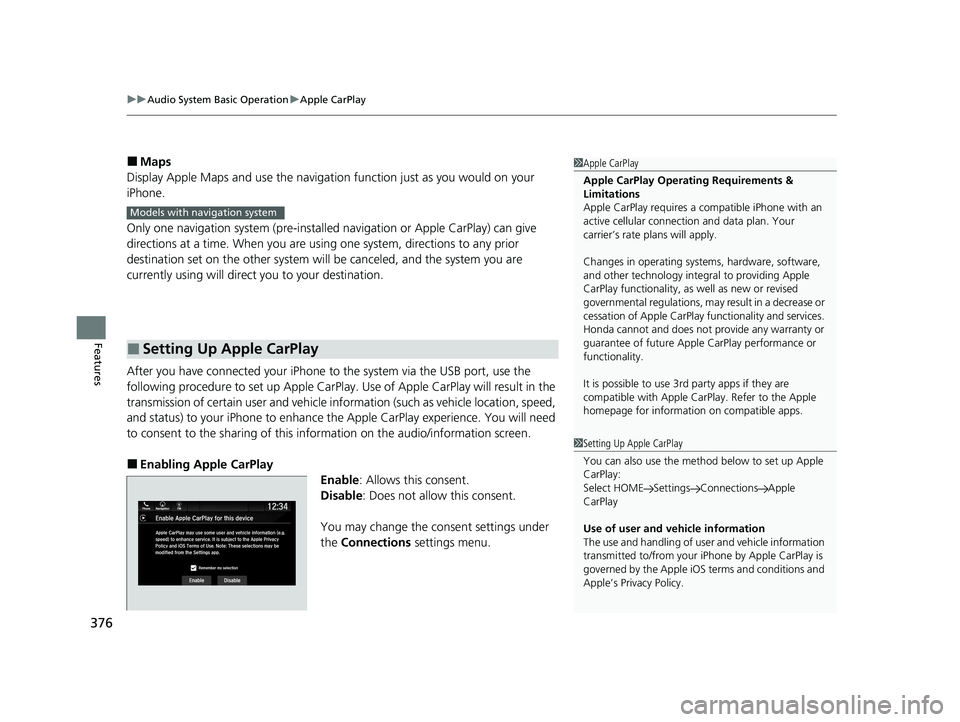
■Enabling Apple CarPlay
Enable: Allows this consent.
Disable : Does not allo w this consent.
You may change the consent settings under
the Connections settings menu.
■Setting Up Apple CarPlay
1Apple CarPlay
Apple CarPlay Operating Requirements &
Limitations
Apple CarPlay requi res a compatible iPhone with an
active cellular connecti on and data plan. Your
carrier’s rate plans will apply.
Changes in operating systems, hardware, software,
and other technology integral to providing Apple
CarPlay functionality, as well as new or revised
governmental regulations, may result in a decrease or
cessation of Apple CarPlay functionality and services.
Honda cannot and does not pr ovide any warranty or
guarantee of future Appl e CarPlay performance or
functionality.
It is possible to use 3r d party apps if they are
compatible with Apple CarPlay. Refer to the Apple
homepage for information on compatible apps.
Models with navigation system
1 Setting Up Apple CarPlay
You can also use the method below to set up Apple
CarPlay:
Select HOME Settings Connections Apple
CarPlay
Use of user and vehicle information
The use and handling of user and vehicle information
transmitted to/from your iP hone by Apple CarPlay is
governed by the Apple iOS terms and conditions and
Apple’s Privacy Policy.
21 US ODYSSEY-31THR6310.book 376 ページ 2020年6月17日 水曜日 午後2時46分
Page 380 of 787
378
uuAudio System Basic Operation uAndroid Auto
Features
Android Auto
When you connect an Android phone to the audio system via the USB port, Android
Auto is automatically initia ted. When connected via Android Auto, you can use the
audio/information screen to access the Phone, Google Maps (Navigation), Google
Play Music, and Google Now functions. When you first use Android Auto, a tutorial
will appear on the screen.
We recommend that you complete this tuto rial while safely parked before using
Android Auto.
2 USB Ports P. 277
2 Auto Pairing Connection P. 380
1Android Auto
To use Android Auto, you need to download the
Android Auto app from Google Play to your
smartphone.
Only Android 5.0 (Lollipop) or later versions are
compatible with Android Auto.
Bluetooth A2DP cannot be used while your phone is
connected to Android Auto.
Park in a safe place befo re connecting your Android
phone to Android Auto and when launching any
compatible apps.
To use Android Auto, connect the USB cable to the
USB port located in the co nsole compartment. Other
USB ports will not enable Android Auto operation.
2 USB Ports P. 277
To directly access the Android Auto phone function,
press Phone on the home screen.
2 Auto Pairing Connection P. 380
When your Android phone is connected to Android
Auto, it is not possible to use the Bluetooth® Audio.
However, other previously paired phones can stream
audio via Bluetooth ® while Android Auto is
connected. 2 Phone Setup P. 517
21 US ODYSSEY-31THR6310.book 378 ページ 2020年6月17日 水曜日 午後2時46分
Page 382 of 787
uuAudio System Basic Operation uAndroid Auto
380
Features
d Music and audio
Play Google Play Music and music apps that are compatible with Android Auto.
To switch between music apps, press this icon.
e Go back to the Home Screen.
f Voice
Operate Android Auto with your voice.
When you connect an Android phone to the unit via the USB port, Android Auto is
automatically initiated.
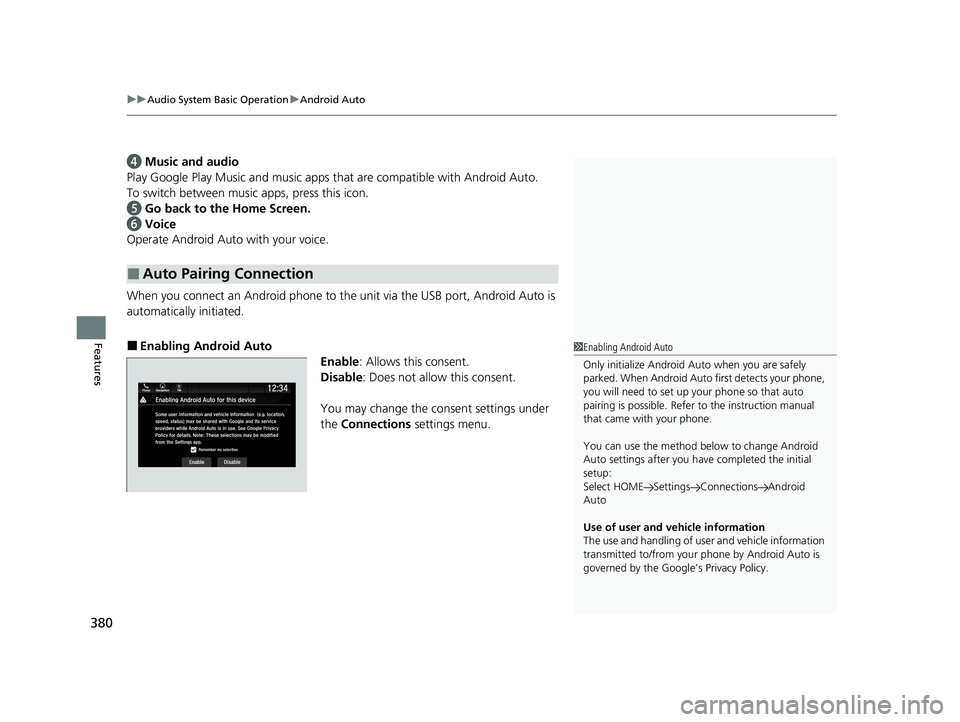
■Enabling Android Auto Enable: Allows this consent.
Disable : Does not allo w this consent.
You may change the consent settings under
the Connections settings menu.
■Auto Pairing Connection
1Enabling Android Auto
Only initialize Android Auto when you are safely
parked. When Android Auto first detects your phone,
you will need to set up your phone so that auto
pairing is possibl e. Refer to the instruction manual
that came with your phone.
You can use the method below to change Android
Auto settings after you ha ve completed the initial
setup:
Select HOME Settings Connections Android
Auto
Use of user and vehicle information
The use and handling of user and vehicle information
transmitted to/from your phone by Android Auto is
governed by the Google’s Privacy Policy.
21 US ODYSSEY-31THR6310.book 380 ページ 2020年6月17日 水曜日 午後2時46分
Page 386 of 787
384
uuAudio Error Messages uiPod/USB Flash Drive
Features
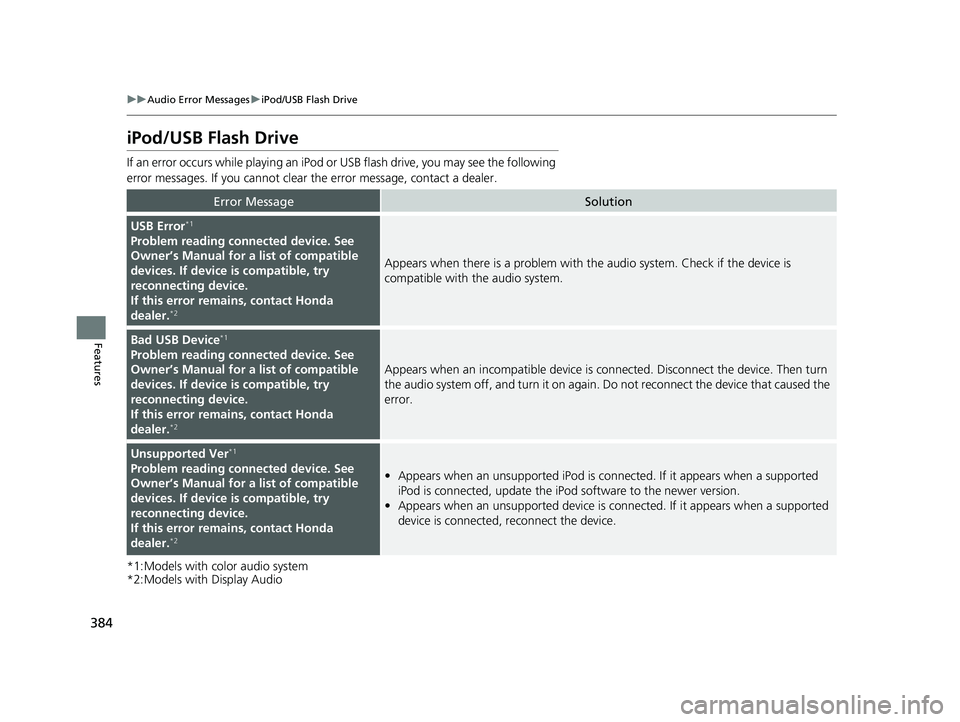
iPod/USB Flash Drive
If an error occurs while playing an iPod or USB flash drive, you may see the following
error messages. If you cannot clear the error message, contact a dealer.
*1:Models with color audio system
*2:Models with Display Audio
Error MessageSolution
USB Error*1
Problem reading connected device. See
Owner’s Manual for a list of compatible
devices. If device is compatible, try
reconnecting device.
If this error rema ins, contact Honda
dealer.
*2
Appears when there is a problem with th e audio system. Check if the device is
compatible with the audio system.
Bad USB Device*1
Problem reading connected device. See
Owner’s Manual for a list of compatible
devices. If device is compatible, try
reconnecting device.
If this error rema ins, contact Honda
dealer.
*2
Appears when an incompatible device is connected. Disconnect the device. Then turn
the audio system off, and turn it on again. Do not reconnect the device that caused the
error.
Unsupported Ver*1
Problem reading connected device. See
Owner’s Manual for a list of compatible
devices. If device is compatible, try
reconnecting device.
If this error rema ins, contact Honda
dealer.
*2
• Appears when an unsupported iPod is connected. If it appears when a supported
iPod is connected, update the iP od software to the newer version.
• Appears when an unsupported device is connected. If it appears when a supported
device is connected, reconnect the device.
21 US ODYSSEY-31THR6310.book 384 ページ 2020年6月17日 水曜日 午後2時46分
Page 387 of 787
385
uuAudio Error Messages uiPod/USB Flash Drive
Features
*1:Models with color audio system
*2:Models with Display Audio
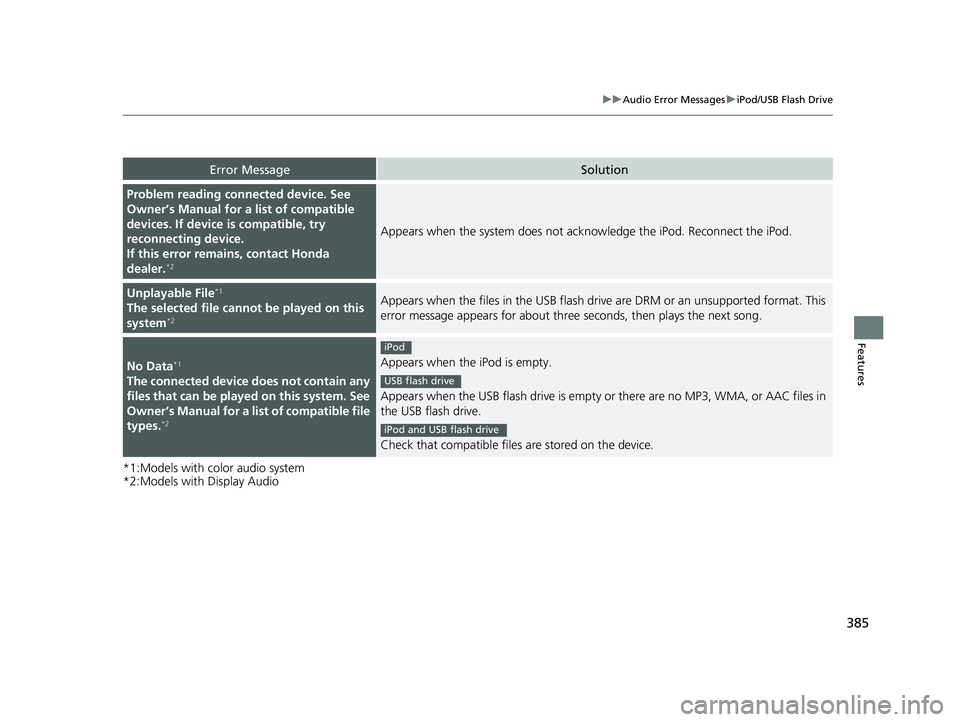
Error MessageSolution
Problem reading connected device. See
Owner’s Manual for a list of compatible
devices. If device is compatible, try
reconnecting device.
If this error remains, contact Honda
dealer.
*2
Appears when the system does not acknowledge the iPod. Reconnect the iPod.
Unplayable File*1
The selected file cannot be played on this
system*2
Appears when the files in the USB flash driv e are DRM or an unsupported format. This
error message appears for about three seconds, then plays the next song.
No Data*1
The connected device does not contain any
files that can be played on this system. See
Owner’s Manual for a list of compatible file
types.
*2
Appears when the iPod is empty.
Appears when the USB flash drive is empty or there are no MP3, WMA, or AAC files in
the USB flash drive.
Check that compatible files are stored on the device.
iPod
USB flash drive
iPod and USB flash drive
21 US ODYSSEY-31THR6310.book 385 ページ 2020年6月17日 水曜日 午後2時46分
Page 392 of 787
390
uuGeneral Information on the Audio System uCompatible iPod, iPad, iPhone, and USB Flash Drives
Features
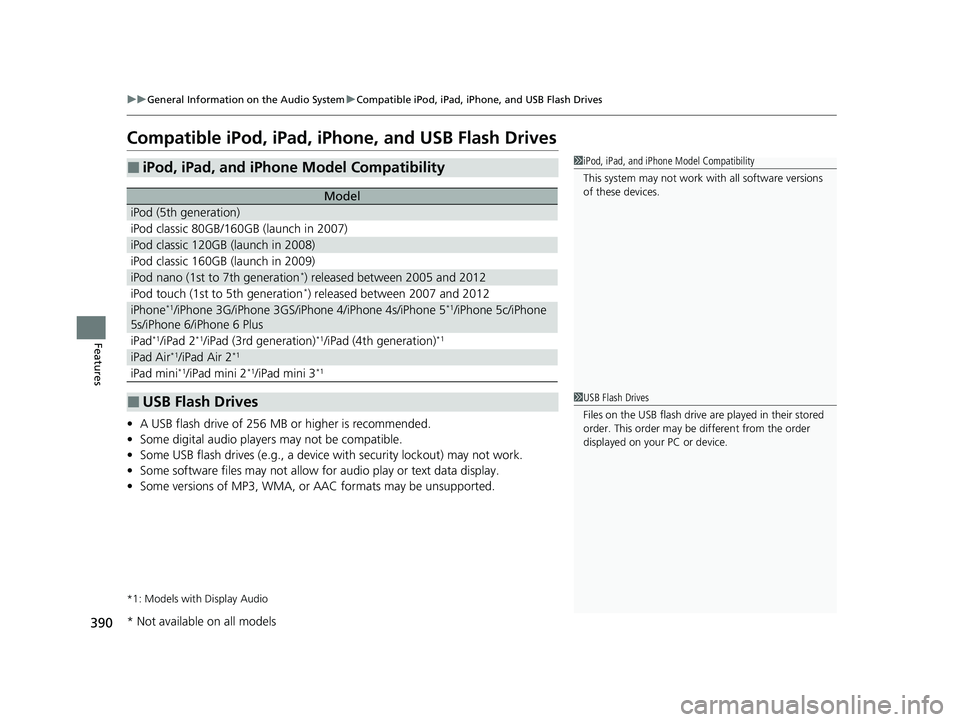
Compatible iPod, iPad, iPhone, and USB Flash Drives
• A USB flash drive of 256 MB or higher is recommended.
• Some digital audio players may not be compatible.
• Some USB flash drives (e.g., a device with security lockout) may not work.
• Some software files may not allow for audio play or text data display.
• Some versions of MP3, WMA, or AAC formats may be unsupported.
*1: Models with Display Audio
■iPod, iPad, and iPhone Model Compatibility
Model
iPod (5th generation)
iPod classic 80GB/160GB (launch in 2007)
iPod classic 120GB (launch in 2008)
iPod classic 160GB (launch in 2009)
iPod nano (1st to 7th generation*) released between 2005 and 2012
iPod touch (1st to 5th generation*) released between 2007 and 2012
iPhone*1/iPhone 3G/iPhone 3GS/iPhone 4/iPhone 4s/iPhone 5*1/iPhone 5c/iPhone
5s/iPhone 6/iPhone 6 Plus
iPad*1/iPad 2*1/iPad (3rd generation)*1/iPad (4th generation)*1
iPad Air*1/iPad Air 2*1
iPad mini*1/iPad mini 2*1/iPad mini 3*1
■USB Flash Drives
1 iPod, iPad, and iPhone Model Compatibility
This system may not work with all software versions
of these devices.
1 USB Flash Drives
Files on the USB flash drive are played in their stored
order. This order may be different from the order
displayed on your PC or device.
* Not available on all models
21 US ODYSSEY-31THR6310.book 390 ページ 2020年6月17日 水曜日 午後2時46分
Page 433 of 787
431
uuBlu-ray/DVD Rear Entertainment System*uPlaying Apps
Features
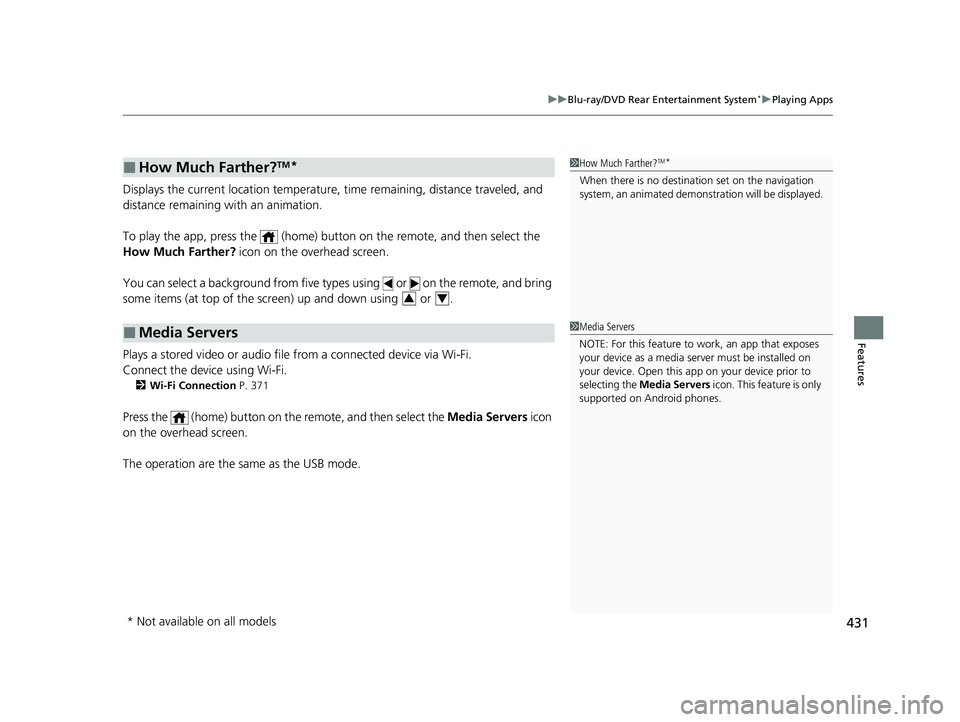
Displays the current location temperature, time remaining, distance traveled, and
distance remaining with an animation.
To play the app, press the (home) bu tton on the remote, and then select the
How Much Farther? icon on the overhead screen.
You can select a background from five ty pes using or on the remote, and bring
some items (at top of the scre en) up and down using or .
Plays a stored video or audio file from a connected device via Wi-Fi.
Connect the device using Wi-Fi.
2 Wi-Fi Connection P. 371
Press the (home) button on the remote, and then select the Media Servers icon
on the overhead screen.
The operation are the same as the USB mode.
■How Much Farther?TM*
■Media Servers
1 How Much Farther?TM*
When there is no destinat ion set on the navigation
system, an animated demons tration will be displayed.
34
1Media Servers
NOTE: For this feature to work, an app that exposes
your device as a media se rver must be installed on
your device. Open this a pp on your device prior to
selecting the Media Servers icon. This feature is only
supported on Android phones.
* Not available on all models
21 US ODYSSEY-31THR6310.book 431 ページ 2020年6月17日 水曜日 午後2時46分
Page 537 of 787
Continued535
uuBluetooth ® HandsFreeLink ®u HFL Menus
Features
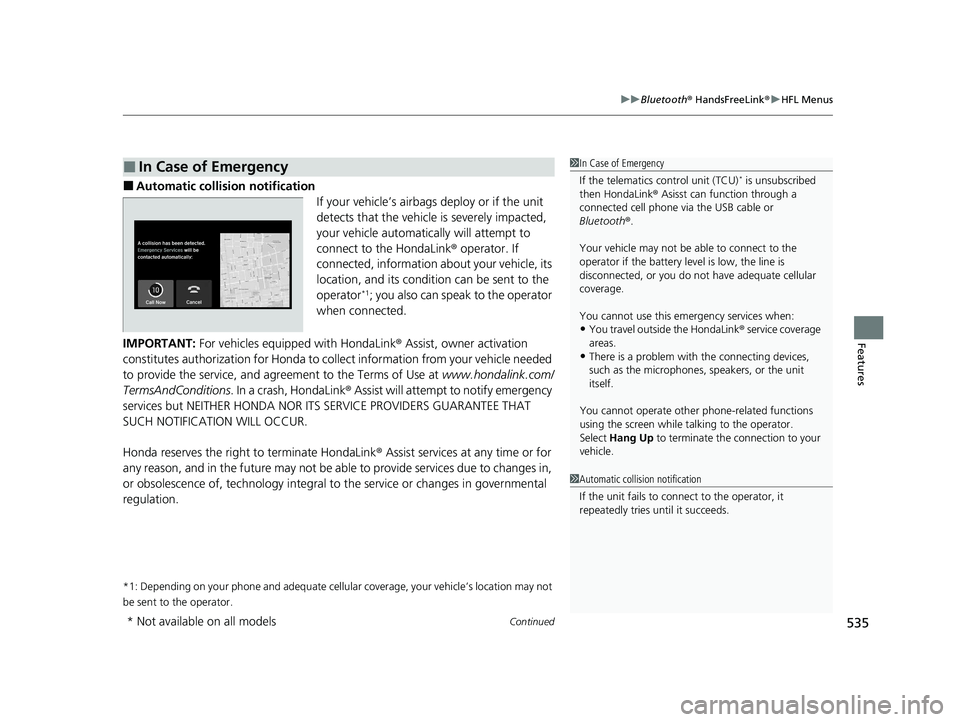
■Automatic collis ion notification
If your vehicle’s airbags deploy or if the unit
detects that the vehicle is severely impacted,
your vehicle automatically will attempt to
connect to the HondaLink ® operator. If
connected, information ab out your vehicle, its
location, and its condition can be sent to the
operator
*1; you also can speak to the operator
when connected.
IMPORTANT: For vehicles equipped with HondaLink ® Assist, owner activation
constitutes authorization for Honda to collect information from your vehicle needed
to provide the service, and agreement to the Terms of Use at www.hondalink.com/
TermsAndConditions . In a crash, HondaLink ® Assist will attempt to notify emergency
services but NEITHER HONDA NOR I TS SERVICE PROVIDERS GUARANTEE THAT
SUCH NOTIFICATION WILL OCCUR.
Honda reserves the right to terminate HondaLink ® Assist services at any time or for
any reason, and in the future may not be ab le to provide services due to changes in,
or obsolescence of, technology integral to the service or changes in governmental
regulation.
*1: Depending on your phone and adequate cellular coverage, your vehicle’s location may not
be sent to the operator.
■In Case of Emergency1 In Case of Emergency
If the telematics control unit (TCU)
* is unsubscribed
then HondaLink ® Asisst can function through a
connected cell phone via the USB cable or
Bluetooth ®.
Your vehicle may not be able to connect to the
operator if the battery level is low, the line is
disconnected, or you do not have adequate cellular
coverage.
You cannot use this emergency services when:
•You travel outside the HondaLink ® service coverage
areas.
•There is a problem with the connecting devices,
such as the microphones, speakers, or the unit
itself.
You cannot operate othe r phone-related functions
using the screen while talking to the operator.
Select Hang Up to terminate the connection to your
vehicle.
1 Automatic collision notification
If the unit fails to connect to the operator, it
repeatedly tries until it succeeds.
* Not available on all models
21 US ODYSSEY-31THR6310.book 535 ページ 2020年6月17日 水曜日 午後2時46分
Page 776 of 787
Index
774
Index
Index
A
ABS (Anti-lock Brake System)................... 646
AC Power Outlet ....................................... 252
Accessories and Modifications ................. 720
Accessory Power Sockets .......................... 250
Adaptive Cruise Control (ACC) with Low Speed Follow ........................................... 602
Additives
Coolant ................................................... 683
Engine Oil ................................................ 678
Washer .................................................... 687
Additives, Engine Oil ................................ 678
Adjusting Armrest ................................................... 238
Front and Second Row Outer and Third Row Outer Head Restraints Positions ...... 235
Front Seats .............................................. 222
Mirrors .................................................... 219
Second Row Seats ................................... 225
Steering Wheel ........................................ 218
Third Row Seats ....................................... 230
Agile Handling Assist ................................ 578
Air Conditioning System (Climate Control System) ............................................ 263, 268
Changing the Mode ........................ 263, 268
Defrosting the Windshield and Windows ....................................... 264, 270
Dust and Pollen Filter ............................... 713
Recirculation/Fresh Air Mode ................... 263
Sensors ............................................ 267, 274
Using Automatic Climate Control .... 263, 268 Air Pressure
....................................... 700, 763
Airbags ........................................................ 49
Advanced Airbags ..................................... 55
Airbag Care............................................... 66
Event Data Recorder .................................... 0
Front Airbags (SRS) .................................... 52
Indicator.............................................. 63, 95
Knee Airbags............................................. 57
Passenger Front Airbag Off Indicator ......... 64
Sensors ..................................................... 49
Side Airbags .............................................. 60
Side Curtain Airbags.................................. 62
AM/FM Radio .................................... 291, 335
Android Auto ........................................... 378
Anti-lock Brake System (ABS) .................. 646
Indicator.................................................... 95
Apple CarPlay ........................................... 375
Armrest ..................................................... 238
AT&T Hotspot ........................................... 373
Audio Remote Controls ........................... 281
Audio System ............................................ 276
Adjusting the Sound........................ 289, 329
Audio/Information Screen................ 285, 303
Auxiliary Input Jack.................................. 279
Display Setup .................................. 290, 330
Error Messages ........................................ 382
File Manager ........................................... 323
General Information ................................ 387
Home Screen........................................... 309
How to Delete a File ................................ 326
How to Transfer a File ............................. 323 How to Update Wirelessly ....................... 317
How to Update with a USB Device .......... 321
Limitations for Manual Operation ............ 331
MP3/WMA/AAC ............. 296, 349, 355, 358
My Honda Music..................................... 358
Playing a CD ........................................... 349
Playing Social Playlist ............................... 364
Reactivating ............................................ 280
Recommended CDs ................................ 388
Remote Controls ..................................... 281
Security Code ......................................... 280
Selecting an Audio Source ...................... 331
Status Area ............................................. 314
System Updates ...................................... 317
Theft Protection ...................................... 280
USB Flash Drives...................................... 390
USB Ports ................................................ 277
Wallpaper Setup ............................. 287, 307
Audio/Information Screen ............... 285, 303
Authorized Manuals ................................ 772
Auto Door Locking/Unlocking ................ 170
Customize ...................................... 149, 479
Auto High-Beam ...................................... 207
Indicator ................................................... 95
Auto Idle Stop Indicator (Green) ............ 100
Auto Idle Stop OFF Indicator ................... 100
Auto Idle Stop Suspend Indicator ........... 101
Auto Idle Stop System Indicator
(Amber) ...........
........................................ 100
Automatic Brake Hold Indicator ................................................... 91
21 US ODYSSEY-31THR6310.book 774 ページ 2020年6月17日 水曜日 午後2時46分