audio HONDA ODYSSEY 2023 Owner's Manual
[x] Cancel search | Manufacturer: HONDA, Model Year: 2023, Model line: ODYSSEY, Model: HONDA ODYSSEY 2023Pages: 707, PDF Size: 23.9 MB
Page 256 of 707
254
uuClimate Control System uRear Climate Control System
Controls
Rear Climate Control System
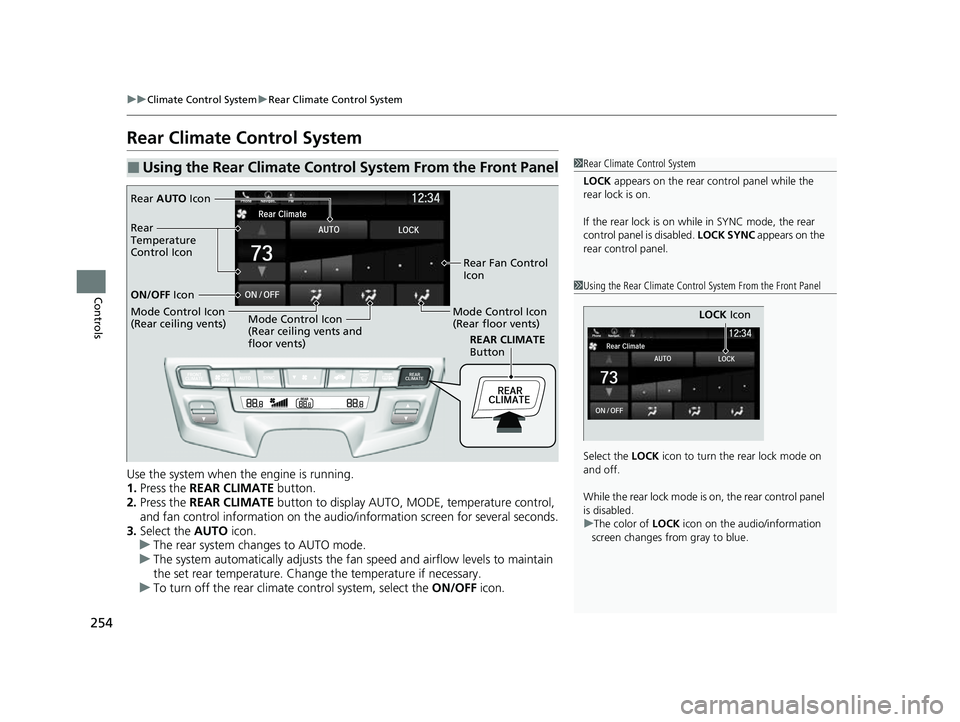
Use the system when the engine is running.
1. Press the REAR CLIMATE button.
2. Press the REAR CLIMATE button to display AUTO, MO DE, temperature control,
and fan control information on the audio/ information screen for several seconds.
3. Select the AUTO icon.
u The rear system changes to AUTO mode.
u The system automatically adjusts the fan speed and airflow levels to maintain
the set rear temperature. Change the temperature if necessary.
u To turn off the rear climate control system, select the ON/OFF icon.
■Using the Rear Climate Control System From the Front Panel1Rear Climate Control System
LOCK appears on the rear control panel while the
rear lock is on.
If the rear lock is on while in SYNC mode, the rear
control panel is disabled. LOCK SYNC appears on the
rear control panel.
1 Using the Rear Climate Control System From the Front Panel
Select the LOCK icon to turn the rear lock mode on
and off.
While the rear lock mode is on, the rear control panel
is disabled.
u The color of LOCK icon on the audio/information
screen changes from gray to blue.
LOCK Icon
REAR CLIMATE
Button
Rear AUTO Icon
Rear Fan Control
Icon
Mode Control Icon
(Rear floor vents)
Mode Control Icon
(Rear ceiling vents and
floor vents)
Mode Control Icon
(Rear ceiling vents) ON/OFF
Icon
Rear
Temperature
Control Icon
23 US ODYSSEY-31THR6500.book 254 ページ 2022年1月24日 月曜日 午前11時35分
Page 259 of 707
257
Features
This chapter describes how to operate technology features.
Audio System
About Your Audio System ................ 258
USB Ports ......................................... 259
Auxiliary Input Jack .......................... 261
Audio System Theft Protection ......... 261
Audio Remote Controls .................... 262
Audio System Basic Operation ........ 264
Audio/Information Screen ................ 265
System Updates ............................... 279
File Manager .................................... 285
Adjusting the Sound ........................ 291
Display Setup ................................... 292
Voice Control Operation .................. 294 Playing AM/FM Radio ....................... 297
Playing SiriusXM
® Radio*................. 300
Playing an iPod ................................ 310
Playing a USB Flash Drive ................. 313
Playing My Honda Music .................. 316
Playing Bluetooth ® Audio................. 320
Playing Social Playlist ........................ 322
HondaLink ®..................................... 324
Wi-Fi Connection ............................. 329
AT&T Hotspot
*................................ 330
Siri Eyes Free .................................... 331
Apple CarPlay .................................. 332
Android Auto
TM................................ 335 Audio Error Messages
...................... 339
General Information on the Audio System.. 341Blu-ray/DVD Rear Entertainment System*... 365Customized Features........................ 413
HomeLink ® Universal Transceiver*.. 432
Bluetooth® HandsFreeLink® ............. 435
CabinWatch ®
*................................... 460
CabinTalk ®*....................................... 461
* Not available on all models
23 US ODYSSEY-31THR6500.book 257 ページ 2022年1月24日 月曜日 午前11時35分
Page 260 of 707
258
Features
Audio System
About Your Audio System
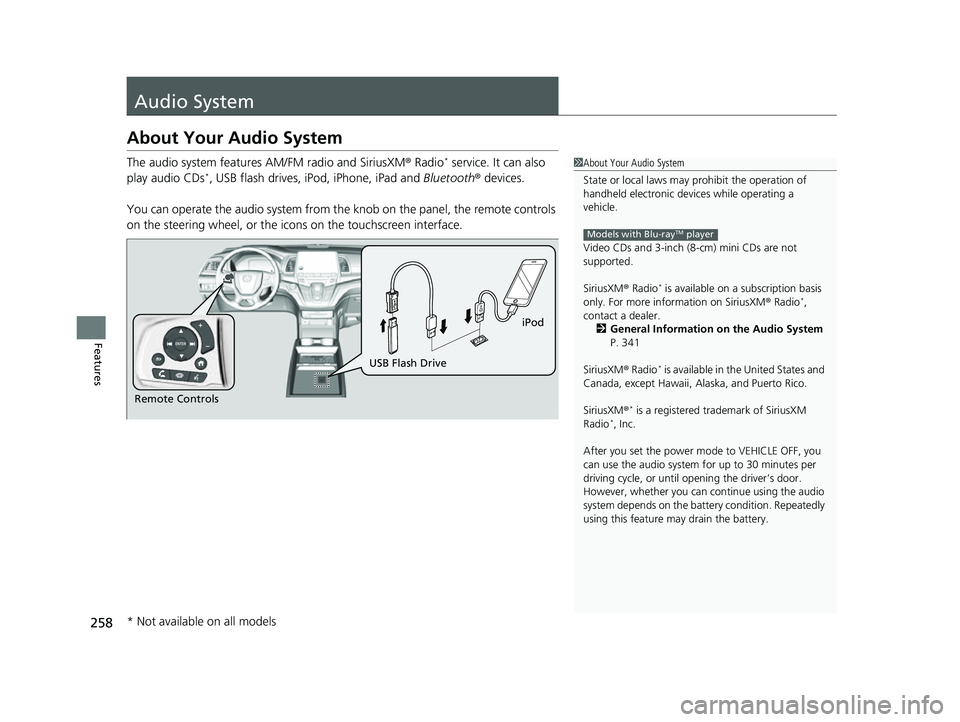
The audio system features AM/FM radio and SiriusXM® Radio* service. It can also
play audio CDs*, USB flash drives, iPod, iPhone, iPad and Bluetooth® devices.
You can operate the audio system from th e knob on the panel, the remote controls
on the steering wheel, or the icons on the touchscreen interface.
1About Your Audio System
State or local laws may pr ohibit the operation of
handheld electronic devices while operating a
vehicle.
Video CDs and 3-inch (8 -cm) mini CDs are not
supported.
SiriusXM ® Radio
* is available on a subscription basis
only. For more information on SiriusXM ® Radio*,
contact a dealer. 2 General Information on the Audio System
P. 341
SiriusXM ® Radio
* is available in the United States and
Canada, except Ha waii, Alaska, and Puerto Rico.
SiriusXM ®
* is a registered tra demark of SiriusXM
Radio*, Inc.
After you set the power m ode to VEHICLE OFF, you
can use the audio system for up to 30 minutes per
driving cycle, or until opening the driver’s door.
However, whether you can continue using the audio
system depends on the batter y condition. Repeatedly
using this feature ma y drain the battery.
Models with Blu-rayTM player
Remote Controls iPod
USB Flash Drive
* Not available on all models
23 US ODYSSEY-31THR6500.book 258 ページ 2022年1月24日 月曜日 午前11時35分
Page 261 of 707
259
uuAudio System uUSB Ports
Continued
Features
USB Ports
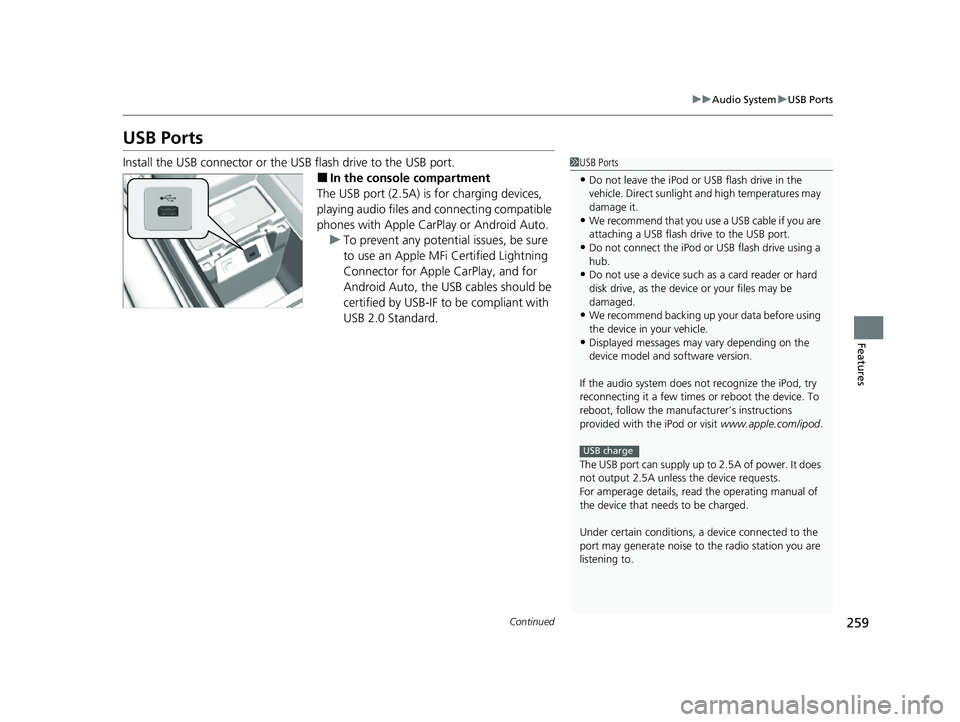
Install the USB connector or the USB flash drive to the USB port.
■In the consol e compartment
The USB port (2.5A) is for charging devices,
playing audio files and connecting compatible
phones with Apple CarPlay or Android Auto. u To prevent any potenti al issues, be sure
to use an Apple MFi Certified Lightning
Connector for Apple CarPlay, and for
Android Auto, the USB cables should be
certified by USB-IF to be compliant with
USB 2.0 Standard.
1 USB Ports
•Do not leave the iPod or USB flash drive in the
vehicle. Direct sunlight and high temperatures may
damage it.
•We recommend that you us e a USB cable if you are
attaching a USB flash drive to the USB port.
•Do not connect the iPod or USB flash drive using a
hub.
•Do not use a device such as a card reader or hard
disk drive, as the device or your files may be
damaged.
•We recommend backing up yo ur data before using
the device in your vehicle.
•Displayed messages may vary depending on the
device model and software version.
If the audio system does not recognize the iPod, try
reconnecting it a few times or reboot the device. To
reboot, follow the manufac turer’s instructions
provided with the iPod or visit www.apple.com/ipod.
The USB port can supply up to 2.5A of power. It does
not output 2.5A unless the device requests.
For amperage details, read the operating manual of
the device that ne eds to be charged.
Under certain condi tions, a device connected to the
port may generate noise to the radio station you are
listening to.
USB charge
23 US ODYSSEY-31THR6500.book 259 ページ 2022年1月24日 月曜日 午前11時35分
Page 262 of 707
260
uuAudio System uUSB Ports
Features
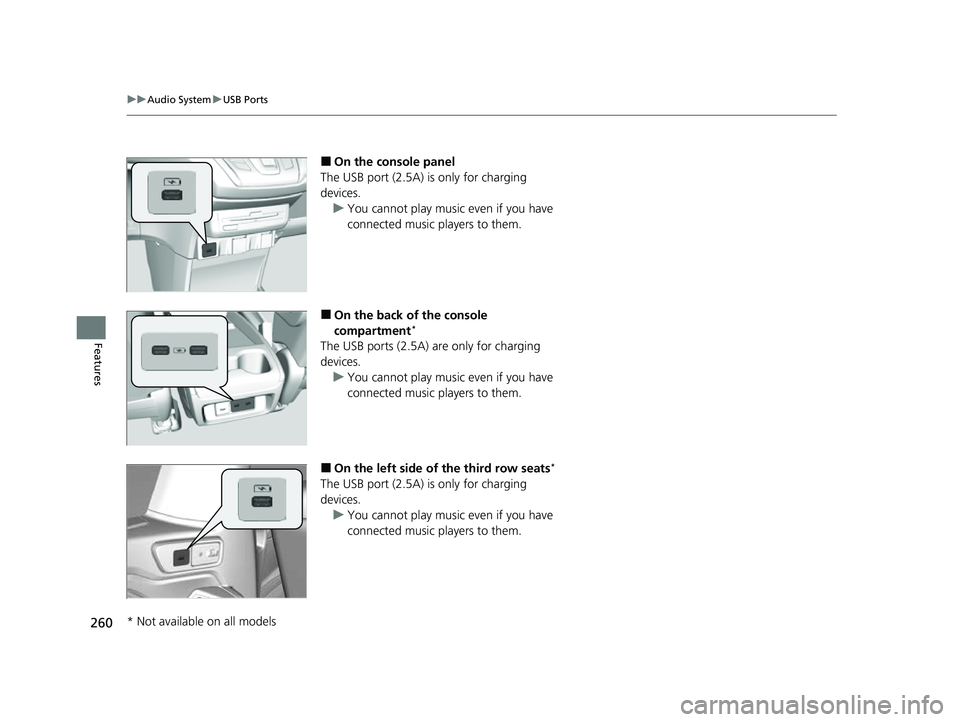
■On the console panel
The USB port (2.5A) is only for charging
devices.
u You cannot play music even if you have
connected music players to them.
■On the back of the console
compartment*
The USB ports (2.5A) are only for charging
devices.
u You cannot play music even if you have
connected music players to them.
■On the left side of the third row seats*
The USB port (2.5A) is only for charging
devices.
u You cannot play music even if you have
connected music players to them.
* Not available on all models
23 US ODYSSEY-31THR6500.book 260 ページ 2022年1月24日 月曜日 午前11時35分
Page 263 of 707
261
uuAudio System uAuxiliary Input Jack
Features
Auxiliary Input Jack
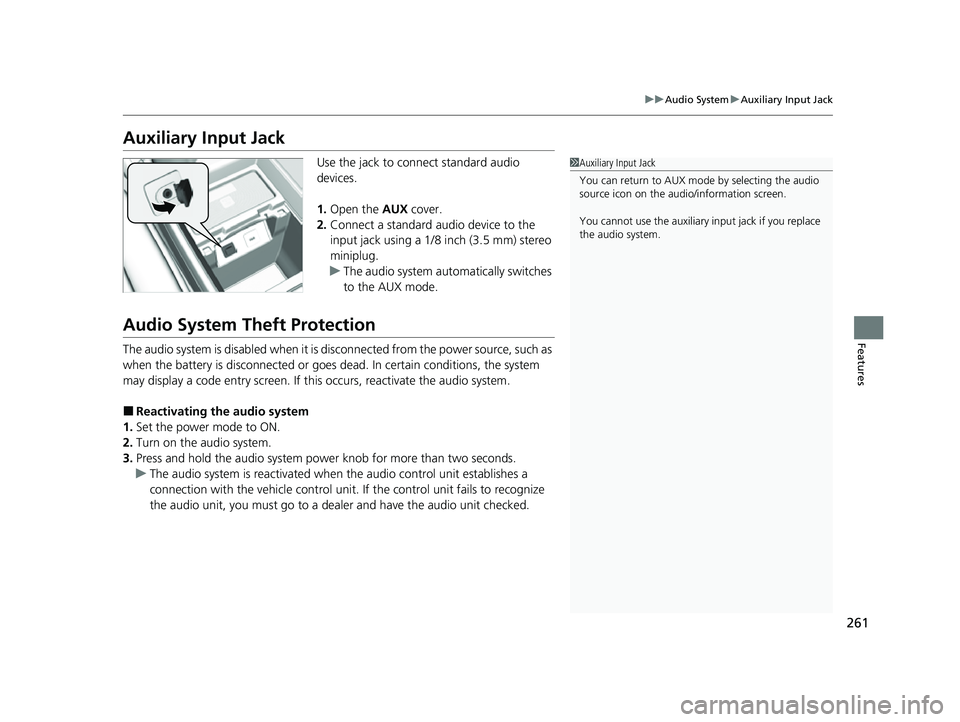
Use the jack to connect standard audio
devices.
1. Open the AUX cover.
2. Connect a standard audio device to the
input jack using a 1/8 inch (3.5 mm) stereo
miniplug.
u The audio system auto matically switches
to the AUX mode.
Audio System Theft Protection
The audio system is disabled when it is disconnected from the power source, such as
when the battery is disconnected or goes dead. In certain conditions, the system
may display a code entry screen. If this occurs, reactivate the audio system.
■Reactivating the audio system
1. Set the power mode to ON.
2. Turn on the audio system.
3. Press and hold the audio system power knob for more than two seconds.
u The audio system is reac tivated when the audio co ntrol unit establishes a
connection with the vehicl e control unit. If the control unit fails to recognize
the audio unit, you must go to a dealer and have the audio unit checked.
1 Auxiliary Input Jack
You can return to AUX mode by selecting the audio
source icon on the audio/information screen.
You cannot use the auxiliary input jack if you replace
the audio system.
23 US ODYSSEY-31THR6500.book 261 ページ 2022年1月24日 月曜日 午前11時35分
Page 264 of 707
262
uuAudio System uAudio Remote Controls
Features
Audio Remote Controls
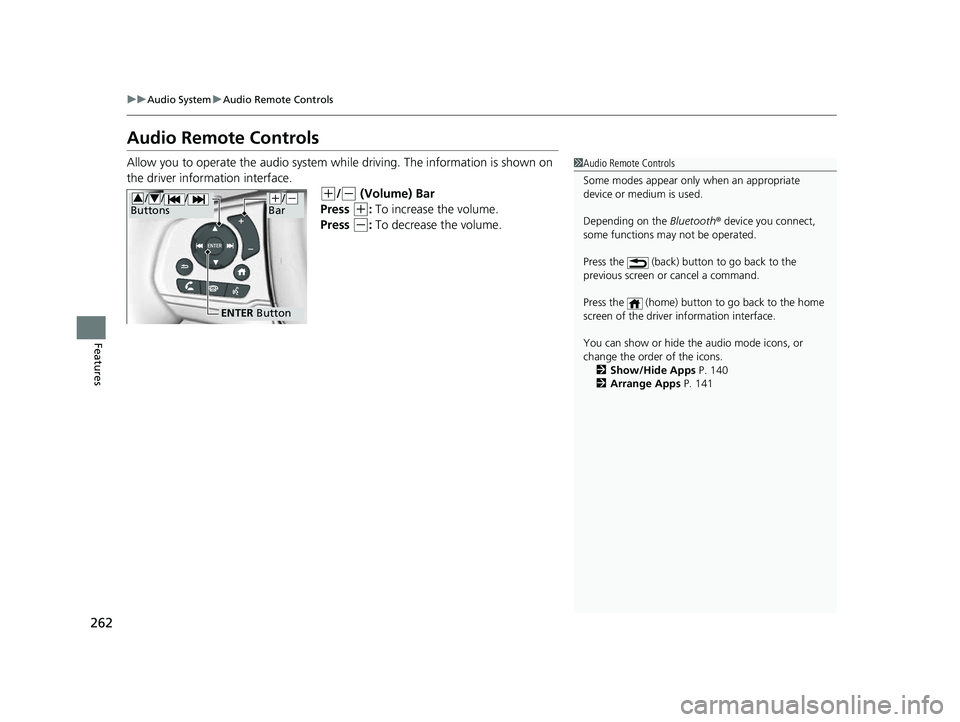
Allow you to operate the audio system wh ile driving. The information is shown on
the driver information interface.
(+/(- (Volume) Bar
Press
(+: To increase the volume.
Press
(-: To decrease the volume.
1 Audio Remote Controls
Some modes appear only when an appropriate
device or medium is used.
Depending on the Bluetooth® device you connect,
some functions ma y not be operated.
Press the (back) button to go back to the
previous screen or cancel a command.
Press the (home) button to go back to the home
screen of the driver information interface.
You can show or hide the audio mode icons, or
change the order of the icons. 2 Show/Hide Apps P. 140
2 Arrange Apps P. 141
ENTER Button
(+/(-
Bar///
Buttons34
23 US ODYSSEY-31THR6500.book 262 ページ 2022年1月24日 月曜日 午前11時35分
Page 265 of 707
263
uuAudio System uAudio Remote Controls
Features
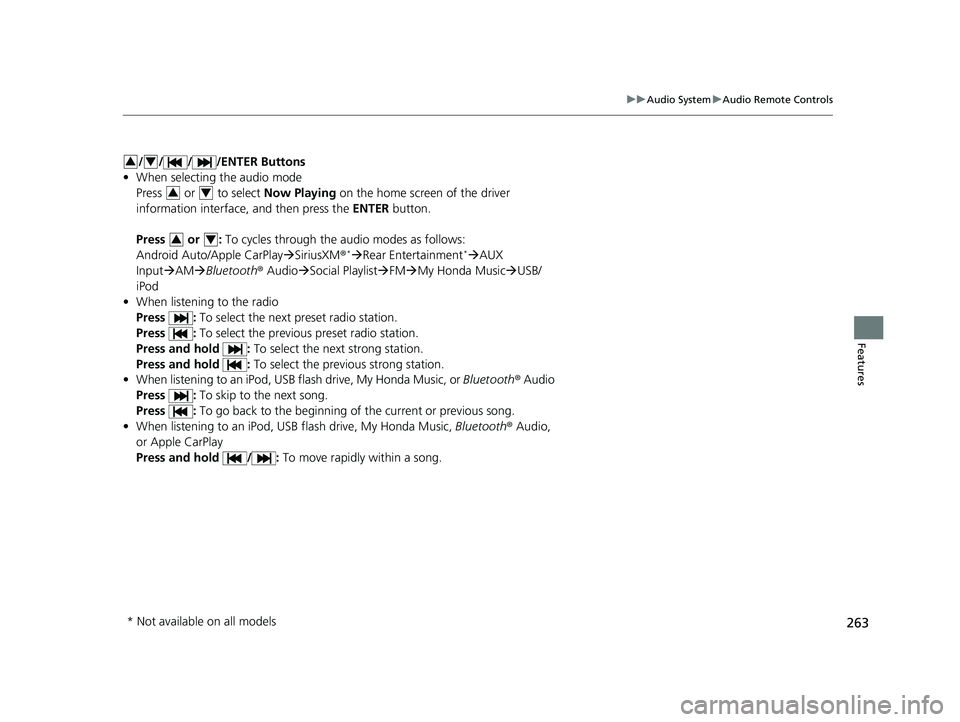
/ / / /ENTER Buttons
• When selecting the audio mode
Press or to select Now Playing on the home screen of the driver
information interface, and then press the ENTER button.
Press or : To cycles through the audio modes as follows:
Android Auto/Apple CarPlay SiriusXM ®
*Rear Entertainment* AUX
Input AM Bluetooth ® AudioSocial Playlist FMMy Honda Music USB/
iPod
• When listening to the radio
Press : To select the next preset radio station.
Press : To select the previous preset radio station.
Press and hold : To select the next strong station.
Press and hold : To select the previous strong station.
• When listening to an iPod, USB flash drive, My Honda Music, or Bluetooth® Audio
Press : To skip to the next song.
Press : To go back to the beginning of the current or previous song.
• When listening to an iPod, USB flash drive, My Honda Music, Bluetooth® Audio,
or Apple CarPlay
Press and hold / : To move rapidly within a song.
34
34
34
* Not available on all models
23 US ODYSSEY-31THR6500.book 263 ページ 2022年1月24日 月曜日 午前11時35分
Page 266 of 707
264
Features
Audio System Basic Operation
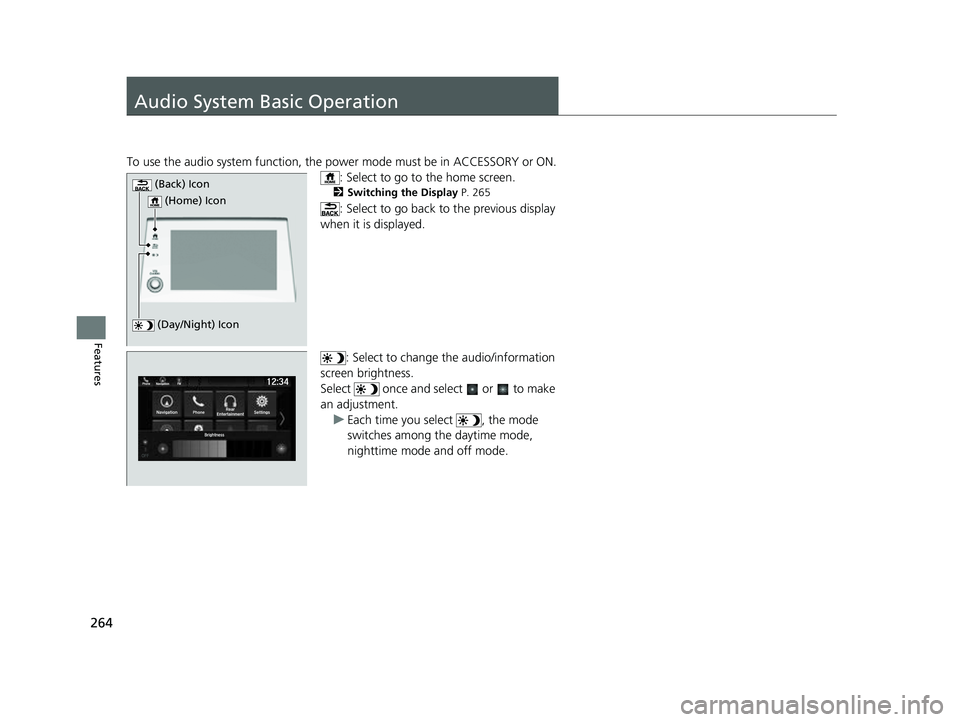
To use the audio system function, the power mode must be in ACCESSORY or ON.
: Select to go to the home screen.
2Switching the Display P. 265
: Select to go back to the previous display
when it is displayed.
: Select to change the audio/information
screen brightness.
Select once and select or to make
an adjustment. u Each time you select , the mode
switches among the daytime mode,
nighttime mode and off mode.
(Day/Night) Icon
(Home) Icon
(Back) Icon
23 US ODYSSEY-31THR6500.book 264 ページ 2022年1月24日 月曜日 午前11時35分
Page 267 of 707
265
uuAudio System Basic Operation uAudio/Information Screen
Continued
Features
Audio/Information Screen
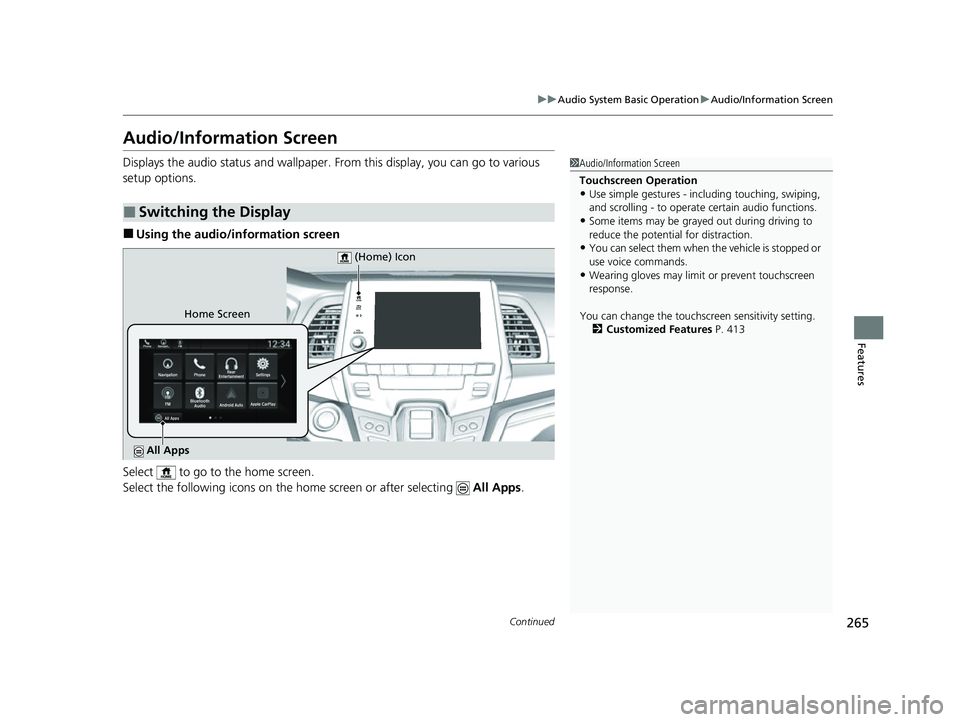
Displays the audio status and wallpaper. From this display, you can go to various
setup options.
■Using the audio/in formation screen
Select to go to the home screen.
Select the following icons on the home screen or after selecting All Apps.
■Switching the Display
1Audio/Information Screen
Touchscreen Operation
•Use simple gestures - in cluding touching, swiping,
and scrolling - to operate certain audio functions.
•Some items may be grayed out during driving to
reduce the potential for distraction.
•You can select them when the vehicle is stopped or
use voice commands.
•Wearing gloves may limit or prevent touchscreen
response.
You can change the touchs creen sensitivity setting.
2 Customized Features P. 413
Home Screen (Home) Icon
All Apps
23 US ODYSSEY-31THR6500.book 265 ページ 2022年1月24日 月曜日 午前11時35分