audio HONDA ODYSSEY 2023 Owner's Guide
[x] Cancel search | Manufacturer: HONDA, Model Year: 2023, Model line: ODYSSEY, Model: HONDA ODYSSEY 2023Pages: 707, PDF Size: 23.9 MB
Page 268 of 707
266
uuAudio System Basic Operation uAudio/Information Screen
Features
■Phone
Displays the HFL information.
2 Bluetooth ® HandsFreeLink ® P. 435
■Trip Computer
Displays the trip computer information.
• Current Drive tab: Displays the current trip information.
• Trip A /Trip B tab: Displays information for the current and three previous drives.
The information is stored every time you reset Trip A/B.
To reset Trip A/B, select Reset.
To change the setting of how to reset Trip A/B, select Settings, then select Trip
A Reset Method or Trip B Reset Method .
■Clock
Displays the clock.
■System Updates
Updates the software versi on of the audio system.
2System Updates P. 279
■FM/AM/Sirius XM*/USB/Bluetooth Audio/AUX Input/My Honda Music/
Social Playlist
Displays the each audio information.
■Settings
Enters the customiz ing menu screen.
2Customized Features P. 413
* Not available on all models
23 US ODYSSEY-31THR6500.book 266 ページ 2022年1月24日 月曜日 午前11時35分
Page 269 of 707
267
uuAudio System Basic Operation uAudio/Information Screen
Continued
Features
■Navigation*
Displays the navigation screen.
2 Refer to the Navigation System Manual
■HondaLink
Displays the HondaLink ® screen.
2HondaLink ® P. 324
■Apple CarPlay/Android Auto
Displays the Apple CarPlay or Android Auto .
2Apple CarPlay P. 332
2 Android AutoTM P. 335
■Messages
Displays the text message screen.
2 Bluetooth ® HandsFreeLink ® P. 435
■CabinTalk*
Displays the CabinTalk screen.
2CabinTalk ®* P. 461
■CabinWatch*
Displays the CabinWatch screen.
2CabinWatch®* P. 460
■Rear Entertainment*
Displays the rear audio screen.
2Blu-ray/DVD Rear Entertainment System* P. 365
* Not available on all models
23 US ODYSSEY-31THR6500.book 267 ページ 2022年1月24日 月曜日 午前11時35分
Page 270 of 707
268
uuAudio System Basic Operation uAudio/Information Screen
Features
■AT&T Hotspot*
Displays the AT&T Hotspot screen.
2 AT&T Hotspot* P. 330
■File Manager
Displays the file manager screen.
2 File Manager P. 285
* Not available on all models
23 US ODYSSEY-31THR6500.book 268 ページ 2022年1月24日 月曜日 午前11時35分
Page 271 of 707
Continued269
uuAudio System Basic Operation uAudio/Information Screen
Features
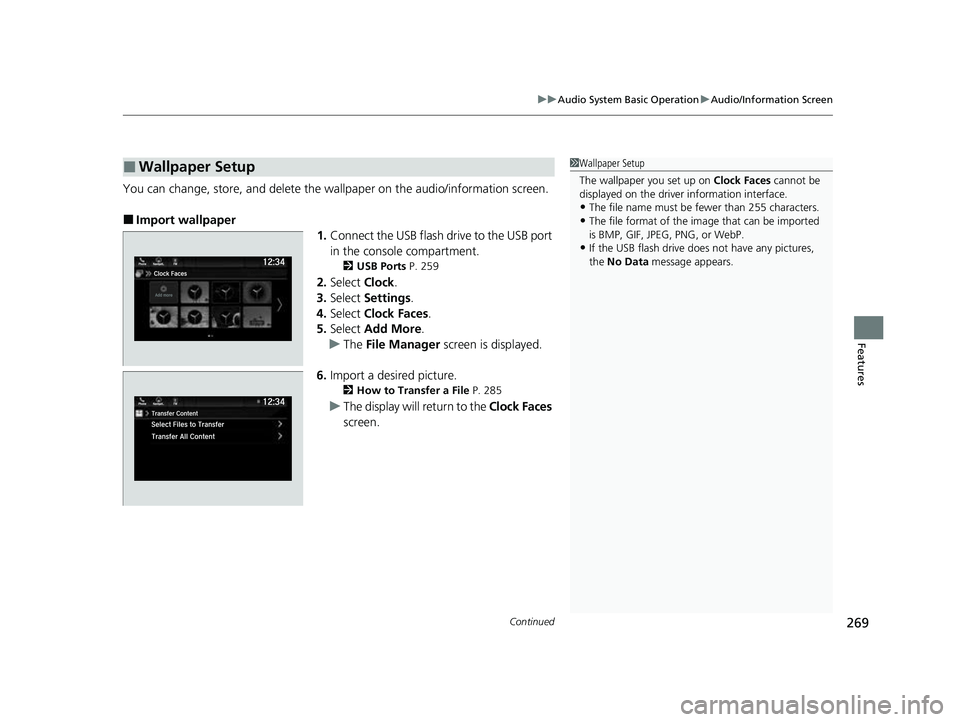
You can change, store, and delete the wallpaper on the audio/ information screen.
■Import wallpaper
1.Connect the USB flash drive to the USB port
in the console compartment.
2 USB Ports P. 259
2.Select Clock.
3. Select Settings .
4. Select Clock Faces .
5. Select Add More .
u The File Manager screen is displayed.
6. Import a desired picture.
2 How to Transfer a File P. 285
uThe display will return to the Clock Faces
screen.
■Wallpaper Setup1 Wallpaper Setup
The wallpaper you set up on Clock Faces cannot be
displayed on the driver information interface.
•The file name must be fewer than 255 characters.
•The file format of the im age that can be imported
is BMP, GIF, JPEG, PNG, or WebP.
•If the USB flash drive doe s not have any pictures,
the No Data message appears.
23 US ODYSSEY-31THR6500.book 269 ページ 2022年1月24日 月曜日 午前11時35分
Page 272 of 707
270
uuAudio System Basic Operation uAudio/Information Screen
Features
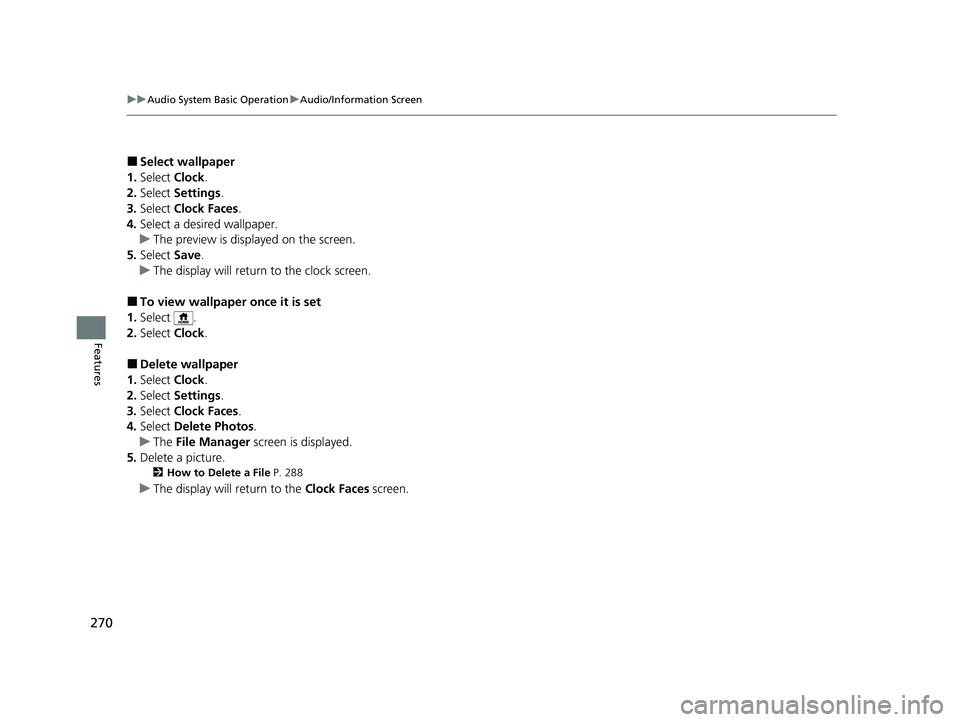
■Select wallpaper
1. Select Clock.
2. Select Settings .
3. Select Clock Faces .
4. Select a desired wallpaper.
u The preview is displayed on the screen.
5. Select Save.
u The display will return to the clock screen.
■To view wallpaper once it is set
1. Select .
2. Select Clock.
■Delete wallpaper
1. Select Clock.
2. Select Settings .
3. Select Clock Faces .
4. Select Delete Photos .
u The File Manager screen is displayed.
5. Delete a picture.
2 How to Delete a File P. 288
uThe display will return to the Clock Faces screen.
23 US ODYSSEY-31THR6500.book 270 ページ 2022年1月24日 月曜日 午前11時35分
Page 273 of 707
Continued271
uuAudio System Basic Operation uAudio/Information Screen
Features
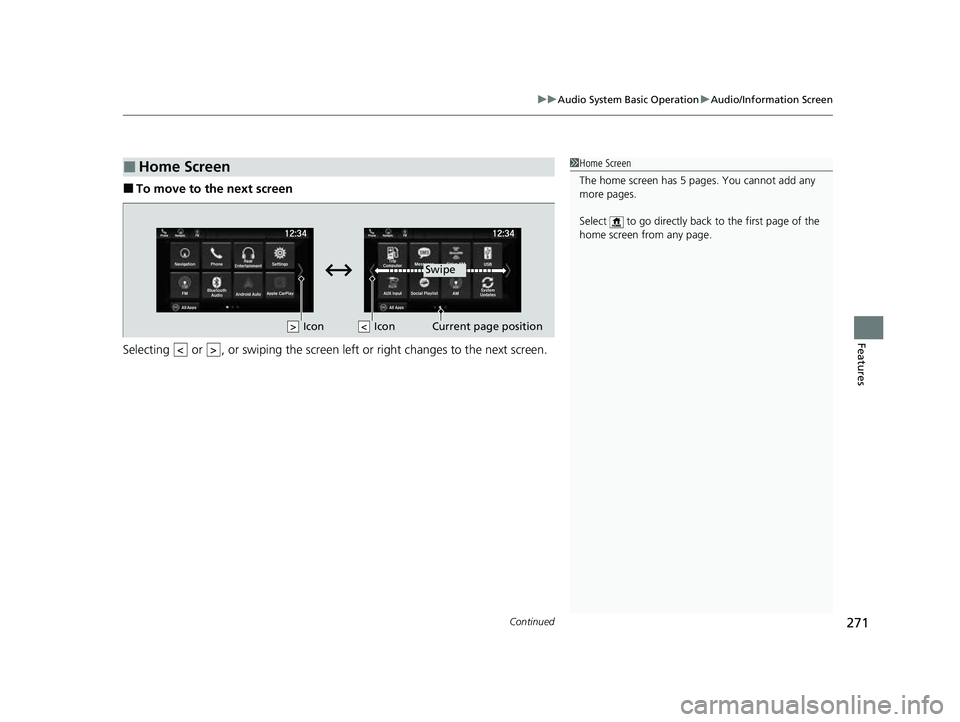
■To move to the next screen
Selecting or , or swiping the screen le ft or right changes to the next screen.
■Home Screen1Home Screen
The home screen has 5 pages. You cannot add any
more pages.
Select to go directly back to the first page of the
home screen from any page.
Swipe
Icon
> Icon
23 US ODYSSEY-31THR6500.book 271 ページ 2022年1月24日 月曜日 午前11時35分
Page 274 of 707
uuAudio System Basic Operation uAudio/Information Screen
272
Features
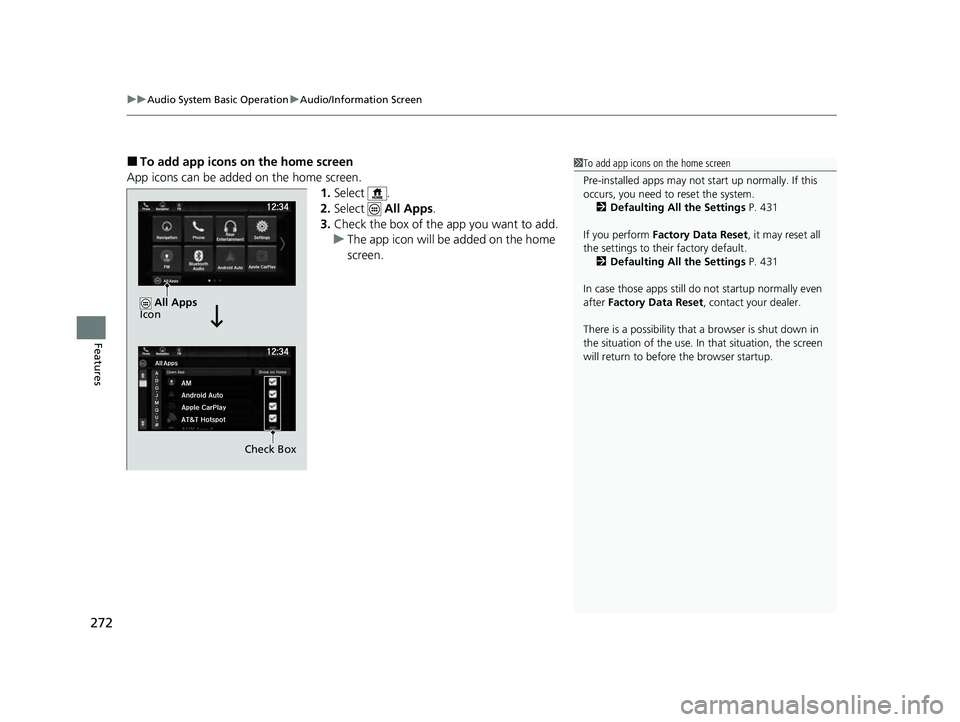
■To add app icons on the home screen
App icons can be added on the home screen. 1.Select .
2. Select All Apps.
3. Check the box of the app you want to add.
u The app icon will be added on the home
screen.1To add app icons on the home screen
Pre-installed apps may not start up normally. If this
occurs, you need to reset the system.
2 Defaulting All the Settings P. 431
If you perform Factory Data Reset , it may reset all
the settings to their factory default. 2 Defaulting All the Settings P. 431
In case those apps still do not startup normally even
after Factory Data Reset , contact your dealer.
There is a possibility that a browser is shut down in
the situation of the use. In that situation, the screen
will return to before the browser startup.
Check Box
All Apps
Icon
23 US ODYSSEY-31THR6500.book 272 ページ 2022年1月24日 月曜日 午前11時35分
Page 275 of 707
Continued273
uuAudio System Basic Operation uAudio/Information Screen
Features
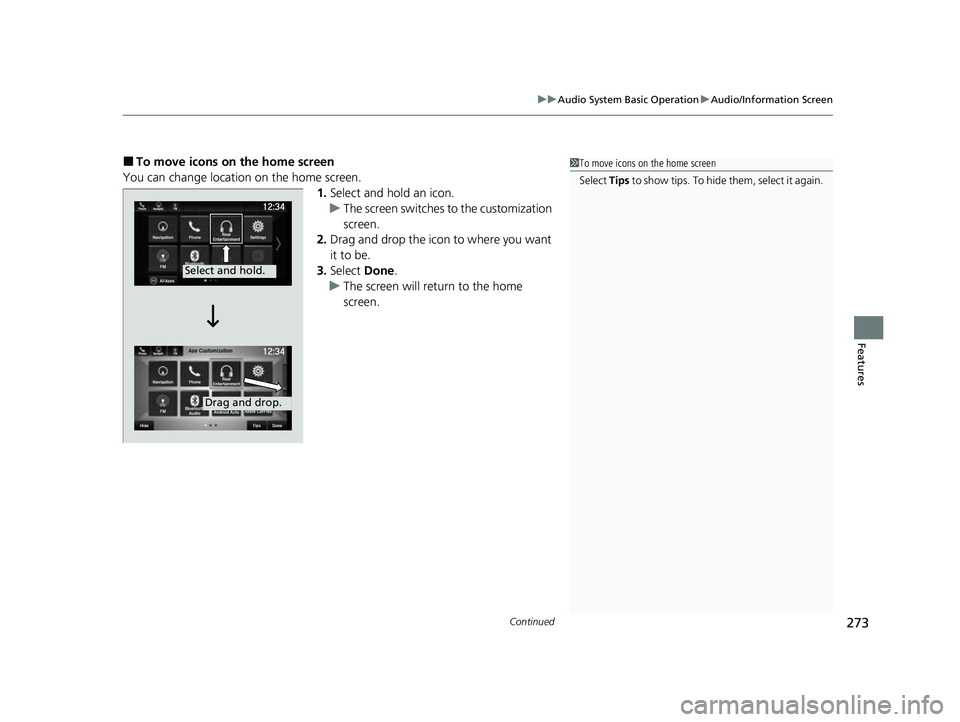
■To move icons on the home screen
You can change location on the home screen. 1.Select and hold an icon.
u The screen switches to the customization
screen.
2. Drag and drop the icon to where you want
it to be.
3. Select Done.
u The screen will return to the home
screen.1To move icons on the home screen
Select Tips to show tips. To hide them, select it again.
Select and hold.
Drag and drop.
23 US ODYSSEY-31THR6500.book 273 ページ 2022年1月24日 月曜日 午前11時35分
Page 276 of 707
uuAudio System Basic Operation uAudio/Information Screen
274
Features
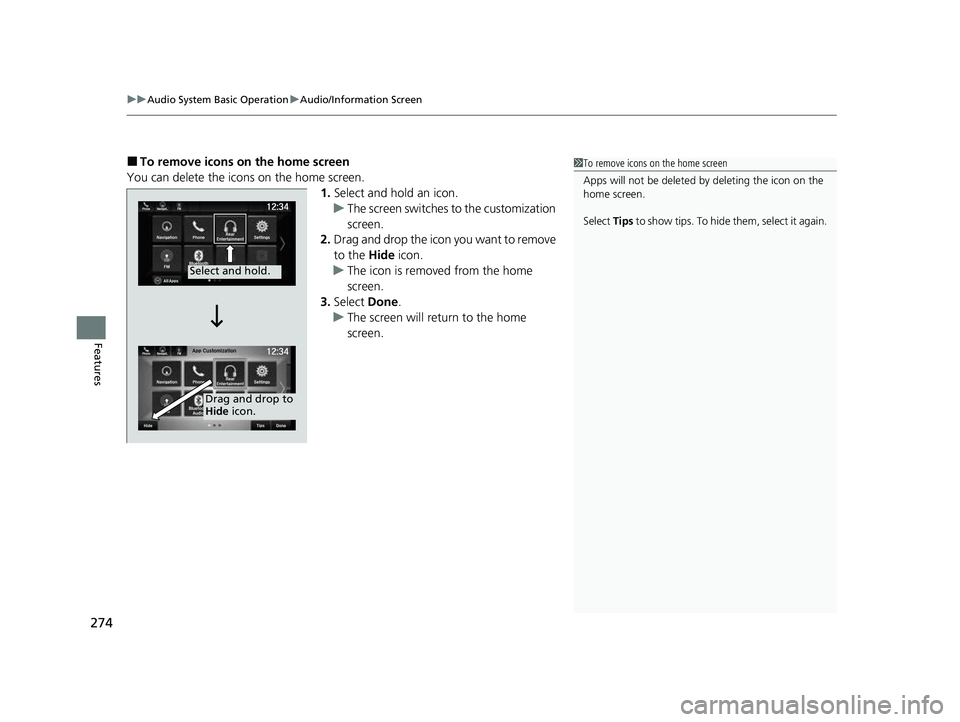
■To remove icons on the home screen
You can delete the icons on the home screen. 1.Select and hold an icon.
u The screen switches to the customization
screen.
2. Drag and drop the icon you want to remove
to the Hide icon.
u The icon is removed from the home
screen.
3. Select Done.
u The screen will return to the home
screen.1To remove icons on the home screen
Apps will not be deleted by deleting the icon on the
home screen.
Select Tips to show tips. To hide them, select it again.
Select and hold.
Drag and drop to
Hide icon.
23 US ODYSSEY-31THR6500.book 274 ページ 2022年1月24日 月曜日 午前11時35分
Page 277 of 707
Continued275
uuAudio System Basic Operation uAudio/Information Screen
Features
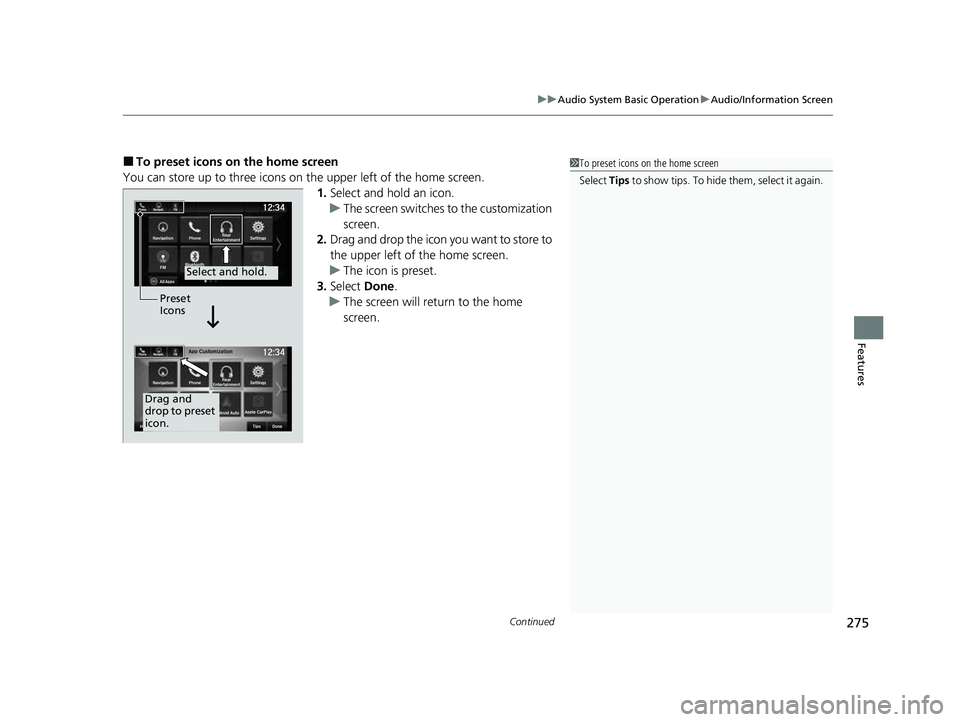
■To preset icons on the home screen
You can store up to three icons on the upper left of the home screen. 1.Select and hold an icon.
u The screen switches to the customization
screen.
2. Drag and drop the icon you want to store to
the upper left of the home screen.
u The icon is preset.
3. Select Done.
u The screen will return to the home
screen.1To preset icons on the home screen
Select Tips to show tips. To hide them, select it again.
Select and hold.
Drag and
drop to preset
icon.Preset
Icons
23 US ODYSSEY-31THR6500.book 275 ページ 2022年1月24日 月曜日 午前11時35分