ad blue HONDA PILOT 2011 2.G Navigation Manual
[x] Cancel search | Manufacturer: HONDA, Model Year: 2011, Model line: PILOT, Model: HONDA PILOT 2011 2.GPages: 159, PDF Size: 3.39 MB
Page 130 of 159
130Navigation System
Frequently Asked Questions
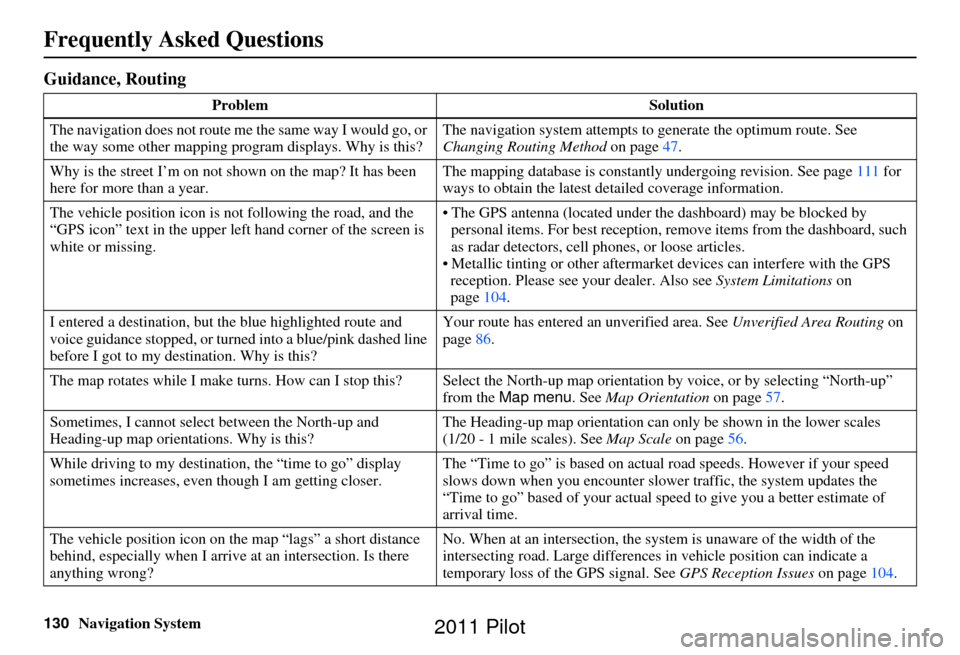
Guidance, Routing
ProblemSolution
The navigation does not route me the same way I would go, or
the way some other mapping progr am displays. Why is this?The navigation system attempts to
generate the optimum route. See
Changing Routing Method on page47.
Why is the street I’m on not shown on the map? It has been
here for more than a year. The mapping database is
constantly undergoing revision. See page111 for
ways to obtain the latest de tailed coverage information.
The vehicle position icon is not following the road, and the
“GPS icon” text in the upper left hand corner of the screen is
white or missing. • The GPS antenna (located under
the dashboard) may be blocked by
personal items. For best re ception, remove items from the dashboard, such
as radar detectors, cell phones, or loose articles.
• Metallic tinting or other aftermarke t devices can interfere with the GPS
reception. Please see your dealer. Also see System Limitations on
page 104.
I entered a destination, but th e blue highlighted route and
voice guidance stopped, or turned into a blue/pink dashed line
before I got to my dest ination. Why is this? Your route has entered
an unverified area. See Unverified Area Routing on
page 86.
The map rotates while I make turns. How ca n I stop this? Select the North-up map orientation by voice, or by selecting “North-up ”
from the Map menu . See Map Orientation on page 57.
Sometimes, I cannot select between the North-up and
Heading-up map orienta tions. Why is this? The Heading-up map orient
ation can only be shown in the lower scales
(1/20 - 1 mile scales). See Map Scale on page56.
While driving to my destinati on, the “time to go” display
sometimes increases, even though I am getting closer. The “Time to go” is based on actual
road speeds. However if your speed
slows down when you encounter slower traffic, the system updates the
“Time to go” based of your actual spee d to give you a better estimate of
arrival time.
The vehicle position icon on the map “lags” a short distance
behind, especially when I arrive at an intersection. Is there
anything wrong? No. When at an intersection, the syst
em is unaware of the width of the
intersecting road. Large differences in vehicle position can indicate a
temporary loss of the GPS signal. See GPS Reception Issues on page104.
2011 Pilot
Page 135 of 159
Navigation System135
Troubleshooting
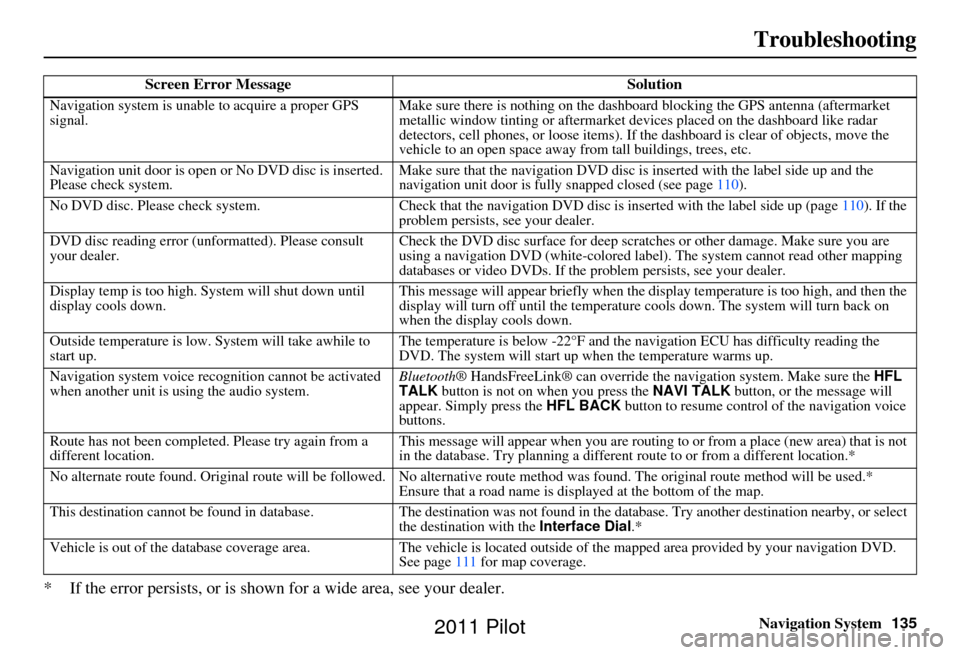
* If the error persists, or is shown for a wide area, see your dealer.
Screen Error Message Solution
Navigation system is unable to acquire a proper GPS
signal.Make sure there is nothing on the dashboard
blocking the GPS antenna (aftermarket
metallic window tinting or aftermarket devices placed on the dashboard like radar
detectors, cell phones, or loose items). If the dashboard is clear of objects, move the
vehicle to an open space away from tall buildings, trees, etc.
Navigation unit door is open or No DVD disc is inserted.
Please check system. Make sure that the navigation DVD disc is
inserted with the label side up and the
navigation unit door is fully snapped closed (see page 110).
No DVD disc. Please check system. Check that the navigation DVD disc is inserted with the label side up (page 110). If the
problem persists, see your dealer.
DVD disc reading error (unformatted). Please consult
your dealer. Check the DVD disc surface for deep scratches or other damage. Make sure you are
using a navigation DVD (white-colored labe
l). The system cannot read other mapping
databases or video DVDs. If the problem persists, see your dealer.
Display temp is too high. System will shut down until
display cools down. This message will appear briefly when the display temperature is too high, and then the
display will turn off until the temperature
cools down. The system will turn back on
when the display cools down.
Outside temperature is low. System will take awhile to
start up. The temperature is below -22°F and the na
vigation ECU has difficulty reading the
DVD. The system will start up when the temperature warms up.
Navigation system voice rec ognition cannot be activated
when another unit is using the audio system. Bluetooth® HandsFreeLink® can override the navigation system. Make sure the
HFL
TALK button is not on when you press the NAVI TALK button, or the message will
appear. Simply press the HFL BACK button to resume control of the navigation voice
buttons.
Route has not been complete d. Please try again from a
different location. This message will appear when you are routing to or from a place (new area) that is not
in the database. Try planning a different
route to or from a different location.*
No alternate route found. Original route wi ll be followed. No alternative route method was found. The original route method will be used.*
Ensure that a road name is displayed at the bottom of the map.
This destination cannot be found in database .The destination was not found in the database. Try another destination nearby, or select
the destination with the Interface Dial.*
Vehicle is out of the database coverage area. The vehicle is located outside of the mapped area provided by your navigation DVD.
See page 111 for map coverage.
2011 Pilot
Page 136 of 159
136Navigation System
Glossary
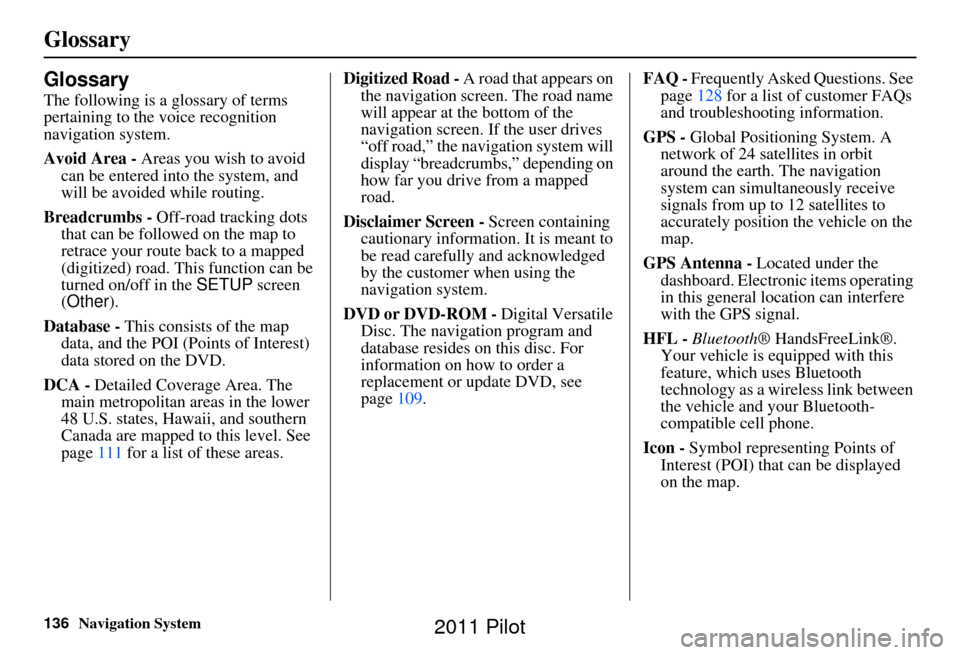
Glossary
The following is a glossary of terms
pertaining to the voice recognition
navigation system.
Avoid Area - Areas you wish to avoid
can be entered into the system, and
will be avoided while routing.
Breadcrumbs - Off-road tracking dots
that can be followe d on the map to
retrace your route back to a mapped
(digitized) road. This function can be
turned on/off in the SETUP screen
(Other ).
Database - This consists of the map
data, and the POI (Points of Interest)
data stored on the DVD.
DCA - Detailed Coverage Area. The
main metropolitan areas in the lower
48 U.S. states, Hawaii, and southern
Canada are mapped to this level. See
page 111 for a list of these areas. Digitized Road -
A road that appears on
the navigation screen. The road name
will appear at the bottom of the
navigation screen. If the user drives
“off road,” the navigation system will
display “breadcrumbs,” depending on
how far you drive from a mapped
road.
Disclaimer Screen - Screen containing
cautionary information. It is meant to
be read carefully and acknowledged
by the customer when using the
navigation system.
DVD or DVD-ROM - Digital Versatile
Disc. The navigation program and
database resides on this disc. For
information on how to order a
replacement or update DVD, see
page 109. FAQ -
Frequently Asked Questions. See
page 128 for a list of customer FAQs
and troubleshooting information.
GPS - Global Positioning System. A
network of 24 satellites in orbit
around the earth. The navigation
system can simultaneously receive
signals from up to 12 satellites to
accurately position the vehicle on the
map.
GPS Antenna - Located under the
dashboard. Electronic items operating
in this general location can interfere
with the GPS signal.
HFL - Bluetooth ® HandsFreeLink®.
Your vehicle is equipped with this
feature, which uses Bluetooth
technology as a wireless link between
the vehicle and your Bluetooth-
compatible cell phone.
Icon - Symbol representing Points of
Interest (POI) that can be displayed
on the map.
2011 Pilot
Page 154 of 159
154Navigation System
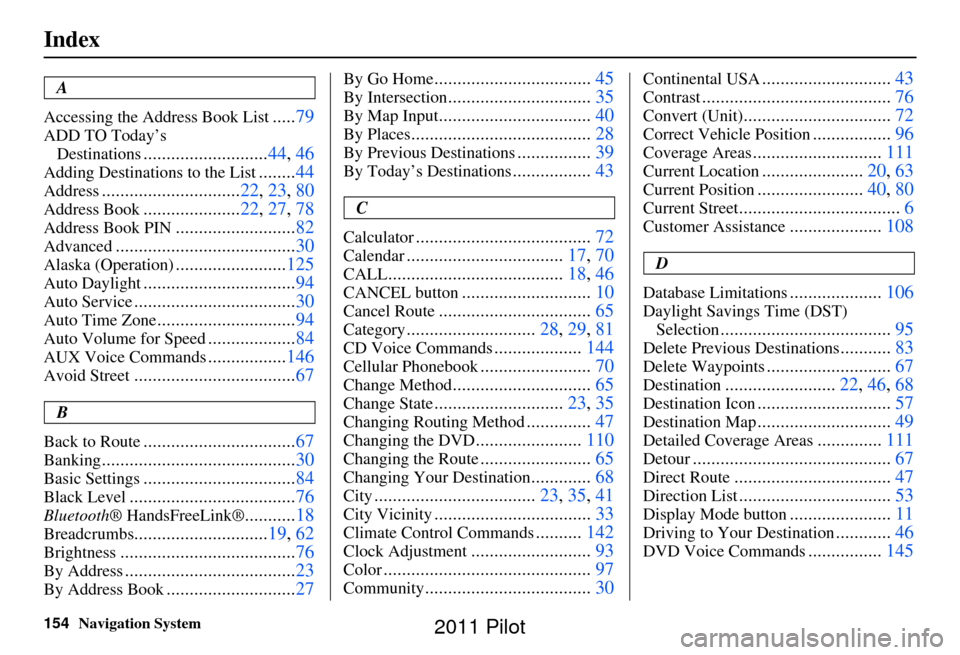
Index
A
Accessing the Address Book List
..... 79
ADD TO Today’s
Destinations
........................... 44, 46
Adding Destinations to the List........44
Address.............................. 22, 23, 80
Address Book..................... 22, 27, 78
Address Book PIN.......................... 82
Advanced....................................... 30
Alaska (Operation)........................125
Auto Daylight................................. 94
Auto Service................................... 30
Auto Time Zone..............................94
Auto Volume for Speed...................84
AUX Voice Commands.................146
Avoid Street................................... 67
B
Back to Route
................................. 67
Banking.......................................... 30
Basic Settings.................................84
Black Level.................................... 76
Bluetooth® HandsFreeLink®...........18
Breadcrumbs............................. 19, 62
Brightness...................................... 76
By Address.....................................23
By Address Book............................27
By Go Home.................................. 45
By Intersection...............................35
By Map Input................................. 40
By Places....................................... 28
By Previous Destinations................39
By Today’s Destinations................. 43
C
Calculator
...................................... 72
Calendar..................................17, 70
CALL...................................... 18, 46
CANCEL button............................10
Cancel Route................................. 65
Category............................28, 29, 81
CD Voice Commands...................144
Cellular Phonebook........................ 70
Change Method.............................. 65
Change State............................23, 35
Changing Routing Method..............47
Changing the DVD....................... 110
Changing the Route........................ 65
Changing Your Destination.............68
City................................... 23, 35, 41
City Vicinity..................................33
Climate Control Commands..........142
Clock Adjustment.......................... 93
Color............................................. 97
Community....................................30
Continental USA............................43
Contrast......................................... 76
Convert (Unit)................................72
Correct Vehicle Position.................96
Coverage Areas............................ 111
Current Location......................20, 63
Current Position....................... 40, 80
Current Street................................... 6
Customer Assistance....................108
D
Database Limitations
.................... 106
Daylight Savings Time (DST)
Selection
..................................... 95
Delete Previous Destinations...........83
Delete Waypoints........................... 67
Destination........................22, 46, 68
Destination Icon............................. 57
Destination Map.............................49
Detailed Coverage Areas..............111
Detour........................................... 67
Direct Route..................................47
Direction List.................................53
Display Mode button......................11
Driving to Your Destination............46
DVD Voice Commands................ 145
2011 Pilot