Automatic light HONDA PILOT 2013 2.G User Guide
[x] Cancel search | Manufacturer: HONDA, Model Year: 2013, Model line: PILOT, Model: HONDA PILOT 2013 2.GPages: 488, PDF Size: 10.18 MB
Page 134 of 488
133
uuOperating the Switches Around the Steering WheeluDriving Position Memory System*
Controls
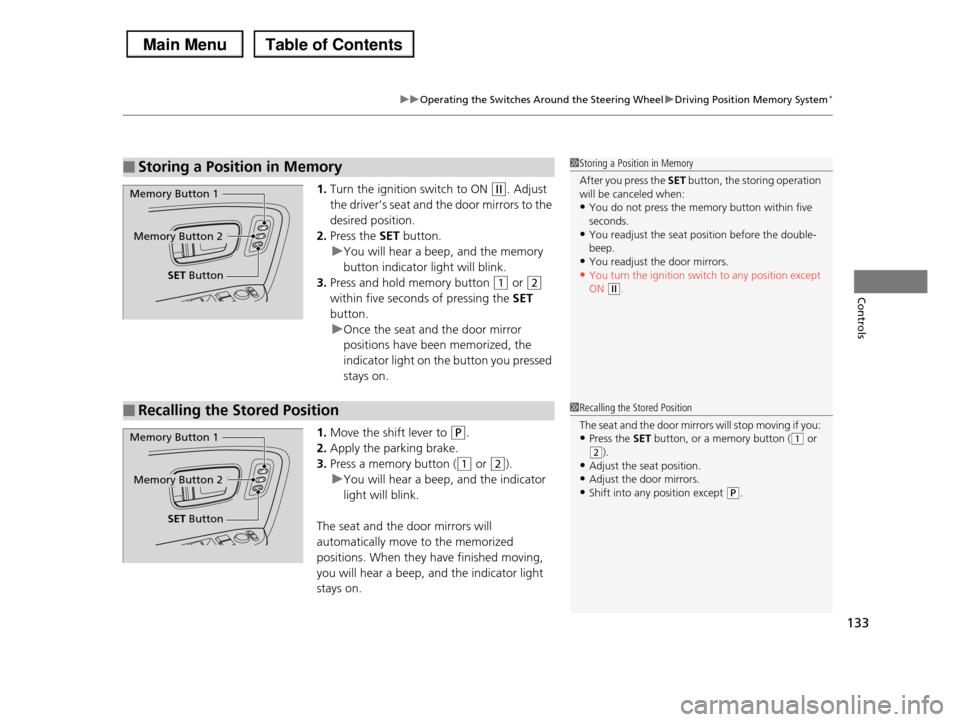
1.Turn the ignition switch to ON (w. Adjust
the driver’s seat and the door mirrors to the
desired position.
2.Press the SET button.
uYou will hear a beep, and the memory
button indicator light will blink.
3.Press and hold memory button (1 or (2
within five seconds of pressing the SET
button.
uOnce the seat and the door mirror
positions have been memorized, the
indicator light on the button you pressed
stays on.
1.Move the shift lever to (P.
2.Apply the parking brake.
3.Press a memory button ((1 or (2).
uYou will hear a beep, and the indicator
light will blink.
The seat and the door mirrors will
automatically move to the memorized
positions. When they have finished moving,
you will hear a beep, and the indicator light
stays on.
■Storing a Position in Memory1Storing a Position in Memory
After you press the SET button, the storing operation will be canceled when:
•You do not press the memory button within five
seconds.•You readjust the seat position before the double-
beep.
•You readjust the door mirrors.•You turn the ignition switch to any position except
ON (w.
Memory Button 1
Memory Button 2
SET Button
■Recalling the Stored Position1Recalling the Stored Position
The seat and the door mirrors will stop moving if you:
•Press the SET button, or a memory button ((1 or (2).
•Adjust the seat position.
•Adjust the door mirrors.•Shift into any position except (P.
Memory Button 1
Memory Button 2
SET Button
Page 136 of 488
135
Controls
Adjusting the Mirrors
Interior Rearview Mirror
Adjust the angle of the rearview mirror when you are sitting in the correct driving
position.
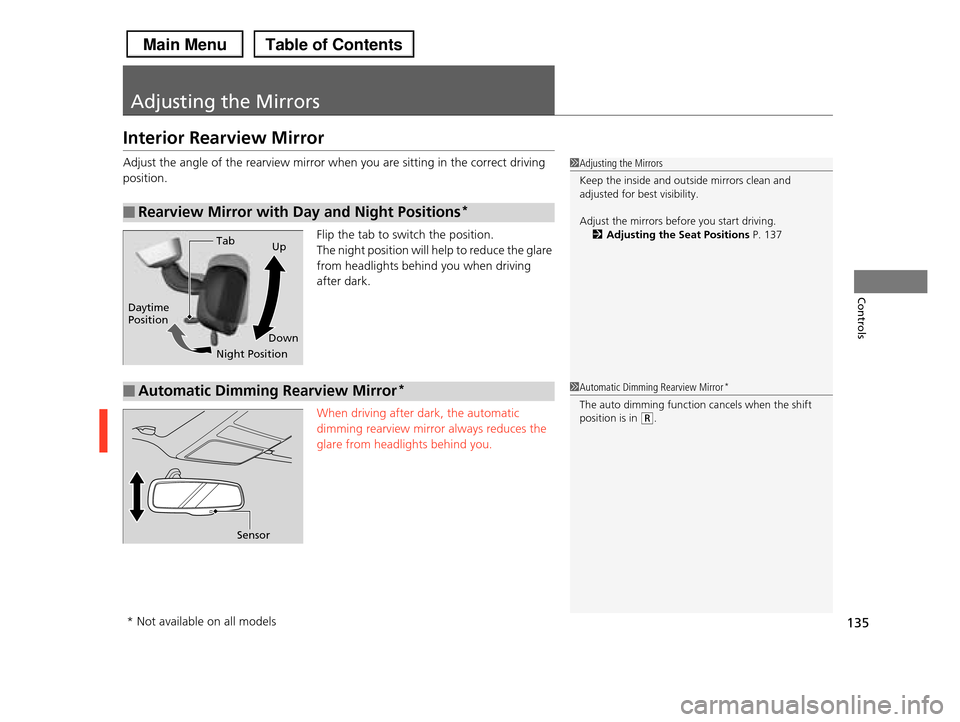
Flip the tab to switch the position.
The night position will help to reduce the glare
from headlights behind you when driving
after dark.
When driving after dark, the automatic
dimming rearview mirror always reduces the
glare from headlights behind you.
■Rearview Mirror with Day and Night Positions*
1Adjusting the Mirrors
Keep the inside and outside mirrors clean and
adjusted for best visibility.
Adjust the mirrors before you start driving.
2Adjusting the Seat Positions P. 137Tab
Daytime Position
Night Position
Up
Down
■Automatic Dimming Rearview Mirror*
Sensor
1Automatic Dimming Rearview Mirror*
The auto dimming function cancels when the shift position is in (R.
* Not available on all models
Page 163 of 488
uuInterior Lights/Interior Convenience ItemsuInterior Convenience Items
162
Controls
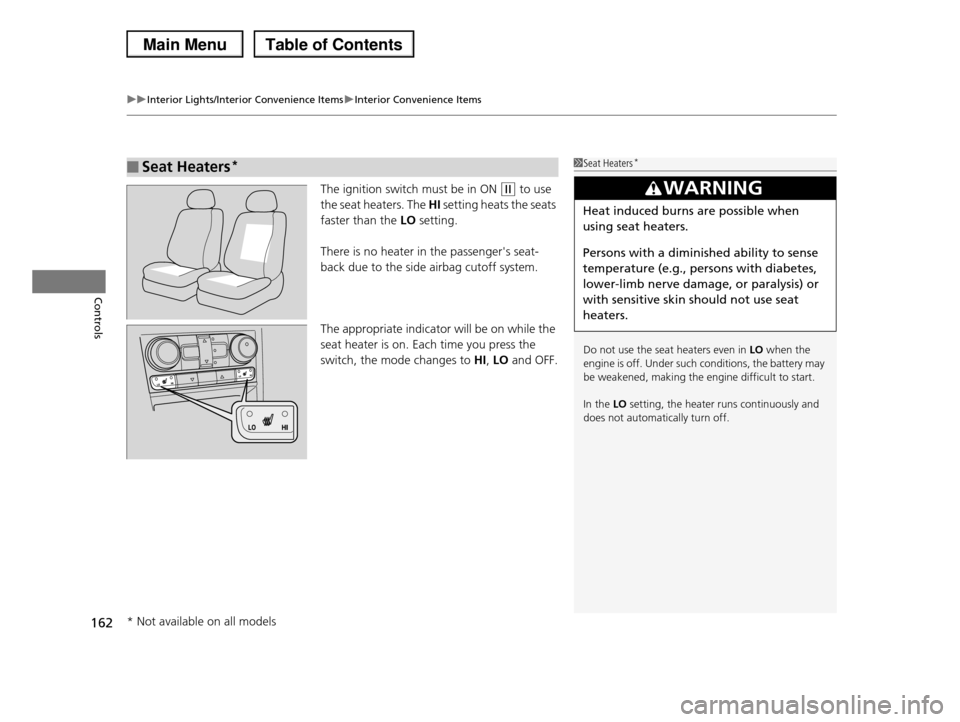
The ignition switch must be in ON (w to use
the seat heaters. The HI setting heats the seats
faster than the LO setting.
There is no heater in the passenger's seat-
back due to the side airbag cutoff system.
The appropriate indicator will be on while the
seat heater is on. Each time you press the
switch, the mode changes to HI, LO and OFF.
■Seat Heaters*1Seat Heaters*
Do not use the seat heaters even in LO when the engine is off. Under such conditions, the battery may
be weakened, making the engine difficult to start.
In the LO setting, the heater runs continuously and
does not automatically turn off.
3WARNING
Heat induced burns are possible when
using seat heaters.
Persons with a diminished ability to sense
temperature (e.g., persons with diabetes,
lower-limb nerve damage, or paralysis) or
with sensitive skin should not use seat
heaters.
* Not available on all models
Page 171 of 488
170
uuClimate Control SystemuAutomatic Climate Control Sensors
Controls
Automatic Climate Control Sensors
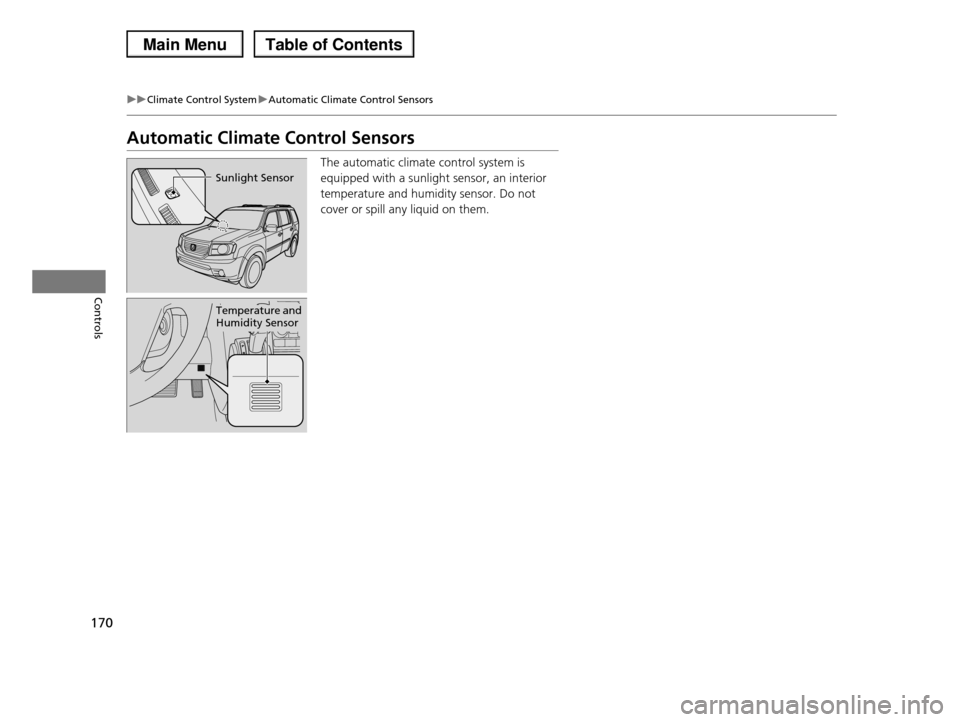
The automatic climate control system is
equipped with a sunlight sensor, an interior
temperature and humidity sensor. Do not
cover or spill any liquid on them.
Sunlight Sensor
Temperature and Humidity Sensor
Page 174 of 488
173
uuAudio SystemuUSB Adapter Cable
Features
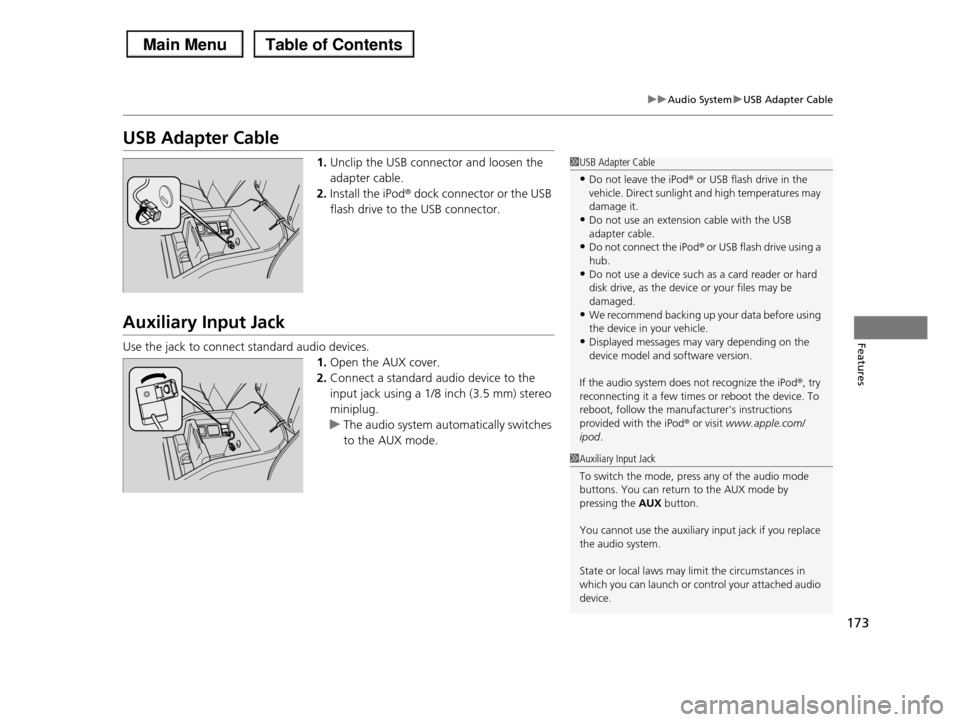
USB Adapter Cable
1.Unclip the USB connector and loosen the
adapter cable.
2.Install the iPod® dock connector or the USB
flash drive to the USB connector.
Auxiliary Input Jack
Use the jack to connect standard audio devices.
1.Open the AUX cover.
2.Connect a standard audio device to the
input jack using a 1/8 inch (3.5 mm) stereo
miniplug.
uThe audio system automatically switches
to the AUX mode.
1USB Adapter Cable
•Do not leave the iPod® or USB flash drive in the vehicle. Direct sunlight and high temperatures may
damage it.
•Do not use an extension cable with the USB adapter cable.
•Do not connect the iPod® or USB flash drive using a
hub.•Do not use a device such as a card reader or hard
disk drive, as the device or your files may be
damaged.•We recommend backing up your data before using
the device in your vehicle.
•Displayed messages may vary depending on the device model and software version.
If the audio system does not recognize the iPod®, try reconnecting it a few times or reboot the device. To
reboot, follow the manufacturer's instructions
provided with the iPod® or visit www.apple.com/ipod.
1Auxiliary Input Jack
To switch the mode, press any of the audio mode
buttons. You can return to the AUX mode by pressing the AUX button.
You cannot use the auxiliary input jack if you replace the audio system.
State or local laws may limit the circumstances in which you can launch or control your attached audio
device.
Page 259 of 488
258
uuRear Entertainment System*uOperating the System
Features
Search:
You can search for a DVD segment from the following methods.
Title Search - Select the title you want to play.
Chapter Search - Select the chapter you want to play.
NumInput:
Enter a two digit number, if issued to the DVD, to find the segment you want to start
to play.
1.Select NumInput to go to the number input screen.
2.Use the 3, 4, , and buttons to input numbers.
uIf you want to delete a number, select DEL.
3.The cursor automatically goes to ENT after you input two digits. Press the ENT
button to enter.
Repeat:
Highlight this option and press the ENT button to change the repeat mode from
chapter repeat and title repeat, to repeat off.
Page 334 of 488
Continued333
uuTowing a TraileruTowing Preparation
Driving
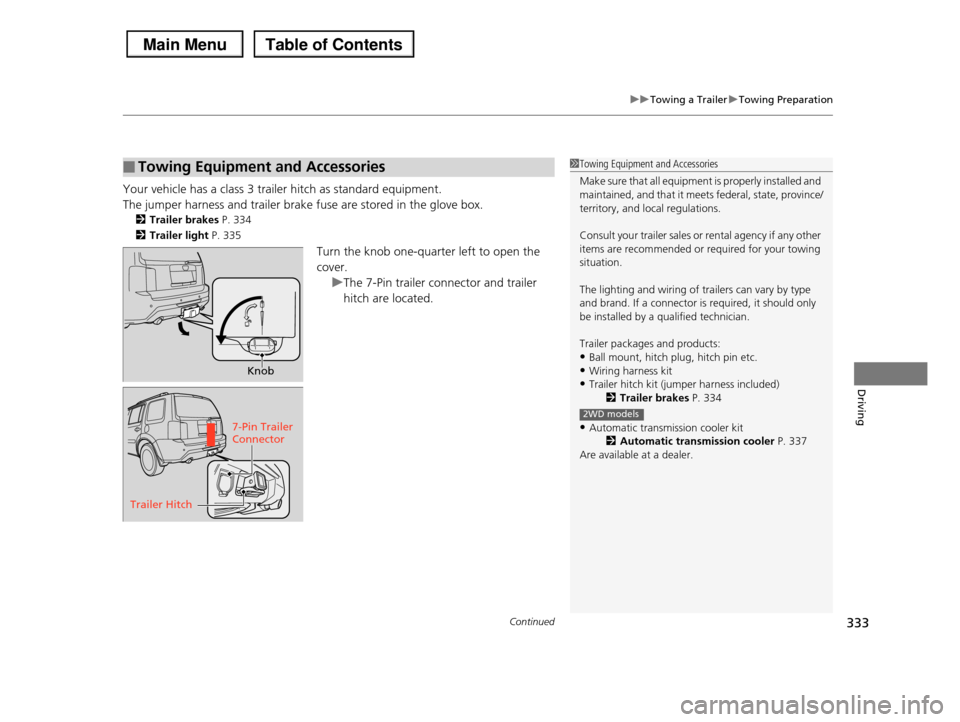
Your vehicle has a class 3 trailer hitch as standard equipment.
The jumper harness and trailer brake fuse are stored in the glove box.
2Trailer brakes P. 334
2Trailer light P. 335
Turn the knob one-quarter left to open the
cover.
uThe 7-Pin trailer connector and trailer
hitch are located.
■Towing Equipment and Accessories1Towing Equipment and Accessories
Make sure that all equipment is properly installed and
maintained, and that it meets federal, state, province/
territory, and local regulations.
Consult your trailer sales or rental agency if any other
items are recommended or required for your towing situation.
The lighting and wiring of trailers can vary by type and brand. If a connector is required, it should only
be installed by a qualified technician.
Trailer packages and products:
•Ball mount, hitch plug, hitch pin etc.
•Wiring harness kit•Trailer hitch kit (jumper harness included)
2Trailer brakes P. 334
•Automatic transmission cooler kit2Automatic transmission cooler P. 337
Are available at a dealer.
2WD models
Knob
7-Pin Trailer Connector
Trailer Hitch
Page 347 of 488
346
uuWhen DrivinguShifting
Driving
Shifting
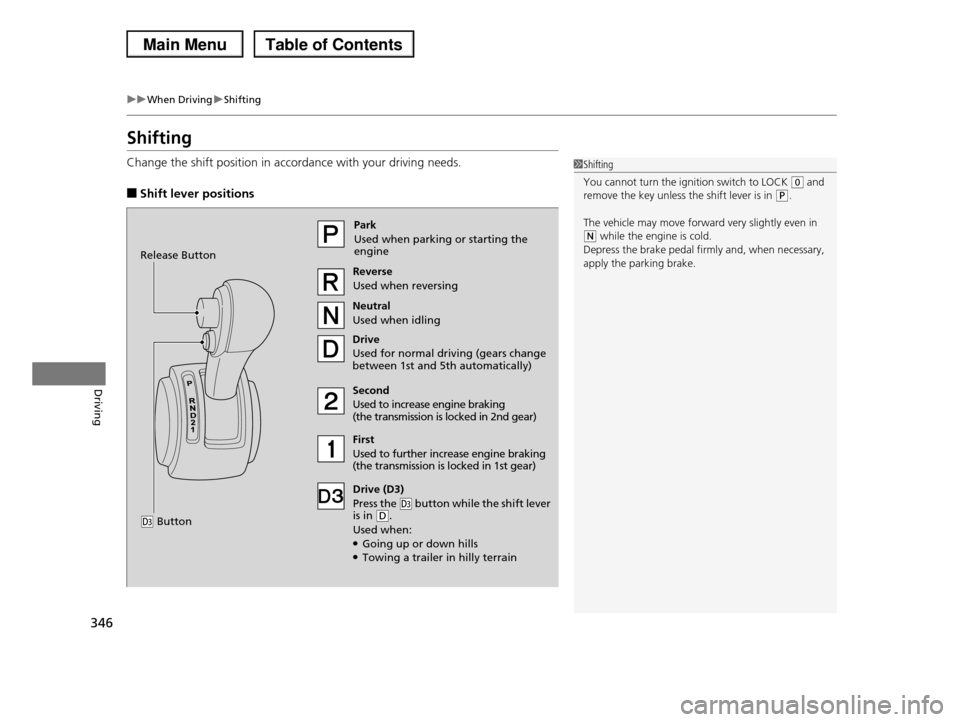
Change the shift position in accordance with your driving needs.
■Shift lever positions
1Shifting
You cannot turn the ignition switch to LOCK (0 and remove the key unless the shift lever is in (P.
The vehicle may move forward very slightly even in (N while the engine is cold.
Depress the brake pedal firmly and, when necessary,
apply the parking brake.
Park
Used when parking or starting the engine
Reverse
Used when reversing
Neutral
Used when idling
Drive
Used for normal driving (gears change between 1st and 5th automatically)
Drive (D3)
Press the (d button while the shift lever is in (D.
Used when:●Going up or down hills●Towing a trailer in hilly terrain
Second
Used to increase engine braking (the transmission is locked in 2nd gear)
First
Used to further increase engine braking (the transmission is locked in 1st gear)
Release Button
(d Button
Page 355 of 488
354
uuWhen DrivinguVTM (Variable Torque Management)-4r System*
Driving
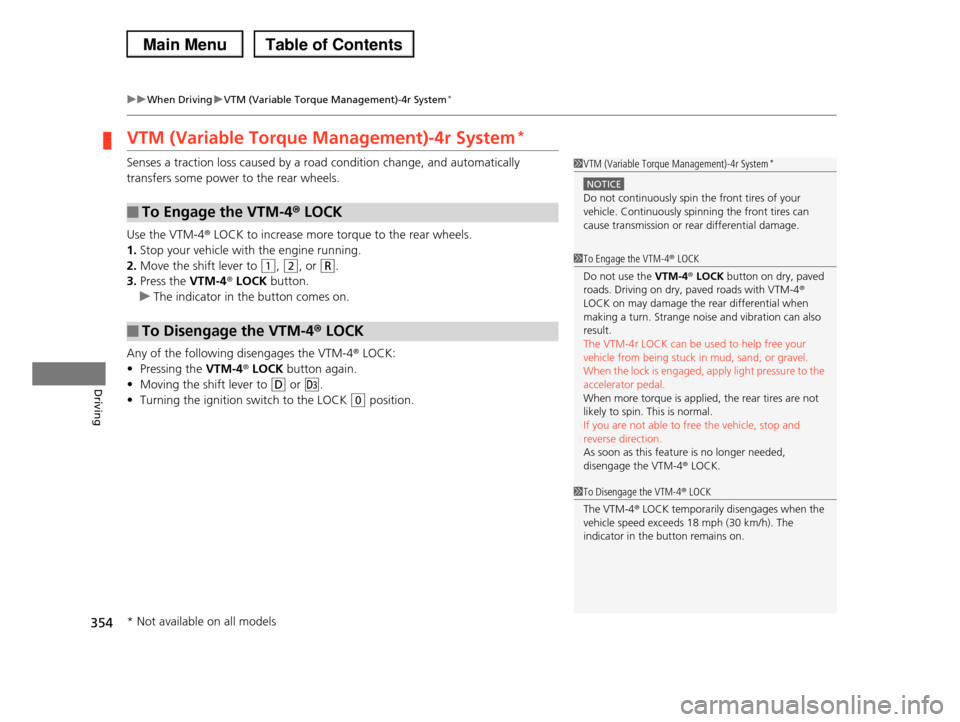
VTM (Variable Torque Management)-4r System*
Senses a traction loss caused by a road condition change, and automatically
transfers some power to the rear wheels.
Use the VTM-4r LOCK to increase more torque to the rear wheels.
1.Stop your vehicle with the engine running.
2.Move the shift lever to (1, (2, or (R.
3.Press the VTM-4r LOCK button.
uThe indicator in the button comes on.
Any of the following disengages the VTM-4r LOCK:
•Pressing the VTM-4r LOCK button again.
•Moving the shift lever to (D or (d.
•Turning the ignition switch to the LOCK (0 position.
■To Engage the VTM-4r LOCK
■To Disengage the VTM-4r LOCK
1VTM (Variable Torque Management)-4r System*
NOTICE
Do not continuously spin the front tires of your vehicle. Continuously spinning the front tires can
cause transmission or rear differential damage.
1To Engage the VTM-4r LOCK
Do not use the VTM-4r LOCK button on dry, paved roads. Driving on dry, paved roads with VTM-4r
LOCK on may damage the rear differential when
making a turn. Strange noise and vibration can also result.
The VTM-4r LOCK can be used to help free your
vehicle from being stuck in mud, sand, or gravel.When the lock is engaged, apply light pressure to the
accelerator pedal.
When more torque is applied, the rear tires are not likely to spin. This is normal.
If you are not able to free the vehicle, stop and
reverse direction. As soon as this feature is no longer needed,
disengage the VTM-4r LOCK.
1To Disengage the VTM-4r LOCK
The VTM-4r LOCK temporarily disengages when the
vehicle speed exceeds 18 mph (30 km/h). The
indicator in the button remains on.
* Not available on all models
Page 370 of 488
369
Driving
Rearview Camera*
About Your Rearview Camera
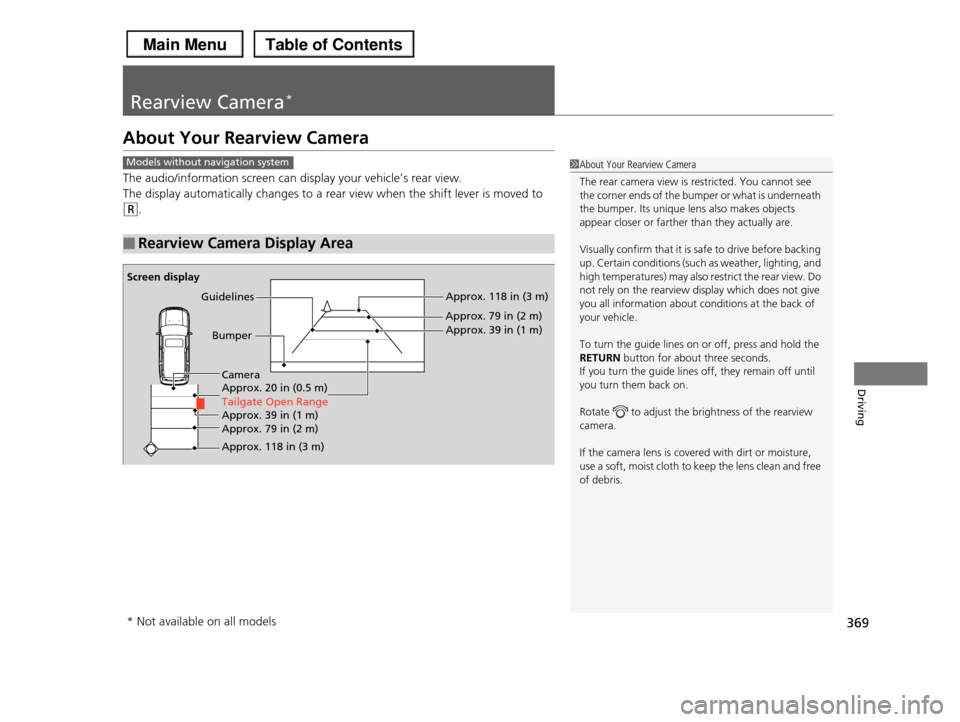
The audio/information screen can display your vehicle’s rear view.
The display automatically changes to a rear view when the shift lever is moved to
(R.
■Rearview Camera Display Area
1About Your Rearview Camera
The rear camera view is restricted. You cannot see
the corner ends of the bumper or what is underneath
the bumper. Its unique lens also makes objects appear closer or farther than they actually are.
Visually confirm that it is safe to drive before backing up. Certain conditions (such as weather, lighting, and
high temperatures) may also restrict the rear view. Do
not rely on the rearview display which does not give you all information about conditions at the back of
your vehicle.
To turn the guide lines on or off, press and hold the
RETURN button for about three seconds.
If you turn the guide lines off, they remain off until you turn them back on.
Rotate to adjust the brightness of the rearview camera.
If the camera lens is covered with dirt or moisture, use a soft, moist cloth to keep the lens clean and free
of debris.
Models without navigation system
Screen display
Bumper
GuidelinesApprox. 118 in (3 m)
Approx. 79 in (2 m)
Approx. 39 in (1 m)
Approx. 20 in (0.5 m)
Tailgate Open Range
Approx. 118 in (3 m)
Approx. 79 in (2 m) Approx. 39 in (1 m)
Camera
* Not available on all models