change time HONDA PILOT 2013 2.G User Guide
[x] Cancel search | Manufacturer: HONDA, Model Year: 2013, Model line: PILOT, Model: HONDA PILOT 2013 2.GPages: 488, PDF Size: 10.18 MB
Page 129 of 488
128
uuOperating the Switches Around the Steering WheeluWipers and Washers
Controls
Wipers and Washers
The windshield wipers and washers can be
used when the ignition switch is in ON (w.
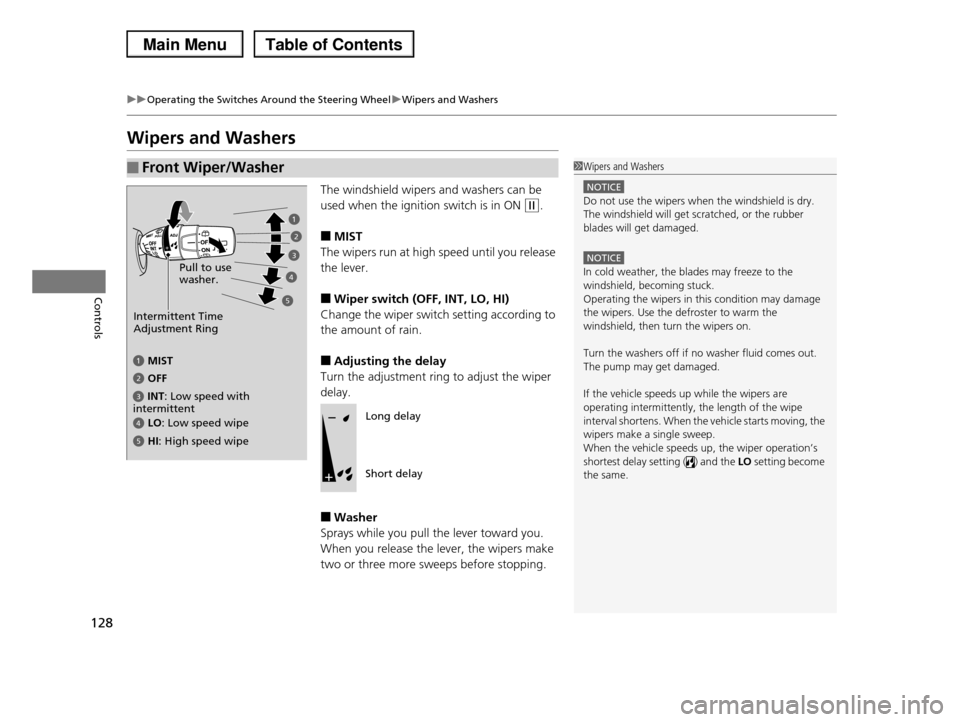
■MIST
The wipers run at high speed until you release
the lever.
■Wiper switch (OFF, INT, LO, HI)
Change the wiper switch setting according to
the amount of rain.
■Adjusting the delay
Turn the adjustment ring to adjust the wiper
delay.
■Washer
Sprays while you pull the lever toward you.
When you release the lever, the wipers make
two or three more sweeps before stopping.
■Front Wiper/Washer1Wipers and Washers
NOTICE
Do not use the wipers when the windshield is dry.
The windshield will get scratched, or the rubber
blades will get damaged.
NOTICE
In cold weather, the blades may freeze to the
windshield, becoming stuck. Operating the wipers in this condition may damage
the wipers. Use the defroster to warm the
windshield, then turn the wipers on.
Turn the washers off if no washer fluid comes out.
The pump may get damaged.
If the vehicle speeds up while the wipers are
operating intermittently, the length of the wipe interval shortens. When the vehicle starts moving, the
wipers make a single sweep.
When the vehicle speeds up, the wiper operation’s shortest delay setting ( ) and the LO setting become
the same.
Intermittent Time Adjustment Ring
MIST
INT: Low speed with intermittent3
OFF2
LO: Low speed wipe4
HI: High speed wipe5
Pull to use washer.
3
5
4
2
Long delay
Short delay
Page 151 of 488
150
Controls
Interior Lights/Interior Convenience Items
Interior Lights
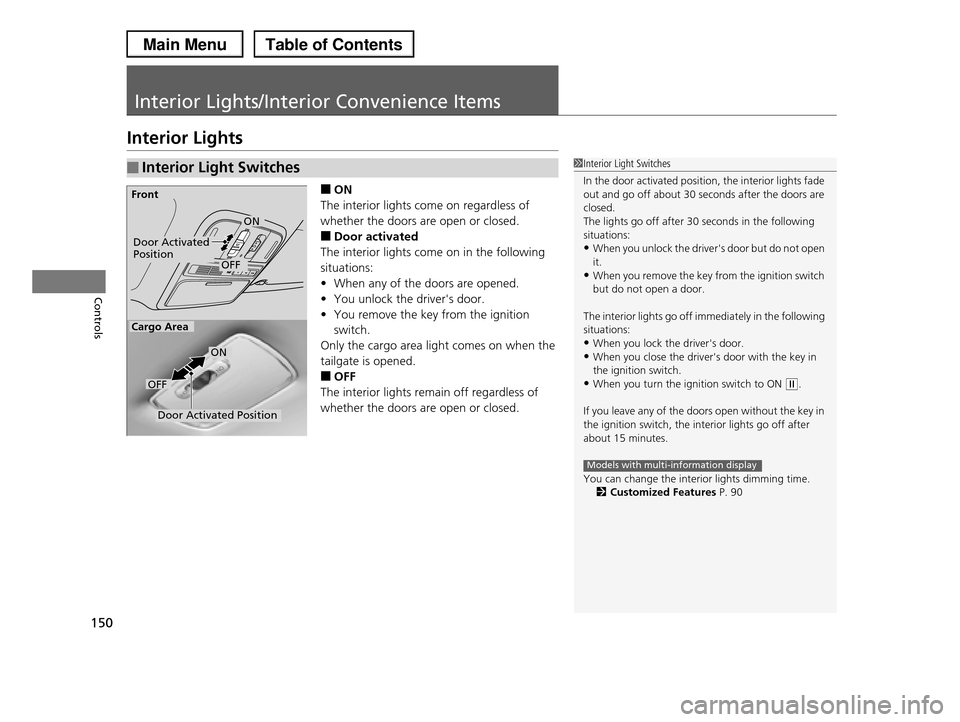
■ON
The interior lights come on regardless of
whether the doors are open or closed.
■Door activated
The interior lights come on in the following
situations:
•When any of the doors are opened.
•You unlock the driver's door.
•You remove the key from the ignition
switch.
Only the cargo area light comes on when the
tailgate is opened.
■OFF
The interior lights remain off regardless of
whether the doors are open or closed.
■Interior Light Switches1Interior Light Switches
In the door activated position, the interior lights fade out and go off about 30 seconds after the doors are
closed.
The lights go off after 30 seconds in the following
situations:•When you unlock the driver's door but do not open
it.
•When you remove the key from the ignition switch but do not open a door.
The interior lights go off immediately in the following situations:
•When you lock the driver's door.
•When you close the driver's door with the key in the ignition switch.
•When you turn the ignition switch to ON (w.
If you leave any of the doors open without the key in
the ignition switch, the interior lights go off after
about 15 minutes.
You can change the interior lights dimming time.2Customized Features P. 90
Models with multi-information display
Door Activated PositionOFF
Front
Door Activated Position
ON
OFF
Cargo Area
ON
Page 163 of 488
uuInterior Lights/Interior Convenience ItemsuInterior Convenience Items
162
Controls
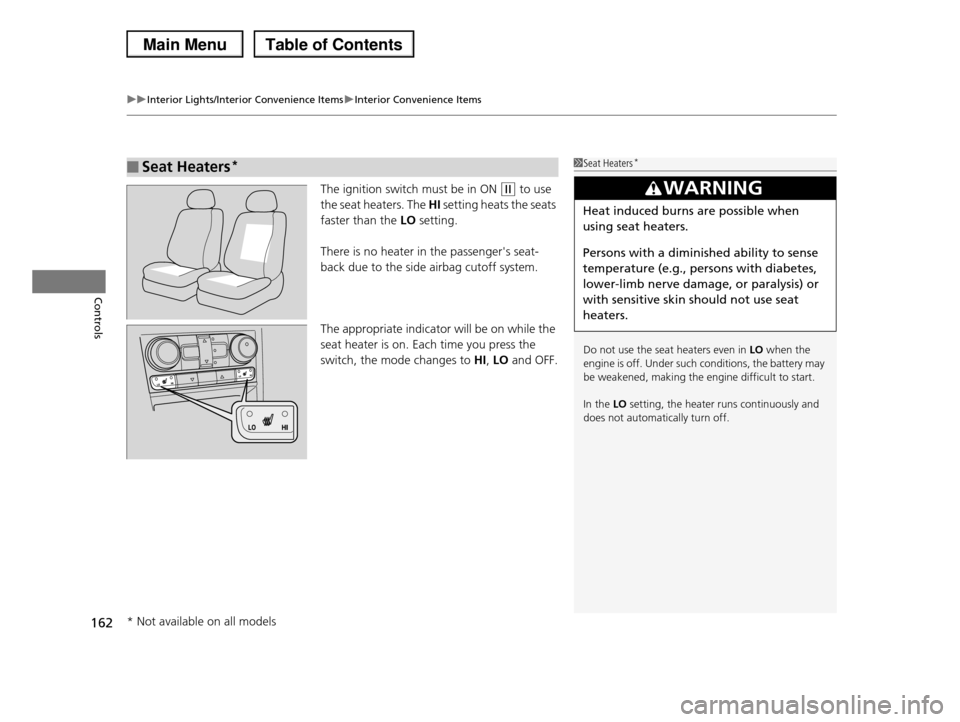
The ignition switch must be in ON (w to use
the seat heaters. The HI setting heats the seats
faster than the LO setting.
There is no heater in the passenger's seat-
back due to the side airbag cutoff system.
The appropriate indicator will be on while the
seat heater is on. Each time you press the
switch, the mode changes to HI, LO and OFF.
■Seat Heaters*1Seat Heaters*
Do not use the seat heaters even in LO when the engine is off. Under such conditions, the battery may
be weakened, making the engine difficult to start.
In the LO setting, the heater runs continuously and
does not automatically turn off.
3WARNING
Heat induced burns are possible when
using seat heaters.
Persons with a diminished ability to sense
temperature (e.g., persons with diabetes,
lower-limb nerve damage, or paralysis) or
with sensitive skin should not use seat
heaters.
* Not available on all models
Page 176 of 488
175
Features
Audio System Basic Operation
To use the audio system function, the ignition switch must be in ACCESSORY (q or
ON (w.
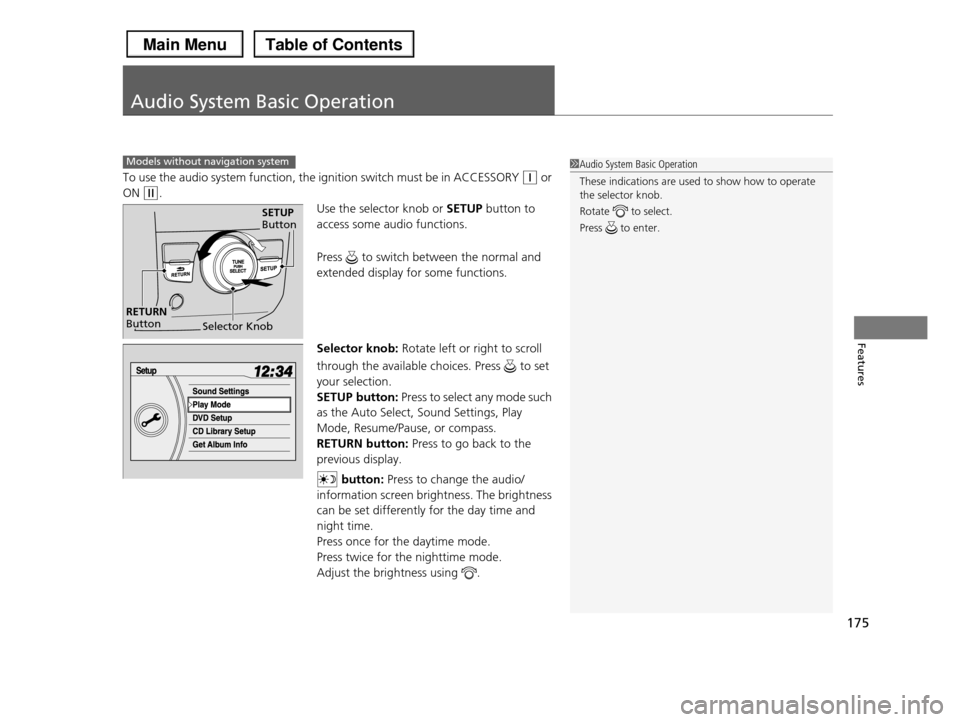
Use the selector knob or SETUP button to
access some audio functions.
Press to switch between the normal and
extended display for some functions.
Selector knob: Rotate left or right to scroll
through the available choices. Press to set
your selection.
SETUP button: Press to select any mode such
as the Auto Select, Sound Settings, Play
Mode, Resume/Pause, or compass.
RETURN button: Press to go back to the
previous display.
button: Press to change the audio/
information screen brightness. The brightness
can be set differently for the day time and
night time.
Press once for the daytime mode.
Press twice for the nighttime mode.
Adjust the brightness using .
Models without navigation system1Audio System Basic Operation
These indications are used to show how to operate
the selector knob.
Rotate to select.
Press to enter.
Selector Knob
SETUP Button
RETURN Button
Page 180 of 488
Continued179
uuAudio System Basic OperationuAudio/Information Screen*
Features
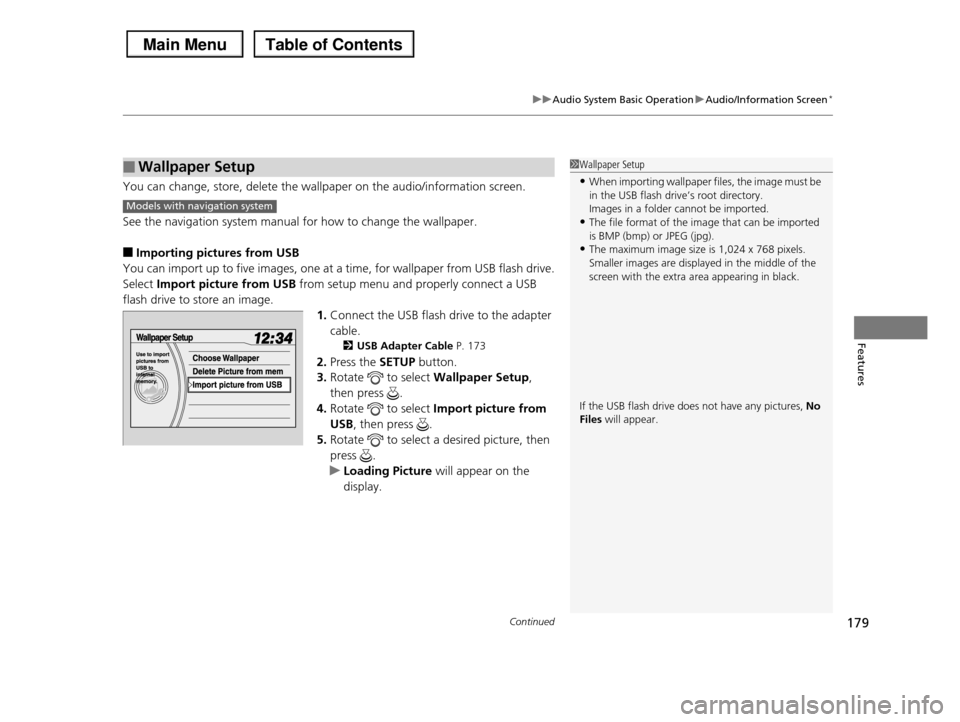
You can change, store, delete the wallpaper on the audio/information screen.
See the navigation system manual for how to change the wallpaper.
■Importing pictures from USB
You can import up to five images, one at a time, for wallpaper from USB flash drive.
Select Import picture from USB from setup menu and properly connect a USB
flash drive to store an image.
1.Connect the USB flash drive to the adapter
cable.
2USB Adapter Cable P. 173
2.Press the SETUP button.
3.Rotate to select Wallpaper Setup,
then press .
4.Rotate to select Import picture from
USB, then press .
5.Rotate to select a desired picture, then
press .
uLoading Picture will appear on the
display.
■Wallpaper Setup1Wallpaper Setup
•When importing wallpaper files, the image must be
in the USB flash drive’s root directory.Images in a folder cannot be imported.
•The file format of the image that can be imported
is BMP (bmp) or JPEG (jpg).•The maximum image size is 1,024 x 768 pixels.
Smaller images are displayed in the middle of the
screen with the extra area appearing in black.
If the USB flash drive does not have any pictures, No Files will appear.
Models with navigation system
Page 194 of 488
193
uuAudio System Basic OperationuPlaying a CD
Continued
Features
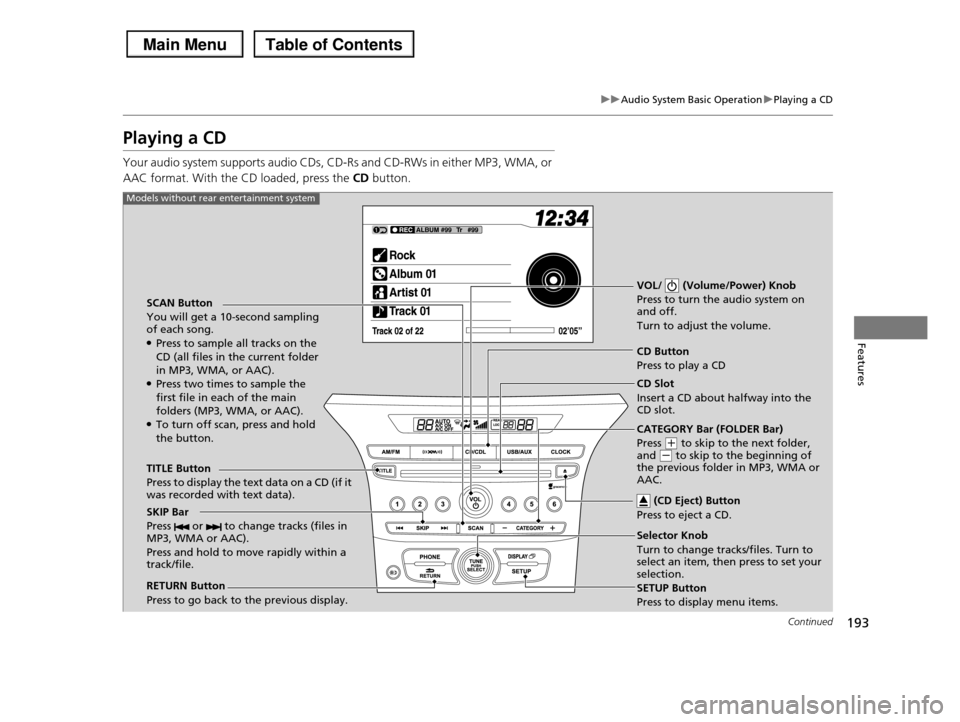
Playing a CD
Your audio system supports audio CDs, CD-Rs and CD-RWs in either MP3, WMA, or
AAC format. With the CD loaded, press the CD button.
SCAN Button
You will get a 10-second sampling of each song.●Press to sample all tracks on the CD (all files in the current folder
in MP3, WMA, or AAC).●Press two times to sample the first file in each of the main
folders (MP3, WMA, or AAC).●To turn off scan, press and hold the button.
VOL/ (Volume/Power) Knob
Press to turn the audio system on and off.
Turn to adjust the volume.
CD Button
Press to play a CD
TITLE Button
Press to display the text data on a CD (if it was recorded with text data).
RETURN Button
Press to go back to the previous display.
Selector Knob
Turn to change tracks/files. Turn to select an item, then press to set your selection.
SETUP Button
Press to display menu items.
Models without rear entertainment system
CD Slot
Insert a CD about halfway into the CD slot.
(CD Eject) Button
Press to eject a CD.SKIP Bar
Press or to change tracks (files in MP3, WMA or AAC).
Press and hold to move rapidly within a track/file.
CATEGORY Bar (FOLDER Bar)
Press (+ to skip to the next folder, and (- to skip to the beginning of the previous folder in MP3, WMA or AAC.
Page 195 of 488
194
uuAudio System Basic OperationuPlaying a CD
Features
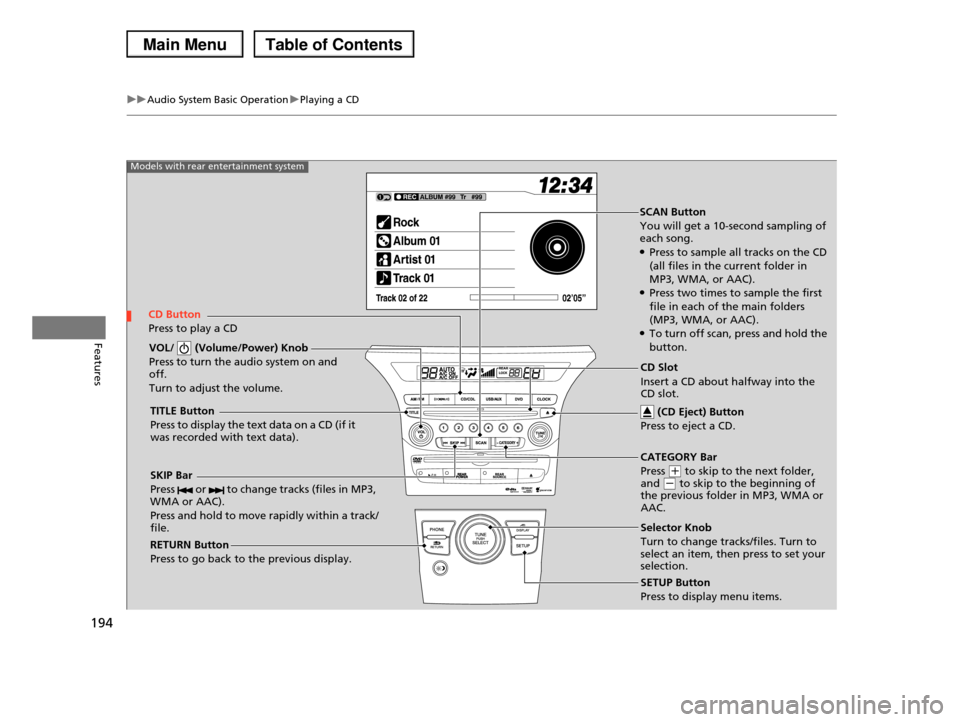
SCAN Button
You will get a 10-second sampling of each song.●Press to sample all tracks on the CD
(all files in the current folder in
MP3, WMA, or AAC).●Press two times to sample the first
file in each of the main folders
(MP3, WMA, or AAC).●To turn off scan, press and hold the
button.VOL/ (Volume/Power) Knob
Press to turn the audio system on and off.
Turn to adjust the volume.
SKIP Bar
Press or to change tracks (files in MP3, WMA or AAC).
Press and hold to move rapidly within a track/ file.
TITLE Button
Press to display the text data on a CD (if it was recorded with text data).
RETURN Button
Press to go back to the previous display.
SETUP Button
Press to display menu items.
Models with rear entertainment system
CD Button
Press to play a CD
Selector Knob
Turn to change tracks/files. Turn to select an item, then press to set your selection.
CD Slot
Insert a CD about halfway into the CD slot.
(CD Eject) Button
Press to eject a CD.
CATEGORY Bar
Press (+ to skip to the next folder, and (- to skip to the beginning of the previous folder in MP3, WMA or AAC.
Page 198 of 488
197
uuAudio System Basic OperationuPlaying CD Library
Continued
Features
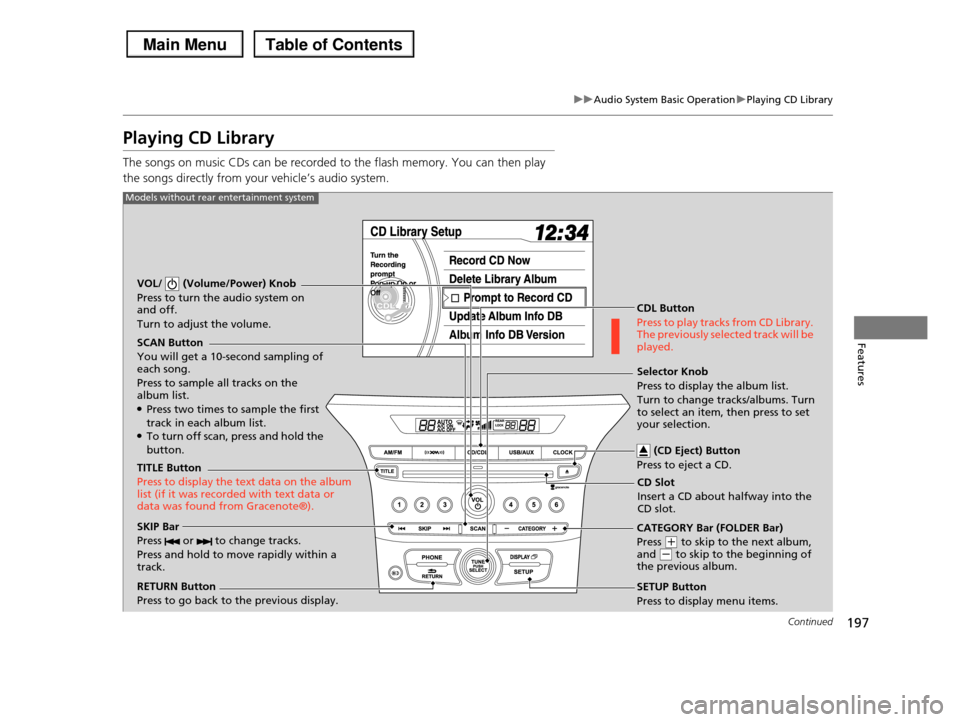
Playing CD Library
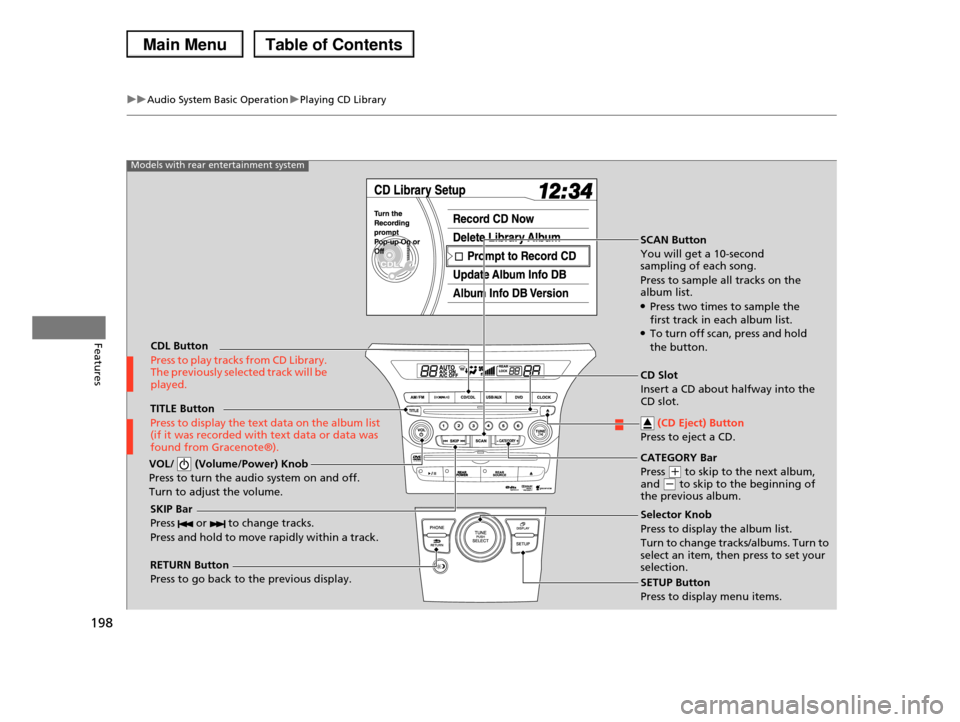
The songs on music CDs can be recorded to the flash memory. You can then play
the songs directly from your vehicle’s audio system.
SCAN Button
You will get a 10-second sampling of each song.
Press to sample all tracks on the album list.●Press two times to sample the first
track in each album list.●To turn off scan, press and hold the button.
VOL/ (Volume/Power) Knob
Press to turn the audio system on and off.
Turn to adjust the volume.
CDL Button
Press to play tracks from CD Library. The previously selected track will be played.
TITLE Button
Press to display the text data on the album list (if it was recorded with text data or data was found from Gracenote®).
RETURN Button
Press to go back to the previous display.
Selector Knob
Press to display the album list.
Turn to change tracks/albums. Turn to select an item, then press to set your selection.
SETUP Button
Press to display menu items.
Models without rear entertainment system
CD Slot
Insert a CD about halfway into the CD slot.
(CD Eject) Button
Press to eject a CD.
SKIP Bar
Press or to change tracks.
Press and hold to move rapidly within a track.
CATEGORY Bar (FOLDER Bar)
Press (+ to skip to the next album, and (- to skip to the beginning of the previous album.
Page 199 of 488
198
uuAudio System Basic OperationuPlaying CD Library
Features
SCAN Button
You will get a 10-second sampling of each song.
Press to sample all tracks on the album list.●Press two times to sample the first track in each album list.●To turn off scan, press and hold
the button.
VOL/ (Volume/Power) Knob
Press to turn the audio system on and off.
Turn to adjust the volume.
SKIP Bar
Press or to change tracks.
Press and hold to move rapidly within a track.
TITLE Button
Press to display the text data on the album list (if it was recorded with text data or data was found from Gracenote®).
RETURN Button
Press to go back to the previous display.SETUP Button
Press to display menu items.
Models with rear entertainment system
CDL Button
Press to play tracks from CD Library. The previously selected track will be played.
Selector Knob
Press to display the album list.
Turn to change tracks/albums. Turn to select an item, then press to set your selection.
CD Slot
Insert a CD about halfway into the CD slot.
(CD Eject) Button
Press to eject a CD.
CATEGORY Bar
Press (+ to skip to the next album, and (- to skip to the beginning of the previous album.
Page 200 of 488
Continued199
uuAudio System Basic OperationuPlaying CD Library
Features
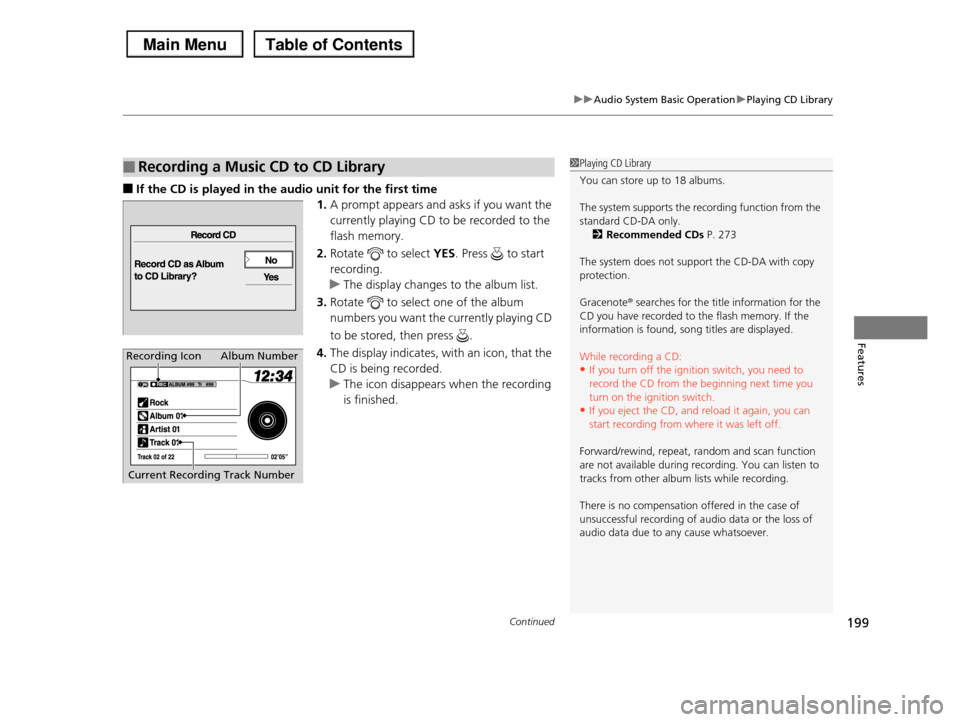
■If the CD is played in the audio unit for the first time
1.A prompt appears and asks if you want the
currently playing CD to be recorded to the
flash memory.
2.Rotate to select YES. Press to start
recording.
uThe display changes to the album list.
3.Rotate to select one of the album
numbers you want the currently playing CD
to be stored, then press .
4.The display indicates, with an icon, that the
CD is being recorded.
uThe icon disappears when the recording
is finished.
■Recording a Music CD to CD Library1Playing CD Library
You can store up to 18 albums.
The system supports the recording function from the
standard CD-DA only.2Recommended CDs P. 273
The system does not support the CD-DA with copy protection.
Gracenote® searches for the title information for the CD you have recorded to the flash memory. If the
information is found, song titles are displayed.
While recording a CD:
•If you turn off the ignition switch, you need to
record the CD from the beginning next time you turn on the ignition switch.
•If you eject the CD, and reload it again, you can
start recording from where it was left off.
Forward/rewind, repeat, random and scan function
are not available during recording. You can listen to
tracks from other album lists while recording.
There is no compensation offered in the case of
unsuccessful recording of audio data or the loss of audio data due to any cause whatsoever.
Album Number
Current Recording Track Number
Recording Icon