remote control HONDA PILOT 2013 2.G User Guide
[x] Cancel search | Manufacturer: HONDA, Model Year: 2013, Model line: PILOT, Model: HONDA PILOT 2013 2.GPages: 488, PDF Size: 10.18 MB
Page 118 of 488
117
uuOpening and Closing the TailgateuOpening/Closing the Glass Hatch
Controls
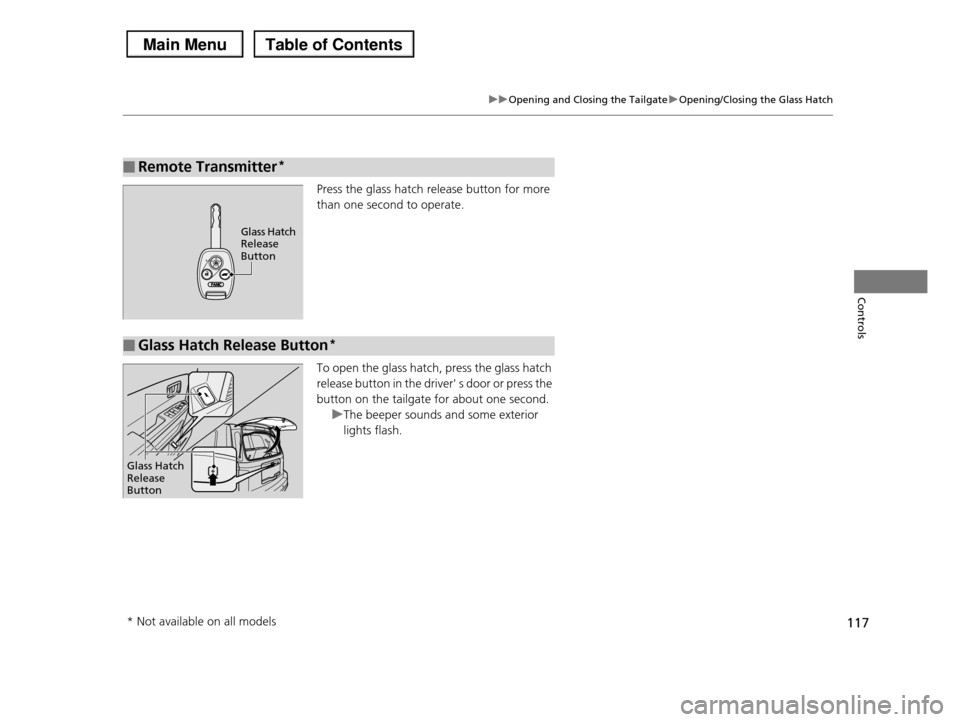
Press the glass hatch release button for more
than one second to operate.
To open the glass hatch, press the glass hatch
release button in the driver' s door or press the
button on the tailgate for about one second.
uThe beeper sounds and some exterior
lights flash.
■Remote Transmitter*
Glass Hatch Release Button
■Glass Hatch Release Button*
Glass Hatch Release Button
* Not available on all models
Page 119 of 488
118
Controls
Security System
Immobilizer System
The immobilizer system prevents a key that has not been pre-registered from
starting the engine. Each key contains electronic transmitters that use electronic
signals to verify the key.
Pay attention to the following when inserting the key into the ignition switch:
•Do not allow objects that emit strong radio waves near the ignition switch.
•Make sure the key is not covered by or touching a metal object.
•Do not bring a key from another vehicle's immobilizer system near the ignition
switch.
Security System Alarm*
The security system alarm activates when the doors, tailgate, glass hatch, or hood is
opened without the key, or remote transmitter.
■When the security system alarm activates
The horn sounds intermittently, and all the exterior lights flash.
■To deactivate the security system alarm
Unlock the vehicle using the key or remote transmitter. The system, along with the
horn and flashing lights, is deactivated.
1Immobilizer System
NOTICE
Leaving the ignition key in the vehicle can result in
theft or accidental movement of the vehicle.
Always take the ignition key with you whenever you leave the vehicle unattended.
Do not alter the system or add other devices to it.Doing so may damage the system and make your
vehicle inoperable.
1Security System Alarm*
The security alarm continues for a maximum of two minutes until the security system alarm deactivates.
* Not available on all models
Page 120 of 488
119
uuSecurity SystemuSecurity System Alarm*
Controls
■Setting the security system alarm
The security system alarm automatically sets when the following conditions have
been met:
•The ignition switch is in LOCK (0, and the key has been removed from the
ignition switch.
•The hood and tailgate are closed.
•All doors, the tailgate, and the glass hatch are locked with the key or the remote
transmitter.
■When the security system alarm sets
The security system alarm indicator in the instrument panel blinks. When the
blinking interval changes after about 15 seconds, the security system alarm is set.
■To cancel the security system alarm
The security system alarm is canceled when the vehicle is unlocked using the key or
remote transmitter. The security system alarm indicator goes off at the same time.
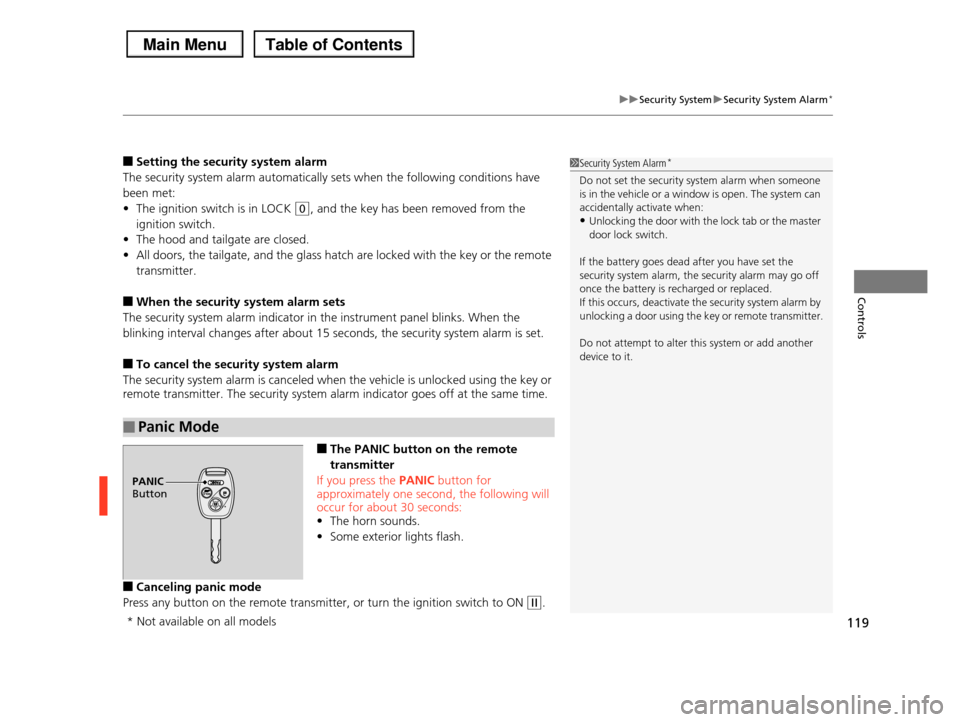
■The PANIC button on the remote
transmitter
If you press the PANIC button for
approximately one second, the following will occur for about 30 seconds:
•The horn sounds.
•Some exterior lights flash.
■Canceling panic mode
Press any button on the remote transmitter, or turn the ignition switch to ON (w.
■Panic Mode
1Security System Alarm*
Do not set the security system alarm when someone is in the vehicle or a window is open. The system can
accidentally activate when:
•Unlocking the door with the lock tab or the master door lock switch.
If the battery goes dead after you have set the security system alarm, the security alarm may go off
once the battery is recharged or replaced.
If this occurs, deactivate the security system alarm by unlocking a door using the key or remote transmitter.
Do not attempt to alter this system or add another device to it.
PANIC Button
* Not available on all models
Page 122 of 488

121
uuOpening and Closing the WindowsuOpening/Closing the Power Windows
Continued
Controls
To open: Push the switch down.
To close: Pull the switch up.
Release the switch when the window reaches
the desired position.
To open: Press the unlock button twice
within 10 seconds and hold it down for the
second time. If the windows stop midway,
repeat the procedure.
■Opening/Closing Windows without Auto-Open/Close Function
Close
Open
■Opening the Windows and Moonroof* with the Remote
Transmitter
Unlock Button
* Not available on all models
Page 124 of 488
123
Controls
Opening and Closing the Moonroof*
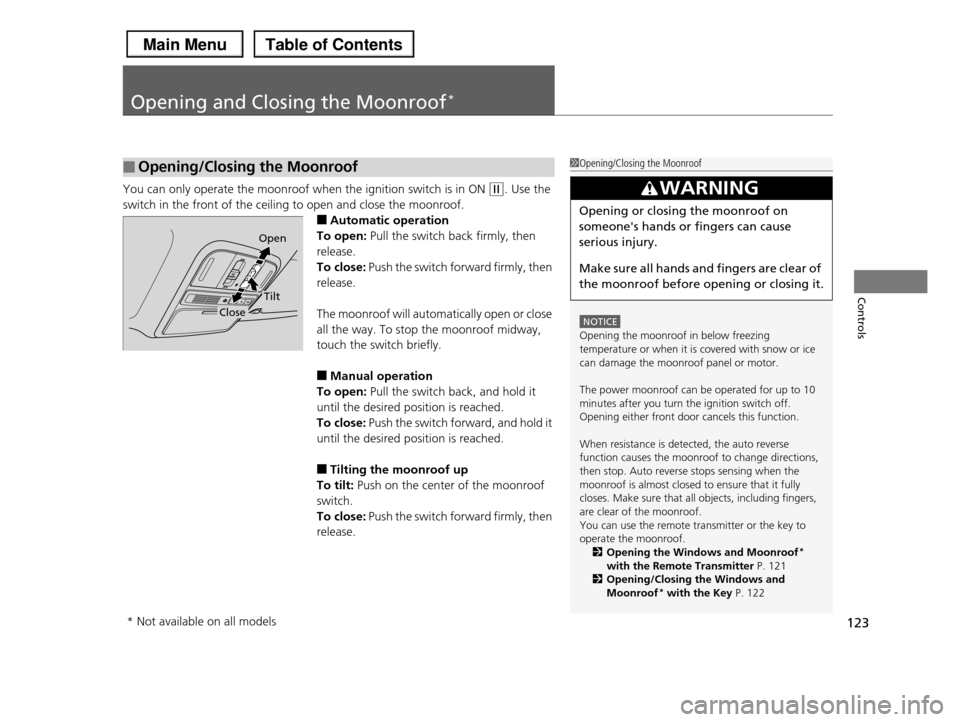
You can only operate the moonroof when the ignition switch is in ON (w. Use the
switch in the front of the ceiling to open and close the moonroof.
■Automatic operation
To open: Pull the switch back firmly, then
release.
To close: Push the switch forward firmly, then
release.
The moonroof will automatically open or close
all the way. To stop the moonroof midway,
touch the switch briefly.
■Manual operation
To open: Pull the switch back, and hold it
until the desired position is reached.
To close: Push the switch forward, and hold it
until the desired position is reached.
■Tilting the moonroof up
To tilt: Push on the center of the moonroof
switch.
To close: Push the switch forward firmly, then
release.
■Opening/Closing the Moonroof1Opening/Closing the Moonroof
NOTICE
Opening the moonroof in below freezing
temperature or when it is covered with snow or ice can damage the moonroof panel or motor.
The power moonroof can be operated for up to 10 minutes after you turn the ignition switch off.
Opening either front door cancels this function.
When resistance is detected, the auto reverse function causes the moonroof to change directions,
then stop. Auto reverse stops sensing when the
moonroof is almost closed to ensure that it fully closes. Make sure that all objects, including fingers,
are clear of the moonroof.
You can use the remote transmitter or the key to operate the moonroof.
2Opening the Windows and Moonroof*
with the Remote Transmitter P. 1212Opening/Closing the Windows and
Moonroof* with the Key P. 122
3WARNING
Opening or closing the moonroof on
someone's hands or fingers can cause
serious injury.
Make sure all hands and fingers are clear of
the moonroof before opening or closing it.
Open
Close
Tilt
* Not available on all models
Page 133 of 488

132
uuOperating the Switches Around the Steering WheeluDriving Position Memory System*
Controls
Driving Position Memory System*
You can store two driver’s seat and door mirror positions with the driving position
memory system.
When you unlock and open the driver’s door with a remote transmitter, the seat and
door mirrors adjust automatically to one of the two preset positions.
The multi-information display shows you which remote transmitter you used to
unlock the vehicle when you enter.
•Driver 1 transmitter is linked to memory button 1.
•Driver 2 transmitter is linked to memory button 2.
1Driving Position Memory System*
Using the multi-information display, you can disable
the automatic seat adjustment function.
2Customized Features P. 90
The customize setting is also stored by the Driver 1
and 2 transmitters. What setting is recalled next time depends on which transmitter you use to unlock and
open the driver's door.
Driver 1Driver 2
* Not available on all models
Page 172 of 488
171
Features
This chapter describes how to operate technology features.
Audio SystemAbout Your Audio System ................ 172 USB Adapter Cable .......................... 173 Auxiliary Input Jack .......................... 173 Audio System Theft Protection ......... 174
Audio System Basic Operation........ 175Audio/Information Screen*.............. 176Audio Remote Controls .................... 184Adjusting the Sound ........................ 185 Playing the AM/FM Radio ................. 186 Playing the XM® Radio*................... 190Playing a CD .................................... 193
Models without navigation system
Playing an iPod®............................... 203Playing a USB Flash Drive ................. 207Playing Bluetooth® Audio................. 211
Audio System Basic Operation........ 216Audio Remote Controls.................... 217Adjusting the Sound ........................ 218 Playing the AM/FM Radio ................. 219 Playing the XM® Radio ..................... 223Playing a CD .................................... 226Playing Hard Disc Drive (HDD) Audio .... 230Playing an iPod®............................... 240Rear Entertainment System*........... 251
Models with navigation system
Audio Error Messages...................... 266General Information on the Audio System............................................. 272HomeLink® Universal Transceiver*.. 276
Bluetooth® HandsFreeLink®Using HFL ........................................ 278 HFL Menus ...................................... 280
Bluetooth® HandsFreeLink®Using HFL ........................................ 301HFL Menus ...................................... 303Compass*.......................................... 320
Models without navigation system
Models with navigation system
* Not available on all models
Page 173 of 488
172
Features
Audio System
About Your Audio System
See the Navigation System Manual for operation of the voice commands.
The audio system features AM/FM radio and the XM® Radio* service. It can also play
audio CDs, WMA/MP3/AAC files, iPod®, iPhone®, USB flash drives, and Bluetooth®
devices.
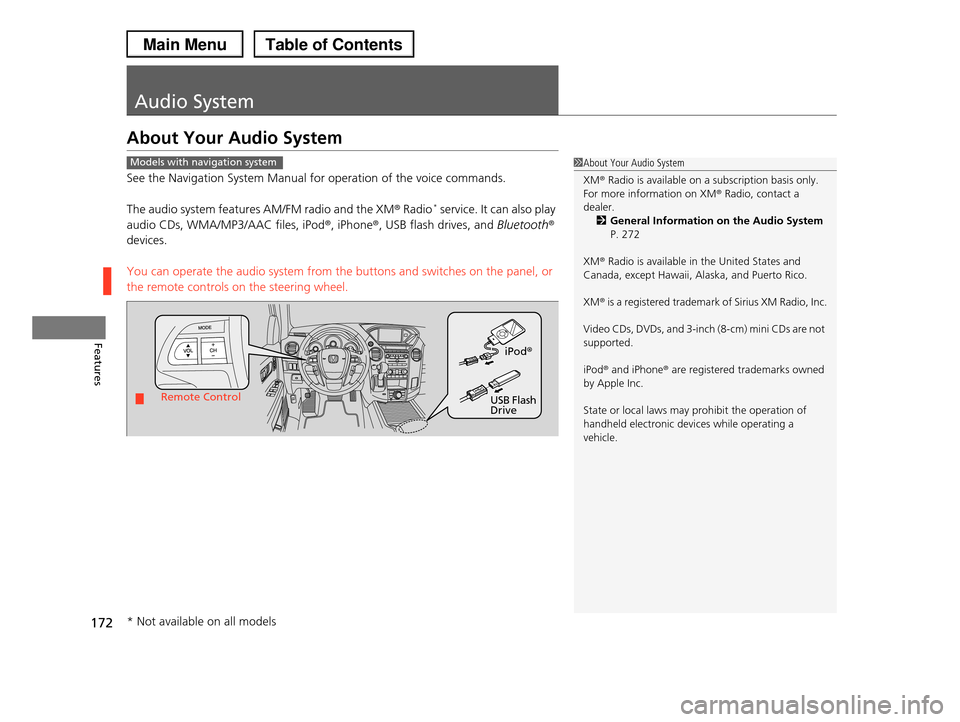
You can operate the audio system from the buttons and switches on the panel, or
the remote controls on the steering wheel.
1About Your Audio System
XM® Radio is available on a subscription basis only.
For more information on XM® Radio, contact a dealer.
2General Information on the Audio System
P. 272
XM® Radio is available in the United States and
Canada, except Hawaii, Alaska, and Puerto Rico.
XM® is a registered trademark of Sirius XM Radio, Inc.
Video CDs, DVDs, and 3-inch (8-cm) mini CDs are not
supported.
iPod® and iPhone® are registered trademarks owned by Apple Inc.
State or local laws may prohibit the operation of handheld electronic devices while operating a
vehicle.
Models with navigation system
Remote Control
iPod®
USB Flash Drive
* Not available on all models
Page 185 of 488
184
uuAudio System Basic OperationuAudio Remote Controls
Features
Audio Remote Controls
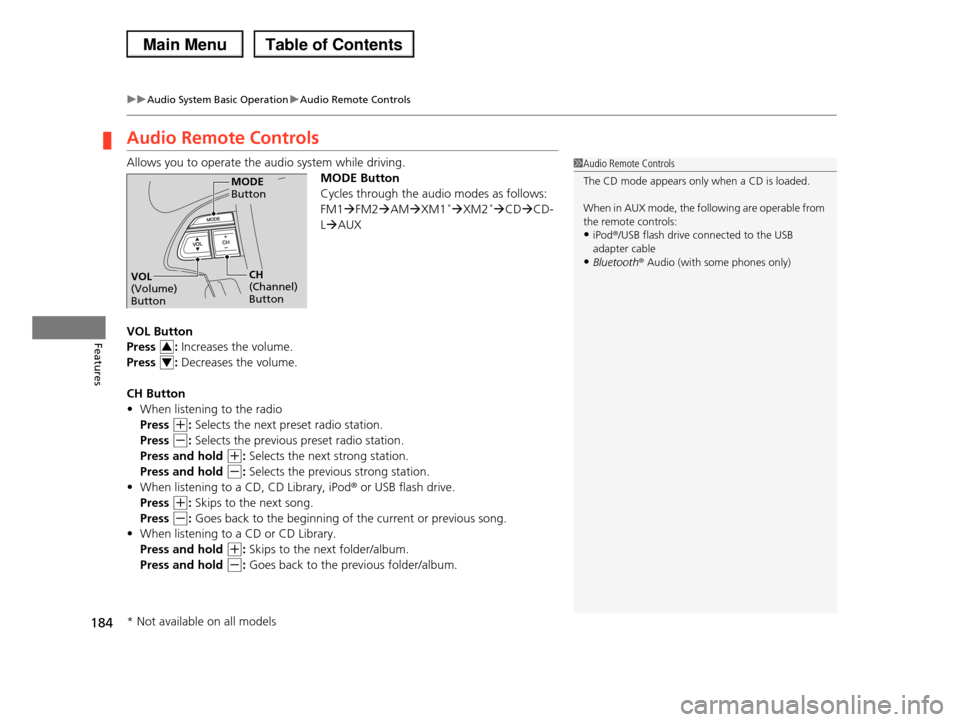
Allows you to operate the audio system while driving.
MODE Button
Cycles through the audio modes as follows:
FM1FM2AMXM1*XM2*CDCD-
LAUX
VOL Button
Press : Increases the volume.
Press : Decreases the volume.
CH Button
•When listening to the radio
Press (+: Selects the next preset radio station.
Press (-: Selects the previous preset radio station.
Press and hold (+: Selects the next strong station.
Press and hold (-: Selects the previous strong station.
•When listening to a CD, CD Library, iPod® or USB flash drive.
Press (+: Skips to the next song.
Press (-: Goes back to the beginning of the current or previous song.
•When listening to a CD or CD Library.
Press and hold (+: Skips to the next folder/album.
Press and hold (-: Goes back to the previous folder/album.
1Audio Remote Controls
The CD mode appears only when a CD is loaded.
When in AUX mode, the following are operable from
the remote controls:•iPod®/USB flash drive connected to the USB
adapter cable
•Bluetooth® Audio (with some phones only)
MODE Button
CH (Channel) Button
VOL (Volume) Button
3
4
* Not available on all models
Page 189 of 488
uuAudio System Basic OperationuPlaying the AM/FM Radio
188
Features
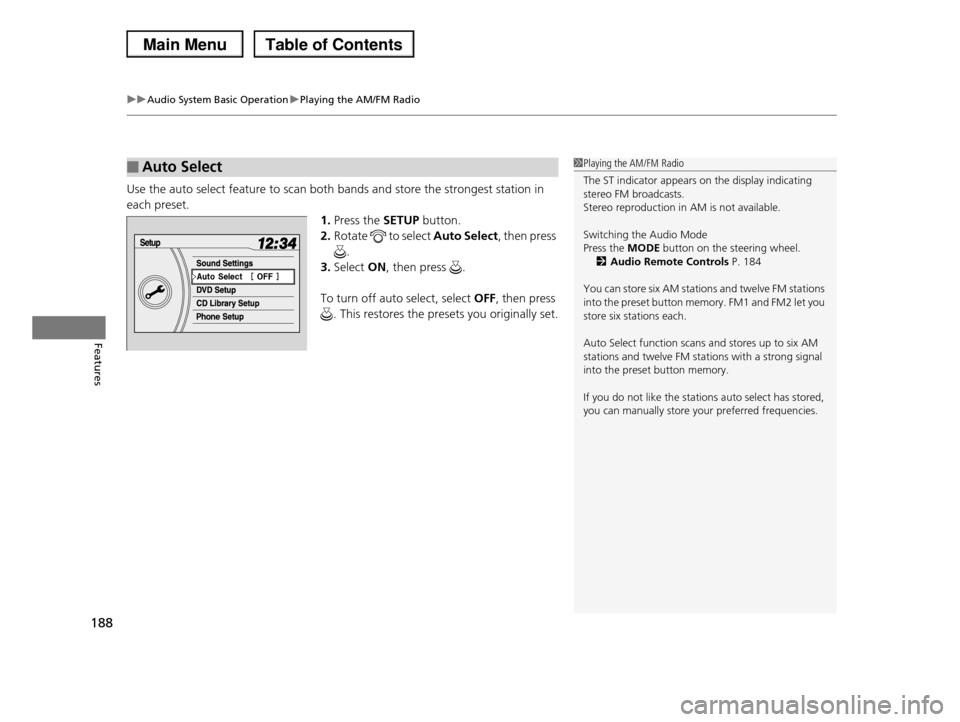
Use the auto select feature to scan both bands and store the strongest station in
each preset.
1.Press the SETUP button.
2.Rotate to select Auto Select, then press
.
3.Select ON, then press .
To turn off auto select, select OFF, then press
. This restores the presets you originally set.
■Auto Select1Playing the AM/FM Radio
The ST indicator appears on the display indicating stereo FM broadcasts.
Stereo reproduction in AM is not available.
Switching the Audio Mode
Press the MODE button on the steering wheel.
2Audio Remote Controls P. 184
You can store six AM stations and twelve FM stations
into the preset button memory. FM1 and FM2 let you store six stations each.
Auto Select function scans and stores up to six AM stations and twelve FM stations with a strong signal
into the preset button memory.
If you do not like the stations auto select has stored,
you can manually store your preferred frequencies.