ignition HONDA PILOT 2013 2.G Workshop Manual
[x] Cancel search | Manufacturer: HONDA, Model Year: 2013, Model line: PILOT, Model: HONDA PILOT 2013 2.GPages: 488, PDF Size: 10.18 MB
Page 176 of 488
175
Features
Audio System Basic Operation
To use the audio system function, the ignition switch must be in ACCESSORY (q or
ON (w.
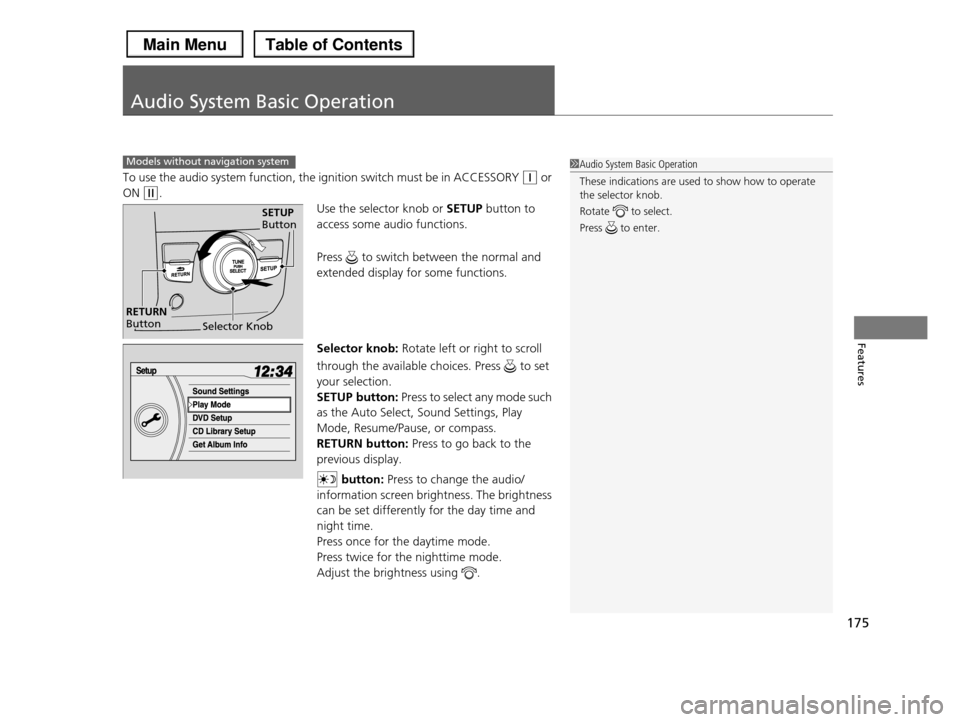
Use the selector knob or SETUP button to
access some audio functions.
Press to switch between the normal and
extended display for some functions.
Selector knob: Rotate left or right to scroll
through the available choices. Press to set
your selection.
SETUP button: Press to select any mode such
as the Auto Select, Sound Settings, Play
Mode, Resume/Pause, or compass.
RETURN button: Press to go back to the
previous display.
button: Press to change the audio/
information screen brightness. The brightness
can be set differently for the day time and
night time.
Press once for the daytime mode.
Press twice for the nighttime mode.
Adjust the brightness using .
Models without navigation system1Audio System Basic Operation
These indications are used to show how to operate
the selector knob.
Rotate to select.
Press to enter.
Selector Knob
SETUP Button
RETURN Button
Page 200 of 488
Continued199
uuAudio System Basic OperationuPlaying CD Library
Features
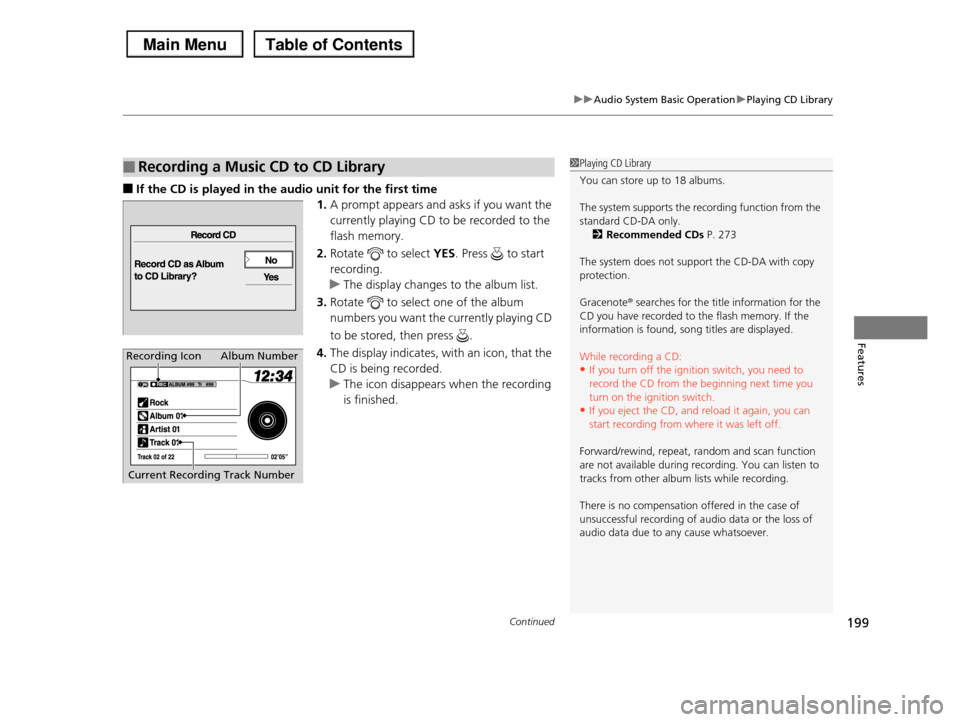
■If the CD is played in the audio unit for the first time
1.A prompt appears and asks if you want the
currently playing CD to be recorded to the
flash memory.
2.Rotate to select YES. Press to start
recording.
uThe display changes to the album list.
3.Rotate to select one of the album
numbers you want the currently playing CD
to be stored, then press .
4.The display indicates, with an icon, that the
CD is being recorded.
uThe icon disappears when the recording
is finished.
■Recording a Music CD to CD Library1Playing CD Library
You can store up to 18 albums.
The system supports the recording function from the
standard CD-DA only.2Recommended CDs P. 273
The system does not support the CD-DA with copy protection.
Gracenote® searches for the title information for the CD you have recorded to the flash memory. If the
information is found, song titles are displayed.
While recording a CD:
•If you turn off the ignition switch, you need to
record the CD from the beginning next time you turn on the ignition switch.
•If you eject the CD, and reload it again, you can
start recording from where it was left off.
Forward/rewind, repeat, random and scan function
are not available during recording. You can listen to
tracks from other album lists while recording.
There is no compensation offered in the case of
unsuccessful recording of audio data or the loss of audio data due to any cause whatsoever.
Album Number
Current Recording Track Number
Recording Icon
Page 217 of 488
216
Features
Audio System Basic Operation
To use the audio system function, the ignition switch must be in ACCESSORY (q or
ON (w.
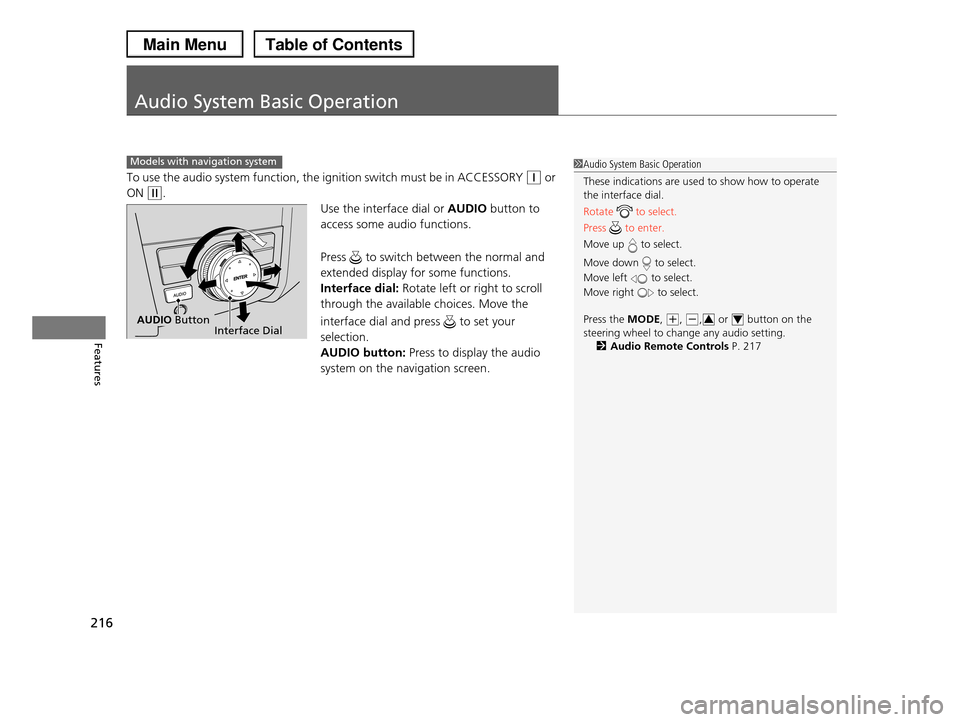
Use the interface dial or AUDIO button to
access some audio functions.
Press to switch between the normal and
extended display for some functions.
Interface dial: Rotate left or right to scroll
through the available choices. Move the
interface dial and press to set your
selection.
AUDIO button: Press to display the audio
system on the navigation screen.
Models with navigation system1Audio System Basic Operation
These indications are used to show how to operate the interface dial.
Rotate to select.
Press to enter.
Move up to select.
Move down to select.
Move left to select.
Move right to select.
Press the MODE, (+, (-, or button on the
steering wheel to change any audio setting.2Audio Remote Controls P. 217
34Interface DialAUDIO Button
Page 233 of 488
uuAudio System Basic OperationuPlaying Hard Disc Drive (HDD) Audio
232
Features
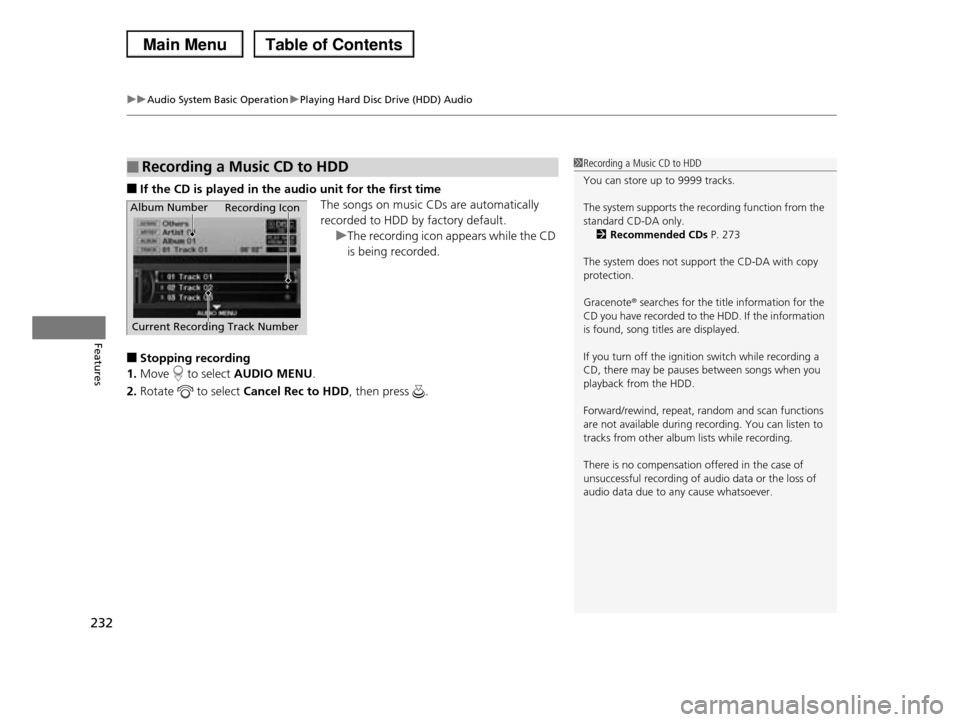
■If the CD is played in the audio unit for the first time
The songs on music CDs are automatically
recorded to HDD by factory default.
uThe recording icon appears while the CD
is being recorded.
■Stopping recording
1.Move to select AUDIO MENU.
2.Rotate to select Cancel Rec to HDD, then press .
■Recording a Music CD to HDD1Recording a Music CD to HDD
You can store up to 9999 tracks.
The system supports the recording function from the
standard CD-DA only.2Recommended CDs P. 273
The system does not support the CD-DA with copy protection.
Gracenote® searches for the title information for the CD you have recorded to the HDD. If the information
is found, song titles are displayed.
If you turn off the ignition switch while recording a
CD, there may be pauses between songs when you
playback from the HDD.
Forward/rewind, repeat, random and scan functions
are not available during recording. You can listen to
tracks from other album lists while recording.
There is no compensation offered in the case of
unsuccessful recording of audio data or the loss of audio data due to any cause whatsoever.
Album Number
Current Recording Track Number
Recording Icon
Page 253 of 488
uuRear Entertainment System*uOperating the System
252
Features
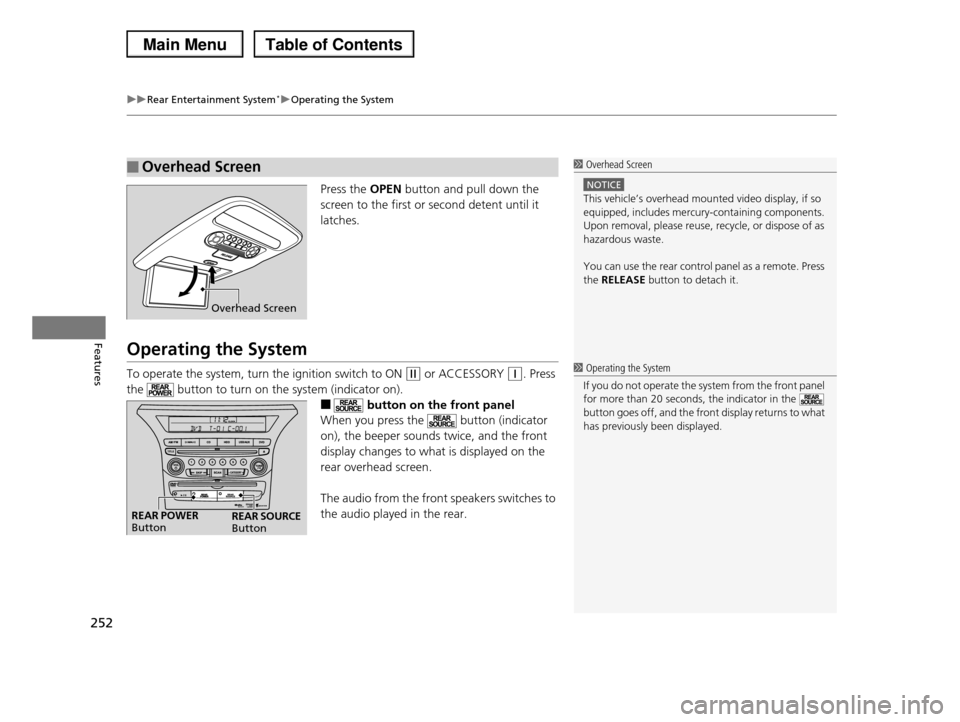
Press the OPEN button and pull down the
screen to the first or second detent until it
latches.
Operating the System
To operate the system, turn the ignition switch to ON (w or ACCESSORY (q. Press
the button to turn on the system (indicator on).
■ button on the front panel
When you press the button (indicator
on), the beeper sounds twice, and the front
display changes to what is displayed on the
rear overhead screen.
The audio from the front speakers switches to
the audio played in the rear.
■Overhead Screen1 Overhead Screen
NOTICE
This vehicle’s overhead mounted video display, if so
equipped, includes mercury-containing components. Upon removal, please reuse, recycle, or dispose of as
hazardous waste.
You can use the rear control panel as a remote. Press
the RELEASE button to detach it.
Overhead Screen
1 Operating the System
If you do not operate the system from the front panel
for more than 20 seconds, the indicator in the button goes off, and the front display returns to what
has previously been displayed.
REAR POWER ButtonREAR SOURCE Button
Page 281 of 488
280
uuBluetooth® HandsFreeLink®uHFL Menus
Features
HFL Menus
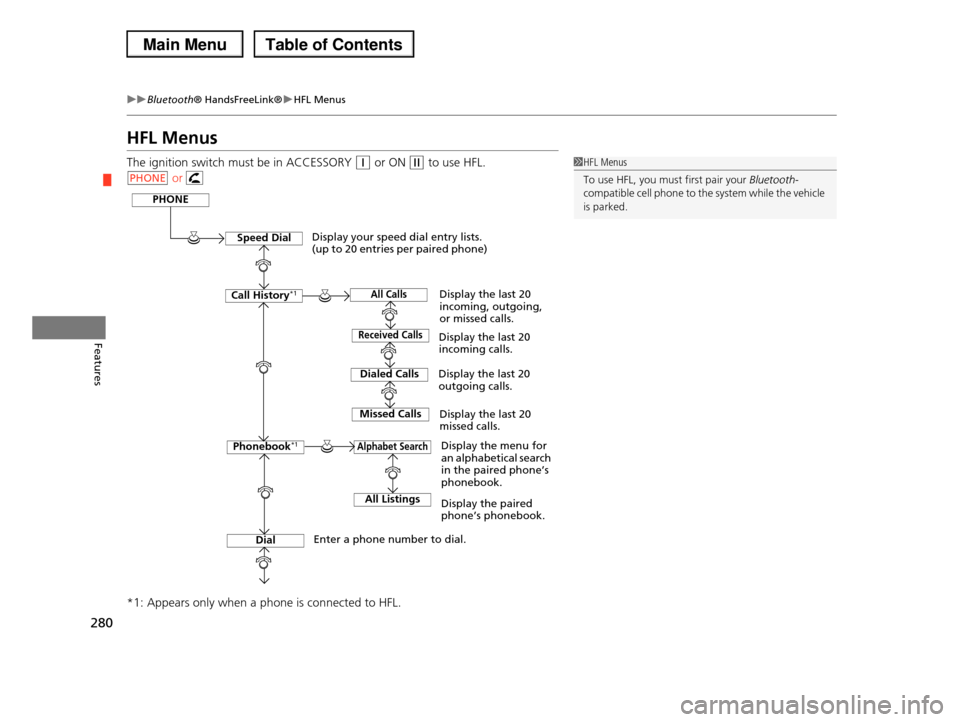
The ignition switch must be in ACCESSORY (q or ON (w to use HFL.
or
*1: Appears only when a phone is connected to HFL.
1HFL Menus
To use HFL, you must first pair your Bluetooth-
compatible cell phone to the system while the vehicle is parked.
PHONE
PHONE
Speed Dial
Call History*1
Dialed Calls
Dial
Phonebook*1
Received Calls
Missed Calls
Display your speed dial entry lists. (up to 20 entries per paired phone)
Display the menu for an alphabetical search in the paired phone’s phonebook.
Enter a phone number to dial.
Display the last 20 incoming calls.
Display the last 20 outgoing calls.
Display the last 20 missed calls.
All CallsDisplay the last 20 incoming, outgoing, or missed calls.
Alphabet Search
All ListingsDisplay the paired phone’s phonebook.
Page 304 of 488
303
uuBluetooth® HandsFreeLink®uHFL Menus
Continued
Features
HFL Menus
The ignition switch must be in ACCESSORY (q or ON (w to use HFL.
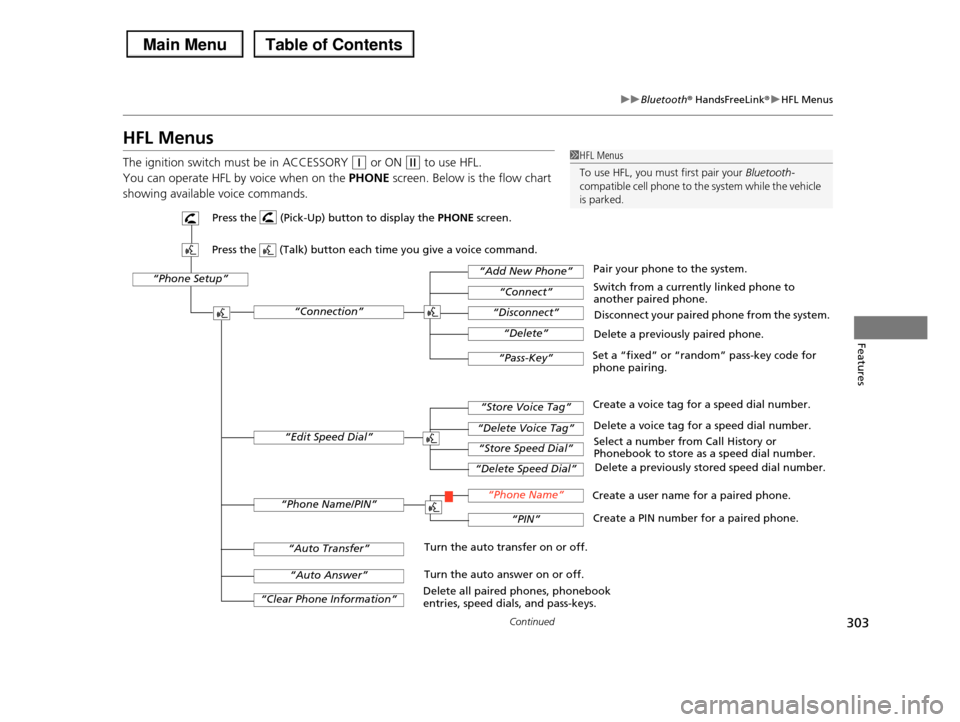
You can operate HFL by voice when on the PHONE screen. Below is the flow chart
showing available voice commands.
1HFL Menus
To use HFL, you must first pair your Bluetooth-
compatible cell phone to the system while the vehicle is parked.
“Phone Setup”
Delete a previously paired phone.
Switch from a currently linked phone to another paired phone.
Pair your phone to the system.
Disconnect your paired phone from the system.
Set a “fixed” or “random” pass-key code for phone pairing.
“Connection”
“Add New Phone”
“Connect”
“Disconnect”
“Delete”
“Pass-Key”
Delete a voice tag for a speed dial number.
Create a voice tag for a speed dial number.
Select a number from Call History or Phonebook to store as a speed dial number.
Delete a previously stored speed dial number.
“Edit Speed Dial”
“Store Voice Tag”
“Delete Voice Tag”
“Store Speed Dial”
“Delete Speed Dial”
Create a PIN number for a paired phone.
Create a user name for a paired phone.“Phone Name/PIN”“Phone Name”
“PIN”
“Clear Phone Information”
“Auto Answer”
“Auto Transfer”Turn the auto transfer on or off.
Turn the auto answer on or off.
Delete all paired phones, phonebook entries, speed dials, and pass-keys.
Press the (Pick-Up) button to display the PHONE screen.
Press the (Talk) button each time you give a voice command.
Page 321 of 488
320
Features
Compass*
When you turn the ignition switch to ON (w, the compass self-calibrates, and the
compass display appears.
Compass Calibration
If the compass indicates the wrong direction, or the compass display blinks, you
need to manually calibrate the system.
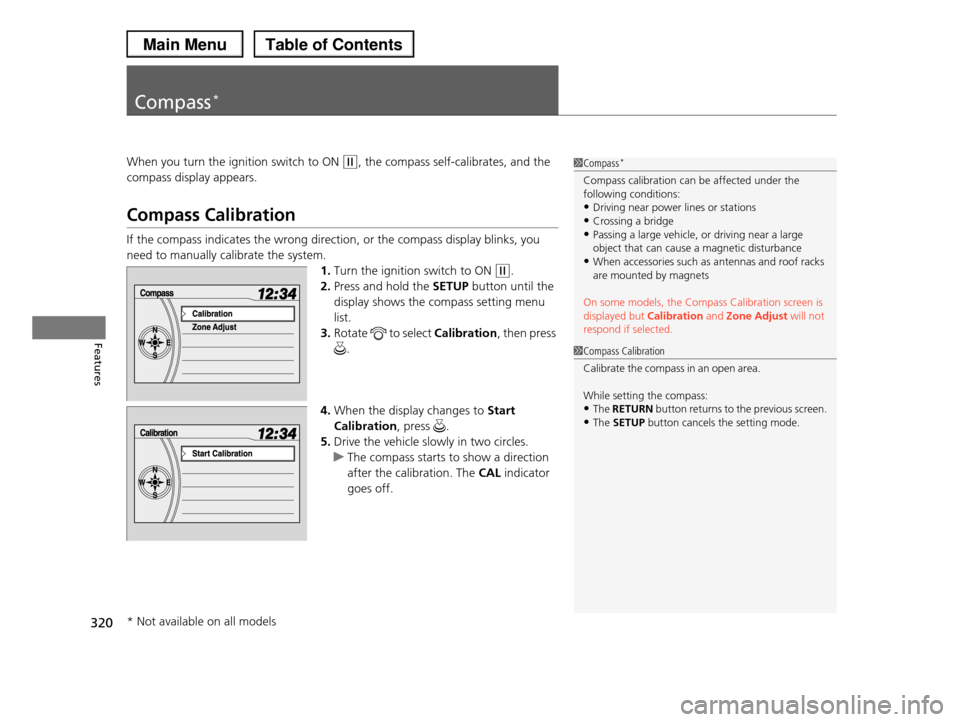
1.Turn the ignition switch to ON (w.
2.Press and hold the SETUP button until the
display shows the compass setting menu
list.
3.Rotate to select Calibration, then press
.
4.When the display changes to Start
Calibration, press .
5.Drive the vehicle slowly in two circles.
uThe compass starts to show a direction
after the calibration. The CAL indicator
goes off.
1Compass*
Compass calibration can be affected under the following conditions:
•Driving near power lines or stations
•Crossing a bridge•Passing a large vehicle, or driving near a large
object that can cause a magnetic disturbance
•When accessories such as antennas and roof racks are mounted by magnets
On some models, the Compass Calibration screen is displayed but Calibration and Zone Adjust will not
respond if selected.
1Compass Calibration
C al i b ra te th e c o m p as s i n a n o p en ar ea .
While setting the compass:•The RETURN button returns to the previous screen.
•The SETUP button cancels the setting mode.
* Not available on all models
Page 322 of 488
321
uuCompass*uCompass Zone Selection
Features
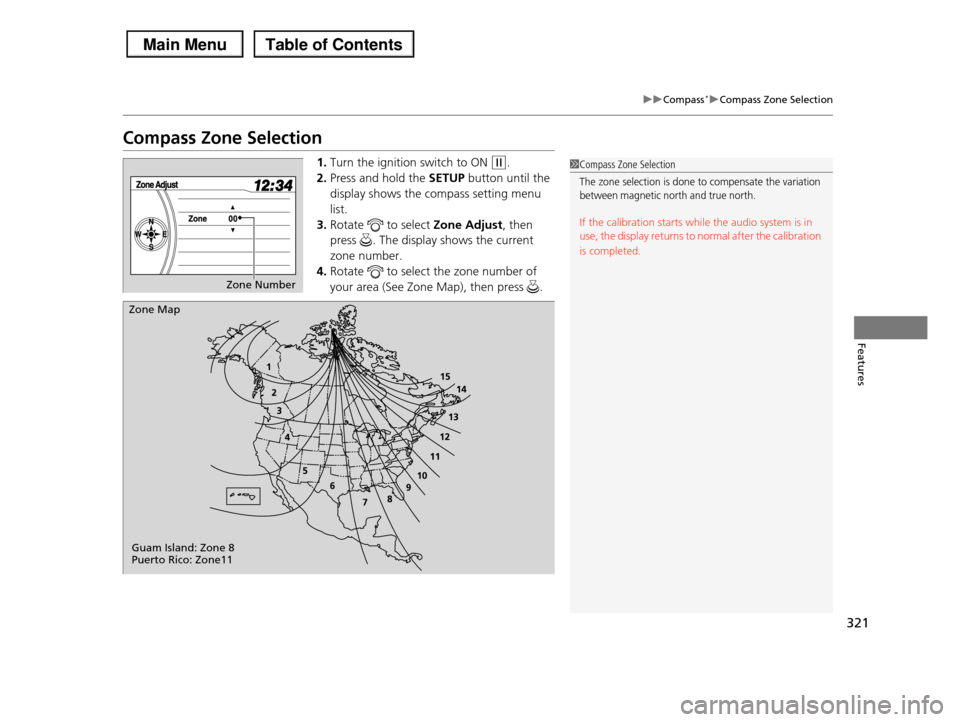
Compass Zone Selection
1.Turn the ignition switch to ON (w.
2.Press and hold the SETUP button until the
display shows the compass setting menu
list.
3.Rotate to select Zone Adjust, then
press . The display shows the current
zone number.
4.Rotate to select the zone number of
your area (See Zone Map), then press .
1Compass Zone Selection
The zone selection is done to compensate the variation between magnetic north and true north.
If the calibration starts while the audio system is in use, the display returns to normal after the calibration
is completed.
Zone Number
Zone Map
Guam Island: Zone 8 Puerto Rico: Zone11
Page 343 of 488
342
Driving
When Driving
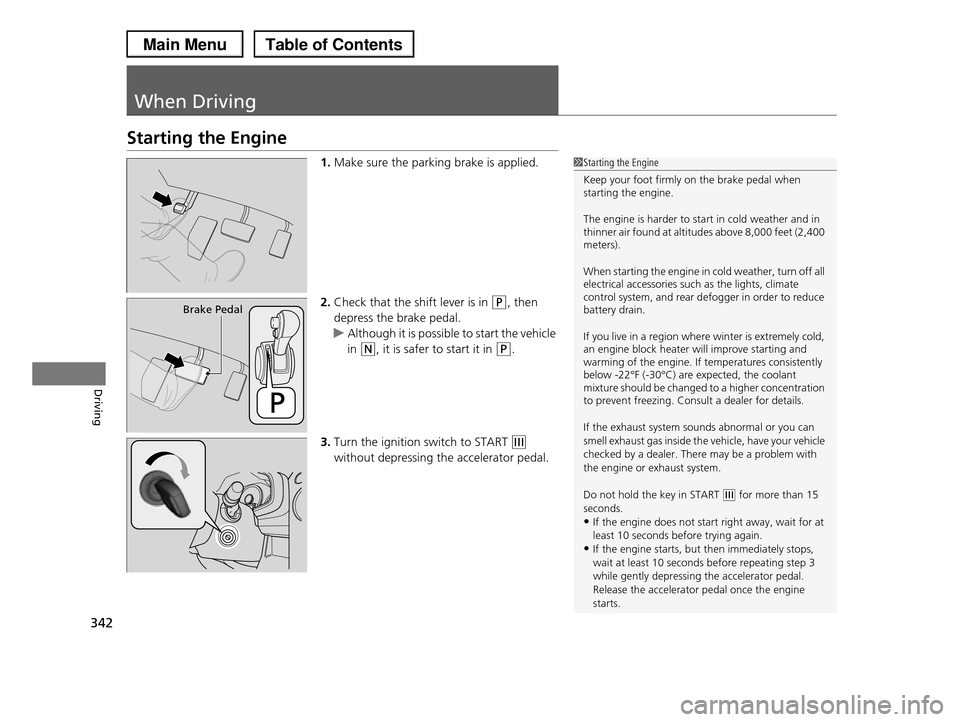
Starting the Engine
1.Make sure the parking brake is applied.
2.Check that the shift lever is in (P, then
depress the brake pedal.
uAlthough it is possible to start the vehicle
in (N, it is safer to start it in (P.
3.Turn the ignition switch to START (e
without depressing the accelerator pedal.
1Starting the Engine
Keep your foot firmly on the brake pedal when starting the engine.
The engine is harder to start in cold weather and in thinner air found at altitudes above 8,000 feet (2,400 meters).
When starting the engine in cold weather, turn off all electrical accessories such as the lights, climate control system, and rear defogger in order to reduce battery drain.
If you live in a region where winter is extremely cold, an engine block heater will improve starting and warming of the engine. If temperatures consistently below -22°F (-30°C) are expected, the coolant mixture should be changed to a higher concentration to prevent freezing. Consult a dealer for details.
If the exhaust system sounds abnormal or you can
smell exhaust gas inside the vehicle, have your vehicle
checked by a dealer. There may be a problem with the engine or exhaust system.
Do not hold the key in START (e for more than 15 seconds.
•If the engine does not start right away, wait for at
least 10 seconds before trying again.•If the engine starts, but then immediately stops,
wait at least 10 seconds before repeating step 3
while gently depressing the accelerator pedal.Release the accelerator pedal once the engine
starts.
Brake Pedal