phone HONDA PILOT 2014 2.G User Guide
[x] Cancel search | Manufacturer: HONDA, Model Year: 2014, Model line: PILOT, Model: HONDA PILOT 2014 2.GPages: 488, PDF Size: 12.11 MB
Page 218 of 488
217
uu Audio System Basic Operation u Audio Remote Controls
Features
Audio Remote Controls
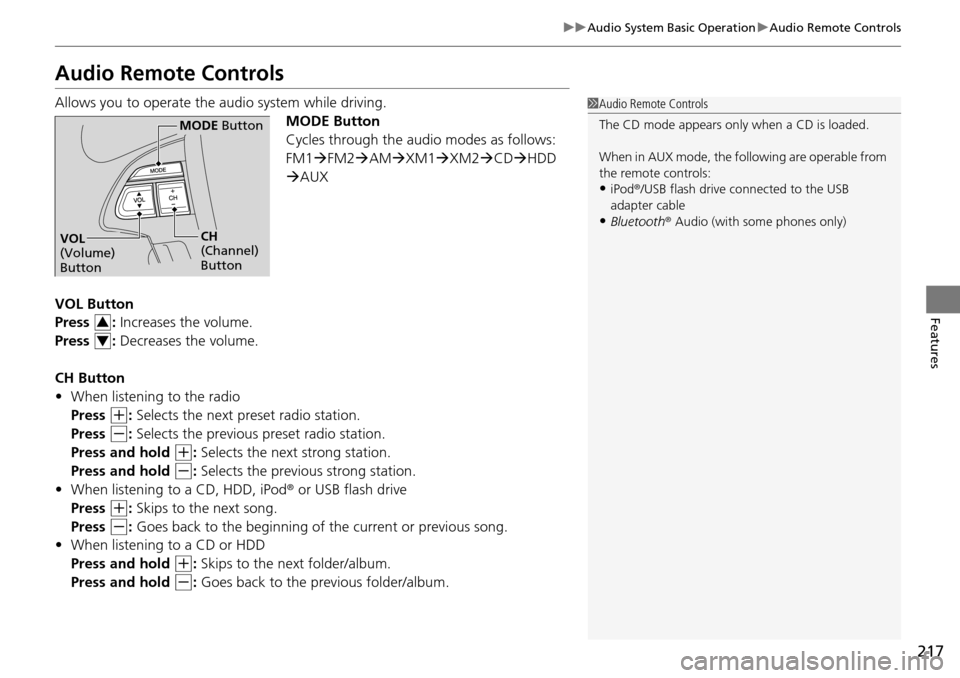
Allows you to operate the audio system while driving.
MODE Button
Cycles through the audio modes as follows:
FM1FM2 AM XM1 XM2 CD HDD
AUX
VOL Button
Press : Increases the volume.
Press : Decreases the volume.
CH Button
• When listening to the
radio
Press
(+
: Selects the next preset radio station.
Press
(-
: Selects the previous preset radio station.
Press and hold
(+
: Selects the next strong station.
Press and hold
(-
: Selects the previous strong station.
• When listening to a
CD, HDD, iPod® or USB flash drive
Press
(+
: Skips to the next song.
Press
(-
: Goes back to the beginning of the current or previous song.
• Wh
en listening to a CD or HDD
Press and hold
(+
: Skips to the next folder/album.
Press and hold
(-
: Goes back to the previous folder/album.
1 Audio Remote Controls
The CD mode appears only when a CD is loaded.
When in AUX mode, the following are operable from
the remote controls:
•iPod ®/USB flash drive connected to the USB
adapter cable
•Bluetooth ® Audio (with some phones only)
MODE Button
CH
(Channel)
ButtonVOL
(Volume)
Button
3
4
Page 249 of 488
248
uu Audio System Basic Operation u Playing Bluetooth ® Audio
Features
Playing Bluetooth ® Audio
Your audio system allows you to listen to music from your Bluetooth®-compatible
phone.
This function is available when
the phone is paired and linked to the vehicle's
Bluetooth ® HandsFreeLink ® (HFL) system.
2 Phone Setup P. 305
1Playing Bluetooth ® Audio
Not all Bluetooth -enabled phones with streaming
audio capabilities are comp atible with the system.
For a list of compatible phones:
•U.S.: Visit www.handsfreelink.honda.com , or call
1-888-528-7876.
•Canada: Visit www.handsfreelink.ca , or call 1-888-
528-7876.
In some states, it may be il legal to perform some data
device functions while driving.
If more than one phone is paired to the HFL system,
there will be a delay before the system begins to play.
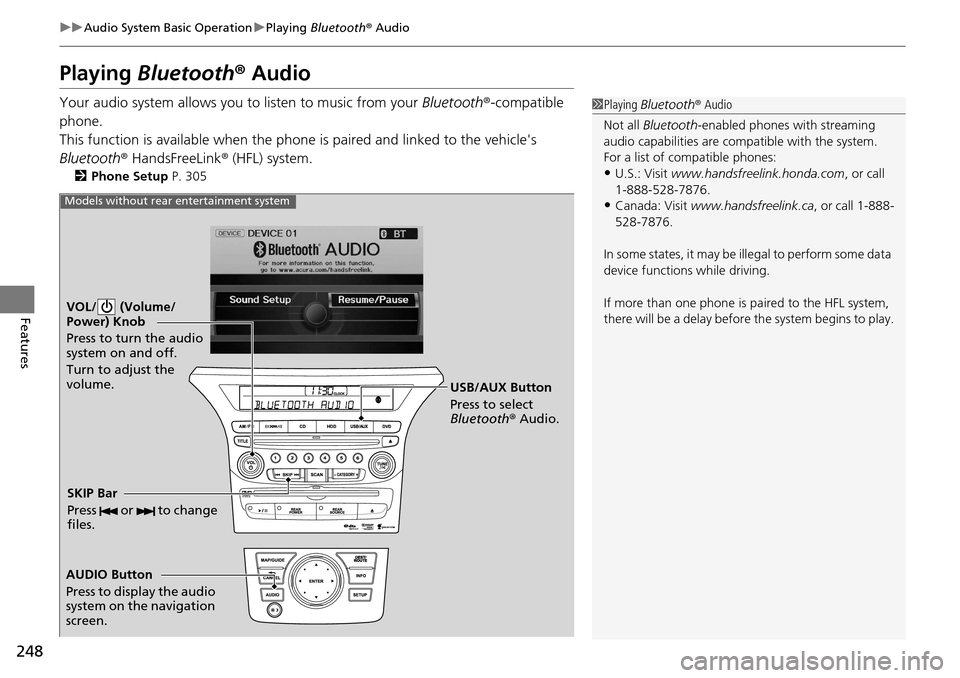
VOL/ (Volume/
Power) Knob
Press to turn the audio
system on and off.
Turn to adjust the
volume.
AUDIO Button
Press to display the audio
system on the navigation
screen. USB/AUX Button
Press to select
Bluetooth
® Audio.
SKIP Bar
Press or to change
files.
Models without rear entertainment system
Page 251 of 488
uu Audio System Basic Operation u Playing Bluetooth ® Audio
250
Features
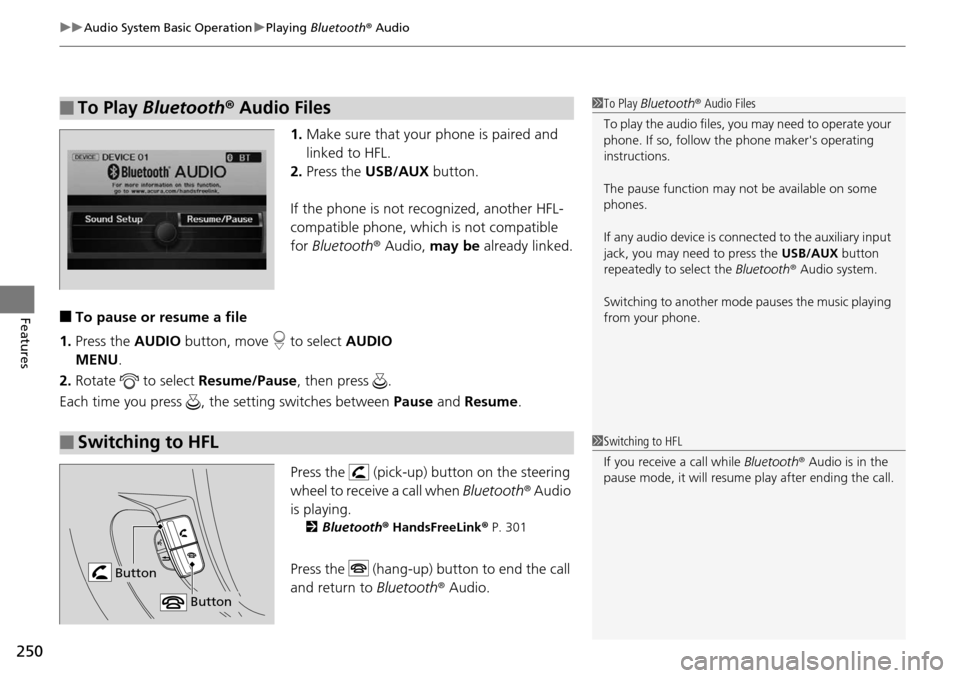
1. Make sure that your phone is paired and
linked to HFL.
2.Press the USB/AUX button.
If the phone is not recognized, another HFL-
co
mpatible phone, which is not compatible
for Bluetooth ® Audio, may be already linked.
■To pause or resume a file
1. Press the AUDIO bu
tton, move to select AUDIO
MENU .
2. Rotate
to select Resume /Pause, then press .
Each time you press , the setting switches between Paus
e and Resume .
Press the (pick-up) button on the steering
wheel to receive a call when Bl
uetooth® Audio
is playing.
2 Bluetooth ® Hand sFreeLink® P. 301
Press the (hang-up) button to end the call
and return to Bluetoot
h® Audio.
■To Play Bluetooth® Audio Files1To Play Bluetooth ® Audio Files
To play the audio files, y ou may need to operate your
phone. If so, follow the phone maker's operating
instructions.
The pause function may no t be available on some
phones.
If any audio device is conne cted to the auxiliary input
jack, you may need to press the USB/AUX button
repeatedly to select the Bluetooth® Audio system.
Switching to another mode pauses the music playing
from your phone.
■Switching to HFL1 Switching to HFL
If you receive a call while Bluetooth® Audio is in the
pause mode, it will resume play after ending the call.
Button
Button
Page 252 of 488
251Continued
Features
Rear Entertainment System *
Allows the rear passengers to enjoy a different entertainment source, such as DVD,
CD, CD Library *, HDD *, and radio, than the front passengers.
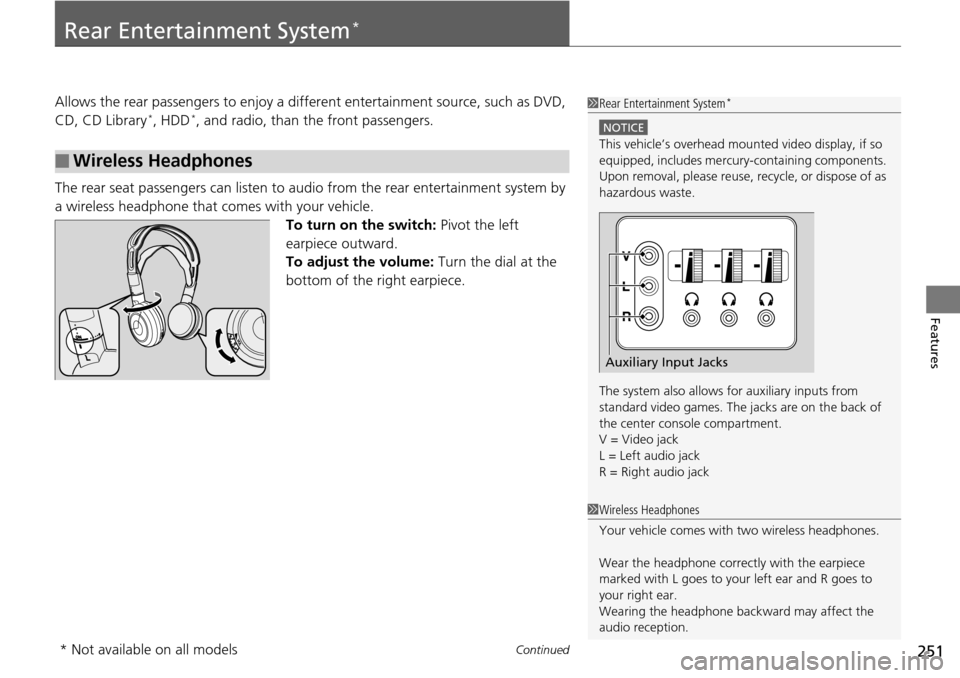
The rear seat passengers can listen to audio from the r
ear entertainment system by
a wireless headphone that comes with your vehicle.
To turn on the switch: Pivot the left
ea
rpiece outward.
To adjust the volume: Turn the dial at the
bottom
of the right earpiece.
■Wireless Headphones
1 Rear Entertainment System *
NOTICE
This vehicle’s overhead mount ed video display, if so
equipped, includes mercur y-containing components.
Upon removal, please reuse, recycle, or dispose of as
hazardous waste.
The system also allows for auxiliary inputs from
standard video games. The jacks are on the back of
the center console compartment.
V = Video jack
L = Left audio jack
R = Right audio jack
Auxiliary Input Jacks
1 Wireless Headphones
Your vehicle comes with two wireless headphones.
Wear the headphone correctly with the earpiece
marked with L goes to y our left ear and R goes to
your right ear.
Wearing the headphone back ward may affect the
audio reception.
* Not available on all models
Page 279 of 488
278
Features
Bluetooth® HandsFreeLink ®
Bluetooth® HandsFreeLink ® (HFL) allows you to place and receive phone calls using
your vehicle's audio system, without handling your cell phone.
Using HFL
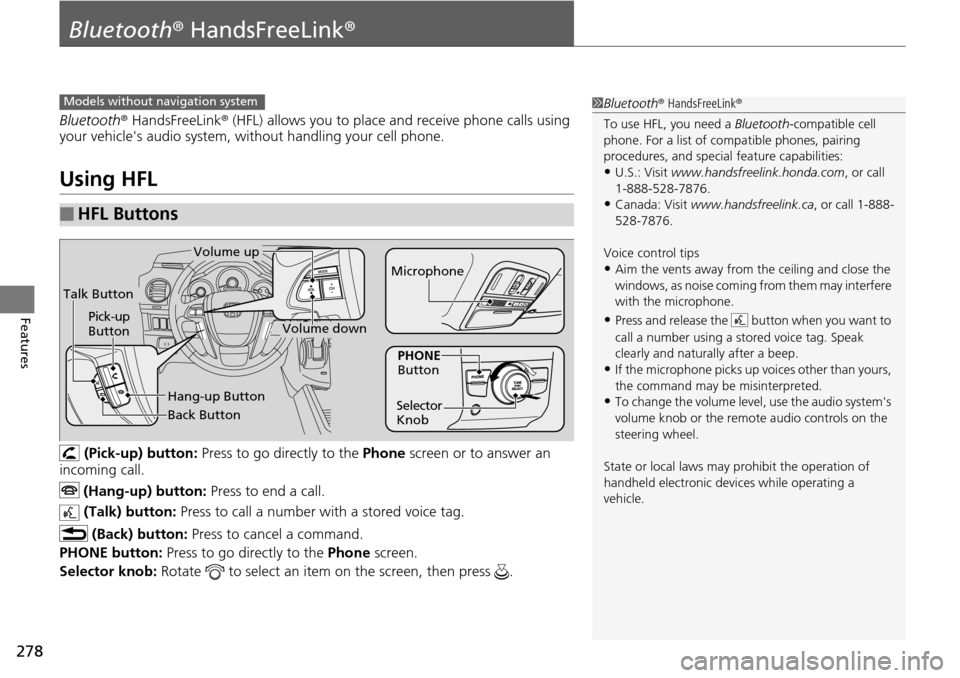
(Pick-up) button: Press to go directly to the Phone screen or to answer an
incoming call.
(Hang-up) button: Press to end a call.
(Talk) button: Press to call a number with a stored voice tag.
(Back) button: Press to cancel a command.
PHONE button: Press to go directly to the Ph
one screen.
Selector knob: Rotate to select an item on the screen, then press .
■HFL Buttons
1Bluetooth ® HandsFreeLink ®
To use HFL, you need a Bluetooth-compatible cell
phone. For a list of compatible phones, pairing
procedures, and special feature capabilities:
•U.S.: Visit www.handsfreelink.honda.com , or call
1-888-528-7876.
•Canada: Visit www.handsfreelink.ca , or call 1-888-
528-7876.
Voice control tips
•Aim the vents away from the ceiling and close the
windows, as noise coming fr om them may interfere
with the microphone.
•Press and release the button when you want to
call a number using a st ored voice tag. Speak
clearly and naturally after a beep.
•If the microphone picks up vo ices other than yours,
the command may be misinterpreted.
•To change the volume level, use the audio system's
volume knob or the remote audio controls on the
steering wheel.
State or local laws may pr ohibit the operation of
handheld electronic devices while operating a
vehicle.
Models without navigation system
Talk Button
Volume up
Microphone
Hang-up Button
Pick-up
Button
Volume down
Selector
KnobPHONE
Button
Back Button
Page 280 of 488
279
uu Bluetooth ® HandsFreeLink ® u Using HFL
Features
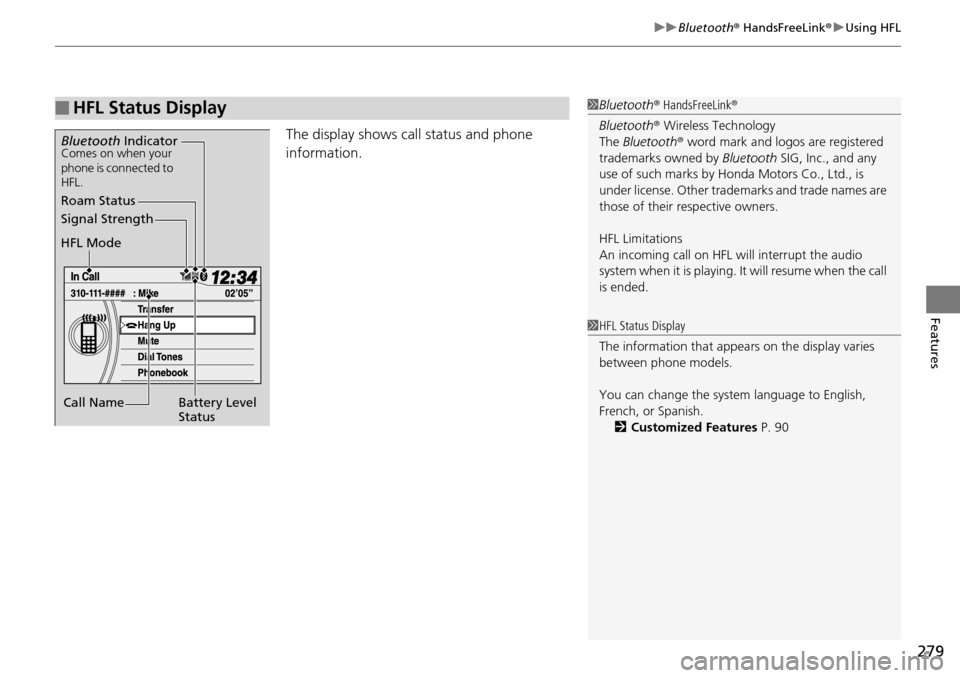
The display shows call status and phone
information.
■HFL Status Display1Bluetooth ® HandsFreeLink ®
Bluetooth ® Wireless Technology
The Bluetooth ® word mark and logos are registered
trademarks owned by Bluetooth SIG, Inc., and any
use of such marks by Honda Motors Co., Ltd., is
under license. Other tradem arks and trade names are
those of their respective owners.
HFL Limitations
An incoming call on HFL will interrupt the audio
system when it is playing. It will resume when the call
is ended.
Signal Strength
HFL Mode
Battery Level
Status
Roam Status
Call Name
Bluetooth IndicatorComes on when your
phone is connected to
HFL.
1HFL Status Display
The information that appe ars on the display varies
between phone models.
You can change the system language to English,
French, or Spanish. 2 Customized Features P. 90
Page 281 of 488
280
uu Bluetooth ® HandsFreeLink ® u HFL Menus
Features
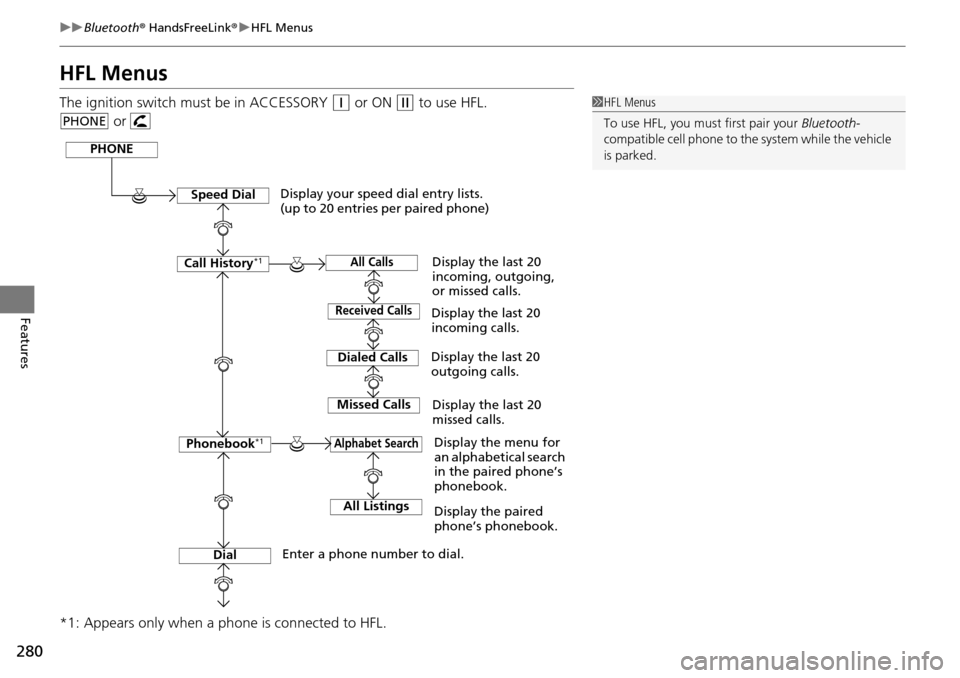
HFL Menus
The ignition switch must be in ACCESSORY (q
or ON (w
to use HFL.
or
*1: Appears only when a phone is connected to HFL.1 HFL Menus
To use HFL, you must first pair your Bluetooth-
compatible cell phone to th e system while the vehicle
is parked.
PHONE
PHONE
Speed Dial
Call History*1
Dialed Calls
Dial
Phonebook*1
Received Calls
Missed Calls
Display your speed dial entry lists.
(up to 20 entries per paired phone)
Display the menu for
an alphabetical search
in the paired phone’s
phonebook.
Enter a phone number to dial. Display the last 20
incoming calls.
Display the last 20
outgoing calls.
Display the last 20
missed calls.
All CallsDisplay the last 20
incoming, outgoing,
or missed calls.
Alphabet Search
All ListingsDisplay the paired
phone’s phonebook.
Page 282 of 488
281
uu Bluetooth ® HandsFreeLink ® u HFL Menus
Continued
Features
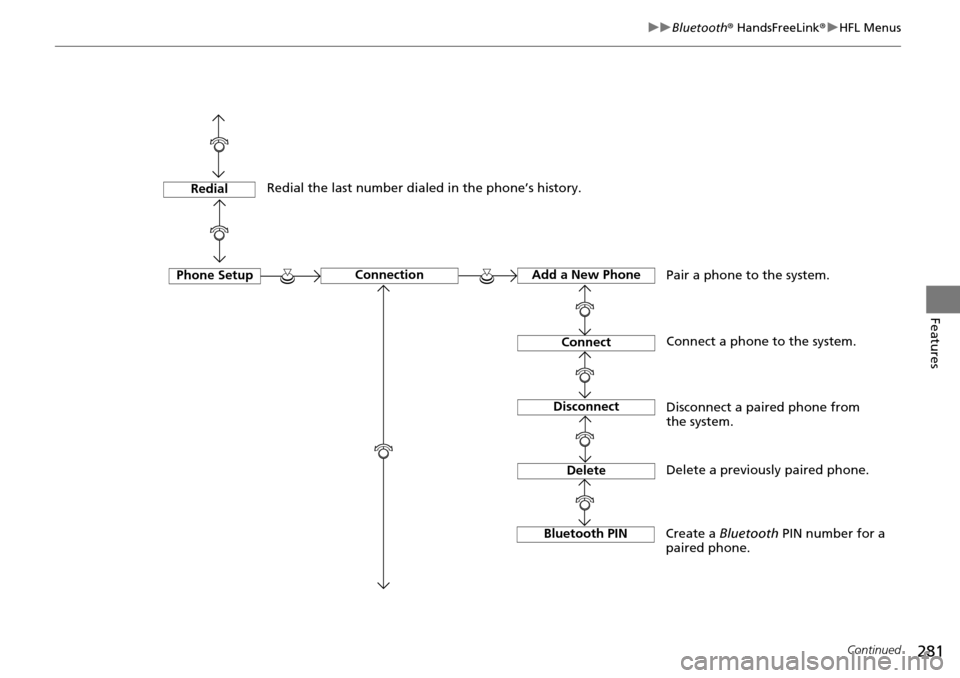
Phone SetupConnectionAdd a New Phone
Connect
Disconnect
Delete
Pair a phone to the system.
Connect a phone to the system.
Disconnect a paired phone from
the system.
Delete a previously paired phone.
Bluetooth PIN
Create a Bluetooth PIN number for a
paired phone.
Redial
Redial the last number dialed in the phone’s history.
Page 283 of 488
282
uu Bluetooth ® HandsFreeLink ® u HFL Menus
Features
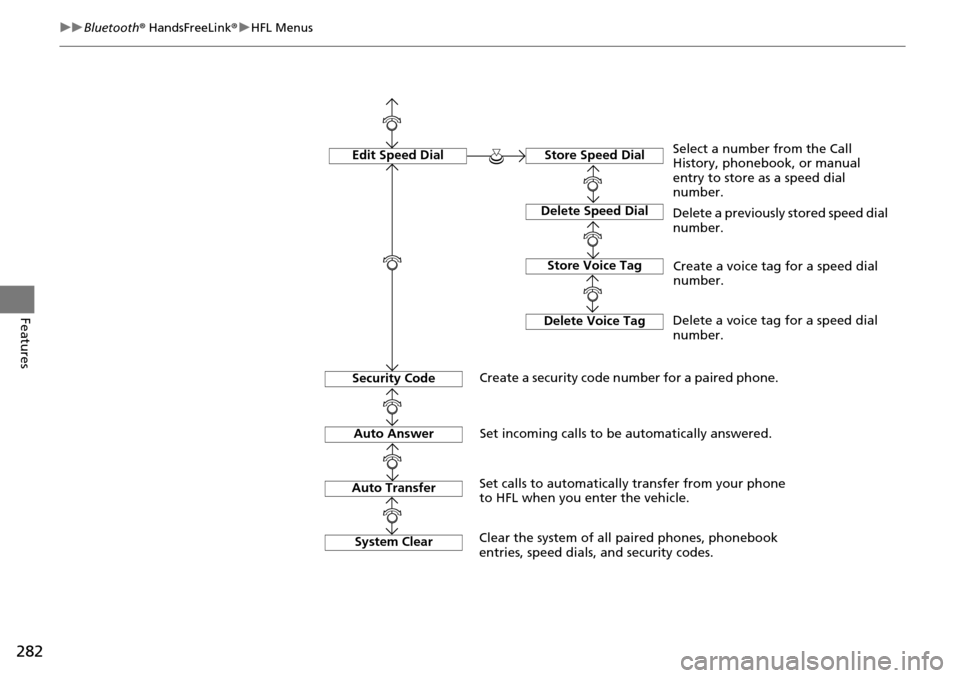
Edit Speed DialStore Speed Dial
Delete Speed Dial
Store Voice Tag
Delete Voice Tag
Select a number from the Call
History, phonebook, or manual
entry to store as a speed dial
number.
Delete a previously stored speed dial
number.
Create a voice tag for a speed dial
number.
Delete a voice tag for a speed dial
number.
Security Code
Create a security code number for a paired phone.
Auto Answer
Auto Transfer
Set incoming calls to be automatically answered.
Set calls to automatically transfer from your phone
to HFL when you enter the vehicle.
System Clear
Clear the system of all paired phones, phonebook
entries, speed dials, and security codes.
Page 284 of 488
Continued283
uu Bluetooth ® HandsFreeLink ® u HFL Menus
Features
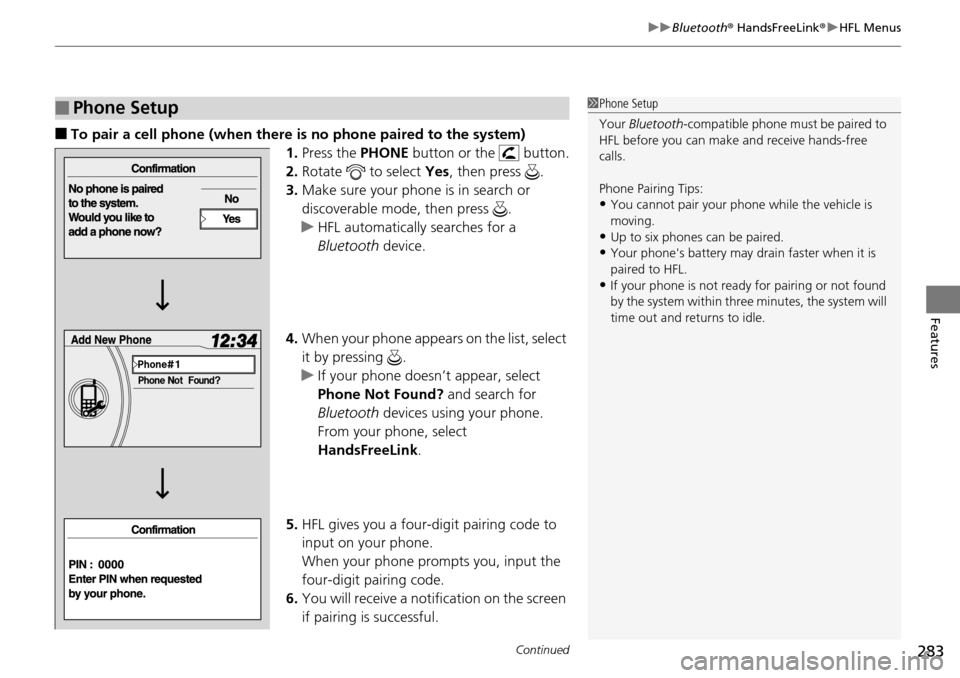
■To pair a cell phone (when there is no phone paired to the system)
1.Press the PHONE b
utton or the button.
2. Ro
tate to select Yes, then press .
3. Make
sure your phone is in search or
discoverable mode, then press .
u HFL automatica
lly searches for a
Bluetooth device.
4. Wh
en your phone appears on the list, select
it by pressing .
u I
f your phone doesn’t appear, select
Phone Not Found? and search for
Bluetooth devices using your phone.
From your phone, select
HandsFreeLink .
5. HFL
gives you a four-digit pairing code to
input on your phone.
When your phone prompts you, input the
four-di
git pairing code.
6. You wil
l receive a notification on the screen
if pairing is successful.
■Phone Setup1Phone Setup
Your Bluetooth -compatible phone must be paired to
HFL before you can make and receive hands-free
calls.
Phone Pairing Tips:
•You cannot pair your phone while the vehicle is
moving.
•Up to six phones can be paired.
•Your phone's battery may dr ain faster when it is
paired to HFL.
•If your phone is not ready for pairing or not found
by the system within three minutes, the system will
time out and returns to idle.