USB HONDA PILOT 2014 2.G Owner's Manual
[x] Cancel search | Manufacturer: HONDA, Model Year: 2014, Model line: PILOT, Model: HONDA PILOT 2014 2.GPages: 488, PDF Size: 12.11 MB
Page 241 of 488
240
uu Audio System Basic Operation u Playing an iPod ®
Features
Playing an iPod ®
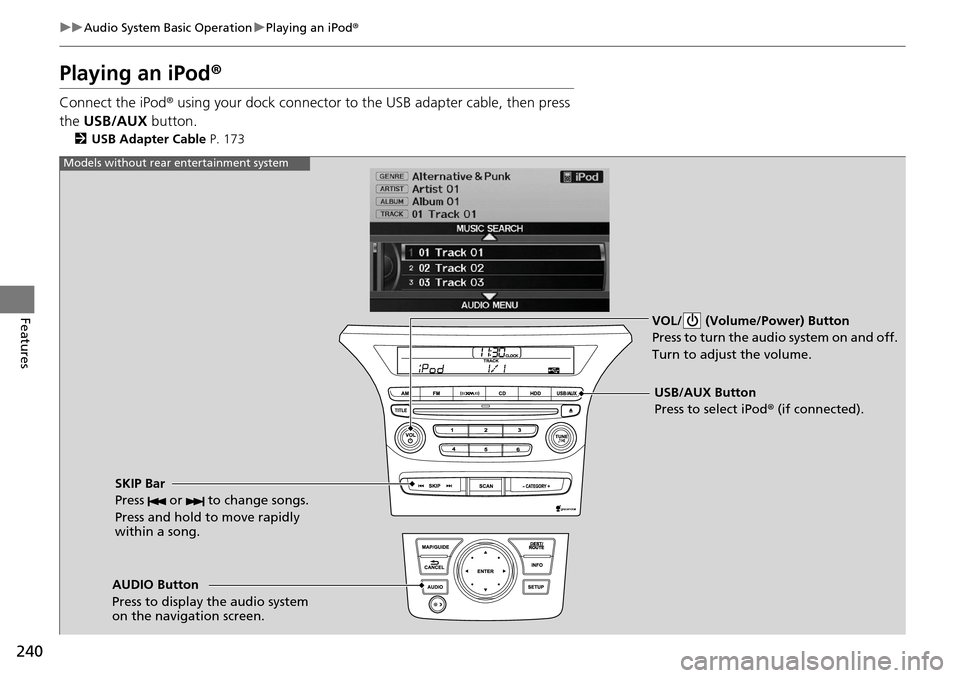
Connect the iPod ® using your dock connector to th e USB adapter cable, then press
the USB/AUX button.
2USB Adapter Cable P. 173
VOL/ (Volume/Power) Button
Press to turn the audio system on and off.
Turn to adjust the volume.
SKIP Bar
Press or to change songs.
Press and hold to move rapidly
within a song.
USB/AUX Button
Press to select iPod ® (if connected).
Models without rear entertainment system
AUDIO Button
Press to display the audio system
on the navigation screen.
Page 242 of 488
241
uu Audio System Basic Operation u Playing an iPod ®
Continued
Features
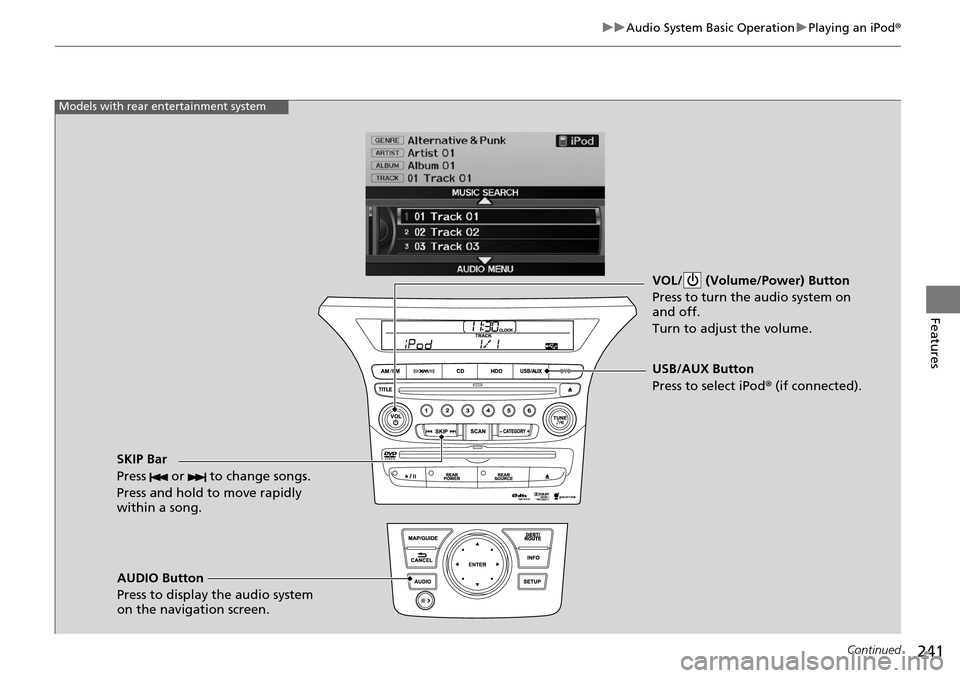
VOL/ (Volume/Power) Button
Press to turn the audio system on
and off.
Turn to adjust the volume.
SKIP Bar
Press or to change songs.
Press and hold to move rapidly
within a song.
AUDIO Button
Press to display the audio system
on the navigation screen. USB/AUX Button
Press to select iPod
® (if connected).
Models with rear entertainment system
Page 243 of 488
uu Audio System Basic Operation u Playing an iPod ®
242
Features
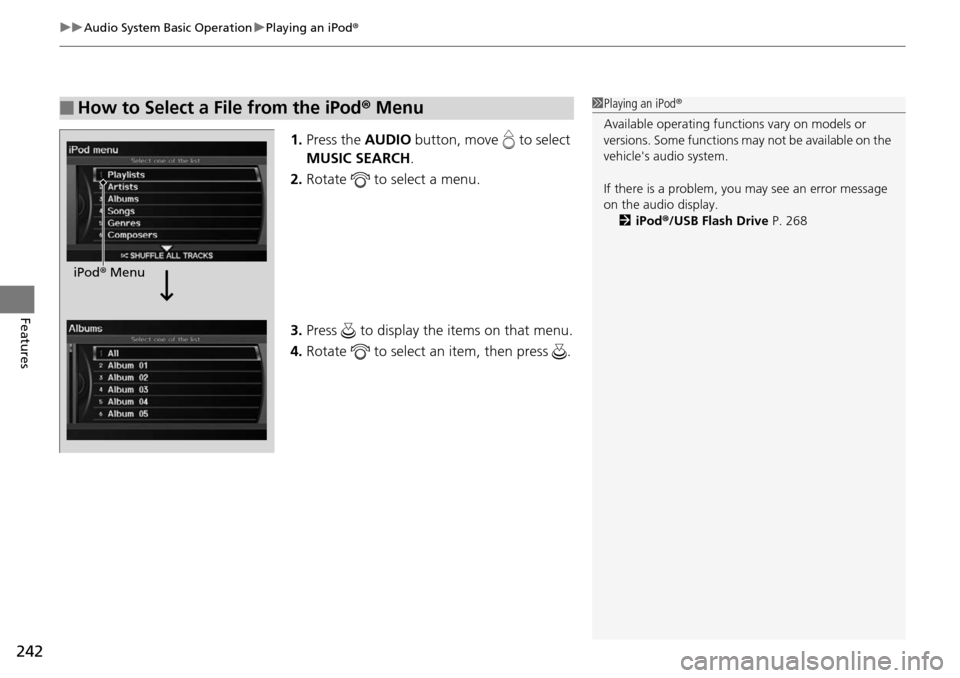
1.Press the AUDIO button, move to select
MUSIC SEARCH .
2. Ro
tate to select a menu.
3. Press to display the items on that menu.
4. Ro
tate to select an item, then press .
■How to Select a File from the iPod ® Menu1 Playing an iPod®
Available operating functi ons vary on models or
versions. Some functions ma y not be available on the
vehicle's audio system.
If there is a problem, you may see an error message
on the audio display. 2 iPod ®/USB Flash Drive P. 268
iPod® Menu
Page 245 of 488
244
uu Audio System Basic Operation u Playing a USB Flash Drive
Features
Playing a USB Flash Drive
Your audio system reads and plays sound files on a USB flash drive in either MP3,
WMA or AAC*1 format.
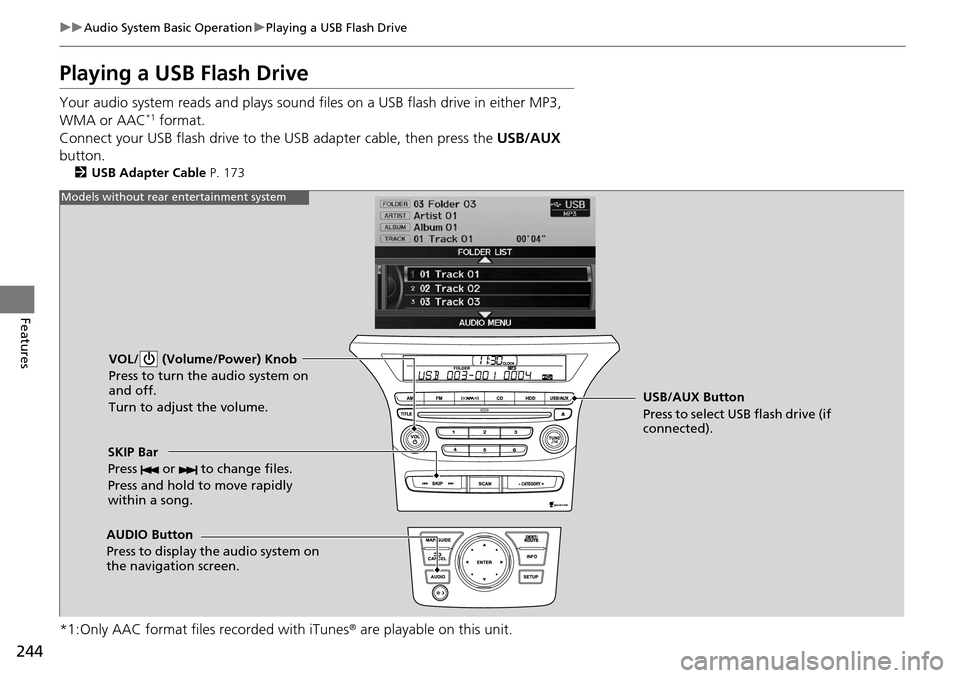
Connect your USB flash drive to the USB adapter cable, then press the USB/AUX
bu
tton.
2 USB Adapter Cable P. 173
*1:Only AAC format files recorded with iTunes ® are playable on this unit.
VOL/ (Volume/Power) Knob
Press to turn the audio system on
and off.
Turn to adjust the volume.
SKIP Bar
Press or to change files.
Press and hold to move rapidly
within a song.
AUDIO Button
Press to display the audio system on
the navigation screen. USB/AUX Button
Press to select USB flash drive (if
connected).
Models without rear entertainment system
Page 246 of 488
245
uu Audio System Basic Operation u Playing a USB Flash Drive
Continued
Features
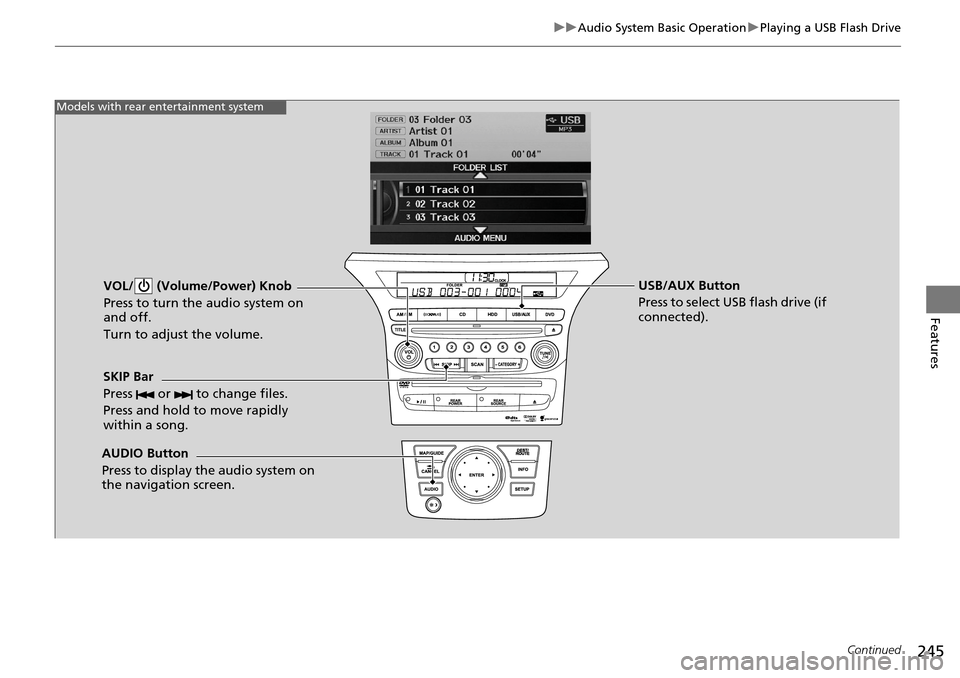
VOL/ (Volume/Power) Knob
Press to turn the audio system on
and off.
Turn to adjust the volume.
SKIP Bar
Press or to change files.
Press and hold to move rapidly
within a song.
AUDIO Button
Press to display the audio system on
the navigation screen. USB/AUX Button
Press to select USB flash drive (if
connected).
Models with rear entertainment system
Page 247 of 488
uu Audio System Basic Operation u Playing a USB Flash Drive
246
Features
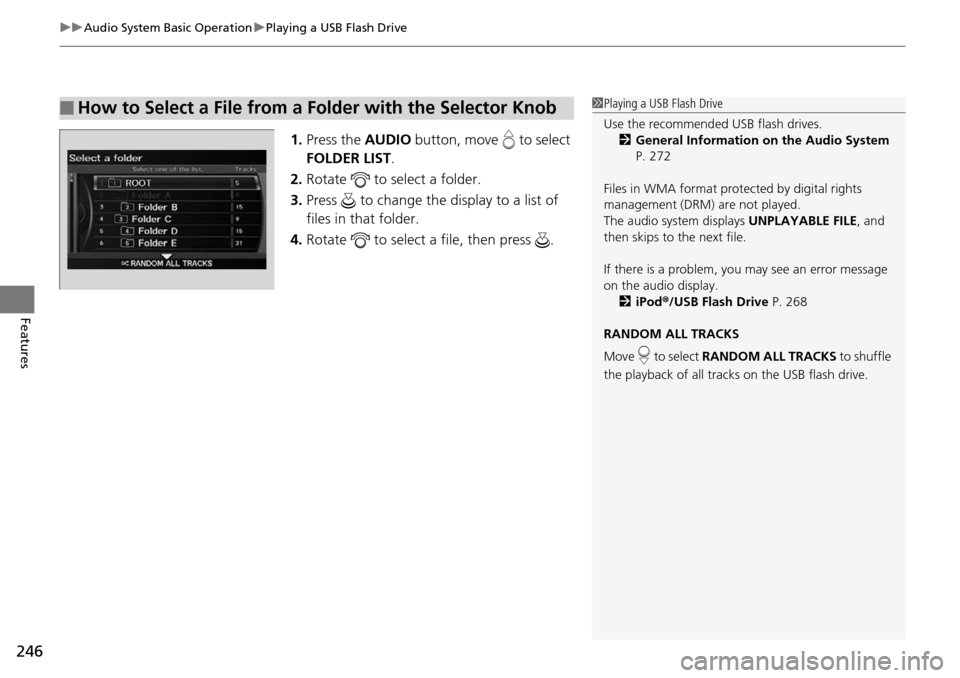
1. Press the AUDIO button, move to select
FOLDER LIST .
2. Ro
tate to select a folder.
3. Press to change the di splay to
a list of
files in that folder.
4. Ro
tate to select a file, then press .
■How to Select a File from a Folder with the Selector Knob1Playing a USB Flash Drive
Use the recommended USB flash drives.
2 General Information on the Audio System
P. 272
Files in WMA format prot ected by digital rights
management (DRM) are not played.
The audio system displays UNPLAYABLE FILE, and
then skips to the next file.
If there is a problem, you may see an error message
on the audio display.
2 iPod ®/USB Flash Drive P. 268
RANDOM ALL TRACKS
Move to select RANDOM ALL TRACKS to shuffle
the playback of all trac ks on the USB flash drive.
Page 248 of 488
247
uu Audio System Basic Operation u Playing a USB Flash Drive
Features
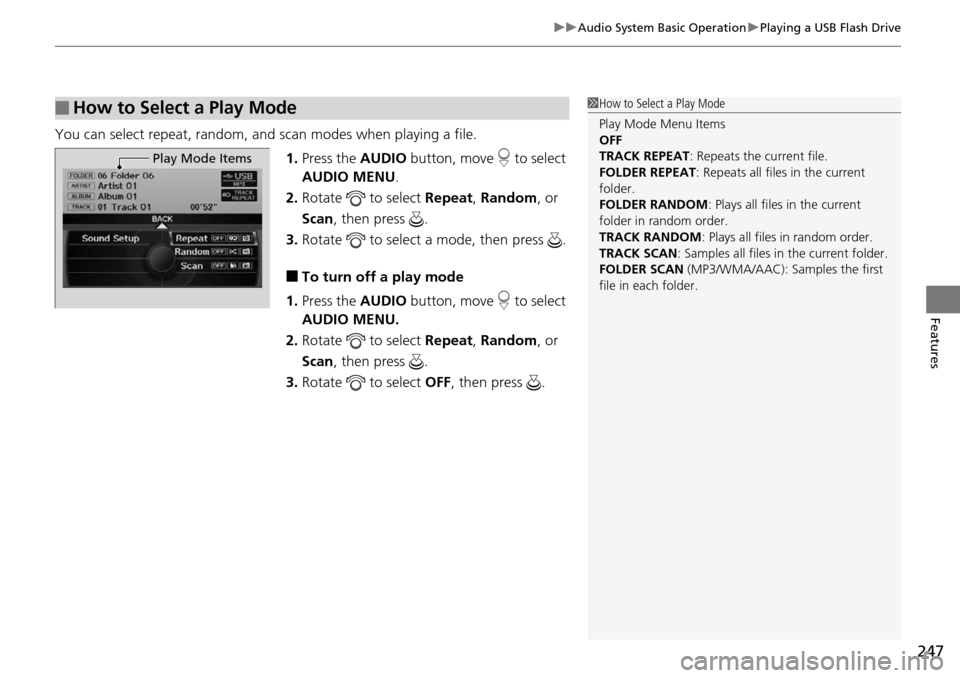
You can select repeat, random, and scan modes when playing a file.
1. Press the AUDIO button, move to select
AUDIO MENU .
2. Ro
tate to select Re peat, Random , or
Scan , then press .
3. Ro
tate to select a mode, then press .
■To turn off a play mode
1. Press the A
UDIO button, move to select
AUDIO MENU.
2. Ro
tate to select Re peat, Random , or
Scan , then press .
3. Ro
tate to select OFF, t hen press .
■How to Select a Play Mode1How to Select a Play Mode
Play Mode Menu Items
OFF
TRACK REPEAT : Repeats the current file.
FOLDER REPEAT: Repeats all files in the current
folder.
FOLDER RANDOM : Plays all files in the current
folder in random order.
TRACK RANDOM : Plays all files in random order.
TRACK SCAN : Samples all files in the current folder.
FOLDER SCAN (MP3/WMA/AAC): Samples the first
file in each folder.
Play Mode Items
Page 249 of 488
248
uu Audio System Basic Operation u Playing Bluetooth ® Audio
Features
Playing Bluetooth ® Audio
Your audio system allows you to listen to music from your Bluetooth®-compatible
phone.
This function is available when
the phone is paired and linked to the vehicle's
Bluetooth ® HandsFreeLink ® (HFL) system.
2 Phone Setup P. 305
1Playing Bluetooth ® Audio
Not all Bluetooth -enabled phones with streaming
audio capabilities are comp atible with the system.
For a list of compatible phones:
•U.S.: Visit www.handsfreelink.honda.com , or call
1-888-528-7876.
•Canada: Visit www.handsfreelink.ca , or call 1-888-
528-7876.
In some states, it may be il legal to perform some data
device functions while driving.
If more than one phone is paired to the HFL system,
there will be a delay before the system begins to play.
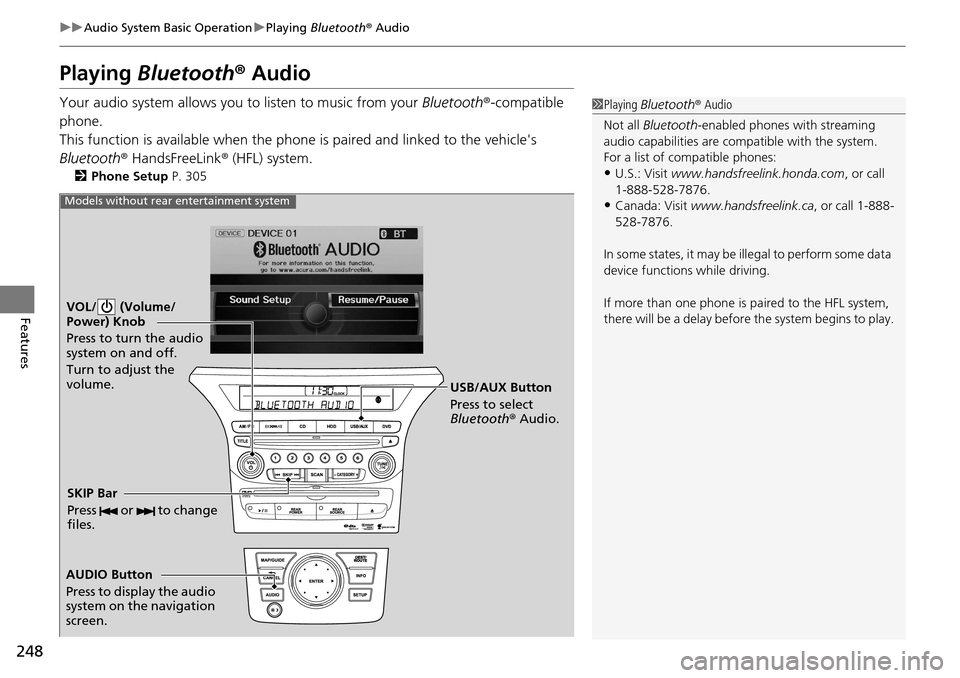
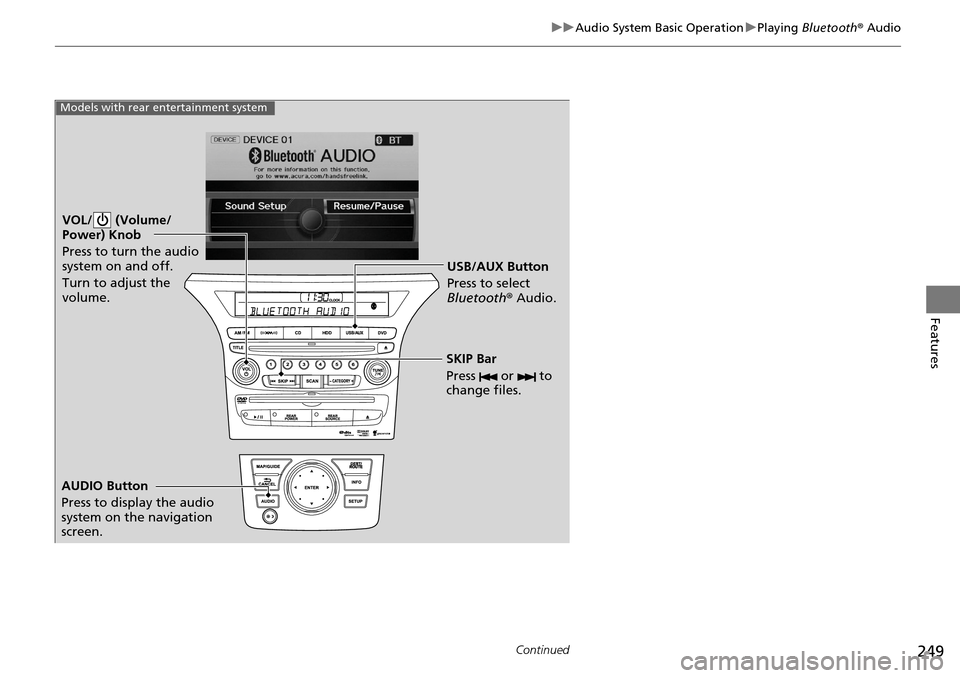
VOL/ (Volume/
Power) Knob
Press to turn the audio
system on and off.
Turn to adjust the
volume.
AUDIO Button
Press to display the audio
system on the navigation
screen. USB/AUX Button
Press to select
Bluetooth
® Audio.
SKIP Bar
Press or to change
files.
Models without rear entertainment system
Page 250 of 488
249
uu Audio System Basic Operation u Playing Bluetooth ® Audio
Continued
Features
VOL/ (Volume/
Power) Knob
Press to turn the audio
system on and off.
Turn to adjust the
volume.
AUDIO Button
Press to display the audio
system on the navigation
screen. USB/AUX Button
Press to select
Bluetooth
® Audio.
SKIP Bar
Press or to
change files.
Models with rear entertainment system
Page 251 of 488
uu Audio System Basic Operation u Playing Bluetooth ® Audio
250
Features
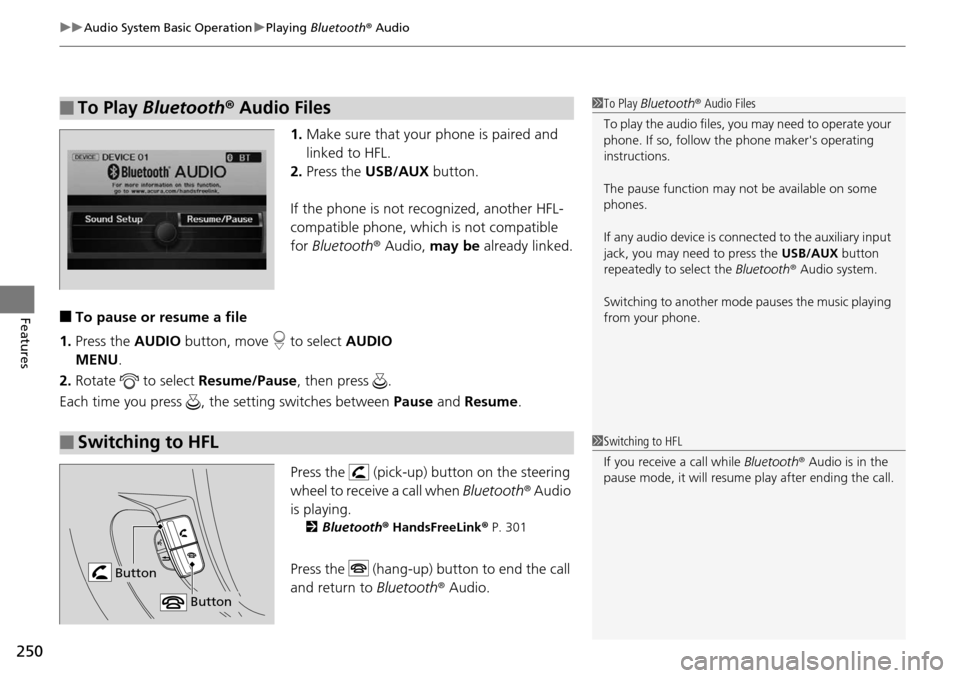
1. Make sure that your phone is paired and
linked to HFL.
2.Press the USB/AUX button.
If the phone is not recognized, another HFL-
co
mpatible phone, which is not compatible
for Bluetooth ® Audio, may be already linked.
■To pause or resume a file
1. Press the AUDIO bu
tton, move to select AUDIO
MENU .
2. Rotate
to select Resume /Pause, then press .
Each time you press , the setting switches between Paus
e and Resume .
Press the (pick-up) button on the steering
wheel to receive a call when Bl
uetooth® Audio
is playing.
2 Bluetooth ® Hand sFreeLink® P. 301
Press the (hang-up) button to end the call
and return to Bluetoot
h® Audio.
■To Play Bluetooth® Audio Files1To Play Bluetooth ® Audio Files
To play the audio files, y ou may need to operate your
phone. If so, follow the phone maker's operating
instructions.
The pause function may no t be available on some
phones.
If any audio device is conne cted to the auxiliary input
jack, you may need to press the USB/AUX button
repeatedly to select the Bluetooth® Audio system.
Switching to another mode pauses the music playing
from your phone.
■Switching to HFL1 Switching to HFL
If you receive a call while Bluetooth® Audio is in the
pause mode, it will resume play after ending the call.
Button
Button