reset HONDA PILOT 2015 2.G User Guide
[x] Cancel search | Manufacturer: HONDA, Model Year: 2015, Model line: PILOT, Model: HONDA PILOT 2015 2.GPages: 488, PDF Size: 11.34 MB
Page 92 of 488
91
uuGauges and Displays uMulti-Information Display*
Continued
Instrument Panel
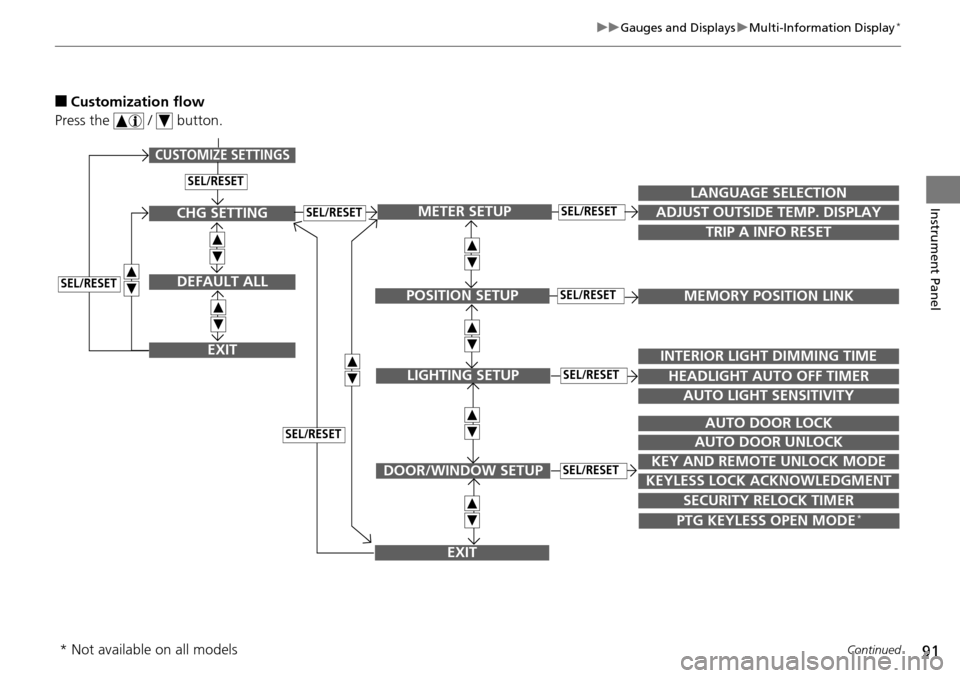
■Customization flow
Press the / button.
SEL/RESET
CUSTOMIZE SETTINGS
SECURITY RELOCK TIMER
TRIP A INFO RESET
LANGUAGE SELECTION
ADJUST OUTSIDE TEMP. DISPLAY
MEMORY POSITION LINK
INTERIOR LIGHT DIMMING TIME
HEADLIGHT AUTO OFF TIMER
AUTO LIGHT SENSITIVITY
AUTO DOOR LOCK
AUTO DOOR UNLOCK
KEY AND REMOTE UNLOCK MODE
KEYLESS LOCK ACKNOWLEDGMENT
METER SETUP
POSITION SETUP
LIGHTING SETUP
DOOR/WINDOW SETUP
SEL/RESET
SEL/RESET
SEL/RESET
SEL/RESET
PTG KEYLESS OPEN MODE*
EXIT
CHG SETTING
DEFAULT ALL
EXIT
SEL/RESET
SEL/RESET
SEL/RESET
* Not available on all models
Page 93 of 488
92
uuGauges and Displays uMulti-Information Display*
Instrument Panel
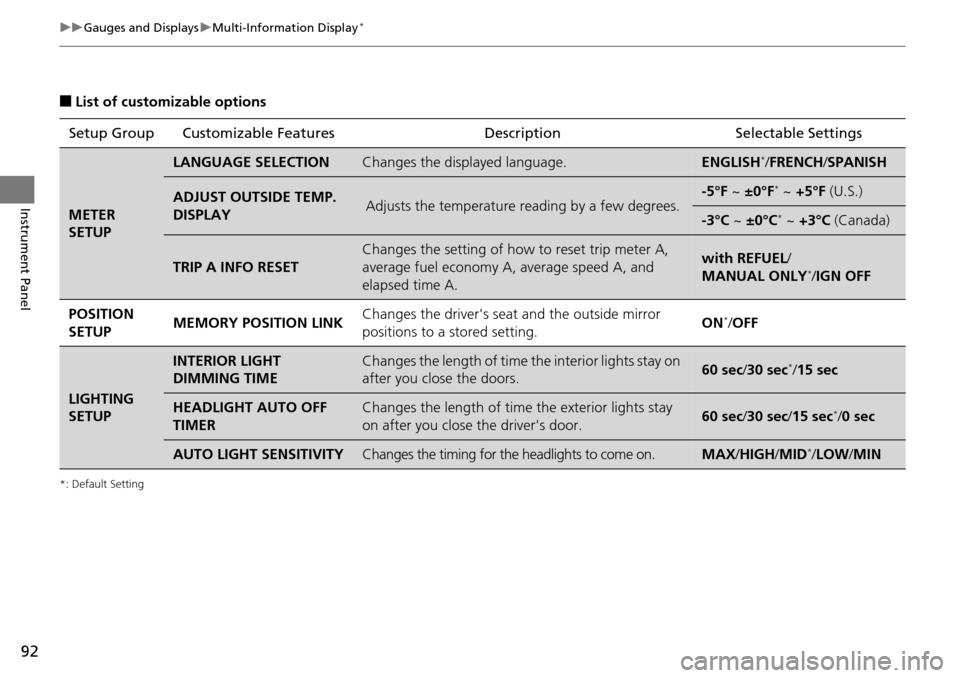
■List of customizable options
*: Default Setting
Setup Group Customizable Features DescriptionSelectable Settings
METER
SETUP
LANGUAGE SELECTIONChanges the displayed language.ENGLISH*/FRENCH /SPANISH
ADJUST OUTSIDE TEMP.
DISPLAYAdjusts the temperature reading by a few degrees.-5°F ~ ±0°F* ~ +5°F (U.S.)
-3°C ~ ±0°C* ~ +3°C (Canada)
TRIP A INFO RESET
Changes the setting of how to reset trip meter A,
average fuel economy A, average speed A, and
elapsed time A.with REFUEL /
MANUAL ONLY*/ IGN OFF
POSITION
SETUP MEMORY POSITION LINK
Changes the driver's seat
and the outside mirror
positions to a stored setting. ON
*/
OFF
LIGHTING
SETUP
INTERIOR LIGHT
DIMMING TIMEChanges the length of time the interior lights stay on
after you close the doors.60 sec/ 30 sec*/15 sec
HEADLIGHT AUTO OFF
TIMERChanges the length of time the exterior lights stay
on after you close the driver's door.60 sec/ 30 sec/15 sec*/0 sec
AUTO LIGHT SENSITIVITYChanges the timing for the headlights to come on.MAX /HIGH /MID*/ LOW /MIN
Page 94 of 488
93
uuGauges and Displays uMulti-Information Display*
Continued
Instrument Panel
*1:Not available on all models
*2: Default SettingSetup Group Customizable Features
Description Selectable Settings
DOOR/
WINDOW
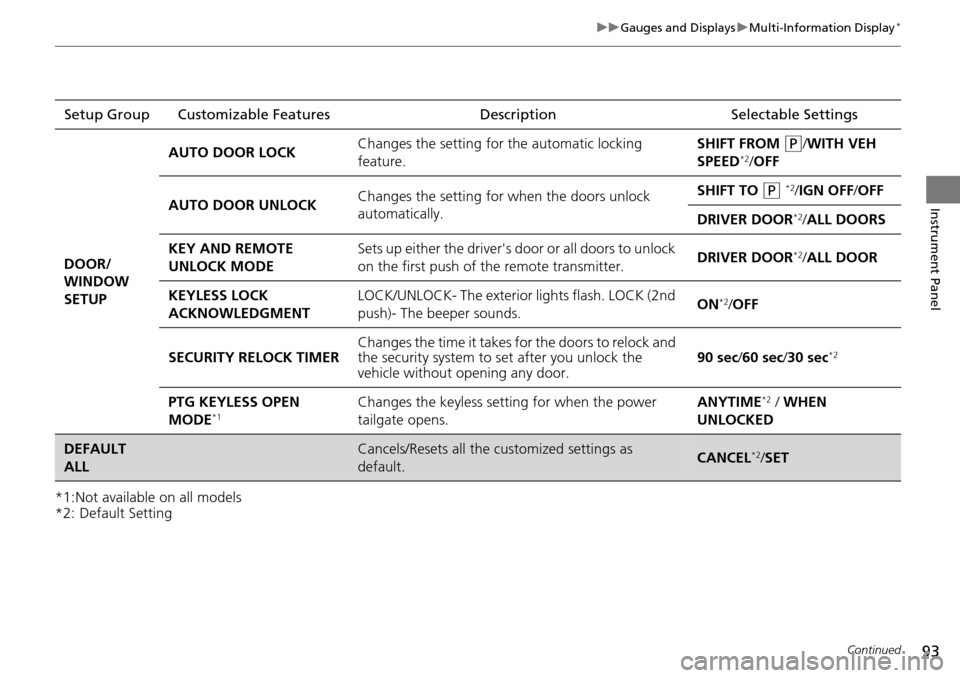
SETUP AUTO DOOR LOCK
Changes the setting for
the automatic locking
feature. SHIFT FROM
(P/WITH VEH
SPEED*2/ OFF
AUTO DOOR UNLOCK Changes the setting for
when the doors unlock
automatically. SHIFT TO
(P *2/IGN OFF /OFF
DRIVER DOOR
*2/ ALL DOORS
KEY AND REMOTE
UNLOCK MODE Sets up either the driver's door or all doors to unlock
on the first push of the remote transmitter.
DRIVER DOOR
*2/
ALL DOOR
KEYLESS LOCK
ACKNOWLEDGMENT LOCK/UNLOCK- The exterior
lights flash. LOCK (2nd
push)- The beeper sounds. ON
*2/
OFF
SECURITY RELOCK TIMER Changes the time it takes for the doors to relock and
the security system to set after you unlock the
vehicle without op
ening any door. 90 sec
/60 sec/ 30 sec
*2
PTG KEYLESS OPEN
MODE*1Changes the keyless setting for when the power
tailgate opens. ANYTIME*2 / WHEN
UNLOCKED
DEFAULT
ALLCancels/Resets all the customized settings as
default.CANCEL*2/ SET
Page 95 of 488
94
uuGauges and Displays uMulti-Information Display*
Instrument Panel
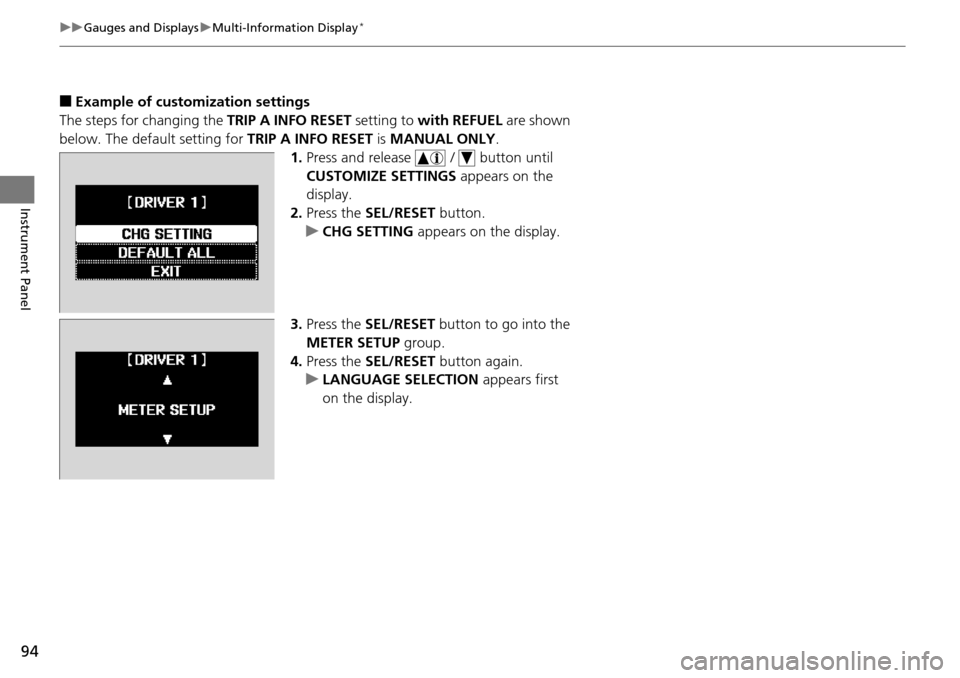
■Example of customization settings
The steps for changing the TRIP A INFO RESET setting to with REFUEL are shown
below. The default setting for TRIP A INFO RESET is MANUAL ONLY .
1. Press and release / button until
CUSTOMIZE SETTINGS appears on the
display.
2. Press the SEL/RESET button.
u CHG SETTING appears on the display.
3. Press the SEL/RESET button to go into the
METER SETUP group.
4. Press the SEL/RESET button again.
u LANGUAGE SELECTION appears first
on the display.
Page 96 of 488
95
uuGauges and Displays uMulti-Information Display*
Instrument Panel
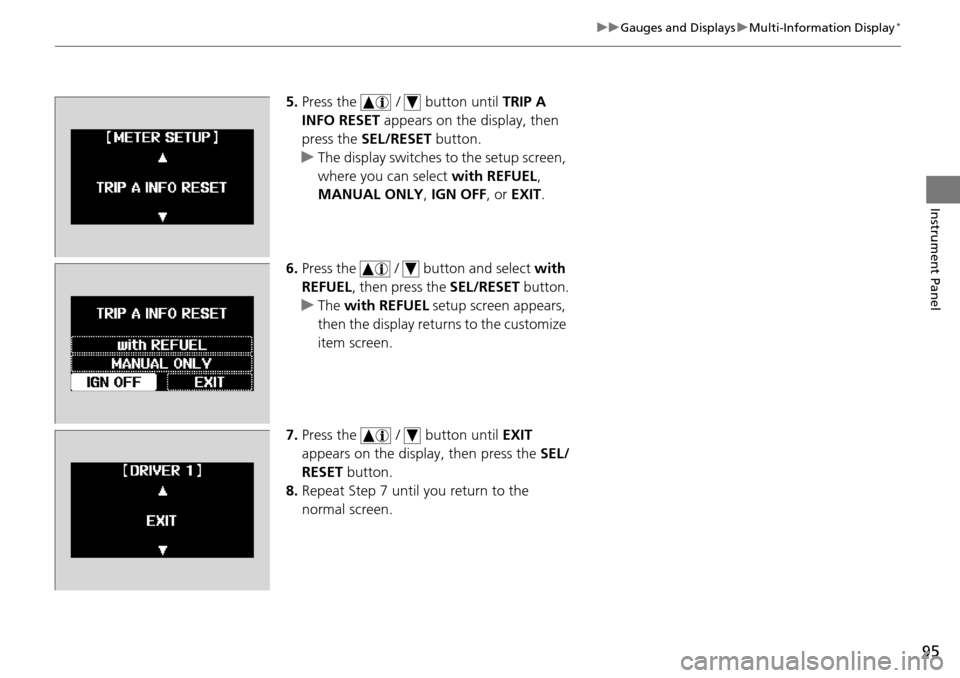
5. Press the / button until TRIP A
INFO RESET appears on the display, then
press the SEL/RESET button.
u The display switches to the setup screen,
where you can select with REFUEL,
MANUAL ONLY , IGN OFF, or EXIT .
6. Press the / button and select with
REFUEL , then press the SEL/RESET button.
u The with REFUEL setup screen appears,
then the display retu rns to the customize
item screen.
7. Press the / button until EXIT
appears on the display, then press the SEL/
RESET button.
8. Repeat Step 7 until you return to the
normal screen.
Page 131 of 488
130
uuOperating the Switches Around the Steering Wheel uBrightness Control
Controls
Brightness Control
When the ignition switch is in ON (w, you can
use the brightness control knob to adjust
instrument panel brightness.
Brighten: Turn the knob to the right.
Dim: Turn the knob to the left.
You will hear a beep when the brightness
reaches minimum or maximum. The
information display
*/multi-information
display* will return to its original state several
seconds after you adjust the brightness.
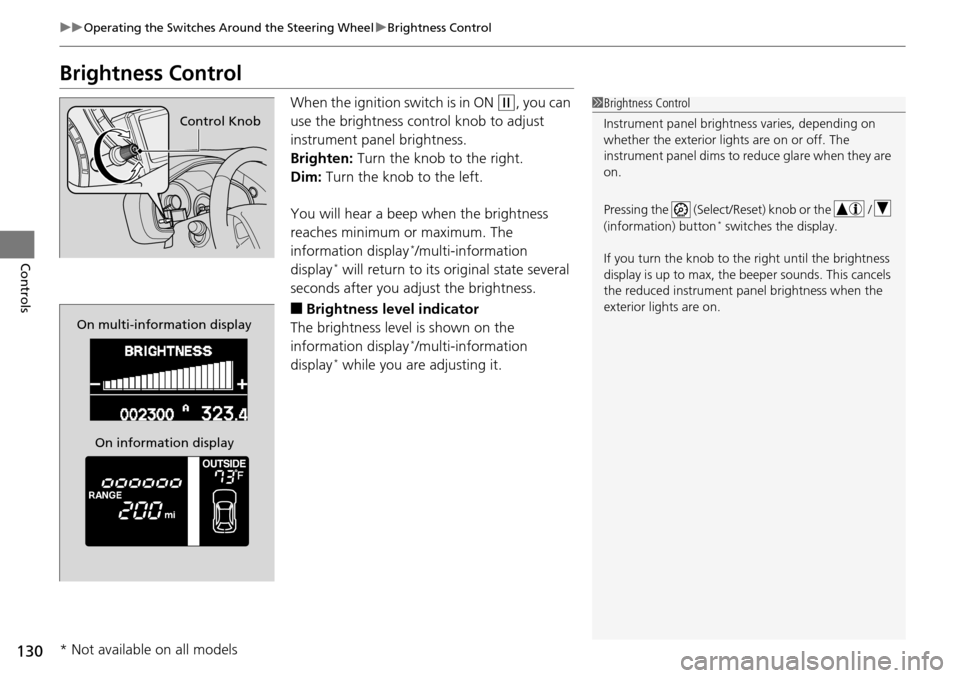
■Brightness level indicator
The brightness level is shown on the
information display
*/multi-information
display* while you are adjusting it.
1 Brightness Control
Instrument panel brightne ss varies, depending on
whether the exterior lights are on or off. The
instrument panel dims to reduce glare when they are
on.
Pressing the (Select/Reset) knob or the /
(information) button
* switches the display.
If you turn the knob to the right until the brightness
display is up to max, the beeper sounds. This cancels
the reduced instrument panel brightness when the
exterior lights are on.
Control Knob
On multi-information display
On information display
* Not available on all models
Page 133 of 488
132
uuOperating the Switches Around the Steering Wheel uDriving Position Memory System*
Controls
Driving Position Memory System*
You can store two driver’s seat and door mirror positions with the driving position
memory system.
When you unlock and open the driver’s door with a remote transmitter, the seat and
door mirrors adjust automatically to one of the two preset positions.
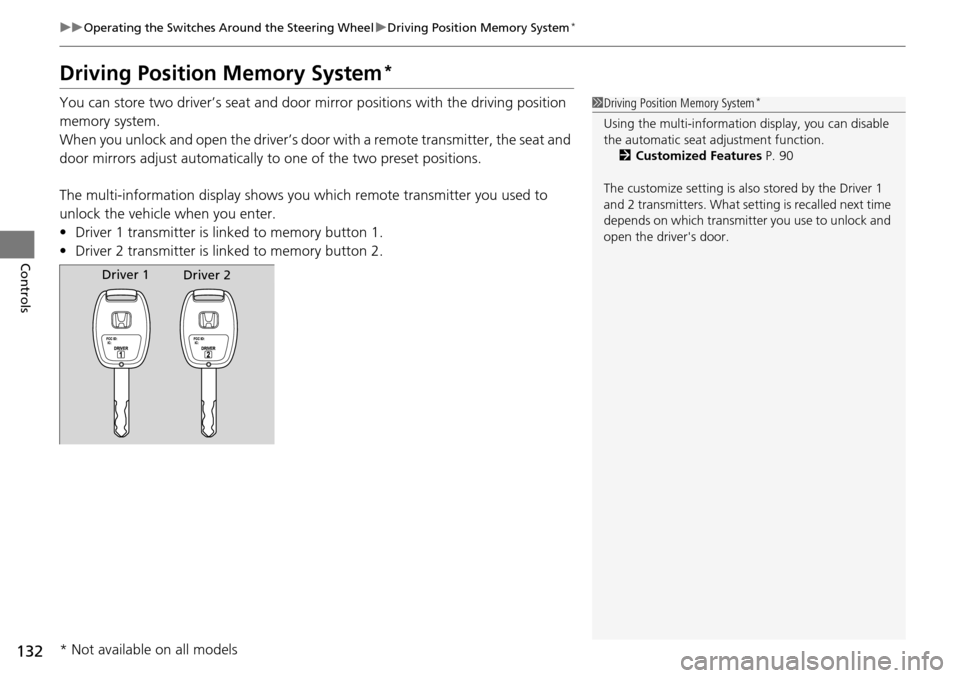
The multi-information display shows you which remote transmitter you used to
unlock the vehicle when you enter.
• Driver 1 transmitter is linked to memory button 1.
• Driver 2 transmitter is linked to memory button 2.1Driving Position Memory System*
Using the multi-information display, you can disable
the automatic seat adjustment function. 2 Customized Features P. 90
The customize setting is also stored by the Driver 1
and 2 transmitters. What setting is recalled next time
depends on which transmitter you use to unlock and
open the driver's door.
Driver 1 Driver 2
* Not available on all models
Page 178 of 488
Continued177
uuAudio System Basic Operation uAudio/Information Screen*
Features
Shows the current audio information.
2 Audio System Basic Operation P. 175
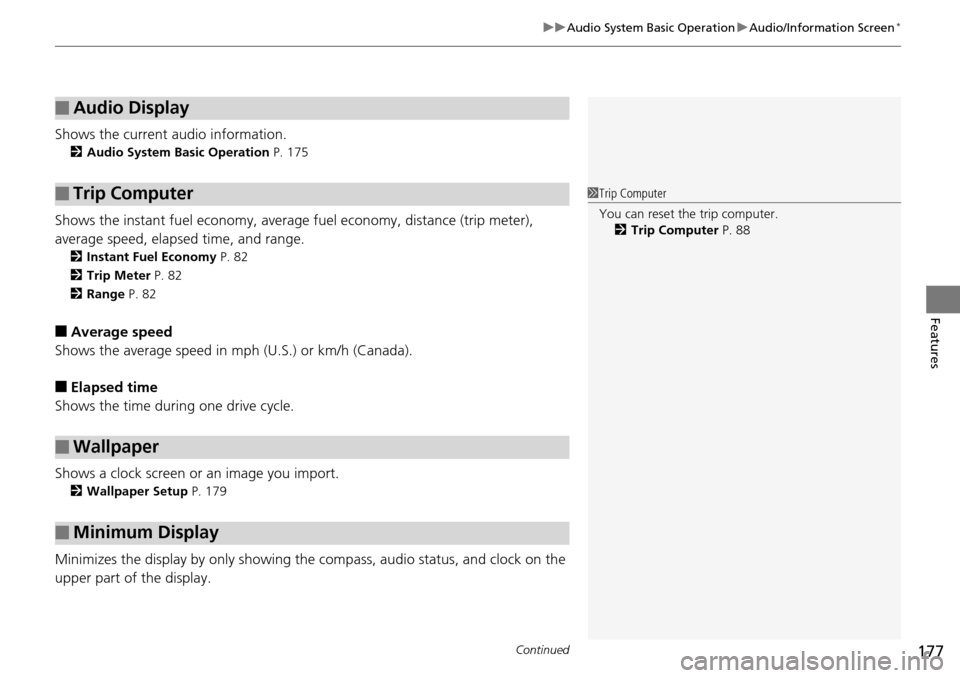
Shows the instant fuel economy, averag e fuel economy, distance (trip meter),
average speed, elapsed time, and range.
2 Instant Fuel Economy P. 82
2 Trip Meter P. 82
2 Range P. 82
■Average speed
Shows the average speed in mph (U.S.) or km/h (Canada).
■Elapsed time
Shows the time during one drive cycle.
Shows a clock screen or an image you import.
2 Wallpaper Setup P. 179
Minimizes the display by only showing the compass, audio status, and clock on the
upper part of the display.
■Audio Display
■Trip Computer
■Wallpaper
■Minimum Display
1 Trip Computer
You can reset the trip computer.
2 Trip Computer P. 88
Page 182 of 488
181
uuAudio System Basic Operation uAudio/Information Screen*
Continued
Features
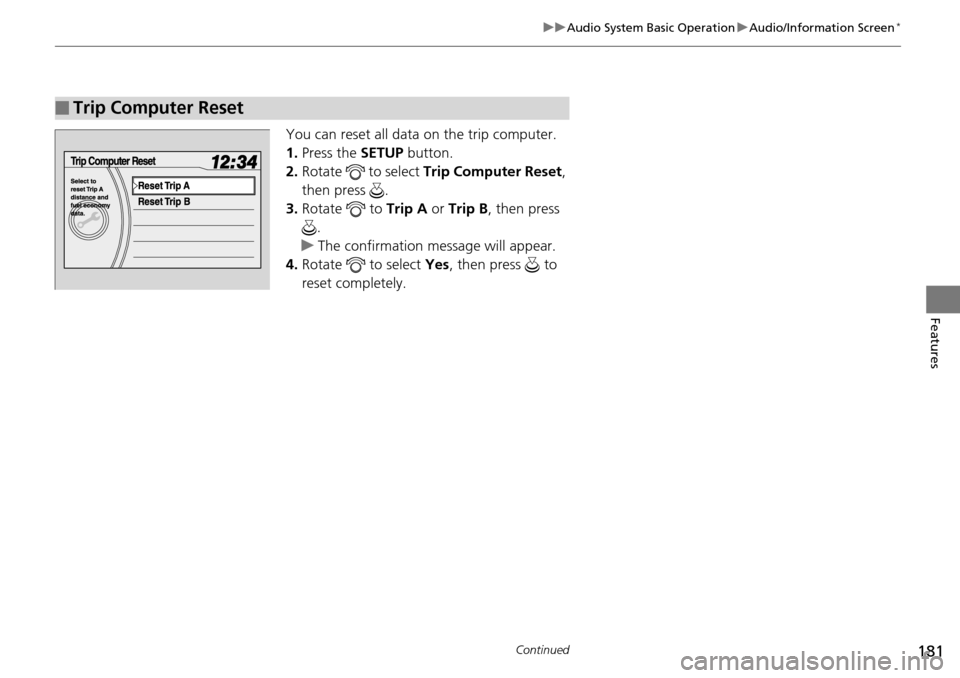
You can reset all data on the trip computer.
1. Press the SETUP button.
2. Rotate to select Trip Computer Reset ,
then press .
3. Rotate to Trip A or Trip B , then press
.
u The confirmation message will appear.
4. Rotate to select Yes, then press to
reset completely.
■Trip Computer Reset
Page 185 of 488
184
uuAudio System Basic Operation uAudio Remote Controls
Features
Audio Remote Controls
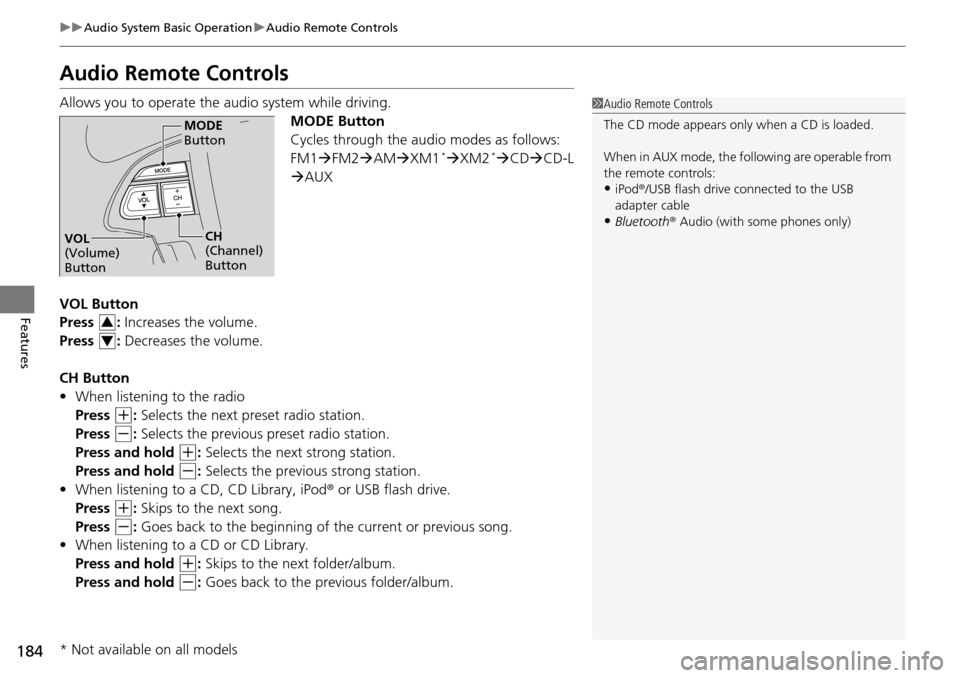
Allows you to operate the audio system while driving.
MODE Button
Cycles through the audio modes as follows:
FM1FM2 AM XM1
*XM2* CD CD-L
AUX
VOL Button
Press : Increases the volume.
Press : Decreases the volume.
CH Button
• When listening to the radio
Press
(+: Selects the next preset radio station.
Press
(-: Selects the previous preset radio station.
Press and hold
(+: Selects the next strong station.
Press and hold
(-: Selects the previous strong station.
• When listening to a CD, CD Library, iPod ® or USB flash drive.
Press
(+: Skips to the next song.
Press
(-: Goes back to the beginning of the current or previous song.
• When listening to a CD or CD Library.
Press and hold
(+: Skips to the next folder/album.
Press and hold
(-: Goes back to the previous folder/album.
1 Audio Remote Controls
The CD mode appears only when a CD is loaded.
When in AUX mode, the following are operable from
the remote controls:
•iPod ®/USB flash drive connected to the USB
adapter cable
•Bluetooth ® Audio (with some phones only)
MODE
Button
CH
(Channel)
ButtonVOL
(Volume)
Button
3
4
* Not available on all models