Where To HONDA PILOT 2016 3.G Navigation Manual
[x] Cancel search | Manufacturer: HONDA, Model Year: 2016, Model line: PILOT, Model: HONDA PILOT 2016 3.GPages: 145, PDF Size: 8.06 MB
Page 4 of 145
3
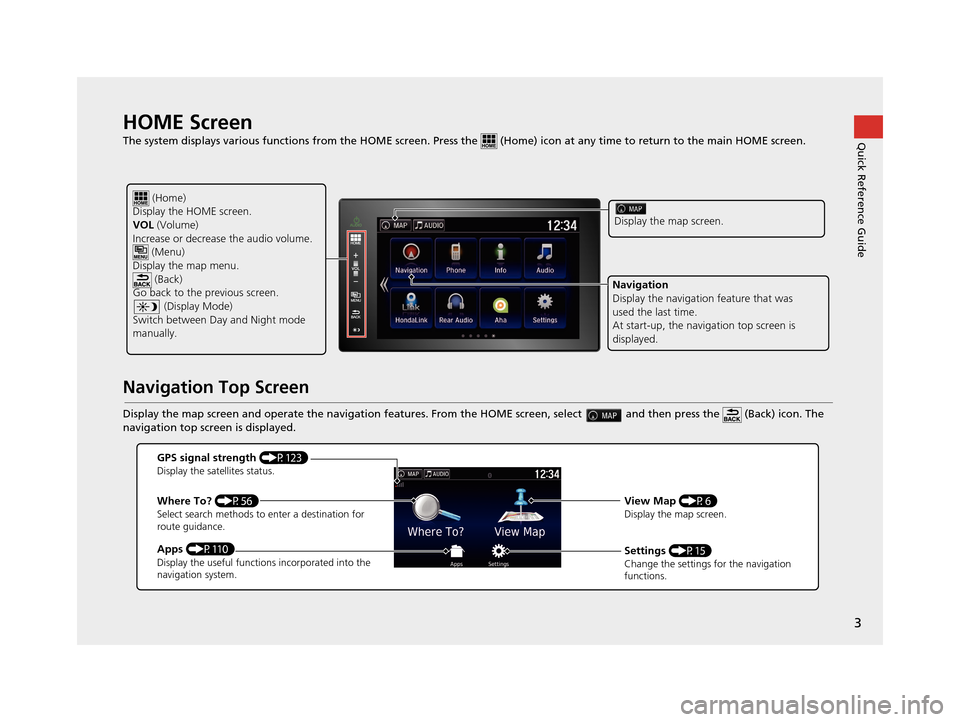
Quick Reference GuideHOME Screen
The system displays various functions from the HOME screen. Press the (Home) icon at any time to return to the main HOME scree n.
Navigation Top Screen
Display the map screen and operate the navigation features. From the HOME screen, select and then press the (Back) icon. The
navigation top screen is displayed.
(Home)
Display the HOME screen.
VOL (Volume)
Increase or decrease the audio volume.
(Menu)
Display the map menu. (Back)
Go back to the previous screen.
(Display Mode)
Switch between Da y and Night mode
manually.
Display the map screen.
Navigation
Display the navigati on feature that was
used the last time.
At start-up, the navi gation top screen is
displayed.
GPS signal strength (P123)Display the satellites status.
Where To? (P56)Select search methods to enter a destination for
route guidance.
Apps (P110)Display the useful functions incorporated into the
navigation system.
View Map (P6)Display the map screen.
Settings (P15)Change the settings for the navigation
functions.
16 PILOT NAVI-31TG78000.book 3 ページ 2015年4月21日 火曜日 午前8時30分
Page 8 of 145
7
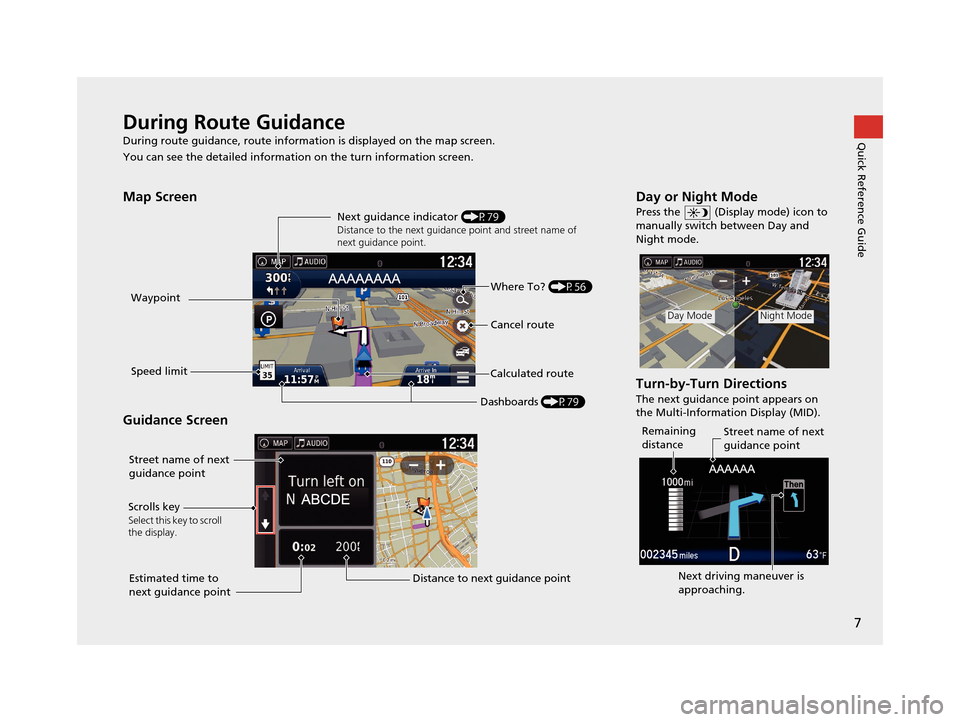
Quick Reference GuideDuring Route Guidance
During route guidance, route information is displayed on the map screen.
You can see the detailed information on the turn information screen.
Map Screen
Guidance Screen
Dashboards (P79)
Next guidance indicator
(P79)
Distance to the next guidance point and street name of
next guidance point.
Where To? (P56)
Waypoint
Calculated route
Speed limit Cancel route
Street name of next
guidance point
Distance to next guidance point
Estimated time to
next guidance point
Scrolls key
Select this key to scroll
the display.
Day or Night Mode
Press the (Display mode) icon to
manually switch between Day and
Night mode.
Turn-by-Turn Directions
The next guidance point appears on
the Multi-Information Display (MID).
Day ModeNight Mode
Remaining
distance
Street name of next
guidance point
Next driving maneuver is
approaching.
16 PILOT NAVI-31TG78000.book 7 ページ 2015年4月21日 火曜日 午前8時30分
Page 11 of 145
10
Quick Reference GuideNavigation—Changing Route or Destination
You can alter your route by adding waypoints to visit, or changing your destination during route guidance.
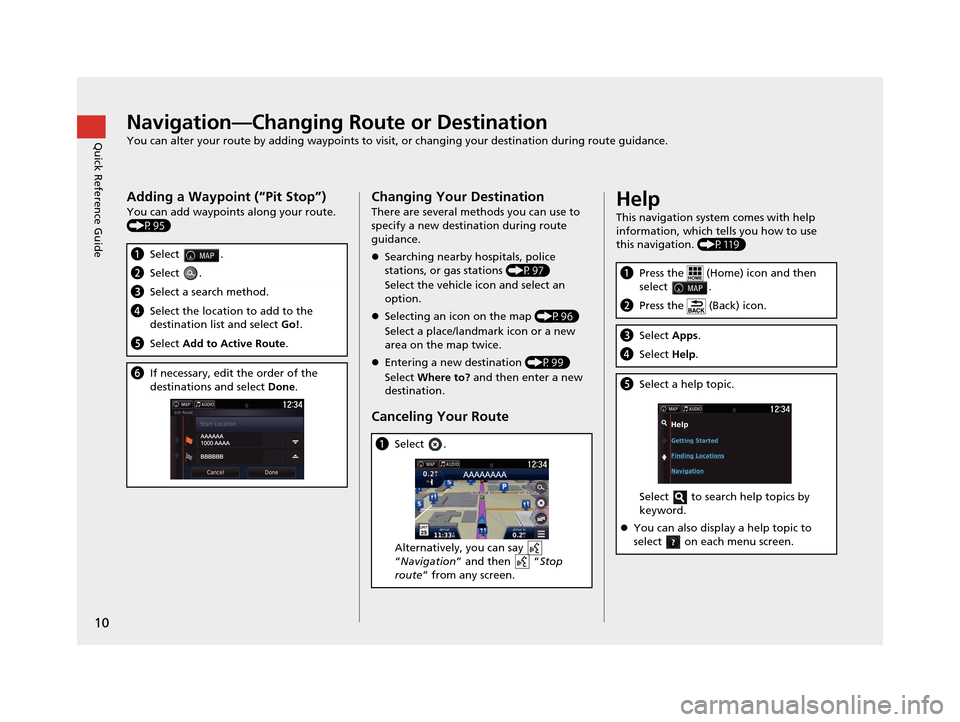
Adding a Waypoint (“Pit Stop”)
You can add waypoints along your route.
(P95)
aSelect .
bSelect .
cSelect a search method.
dSelect the location to add to the
destination list and select Go!.
e Select Add to Active Route .
fIf necessary, edit the order of the
destinations and select Done.
Changing Your Destination
There are several methods you can use to
specify a new destina tion during route
guidance.
Searching nearby hospitals, police
stations, or gas stations (P97)
Select the vehicle icon and select an
option.
Selecting an icon on the map (P96)
Select a place/landmark icon or a new
area on the map twice.
Entering a new destination (P99)
Select Where to? and then enter a new
destination.
Canceling Your Route
a Select .
Alternatively, you can say
“Navigation ” and then “ Stop
route ” from any screen.
Help
This navigation system comes with help
information, which tells you how to use
this navigation. (P119)
aPress the (Home) icon and then
select .
bPress the (Back) icon.
cSelect Apps.
dSelect Help.
eSelect a help topic.
Select to search help topics by
keyword.
You can also display a help topic to
select on each menu screen.
16 PILOT NAVI-31TG78000.book 10 ページ 2015年4月21日 火曜日 午前8時30分
Page 19 of 145
18
System Setup
Personal Information
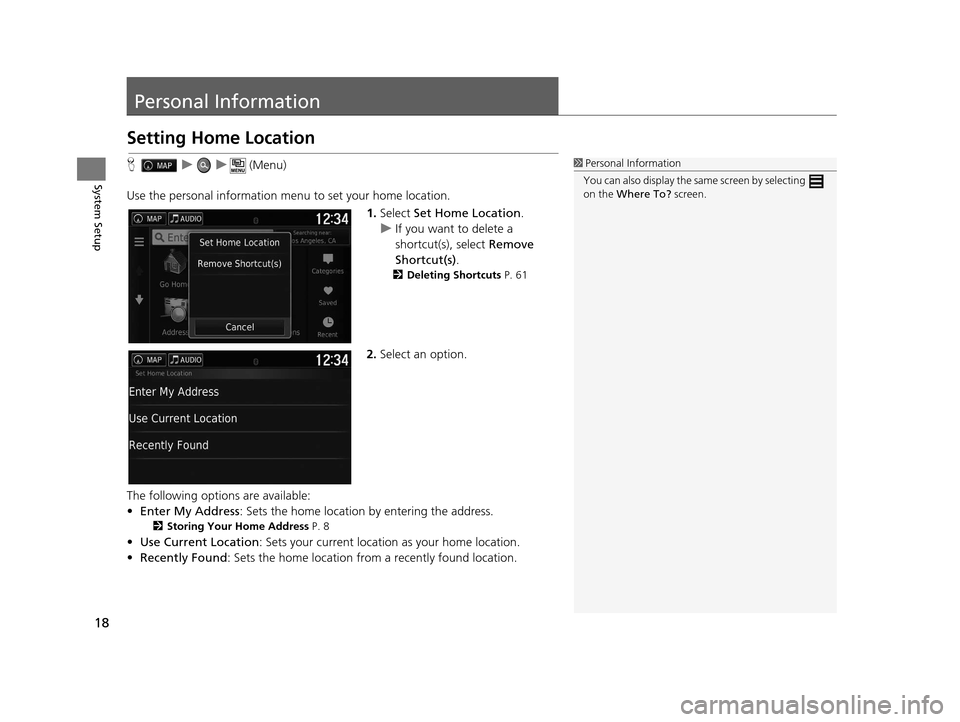
Setting Home Location
Huu (Menu)
Use the personal information menu to set your home location. 1.Select Set Home Location .
u If you want to delete a
shortcut(s), select Remove
Shortcut(s) .
2Deleting Shortcuts P. 61
2.Select an option.
The following options are available:
• Enter My Address : Sets the home location by entering the address.
2Storing Your Home Address P. 8
•Use Current Location : Sets your current location as your home location.
• Recently Found: Sets the home location from a recently found location.
1Personal Information
You can also display the same screen by selecting
on the Where To? screen.
16 PILOT NAVI-31TG78000.book 18 ページ 2015年4月21日 火曜日 午前8時30分
Page 58 of 145
57
uuEntering a Destination u
Continued
Navigation
•Saved : Sets a destination by selecting a place stored in the Saved list.
2Saved P. 74
•Recent : Sets a destination by select ing a previous destination.
2Recent P. 74
•Add Shortcut : Adds shortcuts to the Where To? menu.
2Adding Shortcuts P. 60
16 PILOT NAVI-31TG78000.book 57 ページ 2015年4月21日 火曜日 午前8時30分
Page 60 of 145
Continued59
uuEntering a Destination u
Navigation
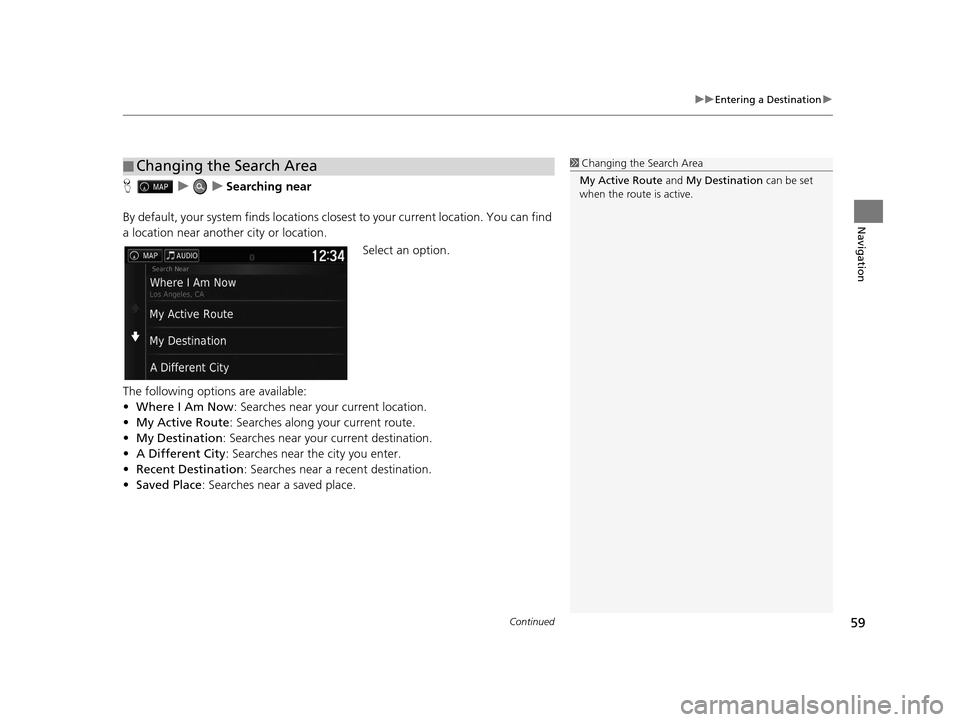
HuuSearching near
By default, your system finds locations closest to your current location. You can find
a location near another city or location. Select an option.
The following options are available:
• Where I Am Now : Searches near your current location.
• My Active Route : Searches along your current route.
• My Destination : Searches near your current destination.
• A Different City : Searches near the city you enter.
• Recent Destination : Searches near a recent destination.
• Saved Place : Searches near a saved place.
■Changing the Search Area1
Changing the Search Area
My Active Route and My Destination can be set
when the route is active.
16 PILOT NAVI-31TG78000.book 59 ページ 2015年4月21日 火曜日 午前8時30分
Page 80 of 145
79Continued
Navigation
Driving to Your Destination
Viewing the Route
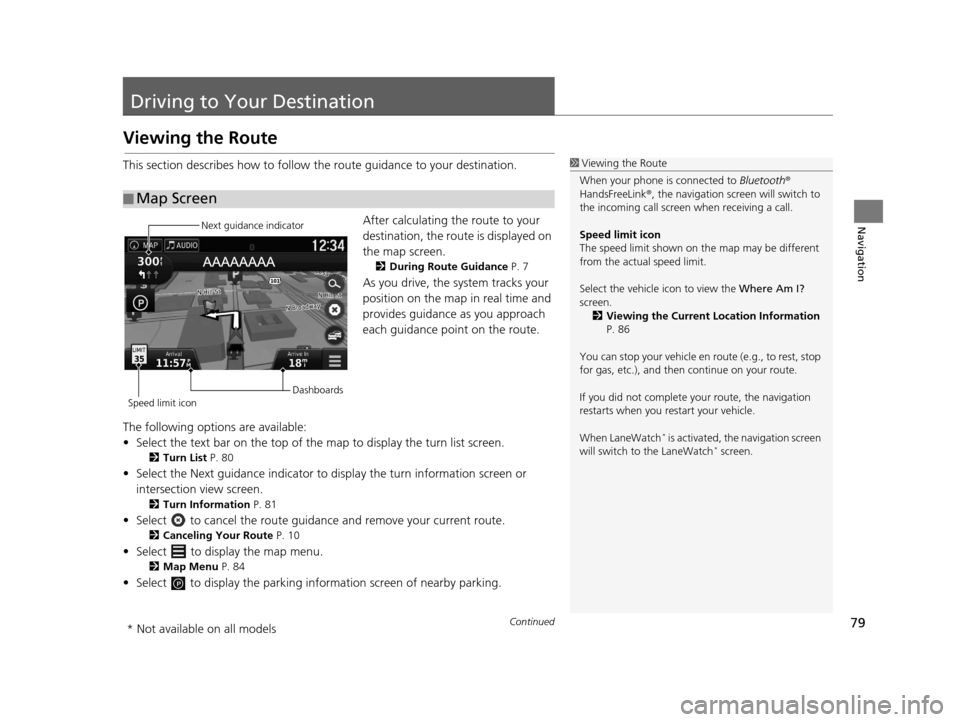
This section describes how to follow the route guidance to your destination.After calculating the route to your
destination, the route is displayed on
the map screen.
2During Route Guidance P. 7
As you drive, the system tracks your
position on the map in real time and
provides guidance as you approach
each guidance point on the route.
The following options are available:
• Select the text bar on the top of the map to display the turn list screen.
2Turn List P. 80
• Select the Next guidance indicator to display the turn information screen or
intersection view screen.
2 Turn Information P. 81
• Select to cancel the route guidan ce and remove your current route.
2Canceling Your Route P. 10
• Select to display the map menu.
2Map Menu P. 84
• Select to display the parking info rmation screen of nearby parking.
■Map Screen
1
Viewing the Route
When your phone is connected to Bluetooth®
HandsFreeLink ®, the navigation screen will switch to
the incoming call screen when receiving a call.
Speed limit icon
The speed limit shown on th e map may be different
from the actual speed limit.
Select the vehicle icon to view the Where Am I?
screen. 2 Viewing the Current Location Information
P. 86
You can stop your vehicle en route (e.g., to rest, stop
for gas, etc.), and then continue on your route.
If you did not complete y our route, the navigation
restarts when you re start your vehicle.
When LaneWatch
* is activated, the navigation screen
will switch to the LaneWatch* screen.
Next guidance indicator
Speed limit icon Dashboards
* Not available on all models
16 PILOT NAVI-31TG78000.book 79 ページ 2015年4月21日 火曜日 午前8時30分
Page 85 of 145
84
uuMap Operation uMap Menu
Navigation
Map Menu
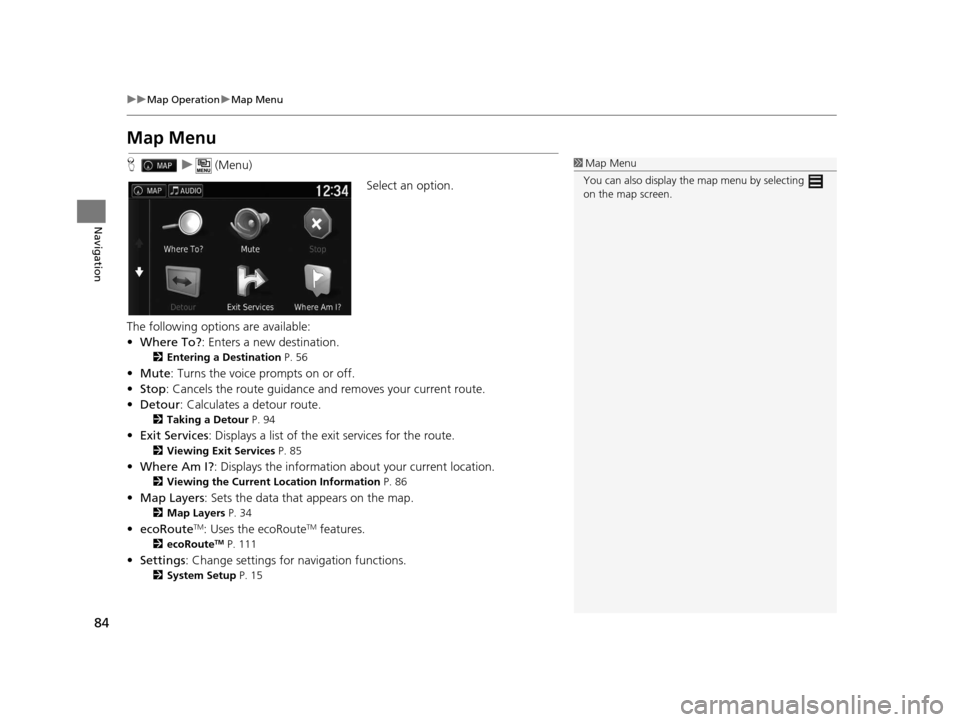
H u (Menu)
Select an option.
The following options are available:
• Where To? : Enters a new destination.
2Entering a Destination P. 56
•Mute : Turns the voice prompts on or off.
• Stop : Cancels the route guidance and removes your current route.
• Detour : Calculates a detour route.
2Taking a Detour P. 94
•Exit Services : Displays a list of the exit services for the route.
2Viewing Exit Services P. 85
•Where Am I? : Displays the info rmation about your current location.
2Viewing the Current Lo cation Information P. 86
•Map Layers : Sets the data that appears on the map.
2Map Layers P. 34
•ecoRouteTM: Uses the ecoRouteTM features.
2 ecoRouteTM P. 111
•Settings : Change settings for navigation functions.
2System Setup P. 15
1Map Menu
You can also display the map menu by selecting
on the map screen.
16 PILOT NAVI-31TG78000.book 84 ページ 2015年4月21日 火曜日 午前8時30分
Page 87 of 145
86
uuMap Operation uMap Menu
Navigation
H u (Menu) uWhere Am I?
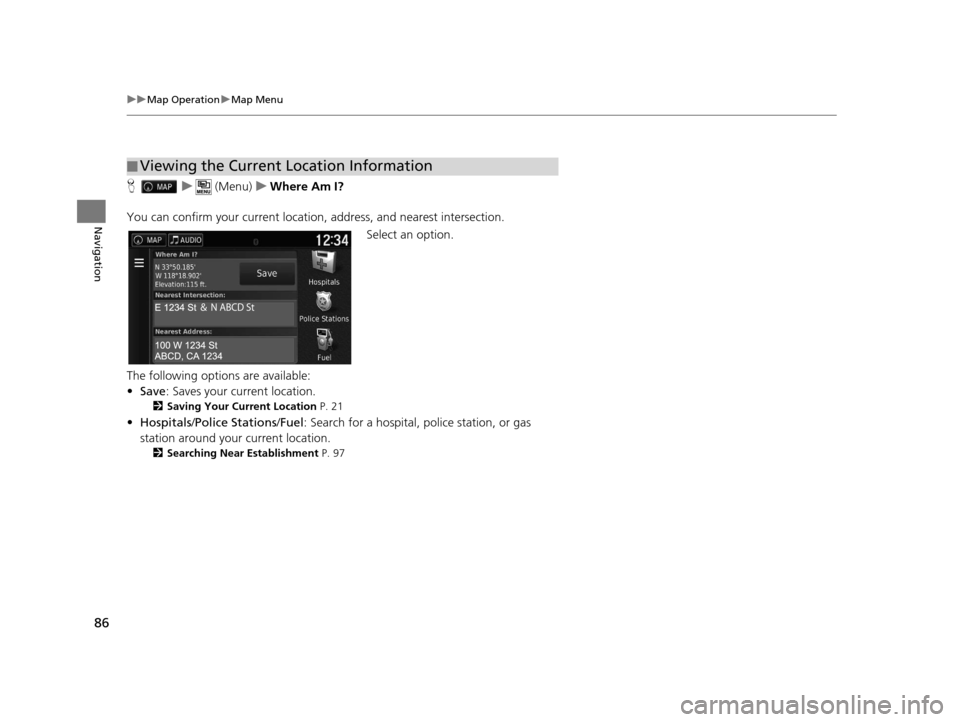
You can confirm your current location , address, and nearest intersection.
Select an option.
The following options are available:
• Save : Saves your current location.
2Saving Your Current Location P. 21
•Hospitals /Police Stations /Fuel : Search for a hospital, police station, or gas
station around your current location.
2 Searching Near Establishment P. 97
■Viewing the Current Location Information
16 PILOT NAVI-31TG78000.book 86 ページ 2015年4月21日 火曜日 午前8時30分
Page 88 of 145
87
uuMap Operation uMap Menu
Navigation
H u (Menu) uWhere Am I?
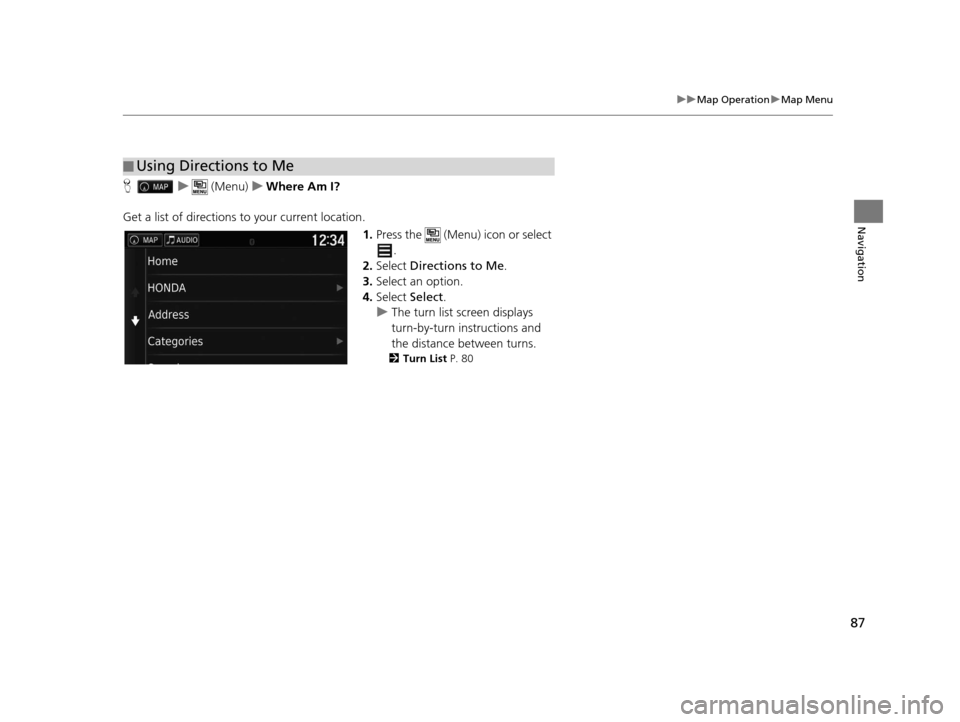
Get a list of directions to your current location. 1.Press the (Menu) icon or select
.
2. Select Directions to Me .
3. Select an option.
4. Select Select.
u The turn list screen displays
turn-by-turn instructions and
the distance between turns.
2 Turn List P. 80
■Using Directions to Me
16 PILOT NAVI-31TG78000.book 87 ページ 2015年4月21日 火曜日 午前8時30分