display HONDA PILOT 2016 3.G Owners Manual
[x] Cancel search | Manufacturer: HONDA, Model Year: 2016, Model line: PILOT, Model: HONDA PILOT 2016 3.GPages: 661, PDF Size: 37.79 MB
Page 508 of 661
507
uuWhen Driving uLane Keeping Assist System (LKAS)*
Continued
Driving
Lane Keeping Assist System (LKAS)*
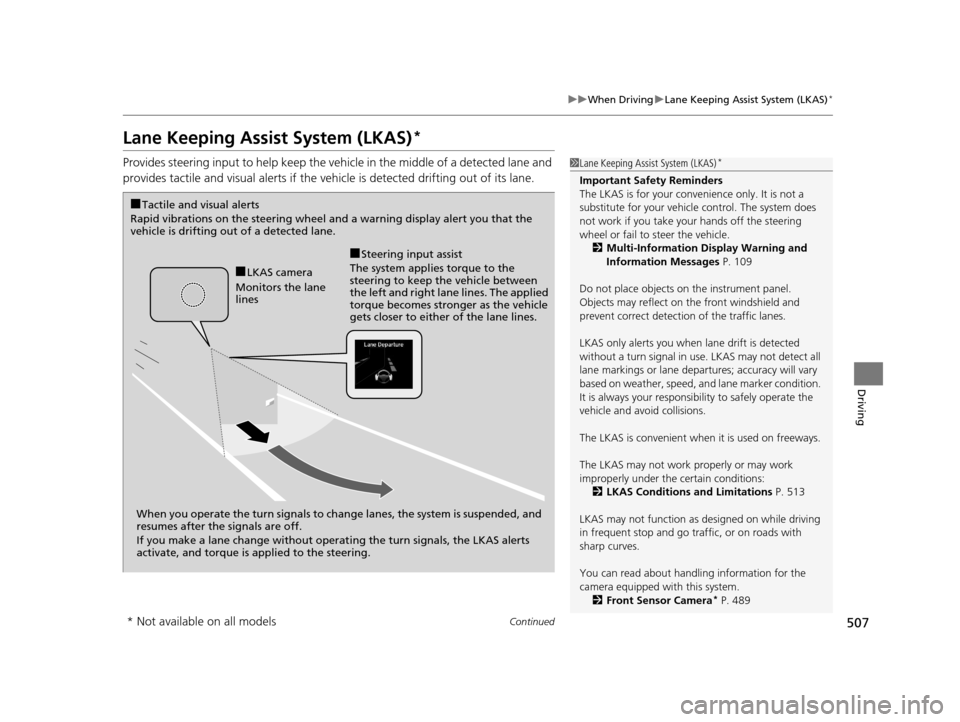
Provides steering input to help keep the vehicle in the middle of a detected lane and
provides tactile and visual al erts if the vehicle is detected drifting out of its lane.1Lane Keeping Assist System (LKAS)*
Important Safety Reminders
The LKAS is for your convenience only. It is not a
substitute for your vehicl e control. The system does
not work if you take y our hands off the steering
wheel or fail to steer the vehicle.
2 Multi-Information Display Warning and
Information Messages P. 109
Do not place objects on the instrument panel.
Objects may reflect on th e front windshield and
prevent correct detectio n of the traffic lanes.
LKAS only alerts you when lane drift is detected
without a turn signal in use. LKAS may not detect all
lane markings or lane departures; a ccuracy will vary
based on weather, speed, an d lane marker condition.
It is always your responsibility to safely operate the
vehicle and avoid collisions.
The LKAS is convenient when it is used on freeways.
The LKAS may not work properly or may work
improperly under the certain conditions: 2 LKAS Conditions and Limitations P. 513
LKAS may not function as designed on while driving
in frequent stop and go traf fic, or on roads with
sharp curves.
You can read about handling information for the
camera equipped with this system. 2 Front Sensor Camera
* P. 489
When you operate the turn signals to chan ge lanes, the system is suspended, and
resumes after the signals are off.
If you make a lane change without operat ing the turn signals, the LKAS alerts
activate, and torque is applied to the steering.
■LKAS camera
Monitors the lane
lines
■Tactile and visual alerts
Rapid vibrations on the steering wheel and a warning display alert you that the
vehicle is drifting out of a detected lane.
■Steering input assist
The system applies torque to the
steering to keep the vehicle between
the left and right lane lines. The applied
torque becomes stronger as the vehicle
gets closer to either of the lane lines.
* Not available on all models
16 PILOT-31TG76000.book 507 ページ 2015年6月15日 月曜日 午前11時30分
Page 509 of 661
uuWhen Driving uLane Keeping Assist System (LKAS)*
508
Driving
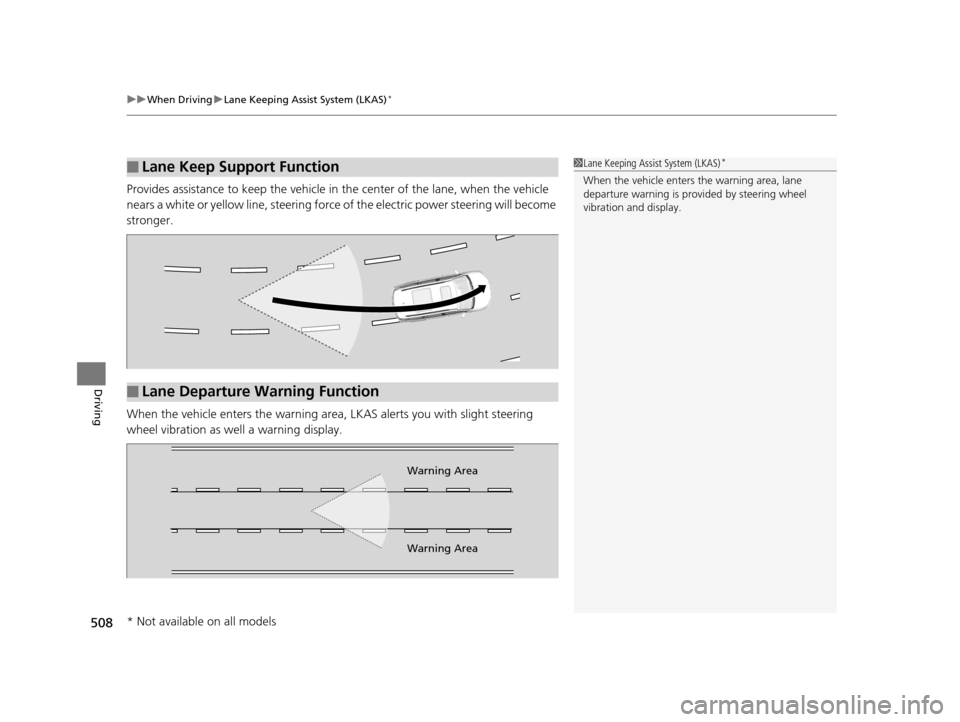
Provides assistance to keep the vehicle in the center of the lane, when the vehicle
nears a white or yellow line, steering force of the electric power steering will become
stronger.
When the vehicle enters th e warning area, LKAS alerts you with slight steering
wheel vibration as we ll a warning display.
■Lane Keep Support Function1Lane Keeping Assist System (LKAS)*
When the vehicle enters the warning area, lane
departure warning is prov ided by steering wheel
vibration and display.
■Lane Departure Warning Function
Warning Area
Warning Area
* Not available on all models
16 PILOT-31TG76000.book 508 ページ 2015年6月15日 月曜日 午前11時30分
Page 521 of 661
520
uuWhen Driving uLaneWatchTM*
Driving
LaneWatchTM*
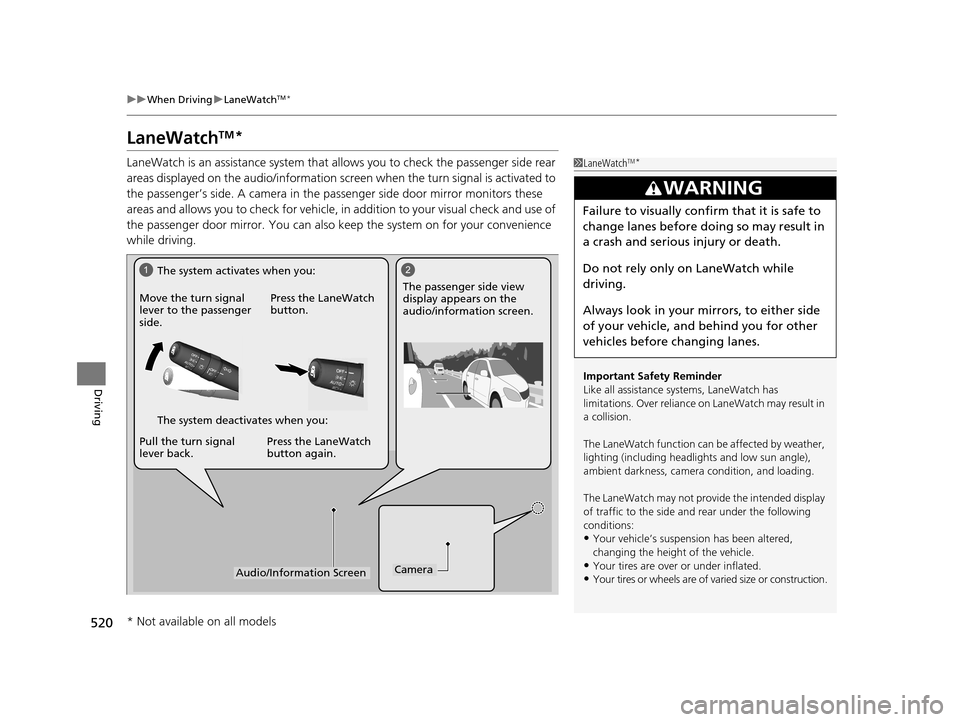
LaneWatch is an assistance system that allows you to check the passenger side rear
areas displayed on the audio/in formation screen when the turn signal is activated to
the passenger’s side. A camera in the passenger side door mirror monitors these
areas and allows you to check for vehicle, in addition to your visual check and use of
the passenger door mirror. You can also keep the system on for your convenience
while driving.1 LaneWatchTM*
Important Safety Reminder
Like all assistance systems, LaneWatch has
limitations. Over reliance on LaneWatch may result in
a collision.
The LaneWatch func tion can be affected by weather,
lighting (including headli ghts and low sun angle),
ambient darkness, camera condition, and loading.
The LaneWatch may not prov ide the intended display
of traffic to the side and rear under the following
conditions:
•Your vehicle’s suspension has been altered,
changing the height of the vehicle.
•Your tires are over or under inflated.
•Your tires or wheels are of varied size or construction.
3WARNING
Failure to visually confirm that it is safe to
change lanes before doing so may result in
a crash and serious injury or death.
Do not rely only on LaneWatch while
driving.
Always look in your mirrors, to either side
of your vehicle, and behind you for other
vehicles before changing lanes.
12
CameraAudio/Information Screen
Move the turn signal
lever to the passenger
side.
Press the LaneWatch
button.
Pull the turn signal
lever back. Press the LaneWatch
button again. The passenger side view
display appears on the
audio/information screen.
The system activates when you:
The system deactivates when you:
* Not available on all models
16 PILOT-31TG76000.book 520 ページ 2015年6月15日 月曜日 午前11時30分
Page 522 of 661
521
uuWhen Driving uLaneWatchTM*
Driving
■Customizing the La neWatch settings
You can customize the following items using the audio/information screen.
• Show with Turn Signal : Selects whether LaneWatch monitor comes on when
you operate the turn signal light lever.
• Display Time after Turn Signal Off: Changes the remaining Lane Watch
display time after you pull the turn signal lever back.
• Reference Line : Selects whether the reference lines appear on the LaneWatch
monitor.
• Display : Adjusts display settings.
2Customized Features P. 342
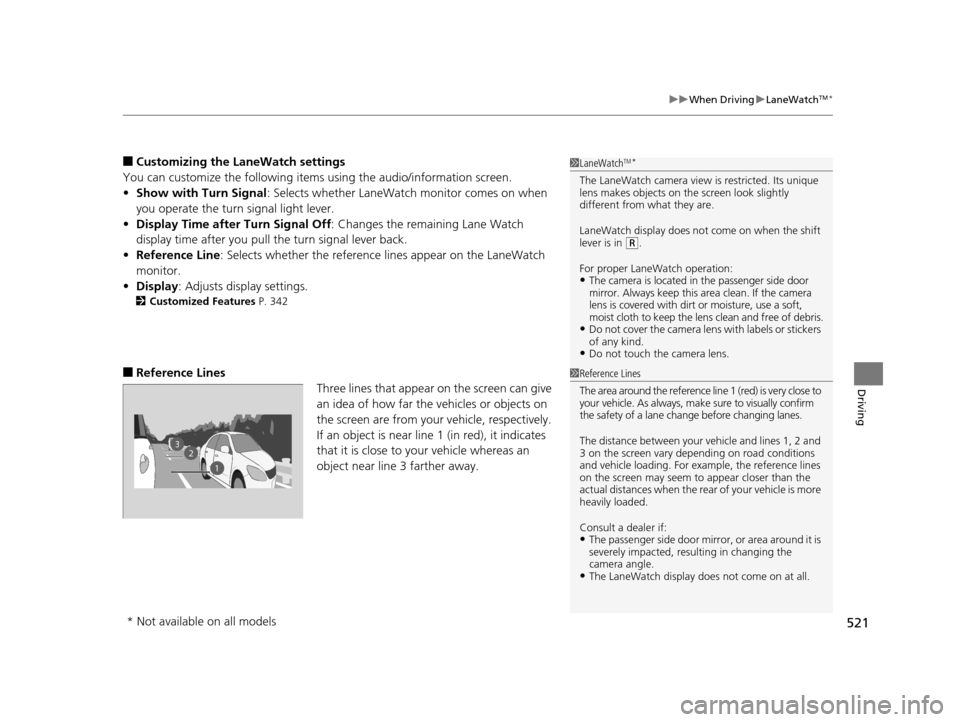
■Reference Lines
Three lines that appear on the screen can give
an idea of how far the vehicles or objects on
the screen are from your vehicle, respectively.
If an object is near line 1 (in red), it indicates
that it is close to your vehicle whereas an
object near line 3 farther away.
1LaneWatchTM*
The LaneWatch camera view is restricted. Its unique
lens makes objects on the screen look slightly
different from what they are.
LaneWatch display does not come on when the shift
lever is in
( R.
For proper LaneWatch operation:
•The camera is located in the passenger side door
mirror. Always keep this area clean. If the camera
lens is covered with dirt or moisture, use a soft,
moist cloth to keep the lens clean and free of debris.
•Do not cover the camera lens with labels or stickers
of any kind.
•Do not touch the camera lens.
1Reference Lines
The area around the reference line 1 (red) is very close to
your vehicle. As always, m ake sure to visually confirm
the safety of a lane chan ge before changing lanes.
The distance betwee n your vehicle and lines 1, 2 and
3 on the screen vary depending on road conditions
and vehicle loading. For ex ample, the reference lines
on the screen may seem to appear closer than the
actual distances when the rear of your vehicle is more
heavily loaded.
Consult a dealer if:
•The passenger side door mirr or, or area around it is
severely impacted, resulting in changing the
camera angle.
•The LaneWatch display doe s not come on at all.
23
1
* Not available on all models
16 PILOT-31TG76000.book 521 ページ 2015年6月15日 月曜日 午前11時30分
Page 525 of 661
uuWhen Driving uTPMS with Tire Fill Assist
524
Driving
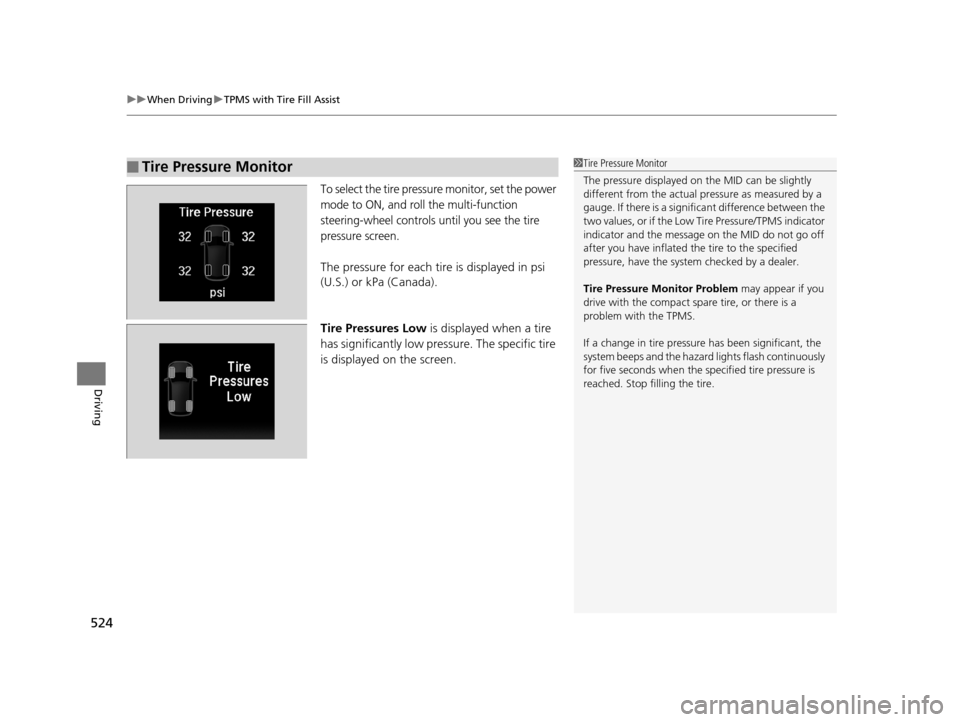
To select the tire pressure monitor, set the power
mode to ON, and roll the multi-function
steering-wheel controls until you see the tire
pressure screen.
The pressure for each tire is displayed in psi
(U.S.) or kPa (Canada).
Tire Pressures Low is displayed when a tire
has significantly low pressure. The specific tire
is displayed on the screen.
■Tire Pressure Monitor1Tire Pressure Monitor
The pressure displayed on the MID can be slightly
different from the actual pr essure as measured by a
gauge. If there is a signifi cant difference between the
two values, or if the Low Tire Pressure/TPMS indicator
indicator and the message on the MID do not go off
after you have inflated the tire to the specified
pressure, have the system checked by a dealer.
Tire Pressure Monitor Problem may appear if you
drive with the compact spare tire, or there is a
problem with the TPMS.
If a change in tire pressure has been significant, the
system beeps and the hazard lights flash continuously
for five seconds when the specified tire pressure is
reached. Stop filling the tire.
16 PILOT-31TG76000.book 524 ページ 2015年6月15日 月曜日 午前11時30分
Page 547 of 661
uuParking Your Vehicle uCross Traffic Monitor*
546
Driving
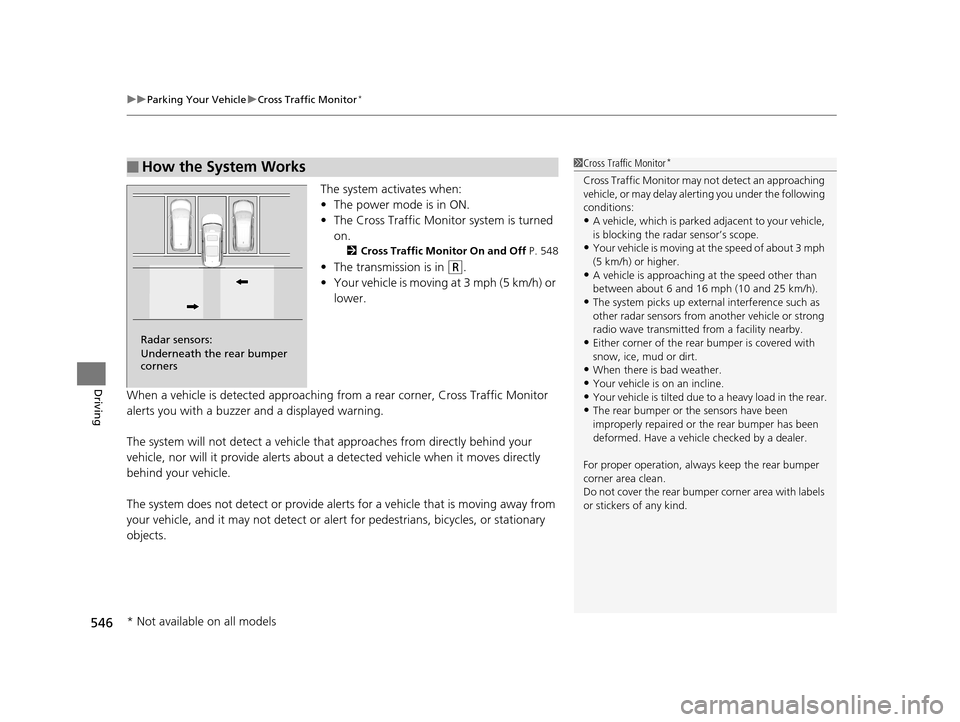
The system activates when:
• The power mode is in ON.
• The Cross Traffic Monitor system is turned
on.
2 Cross Traffic Monitor On and Off P. 548
•The transmission is in (R.
• Your vehicle is moving at 3 mph (5 km/h) or
lower.
When a vehicle is detected approaching from a rear corner, Cross Traffic Monitor
alerts you with a buzzer and a displayed warning.
The system will not detect a vehicle that approaches from directly behind your
vehicle, nor will it provide alerts about a detected vehicle when it moves directly
behind your vehicle.
The system does not detect or provide aler ts for a vehicle that is moving away from
your vehicle, and it may not detect or ale rt for pedestrians, bicycles, or stationary
objects.
■How the System Works1 Cross Traffic Monitor*
Cross Traffic Monitor may not detect an approaching
vehicle, or may delay aler ting you under the following
conditions:
•A vehicle, which is parked adjacent to your vehicle,
is blocking the radar sensor’s scope.
•Your vehicle is moving at the speed of about 3 mph
(5 km/h) or higher.
•A vehicle is approaching at the speed other than
between about 6 and 16 mph (10 and 25 km/h).
•The system picks up external interference such as
other radar sensors from an other vehicle or strong
radio wave transmitted fr om a facility nearby.
•Either corner of the rear bumper is covered with
snow, ice, mud or dirt.
•When there is bad weather.
•Your vehicle is on an incline.•Your vehicle is tilt ed due to a heavy load in the rear.
•The rear bumper or the sensors have been
improperly repaired or the rear bumper has been
deformed. Have a vehicle checked by a dealer.
For proper operation, always keep the rear bumper
corner area clean.
Do not cover the rear bumper corner area with labels
or stickers of any kind.
Radar sensors:
Underneath the rear bumper
corners
* Not available on all models
16 PILOT-31TG76000.book 546 ページ 2015年6月15日 月曜日 午前11時30分
Page 550 of 661
549
Driving
Multi-view rear camera*
About Your Multi-view rear camera
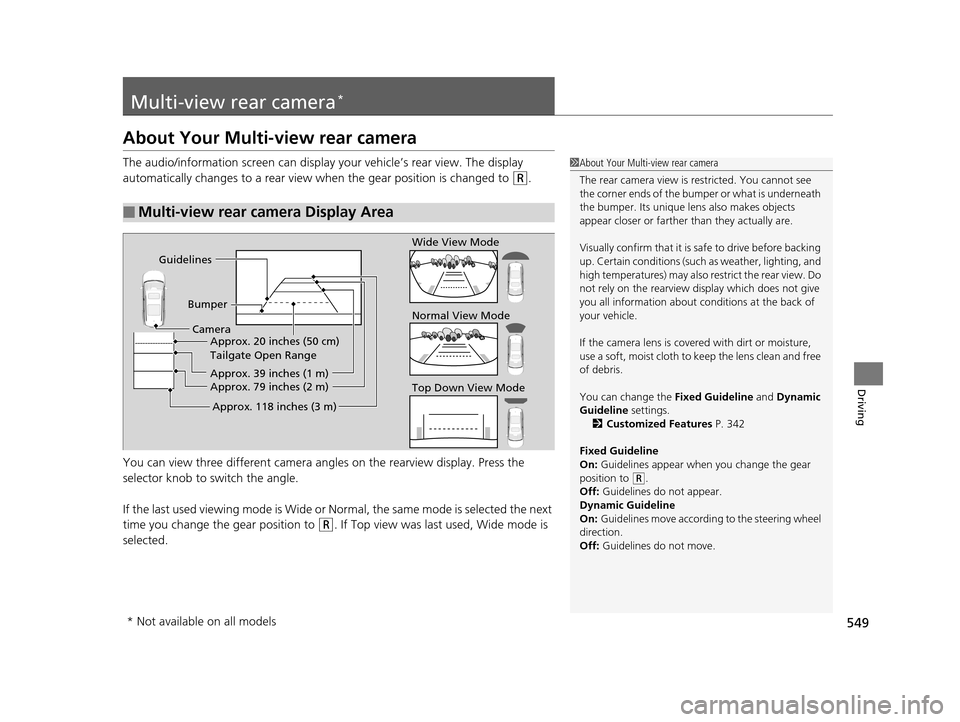
The audio/information screen can display your vehicle’s rear view. The display
automatically changes to a rear view when the gear position is changed to
(R.
You can view three differen t camera angles on the rearview display. Press the
selector knob to switch the angle.
If the last used viewing mode is Wide or Normal, the same mode is selected the next
time you change the gear position to
(R. If Top view was last used, Wide mode is
selected.
■Multi-view rear camera Display Area
1 About Your Multi-view rear camera
The rear camera view is restricted. You cannot see
the corner ends of the bum per or what is underneath
the bumper. Its unique le ns also makes objects
appear closer or farther than they actually are.
Visually confirm that it is safe to drive before backing
up. Certain conditions (such as weather, lighting, and
high temperatures) may also re strict the rear view. Do
not rely on the rearview display which does not give
you all information about conditions at the back of
your vehicle.
If the camera lens is cove red with dirt or moisture,
use a soft, moist cloth to keep the lens clean and free
of debris.
You can change the Fixed Guideline and Dynamic
Guideline settings. 2 Customized Features P. 342
Fixed Guideline
On: Guidelines appear when you change the gear
position to
( R.
Off: Guidelines do not appear.
Dynamic Guideline
On: Guidelines move according to the steering wheel
direction.
Off: Guidelines do not move.
Guidelines
BumperCamera Approx. 20 inches (50 cm)
Tailgate Open Range
Approx. 39 inches (1 m)
Approx. 79 inches (2 m)
Approx. 118 inches (3 m)
Wide View Mode
Normal View Mode
Top Down View Mode
* Not available on all models
16 PILOT-31TG76000.book 549 ページ 2015年6月15日 月曜日 午前11時30分
Page 553 of 661
552
Driving
Fuel Economy
Improving Fuel Economy
Fuel economy depends on several conditions, including driving conditions, your
driving habits, the condition of your vehicle, and loading. Depending on these and
other conditions, you may or may not achieve the rated fuel economy of this vehicle.
You can optimize your fuel economy with proper maintenance of your vehicle.
Always maintain your vehicle in accordance with the messages displayed on the
MID.
• Use the recommended viscosity engine oil, displaying the API Certification Seal.
• Maintain the specified tire pressure.
• Do not load the vehicl e with excess cargo.
• Keep your vehicle clean. A buildup of snow or mud on your vehicle’s underside
adds weight and increases wind resistance.
■Maintenance and Fuel Economy
1Improving Fuel Economy
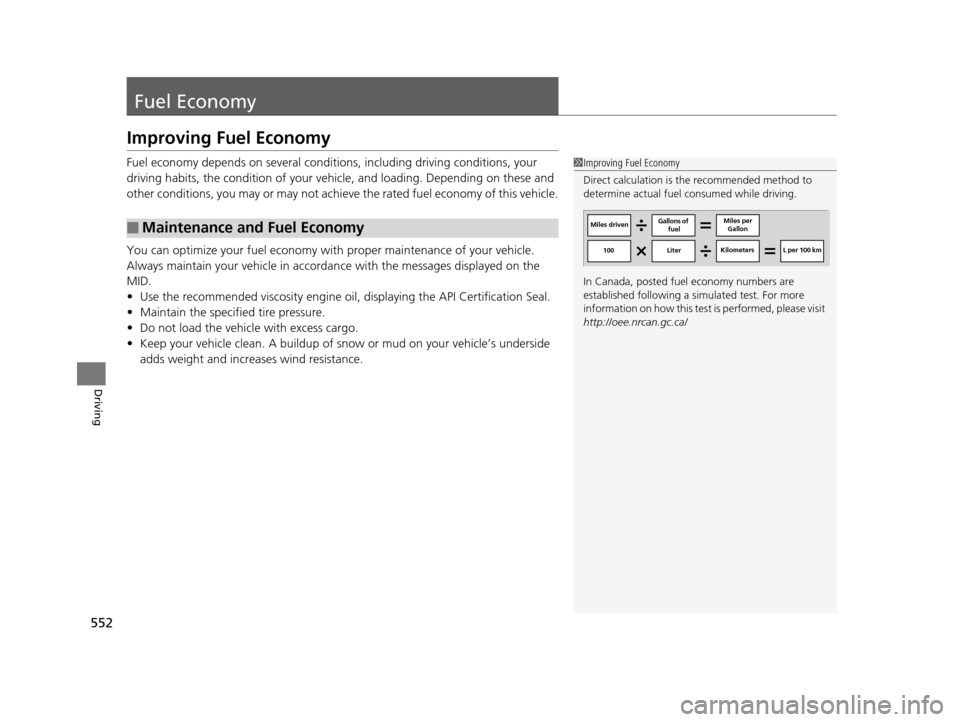
Direct calculation is the recommended method to
determine actual fuel consumed while driving.
In Canada, posted fuel economy numbers are
established following a simulated test. For more
information on how this test is performed, please visit
http://oee.nrcan.gc.ca/
Miles driven Gallons of
fuel Miles per
Gallon
100 LiterKilometers L per 100 km
16 PILOT-31TG76000.book 552 ページ 2015年6月15日 月曜日 午前11時30分
Page 557 of 661
556
Maintenance
Before Performing Maintenance
Inspection and Maintenance
For your safety, perform all listed inspections and maintenance to keep your vehicle
in good condition. If you become aware of any abnormality (noise, smell, insufficient
brake fluid, oil residue on the ground, etc.), have your vehicle inspected by a dealer.
(Note, however, that service at a dealer is not mandatory to keep your warranties in
effect.)
■Daily inspections
Perform inspections before long distance trips, when washing the vehicle, or when
refueling.
■Periodic inspections
• Check the brake fluid level monthly.
2 Checking the Brake Fluid P. 574
•Check the tire pressure monthly. Examin e the tread for wear and foreign objects.
2Checking and Maintaining Tires P. 585
•Check the operation of the exterior lights monthly.
2 Replacing Light Bulbs P. 575
•Check the condition of the wiper bl ades at least every six months.
2Checking and Maintaining Wiper Blades P. 581
■Types of Inspection and Maintenance
1Inspection and Maintenance
Maintenance, replacement, or repair of
emissions control devices and systems may be
done by any automotive repair establishment or
individuals using parts that are “certified” to
EPA standards.
According to state and fede ral regulations, failure to
perform maintenance on the maintenance main
items marked with # will not void your emissions
warranties. However, all maintenance services should
be performed in accordan ce with the intervals
indicated by the multi-information display (MID).
2 Maintenance Service Items P. 561
If you want to perform complex maintenance tasks
that require more skills a nd tools, you can purchase a
subscription to the Service Express website at
www.techinfo.honda.com .
2 Authorized Manuals P. 647
If you want to perform ma intenance yourself, make
sure that you have the necessary tools and skills first.
After performing ma intenance, update the records in
the separate maintenance booklet.
U.S. models
16 PILOT-31TG76000.book 556 ページ 2015年6月15日 月曜日 午前11時30分
Page 560 of 661
559Continued
Maintenance
Maintenance MinderTM
Maintenance items, which should be serviced at the same time that you replace the
engine oil, app ear on the MID.
You can view them on the engine oil life screen at any time.
To Use Maintenance MinderTM
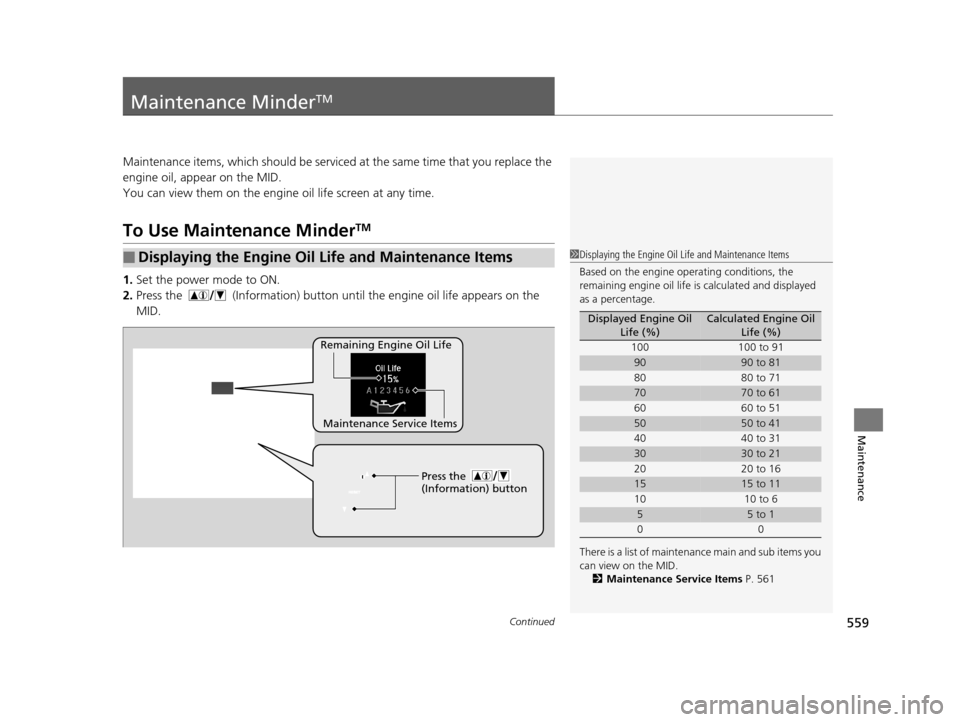
1. Set the power mode to ON.
2. Press the (Information) button until the engine oil life appears on the
MID.
■Displaying the Engine Oil Life and Maintenance Items1 Displaying the Engine Oil Life and Maintenance Items
Based on the engine ope rating conditions, the
remaining engine oi l life is calculated and displayed
as a percentage.
There is a list of maintena nce main and sub items you
can view on the MID. 2 Maintenance Service Items P. 561
Displayed Engine Oil
Life (%)Calculated Engine Oil Life (%)
100 100 to 91
9090 to 81
80 80 to 71
7070 to 61
60 60 to 51
5050 to 41
40 40 to 31
3030 to 21
20 20 to 16
1515 to 11
10 10 to 6
55 to 1
00
Remaining Engine Oil Life
Maintenance Service Items Press the
(Information) button
16 PILOT-31TG76000.book 559 ページ 2015年6月15日 月曜日 午前11時30分