display HONDA PILOT 2016 3.G Owners Manual
[x] Cancel search | Manufacturer: HONDA, Model Year: 2016, Model line: PILOT, Model: HONDA PILOT 2016 3.GPages: 661, PDF Size: 37.79 MB
Page 370 of 661
369
uuCustomized Features u
Continued
Features
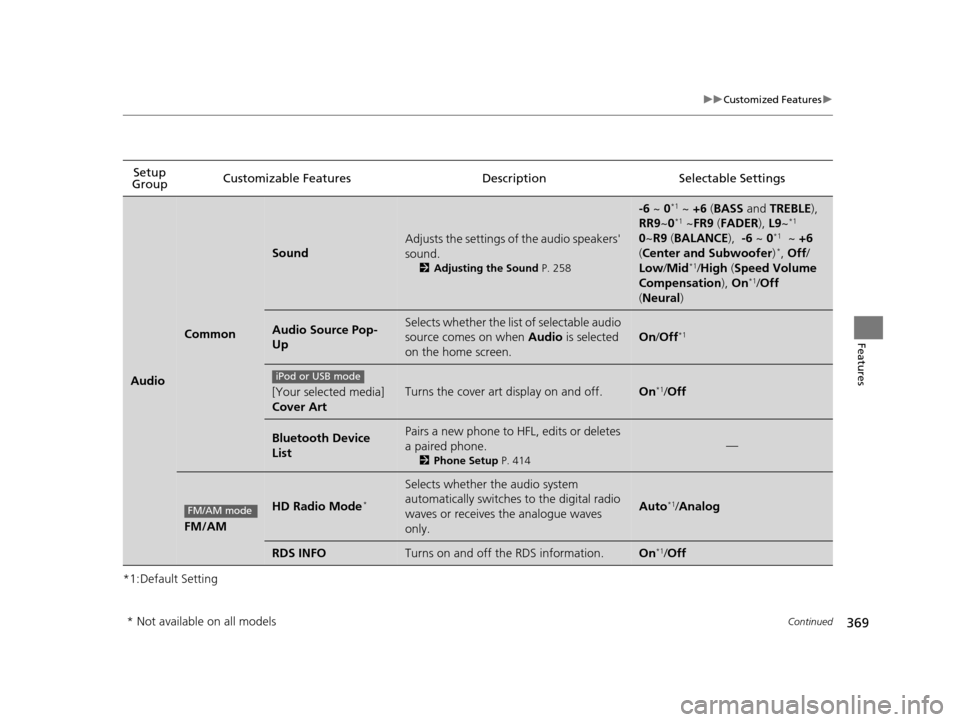
*1:Default SettingSetup
Group Customizable Features Descri
ption Selectable Settings
Audio
Common
Sound
Adjusts the settings of the audio speakers'
sound.
2Adjusting the Sound P. 258
-6 ~ 0*1 ~ +6 (BASS and TREBLE),
RR9 ~0*1 ~FR9 (FADER ), L9~*1
0 ~R9 (BALANCE ), -6 ~ 0*1 ~ +6
( Center and Subwoofer )*, Off /
Low /Mid*1/High (Speed Volume
Compensation ), On*1/Off
( Neural )
Audio Source Pop-
UpSelects whether the list of selectable audio
source comes on when Audio is selected
on the home screen.
On /Off*1
[Your selected media]
Cover ArtTurns the cover art display on and off.On*1/Off
Bluetooth Device
ListPairs a new phone to HFL, edits or deletes
a paired phone.
2 Phone Setup P. 414
—
FM/AM
HD Radio Mode*
Selects whether the audio system
automatically switches to the digital radio
waves or receives the analogue waves
only.
Auto*1/Analog
RDS INFOTurns on and off the RDS information.On*1/Off
iPod or USB mode
FM/AM mode
* Not available on all models
16 PILOT-31TG76000.book 369 ページ 2015年6月15日 月曜日 午前11時30分
Page 374 of 661
373
uuCustomized Features u
Continued
Features
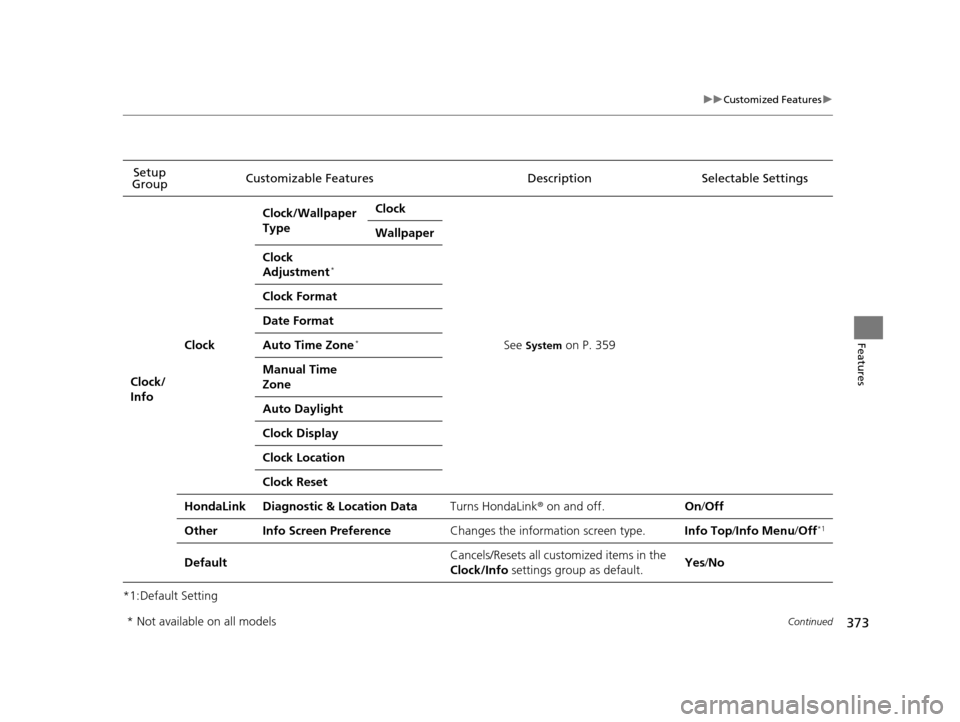
*1:Default SettingSetup
Group Customizable Features Description Selectable Settings
Clock/
Info
Clock
Clock/Wallpaper
TypeClock
See System on P. 359
Wallpaper
Clock
Adjustment*
Clock Format
Date Format
Auto Time Zone*
Manual Time
Zone
Auto Daylight
Clock Display
Clock Location
Clock Reset
HondaLinkDiagnostic & Location DataTurns HondaLink
® on and off.On /Off
OtherInfo Screen PreferenceChanges the information screen type.Info Top/ Info Menu /Off*1
DefaultCancels/Resets all cust omized items in the
Clock/Info settings group as default.Yes /No
* Not available on all models
16 PILOT-31TG76000.book 373 ページ 2015年6月15日 月曜日 午前11時30分
Page 376 of 661
375
uuCustomized Features u
Continued
Features
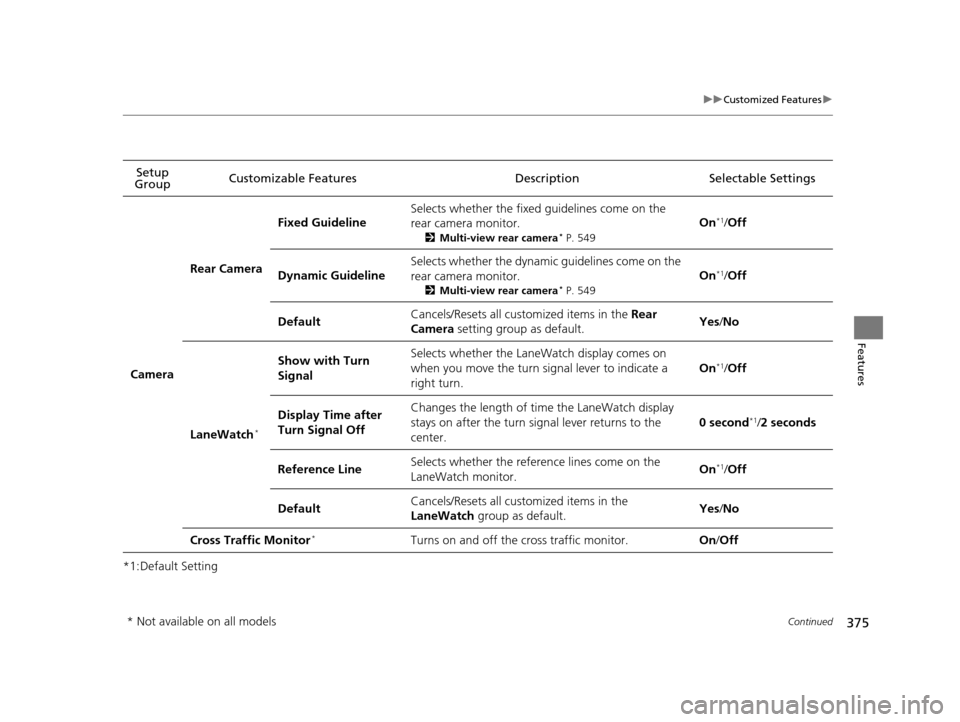
*1:Default SettingSetup
Group Customizable Features Descri
ption Selectable Settings
Camera
Rear Camera
Fixed Guideline
Selects whether the fixed guidelines come on the
rear camera monitor.
2Multi-view rear camera* P. 549
On*1/Off
Dynamic Guideline
Selects whether the dynamic guidelines come on the
rear camera monitor.
2 Multi-view rear camera* P. 549
On*1/Off
DefaultCancels/Resets all customized items in the Rear
Camera setting group as default.Yes /No
LaneWatch*
Show with Turn
SignalSelects whether the LaneWatch display comes on
when you move the turn signal lever to indicate a
right turn.
On*1/Off
Display Time after
Turn Signal OffChanges the length of time the LaneWatch display
stays on after the turn signal lever returns to the
center.
0 second*1/2 seconds
Reference LineSelects whether the reference lines come on the
LaneWatch monitor.On*1/ Off
DefaultCancels/Resets all customized items in the
LaneWatch group as default.Yes/No
Cross Traffic Monitor*Turns on and off the cross traffic monitor.On /Off
* Not available on all models
16 PILOT-31TG76000.book 375 ページ 2015年6月15日 月曜日 午前11時30分
Page 377 of 661
376
uuCustomized Features u
Features
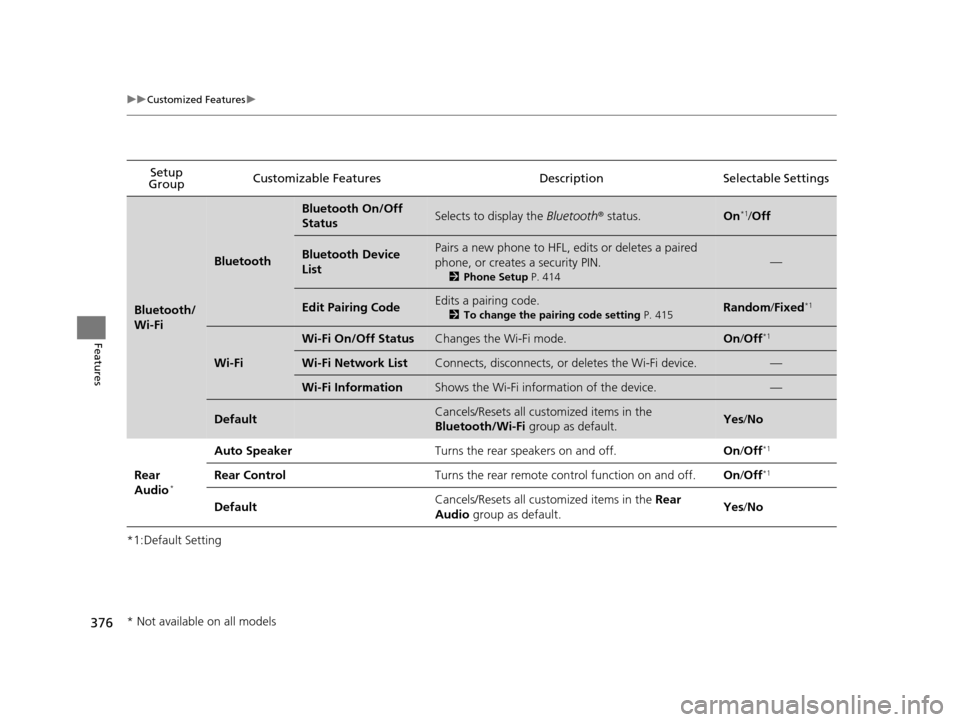
*1:Default SettingSetup
Group Customizable Features
DescriptionSelectable Settings
Bluetooth/
Wi-Fi
Bluetooth
Bluetooth On/Off
StatusSelects to display the Bluetooth® status.On*1/Off
Bluetooth Device
ListPairs a new phone to HFL, edits or deletes a paired
phone, or creates a security PIN.
2 Phone Setup P. 414
—
Edit Pairing CodeEdits a pairing code.
2To change the pairing code setting P. 415Random/Fixed*1
Wi-Fi
Wi-Fi On/Off StatusChanges the Wi-Fi mode.On /Off*1
Wi-Fi Network ListConnects, disconnects, or deletes the Wi-Fi device.—
Wi-Fi InformationShows the Wi-Fi information of the device.—
DefaultCancels/Resets all customized items in the
Bluetooth/Wi-Fi group as default.Yes/No
Rear
Audio*
Auto SpeakerTurns the rear speakers on and off.On /Off*1
Rear ControlTurns the rear remote con trol function on and off.On/Off*1
DefaultCancels/Resets all customized items in the Rear
Audio group as default.Yes/No
* Not available on all models
16 PILOT-31TG76000.book 376 ページ 2015年6月15日 月曜日 午前11時30分
Page 378 of 661
377
uuCustomized Features uDefaulting All the Settings
Features
Defaulting All the Settings
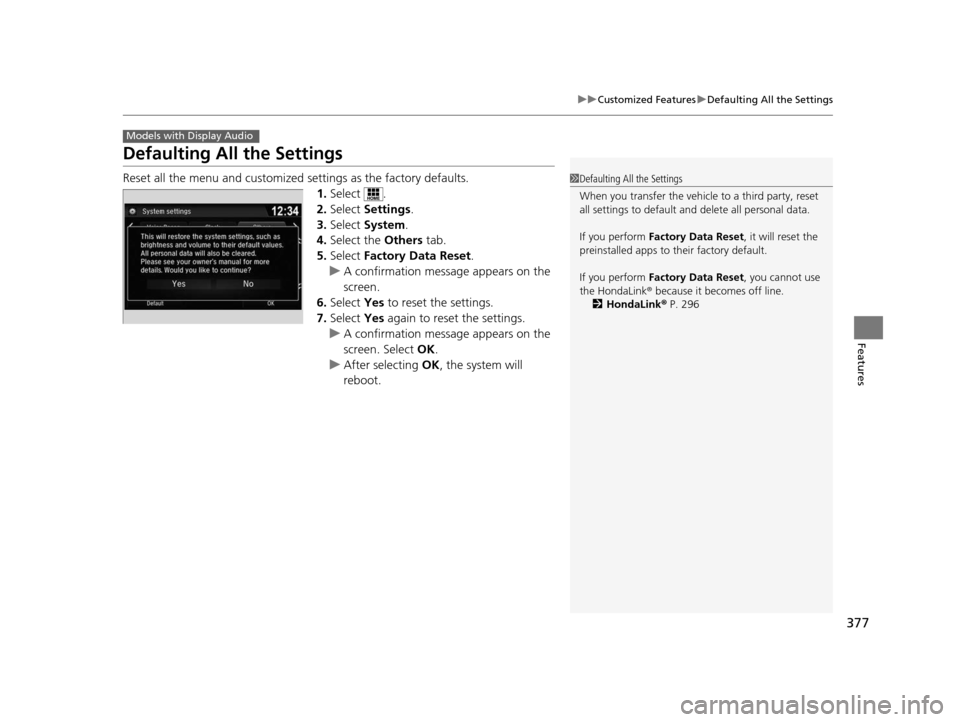
Reset all the menu and customized settings as the factory defaults.
1.Select .
2. Select Settings .
3. Select System.
4. Select the Others tab.
5. Select Factory Data Reset .
u A confirmation message appears on the
screen.
6. Select Yes to reset the settings.
7. Select Yes again to reset the settings.
u A confirmation message appears on the
screen. Select OK.
u After selecting OK, the system will
reboot.
Models with Display Audio
1 Defaulting All the Settings
When you transfer the vehicle to a third party, reset
all settings to default a nd delete all personal data.
If you perform Factory Data Reset , it will reset the
preinstalled apps to their factory default.
If you perform Factory Data Reset , you cannot use
the HondaLink ® because it becomes off line.
2 HondaLink® P. 296
16 PILOT-31TG76000.book 377 ページ 2015年6月15日 月曜日 午前11時30分
Page 383 of 661
uuBluetooth ® HandsFreeLink ®u Using HFL
382
Features
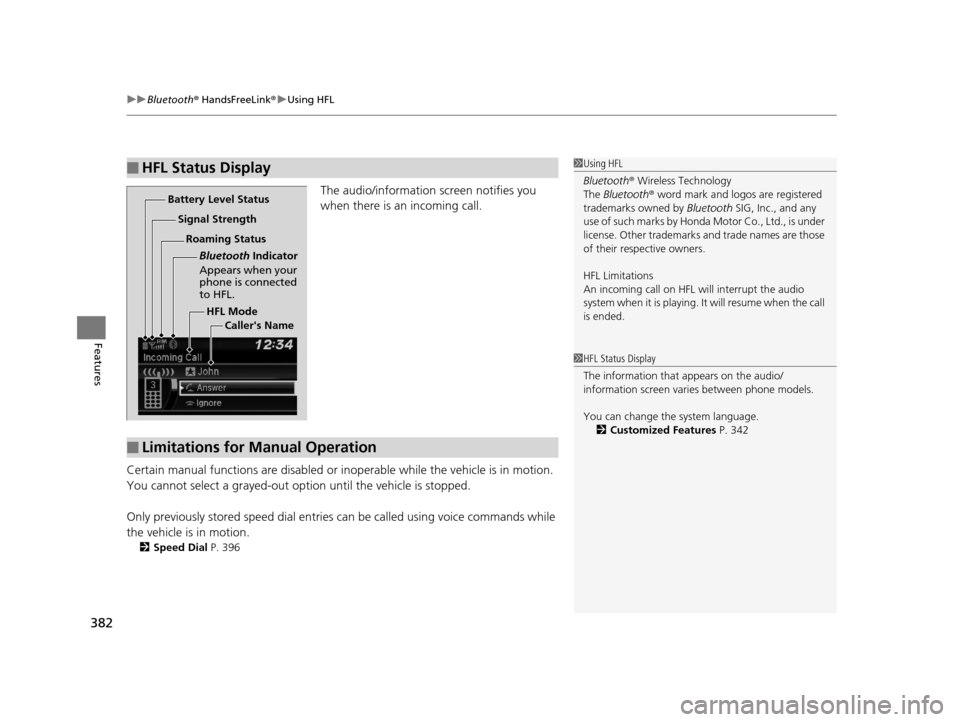
The audio/information screen notifies you
when there is an incoming call.
Certain manual functions are disabled or inoperable while the ve hicle is in motion.
You cannot select a grayed-out option until the vehicle is stopped.
Only previously stored speed dial entries can be called using voice commands while
the vehicle is in motion.
2 Speed Dial P. 396
■HFL Status Display1Using HFL
Bluetooth ® Wireless Technology
The Bluetooth ® word mark and logos are registered
trademarks owned by Bluetooth SIG, Inc., and any
use of such marks by Honda Motor Co., Ltd., is under
license. Other trademarks and trade names are those
of their respective owners.
HFL Limitations
An incoming call on HFL will interrupt the audio
s y s te m wh e n it is p la y i n g . It wi ll re s u m e w h en t h e c a l l
is ended.
HFL Mode
Battery Level Status
Signal Strength
Bluetooth Indicator
Appears when your
phone is connected
to HFL.
Roaming Status
Caller's Name
■Limitations for Manual Operation
1HFL Status Display
The information that appears on the audio/
information screen vari es between phone models.
You can change the system language. 2 Customized Features P. 342
16 PILOT-31TG76000.book 382 ページ 2015年6月15日 月曜日 午前11時30分
Page 384 of 661
383
uuBluetooth ® HandsFreeLink ®u HFL Menus
Continued
Features
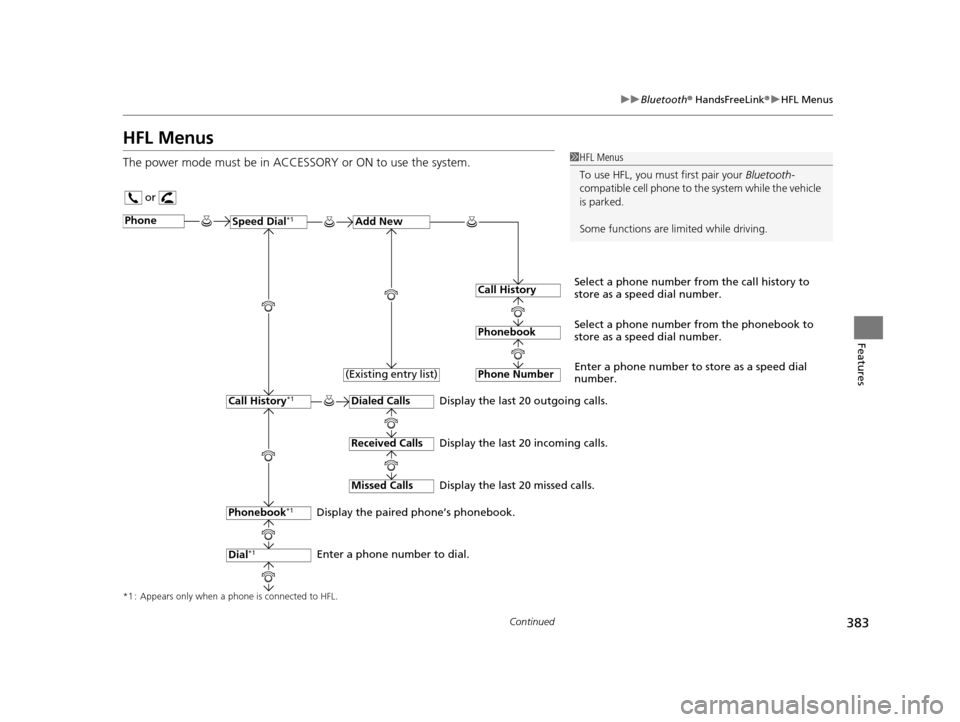
HFL Menus
The power mode must be in ACCESSO RY or ON to use the system.1HFL Menus
To use HFL, you must first pair your Bluetooth-
compatible cell phone to th e system while the vehicle
is parked.
Some functions are li mited while driving.
or
Display the last 20 outgoing calls.
Display the last 20 incoming calls.
Display the last 20 missed calls.
*1 : Appears only when a phone is connected to HFL.
PhoneSpeed Dial*1Add New
Select a phone number from the call history to
store as a speed dial number.
Call History
PhonebookSelect a phone number from the phonebook to
store as a speed dial number.
Phone Number
Enter a phone number to store as a speed dial
number.
Dialed Calls
Received Calls
Missed Calls
Phonebook*1
Dial*1
Call History*1
Display the paired phone’s phonebook.
Enter a phone number to dial. (Existing entry list)
16 PILOT-31TG76000.book 383 ページ 2015年6月15日 月曜日 午前11時30分
Page 388 of 661
Continued387
uuBluetooth ® HandsFreeLink ®u HFL Menus
Features
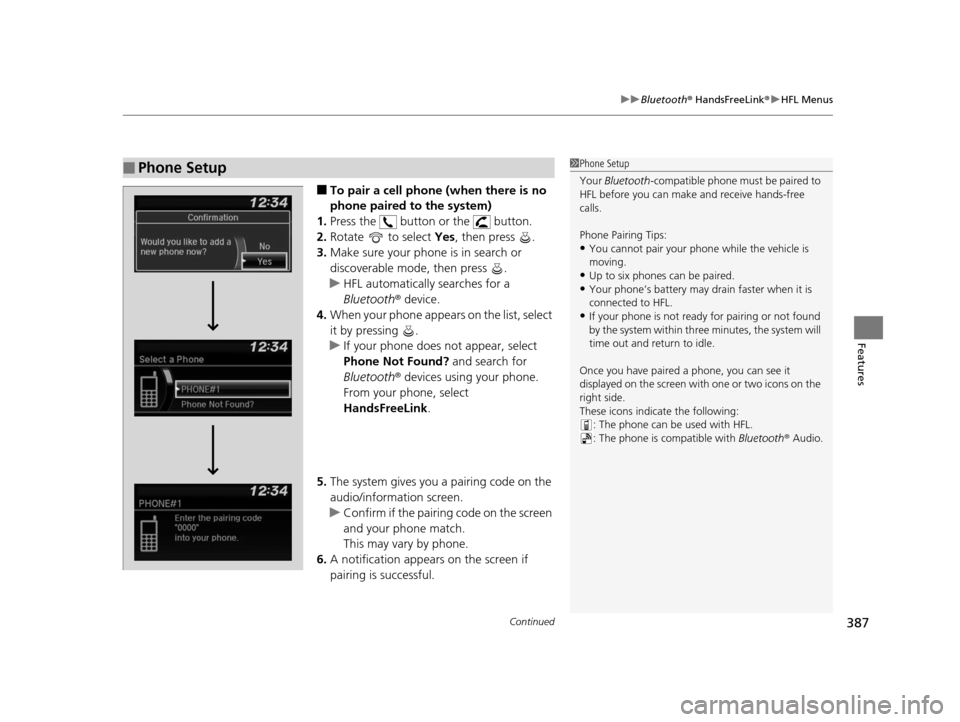
■To pair a cell phone (when there is no
phone paired to the system)
1. Press the button or the button.
2. Rotate to select Yes, then press .
3. Make sure your phone is in search or
discoverable mode, then press .
u HFL automatically searches for a
Bluetooth ® device.
4. When your phone appears on the list, select
it by pressing .
u If your phone does not appear, select
Phone Not Found? and search for
Bluetooth ® devices using your phone.
From your phone, select
HandsFreeLink .
5. The system gives you a pairing code on the
audio/information screen.
u Confirm if the pairing code on the screen
and your phone match.
This may vary by phone.
6. A notification appears on the screen if
pairing is successful.
■Phone Setup1Phone Setup
Your Bluetooth -compatible phone must be paired to
HFL before you can make and receive hands-free
calls.
Phone Pairing Tips:
•You cannot pair your phone while the vehicle is
moving.
•Up to six phones can be paired.•Your phone’s battery may dr ain faster when it is
connected to HFL.
•If your phone is not ready for pairing or not found
by the system within three minutes, the system will
time out and return to idle.
Once you have paired a phone, you can see it
displayed on the screen with one or two icons on the
right side.
These icons indicate the following: : The phone can be used with HFL.
: The phone is compatible with Bluetooth ® Audio.
16 PILOT-31TG76000.book 387 ページ 2015年6月15日 月曜日 午前11時30分
Page 394 of 661
Continued393
uuBluetooth ® HandsFreeLink ®u HFL Menus
Features
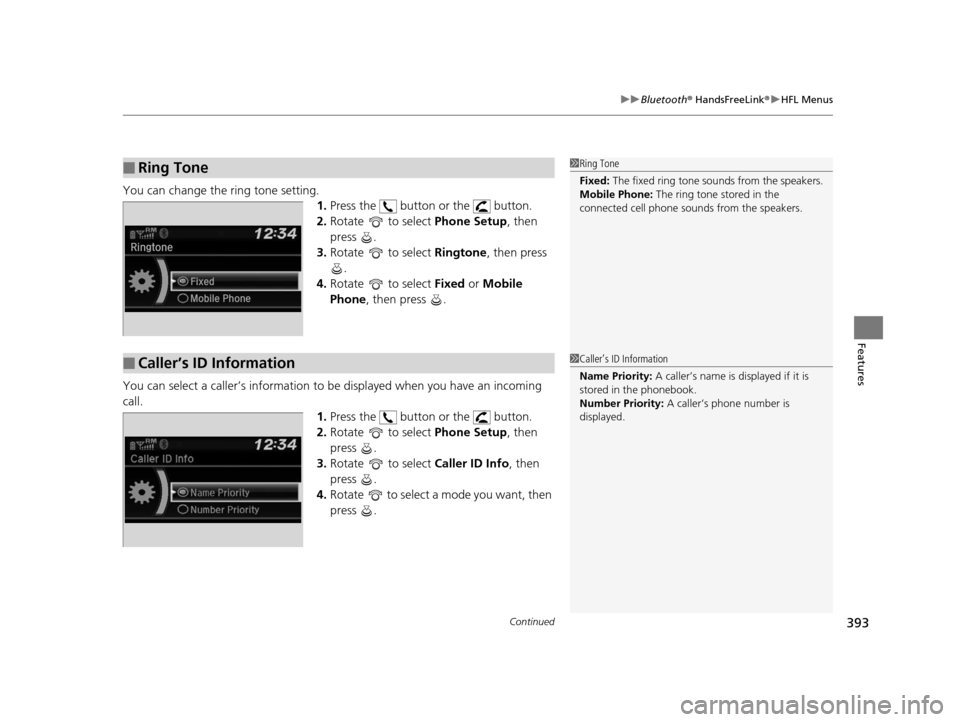
You can change the ring tone setting.
1.Press the button or the button.
2. Rotate to select Phone Setup, then
press .
3. Rotate to select Ringtone, then press
.
4. Rotate to select Fixed or Mobile
Phone , then press .
You can select a caller’s information to be displayed when you have an incoming
call. 1.Press the button or the button.
2. Rotate to select Phone Setup, then
press .
3. Rotate to select Caller ID Info, then
press .
4. Rotate to select a mode you want, then
press .
■Ring Tone1Ring Tone
Fixed: The fixed ring tone sounds from the speakers.
Mobile Phone: The ring tone stored in the
connected cell phone sounds from the speakers.
■Caller’s ID Information1 Caller’s ID Information
Name Priority: A caller’s name is displayed if it is
stored in the phonebook.
Number Priority: A caller’s phone number is
displayed.
16 PILOT-31TG76000.book 393 ページ 2015年6月15日 月曜日 午前11時30分
Page 403 of 661
uuBluetooth ® HandsFreeLink ®u HFL Menus
402
Features
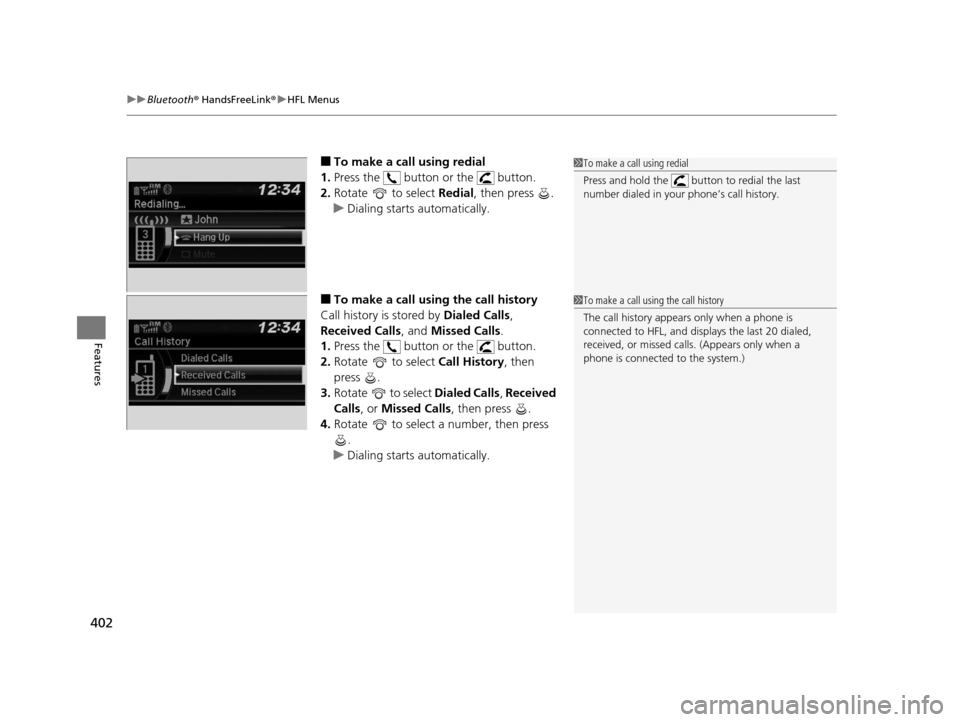
■To make a call using redial
1. Press the button or the button.
2. Rotate to select Redial, then press .
u Dialing starts automatically.
■To make a call using the call history
Call history is stored by Dialed Calls,
Received Calls , and Missed Calls .
1. Press the button or the button.
2. Rotate to select Call History, then
press .
3. Rotate to select Dialed Calls, Received
Calls , or Missed Calls, then press .
4. Rotate to select a number, then press
.
u Dialing starts automatically.
1To make a call using redial
Press and hold the butt on to redial the last
number dialed in your phone’s call history.
1 To make a call using the call history
The call history appear s only when a phone is
connected to HFL, and displays the last 20 dialed,
received, or missed calls. (Appears only when a
phone is connected to the system.)
16 PILOT-31TG76000.book 402 ページ 2015年6月15日 月曜日 午前11時30分