ECO mode HONDA PILOT 2017 3.G Owners Manual
[x] Cancel search | Manufacturer: HONDA, Model Year: 2017, Model line: PILOT, Model: HONDA PILOT 2017 3.GPages: 673
Page 313 of 673
312
uuAudio Error Messages uPandora®*
Features
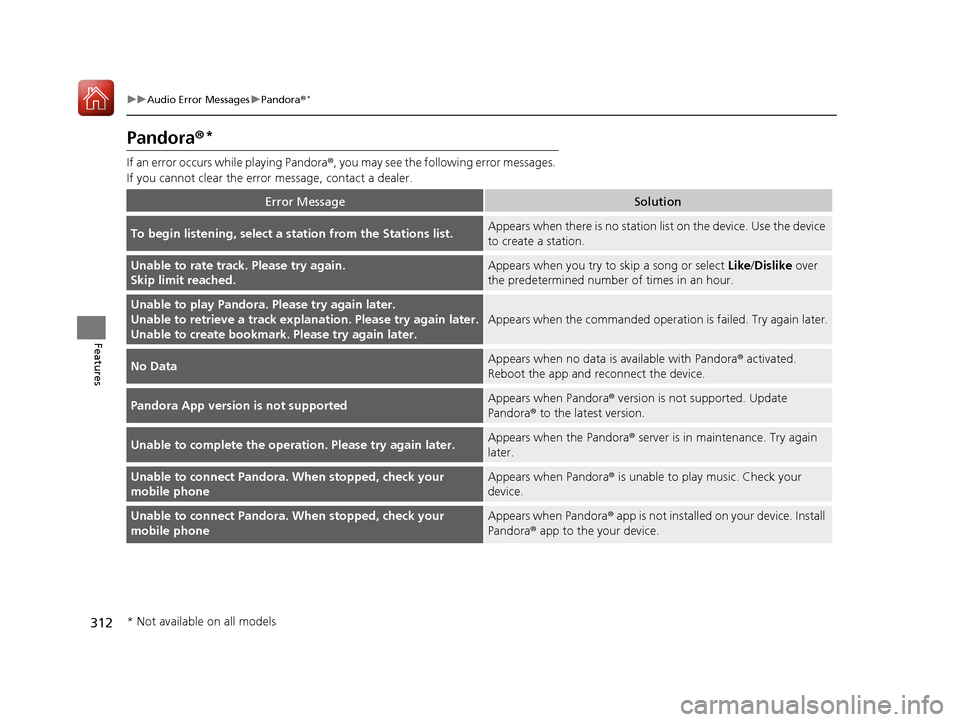
Pandora ®*
If an error occurs while playing Pandora ®, you may see the following error messages.
If you cannot clear the error message, contact a dealer.
Error MessageSolution
To begin listening, select a station from the Stations list.Appears when there is no station list on the device. Use the device
to create a station.
Unable to rate track. Please try again.
Skip limit reached.Appears when you try to skip a song or select Like/Dislike over
the predetermined number of times in an hour.
Unable to play Pandora. Please try again later.
Unable to retrieve a track explan ation. Please try again later.
Unable to create bookmark. Please try again later.
Appears when the commanded operation is failed. Try again later.
No DataAppears when no data is available with Pandora® activated.
Reboot the app and reconnect the device.
Pandora App version is not supportedAppears when Pandora ® version is not supported. Update
Pandora® to the latest version.
Unable to complete the operation. Please try again later.Appears when the Pandora ® server is in maintenance. Try again
later.
Unable to connect Pandora. When stopped, check your
mobile phoneAppears when Pandora ® is unable to play music. Check your
device.
Unable to connect Pandora. When stopped, check your
mobile phoneAppears when Pandora ® app is not installed on your device. Install
Pandora® app to the your device.
* Not available on all models
17 PILOT-31TG76100.book 312 ページ 2016年9月20日 火曜日 午後4時9分
Page 316 of 673
315
uuGeneral Information on the Audio System uRecommended CD*
Continued
Features
Recommended CD*
• Use only high-quality CD-R or CD-RW discs labeled for audio use.
• Use only CD-R or CD-RW discs on wh ich the recordings are closed.
• Play only standard round-shaped CDs.
• Some software files may not allow for audio play or text data display.
• Some versions of MP3, WMA or AAC formats may be unsupported.1Recommended CD*
A Dual-disc cannot play on th is audio unit. If recorded
under certain conditions, a CD-R or CD-RW may not
play either.
■CDs with MP3, WMA or AAC files
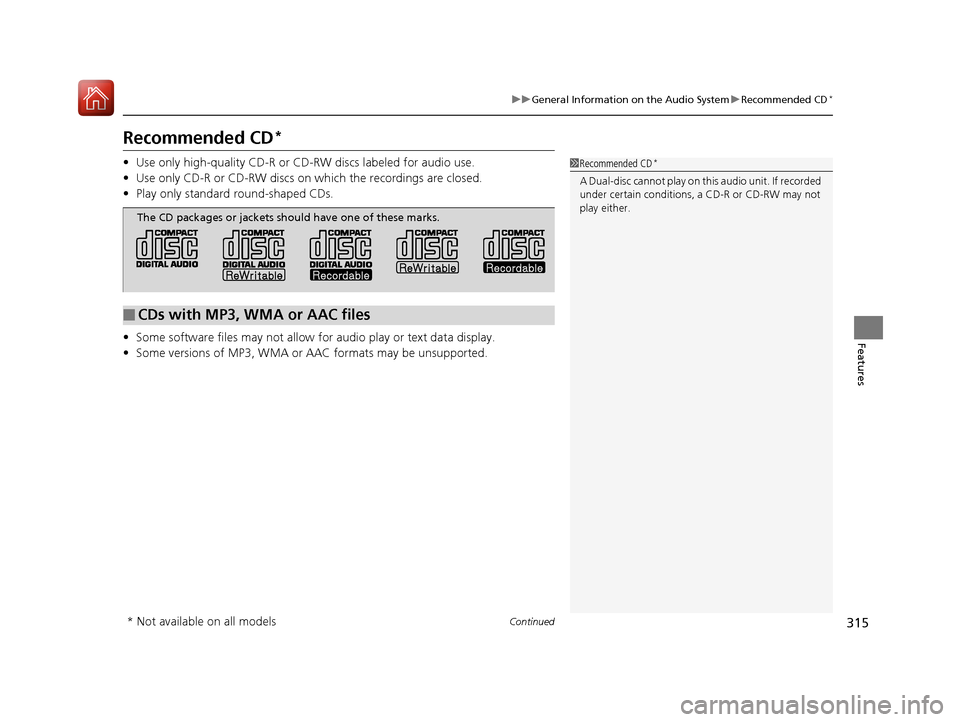
The CD packages or jackets should have one of these marks.
* Not available on all models
17 PILOT-31TG76100.book 315 ページ 2016年9月20日 火曜日 午後4時9分
Page 318 of 673
317
uuGeneral Information on the Audio System uCompatible iPod, iPhone, and USB Flash Drives
Features
Compatible iPod, iPhone , and USB Flash Drives
*1: Models with Display Audio
•A USB flash drive of 256 MB or higher is recommended.
• Some digital audio players may not be compatible.
• Some USB flash drives (e.g., a device with security lockout) may not work.
• Some software files may not allow for audio play or text data display.
• Some versions of MP3, WMA, or AAC formats may be unsupported.
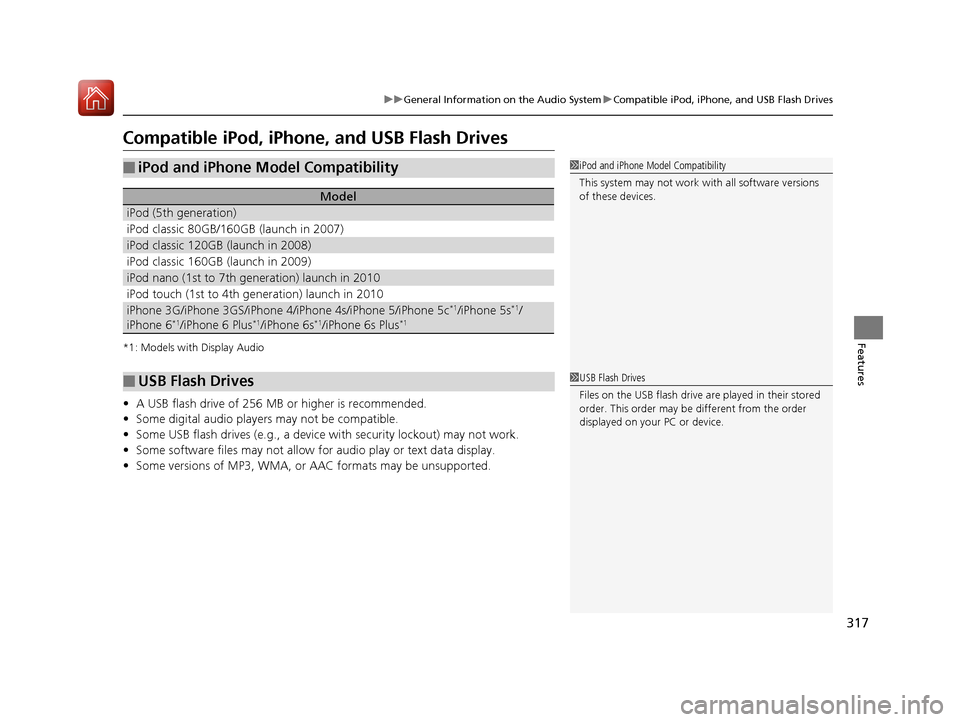
■iPod and iPhone Model Compatibility
Model
iPod (5th generation)
iPod classic 80GB/160GB (launch in 2007)
iPod classic 120GB (launch in 2008)
iPod classic 160GB (launch in 2009)
iPod nano (1st to 7th generation) launch in 2010
iPod touch (1st to 4th generation) launch in 2010
iPhone 3G/iPhone 3GS/iPhone 4/iPhone 4s/iPhone 5/iPhone 5c*1/iPhone 5s*1/
iPhone 6*1/iPhone 6 Plus*1/iPhone 6s*1/iPhone 6s Plus*1
■USB Flash Drives
1 iPod and iPhone Model Compatibility
This system may not work with all software versions
of these devices.
1USB Flash Drives
Files on the USB flash drive are played in their stored
order. This order may be different from the order
displayed on your PC or device.
17 PILOT-31TG76100.book 317 ページ 2016年9月20日 火曜日 午後4時9分
Page 326 of 673
325
uuBlu-ray/DVD Rear Entertainment System*uOverhead Screen
Features
Overhead Screen
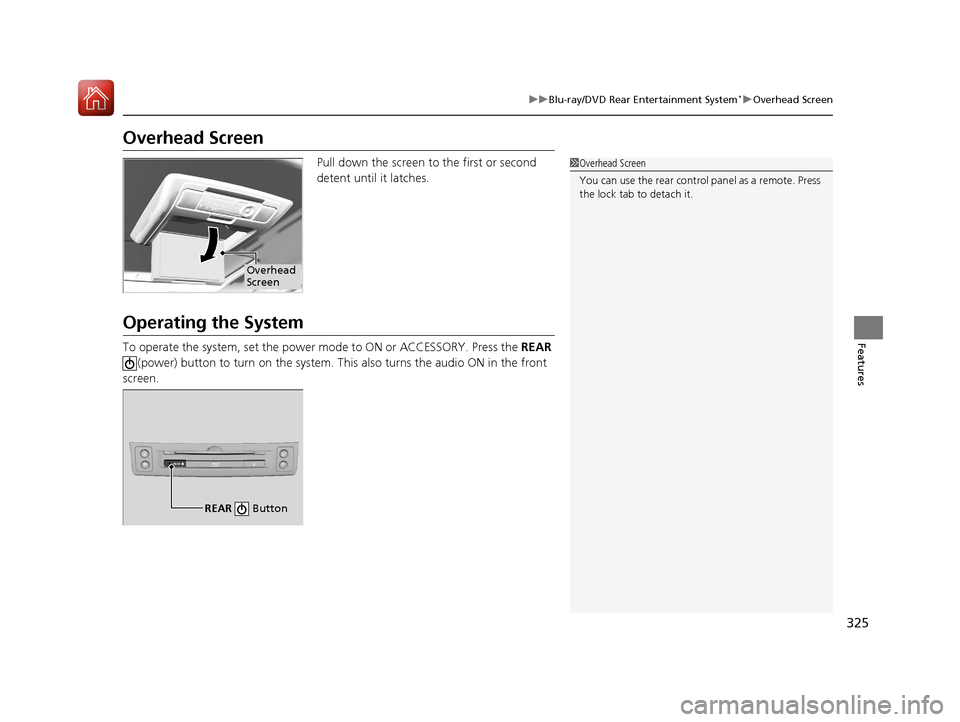
Pull down the screen to the first or second
detent until it latches.
Operating the System
To operate the system, set the power mode to ON or ACCESSORY. Press the REAR
(power) button to turn on the system. This also turns the audio ON in the front
screen.
1 Overhead Screen
You can use the rear control panel as a remote. Press
the lock tab to detach it.
Overhead
Screen
REAR
REAR Button
17 PILOT-31TG76100.book 325 ページ 2016年9月20日 火曜日 午後4時9分
Page 327 of 673
326
uuBlu-ray/DVD Rear Entertainment System*uPlaying a DVD/Blu-rayTM*
Features
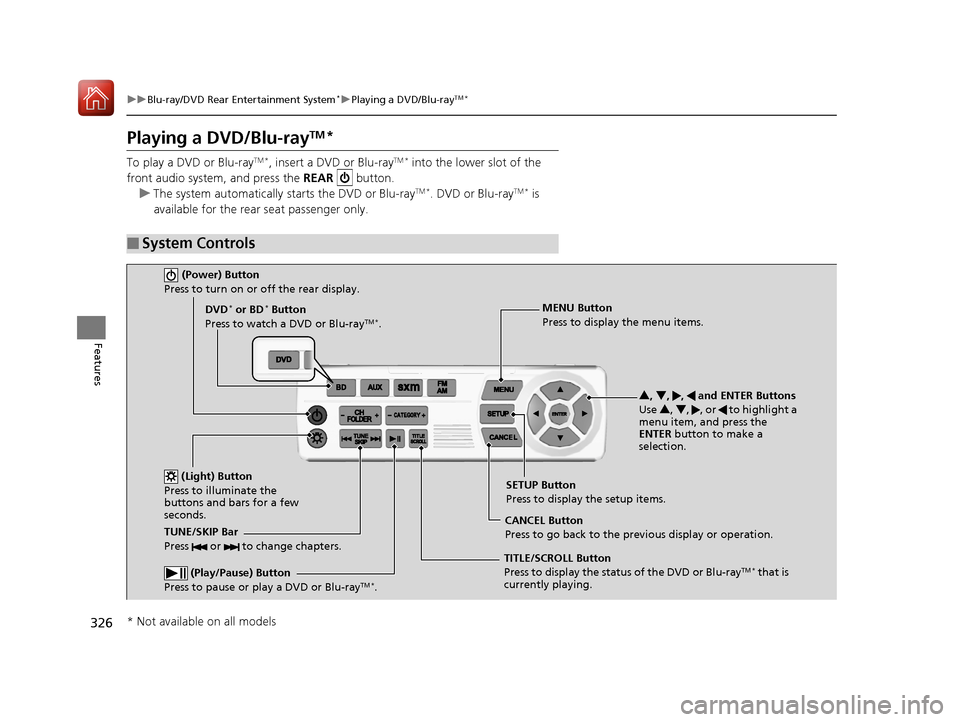
Playing a DVD/Blu-rayTM*
To play a DVD or Blu-rayTM *, insert a DVD or Blu-rayTM * into the lower slot of the
front audio system, and press the REAR button.
u The system automatically starts the DVD or Blu-ray
TM *. DVD or Blu-rayTM * is
available for the rear seat passenger only.
■System Controls
(Power) Button
Press to turn on or off the rear display.
DVD* or BD* Button
Press to watch a DVD or Blu-rayTM *.
(Light) Button
Press to illuminate the
buttons and bars for a few
seconds.
TUNE/SKIP Bar
Press or to change chapters.
(Play/Pause) Button
Press to pause or play a DVD or Blu-rayTM *.
TITLE/SCROLL Button
Press to display the status of the DVD or Blu-rayTM * that is
currently playing. MENU Button
Press to display the menu items.
SETUP Button
Press to display the setup items.
CANCEL Button
Press to go back to the previous display or operation. 3
, 4 , , and ENTER Buttons
Use 3, 4 , , or to highlight a
menu item, and press the
ENTER button to make a
selection.
* Not available on all models
17 PILOT-31TG76100.book 326 ページ 2016年9月20日 火曜日 午後4時9分
Page 341 of 673
340
uuBlu-ray/DVD Rear Entertainment System*uPlaying Audio
Features
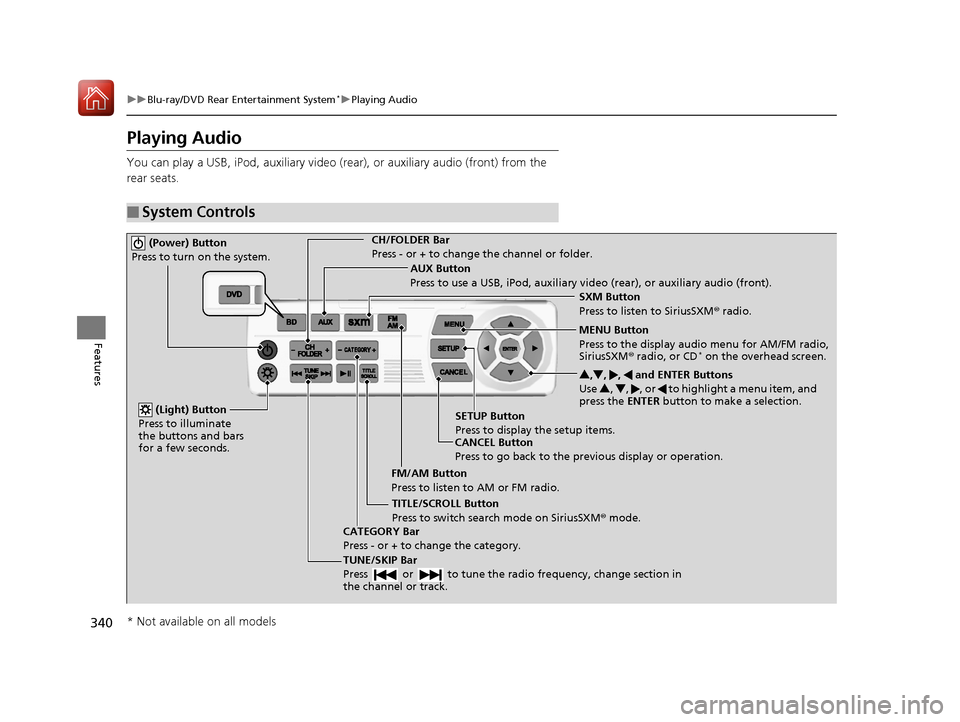
Playing Audio
You can play a USB, iPod, auxiliary video (rear), or auxiliary audio (front) from the
rear seats.
■System Controls
(Power) Button
Press to turn on the system.CH/FOLDER Bar
Press - or + to change the channel or folder.
(Light) Button
Press to illuminate
the buttons and bars
for a few seconds.
TUNE/SKIP Bar
Press or to tune the radi o frequency, change section in
the channel or track.
TITLE/SCROLL Button
Press to switch search mode on SiriusSXM ® mode.
CANCEL Button
Press to go back to the previous display or operation. 3
,4 , , and ENTER Buttons
Use 3, 4 , , or to highlight a menu item, and
press the ENTER button to make a selection.
CATEGORY Bar
Press - or + to change the category. AUX Button
Press to use a USB, iPod, auxiliary video (rear), or auxiliary audio (front).
FM/AM Button
Press to listen to AM or FM radio. SETUP Button
Press to display the setup items. SXM Button
Press to listen to SiriusSXM
® radio.
MENU Button
Press to the display audio menu for AM/FM radio,
SiriusSXM ® radio, or CD
* on the overhead screen.
* Not available on all models
17 PILOT-31TG76100.book 340 ページ 2016年9月20日 火曜日 午後4時9分
Page 342 of 673
Continued341
uuBlu-ray/DVD Rear Entertainment System*uPlaying Audio
Features
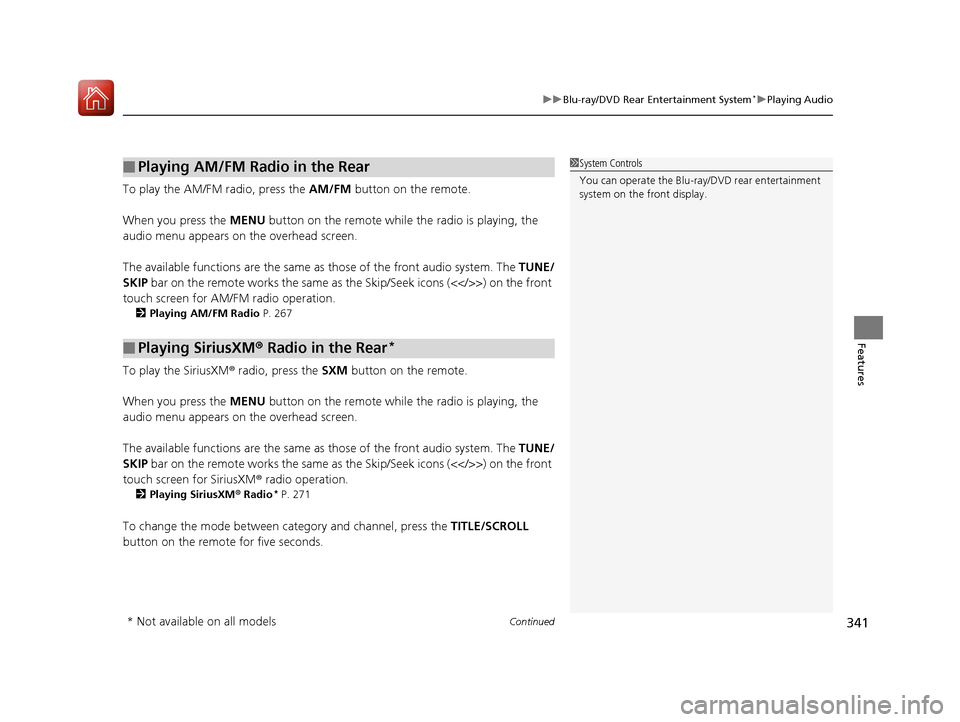
To play the AM/FM radio, press the AM/FM button on the remote.
When you press the MENU button on the remote while the radio is playing, the
audio menu appears on the overhead screen.
The available functions are the same as those of the front audio system. The TUNE/
SKIP bar on the remote works the same as the Skip/Seek icons (<>) on the front
touch screen for AM/FM radio operation.
2 Playing AM/FM Radio P. 267
To play the SiriusXM ® radio, press the SXM button on the remote.
When you press the MENU button on the remote while the radio is playing, the
audio menu appears on the overhead screen.
The available functions are the same as those of the front audio system. The TUNE/
SKIP bar on the remote works the same as the Skip/Seek icons (<>) on the front
touch screen for SiriusXM® radio operation.
2 Playing SiriusXM ® Radio* P. 271
To change the mode between ca tegory and channel, press the TITLE/SCROLL
button on the remote for five seconds.
■Playing AM/FM Radio in the Rear
■Playing SiriusXM® Radio in the Rear*
1System Controls
You can operate the Blu-ray/DVD rear entertainment
system on the front display.
* Not available on all models
17 PILOT-31TG76100.book 341 ページ 2016年9月20日 火曜日 午後4時9分
Page 343 of 673
342
uuBlu-ray/DVD Rear Entertainment System*uPlaying Audio
Features
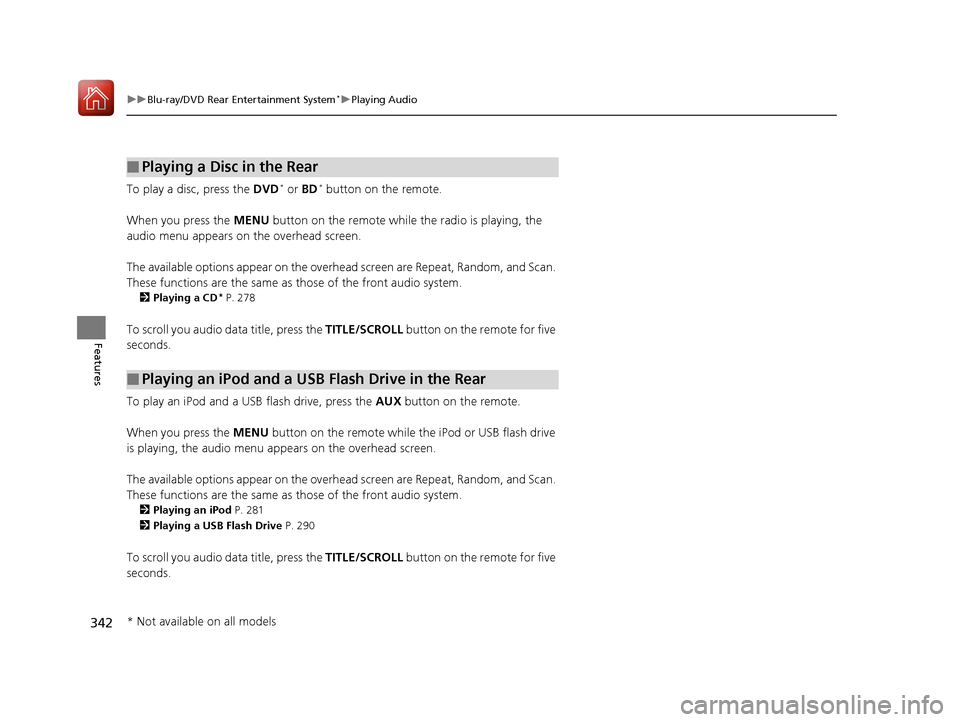
To play a disc, press the DVD* or BD* button on the remote.
When you press the MENU button on the remote while the radio is playing, the
audio menu appears on the overhead screen.
The available options appear on the overhead screen are Repeat, Random, and Scan.
These functions are the same as those of the front audio system.
2 Playing a CD* P. 278
To scroll you audio data title, press the TITLE/SCROLL button on the remote for five
seconds.
To play an iPod and a USB flash drive, press the AUX button on the remote.
When you press the MENU button on the remote while the iPod or USB flash drive
is playing, the audio menu ap pears on the overhead screen.
The available options appear on the overhead screen are Repeat, Random, and Scan.
These functions are the same as those of the front audio system.
2 Playing an iPod P. 281
2 Playing a USB Flash Drive P. 290
To scroll you audio data title, press the TITLE/SCROLL button on the remote for five
seconds.
■Playing a Disc in the Rear
■Playing an iPod and a USB Flash Drive in the Rear
* Not available on all models
17 PILOT-31TG76100.book 342 ページ 2016年9月20日 火曜日 午後4時9分
Page 350 of 673
349
uuBlu-ray/DVD Rear Entertainment System*uPlayable Discs
Features
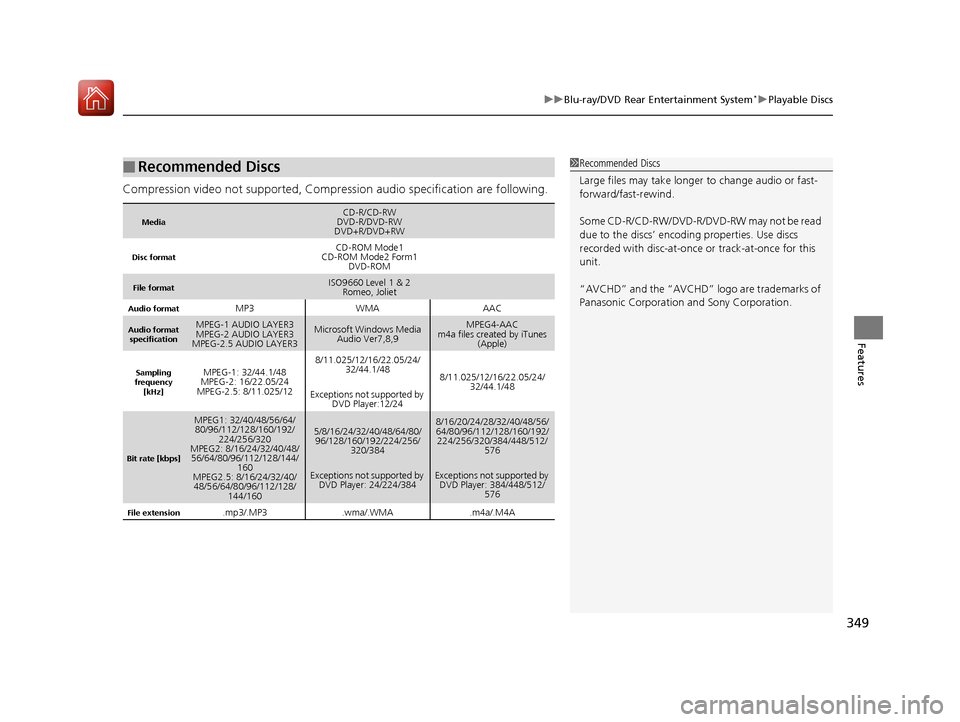
Compression video not supported, Compression audio specification are following.
■Recommended Discs
MediaCD-R/CD-RW
DVD-R/DVD-RW
DVD+R/DVD+RW
Disc formatCD-ROM Mode1
CD-ROM Mode2 Form1 DVD-ROM
File formatISO9660 Level 1 & 2Romeo, Joliet
Audio formatMP3WMAAAC
Audio format
specificationMPEG-1 AUDIO LAYER3
MPEG-2 AUDIO LAYER3
MPEG-2.5 AUDIO LAYER3Microsoft Windows Media Audio Ver7,8,9MPEG4-AAC
m4a files created by iTunes (Apple)
Sampling
frequency
[kHz]MPEG-1: 32/44.1/48
MPEG-2: 16/22.05/24
MPEG-2.5: 8/11.025/128/11.025/12/16/22.05/24/ 32/44.1/48
Exceptions not supported by DVD Player:12/24
8/11.025/12/16/22.05/24/
32/44.1/48
Bit rate [kbps]
MPEG1: 32/40/48/56/64/80/96/112/128/160/192/ 224/256/320
MPEG2: 8/16/24/32/40/48/
56/64/80/96/112/128/144/ 160
MPEG2.5: 8/16/24/32/40/
48/56/64/80/96/112/128/ 144/1605/8/16/24/32/40/48/64/80/96/128/160/192/224/256/
320/384
Exceptions not supported by DVD Player: 24/224/3848/16/20/24/28/32/40/48/56/
64/80/96/112/128/160/192/224/256/320/384/448/512/
576
Exceptions not supported by DVD Player: 384/448/512/ 576
File extension.mp3/.MP3.wma/.WMA.m4a/.M4A
1Recommended Discs
Large files may take longer to change audio or fast-
forward/fast-rewind.
Some CD-R/CD-RW/DVD-R/DVD -RW may not be read
due to the discs’ encoding properties. Use discs
recorded with disc-at-once or track-at-once for this
unit.
“AVCHD” and the “AVCHD” logo are trademarks of
Panasonic Corporation and Sony Corporation.
17 PILOT-31TG76100.book 349 ページ 2016年9月20日 火曜日 午後4時9分
Page 360 of 673
359
uuCustomized Features u
Continued
Features
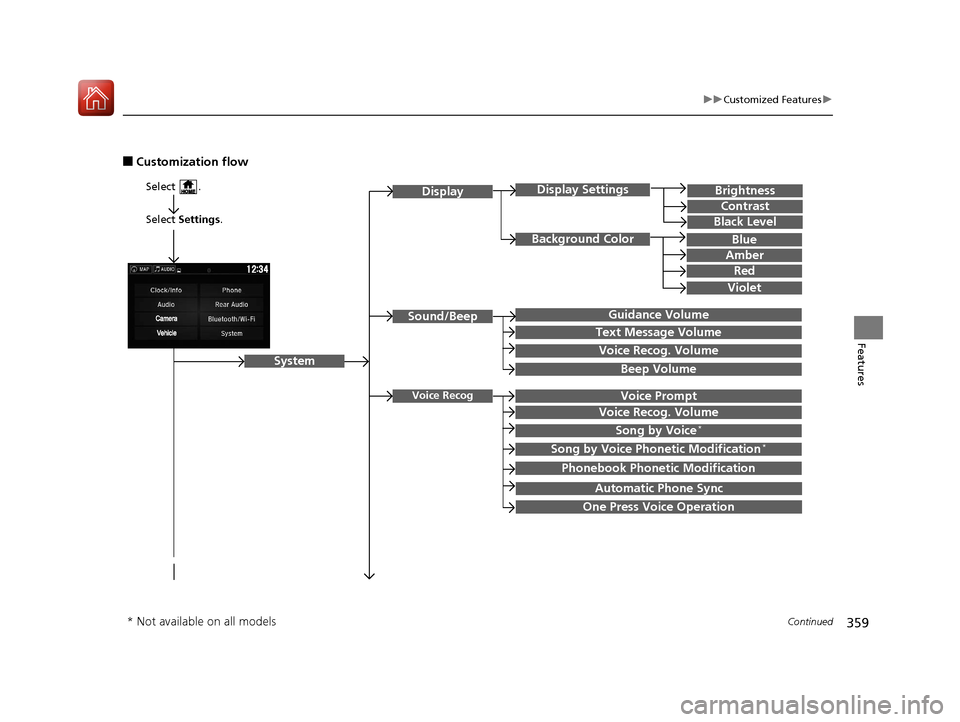
■Customization flow
Select Settings .
Brightness
Contrast
Black Level
Sound/Beep
System
DisplayDisplay Settings
Background Color
Guidance Volume
Text Message Volume
Select .
Voice RecogVoice Prompt
Blue
Amber
Red
Violet
Voice Recog. Volume
Beep Volume
Voice Recog. Volume
Song by Voice*
Song by Voice Phonetic Modification*
Phonebook Phonetic Modification
Automatic Phone Sync
One Press Voice Operation
* Not available on all models
17 PILOT-31TG76100.book 359 ページ 2016年9月20日 火曜日 午後4時9分