ECO mode HONDA PILOT 2017 3.G Owners Manual
[x] Cancel search | Manufacturer: HONDA, Model Year: 2017, Model line: PILOT, Model: HONDA PILOT 2017 3.GPages: 673
Page 279 of 673
278
uuAudio System Basic Operation uPlaying a CD*
Features
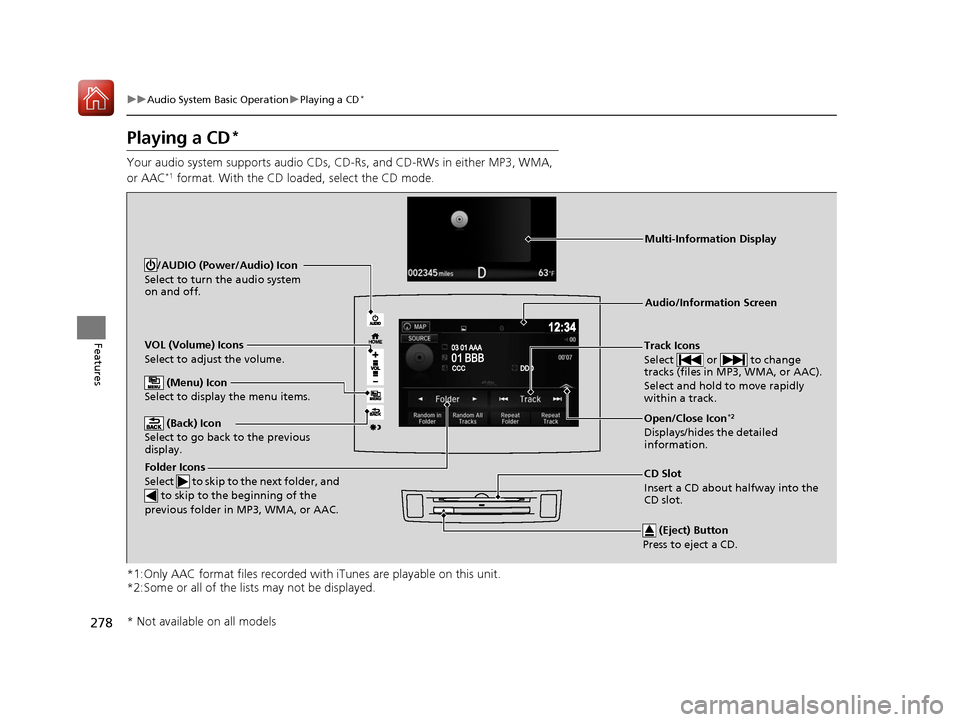
Playing a CD*
Your audio system supports audio CDs, CD-Rs, and CD-RWs in either MP3, WMA,
or AAC*1 format. With the CD loaded, select the CD mode.
*1:Only AAC format files recorded with iTunes are playable on this unit.
*2:Some or all of the lists may not be displayed.
VOL (Volume) Icons
Select to adjust the volume.
(Back) Icon
Select to go back to the previous
display.Track Icons
Select or to change
tracks (files in MP3, WMA, or AAC).
Select and hold to move rapidly
within a track.
/AUDIO (Power/Audio) Icon
Select to turn the audio system
on and off.
Open/Close Icon*2
Displays/hides the detailed
information.
(Menu) Icon
Select to display the menu items.
(Eject) Button
Press to eject a CD.
Audio/Information Screen
Folder Icons
Select to skip to the next folder, and
to skip to the beginning of the
previous folder in MP3, WMA, or AAC.
Multi-Information Display
CD Slot
Insert a CD about halfway into the
CD slot.
* Not available on all models
17 PILOT-31TG76100.book 278 ページ 2016年9月20日 火曜日 午後4時9分
Page 280 of 673
Continued279
uuAudio System Basic Operation uPlaying a CD*
Features
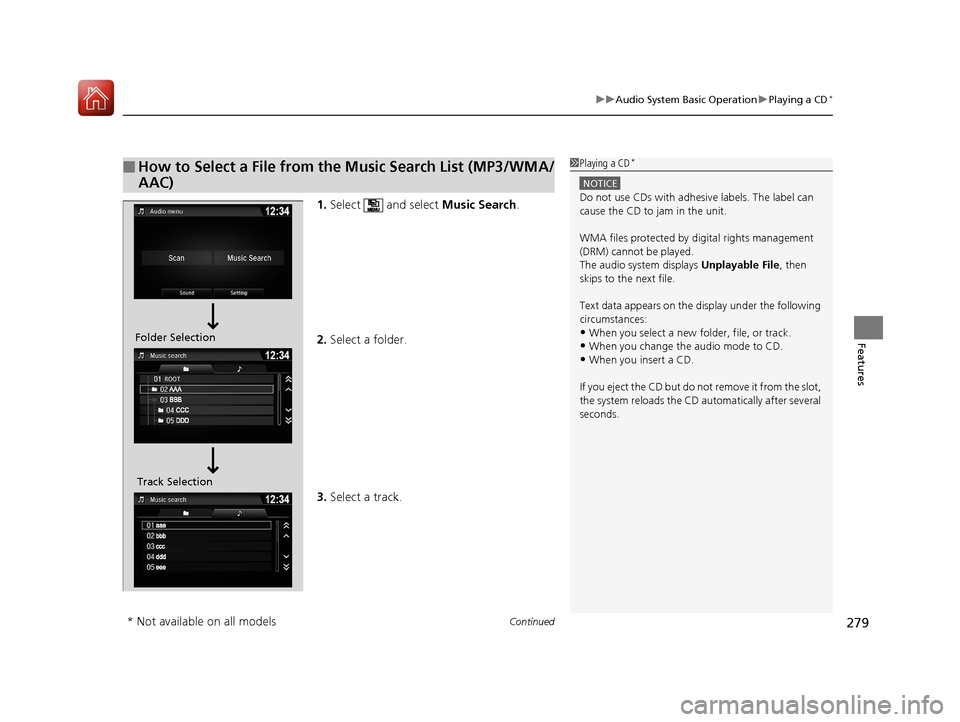
1. Select and select Music Search.
2. Select a folder.
3. Select a track.
■How to Select a File from the Music Search List (MP3/WMA/
AAC)1Playing a CD*
NOTICE
Do not use CDs with adhesive labels. The label can
cause the CD to jam in the unit.
WMA files protected by di gital rights management
(DRM) cannot be played.
The audio system displays Unplayable File, then
skips to the next file.
Text data appears on the di splay under the following
circumstances:
•When you select a new folder, file, or track.
•When you change the audio mode to CD.
•When you insert a CD.
If you eject the CD but do not remove it from the slot,
the system reloads the CD automatically after several
seconds.
Folder Selection
Track Selection
* Not available on all models
17 PILOT-31TG76100.book 279 ページ 2016年9月20日 火曜日 午後4時9分
Page 281 of 673
uuAudio System Basic Operation uPlaying a CD*
280
Features
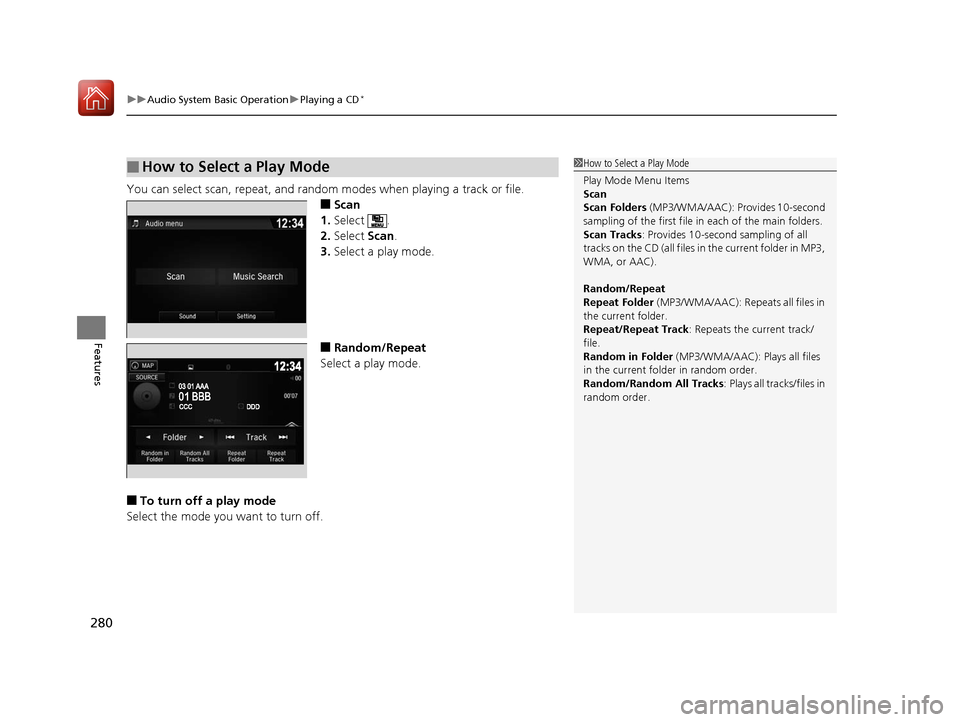
You can select scan, repeat, and random modes when playing a track or file.
■Scan
1. Select .
2. Select Scan.
3. Select a play mode.
■Random/Repeat
Select a play mode.
■To turn off a play mode
Select the mode you want to turn off.
■How to Select a Play Mode1 How to Select a Play Mode
Play Mode Menu Items
Scan
Scan Folders (MP3/WMA/AAC): Provides 10-second
sampling of the first file in each of the main folders.
Scan Tracks: Provides 10-second sampling of all
tracks on the CD (all files in the current folder in MP3,
WMA, or AAC).
Random/Repeat
Repeat Folder (MP3/WMA/AAC): Repeats all files in
the current folder.
Repeat/Repeat Track : Repeats the current track/
file.
Random in Folder (MP3/WMA/AAC): Plays all files
in the current folder in random order.
Random/Random All Tracks : Plays all tracks/files in
random order.
17 PILOT-31TG76100.book 280 ページ 2016年9月20日 火曜日 午後4時9分
Page 283 of 673
uuAudio System Basic Operation uPlaying an iPod
282
Features
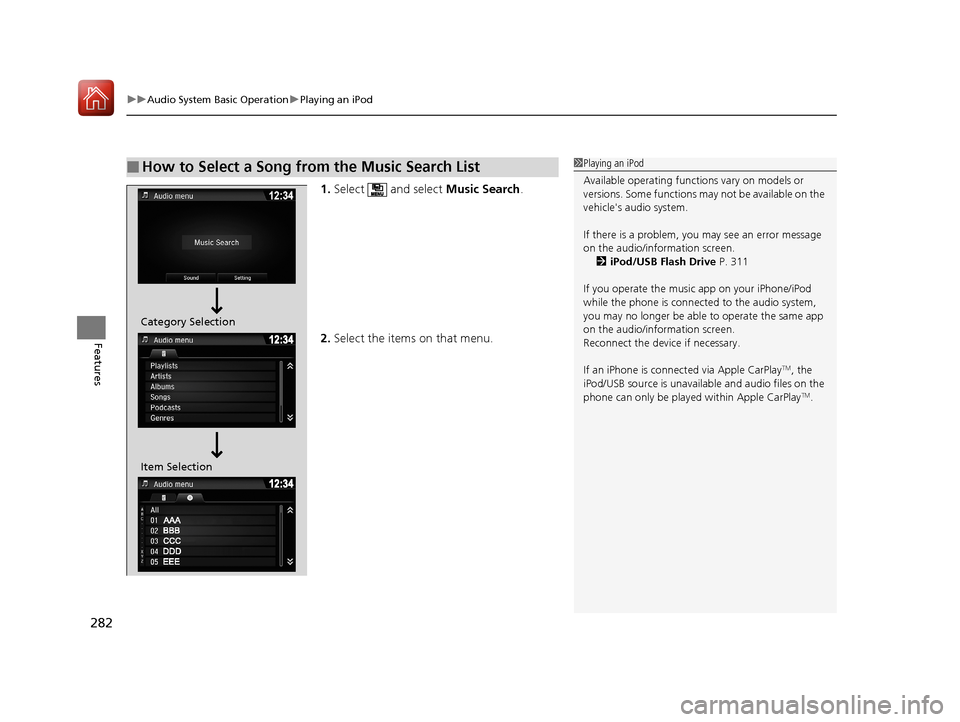
1. Select and select Music Search.
2. Select the items on that menu.
■How to Select a Song from the Music Search List1Playing an iPod
Available operating functi ons vary on models or
versions. Some functions ma y not be available on the
vehicle's audio system.
If there is a problem, you may see an error message
on the audio/information screen. 2 iPod/USB Flash Drive P. 311
If you operate the musi c app on your iPhone/iPod
while the phone is connected to the audio system,
you may no longer be able to operate the same app
on the audio/information screen.
Reconnect the devi ce if necessary.
If an iPhone is connect ed via Apple CarPlay
TM, the
iPod/USB source is unavailab le and audio files on the
phone can only be played within Apple CarPlay
TM.
Category Selection
Item Selection
17 PILOT-31TG76100.book 282 ページ 2016年9月20日 火曜日 午後4時9分
Page 285 of 673
284
uuAudio System Basic Operation uSong By VoiceTM (SBV)
Features
Song By VoiceTM (SBV)
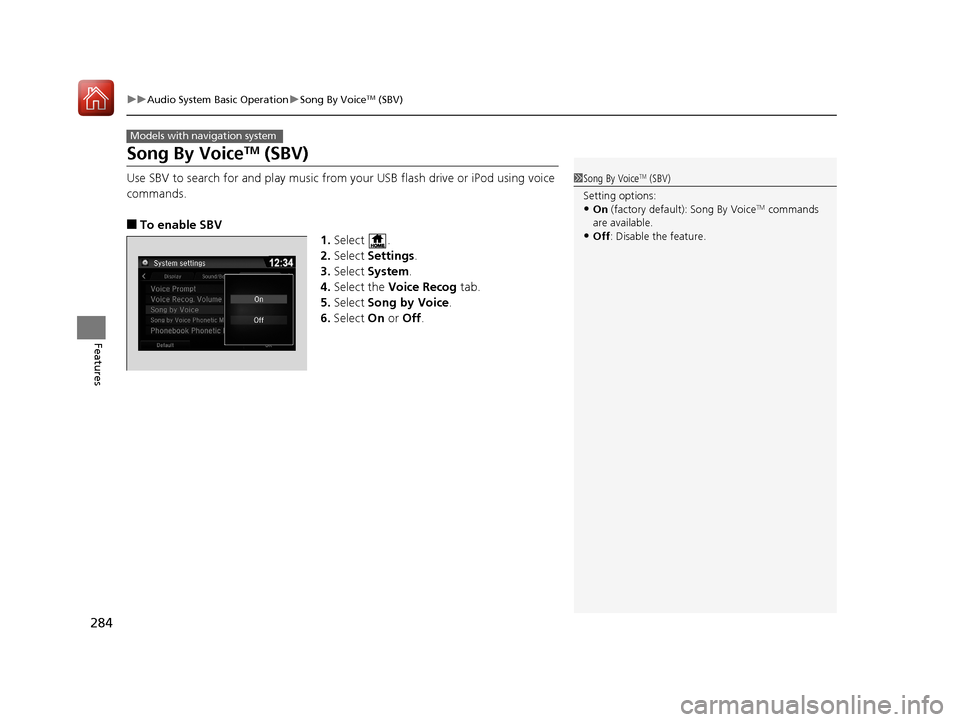
Use SBV to search for and play music from your USB flash drive or iPod using voice
commands.
■To enable SBV 1.Select .
2. Select Settings .
3. Select System .
4. Select the Voice Recog tab.
5. Select Song by Voice .
6. Select On or Off .
Models with navigation system
1Song By VoiceTM (SBV)
Setting options:
•On (factory default): Song By VoiceTM commands
are available.
•Off : Disable the feature.
17 PILOT-31TG76100.book 284 ページ 2016年9月20日 火曜日 午後4時9分
Page 286 of 673
Continued285
uuAudio System Basic Operation uSong By VoiceTM (SBV)
Features
■Searching for music using SBV
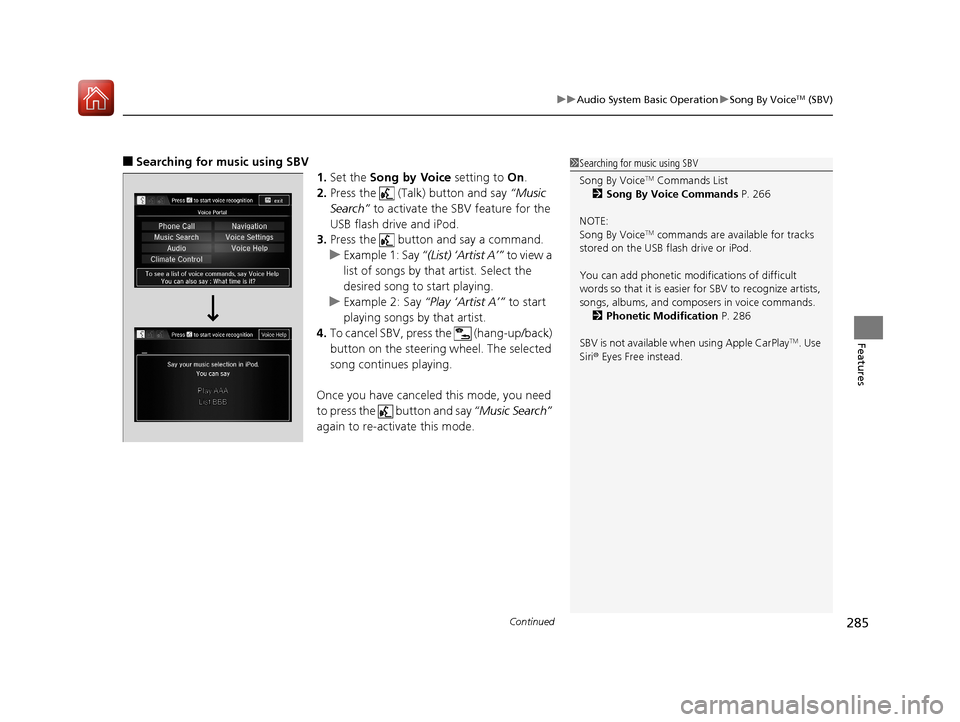
1.Set the Song by Voice setting to On.
2. Press the (Talk) button and say “Music
Search” to activate the SBV feature for the
USB flash drive and iPod.
3. Press the button and say a command.
u Example 1: Say “(List) ‘Artist A’” to view a
list of songs by that artist. Select the
desired song to start playing.
u Example 2: Say “Play ‘Artist A’” to start
playing songs by that artist.
4. To cancel SBV, pres s the (hang-up/back)
button on the steering wheel. The selected
song continues playing.
Once you have canceled this mode, you need
to press the button and say “Music Search”
again to re-activate this mode.1 Searching for music using SBV
Song By Voice
TM Commands List
2 Song By Voice Commands P. 266
NOTE:
Song By Voice
TM commands are available for tracks
stored on the USB flash drive or iPod.
You can add phonetic modi fications of difficult
words so that it is easier for SBV to recognize artists,
songs, albums, and composers in voice commands. 2 Phonetic Modification P. 286
SBV is not available wh en using Apple CarPlay
TM. Use
Siri ® Eyes Free instead.
17 PILOT-31TG76100.book 285 ページ 2016年9月20日 火曜日 午後4時9分
Page 291 of 673
290
uuAudio System Basic Operation uPlaying a USB Flash Drive
Features
Playing a USB Flash Drive
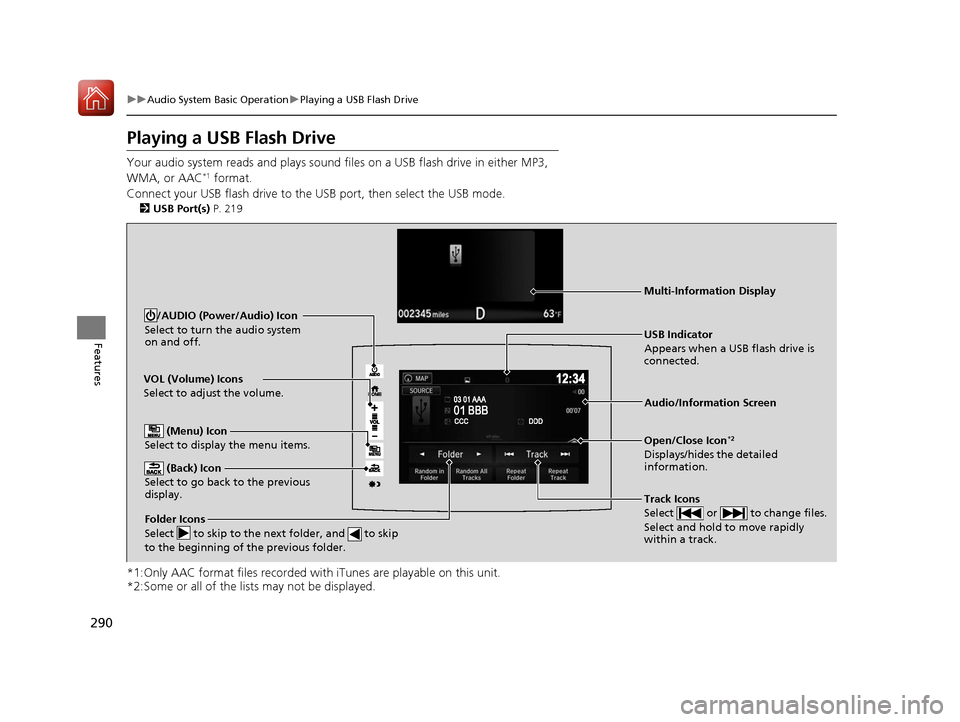
Your audio system reads and plays sound fi les on a USB flash drive in either MP3,
WMA, or AAC*1 format.
Connect your USB flash drive to the USB port, then select the USB mode.
2USB Port(s) P. 219
*1:Only AAC format files recorded with iTunes are playable on this unit.
*2:Some or all of the lists may not be displayed.
VOL (Volume) Icons
Select to adjust the volume.
(Back) Icon
Select to go back to the previous
display.
Track Icons
Select or to change files.
Select and hold to move rapidly
within a track.
/AUDIO (Power/Audio) Icon
Select to turn the audio system
on and off.
Open/Close Icon*2
Displays/hides the detailed
information.
(Menu) Icon
Select to display the menu items.
Folder Icons
Select to skip to the next folder, and to skip
to the beginning of the previous folder.
Audio/Information Screen
USB Indicator
Appears when a USB flash drive is
connected.
Multi-Information Display
17 PILOT-31TG76100.book 290 ページ 2016年9月20日 火曜日 午後4時9分
Page 293 of 673
uuAudio System Basic Operation uPlaying a USB Flash Drive
292
Features
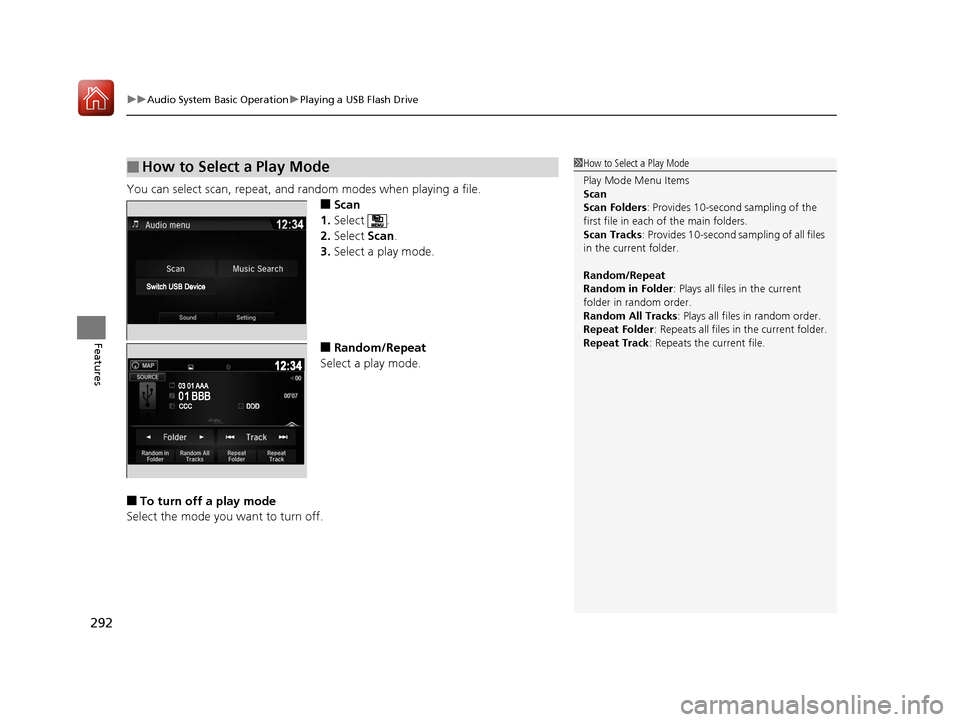
You can select scan, repeat, and random modes when playing a file.
■Scan
1. Select .
2. Select Scan.
3. Select a play mode.
■Random/Repeat
Select a play mode.
■To turn off a play mode
Select the mode you want to turn off.
■How to Select a Play Mode1 How to Select a Play Mode
Play Mode Menu Items
Scan
Scan Folders : Provides 10-second sampling of the
first file in each of the main folders.
Scan Tracks: Provides 10-second sa mpling of all files
in the current folder.
Random/Repeat
Random in Folder : Plays all files in the current
folder in random order.
Random All Tracks : Plays all files in random order.
Repeat Folder : Repeats all files in the current folder.
Repeat Track: Repeats the current file.
17 PILOT-31TG76100.book 292 ページ 2016年9月20日 火曜日 午後4時9分
Page 295 of 673
uuAudio System Basic Operation uPlaying Bluetooth ® Audio
294
Features
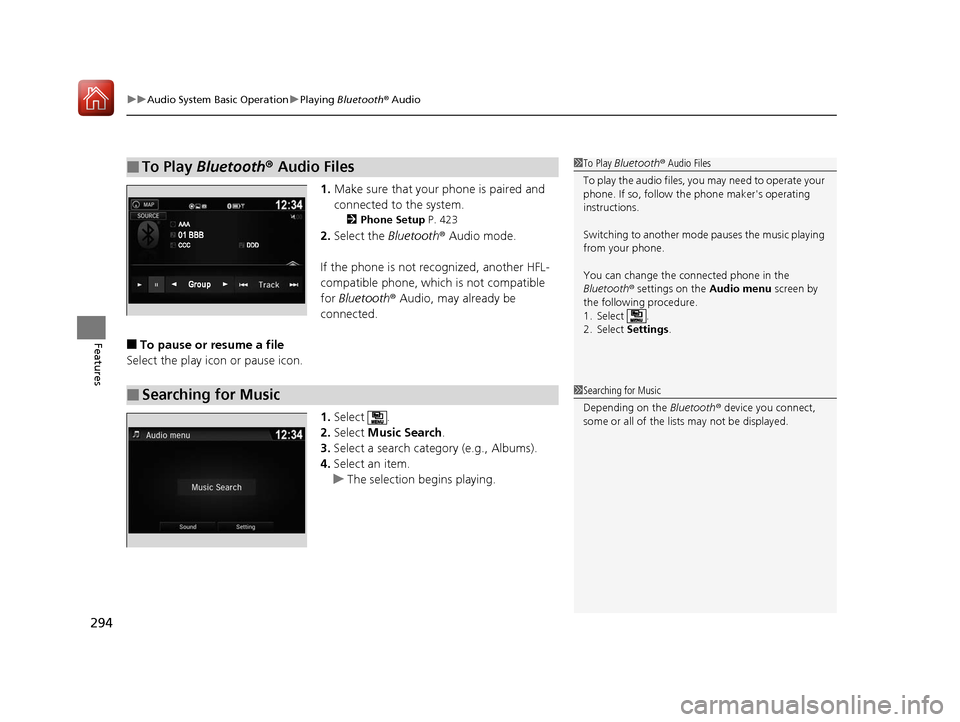
1. Make sure that your phone is paired and
connected to the system.
2 Phone Setup P. 423
2.Select the Bluetooth® Audio mode.
If the phone is not recognized, another HFL-
compatible phone, which is not compatible
for Bluetooth ® Audio, may already be
connected.
■To pause or resume a file
Select the play icon or pause icon.
1.Select .
2. Select Music Search.
3. Select a search cate gory (e.g., Albums).
4. Select an item.
u The selection begins playing.
■To Play Bluetooth® Audio Files1To Play Bluetooth ® Audio Files
To play the audio files, y ou may need to operate your
phone. If so, follow the phone maker's operating
instructions.
Switching to another mode pauses the music playing
from your phone.
You can change the connected phone in the
Bluetooth ® settings on the Audio menu screen by
the following procedure.
1. Select .
2. Select Settings .
■Searching for Music1Searching for Music
Depending on the Bluetooth® device you connect,
some or all of the list s may not be displayed.
17 PILOT-31TG76100.book 294 ページ 2016年9月20日 火曜日 午後4時9分
Page 312 of 673
311
uuAudio Error Messages uiPod/USB Flash Drive
Features
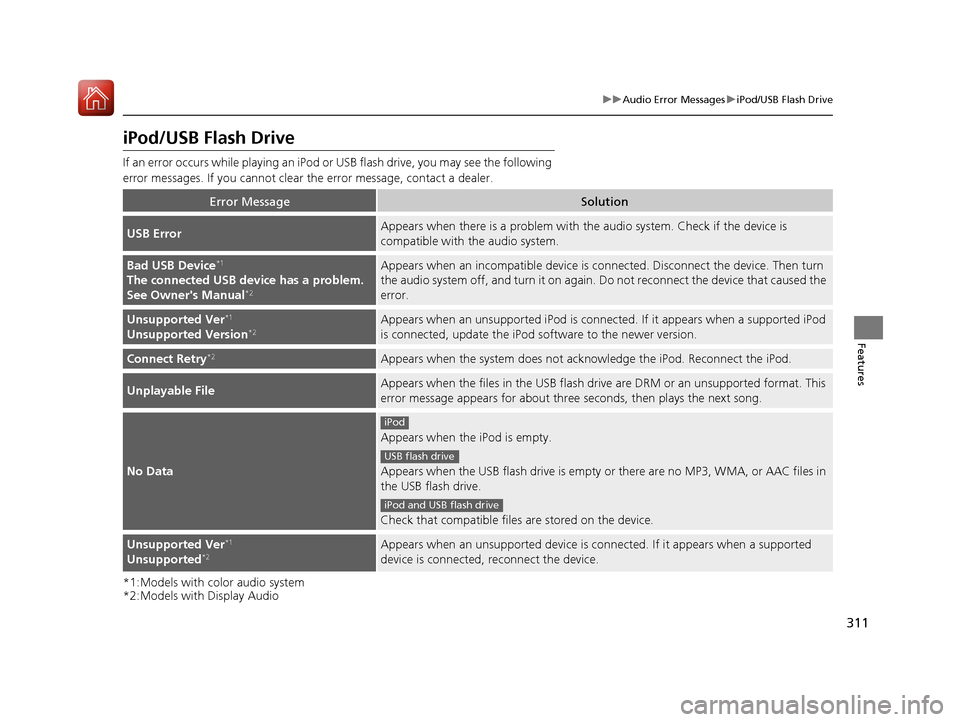
iPod/USB Flash Drive
If an error occurs while playing an iPod or USB flash drive, you may see the following
error messages. If you cannot clear the error message, contact a dealer.
*1:Models with color audio system
*2:Models with Display Audio
Error MessageSolution
USB ErrorAppears when there is a problem with th e audio system. Check if the device is
compatible with the audio system.
Bad USB Device*1
The connected USB device has a problem.
See Owner's Manual*2
Appears when an incomp atible device is connected. Disconnect the device. Then turn
the audio system off, and turn it on again. Do not reconnect the device that caused the
error.
Unsupported Ver*1
Unsupported Version*2Appears when an unsupported iPod is connecte d. If it appears when a supported iPod
is connected, update the iPod software to the newer version.
Connect Retry*2Appears when the system does not ackn owledge the iPod. Reconnect the iPod.
Unplayable FileAppears when the files in the USB flash driv e are DRM or an unsupported format. This
error message appears for about three seconds, then plays the next song.
No Data
Appears when the iPod is empty.
Appears when the USB flash drive is empty or there are no MP3, WMA, or AAC files in
the USB flash drive.
Check that compatible files are stored on the device.
Unsupported Ver*1
Unsupported*2Appears when an unsupported device is co nnected. If it appears when a supported
device is connected, reconnect the device.
iPod
USB flash drive
iPod and USB flash drive
17 PILOT-31TG76100.book 311 ページ 2016年9月20日 火曜日 午後4時9分