audio HONDA PILOT 2017 3.G Owners Manual
[x] Cancel search | Manufacturer: HONDA, Model Year: 2017, Model line: PILOT, Model: HONDA PILOT 2017 3.GPages: 673
Page 340 of 673
339
uuBlu-ray/DVD Rear Entertainment System*uFront Control Panel Operation
Features
The following items are ava ilable on the front screen:
• Top Menu : Displays the top menu.
• Menu : Displays the menu.
• Popup Menu (only for Blu-ray
TM): Displays the menu of the Blu-rayTM.
• Stop : Stop the playback.
• Repeat : Repeats the current title/chapter.
• Audio/Subtitle: Selects the language of the DVD audio and DVD subtitle.
• Number Input (only for DVD-V): Enters a number of a title or chapter to skip.
• Search : Skips to a title or chapter on the screen.
• Return (only for DVD-V): Hides the DVD menu.
• Change Order (only for DVD-VR and AVCREC): Changes the order of the
program or playlist.
• Audio Channel: Changes the audio channel.
• Angle Mark : Changes the angle.
17 PILOT-31TG76100.book 339 ページ 2016年9月20日 火曜日 午後4時9分
Page 341 of 673
340
uuBlu-ray/DVD Rear Entertainment System*uPlaying Audio
Features
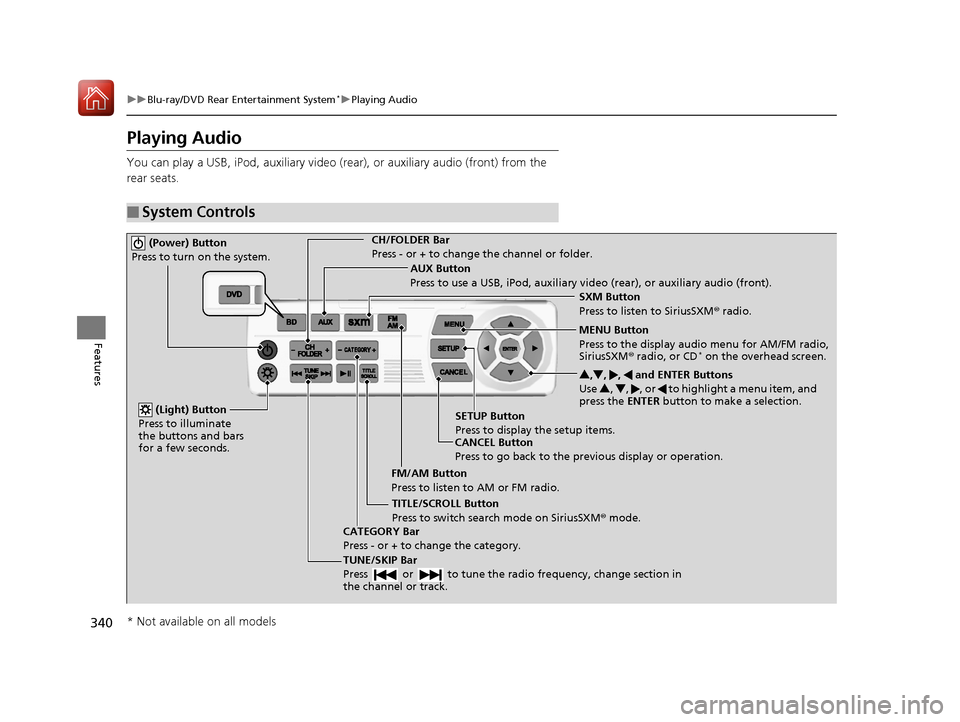
Playing Audio
You can play a USB, iPod, auxiliary video (rear), or auxiliary audio (front) from the
rear seats.
■System Controls
(Power) Button
Press to turn on the system.CH/FOLDER Bar
Press - or + to change the channel or folder.
(Light) Button
Press to illuminate
the buttons and bars
for a few seconds.
TUNE/SKIP Bar
Press or to tune the radi o frequency, change section in
the channel or track.
TITLE/SCROLL Button
Press to switch search mode on SiriusSXM ® mode.
CANCEL Button
Press to go back to the previous display or operation. 3
,4 , , and ENTER Buttons
Use 3, 4 , , or to highlight a menu item, and
press the ENTER button to make a selection.
CATEGORY Bar
Press - or + to change the category. AUX Button
Press to use a USB, iPod, auxiliary video (rear), or auxiliary audio (front).
FM/AM Button
Press to listen to AM or FM radio. SETUP Button
Press to display the setup items. SXM Button
Press to listen to SiriusSXM
® radio.
MENU Button
Press to the display audio menu for AM/FM radio,
SiriusSXM ® radio, or CD
* on the overhead screen.
* Not available on all models
17 PILOT-31TG76100.book 340 ページ 2016年9月20日 火曜日 午後4時9分
Page 342 of 673
Continued341
uuBlu-ray/DVD Rear Entertainment System*uPlaying Audio
Features
To play the AM/FM radio, press the AM/FM button on the remote.
When you press the MENU button on the remote while the radio is playing, the
audio menu appears on the overhead screen.
The available functions are the same as those of the front audio system. The TUNE/
SKIP bar on the remote works the same as the Skip/Seek icons (<>) on the front
touch screen for AM/FM radio operation.
2 Playing AM/FM Radio P. 267
To play the SiriusXM ® radio, press the SXM button on the remote.
When you press the MENU button on the remote while the radio is playing, the
audio menu appears on the overhead screen.
The available functions are the same as those of the front audio system. The TUNE/
SKIP bar on the remote works the same as the Skip/Seek icons (<>) on the front
touch screen for SiriusXM® radio operation.
2 Playing SiriusXM ® Radio* P. 271
To change the mode between ca tegory and channel, press the TITLE/SCROLL
button on the remote for five seconds.
■Playing AM/FM Radio in the Rear
■Playing SiriusXM® Radio in the Rear*
1System Controls
You can operate the Blu-ray/DVD rear entertainment
system on the front display.
* Not available on all models
17 PILOT-31TG76100.book 341 ページ 2016年9月20日 火曜日 午後4時9分
Page 343 of 673
342
uuBlu-ray/DVD Rear Entertainment System*uPlaying Audio
Features
To play a disc, press the DVD* or BD* button on the remote.
When you press the MENU button on the remote while the radio is playing, the
audio menu appears on the overhead screen.
The available options appear on the overhead screen are Repeat, Random, and Scan.
These functions are the same as those of the front audio system.
2 Playing a CD* P. 278
To scroll you audio data title, press the TITLE/SCROLL button on the remote for five
seconds.
To play an iPod and a USB flash drive, press the AUX button on the remote.
When you press the MENU button on the remote while the iPod or USB flash drive
is playing, the audio menu ap pears on the overhead screen.
The available options appear on the overhead screen are Repeat, Random, and Scan.
These functions are the same as those of the front audio system.
2 Playing an iPod P. 281
2 Playing a USB Flash Drive P. 290
To scroll you audio data title, press the TITLE/SCROLL button on the remote for five
seconds.
■Playing a Disc in the Rear
■Playing an iPod and a USB Flash Drive in the Rear
* Not available on all models
17 PILOT-31TG76100.book 342 ページ 2016年9月20日 火曜日 午後4時9分
Page 344 of 673
343
uuBlu-ray/DVD Rear Entertainment System*uAudio Sources for Front and Rear Seats
Features
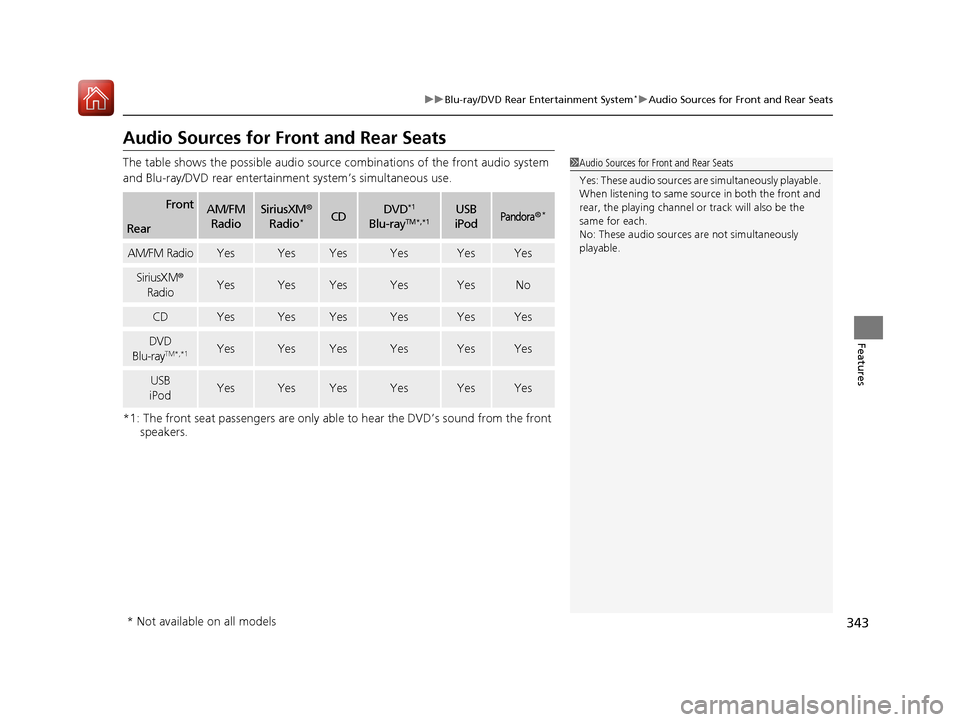
Audio Sources for Front and Rear Seats
The table shows the possible audio source combinations of the front audio system
and Blu-ray/DVD rear entertainm ent system’s simultaneous use.
*1: The front seat passengers are only able to hear the DVD’s sound from the front
speakers.
FrontAM/FM
RadioSiriusXM ®
Radio*CDDVD*1
Blu-rayTM*,*1USB
iPodPandora®*
Rear
AM/FM RadioYesYesYesYesYesYes
SiriusXM ®
RadioYesYesYesYesYesNo
CDYesYesYesYesYesYes
DVD
Blu-rayTM*,*1YesYesYesYesYesYes
USB
iPodYesYesYesYesYesYes
1 Audio Sources for Front and Rear Seats
Yes: These audio sources ar e simultaneously playable.
When listening to same source in both the front and
rear, the playing channel or track will also be the
same for each.
No: These audio sources are not simultaneously
playable.
* Not available on all models
17 PILOT-31TG76100.book 343 ページ 2016年9月20日 火曜日 午後4時9分
Page 350 of 673
349
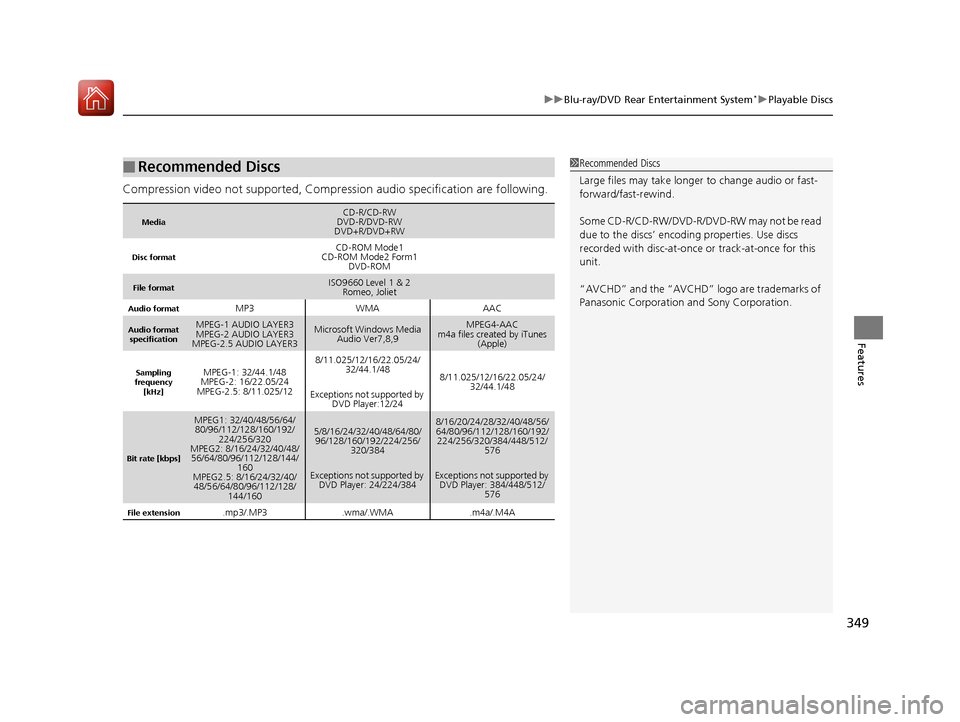
uuBlu-ray/DVD Rear Entertainment System*uPlayable Discs
Features
Compression video not supported, Compression audio specification are following.
■Recommended Discs
MediaCD-R/CD-RW
DVD-R/DVD-RW
DVD+R/DVD+RW
Disc formatCD-ROM Mode1
CD-ROM Mode2 Form1 DVD-ROM
File formatISO9660 Level 1 & 2Romeo, Joliet
Audio formatMP3WMAAAC
Audio format
specificationMPEG-1 AUDIO LAYER3
MPEG-2 AUDIO LAYER3
MPEG-2.5 AUDIO LAYER3Microsoft Windows Media Audio Ver7,8,9MPEG4-AAC
m4a files created by iTunes (Apple)
Sampling
frequency
[kHz]MPEG-1: 32/44.1/48
MPEG-2: 16/22.05/24
MPEG-2.5: 8/11.025/128/11.025/12/16/22.05/24/ 32/44.1/48
Exceptions not supported by DVD Player:12/24
8/11.025/12/16/22.05/24/
32/44.1/48
Bit rate [kbps]
MPEG1: 32/40/48/56/64/80/96/112/128/160/192/ 224/256/320
MPEG2: 8/16/24/32/40/48/
56/64/80/96/112/128/144/ 160
MPEG2.5: 8/16/24/32/40/
48/56/64/80/96/112/128/ 144/1605/8/16/24/32/40/48/64/80/96/128/160/192/224/256/
320/384
Exceptions not supported by DVD Player: 24/224/3848/16/20/24/28/32/40/48/56/
64/80/96/112/128/160/192/224/256/320/384/448/512/
576
Exceptions not supported by DVD Player: 384/448/512/ 576
File extension.mp3/.MP3.wma/.WMA.m4a/.M4A
1Recommended Discs
Large files may take longer to change audio or fast-
forward/fast-rewind.
Some CD-R/CD-RW/DVD-R/DVD -RW may not be read
due to the discs’ encoding properties. Use discs
recorded with disc-at-once or track-at-once for this
unit.
“AVCHD” and the “AVCHD” logo are trademarks of
Panasonic Corporation and Sony Corporation.
17 PILOT-31TG76100.book 349 ページ 2016年9月20日 火曜日 午後4時9分
Page 351 of 673
350
uuBlu-ray/DVD Rear Entertainment System*uDVD or Blu-rayTM* Player Error Messages
Features
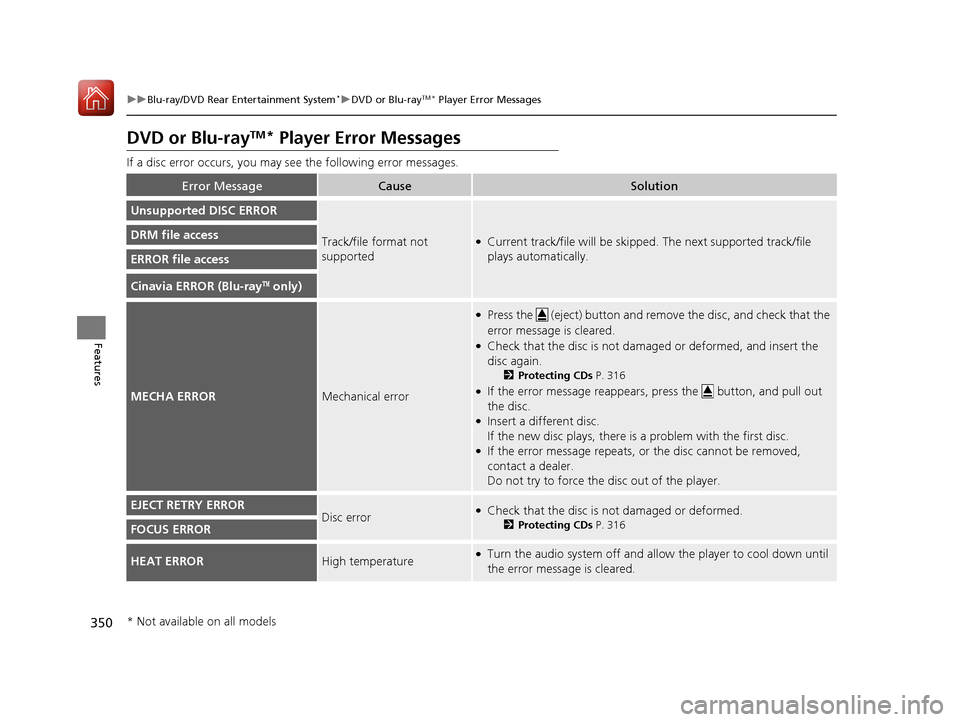
DVD or Blu-rayTM* Player Error Messages
If a disc error occurs, you may see the following error messages.
Error MessageCauseSolution
Unsupported DISC ERROR
Track/file format not
supported●Current track/file will be skipped. The next supported track/file
plays automatically.DRM file access
ERROR file access
Cinavia ERROR (Blu-rayTM only)
MECHA ERRORMechanical error
●Press the (eject) button and remo ve the disc, and check that the
error message is cleared.
●Check that the disc is not dama ged or deformed, and insert the
disc again.
2 Protecting CDs P. 316
●If the error message reappears, press the button, and pull out
the disc.
●Insert a different disc.
If the new disc plays, there is a problem with the first disc.
●If the error message repeats, or the disc cannot be removed,
contact a dealer.
Do not try to force the disc out of the player.
EJECT RETRY ERRORDisc error●Check that the disc is not damaged or deformed.
2 Protecting CDs P. 316FOCUS ERROR
HEAT ERRORHigh temperature●Turn the audio system off and allo w the player to cool down until
the error message is cleared.
* Not available on all models
17 PILOT-31TG76100.book 350 ページ 2016年9月20日 火曜日 午後4時9分
Page 352 of 673
351Continued
Features
Customized Features
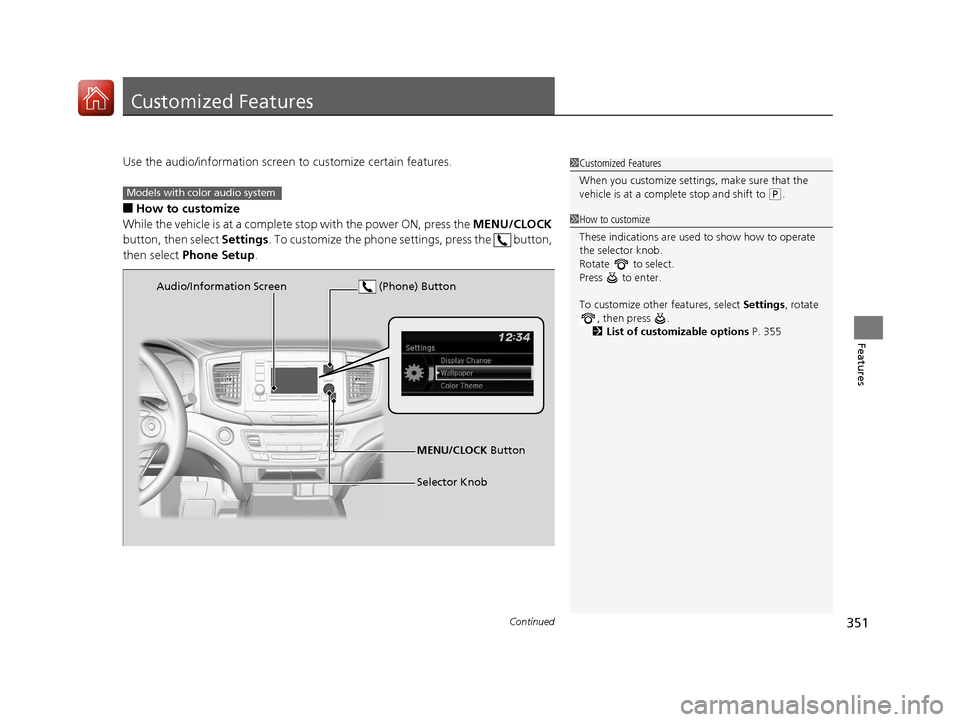
Use the audio/information screen to customize certain features.
■How to customize
While the vehicle is at a complete stop with the power ON, press the MENU/CLOCK
button, then select Settings. To customize the phone se ttings, press the button,
then select Phone Setup .
1Customized Features
When you customize settings, make sure that the
vehicle is at a complete stop and shift to
(P.Models with color audio system
1 How to customize
These indications are used to show how to operate
the selector knob.
Rotate to select.
Press to enter.
To customize other features, select Settings, rotate
, then press .
2 List of customizable options P. 355
Audio/Information Screen
MENU/CLOCK Button
Selector Knob
(Phone) Button
17 PILOT-31TG76100.book 351 ページ 2016年9月20日 火曜日 午後4時9分
Page 353 of 673
352
uuCustomized Features u
Features
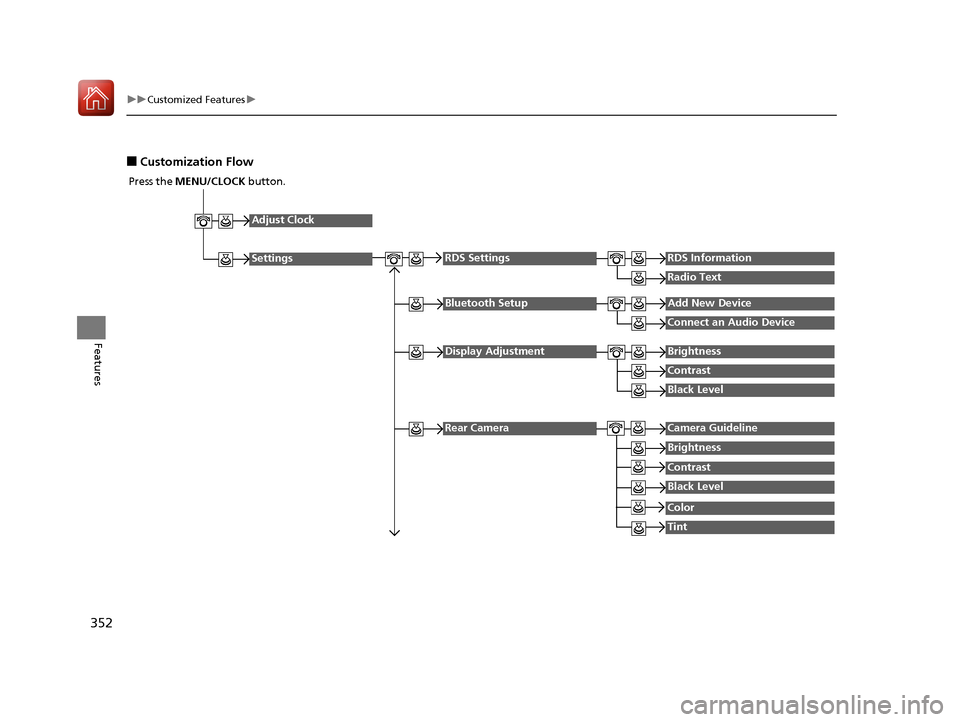
■Customization Flow
Press the MENU/CLOCK button.
Adjust Clock
Settings
Bluetooth SetupAdd New Device
Connect an Audio Device
Display AdjustmentBrightness
Contrast
Black Level
Rear CameraCamera Guideline
RDS SettingsRDS Information
Radio Text
Brightness
Contrast
Black Level
Color
Tint
17 PILOT-31TG76100.book 352 ページ 2016年9月20日 火曜日 午後4時9分
Page 354 of 673
353
uuCustomized Features u
Continued
Features
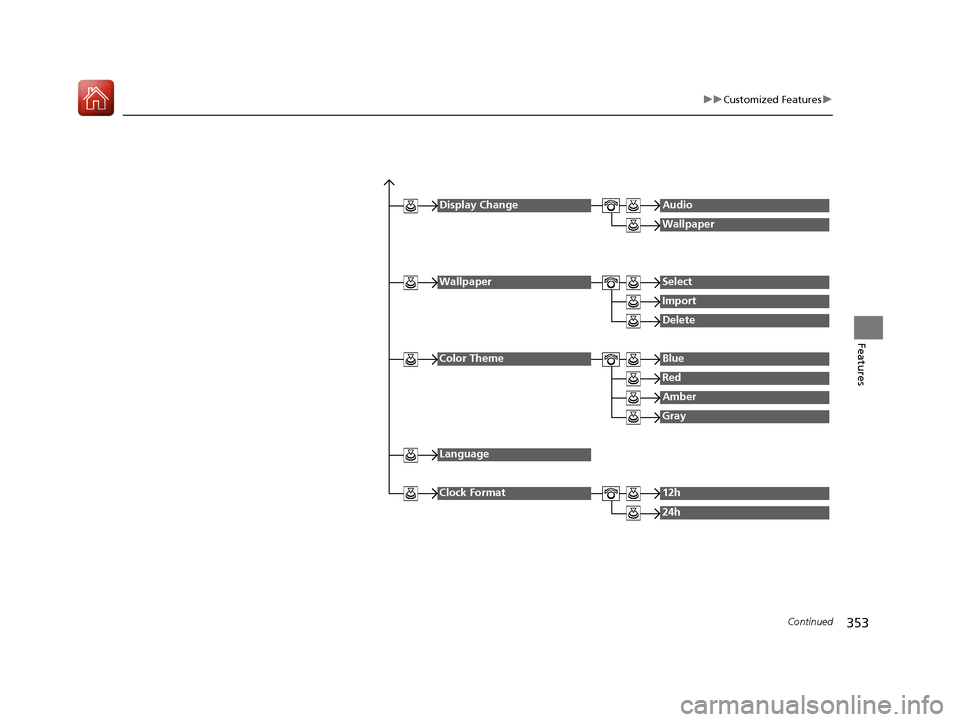
Display ChangeAudio
Wallpaper
WallpaperSelect
Import
Delete
Color ThemeBlue
Red
Amber
Gray
Language
Clock Format12h
24h
17 PILOT-31TG76100.book 353 ページ 2016年9月20日 火曜日 午後4時9分