audio HONDA PILOT 2017 3.G Owners Manual
[x] Cancel search | Manufacturer: HONDA, Model Year: 2017, Model line: PILOT, Model: HONDA PILOT 2017 3.GPages: 673
Page 321 of 673
320
uuGeneral Information on the Audio System uAbout Open Source Licenses
Features
About Open Source Licenses
To see the open source license information, follow these steps.
1. Select .
2. Select Settings .
3. Select System , then open the Others tab.
4. Select Detail Information .
5. Select About device.
6. Select Legal information .
7. Select Open source licenses .
Models with Display Audio
17 PILOT-31TG76100.book 320 ページ 2016年9月20日 火曜日 午後4時9分
Page 322 of 673
321
uuGeneral Information on the Audio System uLicense Information*
Features
License Information*
Manufactured under license from Dolby Laboratories. Dolby and the double-D
symbol are registered tradema rks of Dolby Laboratories.
For DTS patents, see http://patents.dts.com . Manufactured under license from DTS
Licensing Limited. DTS, the Symbol, & DTS and the Symbol together are registered
trademarks, and DTS Digital Surround and Neural Surround are trademarks of DTS,
Inc. © DTS, Inc. All Rights Reserved.
■DOLBY DIGITAL
■DTS
* Not available on all models
17 PILOT-31TG76100.book 321 ページ 2016年9月20日 火曜日 午後4時9分
Page 323 of 673
322
Features
Blu-ray/DVD Rear Entertainment System*
Rear seat passengers can enjoy a completely separate entertainment source than
front passengers, including movies , games, and other audio choices.
Wireless Headphones
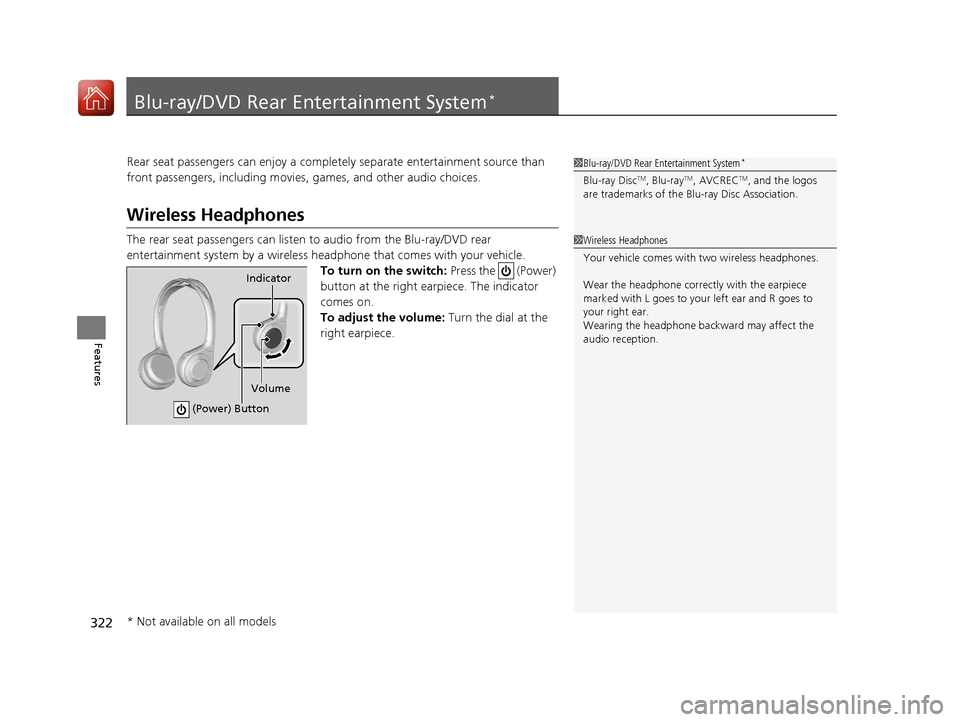
The rear seat passengers can listen to audio from the Blu-ray/DVD rear
entertainment system by a wireless headphone that comes with your vehicle.
To turn on the switch: Press the (Power)
button at the right ear piece. The indicator
comes on.
To adjust the volume: Turn the dial at the
right earpiece.
1 Blu-ray/DVD Rear Entertainment System*
Blu-ray DiscTM, Blu-rayTM, AVCRECTM, and the logos
are trademarks of the Bl u-ray Disc Association.
1Wireless Headphones
Your vehicle comes with two wireless headphones.
Wear the headphone correc tly with the earpiece
marked with L goes to y our left ear and R goes to
your right ear.
Wearing the headphone back ward may affect the
audio reception.
Indicator
(Power) Button
Volume
* Not available on all models
17 PILOT-31TG76100.book 322 ページ 2016年9月20日 火曜日 午後4時9分
Page 324 of 673
323
uuBlu-ray/DVD Rear Entertainment System*uAuxiliary Console Panel
Features
Auxiliary Console Panel
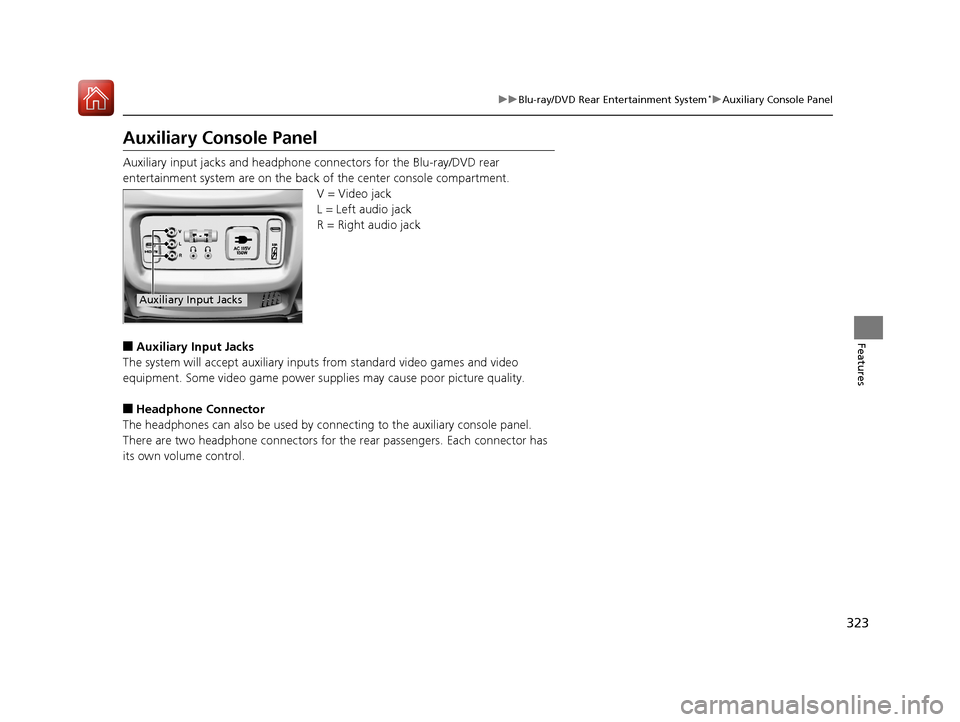
Auxiliary input jacks and headphone connectors for the Blu-ray/DVD rear
entertainment system are on the back of the center console compartment.
V = Video jack
L = Left audio jack
R = Right audio jack
■Auxiliary Input Jacks
The system will accept auxiliary inputs from standard video games and video
equipment. Some video game power s upplies may cause poor picture quality.
■Headphone Connector
The headphones can also be used by connecting to the auxiliary console panel.
There are two headphone connectors for th e rear passengers. Each connector has
its own volume control.
Auxiliary Input Jacks
17 PILOT-31TG76100.book 323 ページ 2016年9月20日 火曜日 午後4時9分
Page 326 of 673
325
uuBlu-ray/DVD Rear Entertainment System*uOverhead Screen
Features
Overhead Screen
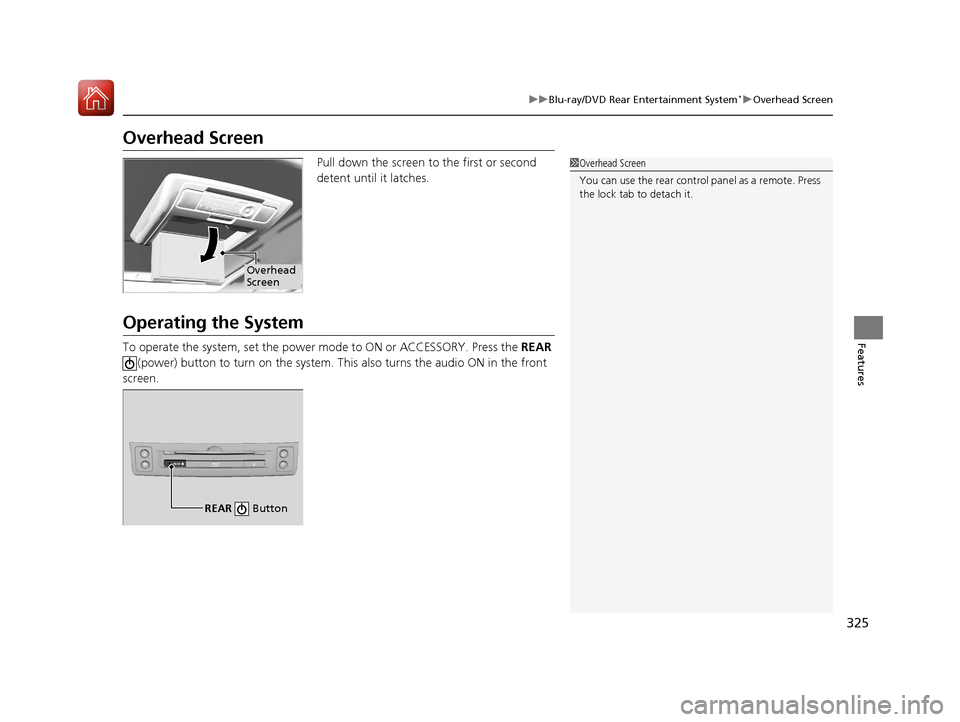
Pull down the screen to the first or second
detent until it latches.
Operating the System
To operate the system, set the power mode to ON or ACCESSORY. Press the REAR
(power) button to turn on the system. This also turns the audio ON in the front
screen.
1 Overhead Screen
You can use the rear control panel as a remote. Press
the lock tab to detach it.
Overhead
Screen
REAR
REAR Button
17 PILOT-31TG76100.book 325 ページ 2016年9月20日 火曜日 午後4時9分
Page 327 of 673
326
uuBlu-ray/DVD Rear Entertainment System*uPlaying a DVD/Blu-rayTM*
Features
Playing a DVD/Blu-rayTM*
To play a DVD or Blu-rayTM *, insert a DVD or Blu-rayTM * into the lower slot of the
front audio system, and press the REAR button.
u The system automatically starts the DVD or Blu-ray
TM *. DVD or Blu-rayTM * is
available for the rear seat passenger only.
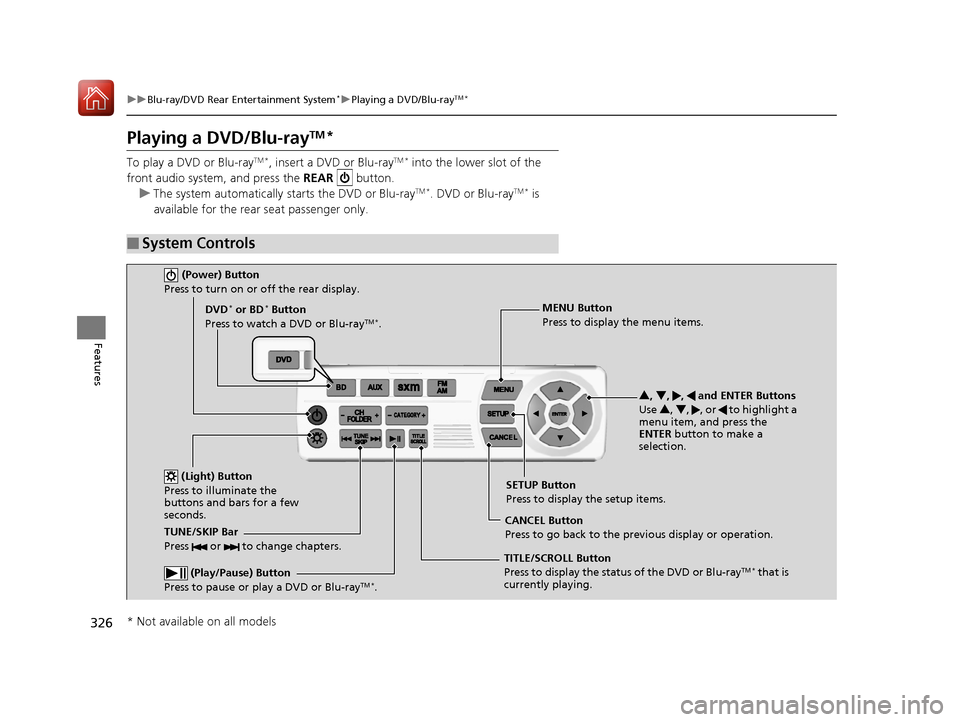
■System Controls
(Power) Button
Press to turn on or off the rear display.
DVD* or BD* Button
Press to watch a DVD or Blu-rayTM *.
(Light) Button
Press to illuminate the
buttons and bars for a few
seconds.
TUNE/SKIP Bar
Press or to change chapters.
(Play/Pause) Button
Press to pause or play a DVD or Blu-rayTM *.
TITLE/SCROLL Button
Press to display the status of the DVD or Blu-rayTM * that is
currently playing. MENU Button
Press to display the menu items.
SETUP Button
Press to display the setup items.
CANCEL Button
Press to go back to the previous display or operation. 3
, 4 , , and ENTER Buttons
Use 3, 4 , , or to highlight a
menu item, and press the
ENTER button to make a
selection.
* Not available on all models
17 PILOT-31TG76100.book 326 ページ 2016年9月20日 火曜日 午後4時9分
Page 329 of 673
328
uuBlu-ray/DVD Rear Entertainment System*uPlaying a DVD/Blu-rayTM*
Features
If you press the MENU button on the remote while the DVD or Blu-rayTM * is not
playing, the option Play Mode changes to Initial Settings .
2Initial Settings P. 334
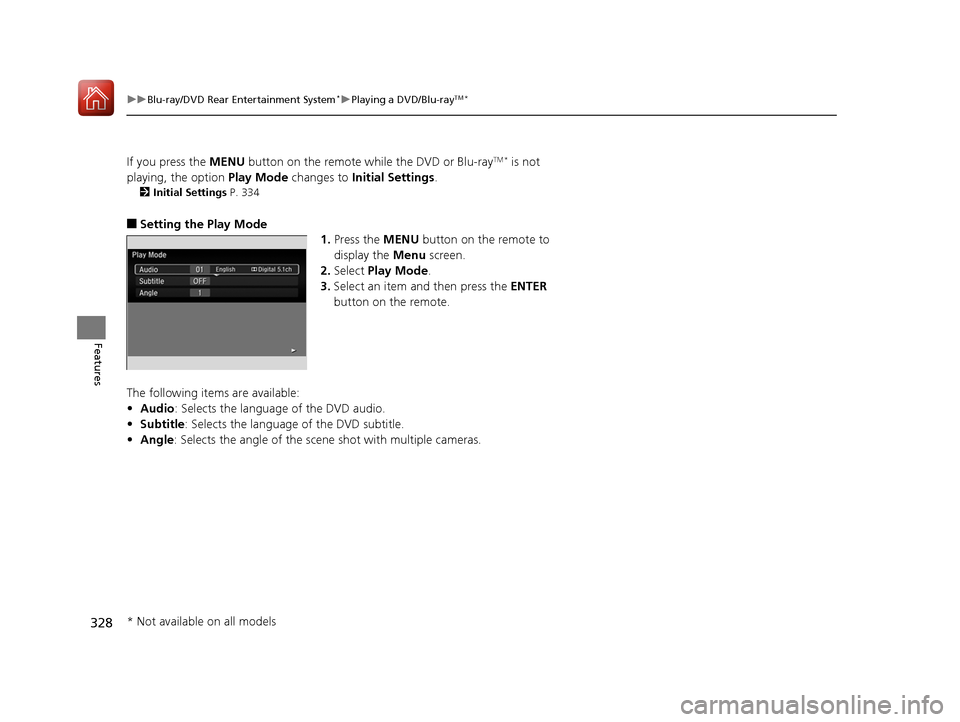
■Setting the Play Mode
1.Press the MENU button on the remote to
display the Menu screen.
2. Select Play Mode.
3. Select an item and then press the ENTER
button on the remote.
The following items are available:
• Audio: Selects the language of the DVD audio.
• Subtitle : Selects the language of the DVD subtitle.
• Angle : Selects the angle of the scen e shot with multiple cameras.
* Not available on all models
17 PILOT-31TG76100.book 328 ページ 2016年9月20日 火曜日 午後4時9分
Page 335 of 673
334
uuBlu-ray/DVD Rear Entertainment System*uPlaying a DVD/Blu-rayTM*
Features
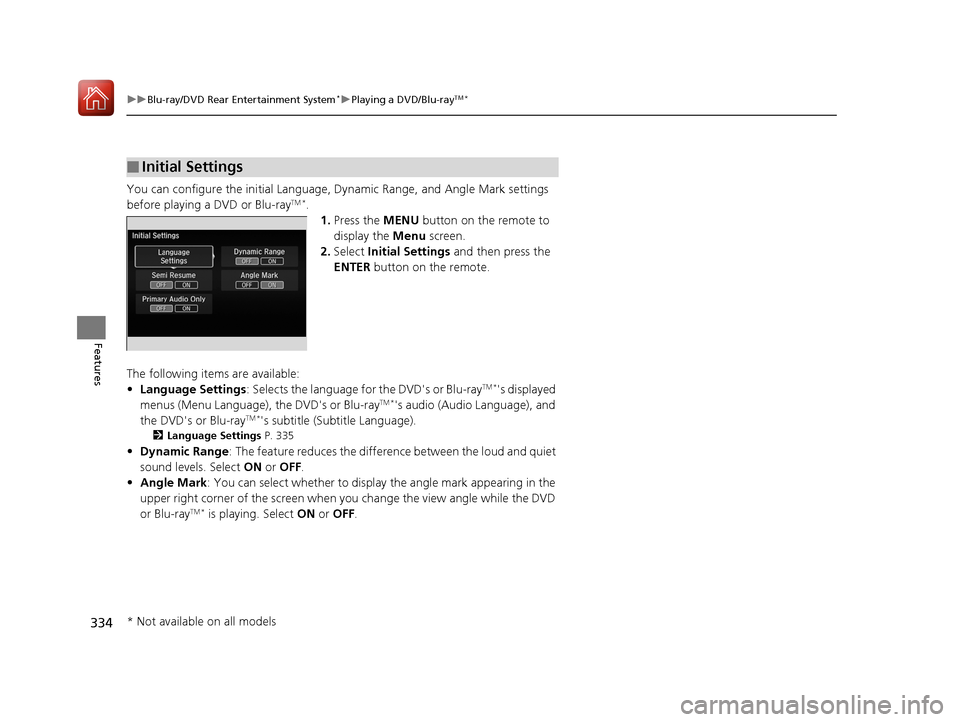
You can configure the initial Language, Dynamic Range, and Angle Mark settings
before playing a DVD or Blu-rayTM *.
1.Press the MENU button on the remote to
display the Menu screen.
2. Select Initial Settings and then press the
ENTER button on the remote.
The following items are available:
• Language Settings : Selects the language for the DVD's or Blu-ray
TM *'s displayed
menus (Menu Language), the DVD's or Blu-rayTM *'s audio (Audio Language), and
the DVD's or Blu-rayTM *'s subtitle (Subtitle Language).
2 Language Settings P. 335
•Dynamic Range : The feature reduces the difference between the loud and quiet
sound levels. Select ON or OFF .
• Angle Mark : You can select whether to displa y the angle mark appearing in the
upper right corner of the screen when you change the view angle while the DVD
or Blu-ray
TM * is playing. Select ON or OFF .
■Initial Settings
* Not available on all models
17 PILOT-31TG76100.book 334 ページ 2016年9月20日 火曜日 午後4時9分
Page 337 of 673
336
uuBlu-ray/DVD Rear Entertainment System*uFront Control Panel Operation
Features
Front Control Panel Operation
You can operate the Blu-ray/DVD Rear En tertainment System (RES) from the front
control panel.
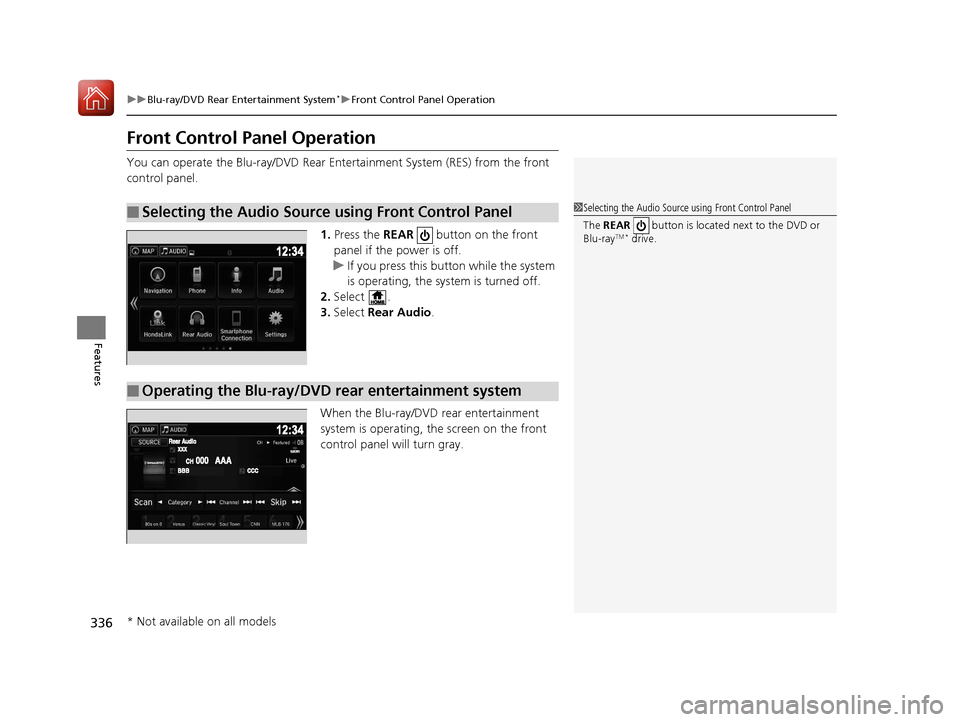
1.Press the REAR button on the front
panel if the power is off.
u If you press this button while the system
is operating, the system is turned off.
2. Select .
3. Select Rear Audio .
When the Blu-ray/DVD rear entertainment
system is operating, the screen on the front
control panel will turn gray.
■Selecting the Audio Source using Front Control Panel1 Selecting the Audio Source using Front Control Panel
The REAR button is located next to the DVD or
Blu-ray
TM * drive.
■Operating the Blu-ray/DVD rear entertainment system
* Not available on all models
17 PILOT-31TG76100.book 336 ページ 2016年9月20日 火曜日 午後4時9分
Page 338 of 673
Continued337
uuBlu-ray/DVD Rear Entertainment System*uFront Control Panel Operation
Features
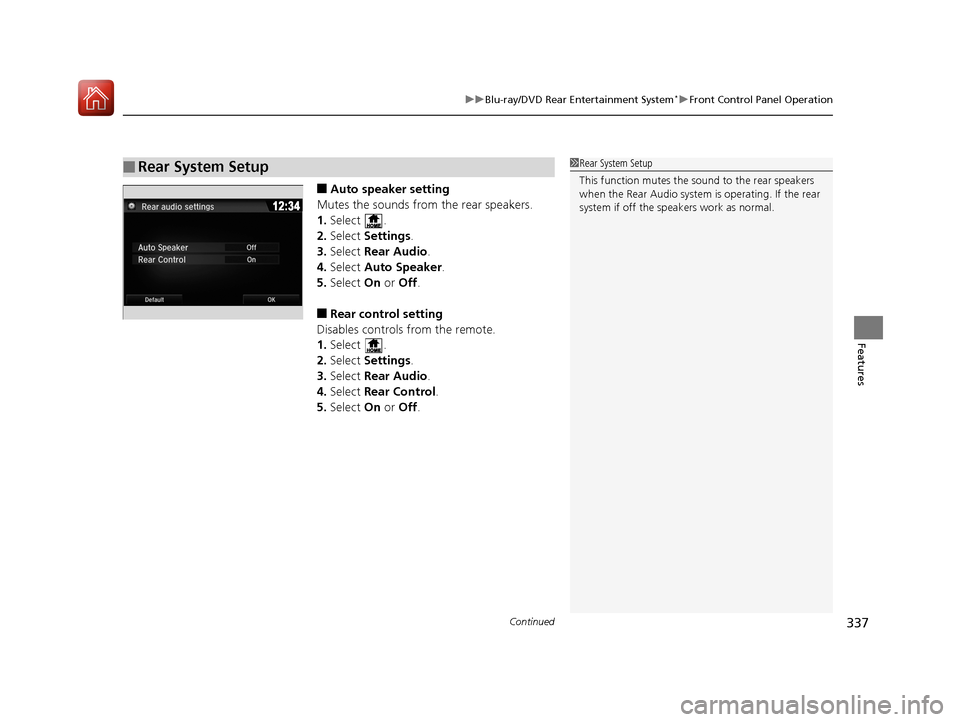
■Auto speaker setting
Mutes the sounds from the rear speakers.
1. Select .
2. Select Settings .
3. Select Rear Audio.
4. Select Auto Speaker .
5. Select On or Off .
■Rear control setting
Disables controls from the remote.
1. Select .
2. Select Settings .
3. Select Rear Audio.
4. Select Rear Control .
5. Select On or Off .
■Rear System Setup1Rear System Setup
This function mutes the sound to the rear speakers
when the Rear Audio system is operating. If the rear
system if off the speakers work as normal.
17 PILOT-31TG76100.book 337 ページ 2016年9月20日 火曜日 午後4時9分