navigation system HONDA PILOT 2018 (in English) User Guide
[x] Cancel search | Manufacturer: HONDA, Model Year: 2018, Model line: PILOT, Model: HONDA PILOT 2018Pages: 695, PDF Size: 48.42 MB
Page 270 of 695
268
uuAudio System Basic Operation uVoice Control Operation
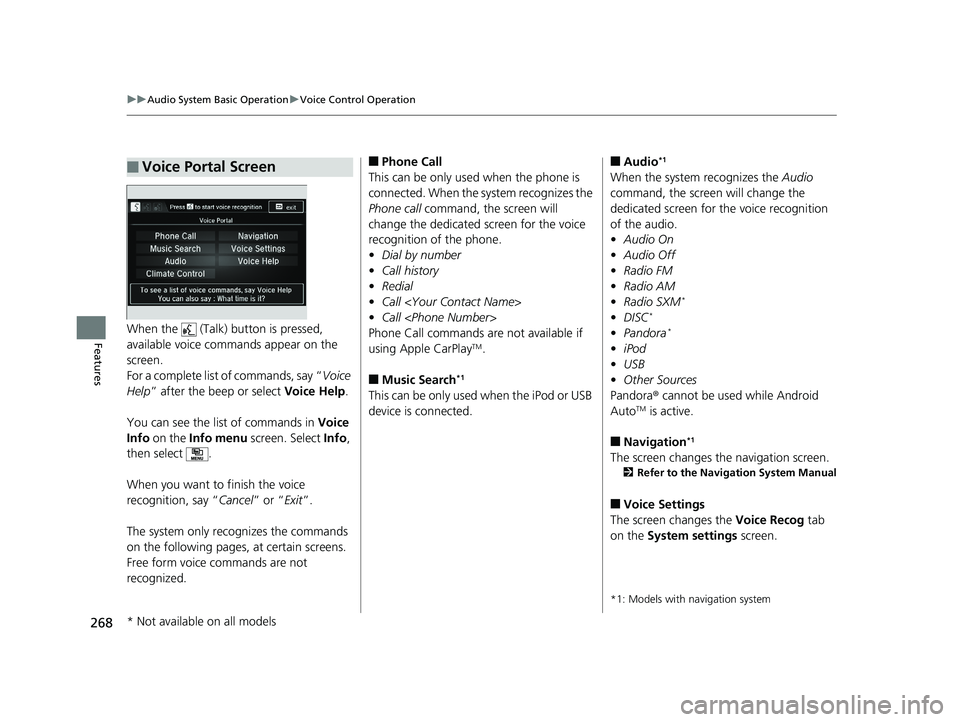
FeaturesWhen the (Talk) button is pressed,
available voice commands appear on the
screen.
For a complete list of commands, say “ Voice
Help ” after the beep or select Voice Help.
You can see the list of commands in Voice
Info on the Info menu screen. Select Info,
then select .
When you want to finish the voice
recognition, say “ Cancel” or “Exit”.
The system only reco gnizes the commands
on the following pages, at certain screens.
Free form voice commands are not
recognized.
■Voice Portal Screen■Phone Call
This can be only used when the phone is
connected. When the sy stem recognizes the
Phone call command, the screen will
change the dedicated screen for the voice
recognition of the phone.
• Dial by number
• Call history
• Redial
• Call
• Call
Phone Call commands are not available if
using Apple CarPlay
TM.
■Music Search*1
This can be only used when the iPod or USB
device is connected.
■Audio*1
When the system recognizes the Audio
command, the screen will change the
dedicated screen for the voice recognition
of the audio.
• Audio On
• Audio Off
• Radio FM
• Radio AM
• Radio SXM
*
•DISC*
•Pandora*
•iPod
• USB
• Other Sources
Pandora ® cannot be used while Android
Auto
TM is active.
■Navigation*1
The screen changes the navigation screen.
2 Refer to the Navigation System Manual
■Voice Settings
The screen changes the Voice Recog tab
on the System settings screen.
*1: Models with navigation system
* Not available on all models
18 PILOT-31TG76200.book 268 ページ 2018年3月30日 金曜日 午前11時51分
Page 271 of 695
269
uuAudio System Basic Operation uVoice Control Operation
Continued
Features
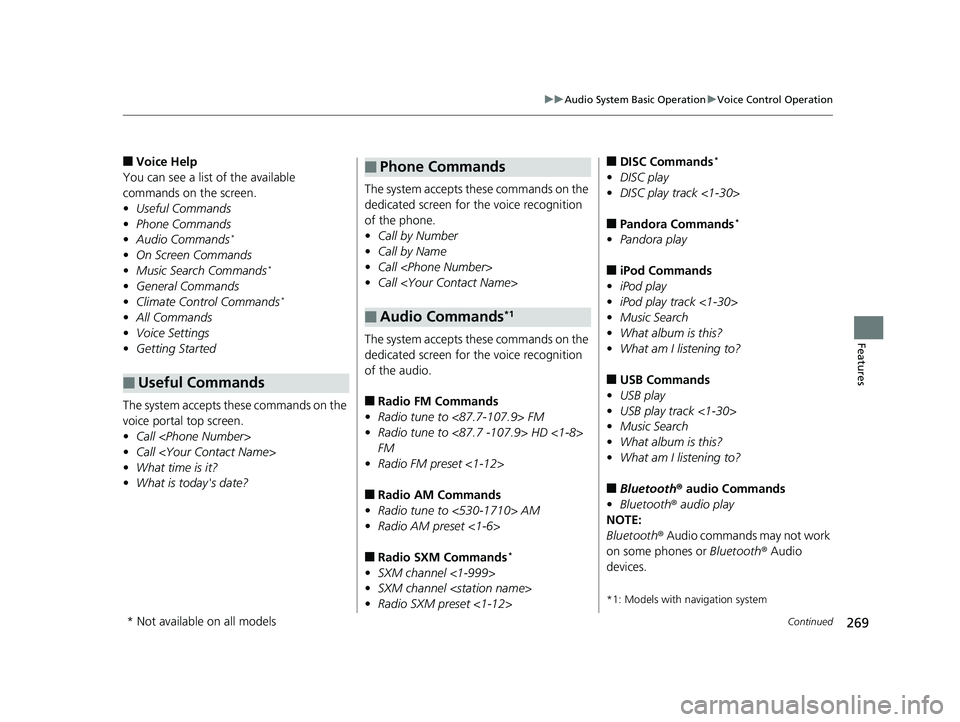
■Voice Help
You can see a list of the available
commands on the screen.
• Useful Commands
• Phone Commands
• Audio Commands
*
•On Screen Commands
• Music Search Commands*
•General Commands
• Climate Control Commands*
•All Commands
• Voice Settings
• Getting Started
The system accepts these commands on the
voice portal top screen.
• Call
• Call
• What time is it?
• What is today's date?
■Useful Commands
The system accepts these commands on the
dedicated screen for the voice recognition
of the phone.
• Call by Number
• Call by Name
• Call
• Call
The system accepts these commands on the
dedicated screen for the voice recognition
of the audio.
■Radio FM Commands
• Radio tune to <87.7-107.9> FM
• Radio tune to <87.7 -107.9> HD <1-8>
FM
• Radio FM preset <1-12>
■Radio AM Commands
• Radio tune to <530-1710> AM
• Radio AM preset <1-6>
■Radio SXM Commands*
•SXM channel <1-999>
• SXM channel
• Radio SXM preset <1-12>
■Phone Commands
■Audio Commands*1
■DISC Commands*
•DISC play
• DISC play track <1-30>
■Pandora Commands*
•Pandora play
■iPod Commands
• iPod play
• iPod play track <1-30>
• Music Search
• What album is this?
• What am I listening to?
■USB Commands
• USB play
• USB play track <1-30>
• Music Search
• What album is this?
• What am I listening to?
■Bluetooth ® audio Commands
• Bluetooth ® audio play
NOTE:
Bluetooth ® Audio commands may not work
on some phones or Bluetooth® Audio
devices.
*1: Models with navigation system
* Not available on all models
18 PILOT-31TG76200.book 269 ページ 2018年3月30日 金曜日 午前11時51分
Page 272 of 695
270
uuAudio System Basic Operation uVoice Control Operation
Features
■AUX-Audio commands
• AUX audio play
When On Screen Commands is selected,
the explanation screen is displayed.
The system accepts these commands on the
Music Search screen.
■Using Song By Voice
Song By VoiceTM is a feature that allows you
to select music from your iPod or USB device
using Voice Commands. To activate this
mode, you must push the talk switch and
say: “ Music search ”.
■Song By Voice Commands
• What am I listening to?
• Who am I listening to?
• Who is this?
• What's playing?
• Who's playing?
• What album is this?
■On Screen Commands
■Music Search Commands*1
■Play Commands
• Play artist
• Play track/song
• Play album
• Play genre/category
• Play playlist
• Play composer
■List Commands
• List artist
• List album
• List genre/category
• List playlist
• List composer
• What time is it?
• What is today's date?
■General Commands
•Climate Control on
• Climate Control off
• Fan Speed <1-7>
• Temperature max heat
• Temperature max cool
• Temperature <57-87> degrees
• Defrost on
• Defrost off
• Air conditioner on
• Air conditioner off
• More
• Climate control automatic
• Vent
• Dash and floor
• Fan speed up
• Fan speed down
• Floor vents
• Floor and defrost
• Temperature up
• Temperature down
NOTE:
These commands toggl e the function on
and off, so the command may not match
your intended action.
*1: Models with navigation system
■Climate Control Commands*1
18 PILOT-31TG76200.book 270 ページ 2018年3月30日 金曜日 午前11時51分
Page 290 of 695
288
uuAudio System Basic Operation uSong By VoiceTM (SBV)
Features
Song By VoiceTM (SBV)
Use SBV to search for and play music from your USB flash drive or iPod using voice
commands.
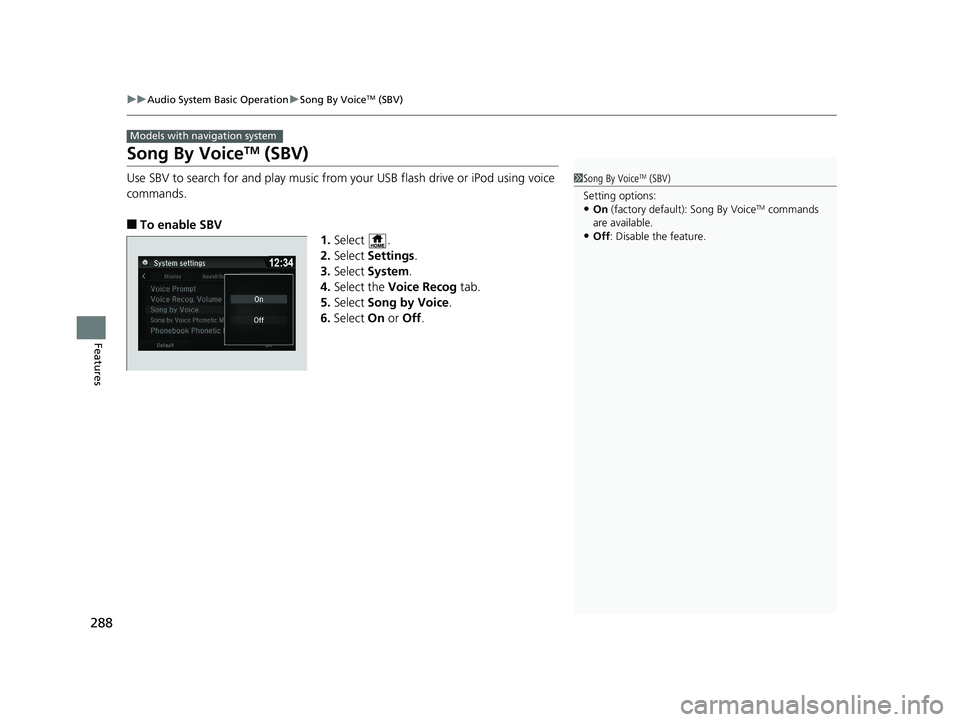
■To enable SBV 1.Select .
2. Select Settings .
3. Select System .
4. Select the Voice Recog tab.
5. Select Song by Voice .
6. Select On or Off .
Models with navigation system
1Song By VoiceTM (SBV)
Setting options:
•On (factory default): Song By VoiceTM commands
are available.
•Off : Disable the feature.
18 PILOT-31TG76200.book 288 ページ 2018年3月30日 金曜日 午前11時51分
Page 301 of 695
299
uuAudio System Basic Operation uHondaLink ®
Continued
Features
HondaLink ®
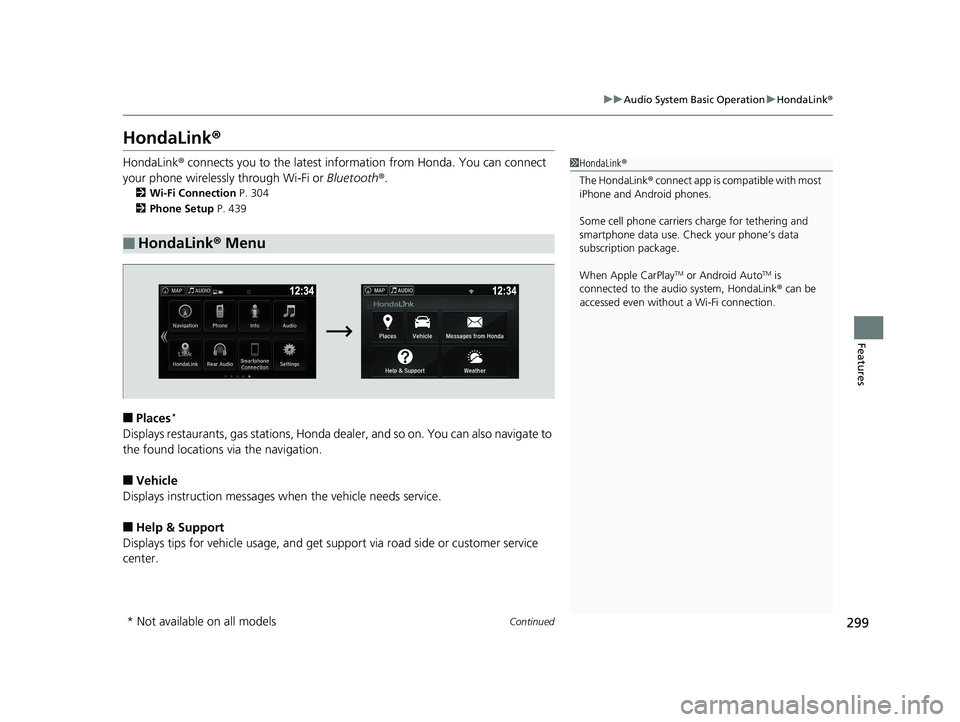
HondaLink® connects you to the latest info rmation from Honda. You can connect
your phone wirelessly through Wi-Fi or Bluetooth®.
2Wi-Fi Connection P. 304
2 Phone Setup P. 439
■Places*
Displays restaurants, gas stations, Honda de aler, and so on. You can also navigate to
the found locations via the navigation.
■Vehicle
Displays instruction messages when the vehicle needs service.
■Help & Support
Displays tips for vehicle us age, and get support via road side or customer service
center.
■HondaLink ® Menu
1 HondaLink ®
The HondaLink ® connect app is compatible with most
iPhone and Android phones.
Some cell phone carriers charge for tethering and
smartphone data use. Check your phone’s data
subscription package.
When Apple CarPlay
TM or Android AutoTM is
connected to the audio system, HondaLink ® can be
accessed even without a Wi-Fi connection.
* Not available on all models
18 PILOT-31TG76200.book 299 ページ 2018年3月30日 金曜日 午前11時51分
Page 309 of 695
307
uuAudio System Basic Operation uApple CarPlayTM
Continued
Features
Apple CarPlayTM
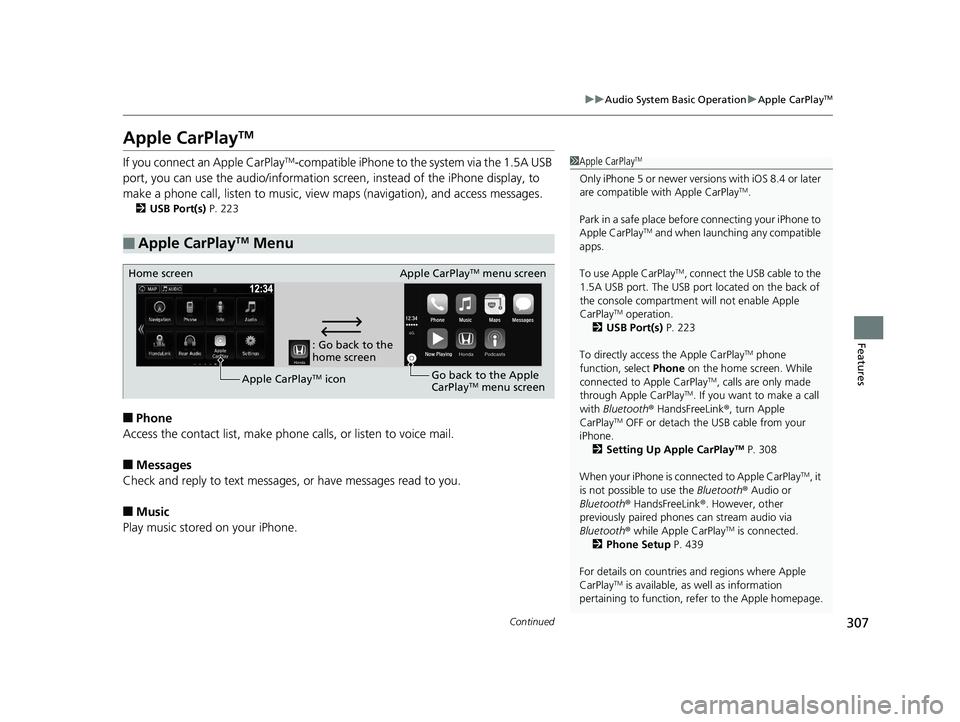
If you connect an Apple CarPlayTM-compatible iPhone to the system via the 1.5A USB
port, you can use the audio/information scr een, instead of the iPhone display, to
make a phone call, listen to music, view maps (navigation), and access messages.
2USB Port(s) P. 223
■Phone
Access the contact list, make phone ca lls, or listen to voice mail.
■Messages
Check and reply to text messages, or have messages read to you.
■Music
Play music stored on your iPhone.
■Apple CarPlayTM Menu
1 Apple CarPlayTM
Only iPhone 5 or newer versi ons with iOS 8.4 or later
are compatible with Apple CarPlayTM.
Park in a safe place before connecting your iPhone to
Apple CarPlay
TM and when launching any compatible
apps.
To use Apple CarPlay
TM, connect the USB cable to the
1.5A USB port. The USB port located on the back of
the console compartment will not enable Apple
CarPlay
TM operation.
2 USB Port(s) P. 223
To directly access the Apple CarPlay
TM phone
function, select Phone on the home screen. While
connected to Apple CarPlay
TM, calls are only made
through Apple CarPlayTM. If you want to make a call
with Bluetooth ® HandsFreeLink ®, turn Apple
CarPlay
TM OFF or detach the USB cable from your
iPhone.
2 Setting Up Apple CarPlay
TM P. 308
When your iPhone is connected to Apple CarPlay
TM, it
is not possible to use the Bluetooth® Audio or
Bluetooth ® HandsFreeLink ®. However, other
previously paired phones can stream audio via
Bluetooth ® while Apple CarPlay
TM is connected.
2 Phone Setup P. 439
For details on c ountries and regions where Apple
CarPlay
TM is available, as well as information
pertaining to function, refer to the Apple homepage.
: Go back to the
home screen
Home screen
Apple CarPlay
TM iconApple CarPlay
TM menu screen
Go back to the Apple
CarPlay
TM menu screen
18 PILOT-31TG76200.book 307 ページ 2018年3月30日 金曜日 午前11時51分
Page 310 of 695
uuAudio System Basic Operation uApple CarPlayTM
308
Features
■Maps
Display Apple Maps and use the navigation function just as you would on your
iPhone.
Only one navigation system (pre-installed navigation or Apple CarPlay
TM map) can
give directions at a time. When you are using one system, directions to any prior
destination set on the other system wi ll be canceled, and the system you are
currently using will direct you to your destination.
After you have connected your iPhone to the system via the 1.5A USB port, use the
following procedure to set up Apple CarPlay
TM. Use of Apple CarPlayTM will result in
the transmission of certain user and vehicle information (such as vehicle location,
speed, and status) to your iPhone to enhance the Apple CarPlay
TM experience. You
will need to consent to the sharing of this information on th e audio/information
screen.
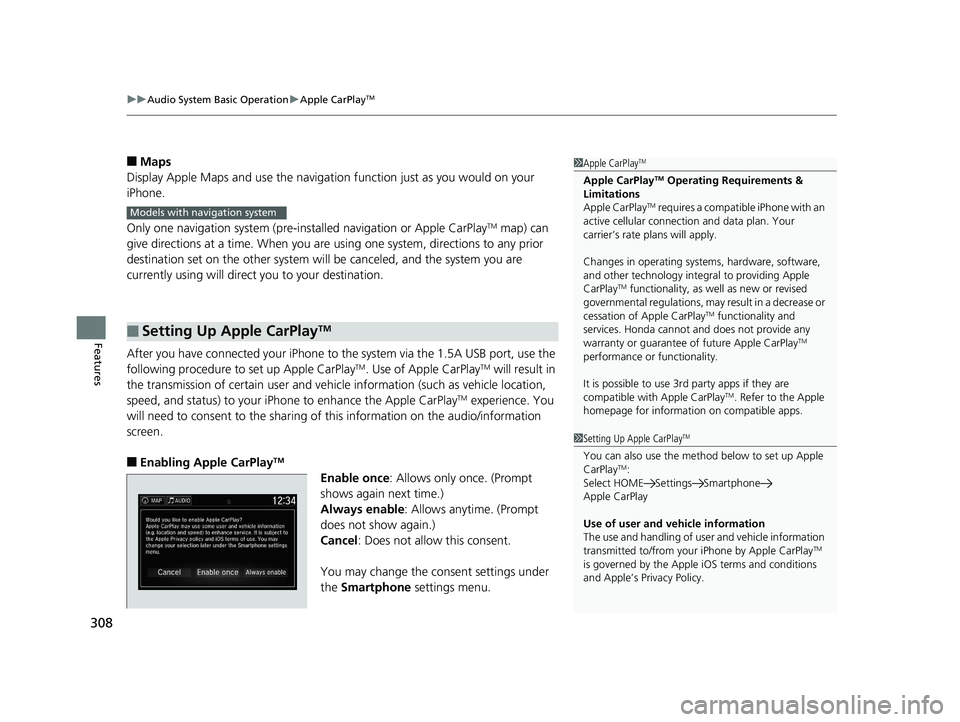
■Enabling Apple CarPlayTM
Enable once : Allows only once. (Prompt
shows again next time.)
Always enable : Allows anytime. (Prompt
does not show again.)
Cancel : Does not allow this consent.
You may change the consent settings under
the Smartphone settings menu.
■Setting Up Apple CarPlayTM
1Apple CarPlayTM
Apple CarPlayTM Operating Requirements &
Limitations
Apple CarPlay
TM requires a compatible iPhone with an
active cellular connecti on and data plan. Your
carrier’s rate plans will apply.
Changes in operating system s, hardware, software,
and other technology integral to providing Apple
CarPlay
TM functionality, as we ll as new or revised
governmental regulations, may result in a decrease or
cessation of Apple CarPlay
TM functionality and
services. Honda cannot a nd does not provide any
warranty or guarantee of future Apple CarPlay
TM
performance or functionality.
It is possible to use 3r d party apps if they are
compatible with Apple CarPlay
TM. Refer to the Apple
homepage for information on compatible apps.
Models with navigation system
1 Setting Up Apple CarPlayTM
You can also use the method below to set up Apple
CarPlayTM:
Select HOME Settings Smartphone
Apple CarPlay
Use of user and vehicle information
The use and handling of user and vehicle information
transmitted to/from your iPhone by Apple CarPlay
TM
is governed by the Appl e iOS terms and conditions
and Apple’s Privacy Policy.
18 PILOT-31TG76200.book 308 ページ 2018年3月30日 金曜日 午前11時51分
Page 312 of 695
310
uuAudio System Basic Operation uAndroid AutoTM
Features
Android AutoTM
When you connect an Android phone to the Display Audio system via the 1.5A USB
port, Android AutoTM is automatically initiated. When connected via Android
AutoTM, you can use the audio/information screen to access the Phone, Google
Maps (Navigation), Google Play Music, and Google Now functions. When you first
use Android Auto
TM, a tutorial will appear on the screen.
We recommend that you complete this tuto rial while safely parked before using
Android Auto
TM.
2 USB Port(s) P. 223
2 Auto Pairing Connection P. 312
1Android AutoTM
To use Android AutoTM, you need to download the
Android AutoTM app from Google Play to your
smartphone.
Only Android 5.0 (Lollipop) or later versions are
compatible with Android Auto
TM.
Bluetooth A2DP cannot be used with Android AutoTM
phone.
Park in a safe place befo re connecting your Android
phone to Android Auto
TM and when launching any
compatible apps.
To use Android Auto
TM, connect the USB cable to the
1.5A USB port. The USB port on the back of the
console compartment will not enable Android Auto
TM
operation.
2 USB Port(s) P. 223
When your Android phone is connected to Android
Auto
TM, it is not possible to use the Bluetooth® Audio.
However, other previously paired phones can stream
audio via Bluetooth ® while Android Auto
TM is
connected. 2 Phone Setup P. 439
18 PILOT-31TG76200.book 310 ページ 2018年3月30日 金曜日 午前11時51分
Page 313 of 695
Continued311
uuAudio System Basic Operation uAndroid AutoTM
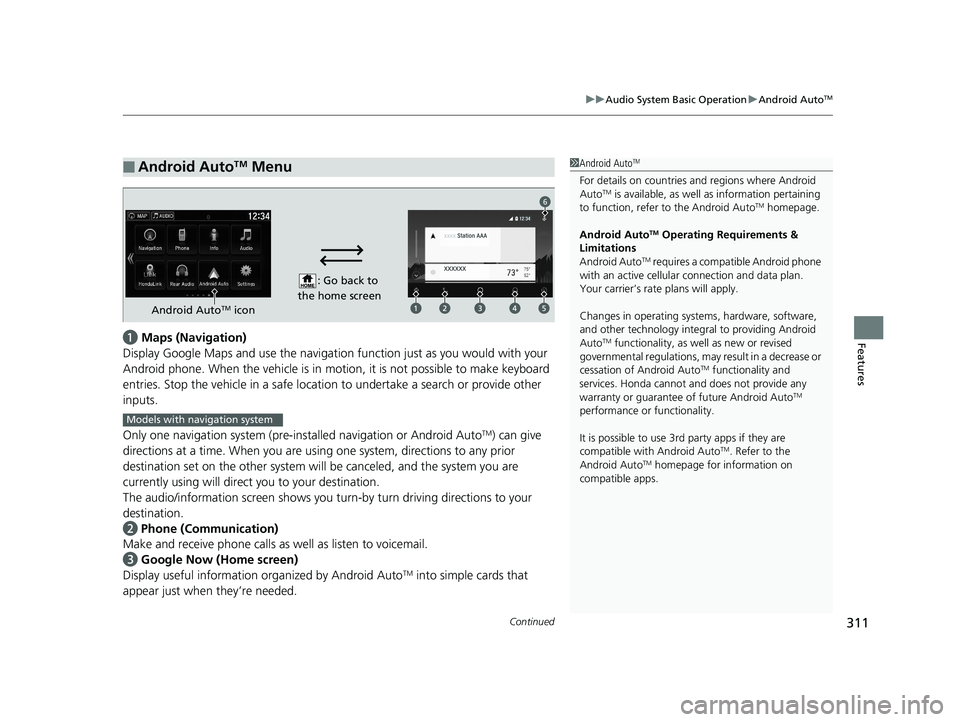
Featuresa Maps (Navigation)
Display Google Maps and use the navigation function just as you would with your
Android phone. When the vehicle is in motion, it is not possible to make keyboard
entries. Stop the vehicle in a safe locati on to undertake a search or provide other
inputs.
Only one navigation system (pre-installed navigation or Android Auto
TM) can give
directions at a time. When you are using one system, directions to any prior
destination set on the other system will be canceled, and the system you are
currently using will direct you to your destination.
The audio/information screen shows you turn-by turn driving directions to your
destination.
b Phone (Communication)
Make and receive phone calls as well as listen to voicemail.
c Google Now (Home screen)
Display useful information organized by Android Auto
TM into simple cards that
appear just when they’re needed.
■Android AutoTM Menu1 Android AutoTM
For details on c ountries and regions where Android
AutoTM is available, as well as information pertaining
to function, refer to the Android AutoTM homepage.
Android Auto
TM Operating Requirements &
Limitations
Android Auto
TM requires a compatib le Android phone
with an active cellular connection and data plan.
Your carrier’s rate plans will apply.
Changes in operating system s, hardware, software,
and other technology integral to providing Android
Auto
TM functionality, as we ll as new or revised
governmental regulations, may result in a decrease or
cessation of Android Auto
TM functionality and
services. Honda cannot a nd does not provide any
warranty or guarantee of future Android Auto
TM
performance or functionality.
It is possible to use 3r d party apps if they are
compatible with Android Auto
TM. Refer to the
Android AutoTM homepage for information on
compatible apps.
: Go back to
the home screen
Android AutoTM icon
6
Models with navigation system
18 PILOT-31TG76200.book 311 ページ 2018年3月30日 金曜日 午前11時51分
Page 328 of 695
326
uuGeneral Information on the Audio System uHonda App License Agreement
Features
5. Unauthorized Use and Abuse. You are responsible for ensuring your (and any authorized third parties’) use of the SOFTWARE and
SERVICES remains in compliance with this AGREEMENT and all other applicable HONDA TERMS and PROVIDER TERMS. You acknowledge
and agree that any use of the SOFTWARE or SERVICES occurring th rough your VEHICLE will be deemed your actions and that HONDA an d
PROVIDERS may rely upon such ac tions. You agree to immediately notify us if you suspect fraudulent or abusive activity involvin g the
SOFTWARE or SERVICES. If you so notify us or if we otherwise suspect fraudulent or abusive activity, you agree to cooperate with us in any
fraud investigation and to use any fraud prevention measures we pres cribe. Your failure to immediately notify us or cooperate to use such
measures will result in your liability for all fraudulent us age or abusive activity associated with your VEHICLE.
6. SOFTWARE Updates.
The SOFTWARE and SERVICES may be updated when your VEHICLE is serviced by a DEALER or remotely, over-the-
air, by HONDA from time to time; such update s may occur with or without further notice or your future consent. The SOFTWARE may be
updated at HONDA’s discretion and for any pu rpose including, without limitation, to patch or otherwise improve the SOFTWARE or
SERVICES functionality, se curity, or stability. All updates to the SOFTWARE and SERVICES are su bject to this AGREEMENT and any other
applicable HONDA TERMS and PROVIDER TERMS.
7. Uninstalling, Removing, an d Replacing the SOFTWARE.
Replacing SOFTWARE or HONDA SERVICES with software or firmware not
provided and installed by HONDA or a DEALER will render all representation s and warranties for the SOFTWARE, HONDA SERVICES, an d
VEHICLE functionality reliant upon the SOFTWARE or HONDA SERVICES null and void.
D. SOFTWARE Operationa l Notices and Warnings
1. Vehicle Geolocation Information.
You acknowledge that your VEHICLE may be equi pped with certain traffic and map features. The
traffic feature will automatically collect an d transmit, through GPS technology, your Ve hicle’s current location (longitude and latitude),
travel direction and speed (“VEHICLE GEOLOCATION INFORMAT ION”) to HONDA and PROVIDERS. The VEHICLE GEOLOCATION
INFORMATION is used by HONDA and PROVIDERS to provide traffic and navigation-related information to you, but may also be used to
provide other SERVICES or offers to you. HONDA will not use such VEHICLE GEOLOCATION INFORMATION for its own marketing efforts,
or provide such information to unaffiliated third parties for their own purposes, without your express consent.
18 PILOT-31TG76200.book 326 ページ 2018年3月30日 金曜日 午前11時51分