audio off HONDA PILOT 2022 Repair Manual
[x] Cancel search | Manufacturer: HONDA, Model Year: 2022, Model line: PILOT, Model: HONDA PILOT 2022Pages: 737, PDF Size: 28.84 MB
Page 389 of 737
387
uuBlu-ray/DVD Rear Entertainment System*uFront Control Panel Operation
Continued
Features
Front Control Panel Operation
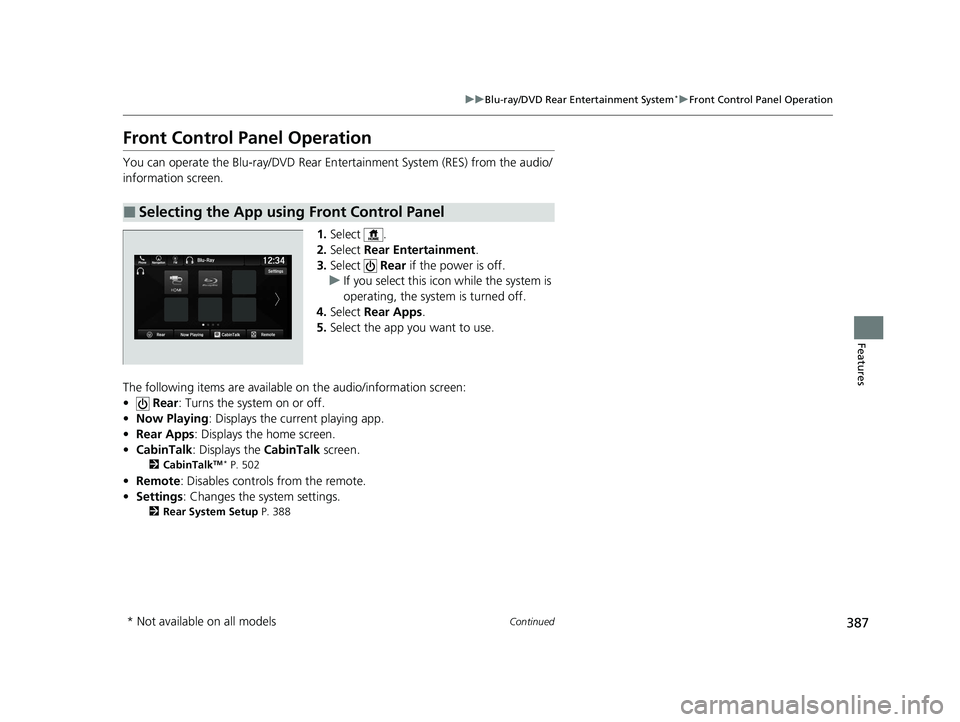
You can operate the Blu-ray/DVD Rear En tertainment System (RES) from the audio/
information screen.
1.Select .
2. Select Rear Entertainment .
3. Select Rear if the power is off.
u If you select this ic on while the system is
operating, the system is turned off.
4. Select Rear Apps .
5. Select the app you want to use.
The following items are available on the audio/information screen:
• Rear : Turns the system on or off.
• Now Playing : Displays the current playing app.
• Rear Apps : Displays the home screen.
• CabinTalk : Displays the CabinTalk screen.
2CabinTalkTM * P. 502
•Remote: Disables controls from the remote.
• Settings : Changes the system settings.
2Rear System Setup P. 388
■Selecting the App using Front Control Panel
* Not available on all models
22 PILOT-31TG76600.book 387 ページ 2021年6月11日 金曜日 午後4時40分
Page 391 of 737
389
uuBlu-ray/DVD Rear Entertainment System*uFront Control Panel Operation
Features
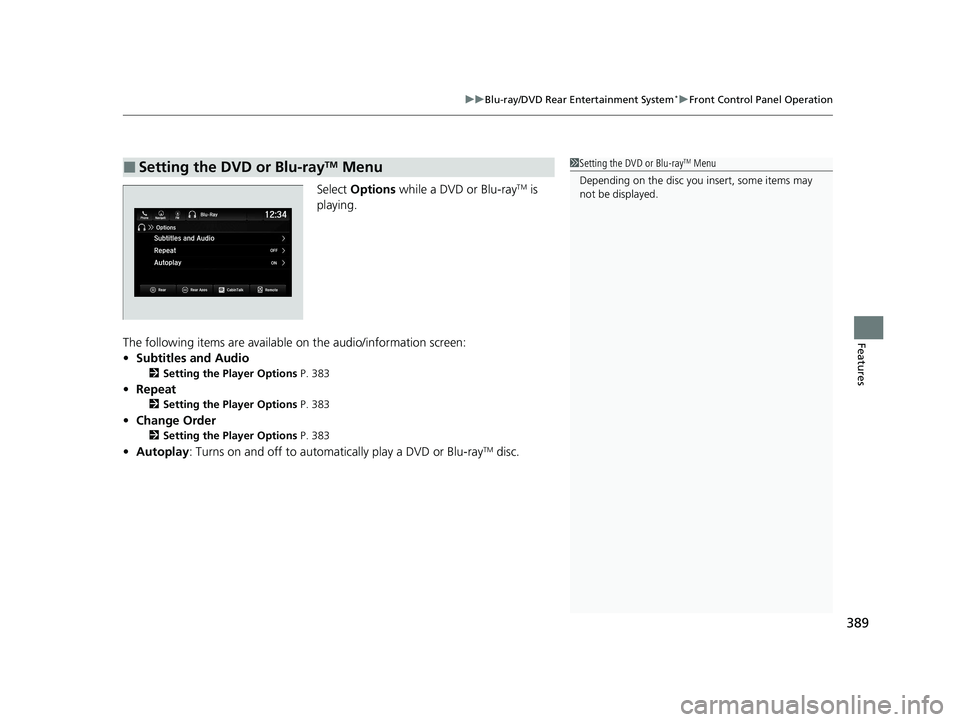
Select Options while a DVD or Blu-rayTM is
playing.
The following items are available on the audio/information screen:
• Subtitles and Audio
2 Setting the Player Options P. 383
•Repeat
2 Setting the Player Options P. 383
•Change Order
2 Setting the Player Options P. 383
•Autoplay: Turns on and off to automati cally play a DVD or Blu-rayTM disc.
■Setting the DVD or Blu-rayTM Menu1Setting the DVD or Blu-rayTM Menu
Depending on the disc you insert, some items may
not be displayed.
22 PILOT-31TG76600.book 389 ページ 2021年6月11日 金曜日 午後4時40分
Page 393 of 737
391
uuBlu-ray/DVD Rear Entertainment System*uPlaying Apps
Continued
Features
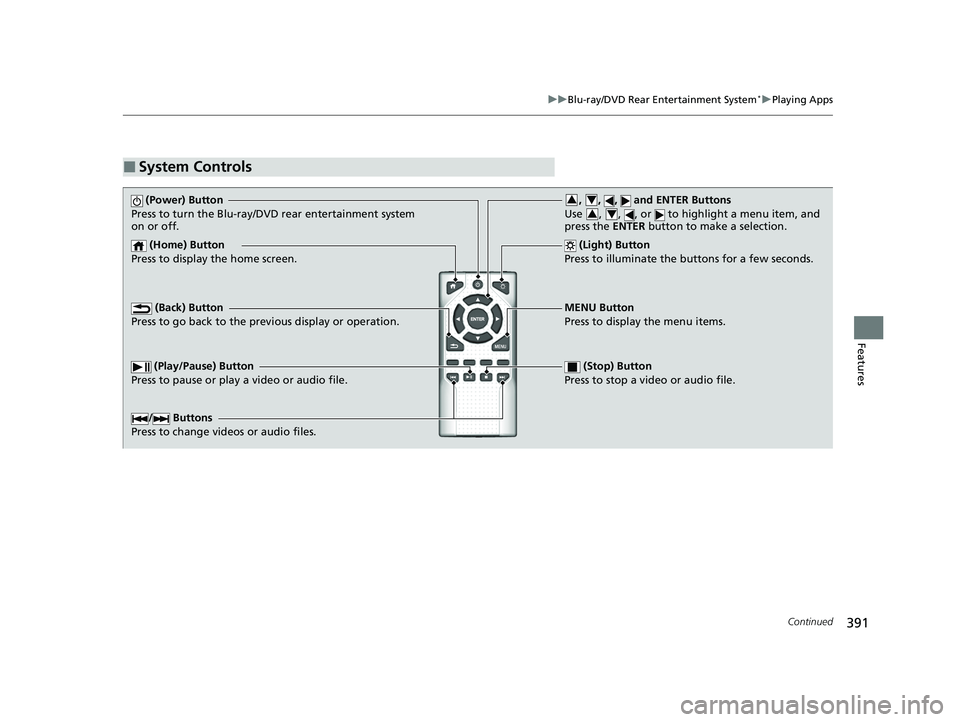
■System Controls
(Power) Button
Press to turn the Blu-ray/DVD rear entertainment system
on or off.
(Home) Button
Press to display the home screen. (Light) Button
Press to illuminate the buttons for a few seconds.
/ Buttons
Press to change videos or audio files.
(Play/Pause) Button
Press to pause or play a video or audio file. (Stop) Button
Press to stop a video or audio file.
MENU Button
Press to display the menu items.
(Back) Button
Press to go back to the pr evious display or operation.
, , , and ENTER Buttons
Use , , , or to highlight a menu item, and
press the ENTER button to make a selection.34
34
22 PILOT-31TG76600.book 391 ページ 2021年6月11日 金曜日 午後4時40分
Page 422 of 737
420
uuBlu-ray/DVD Rear Entertainment System*uDVD or Blu-rayTM Player Error Messages
Features
DVD or Blu-rayTM Player Error Messages
If a disc error occurs, you may see the following error messages.
Error Message in Audio/
Information ScreenError Message in Overhead ScreenCauseSolution
Problem ejecting disc from the
player. Contact Honda dealer to
fix this problem.Problem ejecting disc from the
player.
Contact Honda dealer to fix this
problem.
Disc stuck in player•Contact a dealer and the
player needs to be replaced.
There is a problem with the
player. Eject and re-insert the
disc. If this does not work, try
another disc. If the error
continues, contact Honda
dealer.
There seems to be a problems
playing this disc. Try inserting
the disc into th e Blu-ray player
again.
Focus error
Unsupported disc error
Mechanical error
Servo error
DRM file access
Error file access
Device error• Press the button and
remove the disc, and check
that the error message is
cleared.
• Check that the disc is not
damaged or deformed, and
insert the disc again.
2 Protecting CDs P. 351
The system has overheated. Try
to reduce the temperature by
tuning the audio system off
and allowing the player to cool
down.The Blu-ray player is too hot
right now.
Give it some time to cool off
and try again later.
High temperature
•Turn the audio system off and
allow the player to cool down
until the error message is
cleared.
Playback stopped. The content
being played is protected by
Cinavia and is not authorized
for playback on this device.
Playback stopped. The content
being played is protected by
Cinavia
TM and is not authorized
for playback on this device.
For more information, see
http://www.cin avia.com.
Message Code 1.
Cinavia 1 error
• Current track/file will be
skipped. The next supported
track/file plays automatically.
22 PILOT-31TG76600.book 420 ページ 2021年6月11日 金曜日 午後4時40分
Page 428 of 737
426
uuCustomized Features u
Features
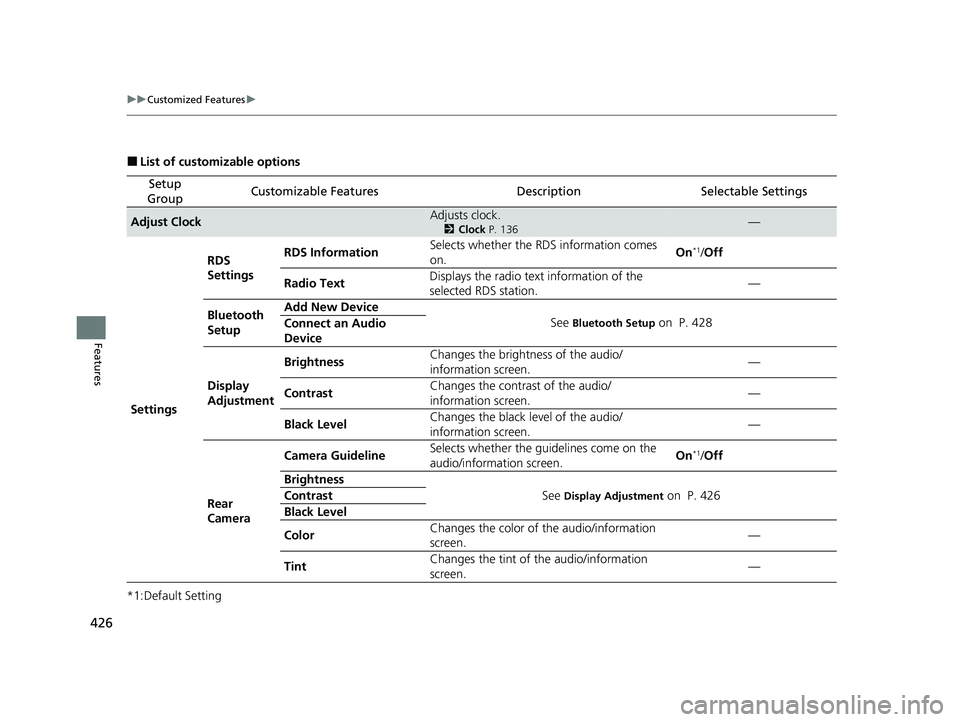
■List of customizable options
*1:Default Setting
Setup
GroupCustomizable FeaturesDescriptionSelectable Settings
Adjust ClockAdjusts clock.
2 Clock P. 136—
Settings RDS
Settings
RDS Information
Selects whether the RDS information comes
on. On
*1/
Off
Radio Text Displays the radio text information of the
selected RDS station. —
Bluetooth
Setup Add New Device
See
Bluetooth Setup on P. 428
Connect an Audio
Device
Display
Adjustment Brightness
Changes the brightness of the audio/
information screen. —
Contrast Changes the contrast of the audio/
information screen. —
Black Level Changes the black level of the audio/
information screen.
—
Rear
Camera Camera Guideline
Selects whether the guidelines come on the
audio/information screen. On
*1/
Off
Brightness See
Display Adjustment on P. 426
Contrast
Black Level
Color Changes the color of the audio/information
screen. —
Tint Changes the tint of
the audio/information
screen. —
22 PILOT-31TG76600.book 426 ページ 2021年6月11日 金曜日 午後4時40分
Page 447 of 737
445
uuCustomized Features u
Continued
Features
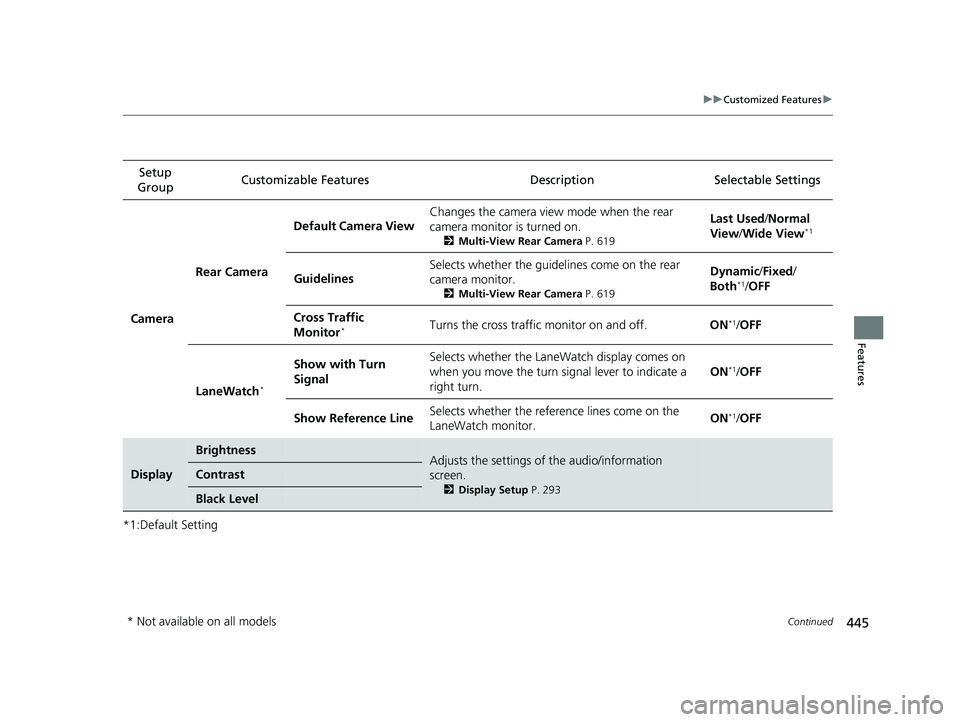
*1:Default SettingSetup
Group Customizable Features Desc
ription Selectable Settings
Camera Rear Camera
Default Camera View
Changes the camera view mode when the rear
camera monitor is turned on.
2
Multi-View Rear Camera P. 619
Last Used/Normal
View/ Wide View*1
Guidelines Selects whether the guidelines come on the rear
camera monitor.
2
Multi-View Rear Camera P. 619
Dynamic/Fixed /
Both*1/ OFF
Cross Traffic
Monitor
*Turns the cross traffic monitor on and off. ON*1/OFF
LaneWatch
*
Show with Turn
Signal Selects whether the LaneWatch display comes on
when you move the turn signal lever to indicate a
right turn.
ON*1/
OFF
Show Reference Line Selects whether the reference lines come on the
LaneWatch monitor. ON
*1/
OFF
Display
BrightnessAdjusts the settings of the audio/information
screen.
2 Display Setup P. 293
Contrast
Black Level
* Not available on all models
22 PILOT-31TG76600.book 445 ページ 2021年6月11日 金曜日 午後4時40分
Page 493 of 737
Continued491
uuBluetooth ® HandsFreeLink ®u HFL Menus
Features
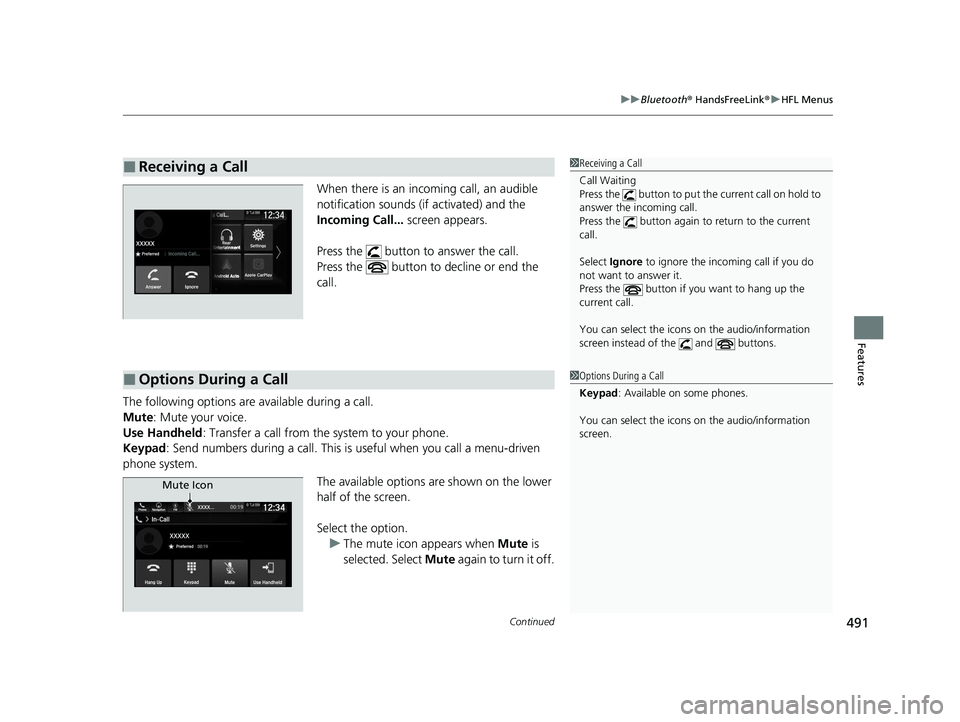
When there is an inco ming call, an audible
notification sounds (if activated) and the
Incoming Call... screen appears.
Press the button to answer the call.
Press the button to decline or end the
call.
The following options ar e available during a call.
Mute: Mute your voice.
Use Handheld : Transfer a call from the system to your phone.
Keypad : Send numbers during a call. This is useful when you call a menu-driven
phone system.
The available options are shown on the lower
half of the screen.
Select the option.u The mute icon appears when Mute is
selected. Select Mute again to turn it off.
■Receiving a Call1Receiving a Call
Call Waiting
Press the button to put th e current call on hold to
answer the incoming call.
Press the button again to return to the current
call.
Select Ignore to ignore the incoming call if you do
not want to answer it.
Press the button if you want to hang up the
current call.
You can select the icons on the audio/information
screen instead of the and buttons.
■Options During a Call1 Options During a Call
Keypad : Available on some phones.
You can select the icons on the audio/information
screen.
Mute Icon
22 PILOT-31TG76600.book 491 ページ 2021年6月11日 金曜日 午後4時40分
Page 534 of 737
uuWhen Driving uShifting
532
Driving
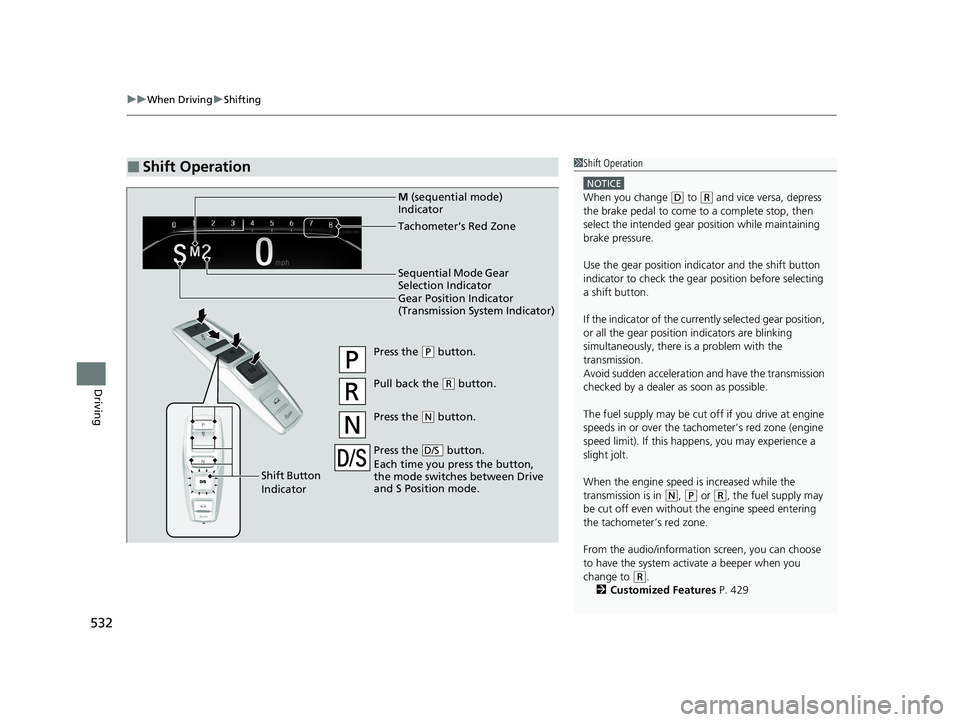
■Shift Operation1Shift Operation
NOTICE
When you change (D to (R and vice versa, depress
the brake pedal to come to a complete stop, then
select the intended gear position while maintaining
brake pressure.
Use the gear position indicator and the shift button
indicator to check the gear position before selecting
a shift button.
If the indicator of the currently selected gear position,
or all the gear position indicators are blinking
simultaneously, there is a problem with the
transmission.
Avoid sudden acceleration and have the transmission
checked by a dealer as soon as possible.
The fuel supply may be cut of f if you drive at engine
speeds in or over the tac hometer’s red zone (engine
speed limit). If this happe ns, you may experience a
slight jolt.
When the engine speed is increased while the
transmission is in
( N, (P or (R, the fuel supply may
be cut off even without the engine speed entering
the tachometer’s red zone.
From the audio/information screen, you can choose
to have the system activate a beeper when you
change to
( R.
2 Customized Features P. 429
Gear Position Indicator
(Transmission System Indicator) Tachometer’s Red Zone
Press the (P button.
Pull back the (R button.
Press the
( N button.
Press the button.
Each time you press the button,
the mode switches between Drive
and S Position mode.
D/S
Shift Button
Indicator M
(sequential mode)
Indicator
Sequential Mode Gear
Selection Indicator
22 PILOT-31TG76600.book 532 ページ 2021年6月11日 金曜日 午後4時40分
Page 552 of 737
uuWhen Driving uBlind spot information System*
550
Driving
■When the system detects a vehicle
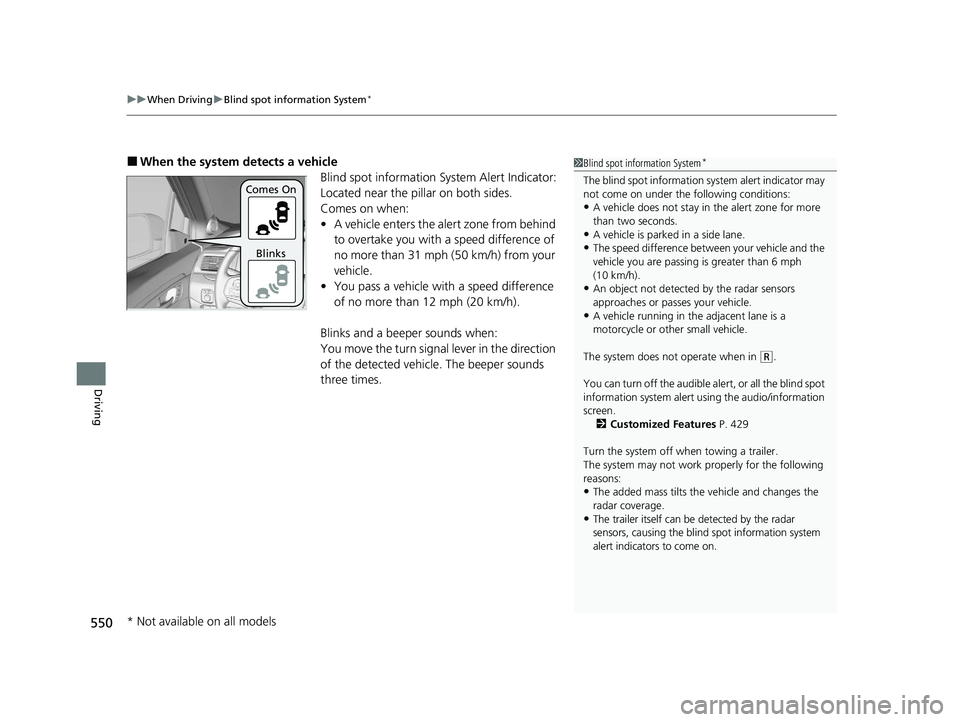
Blind spot information System Alert Indicator:
Located near the pillar on both sides.
Comes on when:
•A vehicle enters the alert zone from behind
to overtake you with a speed difference of
no more than 31 mph (50 km/h) from your
vehicle.
• You pass a vehicle with a speed difference
of no more than 12 mph (20 km/h).
Blinks and a beep er sounds when:
You move the turn signal lever in the direction
of the detected vehicle. The beeper sounds
three times.1 Blind spot information System*
The blind spot information system alert indicator may
not come on under the following conditions:
•A vehicle does not stay in the alert zone for more
than two seconds.
•A vehicle is parked in a side lane.
•The speed difference betw een your vehicle and the
vehicle you are passing is greater than 6 mph
(10 km/h).
•An object not detected by the radar sensors
approaches or passes your vehicle.
•A vehicle running in the adjacent lane is a
motorcycle or other small vehicle.
The system does not operate when in
( R.
You can turn off the audible al ert, or all the blind spot
information system alert using the audio/information
screen.
2 Customized Features P. 429
Turn the system off when towing a trailer.
The system may not work properly for the following
reasons:
•The added mass tilts the vehicle and changes the
radar coverage.
•The trailer itself can be detected by the radar
sensors, causing the blind spot information system
alert indicators to come on.
Comes On
Blinks
* Not available on all models
22 PILOT-31TG76600.book 550 ページ 2021年6月11日 金曜日 午後4時40分
Page 600 of 737
uuHonda Sensing ®u Road Departure Mitigation (RDM) System
598
Driving
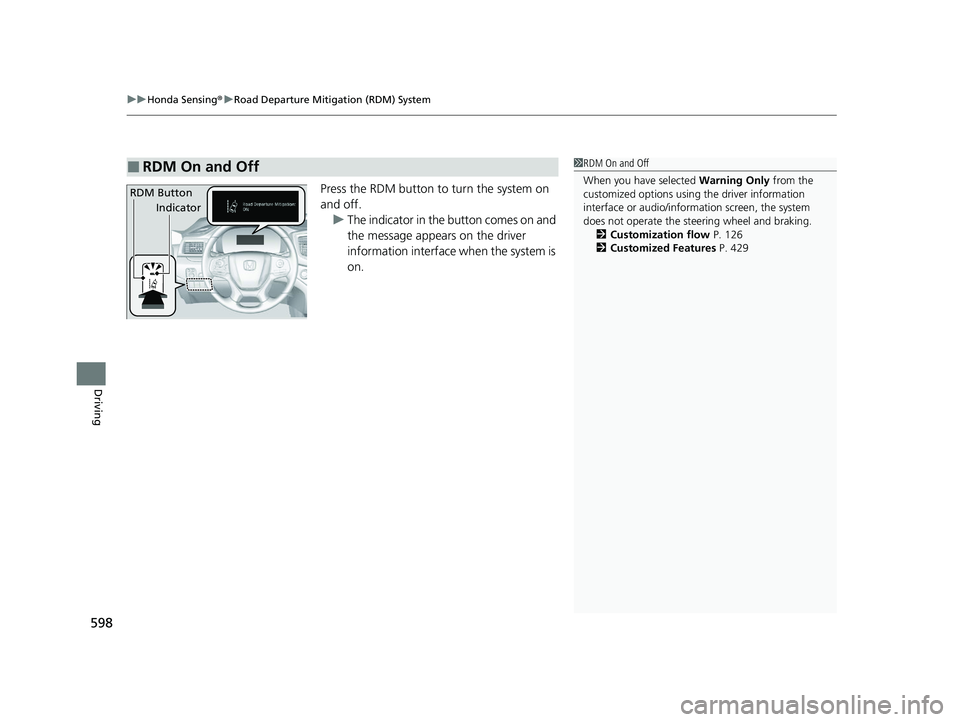
Press the RDM button to turn the system on
and off.
u The indicator in the button comes on and
the message appears on the driver
information interface when the system is
on.
■RDM On and Off1RDM On and Off
When you have selected Warning Only from the
customized options using the driver information
interface or audio/information screen, the system
does not operate the steering wheel and braking. 2 Customization flow P. 126
2 Customized Features P. 429
RDM Button
Indicator
22 PILOT-31TG76600.book 598 ページ 2021年6月11日 金曜日 午後4時40分