ac system HONDA RIDGELINE 2017 2.G Owners Manual
[x] Cancel search | Manufacturer: HONDA, Model Year: 2017, Model line: RIDGELINE, Model: HONDA RIDGELINE 2017 2.GPages: 606, PDF Size: 13.21 MB
Page 344 of 606
Continued343
uuBluetooth ® HandsFreeLink ®u HFL Menus
Features
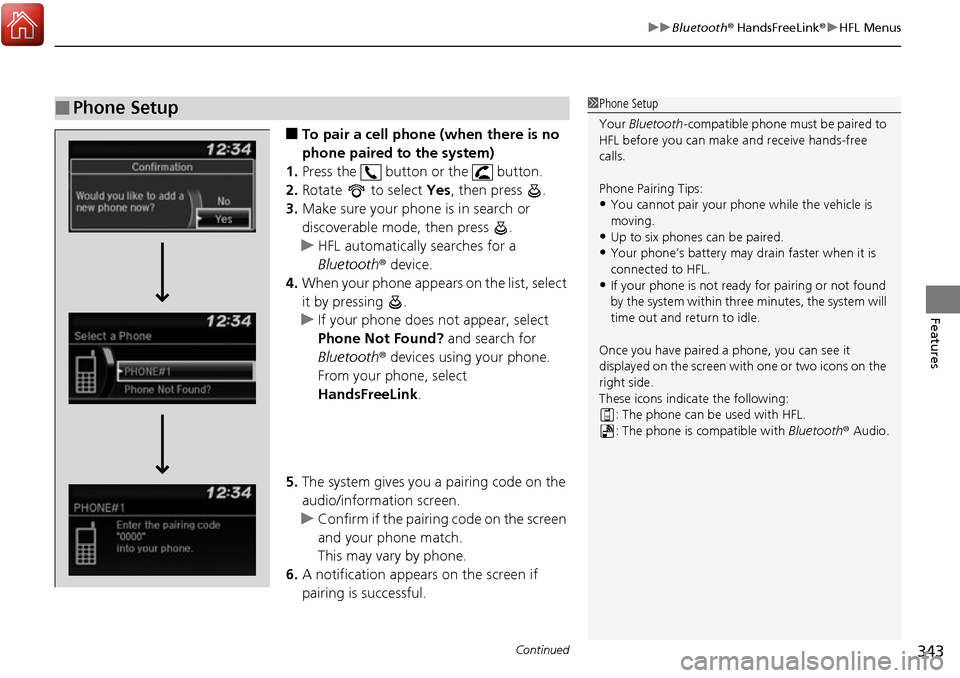
■To pair a cell phone (when there is no
phone paired to the system)
1. Press the button or the button.
2. Rotate to select Yes, then press .
3. Make sure your phone is in search or
discoverable mode, then press .
u HFL automatically searches for a
Bluetooth ® device.
4. When your phone appears on the list, select
it by pressing .
u If your phone does not appear, select
Phone Not Found? and search for
Bluetooth ® devices using your phone.
From your phone, select
HandsFreeLink .
5. The system gives you a pairing code on the
audio/information screen.
u Confirm if the pairing code on the screen
and your phone match.
This may vary by phone.
6. A notification appears on the screen if
pairing is successful.
■Phone Setup1Phone Setup
Your Bluetooth -compatible phone must be paired to
HFL before you can make and receive hands-free
calls.
Phone Pairing Tips:
•You cannot pair your phone while the vehicle is
moving.
•Up to six phones can be paired.
•Your phone’s battery may dr ain faster when it is
connected to HFL.
•If your phone is not ready for pairing or not found
by the system within three minutes, the system will
time out and return to idle.
Once you have paired a phone, you can see it
displayed on the screen with one or two icons on the
right side.
These icons indicate the following: : The phone can be used with HFL.
: The phone is compatible with Bluetooth ® Audio.
Page 345 of 606
344
uuBluetooth ® HandsFreeLink ®u HFL Menus
Features
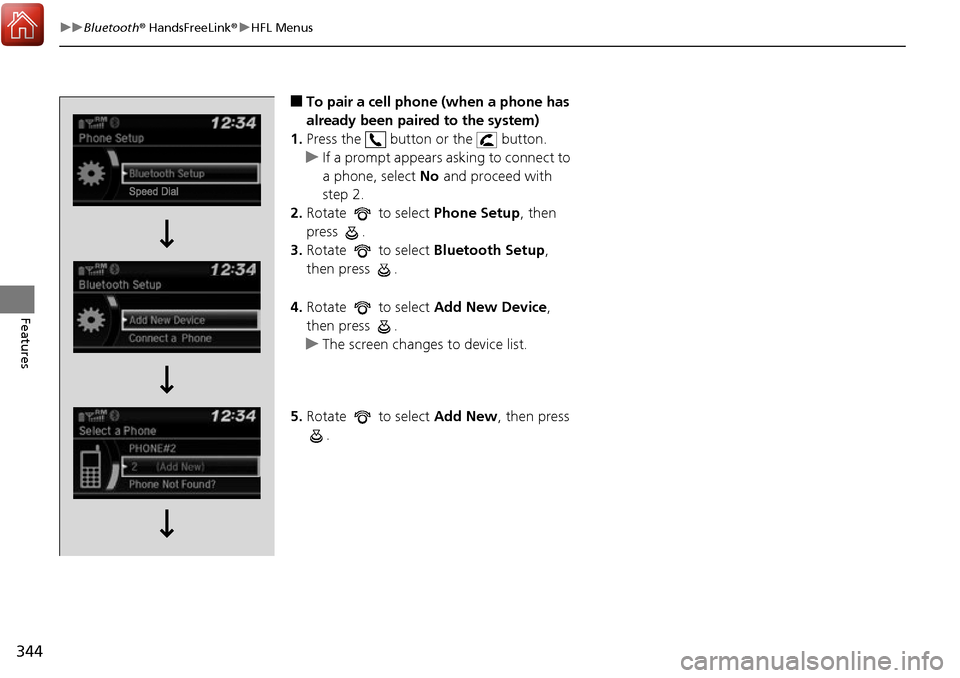
■To pair a cell phone (when a phone has
already been paired to the system)
1. Press the button or the button.
u If a prompt appears asking to connect to
a phone, select No and proceed with
step 2.
2. Rotate to select Phone Setup, then
press .
3. Rotate to select Bluetooth Setup,
then press .
4. Rotate to select Add New Device,
then press .
u The screen changes to device list.
5. Rotate to select Add New, then press
.
Page 346 of 606
345
uuBluetooth ® HandsFreeLink ®u HFL Menus
Continued
Features
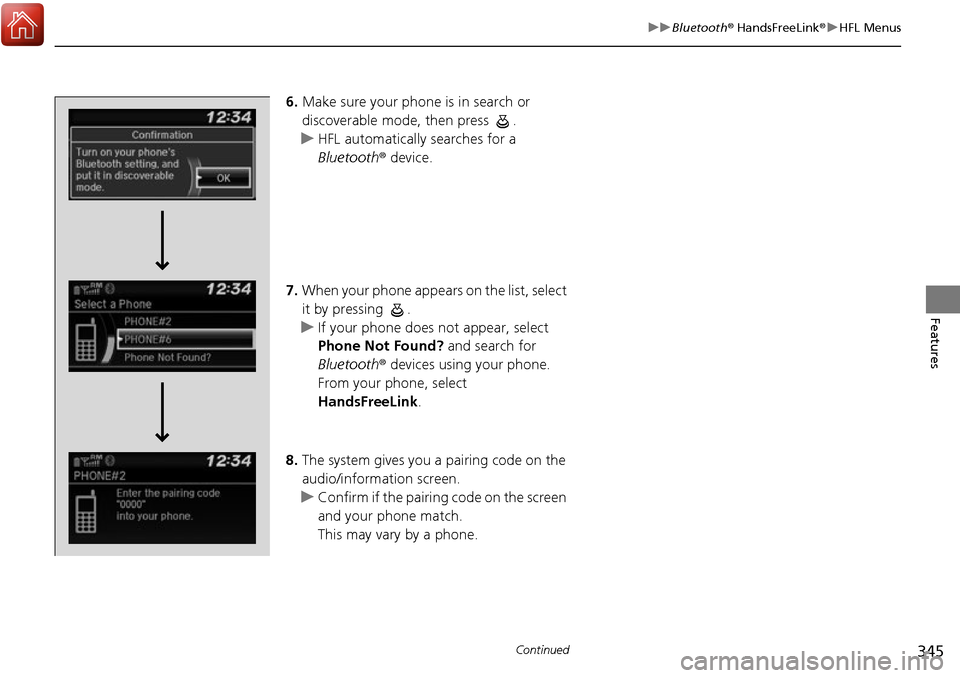
6. Make sure your phone is in search or
discoverable mode, then press .
u HFL automatically searches for a
Bluetooth ® device.
7. When your phone appears on the list, select
it by pressing .
u If your phone does not appear, select
Phone Not Found? and search for
Bluetooth ® devices using your phone.
From your phone, select
HandsFreeLink .
8. The system gives you a pairing code on the
audio/information screen.
u Confirm if the pairing code on the screen
and your phone match.
This may vary by a phone.
Page 351 of 606
350
uuBluetooth ® HandsFreeLink ®u HFL Menus
Features
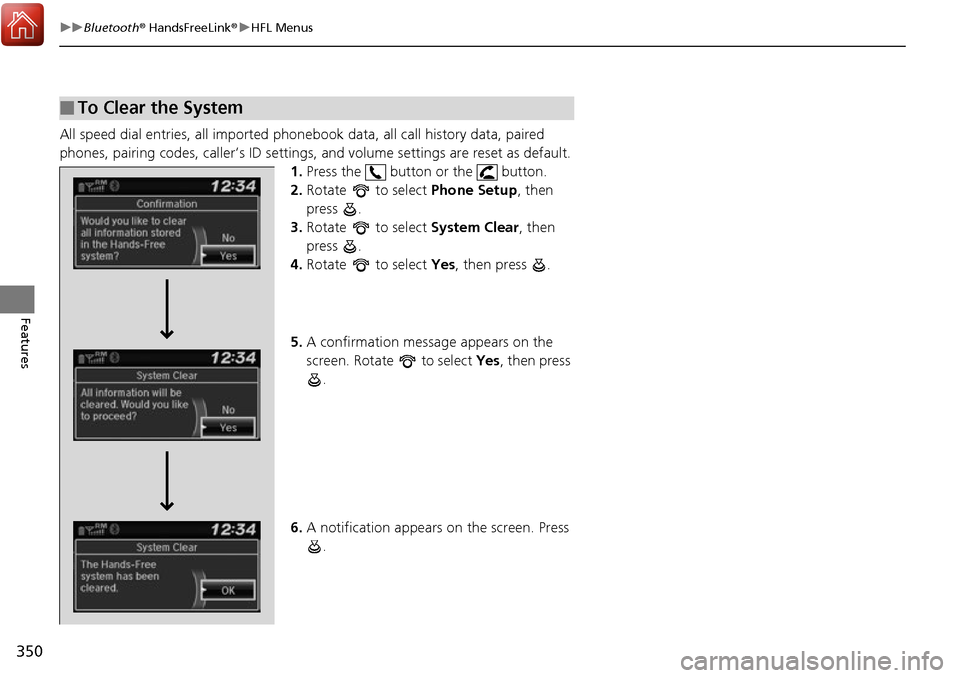
All speed dial entries, all imported phonebook data, all call history data, paired
phones, pairing codes, caller’s ID settings, and volume settings are reset as default.
1. Press the button or the button.
2. Rotate to select Phone Setup, then
press .
3. Rotate to select System Clear, then
press .
4. Rotate to select Yes, then press .
5. A confirmation message appears on the
screen. Rotate to select Yes, then press
.
6. A notification appears on the screen. Press
.
■To Clear the System
Page 359 of 606
uuBluetooth ® HandsFreeLink ®u HFL Menus
358
Features
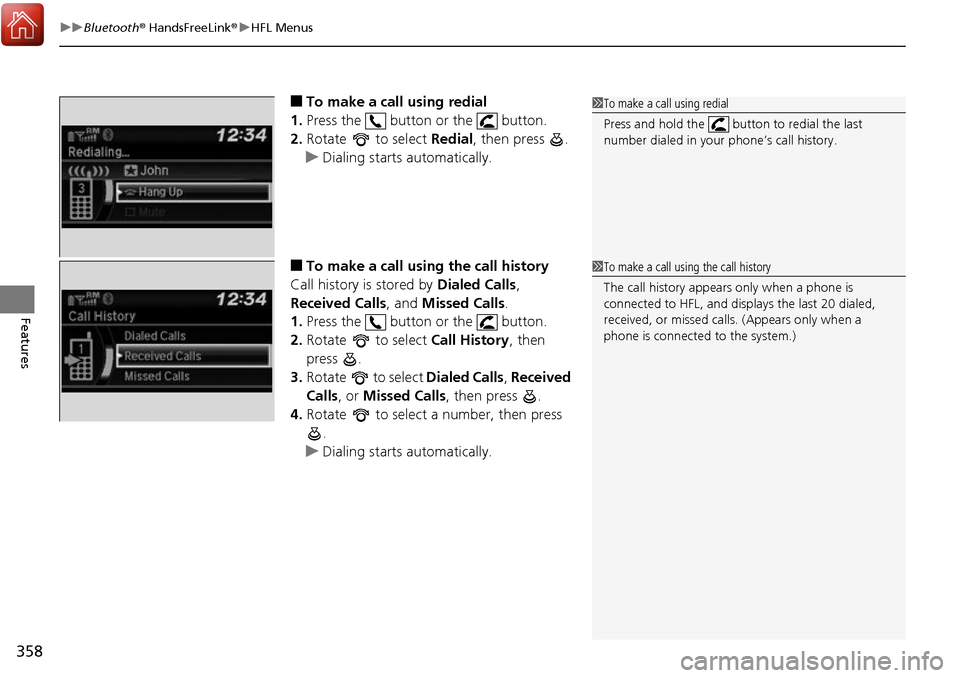
■To make a call using redial
1. Press the button or the button.
2. Rotate to select Redial, then press .
u Dialing starts automatically.
■To make a call using the call history
Call history is stored by Dialed Calls,
Received Calls , and Missed Calls .
1. Press the button or the button.
2. Rotate to select Call History, then
press .
3. Rotate to select Dialed Calls, Received
Calls , or Missed Calls, then press .
4. Rotate to select a number, then press
.
u Dialing starts automatically.
1To make a call using redial
Press and hold the butt on to redial the last
number dialed in your phone’s call history.
1 To make a call using the call history
The call history appear s only when a phone is
connected to HFL, and displays the last 20 dialed,
received, or missed calls. (Appears only when a
phone is connected to the system.)
Page 362 of 606
361
uuBluetooth ® HandsFreeLink ®u HFL Menus
Features
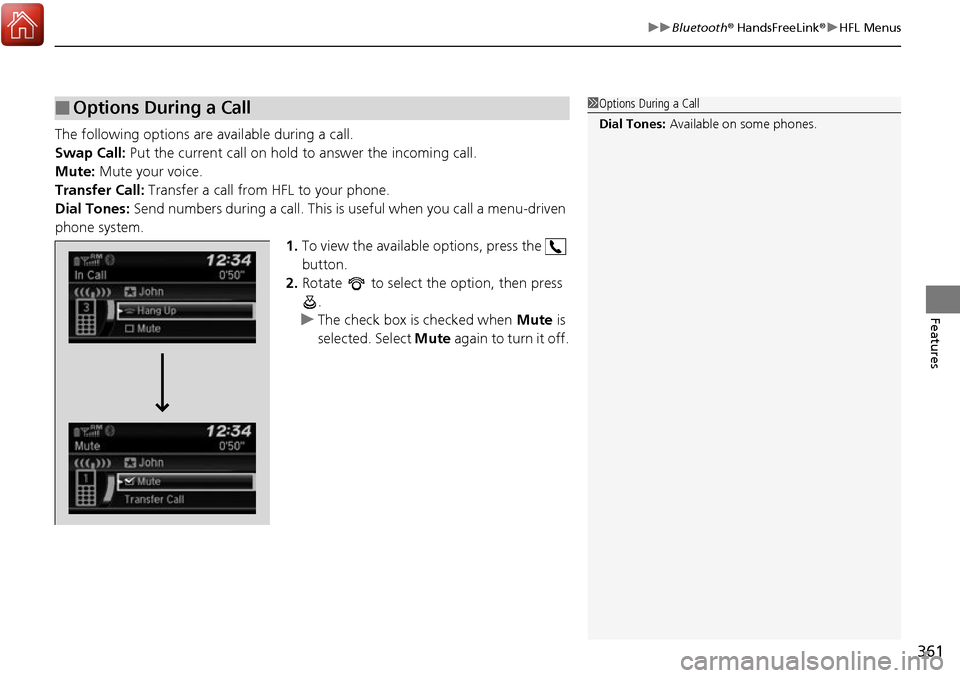
The following options are available during a call.
Swap Call: Put the current call on hold to answer the incoming call.
Mute: Mute your voice.
Transfer Call: Transfer a call from HFL to your phone.
Dial Tones: Send numbers during a call. This is useful when you call a menu-driven
phone system. 1.To view the available options, press the
button.
2. Rotate to select the option, then press
.
u The check box is checked when Mute is
selected. Select Mute again to turn it off.
■Options During a Call1Options During a Call
Dial Tones: Available on some phones.
Page 363 of 606
362
Features
Bluetooth® HandsFreeLink ®
Bluetooth® HandsFreeLink ® (HFL) allows you to place and receive phone calls using
your vehicle’s audio system, without handling your cell phone.
Using HFL
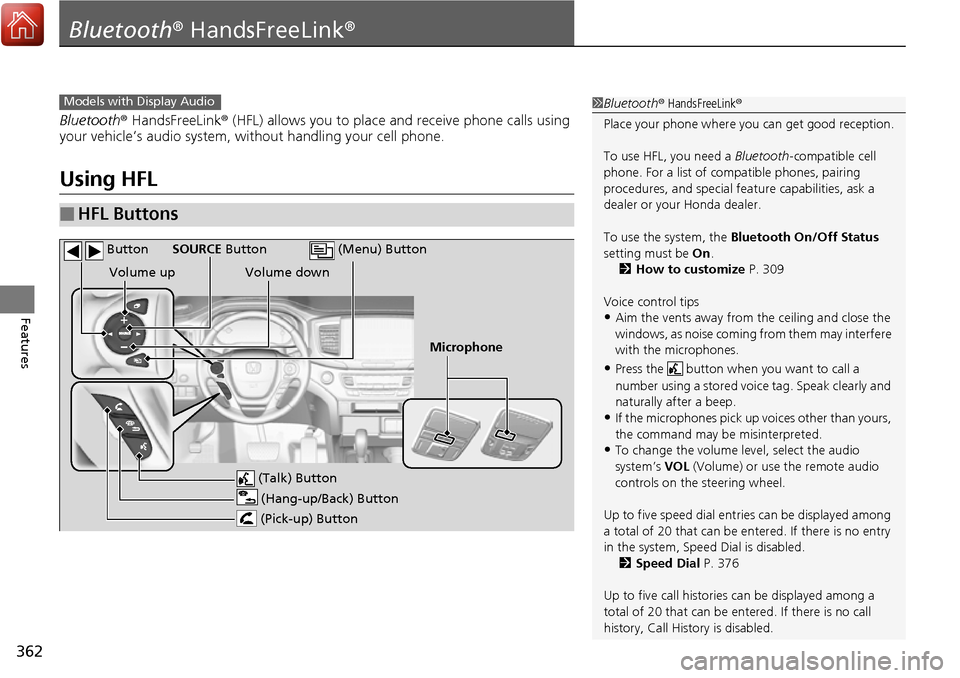
■HFL Buttons
1 Bluetooth ® HandsFreeLink ®
Place your phone where y ou can get good reception.
To use HFL, you need a Bluetooth-compatible cell
phone. For a list of compatible phones, pairing
procedures, and special fe ature capabilities, ask a
dealer or your Honda dealer.
To use the system, the Bluetooth On/Off Status
setting must be On.
2 How to customize P. 309
Voice control tips
•Aim the vents away from the ceiling and close the
windows, as noise coming fr om them may interfere
with the microphones.
•Press the button when you want to call a
number using a stored voic e tag. Speak clearly and
naturally after a beep.
•If the microphones pick up vo ices other than yours,
the command may be misinterpreted.
•To change the volume level, select the audio
system’s VOL (Volume) or use the remote audio
controls on the steering wheel.
Up to five speed dial entries can be displayed among
a total of 20 that can be en tered. If there is no entry
in the system, Speed Dial is disabled.
2 Speed Dial P. 376
Up to five call historie s can be displayed among a
total of 20 that can be entered. If there is no call
history, Call History is disabled.
Models with Display Audio
(Talk) Button
Volume up
Microphone
(Hang-up/Back) Button
(Pick-up) Button
Volume down
SOURCE Button
(Menu) Button
Button
Page 365 of 606
uuBluetooth ® HandsFreeLink ®u Using HFL
364
Features
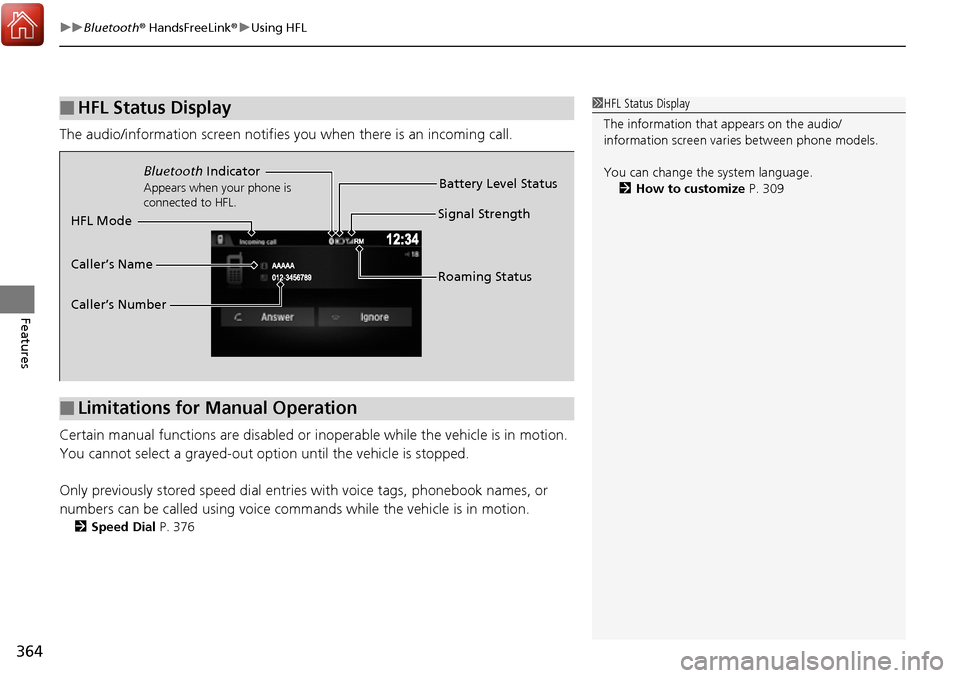
The audio/information screen notifies you when there is an incoming call.
Certain manual functions are disabled or i noperable while the vehicle is in motion.
You cannot select a grayed-out option until the vehicle is stopped.
Only previously stored spee d dial entries with voice tags, phonebook names, or
numbers can be called using voice commands while the vehicle is in motion.
2 Speed Dial P. 376
■HFL Status Display1HFL Status Display
The information that appears on the audio/
information screen vari es between phone models.
You can change the system language. 2 How to customize P. 309
■Limitations for Manual Operation
Bluetooth Indicator
Appears when your phone is
connected to HFL.
Signal Strength
HFL Mode Battery Level Status
Caller’s Name
Caller’s Number Roaming Status
Page 366 of 606
365
uuBluetooth ® HandsFreeLink ®u HFL Menus
Continued
Features
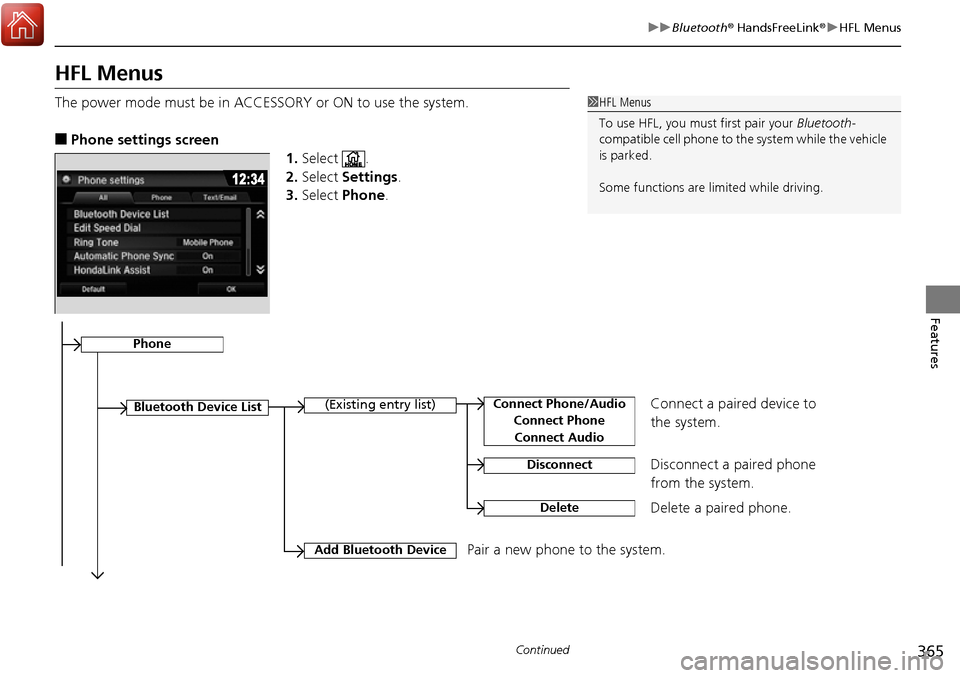
HFL Menus
The power mode must be in ACCESSO RY or ON to use the system.
■Phone settings screen
1.Select .
2. Select Settings .
3. Select Phone .
1HFL Menus
To use HFL, you must first pair your Bluetooth-
compatible cell phone to th e system while the vehicle
is parked.
Some functions are li mited while driving.
Disconnect a paired phone
from the system.
Bluetooth Device List(Existing entry list)
Disconnect
DeleteDelete a paired phone.
Add Bluetooth DevicePair a new phone to the system.
Phone
Connect a paired device to
the system.Connect Phone/Audio
Connect PhoneConnect Audio
Page 370 of 606
369
uuBluetooth ® HandsFreeLink ®u HFL Menus
Continued
Features
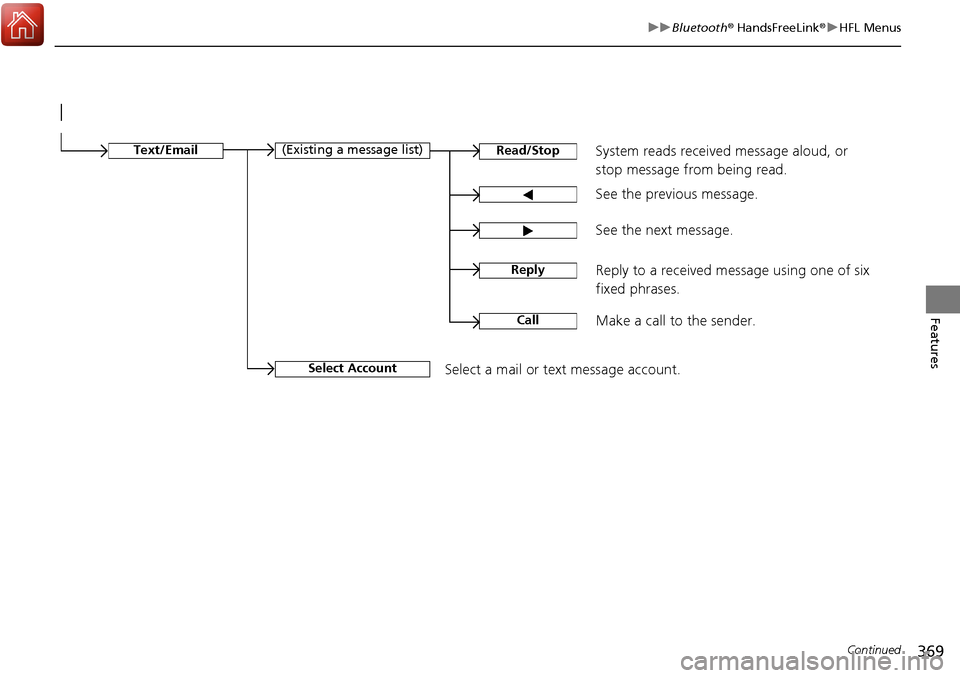
See the previous message.
Text/EmailRead/Stop(Existing a message list)
See the next message. System reads received message aloud, or
stop message from being read.
Select AccountSelect a mail or text message account.
Reply to a received message using one of six
fixed phrases.
CallMake a call to the sender.
Reply