ac system HONDA RIDGELINE 2017 2.G Owners Manual
[x] Cancel search | Manufacturer: HONDA, Model Year: 2017, Model line: RIDGELINE, Model: HONDA RIDGELINE 2017 2.GPages: 606, PDF Size: 13.21 MB
Page 371 of 606
uuBluetooth ® HandsFreeLink ®u HFL Menus
370
Features
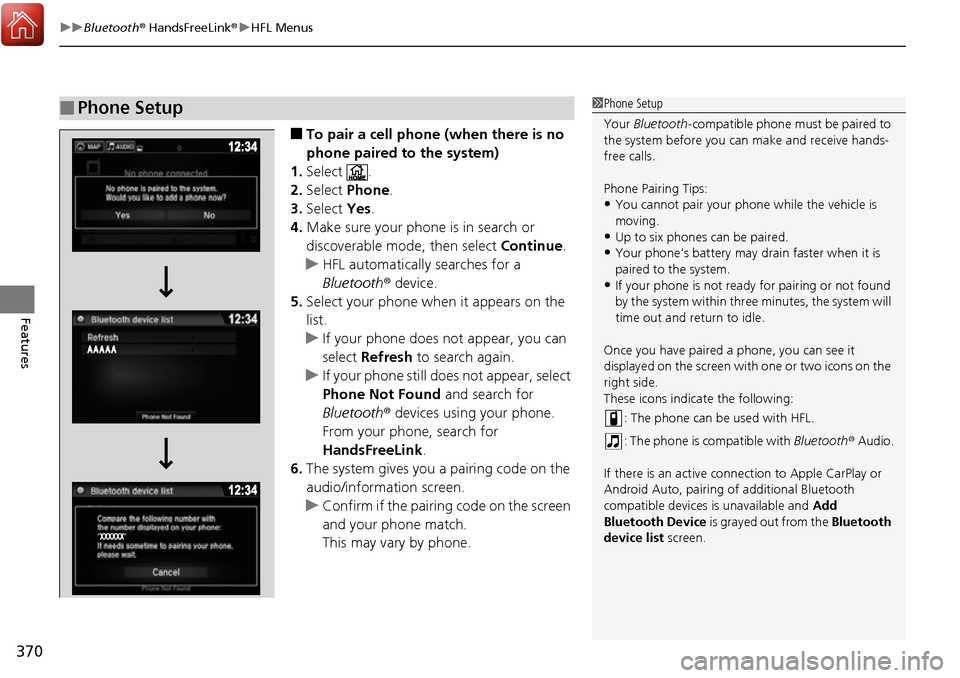
■To pair a cell phone (when there is no
phone paired to the system)
1. Select .
2. Select Phone .
3. Select Yes.
4. Make sure your phone is in search or
discoverable mode, then select Continue.
u HFL automatically searches for a
Bluetooth ® device.
5. Select your phone when it appears on the
list.
u If your phone does not appear, you can
select Refresh to search again.
u If your phone still does not appear, select
Phone Not Found and search for
Bluetooth ® devices using your phone.
From your phone, search for
HandsFreeLink .
6. The system gives you a pairing code on the
audio/information screen.
u Confirm if the pairing code on the screen
and your phone match.
This may vary by phone.
■Phone Setup1Phone Setup
Your Bluetooth -compatible phone must be paired to
the system before you ca n make and receive hands-
free calls.
Phone Pairing Tips:
•You cannot pair your phone while the vehicle is
moving.
•Up to six phones can be paired.
•Your phone’s battery may dr ain faster when it is
paired to the system.
•If your phone is not ready for pairing or not found
by the system within three minutes, the system will
time out and return to idle.
Once you have paired a phone, you can see it
displayed on the screen with one or two icons on the
right side.
These icons indicate the following: : The phone can be used with HFL.
: The phone is compatible with Bluetooth® Audio.
If there is an active connection to Appl e CarPlay or
Android Auto, pairing of additional Bluetooth
compatible devices is unavailable and Add
Bluetooth Device is grayed out from the Bluetooth
device list screen.
Page 374 of 606
Continued373
uuBluetooth ® HandsFreeLink ®u HFL Menus
Features
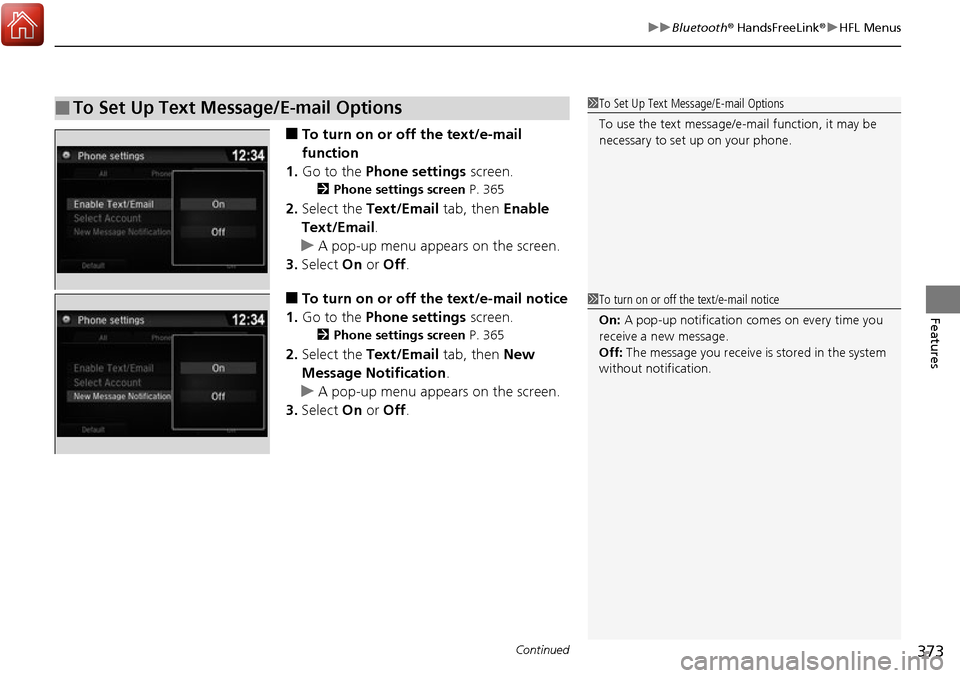
■To turn on or off the text/e-mail
function
1. Go to the Phone settings screen.
2Phone settings screen P. 365
2.Select the Text/Email tab, then Enable
Text/Email .
u A pop-up menu appears on the screen.
3. Select On or Off .
■To turn on or off the text/e-mail notice
1. Go to the Phone settings screen.
2Phone settings screen P. 365
2.Select the Text/Email tab, then New
Message Notification .
u A pop-up menu appears on the screen.
3. Select On or Off .
■To Set Up Text Message/E-mail Options1To Set Up Text Message/E-mail Options
To use the text message/e-mail function, it may be
necessary to set up on your phone.
1To turn on or off the text/e-mail notice
On: A pop-up notification comes on every time you
receive a new message.
Off: The message you receive is stored in the system
without not ification.
Page 376 of 606
Continued375
uuBluetooth ® HandsFreeLink ®u HFL Menus
Features
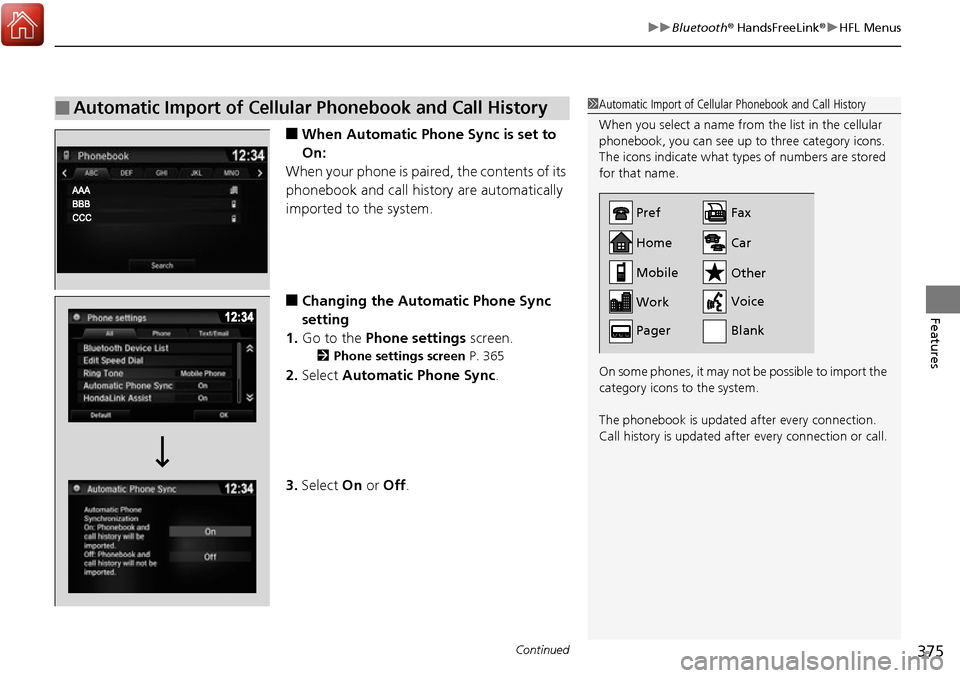
■When Automatic Phone Sync is set to
On:
When your phone is paired, the contents of its
phonebook and call history are automatically
imported to the system.
■Changing the Automatic Phone Sync
setting
1. Go to the Phone settings screen.
2Phone settings screen P. 365
2.Select Automatic Phone Sync .
3. Select On or Off .
■Automatic Import of Cellular Phonebook and Call History1Automatic Import of Cellular Phonebook and Call History
When you select a name from the list in the cellular
phonebook, you can see up to three category icons.
The icons indicate what types of numbers are stored
for that name.
On some phones, it may not be possible to import the
category icons to the system.
The phonebook is updated after every connection.
Call history is updated after every connection or call.
Home
Mobile
Work
PagerFax
Car
Other
Voice
Pref
Blank
Page 378 of 606
Continued377
uuBluetooth ® HandsFreeLink ®u HFL Menus
Features
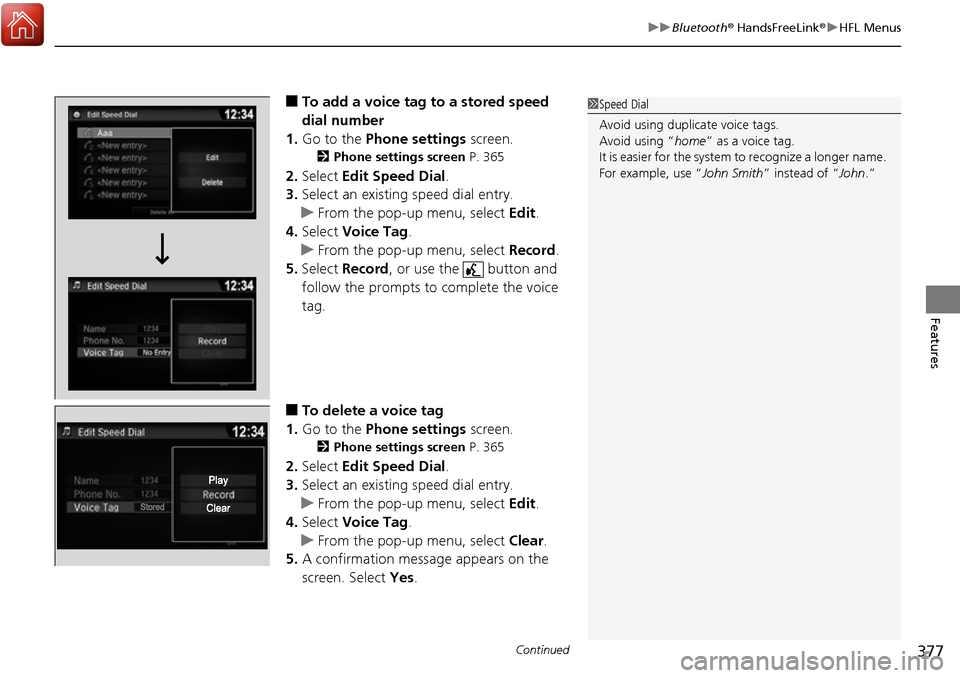
■To add a voice tag to a stored speed
dial number
1. Go to the Phone settings screen.
2Phone settings screen P. 365
2.Select Edit Speed Dial .
3. Select an existing speed dial entry.
u From the pop-up menu, select Edit.
4. Select Voice Tag .
u From the pop-up menu, select Record.
5. Select Record , or use the button and
follow the prompts to complete the voice
tag.
■To delete a voice tag
1. Go to the Phone settings screen.
2Phone settings screen P. 365
2.Select Edit Speed Dial .
3. Select an existing speed dial entry.
u From the pop-up menu, select Edit.
4. Select Voice Tag .
u From the pop-up menu, select Clear.
5. A confirmation message appears on the
screen. Select Yes.
1Speed Dial
Avoid using duplicate voice tags.
Avoid using “home ” as a voice tag.
It is easier for the system to recognize a longer name.
For example, use “John Smith ” instead of “John.”
Page 380 of 606
Continued379
uuBluetooth ® HandsFreeLink ®u HFL Menus
Features
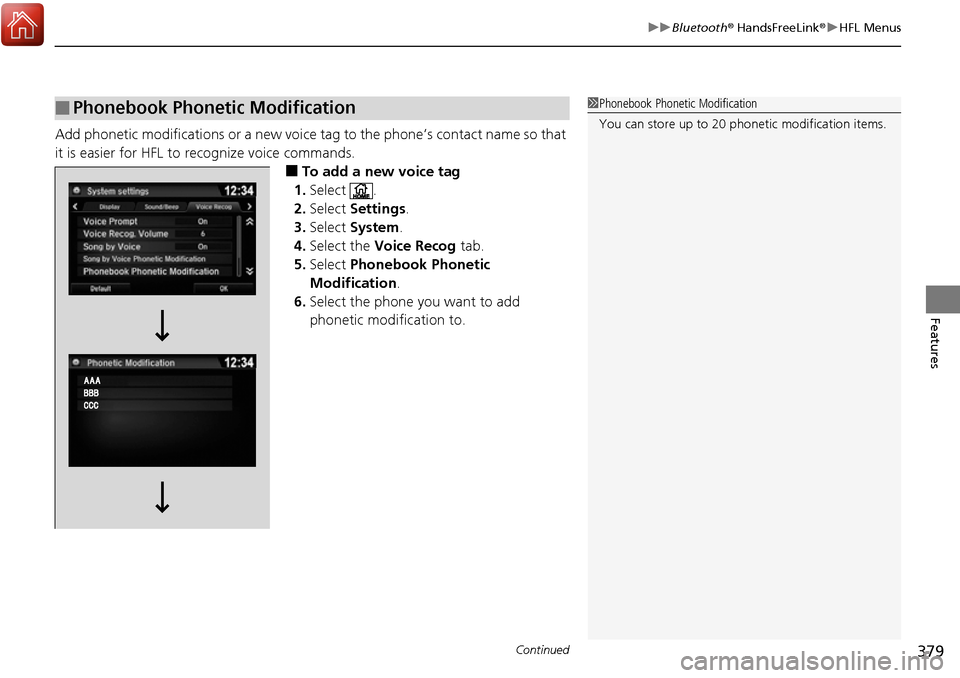
Add phonetic modifications or a new voice tag to the phone’s contact name so that
it is easier for HFL to recognize voice commands.
■To add a new voice tag
1. Select .
2. Select Settings .
3. Select System .
4. Select the Voice Recog tab.
5. Select Phonebook Phonetic
Modification .
6. Select the phone you want to add
phonetic modification to.
■Phonebook Phonetic Modification1Phonebook Phonetic Modification
You can store up to 20 phone tic modification items.
Page 382 of 606
Continued381
uuBluetooth ® HandsFreeLink ®u HFL Menus
Features
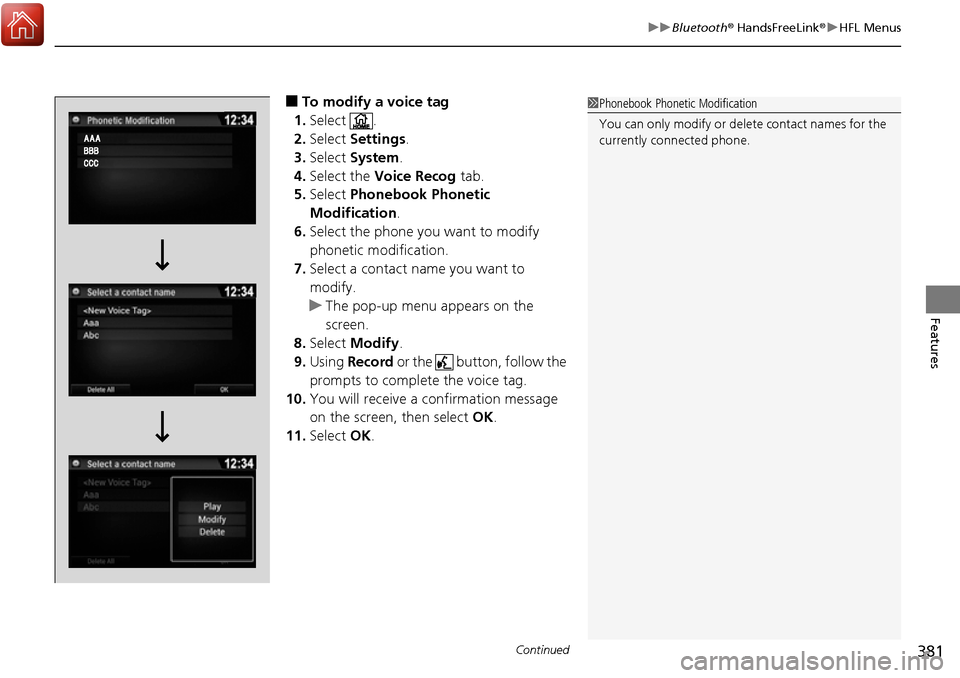
■To modify a voice tag
1. Select .
2. Select Settings .
3. Select System .
4. Select the Voice Recog tab.
5. Select Phonebook Phonetic
Modification .
6. Select the phone you want to modify
phonetic modification.
7. Select a contact name you want to
modify.
u The pop-up menu appears on the
screen.
8. Select Modify .
9. Using Record or the button, follow the
prompts to complete the voice tag.
10. You will receive a c onfirmation message
on the screen, then select OK.
11. Select OK.1Phonebook Phonetic Modification
You can only modify or de lete contact names for the
currently connected phone.
Page 383 of 606
382
uuBluetooth ® HandsFreeLink ®u HFL Menus
Features
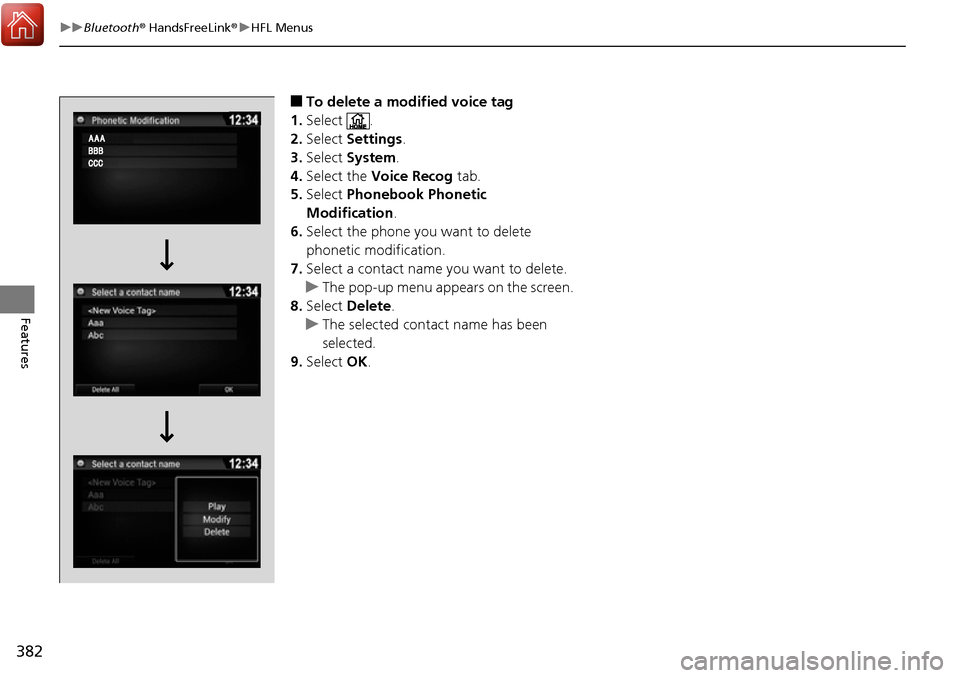
■To delete a modified voice tag
1. Select .
2. Select Settings .
3. Select System .
4. Select the Voice Recog tab.
5. Select Phonebook Phonetic
Modification .
6. Select the phone you want to delete
phonetic modification.
7. Select a contact name you want to delete.
u The pop-up menu appears on the screen.
8. Select Delete.
u The selected contact name has been
selected.
9. Select OK.
Page 384 of 606
Continued383
uuBluetooth ® HandsFreeLink ®u HFL Menus
Features
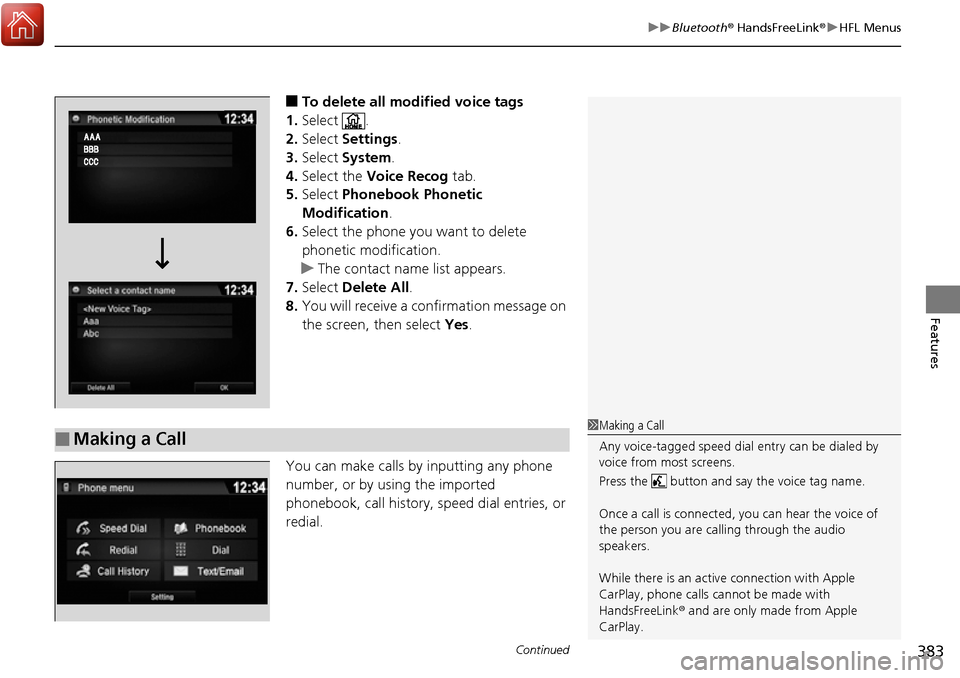
■To delete all modified voice tags
1. Select .
2. Select Settings .
3. Select System.
4. Select the Voice Recog tab.
5. Select Phonebook Phonetic
Modification .
6. Select the phone you want to delete
phonetic modification.
u The contact name list appears.
7. Select Delete All.
8. You will receive a confirmation message on
the screen, then select Yes.
You can make calls by inputting any phone
number, or by using the imported
phonebook, call history, speed dial entries, or
redial.
■Making a Call1 Making a Call
Any voice-tagged speed dial entry can be dialed by
voice from most screens.
Press the button and say the voice tag name.
Once a call is connected, you can hear the voice of
the person you are call ing through the audio
speakers.
While there is an active connection with Apple
CarPlay, phone calls ca nnot be made with
HandsFreeLink ® and are only made from Apple
CarPlay.
Page 386 of 606
Continued385
uuBluetooth ® HandsFreeLink ®u HFL Menus
Features
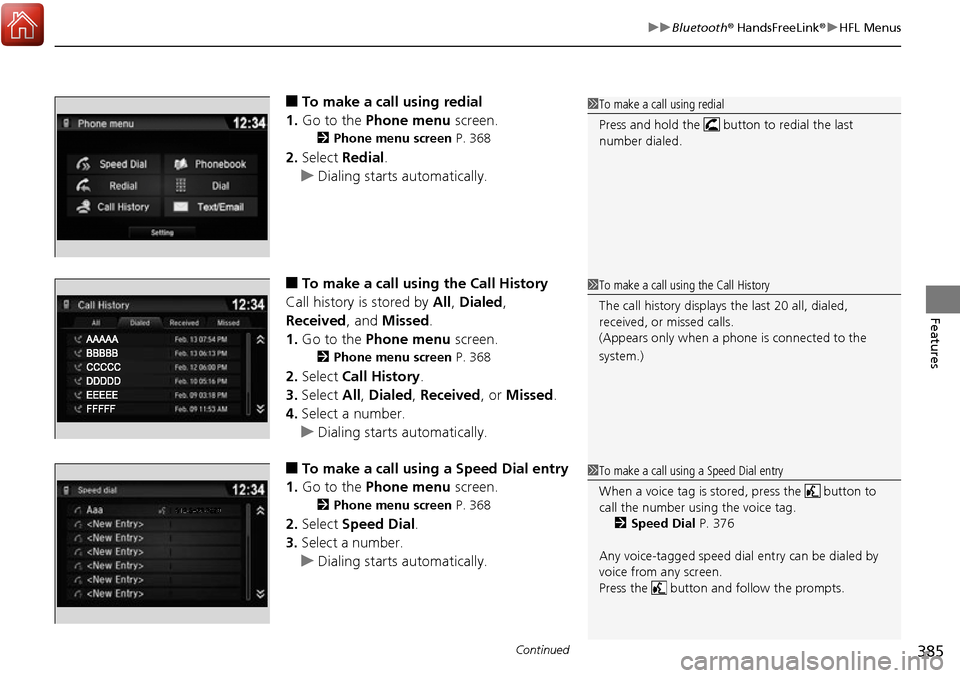
■To make a call using redial
1. Go to the Phone menu screen.
2Phone menu screen P. 368
2.Select Redial .
u Dialing starts automatically.
■To make a call using the Call History
Call history is stored by All, Dialed ,
Received , and Missed .
1. Go to the Phone menu screen.
2Phone menu screen P. 368
2.Select Call History .
3. Select All, Dialed , Received , or Missed .
4. Select a number.
u Dialing starts automatically.
■To make a call usin g a Speed Dial entry
1. Go to the Phone menu screen.
2Phone menu screen P. 368
2.Select Speed Dial .
3. Select a number.
u Dialing starts automatically.
1To make a call using redial
Press and hold the butt on to redial the last
number dialed.
1 To make a call using the Call History
The call history displays the last 20 all, dialed,
received, or missed calls.
(Appears only when a phone is connected to the
system.)
1 To make a call using a Speed Dial entry
When a voice tag is stored, press the button to
call the number using the voice tag.
2 Speed Dial P. 376
Any voice-tagged speed dial entry can be dialed by
voice from any screen.
Press the button and follow the prompts.
Page 387 of 606
uuBluetooth ® HandsFreeLink ®u HFL Menus
386
Features
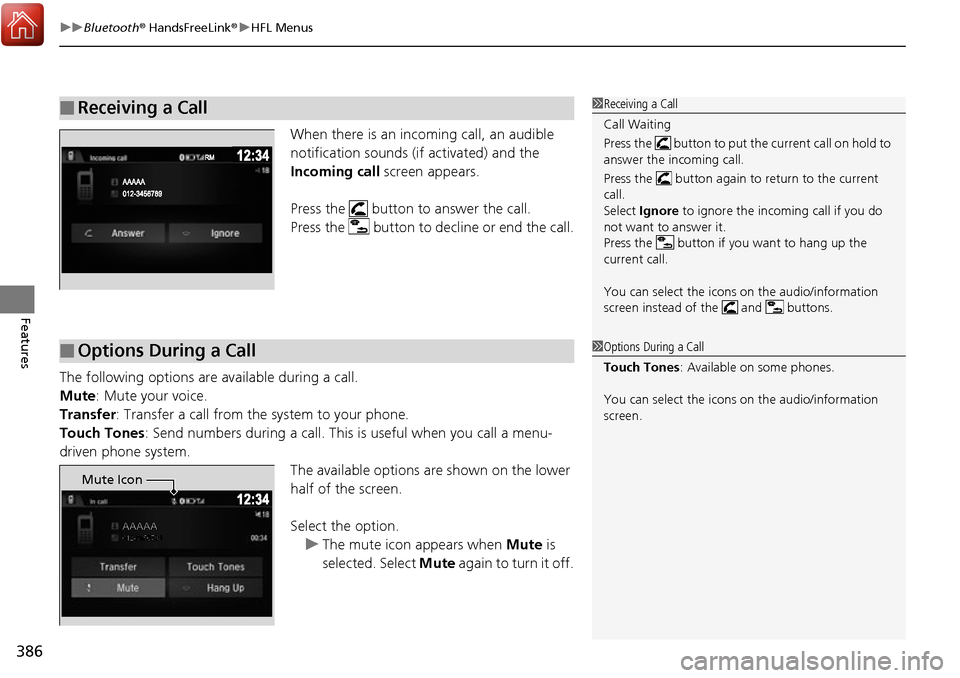
When there is an incoming call, an audible
notification sounds (i f activated) and the
Incoming call screen appears.
Press the button to answer the call.
Press the button to decline or end the call.
The following options are available during a call.
Mute: Mute your voice.
Transfer : Transfer a call from the system to your phone.
Touch Tones: Send numbers during a call. This is useful when you call a menu-
driven phone system. The available options are shown on the lower
half of the screen.
Select the option.
u The mute icon appears when Mute is
selected. Select Mute again to turn it off.
■Receiving a Call1Receiving a Call
Call Waiting
Press the button to put the current call on hold to
answer the incoming call.
Press the button again to return to the current
call.
Select Ignore to ignore the incoming call if you do
not want to answer it.
Press the button if you want to hang up the
current call.
You can select the icons on the audio/information
screen instead of the and buttons.
■Options During a Call1 Options During a Call
Touch Tones : Available on some phones.
You can select the icons on the audio/information
screen.
Mute Icon