light HONDA RIDGELINE 2023 Workshop Manual
[x] Cancel search | Manufacturer: HONDA, Model Year: 2023, Model line: RIDGELINE, Model: HONDA RIDGELINE 2023Pages: 598, PDF Size: 12.34 MB
Page 185 of 598
Continued183
uuInterior/Exterior Convenience Items uOther Interior Convenience Items
Controls
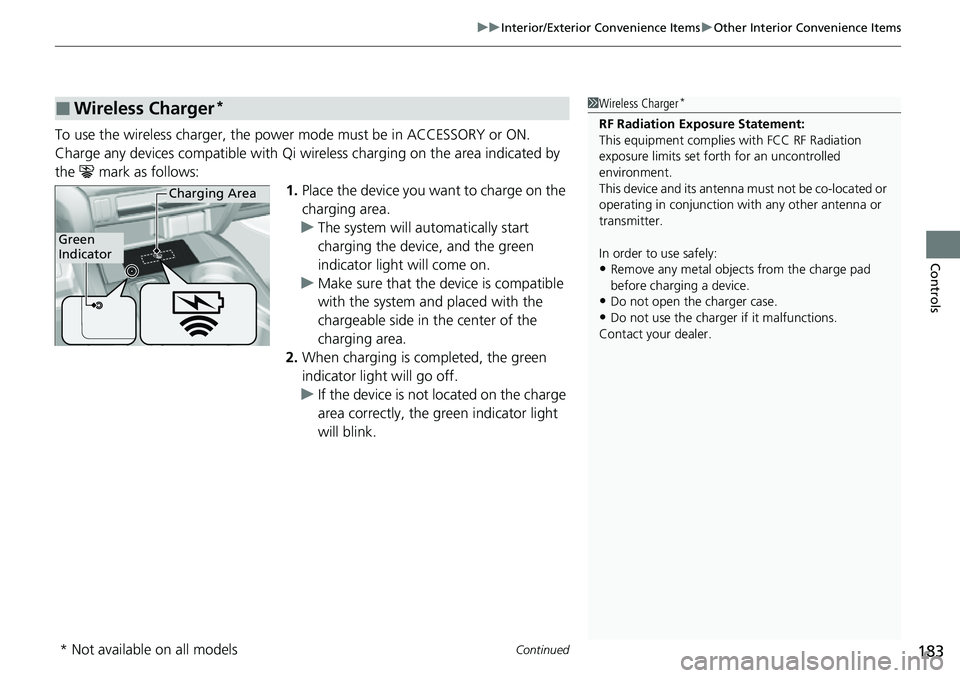
To use the wireless charger, the power mode must be in ACCESSORY or ON.
Charge any devices compatible with Qi wi reless charging on the area indicated by
the mark as follows: 1.Place the device you want to charge on the
charging area.
u The system will au tomatically start
charging the device, and the green
indicator light will come on.
u Make sure that the device is compatible
with the system and placed with the
chargeable side in the center of the
charging area.
2. When charging is completed, the green
indicator light will go off.
u If the device is not located on the charge
area correctly, the green indicator light
will blink.
■Wireless Charger*1Wireless Charger*
RF Radiation Exposure Statement:
This equipment complies with FCC RF Radiation
exposure limits set forth for an uncontrolled
environment.
This device and its antenna must not be co-located or
operating in conjunction with any other antenna or
transmitter.
In order to use safely:
•Remove any metal objects from the charge pad
before charging a device.
•Do not open the charger case.
•Do not use the charger if it malfunctions.
Contact your dealer.
Green
Indicator
Charging Area
* Not available on all models
Page 193 of 598
191
uuInterior/Exterior Convenience Items uIn-Bed Convenience Items
Continued
Controls
In-Bed Convenience Items
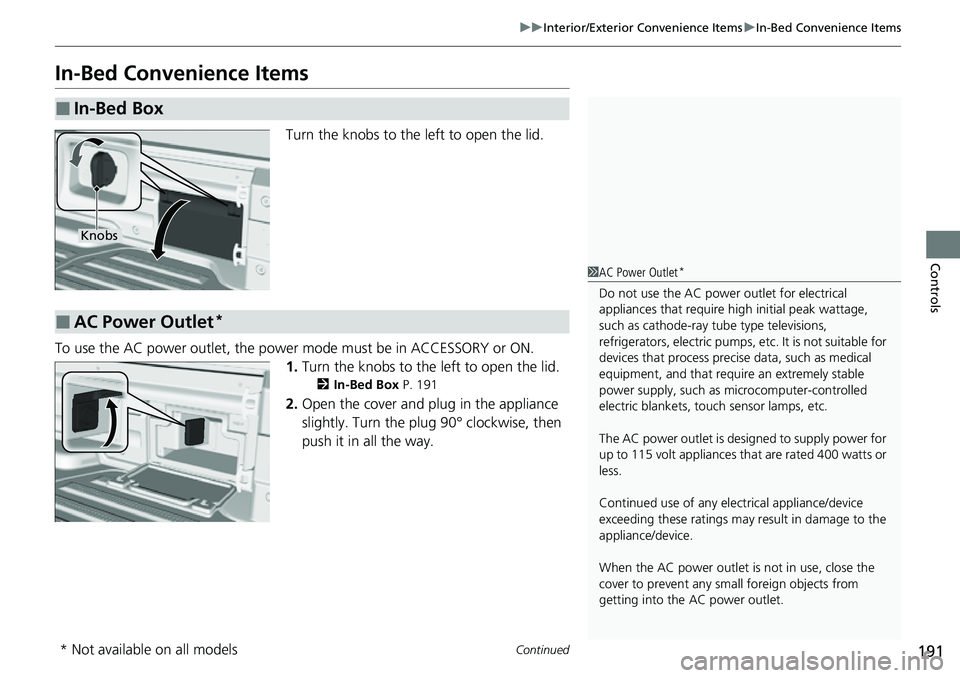
Turn the knobs to the left to open the lid.
To use the AC power outlet, the power mode must be in ACCESSORY or ON. 1.Turn the knobs to the left to open the lid.
2 In-Bed Box P. 191
2.Open the cover and plug in the appliance
slightly. Turn the plug 90° clockwise, then
push it in all the way.
■In-Bed Box
Knobs
■AC Power Outlet*
1AC Power Outlet*
Do not use the AC power outlet for electrical
appliances that require high initial peak wattage,
such as cathode-ray tube type televisions,
refrigerators, electric pumps, etc. It is not suitable for
devices that process precis e data, such as medical
equipment, and that require an extremely stable
power supply, such as microcomputer-controlled
electric blankets, touc h sensor lamps, etc.
The AC power outlet is desi gned to supply power for
up to 115 volt appliances that are rated 400 watts or
less.
Continued use of any elec trical appliance/device
exceeding these ratings may result in damage to the
appliance/device.
When the AC power outlet is not in use, close the
cover to prevent any small foreign objects from
getting into the AC power outlet.
* Not available on all models
Page 194 of 598
uuInterior/Exterior Convenience Items uIn-Bed Convenience Items
192
Controls
■ON and OFF
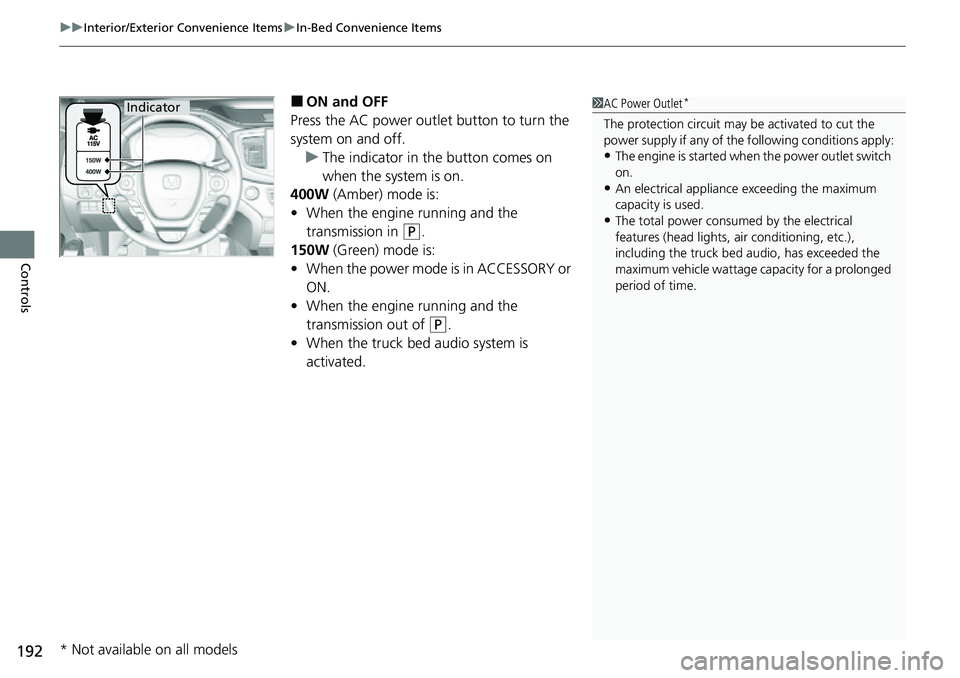
Press the AC power outlet button to turn the
system on and off. u The indicator in the button comes on
when the system is on.
400W (Amber) mode is:
• When the engine running and the
transmission in
(P.
150W (Green) mode is:
• When the power mode is in ACCESSORY or
ON.
• When the engine running and the
transmission out of
(P.
• When the truck bed audio system is
activated.
1AC Power Outlet*
The protection circuit may be activated to cut the
power supply if any of th e following conditions apply:
•The engine is started when the power outlet switch
on.
•An electrical appliance exceeding the maximum
capacity is used.
•The total power consumed by the electrical
features (head lights, air conditioning, etc.),
including the truck bed a udio, has exceeded the
maximum vehicle wattage ca pacity for a prolonged
period of time.
Indicator
* Not available on all models
Page 195 of 598
Continued193
uuInterior/Exterior Convenience Items uIn-Bed Convenience Items
Controls
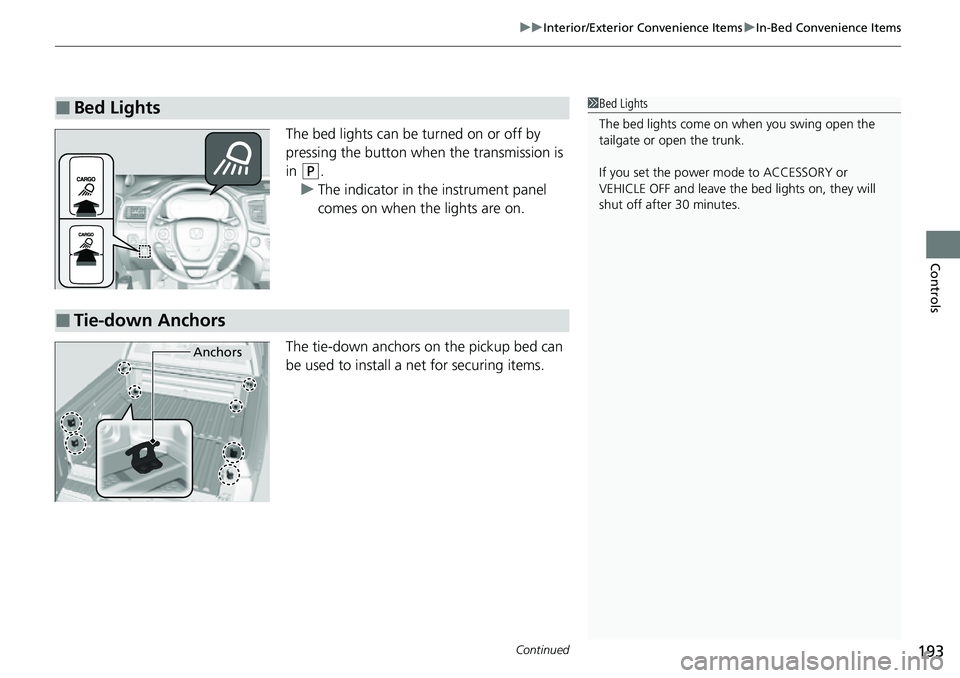
The bed lights can be turned on or off by
pressing the button when the transmission is
in
(P.
u The indicator in the instrument panel
comes on when the lights are on.
The tie-down anchors on the pickup bed can
be used to install a net for securing items.
■Bed Lights1Bed Lights
The bed lights come on when you swing open the
tailgate or open the trunk.
If you set the power mode to ACCESSORY or
VEHICLE OFF and leave the bed lights on, they will
shut off after 30 minutes.
■Tie-down Anchors
Anchors
Page 196 of 598
194
uuInterior/Exterior Convenience Items uIn-Bed Convenience Items
Controls
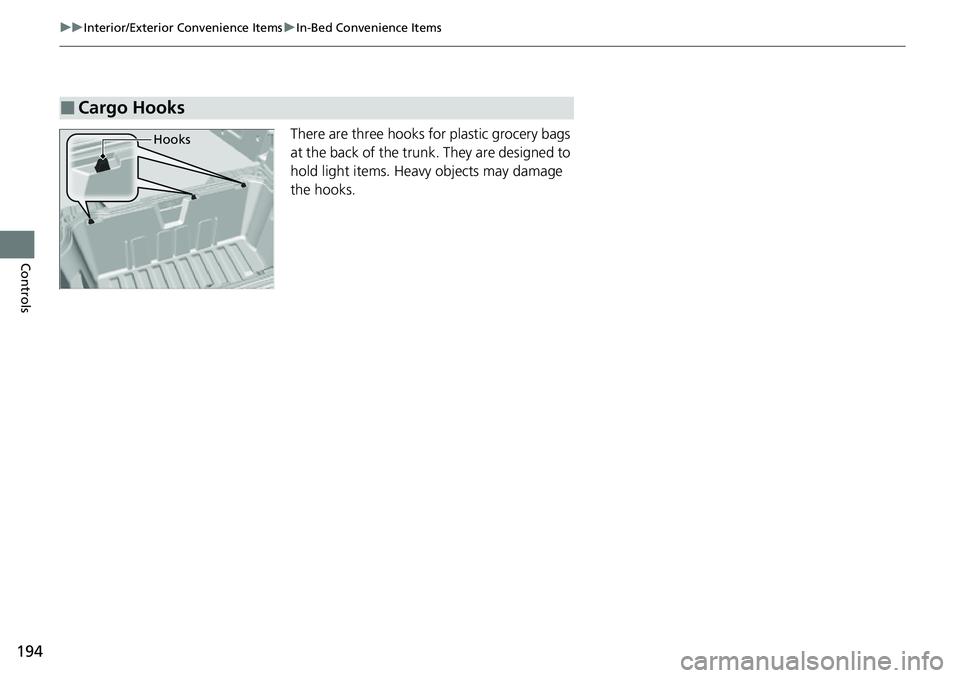
There are three hooks for plastic grocery bags
at the back of the trunk. They are designed to
hold light items. Heavy objects may damage
the hooks.
■Cargo Hooks
Hooks
Page 207 of 598
205
uuAudio System uUSB Ports
Continued
Features
USB Ports
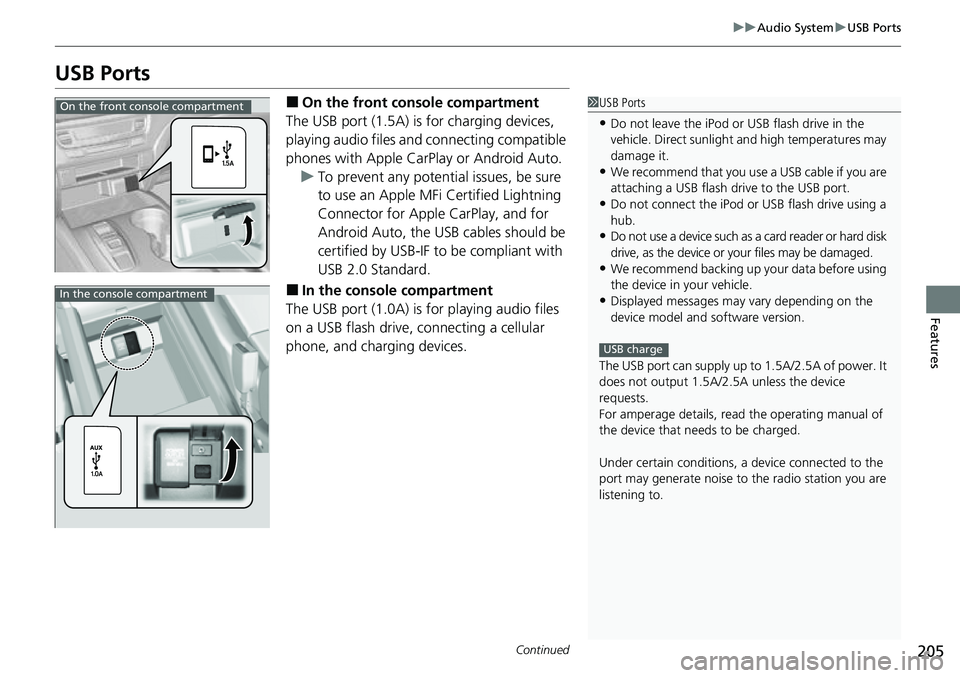
■On the front co nsole compartment
The USB port (1.5A) is for charging devices,
playing audio files and connecting compatible
phones with Apple CarPlay or Android Auto. u To prevent any potenti al issues, be sure
to use an Apple MFi Certified Lightning
Connector for Apple CarPlay, and for
Android Auto, the USB cables should be
certified by USB-IF to be compliant with
USB 2.0 Standard.
■In the consol e compartment
The USB port (1.0A) is for playing audio files
on a USB flash drive, connecting a cellular
phone, and charging devices.
1 USB Ports
•Do not leave the iPod or USB flash drive in the
vehicle. Direct sunlight and high temperatures may
damage it.
•We recommend that you us e a USB cable if you are
attaching a USB flash drive to the USB port.
•Do not connect the iPod or USB flash drive using a
hub.
•Do not use a device such as a card reader or hard disk
drive, as the device or your files may be damaged.
•We recommend backing up yo ur data before using
the device in your vehicle.
•Displayed messages may vary depending on the
device model and software version.
The USB port can supply up to 1.5A/2.5A of power. It
does not output 1.5A/2.5A unless the device
requests.
For amperage details, read the operating manual of
the device that ne eds to be charged.
Under certain condi tions, a device connected to the
port may generate noise to the radio station you are
listening to.
USB charge
On the front console compartment
In the console compartment
Page 234 of 598
232
uuAudio System Basic Operation uVoice Control Operation
Features
Voice Control Operation
Your vehicle has a voice control system that allows hands-free operation.
The voice control system uses the ( Talk) and (hang-up/back) buttons on the
steering wheel and a microphone near the map lights on the ceiling.
To achieve optimum voice recognition when using the voice control system:
• Make sure the correct screen is displa yed for the voice command that you are
using.
The system recognizes only certain commands.
Available voice commands.
2 Voice Portal Screen P. 233
•Close the windows and moonroof*.
• Adjust the dashboard and side vents so air does not blow onto the microphone
on the ceiling.
• Speak clearly in a natural speaking vo ice without pausing between words.
• Reduce any background noise if possible. The system may misinterpret your
command if more than one person is speaking at the same time.
■Voice Recognition
1Voice Control Operation
When you press the button, a helpful prompt asks
what you would like to do. Press and release the
button again to bypass this prompt and give a
command.
1 Voice Recognition
The voice control system can only be used from the
driver’s seat because the microphone unit removes
noises from the front passenger’s side.
* Not available on all models
Page 284 of 598
282
uuGeneral Information on the Audio System uCompatible iPod, iPhone, and USB Flash Drives
Features
Compatible iPod, iPhone, and USB Flash Drives
• A USB flash drive of 256 MB or higher is recommended.
• Some digital audio players may not be compatible.
• Some USB flash drives (e.g., a device with security lockout) may not work.
• Some software files may not allow for audio play or text data display.
• Some versions of MP3, WMA, or AAC formats may be unsupported.
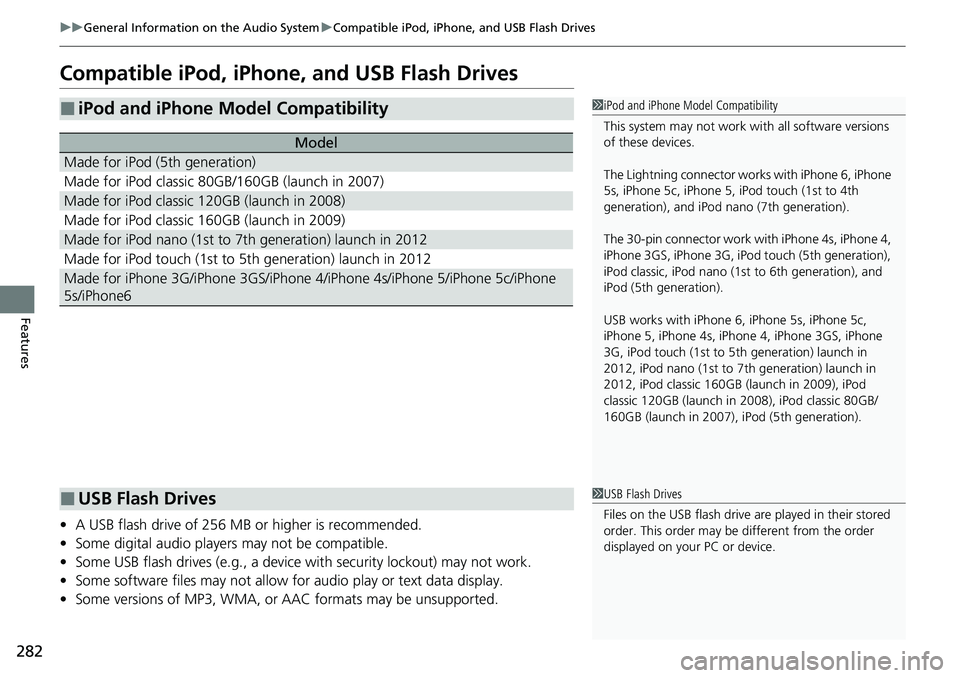
■iPod and iPhone Model Compatibility
Model
Made for iPod (5th generation)
Made for iPod classic 80GB/160GB (launch in 2007)
Made for iPod classic 120GB (launch in 2008)
Made for iPod classic 160GB (launch in 2009)
Made for iPod nano (1st to 7th generation) launch in 2012
Made for iPod touch (1st to 5th generation) launch in 2012
Made for iPhone 3G/iPhone 3GS/iPhone 4/iPhone 4s/iPhone 5/iPhone 5c/iPhone
5s/iPhone6
1 iPod and iPhone Model Compatibility
This system may not work with all software versions
of these devices.
The Lightning connector work s with iPhone 6, iPhone
5s, iPhone 5c, iPhone 5, iPod touch (1st to 4th
generation), and iPod na no (7th generation).
The 30-pin connector work wi th iPhone 4s, iPhone 4,
iPhone 3GS, iPhone 3G, iPod touch (5th generation),
iPod classic, iPod nano (1st to 6th generation), and
iPod (5th generation).
USB works with iPhone 6, iPhone 5s, iPhone 5c,
iPhone 5, iPhone 4s, iPhone 4, iPhone 3GS, iPhone
3G, iPod touch (1st to 5th generation) launch in
2012, iPod nano (1st to 7th generation) launch in
2012, iPod classic 160GB (launch in 2009), iPod
classic 120GB (launch in 2008), iPod classic 80GB/
160GB (launch in 2007), iPod (5th generation).
■USB Flash Drives1 USB Flash Drives
Files on the USB flash drive are played in their stored
order. This order may be different from the order
displayed on your PC or device.
Page 300 of 598
298
uuGeneral Information on the Audio System uLicense Information
Features
License Information
“Made for iPod,” and “Made for iPhone,” mean that an electronic accessory has
been designed to connect specifically to iPod, or iPhone, respectively, and has been
certified by the developer to meet Appl e performance standards. Apple is not
responsible for the operation of this devi ce or its compliance with safety and
regulatory standards. Please note that the use of this accessory with iPod, or iPhone,
may affect wireless performance.
Apple, the Apple Logo, iPhone, iPod touch are trademarks of Apple Inc., registered
in the U.S. and other countries. Apple CarPlay, iPod, iPhone, iTunes, Siri and
Lightning are trademarks of Apple Inc. App Store is a service mark of Apple Inc.
“The Bluetooth ® word mark and logos are re gistered trademarks owned by
Bluetooth SIG, Inc. and any use of such marks by Clarion CORPORATION is under
license. Other trademarks and trade names are those of their respective owners.”
■Apple
■Bluetooth
Page 303 of 598
301
uuCustomized Features u
Continued
Features
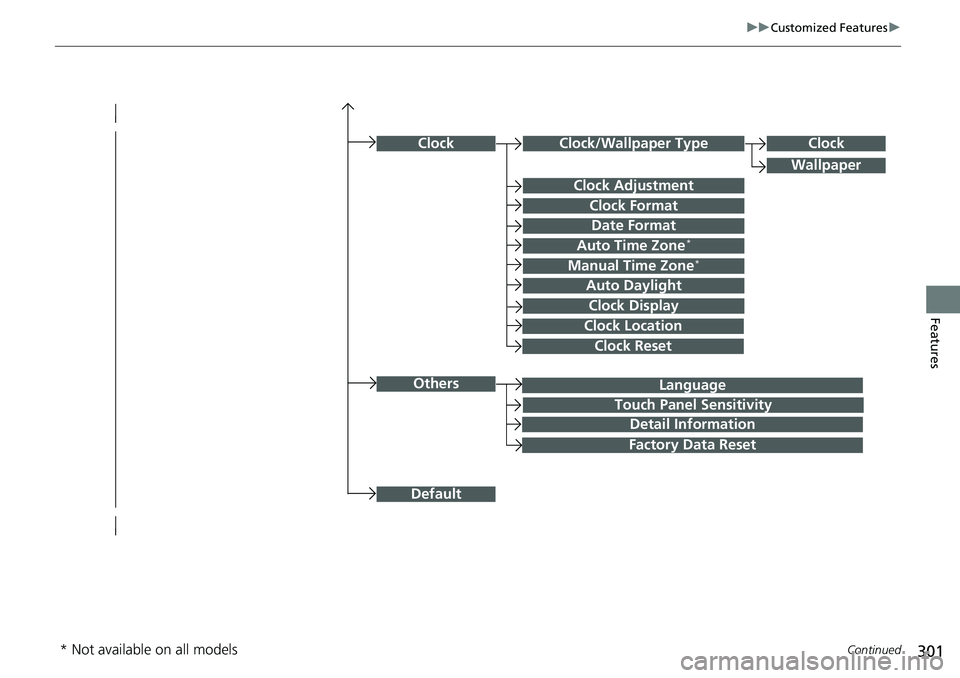
Language
Default
Others
Clock/Wallpaper Type
Date Format
Clock Adjustment
ClockClock
Wallpaper
Manual Time Zone*
Auto Daylight
Clock Display
Touch Panel Sensitivity
Clock Format
Auto Time Zone*
Detail Information
Factory Data Reset
Clock Reset
Clock Location
* Not available on all models