lock HONDA RIDGELINE 2023 Repair Manual
[x] Cancel search | Manufacturer: HONDA, Model Year: 2023, Model line: RIDGELINE, Model: HONDA RIDGELINE 2023Pages: 598, PDF Size: 12.34 MB
Page 179 of 598
177
uuInterior/Exterior Convenience Items uStorage Items
Continued
Controls
Storage Items
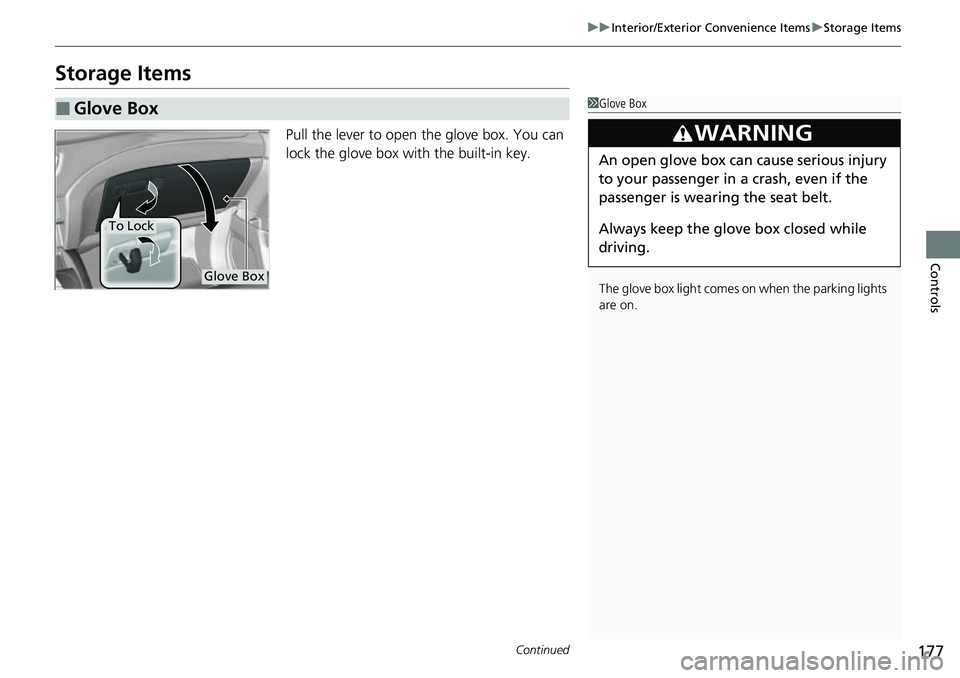
Pull the lever to open the glove box. You can
lock the glove box with the built-in key.
■Glove Box1Glove Box
The glove box light comes on when the parking lights
are on.
3WARNING
An open glove box can cause serious injury
to your passenger in a crash, even if the
passenger is wearing the seat belt.
Always keep the glove box closed while
driving.
Glove Box
To Lock
Page 180 of 598
178
uuInterior/Exterior Convenience Items uStorage Items
Controls
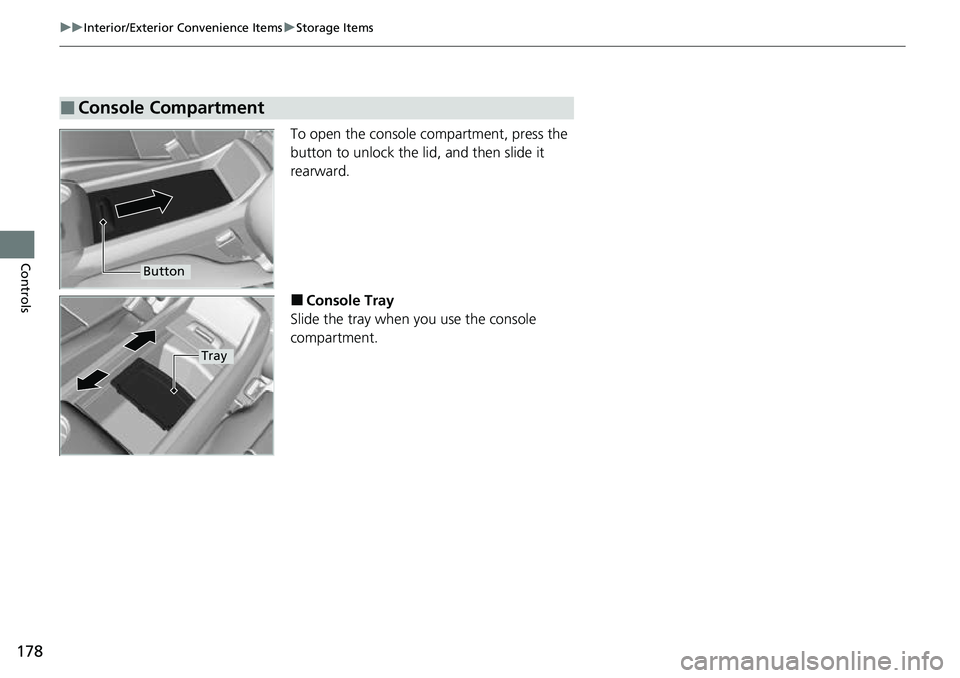
To open the console compartment, press the
button to unlock the li d, and then slide it
rearward.
■Console Tray
Slide the tray when you use the console
compartment.
■Console Compartment
Button
Tray
Page 193 of 598
191
uuInterior/Exterior Convenience Items uIn-Bed Convenience Items
Continued
Controls
In-Bed Convenience Items
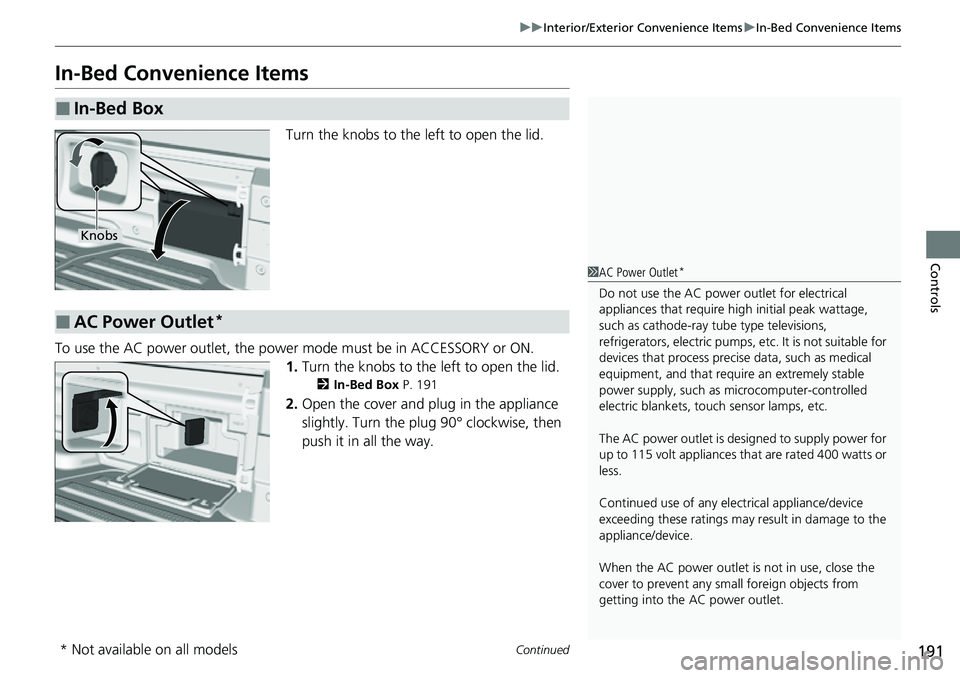
Turn the knobs to the left to open the lid.
To use the AC power outlet, the power mode must be in ACCESSORY or ON. 1.Turn the knobs to the left to open the lid.
2 In-Bed Box P. 191
2.Open the cover and plug in the appliance
slightly. Turn the plug 90° clockwise, then
push it in all the way.
■In-Bed Box
Knobs
■AC Power Outlet*
1AC Power Outlet*
Do not use the AC power outlet for electrical
appliances that require high initial peak wattage,
such as cathode-ray tube type televisions,
refrigerators, electric pumps, etc. It is not suitable for
devices that process precis e data, such as medical
equipment, and that require an extremely stable
power supply, such as microcomputer-controlled
electric blankets, touc h sensor lamps, etc.
The AC power outlet is desi gned to supply power for
up to 115 volt appliances that are rated 400 watts or
less.
Continued use of any elec trical appliance/device
exceeding these ratings may result in damage to the
appliance/device.
When the AC power outlet is not in use, close the
cover to prevent any small foreign objects from
getting into the AC power outlet.
* Not available on all models
Page 201 of 598
199
uuClimate Control System uRear Climate Control System
Continued
Controls
Rear Climate Control System
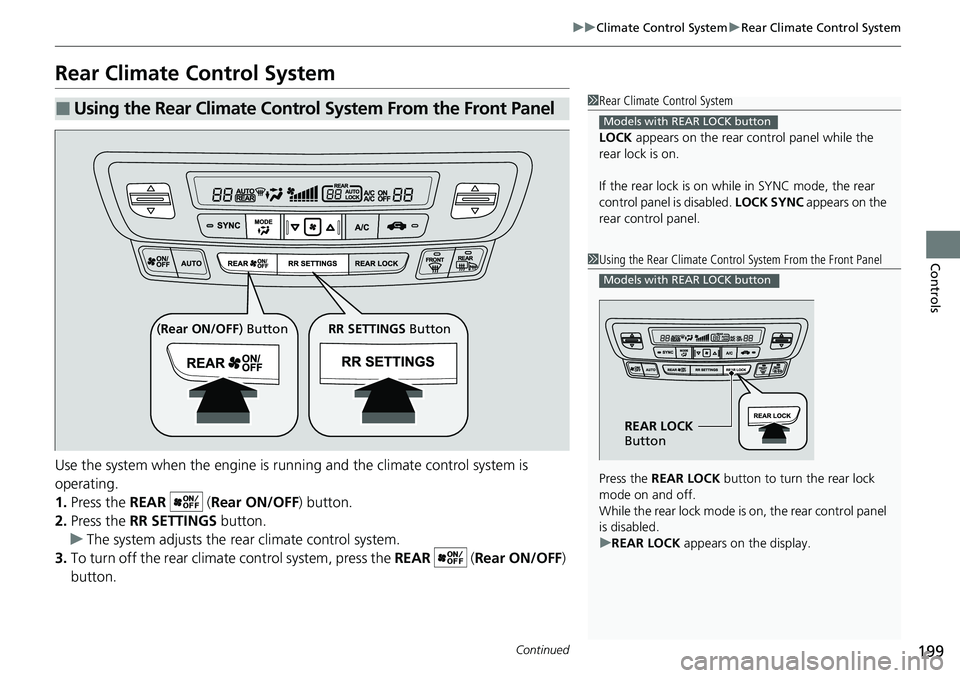
Use the system when the engine is runni ng and the climate control system is
operating.
1. Press the REAR ( Rear ON/OFF) button.
2. Press the RR SETTINGS button.
u The system adjusts the rear climate control system.
3. To turn off the rear climat e control system, press the REAR ( Rear ON/OFF)
button.
■Using the Rear Climate Control System From the Front Panel1 Rear Climate Control System
LOCK appears on the rear control panel while the
rear lock is on.
If the rear lock is on while in SYNC mode, the rear
control panel is disabled. LOCK SYNC appears on the
rear control panel.
Models with REAR LOCK button
1 Using the Rear Climate Control System From the Front Panel
Press the REAR LOCK button to turn the rear lock
mode on and off.
While the rear lock mode is on, the rear control panel
is disabled.
u REAR LOCK appears on the display.
Models with REAR LOCK button
REAR LOCK
Button
( Rear ON/OFF ) Button RR SETTINGS Button
Page 202 of 598
uuClimate Control System uRear Climate Control System
200
Controls
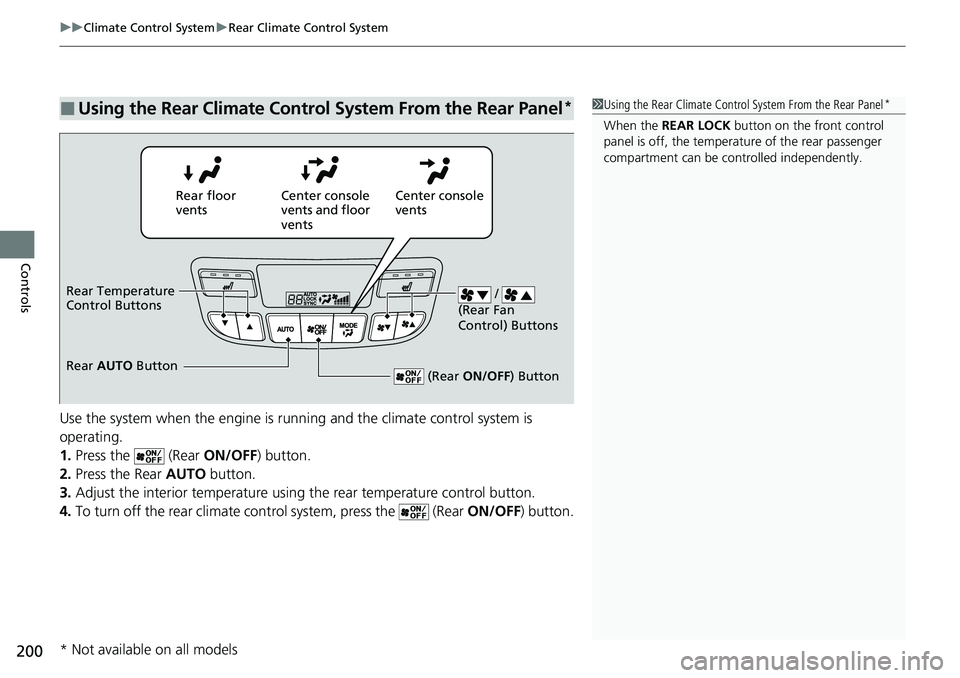
Use the system when the engine is running and the climate control system is
operating.
1. Press the (Rear ON/OFF) button.
2. Press the Rear AUTO button.
3. Adjust the interior temperature using the rear temperature control button.
4. To turn off the rear climate control system, press the (Rear ON/OFF) button.
■Using the Rear Climate Control System From the Rear Panel*1Using the Rear Climate Control System From the Rear Panel*
When the REAR LOCK button on the front control
panel is off, the temperat ure of the rear passenger
compartment can be cont rolled independently.
Rear floor
ventsCenter console
vents and floor
vents Center console
vents
/
(Rear Fan
Control) Buttons
(Rear ON/OFF ) Button
Rear Temperature
Control Buttons
Rear AUTO Button
* Not available on all models
Page 216 of 598
uuAudio System Basic Operation uAudio/Information Screen
214
Features
■Info
Displays Trip Computer , Voice Info , Clock/Wallpaper and System/Device
Information .
Trip Computer :
• Current Drive tab: Displays the current trip information.
• History of Trip A tab: Displays information for the three previous drives. The
information is stored every time you reset Trip A.
To delete the history manually, select Delete History on the History of Trip A
tab. The confirmation message ap pears on the screen, then select Yes.
Voice Info : Displays the all commands list.
Clock/Wallpaper : Displays the clock and wallpaper.
System/Device Information :
• System Info: Displays the software version of the audio system.
• USB Info : Displays the memory usage of the USB device.
■Audio
Displays the current audio information.
■Settings
Enters the customiz ing menu screen.
2Customized Features P. 299
■Navigation*
Displays the navigation screen.
2Refer to the Navigation System Manual
1Info
When you select Info Top from the customize
settings, displays Trip Computer or Clock/
Wallpaper .
2 Customized Features P. 299
* Not available on all models
Page 219 of 598
Continued217
uuAudio System Basic Operation uAudio/Information Screen
Features
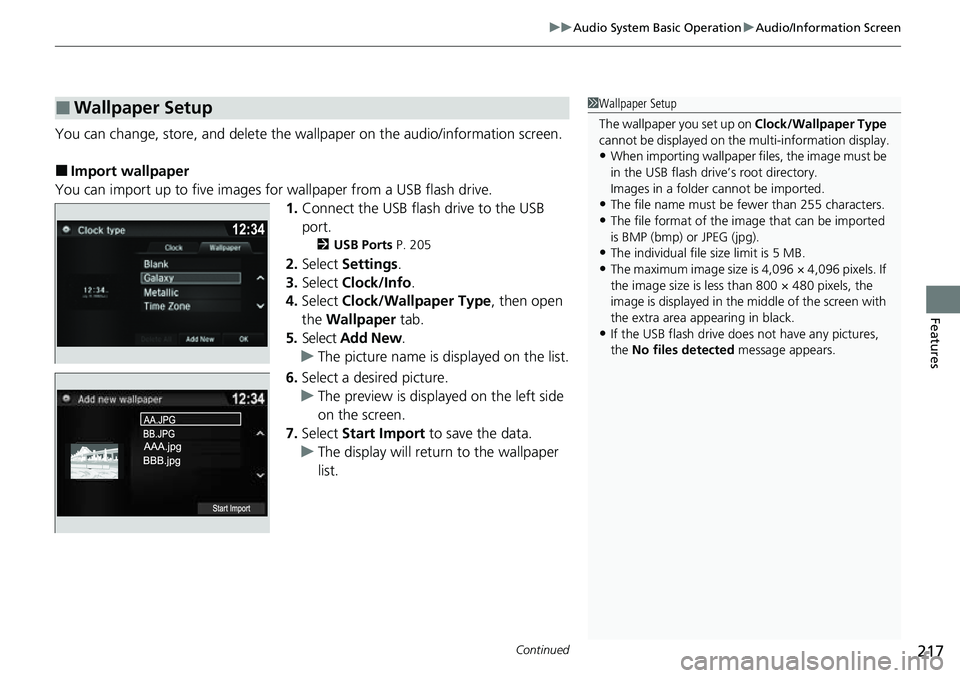
You can change, store, and delete the wallpaper on the audio/ information screen.
■Import wallpaper
You can import up to five images for wallpaper from a USB flash drive.
1.Connect the USB flash drive to the USB
port.
2 USB Ports P. 205
2.Select Settings .
3. Select Clock/Info .
4. Select Clock/Wallpaper Type , then open
the Wallpaper tab.
5. Select Add New .
u The picture name is displayed on the list.
6. Select a desired picture.
u The preview is displayed on the left side
on the screen.
7. Select Start Import to save the data.
u The display will return to the wallpaper
list.
■Wallpaper Setup1Wallpaper Setup
The wallpaper you set up on Clock/Wallpaper Type
cannot be displayed on the multi-information display.
•When importing wallpaper f iles, the image must be
in the USB flash drive’s root directory.
Images in a folder cannot be imported.
•The file name must be fewer than 255 characters.
•The file format of the im age that can be imported
is BMP (bmp) or JPEG (jpg).
•The individual file size limit is 5 MB.
•The maximum image size is 4,096 × 4,096 pixels. If
the image size is less than 800 × 480 pixels, the
image is displayed in the middle of the screen with
the extra area appearing in black.
•If the USB flash drive doe s not have any pictures,
the No files detected message appears.
Page 220 of 598
uuAudio System Basic Operation uAudio/Information Screen
218
Features
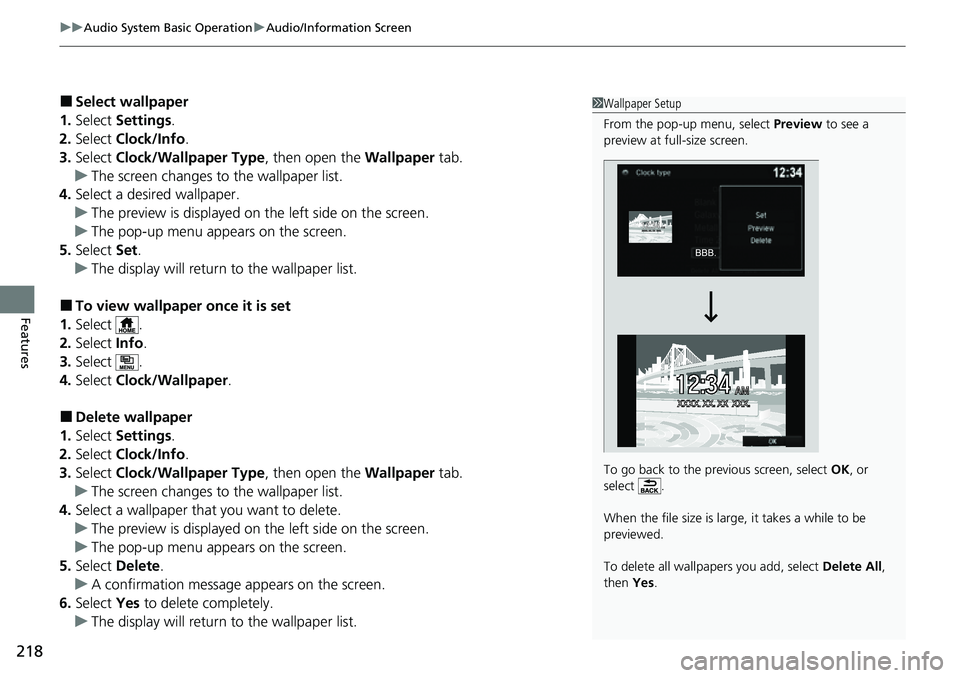
■Select wallpaper
1. Select Settings .
2. Select Clock/Info .
3. Select Clock/Wallpaper Type , then open the Wallpaper tab.
u The screen changes to the wallpaper list.
4. Select a desired wallpaper.
u The preview is displayed on the left side on the screen.
u The pop-up menu appears on the screen.
5. Select Set.
u The display will return to the wallpaper list.
■To view wallpaper once it is set
1. Select .
2. Select Info.
3. Select .
4. Select Clock/Wallpaper .
■Delete wallpaper
1. Select Settings .
2. Select Clock/Info .
3. Select Clock/Wallpaper Type , then open the Wallpaper tab.
u The screen changes to the wallpaper list.
4. Select a wallpaper that you want to delete.
u The preview is displayed on the left side on the screen.
u The pop-up menu appears on the screen.
5. Select Delete.
u A confirmation message appears on the screen.
6. Select Yes to delete completely.
u The display will return to the wallpaper list.
1Wallpaper Setup
From the pop-up menu, select Preview to see a
preview at full-size screen.
To go back to the previous screen, select OK, or
select .
When the file size is large, it takes a while to be
previewed.
To delete all wallpapers you add, select Delete All,
then Yes.
Page 264 of 598
262
uuAudio System Basic Operation uHondaLink ®
Features
■Messages from Honda
Displays helpful and important information from Honda.
■Weather
Displays a weekly five-day weather foreca st for any location you want. You can
change the ZIP Code at any time.
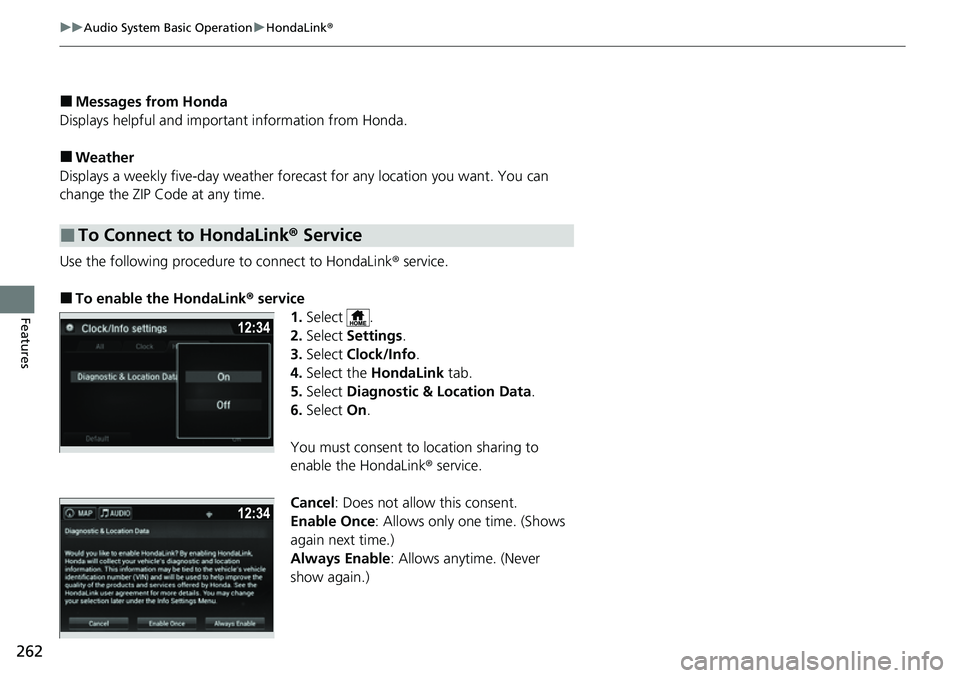
Use the following procedure to connect to HondaLink® service.
■To enable the HondaLink ® service
1.Select .
2. Select Settings .
3. Select Clock/Info .
4. Select the HondaLink tab.
5. Select Diagnostic & Location Data .
6. Select On.
You must consent to location sharing to
enable the HondaLink ® service.
Cancel : Does not allow this consent.
Enable Once : Allows only one time. (Shows
again next time.)
Always Enable : Allows anytime. (Never
show again.)
■To Connect to HondaLink ® Service
Page 283 of 598
281
Features
General Information on the Audio System
SiriusXM® Radio Service*
1.You need your radio ID ready before regist ering for subscription. To see the ID in
the screen, select Channel to 0.
2. Have your radio ID ready, and either call or visit the SiriusXM® website to
subscribe.
Switch to the SiriusXM ® mode by using the SOURCE button on the steering wheel,
or through the audio/information screen, and stay in this mode for about 30
minutes until the service is activated. Make sure your vehicle is in an open area with
good reception.
Channel Not Subscribed:
You are not subscribed to the channel selected.
Subscription Update:
SiriusXM ® radio is receiving informati on update from the network.
Channel Not Available:
No such channel exits, or the artist or title information is unavailable.
No Signal:
The signal is too weak in the current location.
Antenna Disconnected, Antenna Shorted:
There is a problem with the SiriusXM ® antenna. Contact a dealer.
■Subscribing to SiriusXM® Radio
■Receiving SiriusXM ® Radio
■SiriusXM ® Radio Display Messages
1 Subscribing to SiriusXM ® Radio
Contact Information for SiriusXM ® Radio:
•US: SiriusXM ® Radio at
www.siriusxm.com/subscribenow , or 1-866-635-
2349
•Canada: SiriusXM ® Canada at
www.siriusxm.ca/subscribe-now , or 1-877-209-
0079
1 Receiving SiriusXM ® Radio
The SiriusXM ® satellites are in orbit over the equator;
therefore, objects south of the vehicle may cause
satellite reception interruptions. Sa tellite signals are
more likely to be blocked by tall buildings and
mountains the farther north you travel from the
equator.
You may experience rece ption problems under the
following circumstances:
•In a location with an obstruction to the south of
your vehicle.
•In tunnels.
•On the lower level of a multi-tiered road.
•Large items carried on the roof rack.
* Not available on all models