Park HUMMER H2 2008 Owner's Guide
[x] Cancel search | Manufacturer: HUMMER, Model Year: 2008, Model line: H2, Model: HUMMER H2 2008Pages: 504, PDF Size: 7.12 MB
Page 215 of 504

AUTO DOOR LOCK
This feature allows you to select when the vehicle’s
doors will automatically lock. SeeProgrammable
Automatic Door Locks on page 2-11for more
information.
Press the customization button until AUTO DOOR LOCK
appears on the DIC display. Press the set/reset button
once to access the settings for this feature. Then press
the customization button to scroll through the following
settings:
SHIFT OUT OF PARK (default):The doors will
automatically lock when the vehicle is shifted out of
PARK (P).
AT VEHICLE SPEED:The doors will automatically lock
when the vehicle speed is above 8 mph (13 km/h) for
three seconds.
NO CHANGE:No change will be made to this feature.
The current setting will remain.
To select a setting, press the set/reset button while the
desired setting is displayed on the DIC.
AUTO DOOR UNLOCK
This feature allows you to select whether or not to
turn off the automatic door unlocking feature. It also
allows you to select which doors and when the doors
will automatically unlock. SeeProgrammable Automatic
Door Locks on page 2-11for more information.
Press the customization button until AUTO DOOR
UNLOCK appears on the DIC display. Press the
set/reset button once to access the settings for this
feature. Then press the customization button to scroll
through the following settings:
OFF:None of the doors will automatically unlock.
DRIVER AT KEY OUT:Only the driver’s door will
unlock when the key is taken out of the ignition.
DRIVER IN PARK:Only the driver’s door will unlock
when the vehicle is shifted into PARK (P).
ALL AT KEY OUT:All of the doors will unlock when
the key is taken out of the ignition.
ALL IN PARK (default):All of the doors will unlock
when the vehicle is shifted into PARK (P).
NO CHANGE:No change will be made to this feature.
The current setting will remain.
To select a setting, press the set/reset button while the
desired setting is displayed on the DIC.
3-65
Page 219 of 504

PARK TILT MIRRORS
If your vehicle has this feature, it allows you to select
whether or not the outside mirror(s) will automatically tilt
down when the vehicle is shifted into REVERSE (R).
SeeOutside Automatic Dimming Mirror on page 2-49
for more information.
Press the customization button until PARK TILT
MIRRORS appears on the DIC display. Press the
set/reset button once to access the settings for this
feature. Then press the customization button to scroll
through the following settings:
OFF (default):Neither outside mirror will be tilted down
when the vehicle is shifted into REVERSE (R).
DRIVER MIRROR:The driver’s outside mirror will be
tilted down when the vehicle is shifted into REVERSE (R).
PASSENGER MIRROR:The passenger’s outside
mirror will be tilted down when the vehicle is shifted
into REVERSE (R).
BOTH MIRRORS:The driver’s and passenger’s outside
mirrors will be tilted down when the vehicle is shifted
into REVERSE (R).
NO CHANGE:No change will be made to this feature.
The current setting will remain.
To select a setting, press the set/reset button while the
desired setting is displayed on the DIC.
EASY EXIT SEAT
If your vehicle has this feature, it allows you to select
your preference for the automatic easy exit seat feature.
SeeMemory Seat and Mirrors on page 1-4for more
information.
Press the customization button until EASY EXIT SEAT
appears on the DIC display. Press the set/reset button
once to access the settings for this feature. Then press
the customization button to scroll through the following
settings:
OFF (default):No automatic seat exit recall will occur.
ON:The driver’s seat will move back when the key
is removed from the ignition.
The automatic easy exit seat movement will only occur
one time after the key is removed from the ignition.
If the automatic movement has already occurred, and
you put the key back in the ignition and remove it again,
the seat will stay in the original exit position, unless a
memory recall took place prior to removing the key
again.
NO CHANGE:No change will be made to this feature.
The current setting will remain.
To select a setting, press the set/reset button while the
desired setting is displayed on the DIC.
3-69
Page 222 of 504
Audio System(s)
Determine which radio your vehicle has and then read
the pages following to familiarize yourself with its
features.
{CAUTION:
This system provides you with far greater
access to audio stations and song listings.
Giving extended attention to entertainment
tasks while driving can cause a crash and you
or others can be injured or killed. Always keep
your eyes on the road and your mind on the
drive — avoid engaging in extended searching
while driving.
Keeping your mind on the drive is important for
safe driving. SeeDefensive Driving on page 4-2.
Here are some ways in which you can help avoid
distraction while driving.While your vehicle is parked:
Familiarize yourself with all of its controls.
Familiarize yourself with its operation.
Set up your audio system by presetting your
favorite radio stations, setting the tone, and
adjusting the speakers. Then, when driving
conditions permit, you can tune to your favorite
radio stations using the presets and steering
wheel controls if the vehicle has them.
Notice:Before adding any sound equipment to
your vehicle, such as an audio system, CD player,
CB radio, mobile telephone, or two-way radio, make
sure that it can be added by checking with your
dealer/retailer. Also, check federal rules covering
mobile radio and telephone units. If sound equipment
can be added, it is very important to do it properly.
Added sound equipment may interfere with the
operation of your vehicle’s engine, radio, or other
systems, and even damage them. Your vehicle’s
systems may interfere with the operation of sound
equipment that has been added.
Your vehicle has a feature called Retained Accessory
Power (RAP). With RAP, the audio system can be played
even after the ignition is turned off. SeeRetained
Accessory Power (RAP) on page 2-29for more
information.
3-72
Page 228 of 504
Finding a Station
BAND:Press this button to switch between AM, FM, or
XM™ (if equipped). The selection displays.
f(Tune):Turn this knob to select radio stations.
©SEEK¨:Press either SEEK arrow to go to the
previous or to the next station and stay there.
To scan stations, press and hold either SEEK arrow for
a few seconds until a beep sounds. The radio goes
to a station, plays for a few seconds, then goes to the
next station. Press either SEEK arrow again to stop
scanning.
The radio only seeks and scans stations with a strong
signal that are in the selected band.
4(Information) (XM™ Satellite Radio Service, MP3,
and RDS Features):Press this button to display
additional text information related to the current FM-RDS
or XM™ station, or MP3 song. A choice of additional
information such as: Channel, Song, Artist, and CAT
(category) can display. Continue pressing this button
to highlight the desired label, or press the pushbutton
positioned under any one of the labels and the
information about that label displays.
When information is not available, No Info displays.
Storing a Radio Station as a Favorite
Drivers are encouraged to set up their radio station
favorites while the vehicle is parked. Tune to your
favorite stations using the presets, favorites button,
and steering wheel controls, if the vehicle has this
feature. SeeDefensive Driving on page 4-2.
FAV (Favorites):A maximum of 36 stations can be
programmed as favorites using the six pushbuttons
positioned below the radio station frequency labels and
by using the radio favorites page button (FAV button).
Press the FAV button to go through up to six pages
of favorites, each having six favorite stations available
per page. Each page of favorites can contain any
combination of AM, FM, or XM™ (if equipped) stations.
The balance/fade and tone settings that were
previously adjusted, are stored with the favorite stations.
To store a station as a favorite, perform the following
steps:
1. Tune to the desired radio station.
2. Press the FAV button to display the page where
you want the station stored.
3. Press and hold one of the six pushbuttons until a
beep sounds. When that pushbutton is pressed
and released, the station that was set, returns.
4. Repeat the steps for each pushbutton radio station
you want stored as a favorite.
3-78
Page 243 of 504
Using the Auxiliary Input Jack
Your radio system has an auxiliary input jack located on
the lower right side of the faceplate. This is not an audio
output; do not plug the headphone set into the front
auxiliary input jack. You can however, connect an
external audio device such as an iPod, laptop computer,
MP3 player, CD player, or cassette tape player, etc. to
the auxiliary input jack for use as another source for audio
listening.
Drivers are encouraged to set up any auxiliary device
while the vehicle is in PARK (P). SeeDefensive Driving
on page 4-2for more information on driver distraction.
To use a portable audio player, connect a 3.5 mm
(1/8 inch) cable to the radio’s front auxiliary input jack.
When a device is connected, press the radio CD/AUX
button to begin playing audio from the device over
the vehicle speakers.
For optimal sound quality, increase the portable audio
device’s volume to the loudest level.
It is always best to power your portable audio device
through its own battery while playing.
O(Power/Volume):Turn this knob clockwise or
counterclockwise to increase or decrease the volume
of the portable player. Additional volume adjustments
might have to be made from the portable device if
the volume is not loud or soft enough.BAND:Press this button to listen to the radio when a
portable audio device is playing. The portable audio
device continues playing, so you might want to stop
it or turn it off.
CD/AUX (CD/Auxiliary):Press this button to play a CD
when a portable audio device is playing. Press this button
again and the system begins playing audio from the
connected portable audio player. If a portable audio
player is not connected, “No Input Device Found”
displays.
DVD/CD AUX (CD/Auxiliary):Press this button to cycle
through DVD, CD, or Auxiliary when listening to the radio.
The DVD/CD text label and a message showing track or
chapter number displays when a disc is in either slot.
Press this button again and the system automatically
searches for an auxiliary input device, such as a portable
audio player. If a portable audio player is not connected,
“No Aux Input Device” displays. If a disc is in both the
DVD slot and the CD slot the DVD/CD AUX button cycles
between the two sources and not indicate “No Aux Input
Device”. If a front auxiliary device is connected, the
DVD/CD AUX button cycles through all available options,
such as: DVD slot, CD slot, Front Auxiliary, and Rear
Auxiliary (if available). See “Using the Auxiliary Input
Jack(s)” later in this section, or “Audio/Video (A/V) Jacks”
under,Rear Seat Entertainment (RSE) System on
page 3-105for more information.
3-93
Page 278 of 504
Steering Tips
It is important to take curves at a reasonable speed.
A lot of the “driver lost control” accidents mentioned on
the news happen on curves. Here is why:
Experienced driver or beginner, each of us is subject to
the same laws of physics when driving on curves.
The traction of the tires against the road surface makes
it possible for the vehicle to change its path when
you turn the front wheels. If there is no traction, inertia
will keep the vehicle going in the same direction.
If you have ever tried to steer a vehicle on wet ice,
you will understand this.
The traction you can get in a curve depends on the
condition of the tires and the road surface, the angle
at which the curve is banked, and your speed. While
you are in a curve, speed is the one factor you can
control.
Suppose you are steering through a sharp curve.
Then you suddenly accelerate. Both control
systems — steering and acceleration — have to do
their work where the tires meet the road. Adding the
sudden acceleration can demand too much of those
places. You can lose control. SeeTraction Control
System (TCS) on page 4-5.
What should you do if this ever happens? Ease up on
the accelerator pedal, steer the vehicle the way you
want it to go, and slow down.Speed limit signs near curves warn that you should
adjust your speed. Of course, the posted speeds
are based on good weather and road conditions. Under
less favorable conditions you will want to go slower.
If you need to reduce your speed as you approach
a curve, do it before you enter the curve, while the front
wheels are straight ahead.
Try to adjust your speed so you can drive through the
curve. Maintain a reasonable, steady speed. Wait
to accelerate until you are out of the curve, and then
accelerate gently into the straightaway.
Adding non-dealer/non-retailer accessories can affect
your vehicle’s performance. SeeAccessories and
Modifications on page 5-3.
Steering in Emergencies
There are times when steering can be more effective than
braking. For example, you come over a hill and nd a
truck stopped in your lane, or a car suddenly pulls out
from nowhere, or a child darts out from between parked
cars and stops right in front of you. You can avoid these
problems by braking — if you can stop in time. But
sometimes you cannot; there is not room. That is the time
for evasive action — steering around the problem.
Your vehicle can perform very well in emergencies
like these. First apply the brakes. SeeBraking on
page 4-3.
4-10
Page 283 of 504
Always carry a litter bag — make sure all refuse is
removed from any campsite before leaving.
Take extreme care with open res where permitted,
camp stoves, and lanterns.
Never park your vehicle over dry grass or other
combustible materials that could catch re from
the heat of the vehicle’s exhaust system.
Traveling to Remote Areas
It makes sense to plan your trip, especially when going
to a remote area. Know the terrain and plan your
route. You are much less likely to get bad surprises.
Get accurate maps of trails and terrain. Try to learn of
any blocked or closed roads.
It is also a good idea to travel with at least one other
vehicle. If something happens to one of them, the other
can help quickly.
Does your vehicle have a winch? If so, be sure to read
the winch instructions. In a remote area, a winch
can be handy if you get stuck. But you will want to know
how to use it properly.
High Mobility Characteristics
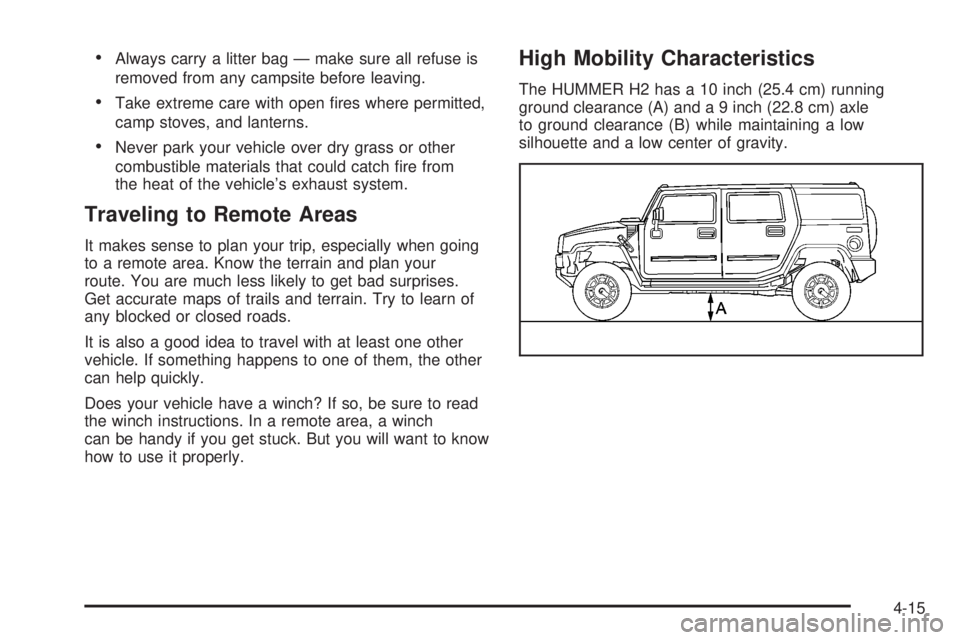
The HUMMER H2 has a 10 inch (25.4 cm) running
ground clearance (A) and a 9 inch (22.8 cm) axle
to ground clearance (B) while maintaining a low
silhouette and a low center of gravity.
4-15
Page 284 of 504
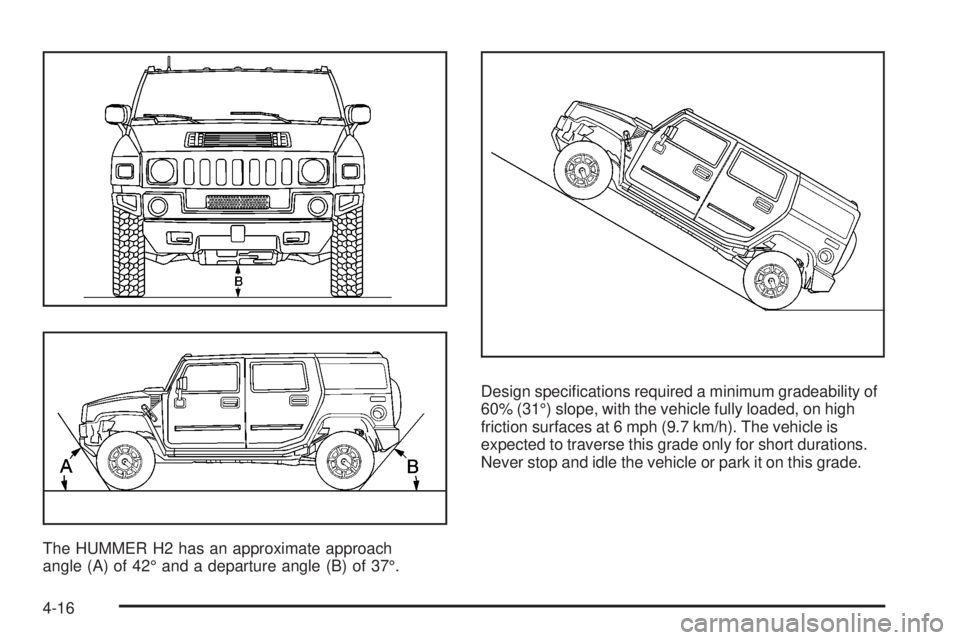
The HUMMER H2 has an approximate approach
angle (A) of 42° and a departure angle (B) of 37°.Design specications required a minimum gradeability of
60% (31°) slope, with the vehicle fully loaded, on high
friction surfaces at 6 mph (9.7 km/h). The vehicle is
expected to traverse this grade only for short durations.
Never stop and idle the vehicle or park it on this grade.
4-16
Page 293 of 504
Sound the horn as you approach the top of the hill
to let opposing traffic know you are there.
Use your headlamps even during the day.
They make your vehicle more visible to
oncoming traffic.
{CAUTION:
Driving to the top (crest) of a hill at full speed
can cause an accident. There could be a
drop-off, embankment, cliff, or even another
vehicle. You could be seriously injured or
killed. As you near the top of a hill, slow down
and stay alert.There are some things you should do if the vehicle
stalls, or is about to stall, and you cannot make it
up the hill:
Push the brake pedal to stop the vehicle and
keep it from rolling backwards. Also, apply the
parking brake.
If your engine is still running, shift the transmission
to REVERSE (R), release the parking brake, and
slowly back down the hill in REVERSE (R).
If your engine has stopped running, you will need to
restart it. With the brake pedal pressed and the
parking brake still applied, shift the transmission to
PARK (P) and restart the engine. Then, shift to
REVERSE (R), release the parking brake, and
slowly back down the hill as straight as possible in
REVERSE (R).
As you are backing down the hill, put your left hand
on the steering wheel at the 12 o’clock position.
This way, you will be able to tell if your wheels are
straight and maneuver as you back down. It is
best that you back down the hill with your wheels
straight rather than in the left or right direction.
Turning the wheel too far to the left or right
will increase the possibility of a rollover.
4-25
Page 294 of 504
There are also some things you must not do if you stall,
or are about to stall, when going up a hill:
Never attempt to prevent a stall by shifting into
NEUTRAL (N) to rev-up the engine and regain
forward momentum. This will not work. Your vehicle
will roll backwards very quickly and you could go
out of control.
Instead, apply the regular brake to stop the
vehicle. Then apply the parking brake. Shift to
REVERSE (R), release the parking brake,
and slowly back straight down.
Never attempt to turn around if you are about to
stall when going up a hill. If the hill is steep
enough to stall your vehicle, it is steep enough to
cause you to roll over if you turn around. If you
cannot make it up the hill, you must back straight
down the hill.If, after stalling, you try to back down the hill and decide
you just cannot do it, set the parking brake, put your
transmission in PARK (P), and turn off the engine.
Leave the vehicle and go get some help. Exit on the
uphill side and stay clear of the path the vehicle would
take if it rolled downhill. Do not shift the transfer case
to NEUTRAL when you leave the vehicle. Leave it
in some gear.
{CAUTION:
Shifting the transfer case to NEUTRAL can
cause your vehicle to roll even if the
transmission is in PARK (P). This is because
the NEUTRAL position on the transfer case
overrides the transmission. You or someone
else could be injured. If you are going to leave
your vehicle, set the parking brake and shift
the transmission to PARK (P). But do not shift
the transfer case to NEUTRAL. Leave the
transfer case in the 4 HI, 4 HI Lock, or 4 LO
Lock position.
4-26