audio HUMMER H3 2009 User Guide
[x] Cancel search | Manufacturer: HUMMER, Model Year: 2009, Model line: H3, Model: HUMMER H3 2009Pages: 382, PDF Size: 1.99 MB
Page 170 of 382
Not Found:There are no channels
available for the selected category.
The system is working properly.
XM Locked:The XM receiver in the
vehicle may have previously been
in another vehicle. For security
purposes, XM receivers cannot be
swapped between vehicles. If
this message is received after
having the vehicle serviced, check
with your dealer/retailer.
Radio ID:If tuned to channel 0, this
message will alternate with the XM
Radio 8 digit radio ID label. This label
is needed to activate the service.
Unknown:If this message is
received when tuned to channel 0,
there may be a receiver fault.
Consult with your dealer/retailer.
Chk XMRcvr:If this message does
not clear within a short period of
time, the receiver may have a fault.
Consult with your dealer/retailer.Navigation/Radio System
For vehicles with a navigation
radio system, see the separate
Navigation System manual.
Bluetooth®
Vehicles with a Bluetooth system
can use a Bluetooth capable
cell phone with a Hands Free Prole
to make and receive phone calls.
The system can be used while
the key is in ON/RUN or
ACC/ACCESSORY position. The
range of the Bluetooth system
can be up to 30 ft. (9.1 m). Not all
phones support all functions,
and not all phones are guaranteed
to work with the in-vehicle
Bluetooth system. See
gm.com/bluetooth for more
information on compatible phones.
Voice Recognition
The Bluetooth system uses voice
recognition to interpret voice
commands to dial phone numbers
and name tags.Noise:Keep interior noise levels to
a minimum. The system may not
recognize voice commands if there
is too much background noise.
When to Speak:A short tone
sounds after the system responds
indicating when it is waiting for
a voice command. Wait until
the tone and then speak.
How to Speak:Speak clearly in a
calm and natural voice.
Audio System
When using the in-vehicle Bluetooth
system, sound comes through
the vehicle’s front audio system
speakers and overrides the audio
system. Use the audio system
volume knob, during a call,
to change the volume level. The
adjusted volume level remains
in memory for later calls. To prevent
missed calls, a minimum volume
level is used if the volume is turned
down too low.
3-52 Instrument Panel
Page 176 of 382
Using the Digit Dial Command
1. Press and release
g. The
system responds with “Ready”
followed by a tone.
2. Say “Digit Dial”. The system
responds with “Digit dial
using
the rst digit to dial” followed
by a tone.
3. Say the digits to be dialed one at
a time. Following each digit, the
system will repeat back the
digit it heard followed by a tone.
4. Continue entering digits until the
number to be dialed is complete.
After the whole number has
been entered, say “Dial”.
The system responds with “OK,
Dialing” and dials the number.
If an unwanted number
is recognized by the system,
say “Clear” at any time to
clear the last number.
To hear all of the numbers
recognized by the system, say
“Verify” at any time and the
system will repeat them.
Using the Call Command
1. Press and hold
gfor
two seconds. The system
responds with “Ready”
followed by a tone.
2. Say “Call”. The system responds
with “Call using
Please say the name tag”
followed by a tone.
3. Say the name tag of the person
to call.
If the system clearly
recognizes the name tag it
responds with “OK, calling,
the number.
If the system is unsure it
recognizes the right name tag,
it conrms the name tag
followed by a tone. If
the name tag is correct, say
“Yes”. The system respondswith “OK, calling,
the name tag is not correct,
say “No”. The system will ask
for the name tag to be
re-entered.
Once connected, the person called
will be heard through the audio
speakers.
Using the Re-dial Command
1. Press and release
g. The
system responds with “Ready”
followed by a tone.
2. After the tone, say “Re-dial”. The
system responds with “Re-dial
using
dials the last number called from
the connected Bluetooth
phone.
Once connected, the person called
will be heard through the audio
speakers.
3-58 Instrument Panel
Page 177 of 382
Receiving a Call
When an incoming call is received,
the audio system mutes and a
ring tone is heard in the vehicle.
Press
gto answer the call.
Call Waiting
Call waiting must be supported on
the Bluetooth phone and enabled by
the wireless service carrier to work.
Pressgto answer an incoming
call when another call is active.
The original call is placed on hold.
Pressgagain to return to the
original call.
To ignore the incoming call,
continue with the original call with
no action.
Three-Way Calling
Three-Way Calling must be
supported on the Bluetooth phone
and enabled by the wireless service
carrier to work.
1. While on a call press
g. The
system responds with “Ready”
followed by a tone.
2. Say “Three-way call”. The
system responds with “Three-way
call, please say dial or call”.
3. Use the dial or call command to
dial the number of the third party
to be called.
4. Once the call is connected, press
gto link all the callers together.
Ending a Call
To end a call:
1. Press
g. The system responds
with “Ready” followed by a tone.
2. Say “End Call”. The call is then
ended.
Muting a Call
During a call, all sounds from inside
the vehicle can be muted so that
the person on the other end of
the call cannot hear them.
To Mute a Call
1. Press
g. The system responds
with “Ready” followed by a tone.
2. Say “Mute Call”. The system
responds with “Call muted”.
To Cancel Mute
1. Press
g. The system responds
with “Ready” followed by a tone.
2. After the tone, say “Mute
Call”. The system responds with
“Resuming call”.
Transferring a Call
Audio can be transferred between
the in-vehicle Bluetooth system
and the cell phone.
Instrument Panel 3-59
Page 178 of 382
To Transfer Audio to the Cell
Phone
During a call with the audio in the
vehicle:
1. Press
g. The system responds
with “Ready” followed by a tone.
2. Say “Transfer Call.” The system
responds with “Transferring call”
and the audio will switch from
the vehicle to the cell phone.
To Transfer Audio to the
In-Vehicle Bluetooth System
The cellular phone must be paired
and connected with the Bluetooth
system before a call can be
transferred. The connection process
can take up to two minutes after
the key is turned to the ON/RUN or
ACC/ACCESSORY position.
During a call with the audio on the
cell phone, press
gfor more
than two seconds. The audio
switches from the cell phone to the
vehicle.
Voice Pass-Thru
Voice Pass-Thru allows access to
the voice recognition commands on
the cell phone. See the cell
phone manufacturers user guide to
see if the cell phone supports
this feature. This feature can be
used to verbally access contacts
stored in the cell phone.
1. Press and hold
gfor
two seconds. The system
responds with “Ready” followed
by a tone.
2. Say “Bluetooth”. The system
responds with “Bluetooth
ready” followed by a tone.
3. Say “Voice”. The system
responds with “OK, accessing
The cell phone’s normal
prompt messages will
go through its cycle according
to the phone’s operating
instructions.
Dual Tone Multi-Frequency
(DTMF) Tones
The in-vehicle Bluetooth system can
send numbers and numbers
stored as name tags during a call.
This is used when calling a
menu driven phone system. Account
numbers can be programmed into
the phonebook for retrieval
during menu driven calls.
Sending a Number During a Call
1. Press
g. The system responds
with “Ready” followed by a tone.
2. Say “Dial”. The system responds
with “Say a number to send
tones” followed by a tone.
3. Say the number to send.
If the system clearly
recognizes the number it
responds with “OK, Sending
Number” and the dial
tones are sent and the call
continues.
3-60 Instrument Panel
Page 371 of 382
A
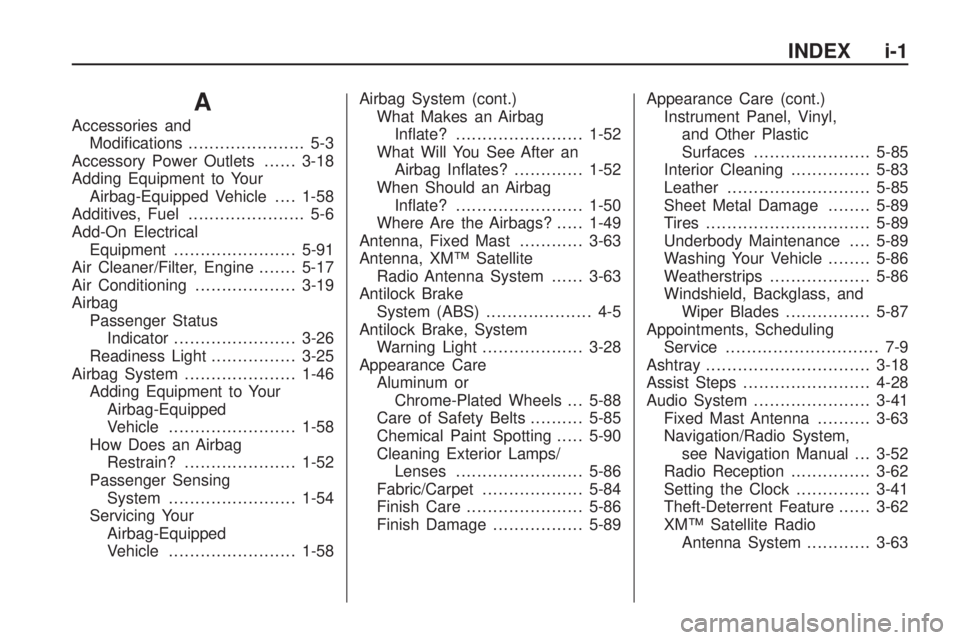
Accessories and
Modications...................... 5-3
Accessory Power Outlets......3-18
Adding Equipment to Your
Airbag-Equipped Vehicle....1-58
Additives, Fuel...................... 5-6
Add-On Electrical
Equipment.......................5-91
Air Cleaner/Filter, Engine.......5-17
Air Conditioning...................3-19
Airbag
Passenger Status
Indicator.......................3-26
Readiness Light................3-25
Airbag System.....................1-46
Adding Equipment to Your
Airbag-Equipped
Vehicle........................1-58
How Does an Airbag
Restrain?.....................1-52
Passenger Sensing
System........................1-54
Servicing Your
Airbag-Equipped
Vehicle........................1-58Airbag System (cont.)
What Makes an Airbag
Inate?........................1-52
What Will You See After an
Airbag Inates?.............1-52
When Should an Airbag
Inate?........................1-50
Where Are the Airbags?.....1-49
Antenna, Fixed Mast............3-63
Antenna, XM™ Satellite
Radio Antenna System......3-63
Antilock Brake
System (ABS).................... 4-5
Antilock Brake, System
Warning Light...................3-28
Appearance Care
Aluminum or
Chrome-Plated Wheels . . . 5-88
Care of Safety Belts..........5-85
Chemical Paint Spotting.....5-90
Cleaning Exterior Lamps/
Lenses........................5-86
Fabric/Carpet...................5-84
Finish Care......................5-86
Finish Damage.................5-89
Appearance Care (cont.)
Instrument Panel, Vinyl,
and Other Plastic
Surfaces......................5-85
Interior Cleaning...............5-83
Leather...........................5-85
Sheet Metal Damage........5-89
Tires...............................5-89
Underbody Maintenance....5-89
Washing Your Vehicle........5-86
Weatherstrips...................5-86
Windshield, Backglass, and
Wiper Blades................5-87
Appointments, Scheduling
Service............................. 7-9
Ashtray...............................3-18
Assist Steps........................4-28
Audio System......................3-41
Fixed Mast Antenna..........3-63
Navigation/Radio System,
see Navigation Manual . . . 3-52
Radio Reception...............3-62
Setting the Clock..............3-41
Theft-Deterrent Feature......3-62
XM™ Satellite Radio
Antenna System............3-63
INDEX i-1
Page 372 of 382
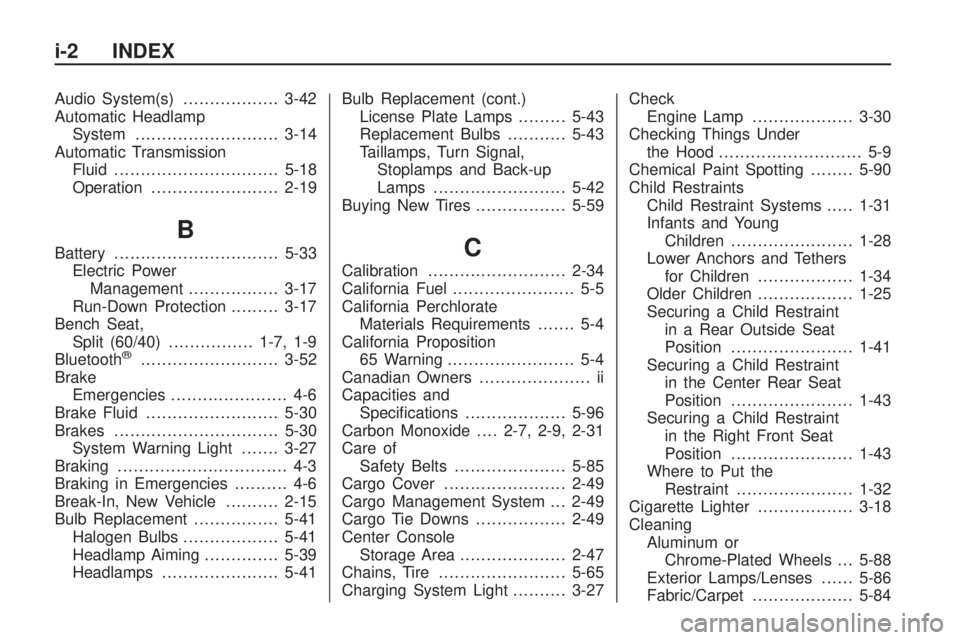
Audio System(s)..................3-42
Automatic Headlamp
System...........................3-14
Automatic Transmission
Fluid...............................5-18
Operation........................2-19
B
Battery...............................5-33
Electric Power
Management.................3-17
Run-Down Protection.........3-17
Bench Seat,
Split (60/40)................1-7, 1-9
Bluetooth
®..........................3-52
Brake
Emergencies...................... 4-6
Brake Fluid.........................5-30
Brakes...............................5-30
System Warning Light.......3-27
Braking................................ 4-3
Braking in Emergencies.......... 4-6
Break-In, New Vehicle..........2-15
Bulb Replacement................5-41
Halogen Bulbs..................5-41
Headlamp Aiming..............5-39
Headlamps......................5-41Bulb Replacement (cont.)
License Plate Lamps.........5-43
Replacement Bulbs...........5-43
Taillamps, Turn Signal,
Stoplamps and Back-up
Lamps .........................5-42
Buying New Tires.................5-59
C
Calibration..........................2-34
California Fuel....................... 5-5
California Perchlorate
Materials Requirements....... 5-4
California Proposition
65 Warning........................ 5-4
Canadian Owners..................... ii
Capacities and
Specications...................5-96
Carbon Monoxide....2-7, 2-9, 2-31
Care of
Safety Belts.....................5-85
Cargo Cover.......................2-49
Cargo Management System . . . 2-49
Cargo Tie Downs.................2-49
Center Console
Storage Area....................2-47
Chains, Tire........................5-65
Charging System Light..........3-27Check
Engine Lamp...................3-30
Checking Things Under
the Hood ........................... 5-9
Chemical Paint Spotting........5-90
Child Restraints
Child Restraint Systems.....1-31
Infants and Young
Children.......................1-28
Lower Anchors and Tethers
for Children..................1-34
Older Children..................1-25
Securing a Child Restraint
in a Rear Outside Seat
Position.......................1-41
Securing a Child Restraint
in the Center Rear Seat
Position.......................1-43
Securing a Child Restraint
in the Right Front Seat
Position.......................1-43
Where to Put the
Restraint......................1-32
Cigarette Lighter..................3-18
Cleaning
Aluminum or
Chrome-Plated Wheels . . . 5-88
Exterior Lamps/Lenses......5-86
Fabric/Carpet...................5-84
i-2 INDEX