Automatic Hyundai Accent 2016 Workshop Manual
[x] Cancel search | Manufacturer: HYUNDAI, Model Year: 2016, Model line: Accent, Model: Hyundai Accent 2016Pages: 456, PDF Size: 16.41 MB
Page 218 of 456
4141
Features of your vehicle
✽
✽NOTICE
• When an incoming call pop-up is dis-
played, most Audio and SETUP mode
features are disabled. Only the call
volume will operate.
• The telephone number may not be properly displayed in some mobile
phones.
• When a call is answered with the mobile phone, the call mode will auto-
matically revert to Private mode.
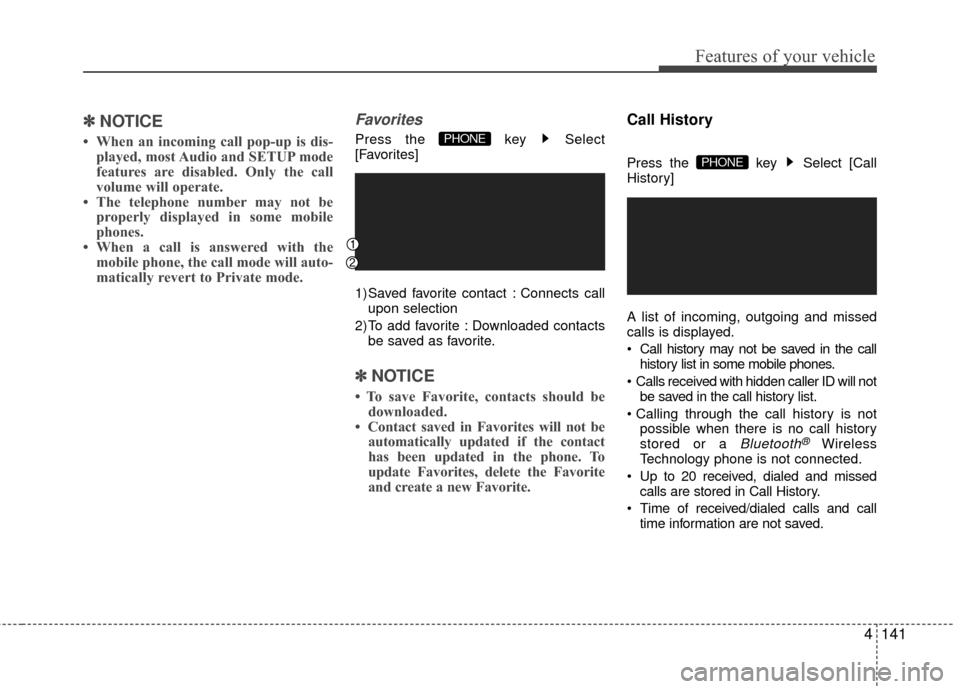
Favorites
Press the key Select
[Favorites]
1) Saved favorite contact : Connects call
upon selection
2) To add favorite : Downloaded contacts be saved as favorite.
✽ ✽ NOTICE
• To save Favorite, contacts should be
downloaded.
• Contact saved in Favorites will not be automatically updated if the contact
has been updated in the phone. To
update Favorites, delete the Favorite
and create a new Favorite.
Call History
Press the key Select [Call
History]
A list of incoming, outgoing and missed
calls is displayed.
Call history may not be saved in the call
history list in some mobile phones.
Calls received with hidden caller ID will not be saved in the call history list.
possible when there is no call history
stored or a
Bluetooth®Wireless
Technology phone is not connected.
Up to 20 received, dialed and missed calls are stored in Call History.
Time of received/dialed calls and call time information are not saved.
PHONE
PHONE
Page 226 of 456
4149
Features of your vehicle
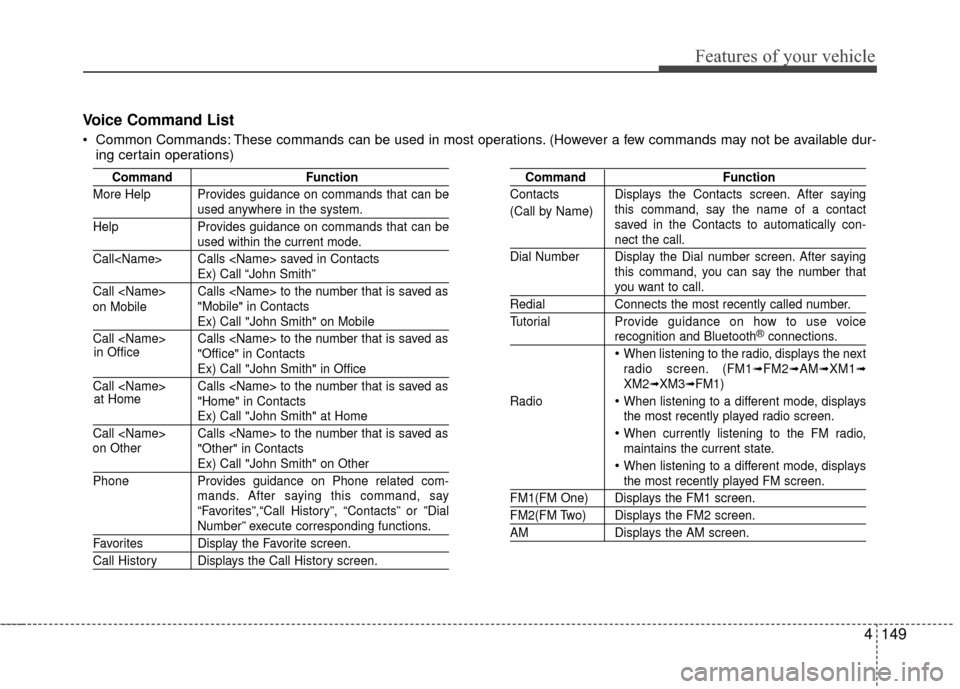
Voice Command List
Common Commands: These commands can be used in most operations. (However a few commands may not be available dur-ing certain operations)
Command Function
More Help Provides guidance on commands that can be
used anywhere in the system.
Help Provides guidance on commands that can be
used within the current mode.
Call
Ex) Call “John Smith”
Call
Ex) Call "John Smith" on Mobile
Call
Ex) Call "John Smith" in Office
Call
Ex) Call "John Smith" at Home
Call
Ex) Call "John Smith" on Other
Phone Provides guidance on Phone related com-
mands. After saying this command, say
“Favorites”,“Call History”, “Contacts” or ”Dial
Number” execute corresponding functions.
Favorites Display the Favorite screen.
Call History Displays the Call History screen.
Command Function
Contacts Displays the Contacts screen. After saying this command, say the name of a contact
saved in the Contacts to automatically con-
nect the call.
Dial Number Display the Dial number screen. After saying this command, you can say the number that
you want to call.
RedialConnects the most recently called number.
Tutorial Pro vide guidance on how to use voice
recognition and Bluetooth®connections.
When listening to the radio, displays the next
radio screen. (FM1➟FM2➟AM➟XM1➟XM2➟XM3➟FM1)
Radio
When listening to a different mode, displays
the most recently played radio screen.
When currently listening to the FM radio,
maintains the current state.
When listening to a different mode, displaysthe most recently played FM screen.
FM1(FM One) Displays the FM1 screen.
FM2(FM Two) Displays the FM2 screen.
AM Displays the AM screen.
(Call by Name)
on Mobile
in Office
at Home
on Other
Page 233 of 456
Features of your vehicle
156
4
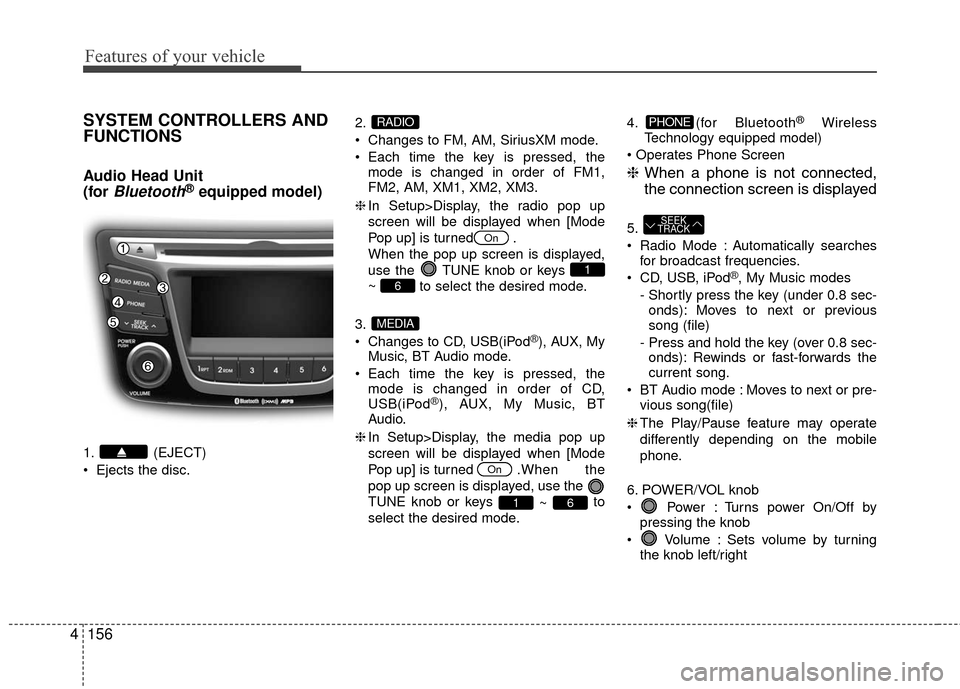
SYSTEM CONTROLLERS AND
FUNCTIONS
Audio Head Unit
(for
Bluetooth®equipped model)
1. (EJECT)
Ejects the disc. 2.
Changes to FM, AM, SiriusXM mode.
Each time the key is pressed, the
mode is changed in order of FM1,
FM2, AM, XM1, XM2, XM3.
❈ In Setup>Display, the radio pop up
screen will be displayed when [Mode
Pop up] is turned .
When the pop up screen is displayed,
use the TUNE knob or keys
~ to select the desired mode.
3.
Changes to CD, USB(iPod
®), AUX, My
Music, BT Audio mode.
Each time the key is pressed, the mode is changed in order of CD,
USB(iPod
®), AUX, My Music, BT
Audio.
❈ In Setup>Display, the media pop up
screen will be displayed when [Mode
Pop up] is turned . When the
pop up screen is displayed, use the
TUNE knob or keys ~ to
select the desired mode. 4. (for Bluetooth
®Wireless
Technology equipped model)
❈ When a phone is not connected,
the connection screen is displayed
5.
Radio Mode : Automatically searches
for broadcast frequencies.
CD, USB, iPod
®, My Music modes
- Shortly press the key (under 0.8 sec- onds): Moves to next or previous
song (file)
- Press and hold the key (over 0.8 sec- onds): Rewinds or fast-forwards the
current song.
BT Audio mode : Moves to next or pre- vious song(file)
❈ The Play/Pause feature may operate
differently depending on the mobile
phone.
6. POWER/VOL knob
Power : Turns power On/Off by pressing the knob
Volume : Sets volume by turning the knob left/right
SEEK
TRACK
PHONE
61
On
MEDIA
6
1
On
RADIO
Page 237 of 456
![Hyundai Accent 2016 Workshop Manual Features of your vehicle
160
4
Tone
This menu allows you to set the Bass
Middle, Treble.
Select [Tone] Select menu through
TUNE knobTu r n TUNE knobleft/right
to set
Bass, Middle, Treble : Selects](/img/35/14353/w960_14353-236.png "Hyundai Accent 2016 Workshop Manual Features of your vehicle
160
4
Tone
This menu allows you to set the Bass
Middle, Treble.
Select [Tone] Select menu through
TUNE knobTu r n TUNE knobleft/right
to set
Bass, Middle, Treble : Selects")
Features of your vehicle
160
4
Tone
This menu allows you to set the Bass
Middle, Treble.
Select [Tone] Select menu through
TUNE knobTu r n TUNE knobleft/right
to set
Bass, Middle, Treble : Selects the sound tone.
Default : Restores default settings.
❈ Return : While adjusting values, re-
pressing the
TUNE knobwill restore
the parent menu.
Position
This menu allows you to set the ‘Bass,
Middle, Treble’ and the Sound Fader and
Balance.
Select [Position] Select menu through
TUNE knobTu r n TUNE knob
left/right to set
Fader, Balance :Selects the sound fader and balance.
Default : Restores default settings.
❈ Return : While adjusting values, re-
pressing the
TUNE knobwill restore
the parent menu.
Speed Dependent Volume Control
This feature is used to automatically con-
trol the volume level according to the
speed of the vehicle.
Select [Speed Dependent Vol.] Set in
[On / Off] of
TUNE knob
Voice Recognition Volume
Adjusts voice recognition volume.
Select [Voice Recognition Vol.] Set vol-
ume of
TUNE knob
Page 240 of 456
4163
Features of your vehicle
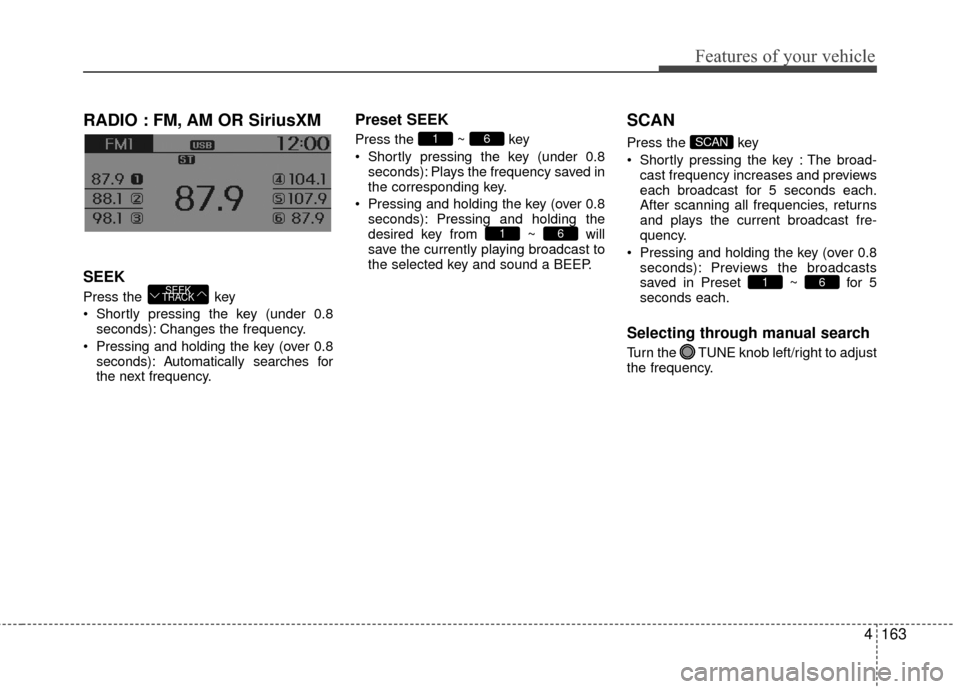
RADIO : FM, AM OR SiriusXM
SEEK
Press the key
Shortly pressing the key (under 0.8seconds): Changes the frequency.
Pressing and holding the key (over 0.8 seconds): Automatically searches for
the next frequency.
Preset SEEK
Press the ~ key
Shortly pressing the key (under 0.8seconds): Plays the frequency saved in
the corresponding key.
Pressing and holding the key (over 0.8 seconds): Pressing and holding the
desired key from ~ will
save the currently playing broadcast to
the selected key and sound a BEEP.
SCAN
Press the key
Shortly pressing the key : The broad-cast frequency increases and previews
each broadcast for 5 seconds each.
After scanning all frequencies, returns
and plays the current broadcast fre-
quency.
Pressing and holding the key (over 0.8 seconds): Previews the broadcasts
saved in Preset ~ for 5
seconds each.
Selecting through manual search
Turn the TUNE knob left/right to adjust
the frequency.
61
SCAN
61
61
SEEK
TRACK
Page 242 of 456
4165
Features of your vehicle
SiriusXM®Satellite Radio
information
Satellite Radio channels:
Enjoy SiriusXM Satellite Radio with a 3-
month trial subscription to the Sirius Select
package. You’ll get over 140 channels,
including commercial-free music, plus all
your favorite sports, exclusive talk, enter-
tainment, and a selection of premium pro-
gramming. For more information and a
complete list of SiriusXM channels, visit sir-
iusxm.com in the United States, siriusxm.ca
in Canada, or call SiriusXM at 1-888-539-
7474.
Satellite Radio reception factors:
To receive the satellite signal, your vehicle
has been equipped with a satellite radio
antenna located on the roof of your vehi-
cle. The vehicle roof provides the best
location for an unobstructed, open view of
the sky, a requirement of a satellite radio
system. Like AM/FM, there are several fac-
tors that can affect satellite radio reception
performance:
Antenna obstructions: For optimal
reception performance, keep the anten-
na clear of snow and ice build-up and
keep luggage and other material as far
away from the anten na as possible. Terrain: Hills, mountains, tall buildings,
bridges, tunnels, freeway overpasses,
parking garages, dense tree foliage and
thunderstorms can interfere with your
reception.
SiriusXM Satellite Radio service:
SiriusXM is a subscription-based satellite
radio service that broadcasts music,
sports, news and entertainment program-
ming to radio receivers, which are avail-
able for installation in motor vehicles or
factory installed, as well as for the home,
portable and wireless devices, and
through an Internet connection on person-
al computer.
Vehicles that are equipped with a factory
installed SiriusXM Satellite Radio system
include:
Hardware and an introductory trial sub-
scription term, which begins on the date
of sale or lease of the vehicle.
For a small upgrade fee, access to SiriusXM music channels, and other
select channels over the Internet using
any computer connected to the Internet
(U.S. customers only).
For information on extended subscrip-
tion terms, contact SiriusXM at 1-888-
539-7474.
NOTE:
SiriusXM services require a subscrip-
tion sold separately, or as a package,
by Sirius XM Radio Inc. If you decide
to continue service after your trial, the
subscription plan you choose will
automatically renew thereafter and
you will be charged according to your
chosen payment method at then-cur-
rent rates. Fees and taxes apply. To
cancel you must call SiriusXM at 1-
866-635-2349. See SiriusXM Customer
Agreement for complete terms at
www.siriusxm.com. SiriusXM U.S.
satellite and data services are avail-
able only in the 48 contiguous USA,
DC and PR (with coverage limita-
tions). SiriusXM satellite service is
also available in Canada; see www.sir-
iusxm. ca. All fees and programming
subject to change. Sirius, XM and all
related marks and logos are trade-
marks of Sirius XM Radio Inc.
Page 245 of 456
Features of your vehicle
168
4
BASIC METHOD OF USE :
AUDIO CD / MP3 CD / USB /
iPOD
®/ MY MUSIC
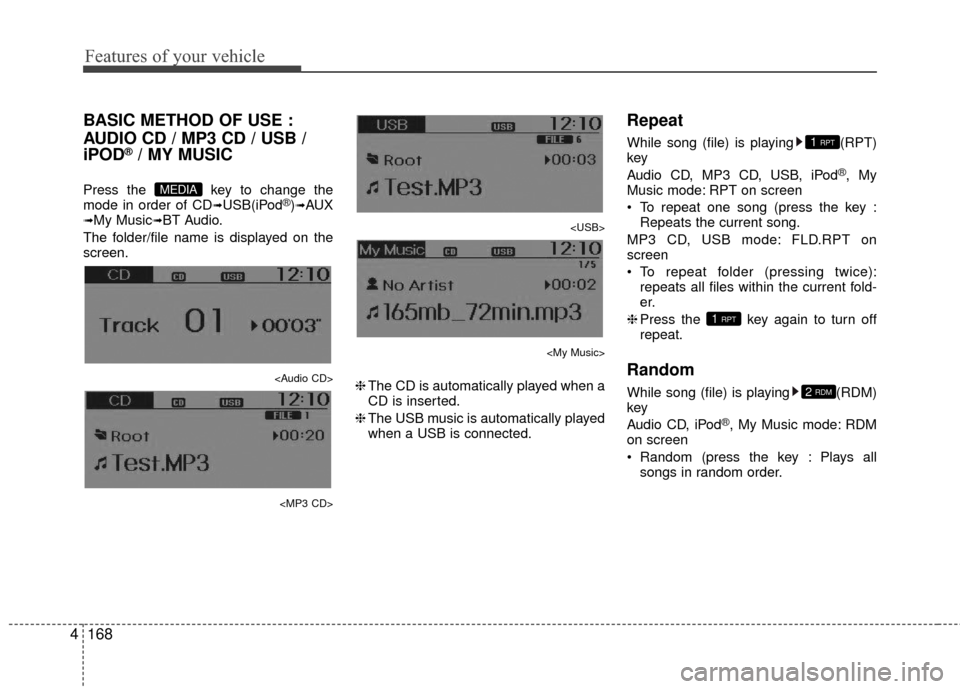
Press the key to change the
mode in order of CD➟USB(iPod®)➟AUX➟My Music➟BT Audio.
The folder/file name is displayed on the
screen.
Page 251 of 456
Features of your vehicle
174
4
✽
✽
NOTICE - USING THE MY
MUSIC
• Even if memory is available, a maxi-
mum of 6,000 songs can be stored.
• The same song can be copied up to 1,000 times.
• Memory info can be checked in the System menu of Setup.
AUX
AUX is used to play external MEDIA cur-
rently connected with the AUX terminal.
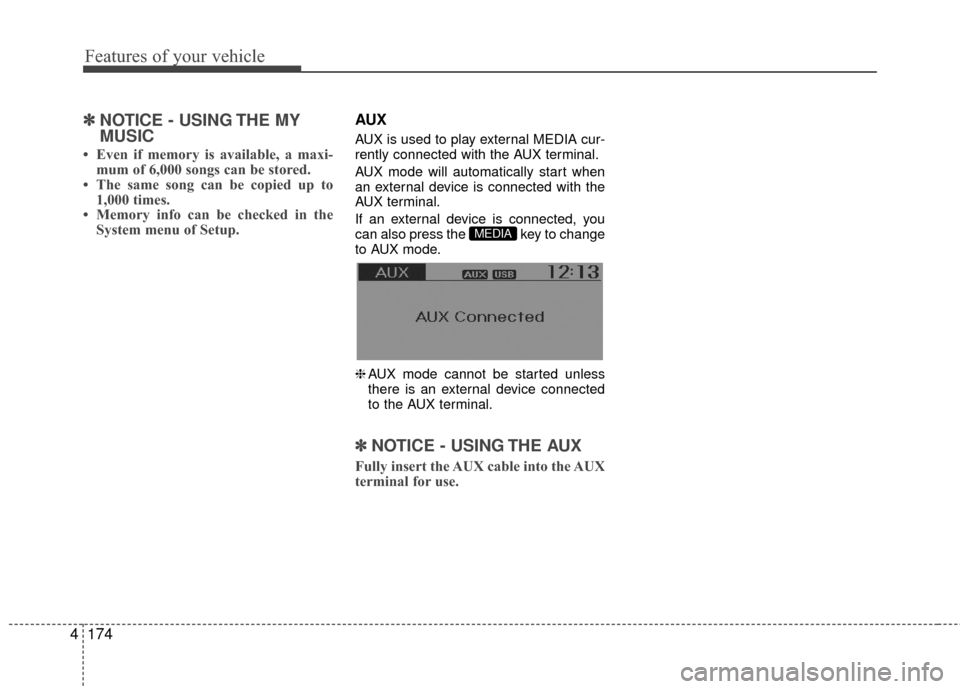
AUX mode will automatically start when
an external device is connected with the
AUX terminal.
If an external device is connected, you
can also press the key to change
to AUX mode.
❈ AUX mode cannot be started unless
there is an external device connected
to the AUX terminal.
✽ ✽ NOTICE - USING THE AUX
Fully insert the AUX cable into the AUX
terminal for use.
MEDIA
Page 252 of 456
4175
Features of your vehicle
Bluetooth®Wireless Technology
AUDIO (if equipped model)
What is
Bluetooth®Wireless
Technology
?
Bluetooth®Wireless Technology allows
devices to be connected in a short distance,
including hands-free devices, stereo head-
sets, wireless remote controllers, etc. For
more information, visit
the Bluetooth®
Wireless Technologywebsite atwww.Bluetooth.com
Before using Bluetooth®Wireless
Technology audio features
Bluetooth®Wireless Technology audio
may not be supported depending on
the compatibility of your
Bluetooth®
Wireless Technology mobile phone.
In order to use
Bluetooth®Wireless
Technology audio, you must first pair
and connect the
Bluetooth®Wireless
Technology mobile phone.
Bluetooth®Wireless Technology audio
can be used only when the [Audio
Streaming] of Phone is turned .
Starting Bluetooth®Wireless
Technology Audio
Press the key to change the
mode in order of CD➟USB➟AUX➟My
Music➟BT Audio.
If BT Audio is selected,
Bluetooth®
Wireless Technology audio will start
playing.
❈ Audio may not automatically start
playing in some mobile phones.
Using the Bluetooth®Wireless
Technology audio features
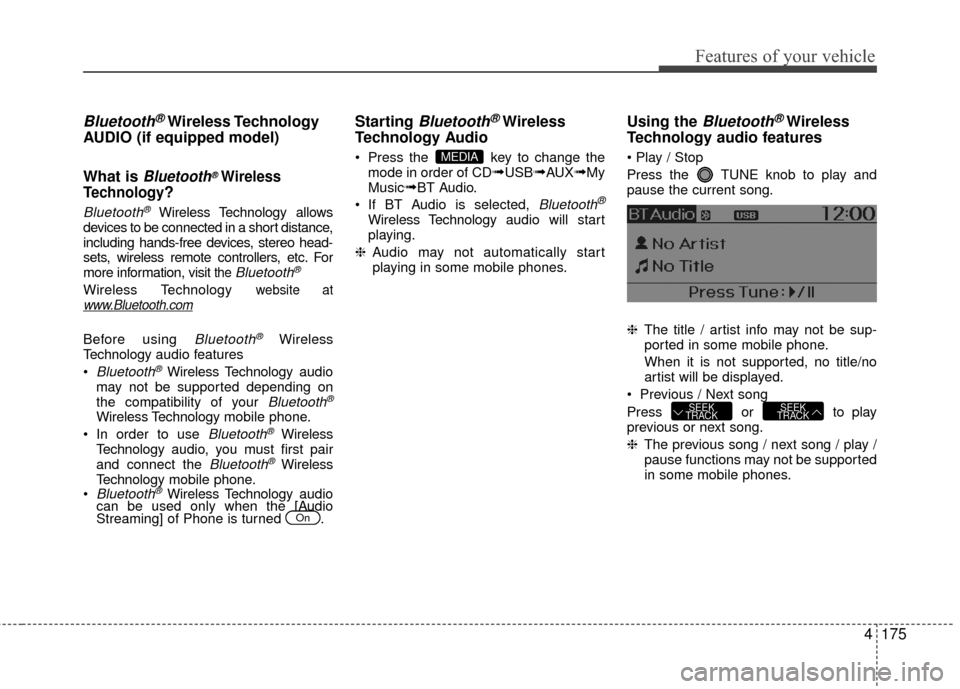
Press the TUNE knob to play and
pause the current song.
❈ The title / artist info may not be sup-
ported in some mobile phone.
When it is not supported, no title/no
artist will be displayed.
Previous / Next song
Press or to play
previous or next song.
❈ The previous song / next song / play /
pause functions may not be supported
in some mobile phones.
SEEK
TRACKSEEK
TRACK
MEDIA
On
Page 253 of 456
Features of your vehicle
176
4
PHONE
Before using the Bluetooth®Wireless
Technology phone features
In order to use
Bluetooth®Wireless
Technology phone, you must first pair
and connect the
Bluetooth®Wireless
Technology mobile phone.
If the mobile phone is not paired or connected, it is not possible to enter
Phone mode. Once a phone is paired
or connected, the guidance screen will
be displayed.
If Priority is set upon vehicle ignition(IGN/ACC ON), the
Bluetooth®
Wireless Technology phone will be
automatically connected. Even if you
are outside, the first
Bluetooth®
Wireless Technology phone will be
automatically connected once you are
in the vicinity of the vehicle. If you do
not want automatic
Bluetooth®
Wireless Technology phone connec-
tion, set the Bluetooth®Wireless
Technology power to OFF.
PHONE
(if equipped model)
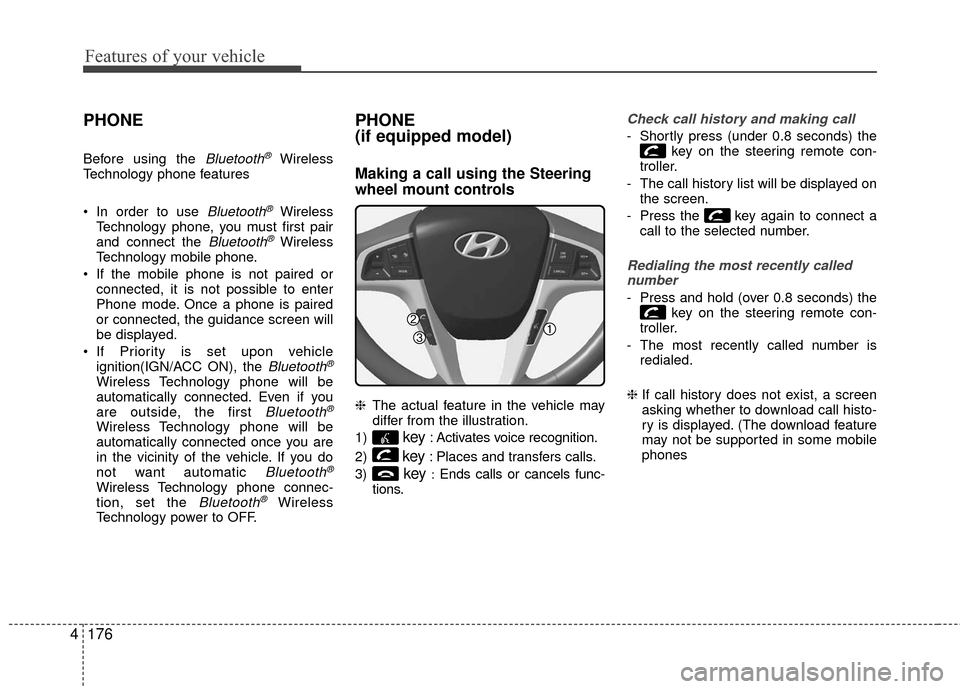
Making a call using the Steering
wheel mount controls
❈ The actual feature in the vehicle may
differ from the illustration.
1)
key: Activates voice recognition.
2)
key: Places and transfers calls.
3)
key:Ends calls or cancels func-
tions.
Check call history and making call
- Shortly press (under 0.8 seconds) the key on the steering remote con-
troller.
- The call history list will be displayed on the screen.
- Press the key again to connect a call to the selected number.
Redialing the most recently callednumber
- Press and hold (over 0.8 seconds) the key on the steering remote con-
troller.
- The most recently called number is redialed.
❈ If call history does not exist, a screen
asking whether to download call histo-
ry is displayed. (The download feature
may not be supported in some mobile
phones