Eco Hyundai Accent 2020 Owners Manual
[x] Cancel search | Manufacturer: HYUNDAI, Model Year: 2020, Model line: Accent, Model: Hyundai Accent 2020Pages: 445, PDF Size: 42.28 MB
Page 214 of 445
3-126
Convenient features of your vehicle
(Continued)
Some electronic devices can
cause electronic interference
when plugged into a vehicle’s
power outlet. These devices may
cause excessive audio static
and malfunctions in other elec-
tronic systems or devices used
in your vehicle.
Push the plug in as far as it will
go. If good contact is not made,
the plug may overheat and the
fuse may open.
Plug in battery equipped electri-
cal/electronic devices with
reverse current protection. The
current from the battery may
flow into the vehicle’s electri-
cal/electronic system and cause
system malfunction.
Cigarette lighter
(For Canada, if equipped)
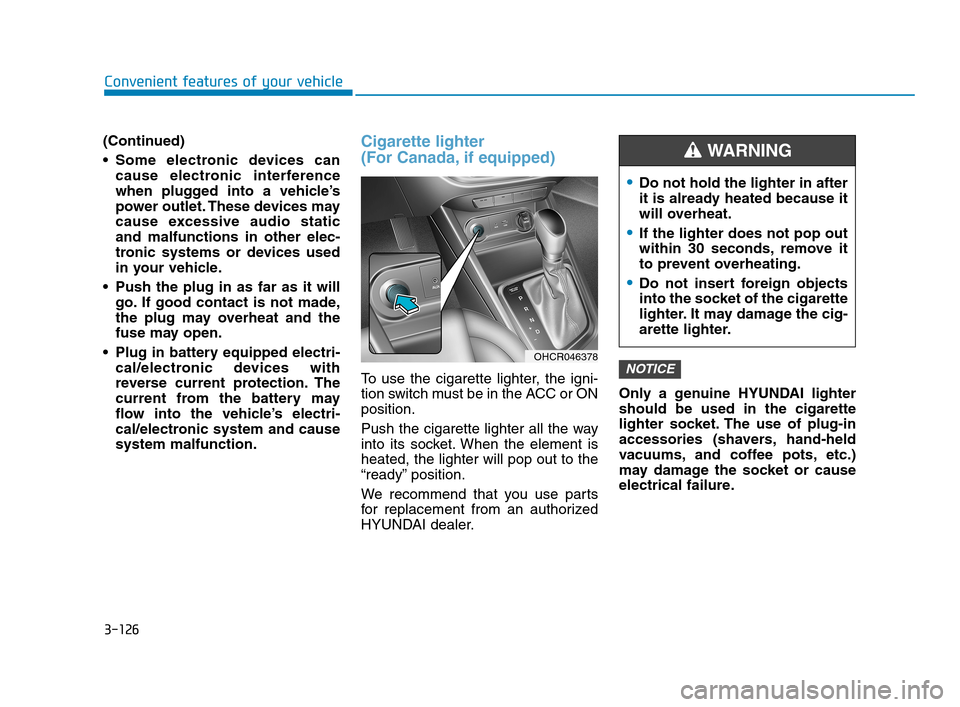
To use the cigarette lighter, the igni-
tion switch must be in the ACC or ON
position.
Push the cigarette lighter all the way
into its socket. When the element is
heated, the lighter will pop out to the
“ready” position.
We recommend that you use parts
for replacement from an authorized
HYUNDAI dealer.Only a genuine HYUNDAI lighter
should be used in the cigarette
lighter socket. The use of plug-in
accessories (shavers, hand-held
vacuums, and coffee pots, etc.)
may damage the socket or cause
electrical failure.NOTICEOHCR046378
Do not hold the lighter in after
it is already heated because it
will overheat.
If the lighter does not pop out
within 30 seconds, remove it
to prevent overheating.
Do not insert foreign objects
into the socket of the cigarette
lighter. It may damage the cig-
arette lighter.
WARNING
HCa HMA 3b(85~).qxp 5/7/2018 12:23 PM Page 126
Page 216 of 445
Floor Mat Anchor(s)
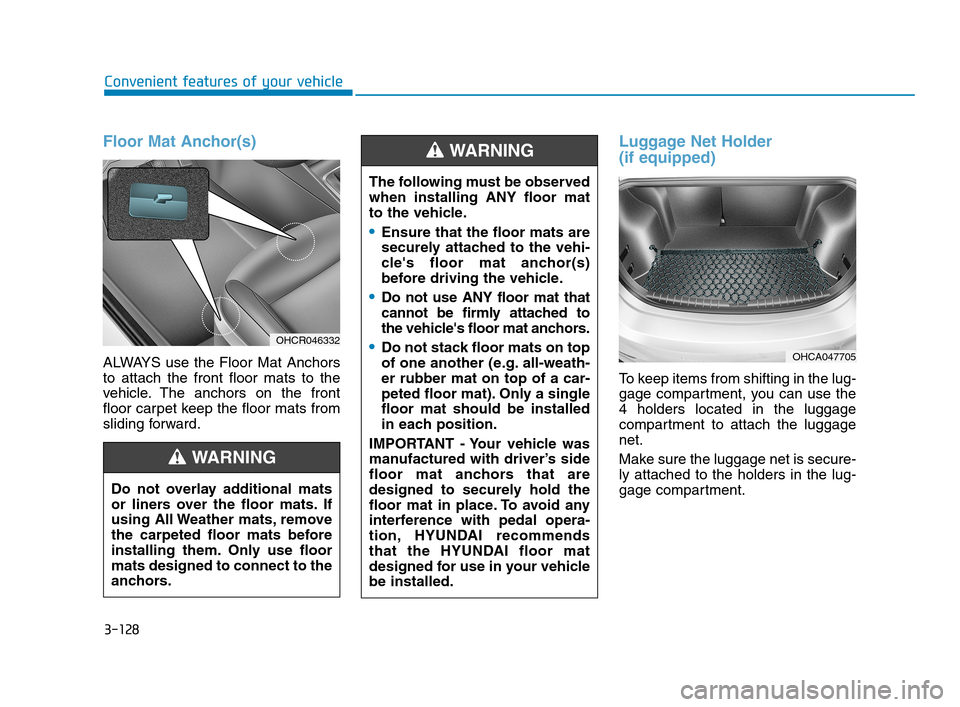
ALWAYS use the Floor Mat Anchors
to attach the front floor mats to the
vehicle. The anchors on the front
floor carpet keep the floor mats from
sliding forward.
Luggage Net Holder
(if equipped)
To keep items from shifting in the lug-
gage compartment, you can use the
4 holders located in the luggage
compartment to attach the luggage
net.
Make sure the luggage net is secure-
ly attached to the holders in the lug-
gage compartment. The following must be observed
when installing ANY floor mat
to the vehicle.
Ensure that the floor mats are
securely attached to the vehi-
cle's floor mat anchor(s)
before driving the vehicle.
Do not use ANY floor mat that
cannot be firmly attached to
the vehicle's floor mat anchors.
Do not stack floor mats on top
of one another (e.g. all-weath-
er rubber mat on top of a car-
peted floor mat). Only a single
floor mat should be installed
in each position.
IMPORTANT - Your vehicle was
manufactured with driver’s side
floor mat anchors that are
designed to securely hold the
floor mat in place. To avoid any
interference with pedal opera-
tion, HYUNDAI recommends
that the HYUNDAI floor mat
designed for use in your vehicle
be installed.
WARNING
OHCA047705
Convenient features of your vehicle
3-128
Do not overlay additional mats
or liners over the floor mats. If
using All Weather mats, remove
the carpeted floor mats before
installing them. Only use floor
mats designed to connect to the
anchors.
WARNING
OHCR046332
HCa HMA 3b(85~).qxp 5/7/2018 12:23 PM Page 128
Page 217 of 445
3-129
Convenient features of your vehicle
3
Avoid eye injury. DO NOT over-
stretch the luggage net.
ALWAYS keep your face and
body out of the luggage net's
recoil path. DO NOT use the lug-
gage net when the strap has vis-
ible signs of wear or damage.
WARNING
HCa HMA 3b(85~).qxp 5/7/2018 12:23 PM Page 129
Page 220 of 445
4-3
Multimedia System
4
Remove the antenna by rotating
it in a counter-clockwise direc-
tion, before entering a place with
a low floor height. If not, the
antenna may be damaged.
Securely install the antenna in
the upright position. This is to
guarantee proper signal recep-
tion. However, you may fold and
remove the antenna, before
parking the vehicle or loading
the luggage on the roof rack.
Do not load the luggage near the
antenna. This is to guarantee
proper signal reception.
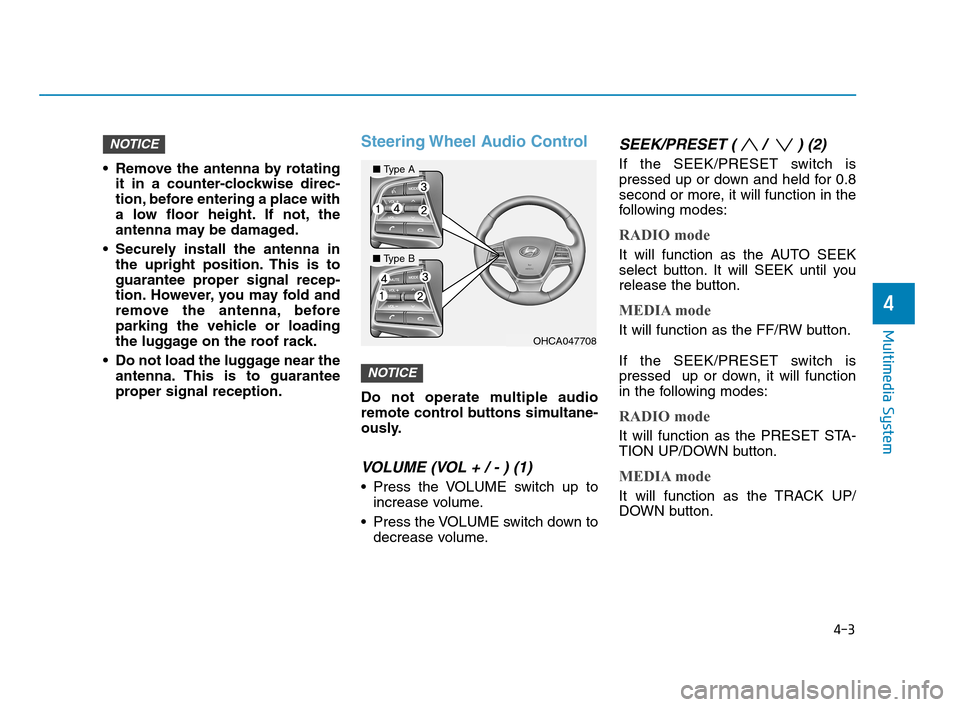
Steering Wheel Audio Control
Do not operate multiple audio
remote control buttons simultane-
ously.
VOLUME (VOL + / - ) (1)
Press the VOLUME switch up to
increase volume.
Press the VOLUME switch down to
decrease volume.
SEEK/PRESET ( / ) (2)
If the SEEK/PRESET switch is
pressed up or down and held for 0.8
second or more, it will function in the
following modes:
RADIO mode
It will function as the AUTO SEEK
select button. It will SEEK until you
release the button.
MEDIA mode
It will function as the FF/RW button.
If the SEEK/PRESET switch is
pressed up or down, it will function
in the following modes:
RADIO mode
It will function as the PRESET STA-
TION UP/DOWN button.
MEDIA mode
It will function as the TRACK UP/
DOWN button.
NOTICE
NOTICE
OHCA047708
■Type A
■Type B
HCa HMA 4.qxp 12/1/2017 5:29 PM Page 3
Page 224 of 445
Features of Your Vehicle
Satellite radio reception
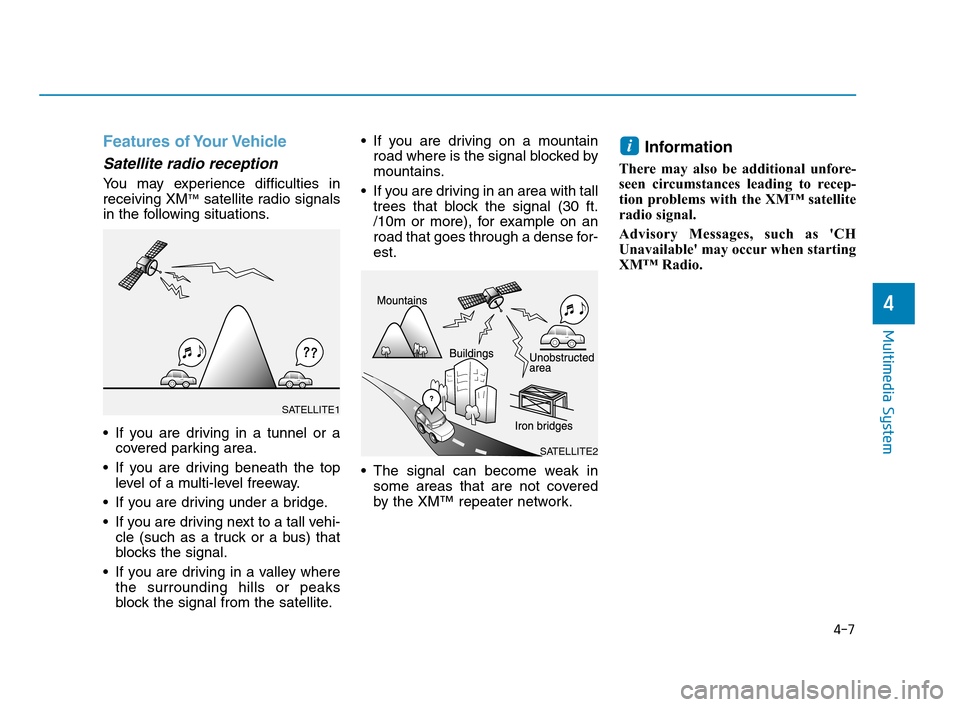
You may experience difficulties in
receiving XM™satellite radio signals
in the following situations.
If you are driving in a tunnel or a
covered parking area.
If you are driving beneath the top
level of a multi-level freeway.
If you are driving under a bridge.
If you are driving next to a tall vehi-
cle (such as a truck or a bus) that
blocks the signal.
If you are driving in a valley where
the surrounding hills or peaks
block the signal from the satellite. If you are driving on a mountain
road where is the signal blocked by
mountains.
If you are driving in an area with tall
trees that block the signal (30 ft.
/10m or more), for example on an
road that goes through a dense for-
est.
The signal can become weak in
some areas that are not covered
by the XM™ repeater network.
Information
There may also be additional unfore-
seen circumstances leading to recep-
tion problems with the XM™ satellite
radio signal.
Advisory Messages, such as 'CH
Unavailable' may occur when starting
XM™ Radio.
i
4-7
Multimedia System
4
SATELLITE2
SATELLITE1
HCa HMA 4.qxp 12/1/2017 5:29 PM Page 7
Page 232 of 445
4-15
Multimedia System
4
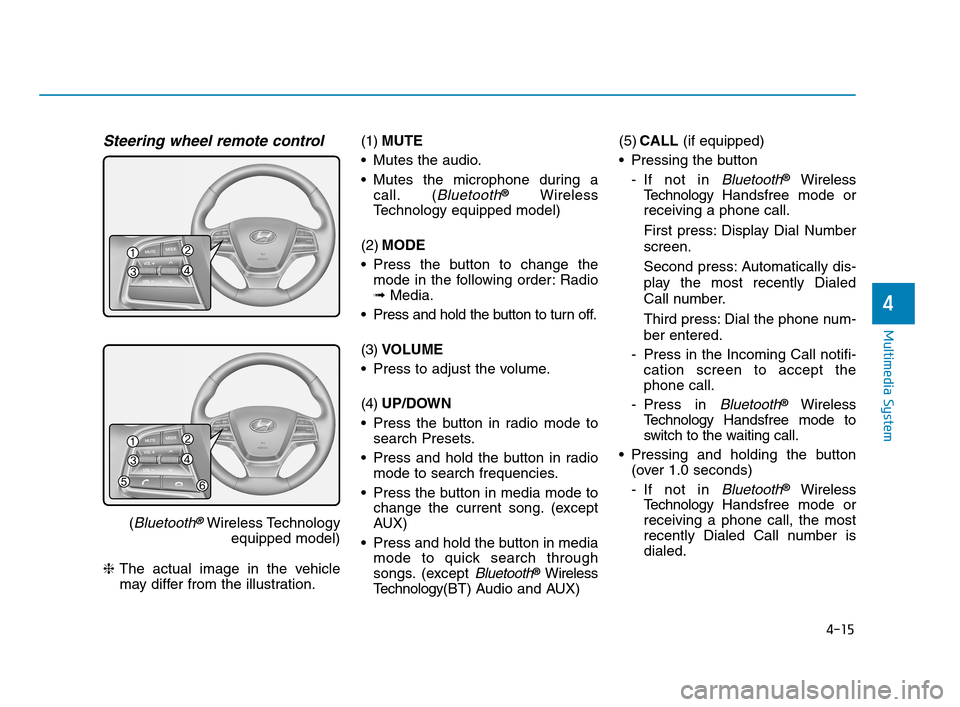
Steering wheel remote control
(Bluetooth®Wireless Technology
equipped model)
❈The actual image in the vehicle
may differ from the illustration.(1)MUTE
Mutes the audio.
Mutes the microphone during a
call. (
Bluetooth®Wireless
Technology equipped model)
(2)MODE
Press the button to change the
mode in the following order: Radio
➟Media.
Press and hold the button to turn off.
(3)VOLUME
Press to adjust the volume.
(4)UP/DOWN
Press the button in radio mode to
search Presets.
Press and hold the button in radio
mode to search frequencies.
Press the button in media mode to
change the current song. (except
AUX)
Press and hold the button in media
mode to quick search through
songs. (except
Bluetooth®Wireless
Technology(BT) Audio and AUX)(5)CALL (if equipped)
Pressing the button
- If not in
Bluetooth®Wireless
TechnologyHandsfree mode or
receiving a phone call.
First press: Display Dial Number
screen.
Second press: Automatically dis-
play the most recently Dialed
Call number.
Third press: Dial the phone num-
ber entered.
- Press in the Incoming Call notifi-
cation screen to accept the
phone call.
- Press in
Bluetooth®Wireless
TechnologyHandsfree mode to
switch to the waiting call.
Pressing and holding the button
(over 1.0 seconds)
- If not in
Bluetooth®Wireless
TechnologyHandsfree mode or
receiving a phone call, the most
recently Dialed Call number is
dialed.
HCa HMA 4.qxp 12/1/2017 5:30 PM Page 15
Page 236 of 445
![Hyundai Accent 2020 Owners Manual 4-19
Multimedia System
4
(4) Menu
Navigate to the menu screen.
(5) Presets 1~40
Save or listen to favorite stations.
Switching between FM, AM and
SiriusXM* radio
Press the [RADIO]button on the
audio](/img/35/14344/w960_14344-235.png "Hyundai Accent 2020 Owners Manual 4-19
Multimedia System
4
(4) Menu
Navigate to the menu screen.
(5) Presets 1~40
Save or listen to favorite stations.
Switching between FM, AM and
SiriusXM* radio
Press the [RADIO]button on the
audio")
4-19
Multimedia System
4
(4) Menu
Navigate to the menu screen.
(5) Presets 1~40
Save or listen to favorite stations.
Switching between FM, AM and
SiriusXM* radio
Press the [RADIO]button on the
audio system to switch between
FM, AM and SiriusXM* radio.
Select [Band] on the screen to
switch between FM, AM and
SiriusXM* radio.
* if equipped
Searching stations
Searching stations by pressing the
[SEEK/TRACK]button on the prod-
uct.
< Presets >
By selecting [< Presets >], the but-
tons for Presets 1~40 displayed on
the screen can be changed.
Presets 1~40
Select the button to listen to a preset.
Press and hold the button number to
save the current station. If the slot is
empty, simply selecting saves the
station to the slot.
List
A list of all available stations is dis-
played. Select the desired station.
Favorite stations can be saved to
[Presets] by selecting the [+].
Menu
Select [Menu], and select the desired
function.
Presets: Save up to 40 frequently
used stations. To listen to a preset,
select the desired station. Press
and hold the desired slot from 1
through 40. This saves the current
station in the selected slot. If the
slot is empty, simply selecting
saves the station to the slot.
Scan: All stations available in the
current location of the vehicle are
played for five seconds each.
Information: View detailed station
information.
Sound Settings: Audio sound set-
tings can be changed.
Station Info: Set whether to receive
station information such as Station
Name, Program Type or Information.
HCa HMA 4.qxp 12/1/2017 5:30 PM Page 19
Page 238 of 445
4-21
Multimedia System
4
SiriusXM Radio (if equipped)
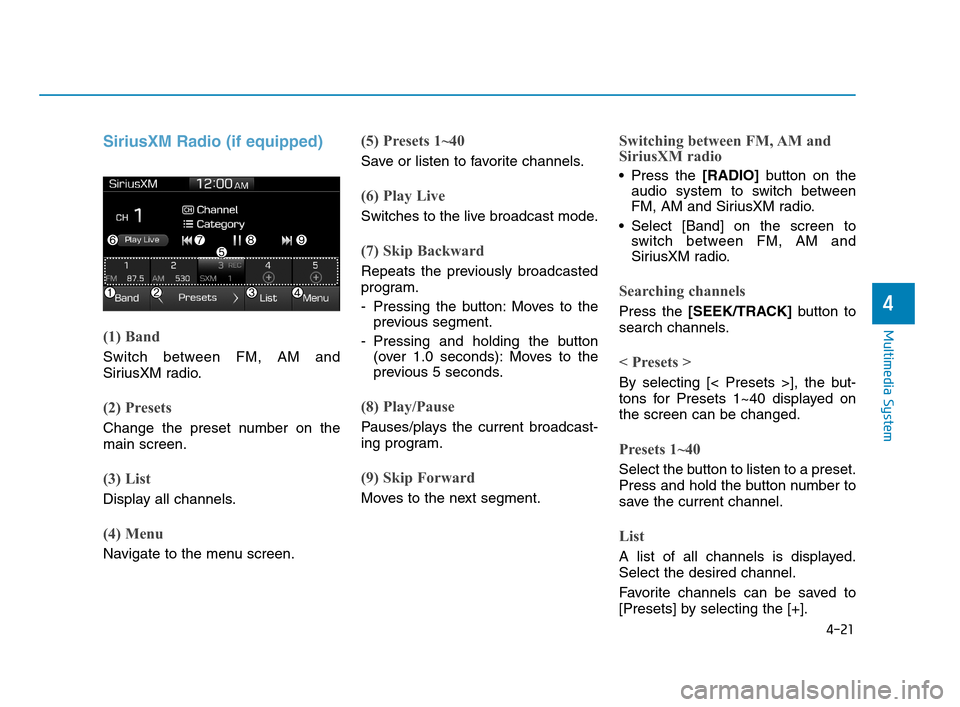
(1) Band
Switch between FM, AM and
SiriusXM radio.
(2) Presets
Change the preset number on the
main screen.
(3) List
Display all channels.
(4) Menu
Navigate to the menu screen.
(5) Presets 1~40
Save or listen to favorite channels.
(6) Play Live
Switches to the live broadcast mode.
(7) Skip Backward
Repeats the previously broadcasted
program.
- Pressing the button: Moves to the
previous segment.
- Pressing and holding the button
(over 1.0 seconds): Moves to the
previous 5 seconds.
(8) Play/Pause
Pauses/plays the current broadcast-
ing program.
(9) Skip Forward
Moves to the next segment.
Switching between FM, AM and
SiriusXM radio
Press the [RADIO]button on the
audio system to switch between
FM, AM and SiriusXM radio.
Select [Band] on the screen to
switch between FM, AM and
SiriusXM radio.
Searching channels
Press the [SEEK/TRACK]button to
search channels.
< Presets >
By selecting [< Presets >], the but-
tons for Presets 1~40 displayed on
the screen can be changed.
Presets 1~40
Select the button to listen to a preset.
Press and hold the button number to
save the current channel.
List
A list of all channels is displayed.
Select the desired channel.
Favorite channels can be saved to
[Presets] by selecting the [+].
HCa HMA 4.qxp 12/1/2017 5:30 PM Page 21
Page 239 of 445
![Hyundai Accent 2020 Owners Manual 4-22
Multimedia System
Menu
Select [Menu], and select the desired
function.
Presets: Save up to 40 frequently
used channels. To listen to a pre-
set, select the desired channel.
Press and hold the de](/img/35/14344/w960_14344-238.png "Hyundai Accent 2020 Owners Manual 4-22
Multimedia System
Menu
Select [Menu], and select the desired
function.
Presets: Save up to 40 frequently
used channels. To listen to a pre-
set, select the desired channel.
Press and hold the de")
4-22
Multimedia System
Menu
Select [Menu], and select the desired
function.
Presets: Save up to 40 frequently
used channels. To listen to a pre-
set, select the desired channel.
Press and hold the desired slot
from 1 through 40. This saves the
current channel in the selected
slot. If the slot is empty, simply
selecting saves the channel to the
slot.
Categories: Channels can be
searched by category.
Direct Tune: The desired channel
can be selected by entering num-
bers.
Sound Settings: Audio sound set-
tings can be changed.
Tag Song: Tag the current song
information. When an Apple device
(iPhone
®, iPod®) is connected,
tagged song information is sent
automatically to the connected
device.
Information
Up to 50 songs can be tagged.
Scan: All channels available in the
vehicle’s current location are
played for ten seconds each.
Program Schedule: View the
Program schedule.
Featured Favorites: The Featured
Favorites feature allows
SiriusXM™ to broadcast additional
presets.
- Example 1: During holidays,
"Holiday Music" might include all
SiriusXM™ channels that are
playing holiday music for easy
access by users.
Multiple sets of Featured Favorites
data can be broadcast by
SiriusXM™ and can change from
time to time.
Information: View detailed channel
information.
Category Lock: Search or scan
channels in the current category
only.
Media
Information
- Using MP3
Supported audio formats
File formats other than the for-
mats above may not be recog-
nized or playable. Information
such as filename may not be dis-
played.
NOTICE
i
i
HCa HMA 4.qxp 12/1/2017 5:30 PM Page 22
Page 240 of 445
4-23
Multimedia System
4
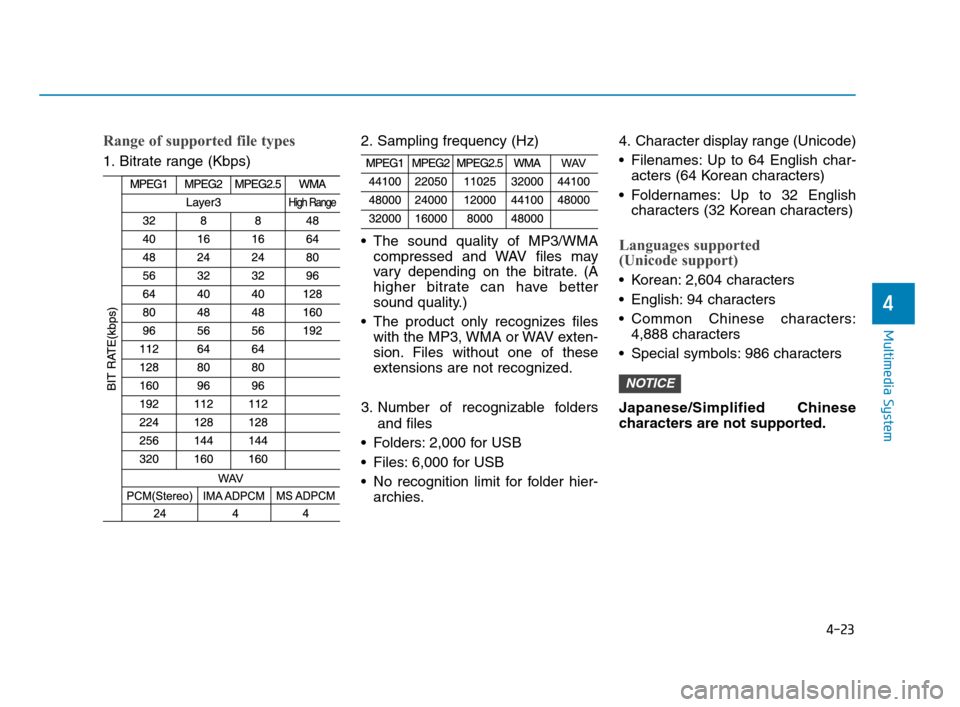
Range of supported file types
1. Bitrate range (Kbps)2. Sampling frequency (Hz)
The sound quality of MP3/WMA
compressed and WAV files may
vary depending on the bitrate. (A
higher bitrate can have better
sound quality.)
The product only recognizes files
with the MP3, WMA or WAV exten-
sion. Files without one of these
extensions are not recognized.
3. Number of recognizable folders
and files
Folders: 2,000 for USB
Files: 6,000 for USB
No recognition limit for folder hier-
archies.4. Character display range (Unicode)
Filenames: Up to 64 English char-
acters (64 Korean characters)
Foldernames: Up to 32 English
characters (32 Korean characters)
Languages supported
(Unicode support)
Korean: 2,604 characters
English: 94 characters
Common Chinese characters:
4,888 characters
Special symbols: 986 characters
Japanese/Simplified Chinese
characters are not supported.
NOTICE
HCa HMA 4.qxp 12/1/2017 5:30 PM Page 23