Eco Hyundai Accent 2020 Owner's Manual
[x] Cancel search | Manufacturer: HYUNDAI, Model Year: 2020, Model line: Accent, Model: Hyundai Accent 2020Pages: 445, PDF Size: 42.28 MB
Page 241 of 445
4-24
Multimedia System
Information
- Using the USB Devices
• Starting the vehicle while a USB
device is connected can damage the
device. Please disconnect USB
devices before starting the vehicle.
• Starting the vehicle or stopping the
engine while an external USB device
is connected can result in failure of
the external USB device to operate.
• Be cautious of static electricity when
connecting/disconnecting external
USB devices.
• An encrypted MP3 player is not rec-
ognized when connected as an exter-
nal device.
• External USB devices may not be
recognized, depending on the state
of the external USB device.
• Only products with byte/sectors for-
matted at 4 KB or lower are recog-
nized.
• Only USB devices in FAT12/16/32
format are recognized; NTFS and
ExFAT file systems are not recog-
nized.
(Continued)(Continued)
• Some USB devices are not recog-
nized due to compatibility issues.
• Do not touch the USB connections.
• Connecting and disconnecting USB
devices rapidly over a short period
of time can cause equipment failure.
• Abnormal sounds may be audible
when the USB device is disconnected.
• Turn the audio off before connecting
or disconnecting external USB
devices.
• Recognition may take longer
depending on the type, capacity or
file format of the external USB
device. This is not a product mal-
function.
• Use of USB devices for purposes
other than playing music files is pro-
hibited.
• Image display and video playback
are not supported.
(Continued)(Continued)
• Use of USB accessories, including
charge and heat though the USB I/F,
can lead to reduced product per-
formance or malfunctions. Do not
use USB devices or accessories for
these purposes.
• Use of aftermarket USB hubs and
extension cables can result in the
vehicle’s audio system failing to rec-
ognize your USB device. Connect
the USB device directly to the multi-
media port of your vehicle.
• When using high-capacity USB
devices with logical drive divisions,
only files saved on the highest level
logical drive can be played.
If applications are loaded on a USB
drive, file playback may fail.
• Some MP3 players, cell phones, dig-
ital cameras, etc. (USB devices that
are not recognized as mobile stor-
age) may not operate normally
when connected.
• USB charging may not be supported
by some mobile devices.
(Continued)
i
HCa HMA 4.qxp 12/1/2017 5:30 PM Page 24
Page 244 of 445
![Hyundai Accent 2020 Owners Manual 4-27
Multimedia System
4
(4) Save: Save the selected file(s).
- Select the files you want to save,
and select [Save]. This saves the
selected files to My Music.
- If phone calls are received or
made w](/img/35/14344/w960_14344-243.png "Hyundai Accent 2020 Owners Manual 4-27
Multimedia System
4
(4) Save: Save the selected file(s).
- Select the files you want to save,
and select [Save]. This saves the
selected files to My Music.
- If phone calls are received or
made w")
4-27
Multimedia System
4
(4) Save: Save the selected file(s).
- Select the files you want to save,
and select [Save]. This saves the
selected files to My Music.
- If phone calls are received or
made while saving, saving will be
canceled.
- Up to 6,000 files can be saved.
- The currently playing file on the
USB device cannot be changed
while saving.
- My Music cannot be used while
saving.
- Up to 700 MB can be saved.
Information: Detailed information
on the currently playing song is dis-
played.
Sound Settings: Audio sound set-
tings can be changed.Information
- Using the iPod®Devices
• To use the audio system’s iPod
®con-
trol function, use the dedicated
cable provided with your iPod
®.
• Connecting the iPod
®to the vehicle
during play may result in a loud
noise that lasts about one to two sec-
onds. Connect the iPod
®to the vehi-
cle after stopping or pausing play.
• Connect the iPod
®with the vehicle in
the ACC ON state to begin charging.
• When connecting the iPod
®cable,
be sure to fully push the cable into
the port.
• When EQ effects are enabled simul-
taneously on external devices, such
as iPod
®s and the audio system, the
EQ effects may overlap, causing
sound quality deterioration or dis-
tortion. Deactivate the EQ function
for all external devices, if possible.
• Noise may occur when your iPod
®
or the AUX port is connected.
Disconnect and store separately
when not in use.
(Continued)(Continued)
• There may be noise if the audio sys-
tem is used with an iPod
®or AUX
external device connected to the
power jack. In these cases, discon-
nect the iPod
®or external device
from the power jack.
• Play may be interrupted, or device
malfunctions may occur depending
on the characteristics of your
iPod
®/iPhone®/iPad®.
• Play may fail if your iPhone
®is con-
nected through both Bluetooth®
Wireless Technology and USB. In
this case, select Dock connector or
Bluetooth
®Wireless Technology on
your iPhone®to change the sound
output settings.
• If your software version does not
support the communication proto-
col or your iPod
®is not recognized
due to device failure, anomalies or
defects, iPod
®mode cannot be used.
• iPod
®nano (5th generation) devices
may not be recognized if the battery
is low. Charge sufficiently before use.
(Continued)
i
HCa HMA 4.qxp 12/1/2017 5:30 PM Page 27
Page 245 of 445
4-28
Multimedia System
(Continued)
• The search and song play order in
the iPod
®device may be different
from the search order in the audio
system.
• If the iPod
®has failed due to an
internal defect, please reset the
iPod
®(consult your iPod®manual).
• Depending on the software version,
the iPod
®may fail to sync with the
system. If the media is removed or
disconnected before recognition, the
previous mode may not be restored
(iPad
®cannot be charged).
• Cables other than the 1-meter cable
provided with iPod
®/iPhone®/iPad®
products may not be recognized.
• When other music apps are used on
your iPod
®, the system sync func-
tion may fail due to malfunction of
the iPod
®application.
iPod®
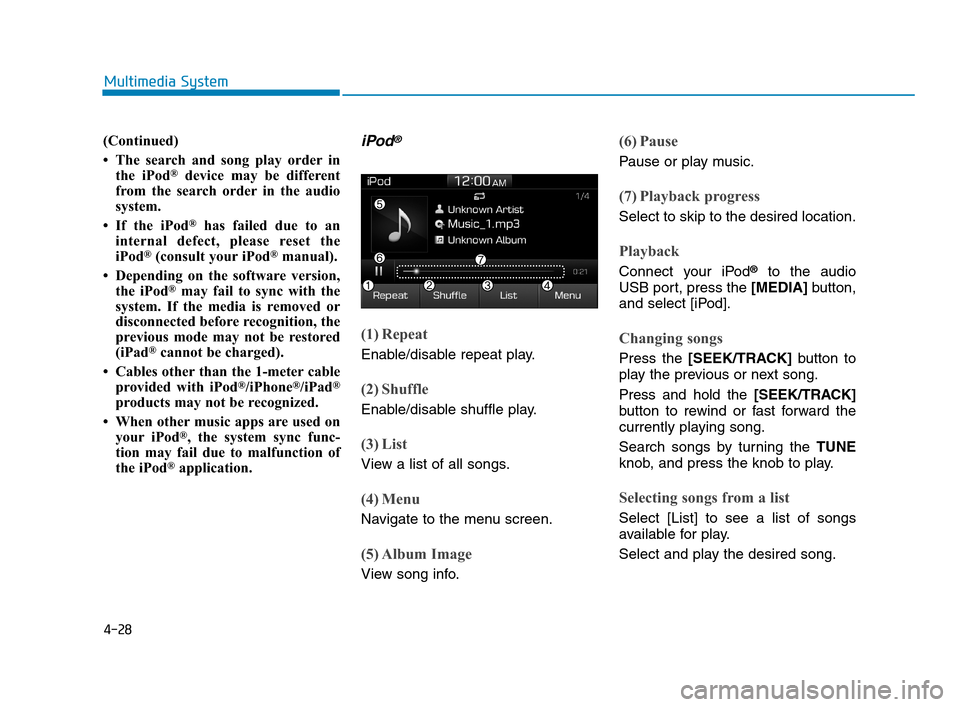
(1) Repeat
Enable/disable repeat play.
(2) Shuffle
Enable/disable shuffle play.
(3) List
View a list of all songs.
(4) Menu
Navigate to the menu screen.
(5) Album Image
View song info.
(6) Pause
Pause or play music.
(7) Playback progress
Select to skip to the desired location.
Playback
Connect your iPod®to the audio
USB port, press the [MEDIA]button,
and select [iPod].
Changing songs
Press the [SEEK/TRACK]button to
play the previous or next song.
Press and hold the [SEEK/TRACK]
button to rewind or fast forward the
currently playing song.
Search songs by turning the TUNE
knob, and press the knob to play.
Selecting songs from a list
Select [List] to see a list of songs
available for play.
Select and play the desired song.
HCa HMA 4.qxp 12/1/2017 5:30 PM Page 28
Page 252 of 445
4-35
Multimedia System
4
5) Automatic contacts/call history
download when
Bluetooth®
Wireless Technology is connected
6) Automatic
Bluetooth®Wireless
Technology device connection
when the vehicle is started
7)
Bluetooth®Wireless Technology
audio streaming playback
Before connecting the audio sys-
tem to your device, make sure your
device supports
Bluetooth®
Wireless Technology.
Even if your device supports
Bluetooth®Wireless Technology, a
Bluetooth®Wireless Technology
connection cannot be established
if the device's
Bluetooth®Wireless
Technology function is switched
off. Search and connect with the
Bluetooth®Wireless Technology
function enabled.
Pair or connect
Bluetooth®Wireless
Technology devices to the audio
system with the vehicle at a stand-
still. If a
Bluetooth®Wireless Technology
connection is lost due to abnormal
conditions while a
Bluetooth®
Wireless Technology device is con-
nected (communication range
exceeded, device power OFF,
communication errors, etc.), the
disconnected
Bluetooth®Wireless
Technology device is searched for
and automatically reconnected.
If you want to disable the
Bluetooth®Wireless Technology
device auto-connect function, turn
the
Bluetooth®Wireless Technology
function OFF on your device.
Consult the user manuals for indi-
vidual devices to see whether
Bluetooth®Wireless Technology is
supported.
Handsfree call quality and volume
may vary depending on the type of
Bluetooth®Wireless Technology
device.
Some
Bluetooth®Wireless Technology
devices are subject to intermittent
Bluetooth®Wireless Technology
connection failures. In this case,
use the following method.1) Turn the
Bluetooth®Wireless
Technology function off on your
Bluetooth®Wireless Technology
device ➟Turn it on and try
again.
2) Delete the paired device from
both the audio system and
Bluetooth®Wireless Technology
device, then pair again.
3) Power down your
Bluetooth®
Wireless Technology device ➟
Turn it on and try again.
4) Completely remove the battery
from your
Bluetooth®Wireless
Technology device; reinsert it,
reboot, and attempt connection.
5) Restart the vehicle and reat-
tempt connection.
Information
Maximum power output of Bluetooth
is 3mW.
i
HCa HMA 4.qxp 12/1/2017 5:31 PM Page 35
Page 254 of 445
![Hyundai Accent 2020 Owners Manual 4-37
Multimedia System
4
- After confirming that the 6-digit
passkey on the audio screen
and the
Bluetooth®Wireless
Technology device are identical,
select [OK] in your
Bluetooth®
Wireless Technol](/img/35/14344/w960_14344-253.png "Hyundai Accent 2020 Owners Manual 4-37
Multimedia System
4
- After confirming that the 6-digit
passkey on the audio screen
and the
Bluetooth®Wireless
Technology device are identical,
select [OK] in your
Bluetooth®
Wireless Technol")
4-37
Multimedia System
4
- After confirming that the 6-digit
passkey on the audio screen
and the
Bluetooth®Wireless
Technology device are identical,
select [OK] in your
Bluetooth®
Wireless Technology device.
Information
The 6-digit passkey in the image
above is an example. Refer to your
vehicle for the actual passkey.
Pairing a second Bluetooth®
Wireless Technology device
Press the [SETUP]button on the
audio system ➟ Select [Bluetooth] ➟
Select [Connections] ➟Select [Add
New].
- The pairing procedure from this
point is identical to [Pairing the first
Bluetooth device].
Information
•Bluetooth®Wireless Technology
standby mode lasts for three min-
utes. If a device is not paired within
three minutes, pairing is canceled.
Start over from the beginning.
• For most Bluetooth
®Wireless
Technology devices, a connection is
established automatically after pair-
ing. Some devices, however, require
separate confirmation when con-
necting after pairing. Be sure to
check yourBluetooth
®Wireless
Technology device after pairing to
confirm that it has connected.
i
i
HCa HMA 4.qxp 12/1/2017 5:31 PM Page 37
Page 267 of 445
5-5
Driving your vehicle
5
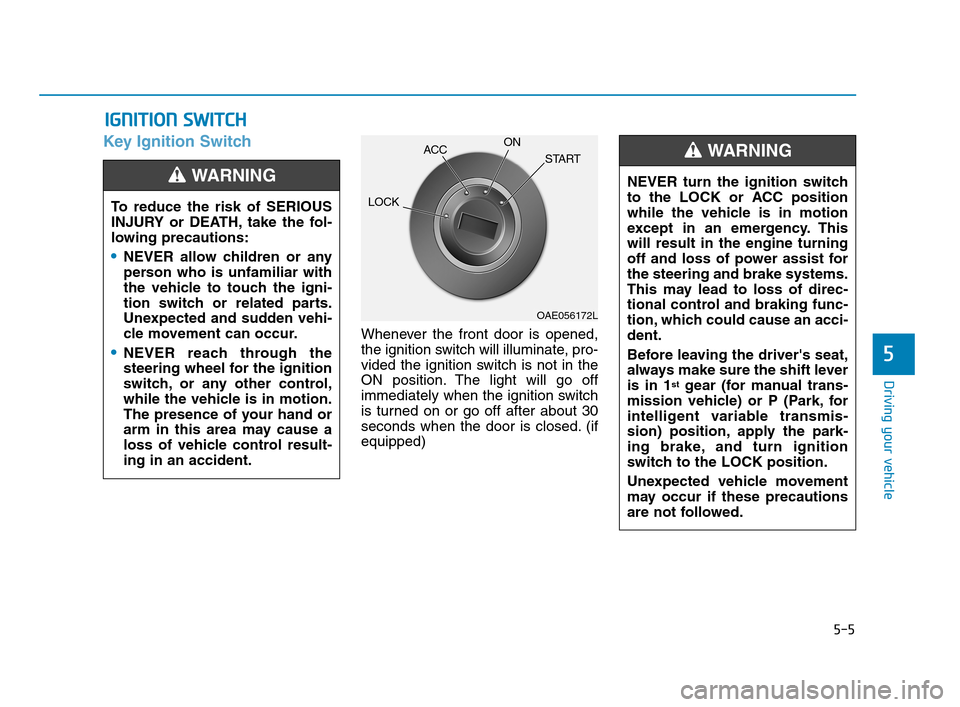
Key Ignition Switch
Whenever the front door is opened,
the ignition switch will illuminate, pro-
vided the ignition switch is not in the
ON position. The light will go off
immediately when the ignition switch
is turned on or go off after about 30
seconds when the door is closed. (if
equipped)
I IG
GN
NI
IT
TI
IO
ON
N
S
SW
WI
IT
TC
CH
H
To reduce the risk of SERIOUS
INJURY or DEATH, take the fol-
lowing precautions:
NEVER allow children or any
person who is unfamiliar with
the vehicle to touch the igni-
tion switch or related parts.
Unexpected and sudden vehi-
cle movement can occur.
NEVER reach through the
steering wheel for the ignition
switch, or any other control,
while the vehicle is in motion.
The presence of your hand or
arm in this area may cause a
loss of vehicle control result-
ing in an accident.
WARNING NEVER turn the ignition switch
to the LOCK or ACC position
while the vehicle is in motion
except in an emergency. This
will result in the engine turning
off and loss of power assist for
the steering and brake systems.
This may lead to loss of direc-
tional control and braking func-
tion, which could cause an acci-
dent.
Before leaving the driver's seat,
always make sure the shift lever
is in 1
stgear (for manual trans-
mission vehicle) or P (Park, for
intelligent variable transmis-
sion) position, apply the park-
ing brake, and turn ignition
switch to the LOCK position.
Unexpected vehicle movement
may occur if these precautions
are not followed.
WARNING
OAE056172L
LOCKACCON
START
HCa HMA 5.QXP 4/9/2019 2:38 PM Page 5
Page 269 of 445
5-7
Driving your vehicle
5
Starting the engine Vehicle with manual transmission:
1. Make sure the parking brake is
applied.
2. Make sure the shift lever is in neu-
tral.
3. Depress the clutch and brake ped-
als.
4. Turn the ignition switch to the
START position. Hold the key
(maximum of 10 seconds) until the
engine starts and release it.
Information
Depress the brake pedal and clutch
pedal until the engine starts.
Vehicle with intelligent variable trans-
mission (IVT):
1. Make sure the parking brake is
applied.
2. Make sure the shift lever is in P
(Park).
3. Depress the brake pedal.
4. Turn the ignition switch to the
START position. Hold the key
(maximum of 10 seconds) until the
engine starts and release it.
Information
• It is best to maintain a moderate
engine speed until the vehicle engine
comes up to normal operating tem-
perature. Avoid harsh or abrupt
acceleration or deceleration while
the engine is still cold.
• Whether the engine is cold or warm,
always start the vehicle with your
foot on the brake pedal. Do not
depress the accelerator while start-
ing the vehicle. Do not rev the
engine while warming it up.
To prevent damage to the vehicle:
Do not hold the ignition key in
the START position for more
than 10 seconds. Wait 5 to 10
seconds before trying again.
Do not push or tow your vehicle
to start the engine.
NOTICE
i
i
Always wear appropriate
shoes when operating your
vehicle.
Unsuitable shoes, such as
high heels, ski boots, sandals,
flip-flops, etc., may interfere
with your ability to use the
brake and accelerator pedals.
Do not start the vehicle with
the accelerator pedal
depressed. The vehicle can
move and lead to an accident.
Wait until the engine rpm is
normal. The vehicle may sud-
denly move if the brake pedal
is released when the rpm is
high.
WARNING
HCa HMA 5.QXP 4/9/2019 2:38 PM Page 7
Page 270 of 445
5-8
Driving your vehicle
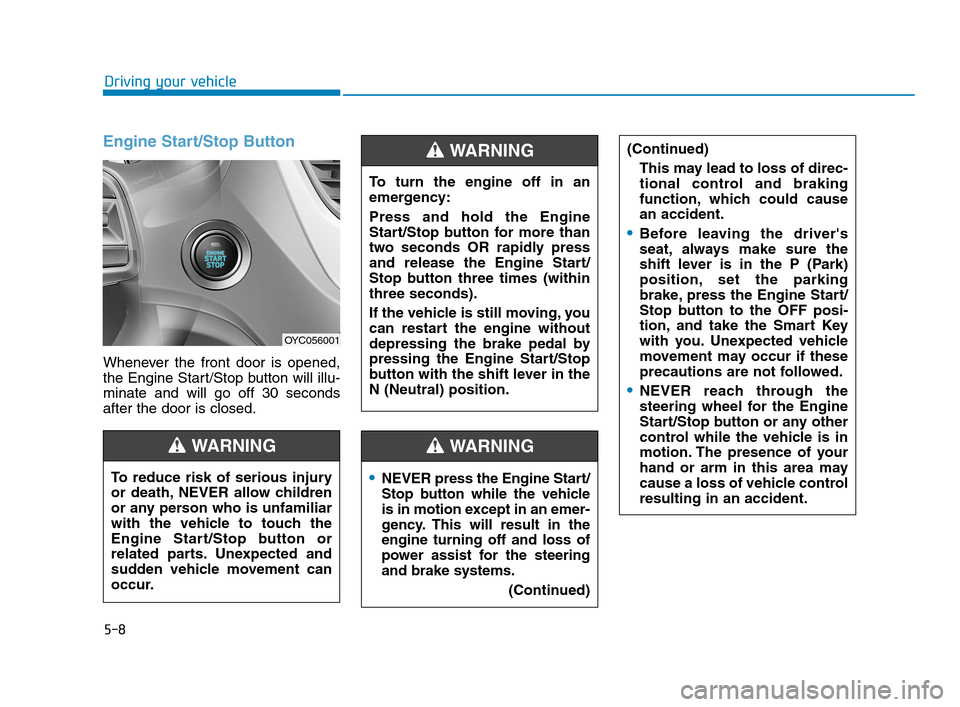
Engine Start/Stop Button
Whenever the front door is opened,
the Engine Start/Stop button will illu-
minate and will go off 30 seconds
after the door is closed.
NEVER press the Engine Start/
Stop button while the vehicle
is in motion except in an emer-
gency. This will result in the
engine turning off and loss of
power assist for the steering
and brake systems.
(Continued)
WARNING
To turn the engine off in an
emergency:
Press and hold the Engine
Start/Stop button for more than
two seconds OR rapidly press
and release the Engine Start/
Stop button three times (within
three seconds).
If the vehicle is still moving, you
can restart the engine without
depressing the brake pedal by
pressing the Engine Start/Stop
button with the shift lever in the
N (Neutral) position.
(Continued)
This may lead to loss of direc-
tional control and braking
function, which could cause
an accident.
Before leaving the driver's
seat, always make sure the
shift lever is in the P (Park)
position, set the parking
brake, press the Engine Start/
Stop button to the OFF posi-
tion, and take the Smart Key
with you. Unexpected vehicle
movement may occur if these
precautions are not followed.
NEVER reach through the
steering wheel for the Engine
Start/Stop button or any other
control while the vehicle is in
motion. The presence of your
hand or arm in this area may
cause a loss of vehicle control
resulting in an accident.
WARNING
To reduce risk of serious injury
or death, NEVER allow children
or any person who is unfamiliar
with the vehicle to touch the
Engine Start/Stop button or
related parts. Unexpected and
sudden vehicle movement can
occur.
WARNING
OYC056001
HCa HMA 5.QXP 4/9/2019 2:38 PM Page 8
Page 274 of 445
5-12
Driving your vehicle
Button Position Action Notice
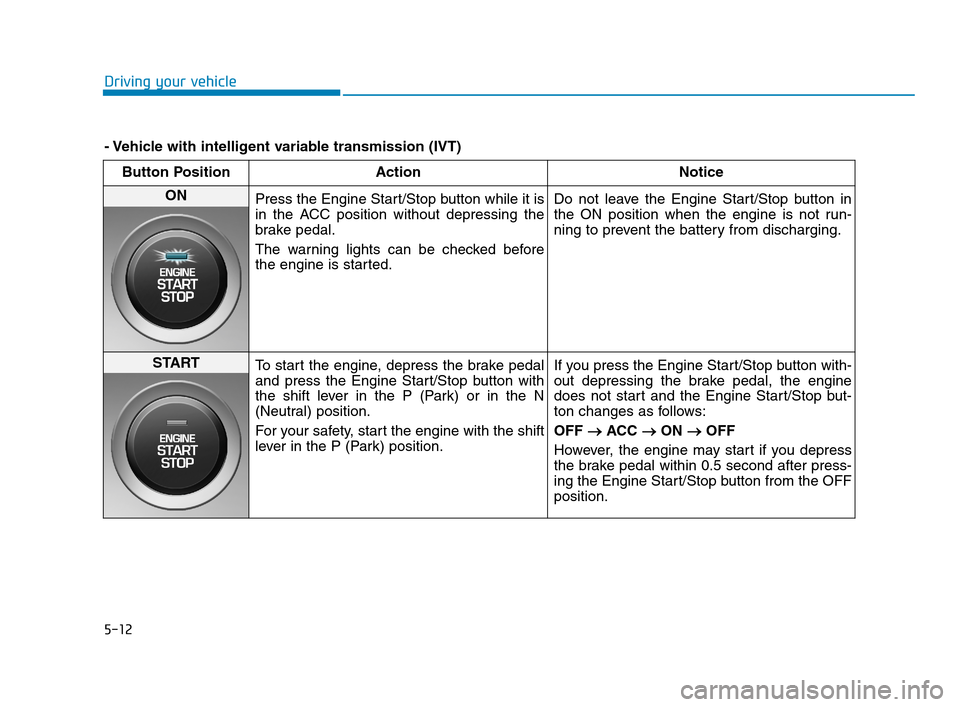
ON
Press the Engine Start/Stop button while it is
in the ACC position without depressing the
brake pedal.
The warning lights can be checked before
the engine is started.Do not leave the Engine Start/Stop button in
the ON position when the engine is not run-
ning to prevent the battery from discharging.
START
To start the engine, depress the brake pedal
and press the Engine Start/Stop button with
the shift lever in the P (Park) or in the N
(Neutral) position.
For your safety, start the engine with the shift
lever in the P (Park) position.If you press the Engine Start/Stop button with-
out depressing the brake pedal, the engine
does not start and the Engine Start/Stop but-
ton changes as follows:
OFF → →
ACC → →
ON → →
OFF
However, the engine may start if you depress
the brake pedal within 0.5 second after press-
ing the Engine Start/Stop button from the OFF
position.
- Vehicle with intelligent variable transmission (IVT)
HCa HMA 5.QXP 4/9/2019 2:38 PM Page 12
Page 275 of 445
5-13
Driving your vehicle
5
Starting the engine Information
• The engine will start by pressing the
Engine Start/Stop button, only when
the smart key is in the vehicle.
• Even if the smart key is in the vehi-
cle, if it is far away from the driver,
the engine may not start.
• When the Engine Start/Stop button
is in the ACC or ON position, if any
door is open, the system checks for
the smart key. If the smart key is not
in the vehicle, the " " indicator
will blink and the warning "Key not
in vehicle" will come on and if all
doors are closed, the chime will also
sound for about 5 seconds. Keep the
smart key in the vehicle when using
the ACC position or if the vehicle
engine is ON.Vehicle with manual transmission:
1. Always carry the smart key with
you.
2. Make sure the parking brake is
applied.
3. Make sure the shift lever is in neu-
tral.
4. Depress the clutch and brake ped-
als.
5. Press the Engine Start/Stop but-
ton.
Information
Depress the brake pedal and clutch
pedal until the engine starts.
Vehicle with intelligent variable trans-
mission (IVT):
1. Always carry the smart key with
you.
2. Make sure the parking brake is
applied.
3. Make sure the shift lever is in P
(Park).
4. Depress the brake pedal.
5. Press the Engine Start/Stop but-
ton.
i
i
Always wear appropriate shoes
when operating your vehicle.
Unsuitable shoes, such as
high heels, ski boots, sandals,
flip-flops, etc., may interfere
with your ability to use the
brake and accelerator pedals.
Do not start the vehicle with the
accelerator pedal depressed.
The vehicle can move and lead
to an accident.
Wait until the engine rpm is
normal. The vehicle may sud-
denly move if the brake pedal
is released when the rpm is
high.
WARNING
HCa HMA 5.QXP 4/9/2019 2:38 PM Page 13