radio Hyundai Accent 2020 User Guide
[x] Cancel search | Manufacturer: HYUNDAI, Model Year: 2020, Model line: Accent, Model: Hyundai Accent 2020Pages: 445, PDF Size: 42.28 MB
Page 220 of 445
4-3
Multimedia System
4
Remove the antenna by rotating
it in a counter-clockwise direc-
tion, before entering a place with
a low floor height. If not, the
antenna may be damaged.
Securely install the antenna in
the upright position. This is to
guarantee proper signal recep-
tion. However, you may fold and
remove the antenna, before
parking the vehicle or loading
the luggage on the roof rack.
Do not load the luggage near the
antenna. This is to guarantee
proper signal reception.
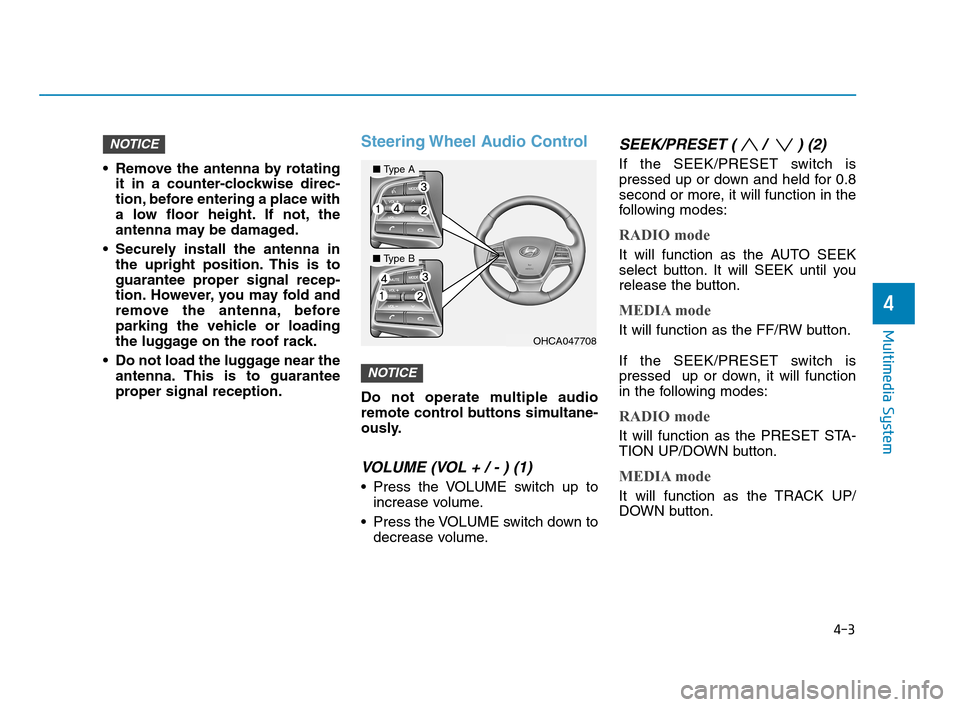
Steering Wheel Audio Control
Do not operate multiple audio
remote control buttons simultane-
ously.
VOLUME (VOL + / - ) (1)
Press the VOLUME switch up to
increase volume.
Press the VOLUME switch down to
decrease volume.
SEEK/PRESET ( / ) (2)
If the SEEK/PRESET switch is
pressed up or down and held for 0.8
second or more, it will function in the
following modes:
RADIO mode
It will function as the AUTO SEEK
select button. It will SEEK until you
release the button.
MEDIA mode
It will function as the FF/RW button.
If the SEEK/PRESET switch is
pressed up or down, it will function
in the following modes:
RADIO mode
It will function as the PRESET STA-
TION UP/DOWN button.
MEDIA mode
It will function as the TRACK UP/
DOWN button.
NOTICE
NOTICE
OHCA047708
■Type A
■Type B
HCa HMA 4.qxp 12/1/2017 5:29 PM Page 3
Page 221 of 445
4-4
Multimedia System
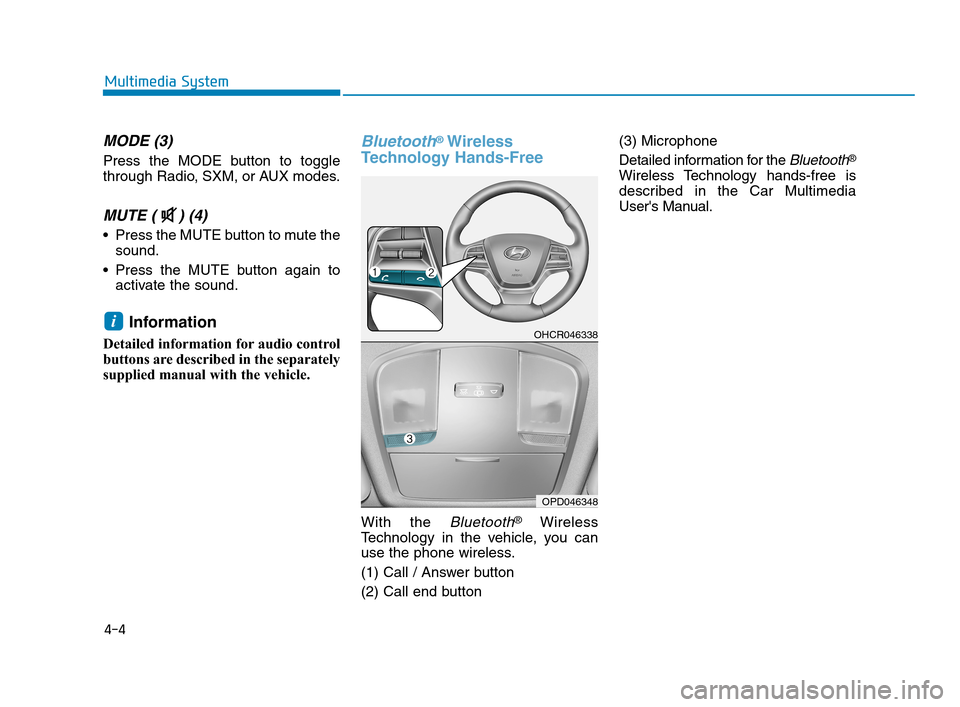
MODE (3)
Press the MODE button to toggle
through Radio, SXM, or AUX modes.
MUTE ( ) (4)
Press the MUTE button to mute the
sound.
Press the MUTE button again to
activate the sound.
Information
Detailed information for audio control
buttons are described in the separately
supplied manual with the vehicle.
Bluetooth®Wireless
Technology Hands-Free
With the Bluetooth®Wireless
Technology in the vehicle, you can
use the phone wireless.
(1) Call / Answer button
(2) Call end button(3) Microphone
Detailed information for the
Bluetooth®
Wireless Technology hands-free is
described in the Car Multimedia
User's Manual.
iOHCR046338
OPD046348
HCa HMA 4.qxp 12/1/2017 5:29 PM Page 4
Page 222 of 445
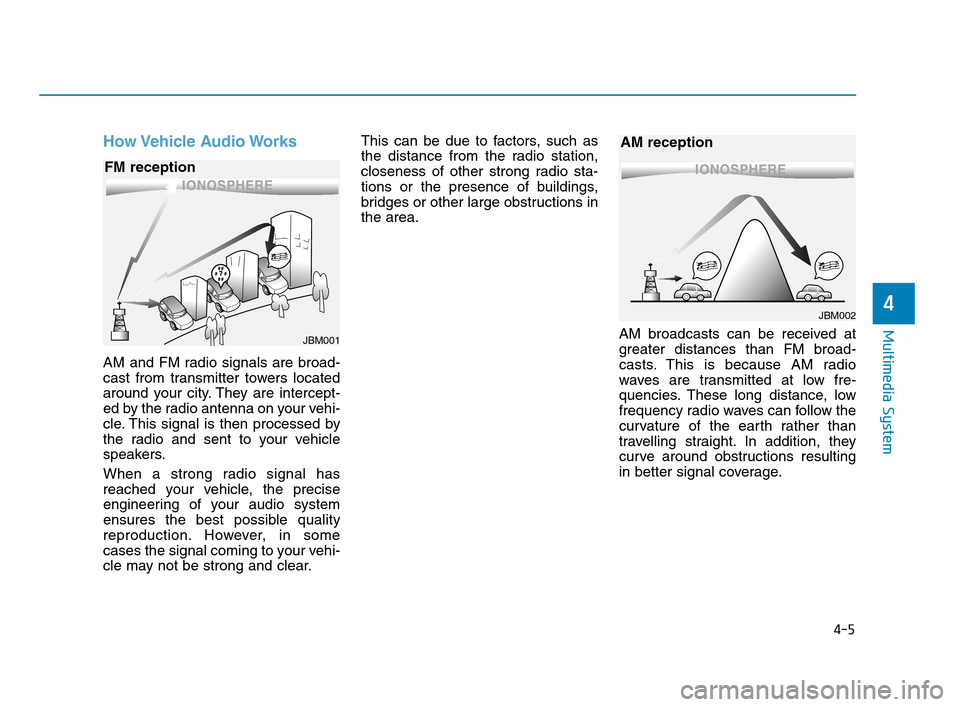
How Vehicle Audio Works
AM and FM radio signals are broad-
cast from transmitter towers located
around your city. They are intercept-
ed by the radio antenna on your vehi-
cle. This signal is then processed by
the radio and sent to your vehicle
speakers.
When a strong radio signal has
reached your vehicle, the precise
engineering of your audio system
ensures the best possible quality
reproduction. However, in some
cases the signal coming to your vehi-
cle may not be strong and clear.This can be due to factors, such as
the distance from the radio station,
closeness of other strong radio sta-
tions or the presence of buildings,
bridges or other large obstructions in
the area.
AM broadcasts can be received at
greater distances than FM broad-
casts. This is because AM radio
waves are transmitted at low fre-
quencies. These long distance, low
frequency radio waves can follow the
curvature of the earth rather than
travelling straight. In addition, they
curve around obstructions resulting
in better signal coverage.
4-5
Multimedia System
4
JBM001
FM reception
JBM002
AM reception
HCa HMA 4.qxp 12/1/2017 5:29 PM Page 5
Page 223 of 445
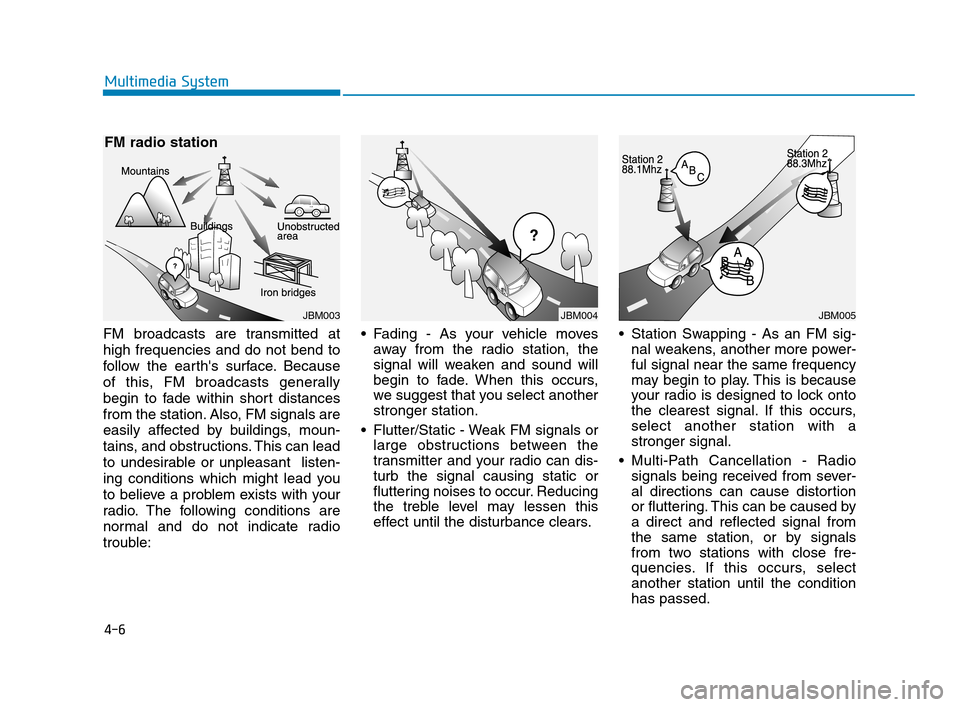
FM broadcasts are transmitted at
high frequencies and do not bend to
follow the earth's surface. Because
of this, FM broadcasts generally
begin to fade within short distances
from the station. Also, FM signals are
easily affected by buildings, moun-
tains, and obstructions. This can lead
to undesirable or unpleasant listen-
ing conditions which might lead you
to believe a problem exists with your
radio. The following conditions are
normal and do not indicate radio
trouble: Fading - As your vehicle moves
away from the radio station, the
signal will weaken and sound will
begin to fade. When this occurs,
we suggest that you select another
stronger station.
Flutter/Static - Weak FM signals or
large obstructions between the
transmitter and your radio can dis-
turb the signal causing static or
fluttering noises to occur. Reducing
the treble level may lessen this
effect until the disturbance clears. Station Swapping - As an FM sig-
nal weakens, another more power-
ful signal near the same frequency
may begin to play. This is because
your radio is designed to lock onto
the clearest signal. If this occurs,
select another station with a
stronger signal.
Multi-Path Cancellation - Radio
signals being received from sever-
al directions can cause distortion
or fluttering. This can be caused by
a direct and reflected signal from
the same station, or by signals
from two stations with close fre-
quencies. If this occurs, select
another station until the condition
has passed.
4-6
Multimedia System
JBM003
FM radio station
JBM004JBM005
HCa HMA 4.qxp 12/1/2017 5:29 PM Page 6
Page 224 of 445
Features of Your Vehicle
Satellite radio reception
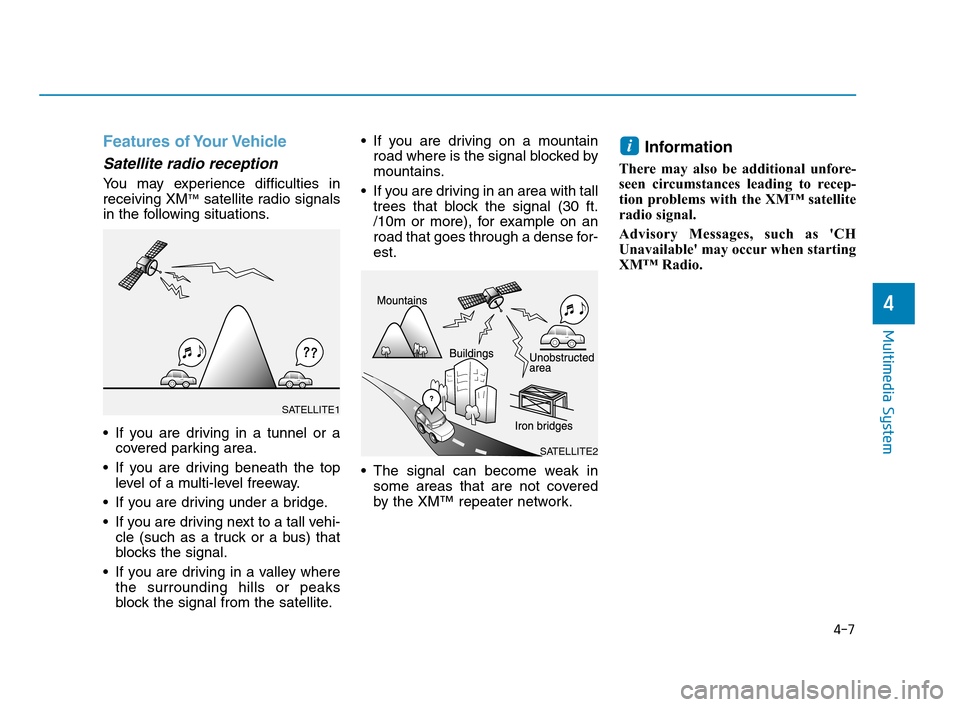
You may experience difficulties in
receiving XM™satellite radio signals
in the following situations.
If you are driving in a tunnel or a
covered parking area.
If you are driving beneath the top
level of a multi-level freeway.
If you are driving under a bridge.
If you are driving next to a tall vehi-
cle (such as a truck or a bus) that
blocks the signal.
If you are driving in a valley where
the surrounding hills or peaks
block the signal from the satellite. If you are driving on a mountain
road where is the signal blocked by
mountains.
If you are driving in an area with tall
trees that block the signal (30 ft.
/10m or more), for example on an
road that goes through a dense for-
est.
The signal can become weak in
some areas that are not covered
by the XM™ repeater network.
Information
There may also be additional unfore-
seen circumstances leading to recep-
tion problems with the XM™ satellite
radio signal.
Advisory Messages, such as 'CH
Unavailable' may occur when starting
XM™ Radio.
i
4-7
Multimedia System
4
SATELLITE2
SATELLITE1
HCa HMA 4.qxp 12/1/2017 5:29 PM Page 7
Page 227 of 445
Feature of Your Audio
Head unit
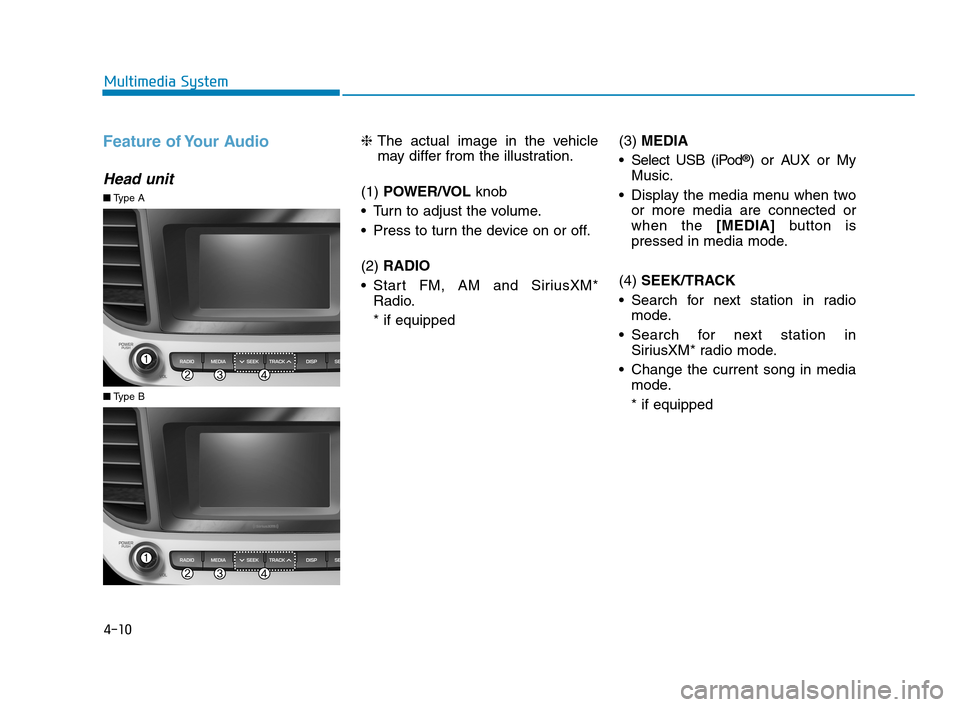
❈The actual image in the vehicle
may differ from the illustration.
(1) POWER/VOL knob
Turn to adjust the volume.
Press to turn the device on or off.
(2) RADIO
Start FM, AM and SiriusXM*
Radio.
* if equipped(3) MEDIA
Select USB (iPod
®) or AUX or My
Music.
Display the media menu when two
or more media are connected or
when the [MEDIA]button is
pressed in media mode.
(4) SEEK/TRACK
Search for next station in radio
mode.
Search for next station in
SiriusXM* radio mode.
Change the current song in media
mode.
* if equipped
■Type A
■Type B
4-10
Multimedia System
HCa HMA 4.qxp 12/1/2017 5:29 PM Page 10
Page 230 of 445
4-13
Multimedia System
4
Feature of Your Audio
Head unit
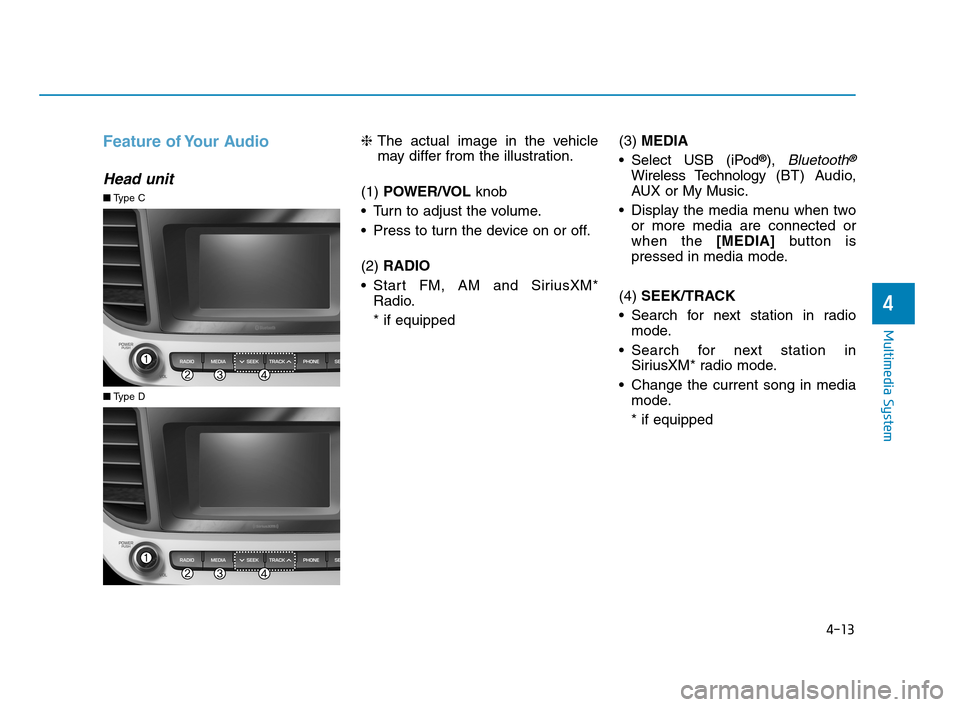
❈The actual image in the vehicle
may differ from the illustration.
(1) POWER/VOL knob
Turn to adjust the volume.
Press to turn the device on or off.
(2) RADIO
Start FM, AM and SiriusXM*
Radio.
* if equipped(3) MEDIA
Select USB (iPod
®), Bluetooth®
Wireless Technology (BT) Audio,
AUX or My Music.
Display the media menu when two
or more media are connected or
when the [MEDIA]button is
pressed in media mode.
(4) SEEK/TRACK
Search for next station in radio
mode.
Search for next station in
SiriusXM* radio mode.
Change the current song in media
mode.
* if equipped
■Type C
■Type D
HCa HMA 4.qxp 12/1/2017 5:30 PM Page 13
Page 232 of 445
4-15
Multimedia System
4
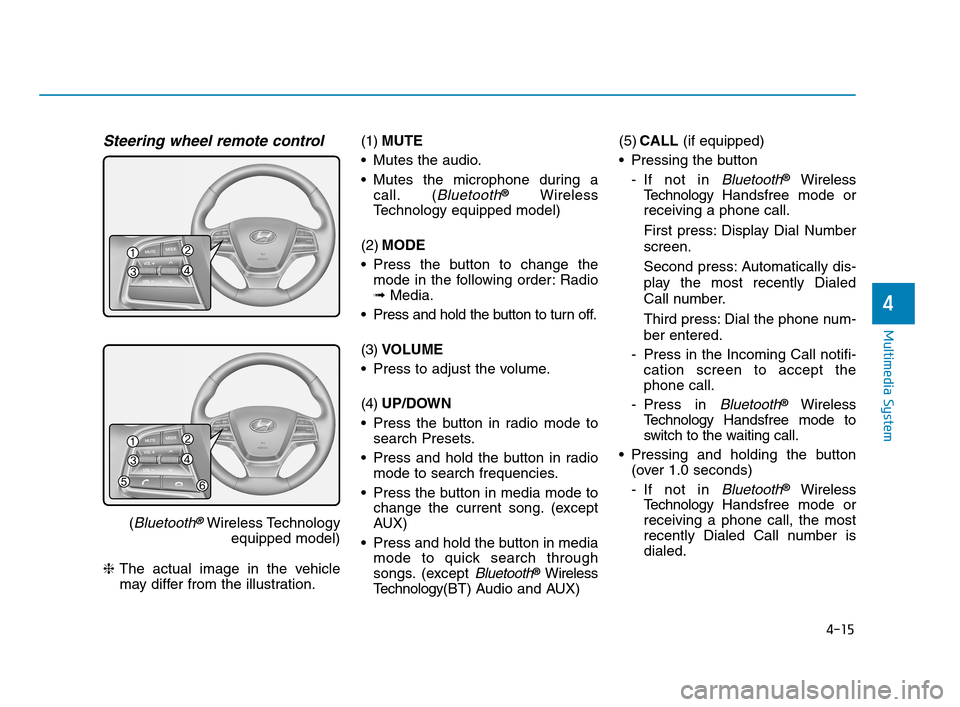
Steering wheel remote control
(Bluetooth®Wireless Technology
equipped model)
❈The actual image in the vehicle
may differ from the illustration.(1)MUTE
Mutes the audio.
Mutes the microphone during a
call. (
Bluetooth®Wireless
Technology equipped model)
(2)MODE
Press the button to change the
mode in the following order: Radio
➟Media.
Press and hold the button to turn off.
(3)VOLUME
Press to adjust the volume.
(4)UP/DOWN
Press the button in radio mode to
search Presets.
Press and hold the button in radio
mode to search frequencies.
Press the button in media mode to
change the current song. (except
AUX)
Press and hold the button in media
mode to quick search through
songs. (except
Bluetooth®Wireless
Technology(BT) Audio and AUX)(5)CALL (if equipped)
Pressing the button
- If not in
Bluetooth®Wireless
TechnologyHandsfree mode or
receiving a phone call.
First press: Display Dial Number
screen.
Second press: Automatically dis-
play the most recently Dialed
Call number.
Third press: Dial the phone num-
ber entered.
- Press in the Incoming Call notifi-
cation screen to accept the
phone call.
- Press in
Bluetooth®Wireless
TechnologyHandsfree mode to
switch to the waiting call.
Pressing and holding the button
(over 1.0 seconds)
- If not in
Bluetooth®Wireless
TechnologyHandsfree mode or
receiving a phone call, the most
recently Dialed Call number is
dialed.
HCa HMA 4.qxp 12/1/2017 5:30 PM Page 15
Page 235 of 445
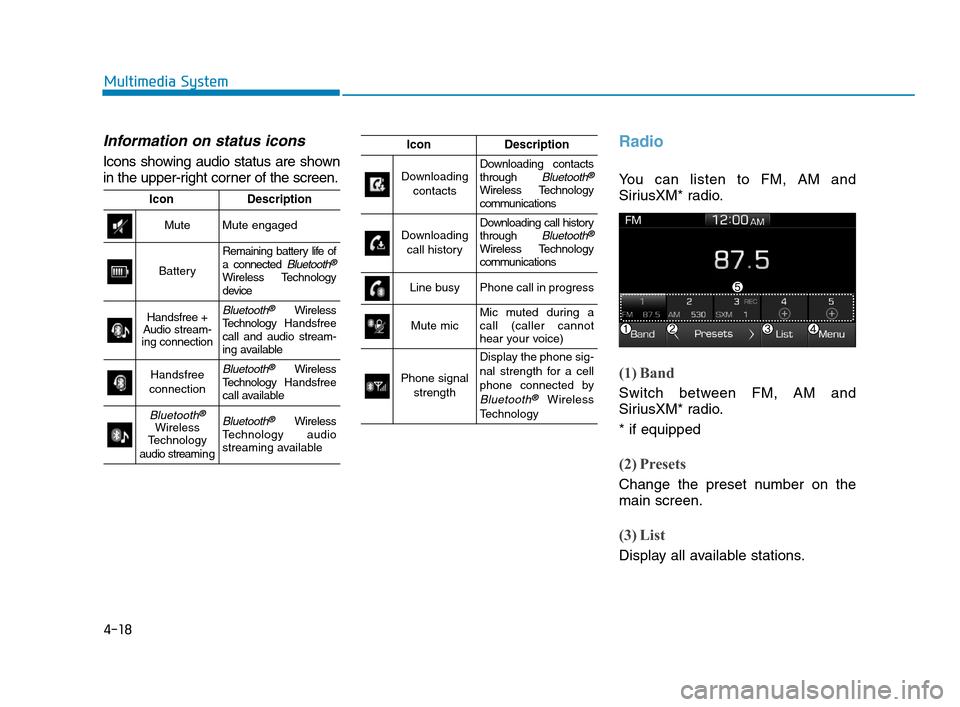
4-18
Multimedia System
Information on status icons
Icons showing audio status are shown
in the upper-right corner of the screen.
Radio
You can listen to FM, AM and
SiriusXM* radio.
(1) Band
Switch between FM, AM and
SiriusXM* radio.
* if equipped
(2) Presets
Change the preset number on the
main screen.
(3) List
Display all available stations.
IconDescription
MuteMute engaged
Battery
Remaining battery life of
a connected Bluetooth®
Wireless Technology
device
Handsfree +
Audio stream-
ing connectionBluetooth®Wireless
TechnologyHandsfree
call and audio stream-
ing available
Handsfree
connectionBluetooth®Wireless
TechnologyHandsfree
call available
Bluetooth®
Wireless
Technology
audio streami n gBluetooth®Wireless
Technology audio
streaming available
IconDescription
Downloading
contactsDownloading contacts
through Bluetooth®
Wireless Technology
communications
Downloading
call historyDownloading call history
through Bluetooth®
Wireless Technology
communications
Line busyPhone call in progress
Mute micMic muted during a
call (caller cannot
hear your voice)
Phone signal
strength
Display the phone sig-
nal strength for a cell
phone connected by
Bluetooth®Wireless
Technology
HCa HMA 4.qxp 12/1/2017 5:30 PM Page 18
Page 236 of 445
![Hyundai Accent 2020 User Guide 4-19
Multimedia System
4
(4) Menu
Navigate to the menu screen.
(5) Presets 1~40
Save or listen to favorite stations.
Switching between FM, AM and
SiriusXM* radio
Press the [RADIO]button on the
audio](/img/35/14344/w960_14344-235.png "Hyundai Accent 2020 User Guide 4-19
Multimedia System
4
(4) Menu
Navigate to the menu screen.
(5) Presets 1~40
Save or listen to favorite stations.
Switching between FM, AM and
SiriusXM* radio
Press the [RADIO]button on the
audio")
4-19
Multimedia System
4
(4) Menu
Navigate to the menu screen.
(5) Presets 1~40
Save or listen to favorite stations.
Switching between FM, AM and
SiriusXM* radio
Press the [RADIO]button on the
audio system to switch between
FM, AM and SiriusXM* radio.
Select [Band] on the screen to
switch between FM, AM and
SiriusXM* radio.
* if equipped
Searching stations
Searching stations by pressing the
[SEEK/TRACK]button on the prod-
uct.
< Presets >
By selecting [< Presets >], the but-
tons for Presets 1~40 displayed on
the screen can be changed.
Presets 1~40
Select the button to listen to a preset.
Press and hold the button number to
save the current station. If the slot is
empty, simply selecting saves the
station to the slot.
List
A list of all available stations is dis-
played. Select the desired station.
Favorite stations can be saved to
[Presets] by selecting the [+].
Menu
Select [Menu], and select the desired
function.
Presets: Save up to 40 frequently
used stations. To listen to a preset,
select the desired station. Press
and hold the desired slot from 1
through 40. This saves the current
station in the selected slot. If the
slot is empty, simply selecting
saves the station to the slot.
Scan: All stations available in the
current location of the vehicle are
played for five seconds each.
Information: View detailed station
information.
Sound Settings: Audio sound set-
tings can be changed.
Station Info: Set whether to receive
station information such as Station
Name, Program Type or Information.
HCa HMA 4.qxp 12/1/2017 5:30 PM Page 19