audio HYUNDAI COUPE 2016 Owner's Manual
[x] Cancel search | Manufacturer: HYUNDAI, Model Year: 2016, Model line: COUPE, Model: HYUNDAI COUPE 2016Pages: 475, PDF Size: 14.78 MB
Page 232 of 475
4149
Features of your vehicle
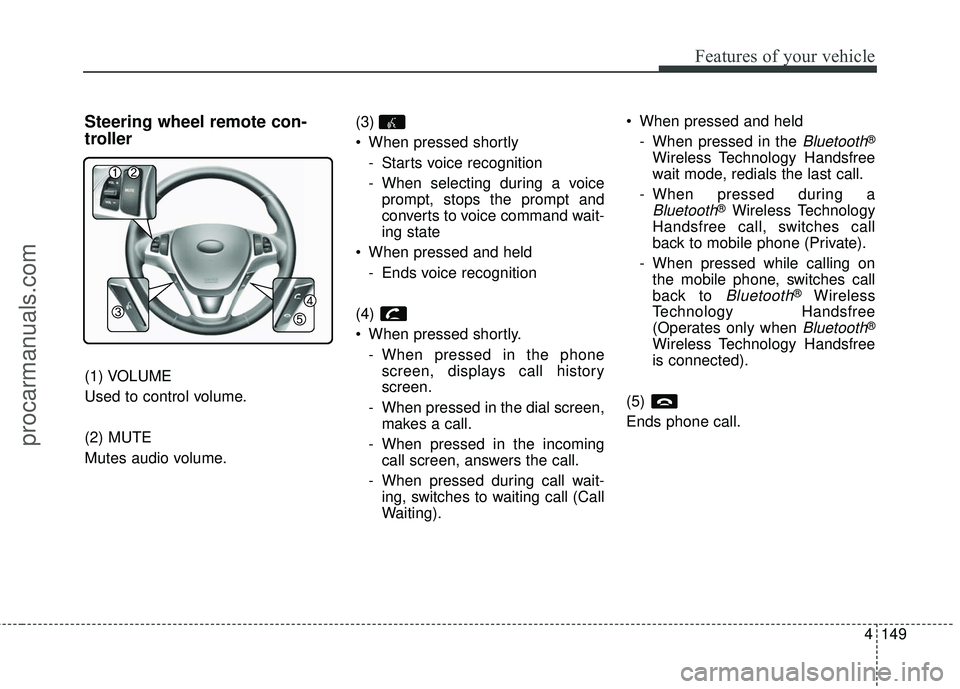
Steering wheel remote con-
troller
(1) VOLUME
Used to control volume.
(2) MUTE
Mutes audio volume.(3)
When pressed shortly
- Starts voice recognition
- When selecting during a voiceprompt, stops the prompt and
converts to voice command wait-
ing state
When pressed and held - Ends voice recognition
(4)
When pressed shortly. - When pressed in the phonescreen, displays call history
screen.
- When pressed in the dial screen, makes a call.
- When pressed in the incoming call screen, answers the call.
- When pressed during call wait- ing, switches to waiting call (Call
Waiting). When pressed and held
- When pressed in the
Bluetooth®
Wireless Technology Handsfree
wait mode, redials the last call.
- When pressed during a
Bluetooth®Wireless Technology
Handsfree call, switches call
back to mobile phone (Private).
- When pressed while calling on the mobile phone, switches call
back to
Bluetooth®Wireless
Technology Handsfree
(Operates only when
Bluetooth®
Wireless Technology Handsfree
is connected).
(5)
Ends phone call.
procarmanuals.com
Page 241 of 475
![HYUNDAI COUPE 2016 Owners Manual Features of your vehicle
158
4
MEDIA MODE
Pressing the key will change
the operating mode in order of CD ➟
USB (iPod) ➟ AUX ➟My Music ➟
BT Audio.
If [Mode Pop up] is turned on within [Display](/img/35/57912/w960_57912-240.png "HYUNDAI COUPE 2016 Owners Manual Features of your vehicle
158
4
MEDIA MODE
Pressing the key will change
the operating mode in order of CD ➟
USB (iPod) ➟ AUX ➟My Music ➟
BT Audio.
If [Mode Pop up] is turned on within [Display")
Features of your vehicle
158
4
MEDIA MODE
Pressing the key will change
the operating mode in order of CD ➟
USB (iPod) ➟ AUX ➟My Music ➟
BT Audio.
If [Mode Pop up] is turned on within [Display], then pressing thekey will display the Media
Mode Pop-up screen.
Use the TUNE knob to move the
focus. Press the knob to select.
✽ ✽ NOTICE
• If the key is pressed with
the system power off, then the
power will turn on and the most
recently played media mode will
be played.
• The media mode pop up screen can be displayed only when there
are two or more media modes
turned on.MEDIA
MEDIA
SETUP
MEDIA
procarmanuals.com
Page 242 of 475
4159
Features of your vehicle
AUDIO CD MODE
Basic Mode Screen
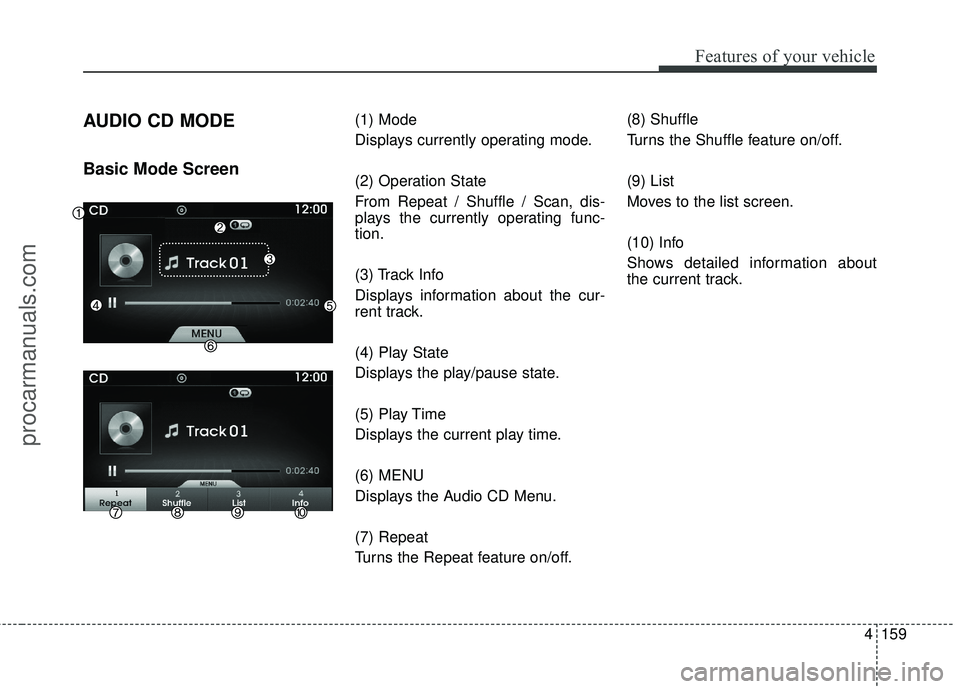
(1) Mode
Displays currently operating mode.
(2) Operation State
From Repeat / Shuffle / Scan, dis-
plays the currently operating func-
tion.
(3) Track Info
Displays information about the cur-
rent track.
(4) Play State
Displays the play/pause state.
(5) Play Time
Displays the current play time.
(6) MENU
Displays the Audio CD Menu.
(7) Repeat
Turns the Repeat feature on/off.(8) Shuffle
Turns the Shuffle feature on/off.
(9) List
Moves to the list screen.
(10) Info
Shows detailed information about
the current track.
procarmanuals.com
Page 243 of 475
Features of your vehicle
160
4
Using Audio CD Mode
Playing/Pausing CD Tracks
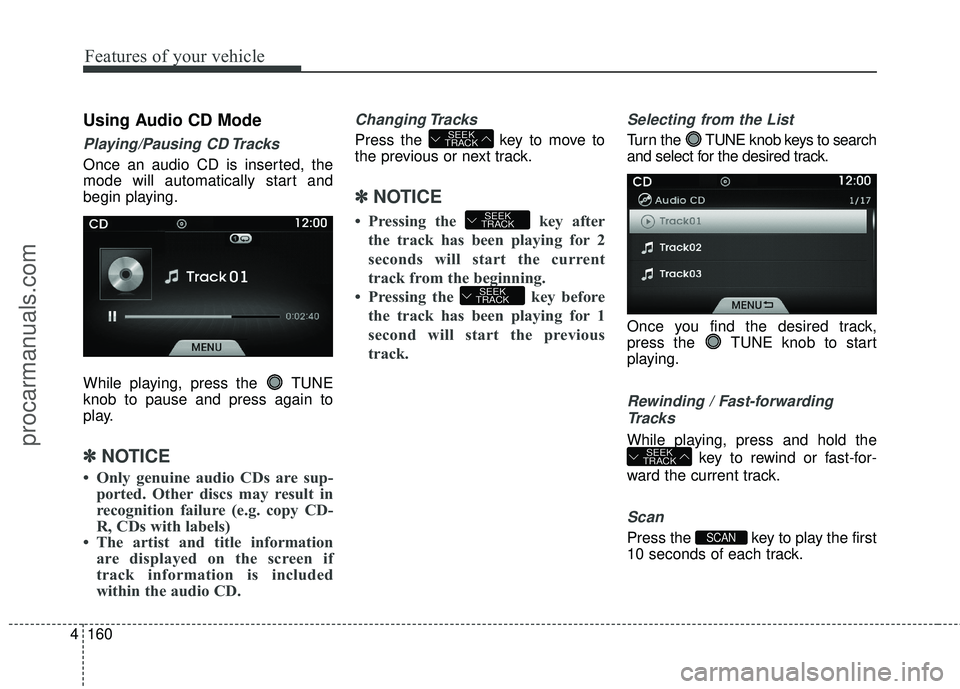
Once an audio CD is inserted, the
mode will automatically start and
begin playing.
While playing, press the TUNE
knob to pause and press again to
play.
✽ ✽
NOTICE
• Only genuine audio CDs are sup-
ported. Other discs may result in
recognition failure (e.g. copy CD-
R, CDs with labels)
• The artist and title information are displayed on the screen if
track information is included
within the audio CD.
Changing Tracks
Press the key to move to
the previous or next track.
✽ ✽ NOTICE
• Pressing the key after
the track has been playing for 2
seconds will start the current
track from the beginning.
• Pressing the key before the track has been playing for 1
second will start the previous
track.
Selecting from the List
Tur n the TUNE knob keys to search
and select for the desired track.
Once you find the desired track,
press the TUNE knob to start
playing.
Rewinding / Fast-forwardingTracks
While playing, press and hold the
key to rewind or fast-for-
ward the current track.
Scan
Press the key to play the first
10 seconds of each track.SCAN
SEEK
TRACK
SEEK
TRACK
SEEK
TRACK
SEEK
TRACK
procarmanuals.com
Page 244 of 475
4161
Features of your vehicle
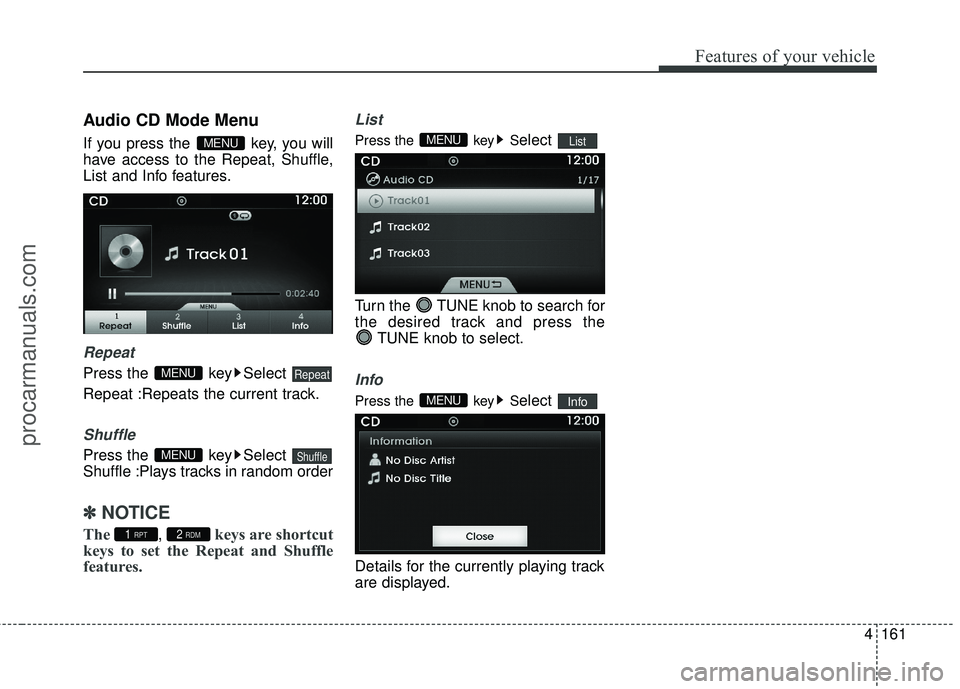
Audio CD Mode Menu
If you press the key, you will
have access to the Repeat, Shuffle,
List and Info features.
Repeat
Press the key Select
Repeat :Repeats the current track.
Shuffle
Press the key Select
Shuffle :Plays tracks in random order
✽ ✽NOTICE
The , keys are shortcut
keys to set the Repeat and Shuffle
features.
List
Press the key Select
Turn the TUNE knob to search for
the desired track and press the TUNE knob to select.
Info
Press the key Select
Details for the currently playing track
are displayed.InfoMENU
ListMENU
2 RDM1 RPT
ShuffleMENU
RepeatMENU
MENU
procarmanuals.com
Page 254 of 475
4171
Features of your vehicle
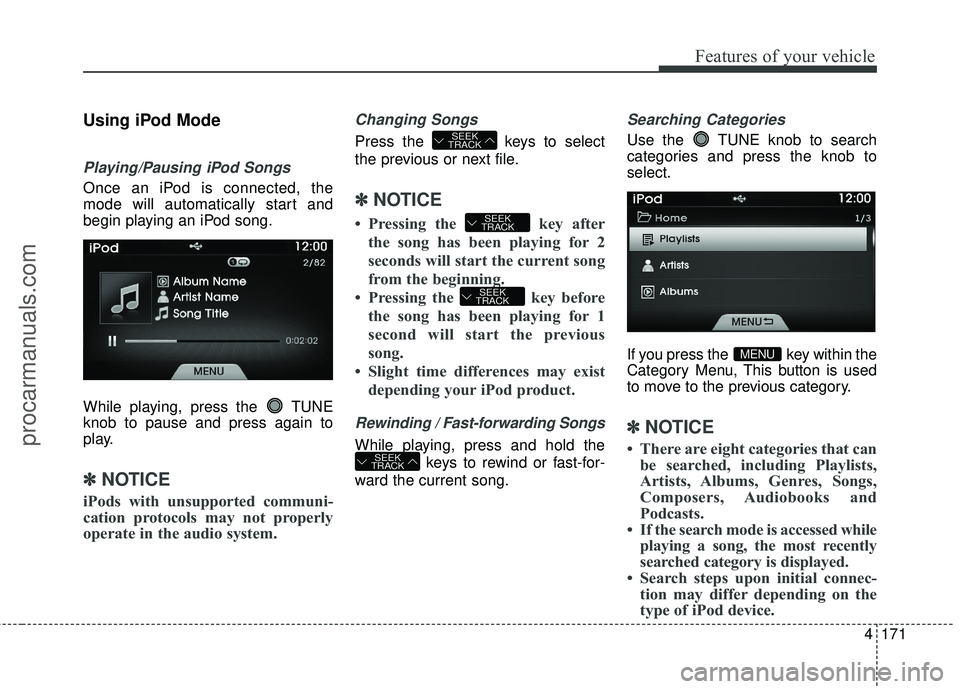
Using iPod Mode
Playing/Pausing iPod Songs
Once an iPod is connected, the
mode will automatically start and
begin playing an iPod song.
While playing, press the TUNE
knob to pause and press again to
play.
✽ ✽NOTICE
iPods with unsupported communi-
cation protocols may not properly
operate in the audio system.
Changing Songs
Press the keys to select
the previous or next file.
✽ ✽NOTICE
• Pressing the key after
the song has been playing for 2
seconds will start the current song
from the beginning.
• Pressing the key before the song has been playing for 1
second will start the previous
song.
• Slight time differences may exist depending your iPod product.
Rewinding / Fast-forwarding Songs
While playing, press and hold the
keys to rewind or fast-for-
ward the current song.
Searching Categories
Use the TUNE knob to search
categories and press the knob to
select.
If you press the key within the
Category Menu, This button is used
to move to the previous category.
✽ ✽ NOTICE
• There are eight categories that can
be searched, including Playlists,
Artists, Albums, Genres, Songs,
Composers, Audiobooks and
Podcasts.
• If the search mode is accessed while playing a song, the most recently
searched category is displayed.
• Search steps upon initial connec- tion may differ depending on the
type of iPod device.
MENU
SEEK
TRACK
SEEK
TRACK
SEEK
TRACK
SEEK
TRACK
procarmanuals.com
Page 256 of 475
4173
Features of your vehicle
✽
✽NOTICE
• If an external device connector is
connected with the AUX terminal,
then AUX mode will automatically
operate. Once the connector is dis-
connected, the previous mode will
be restored.
• AUX mode can be used only when an external audio player (cam-
corder, car VCR, etc.) has been
connected.
• The AUX volume can be con- trolled separately from other
audio modes.
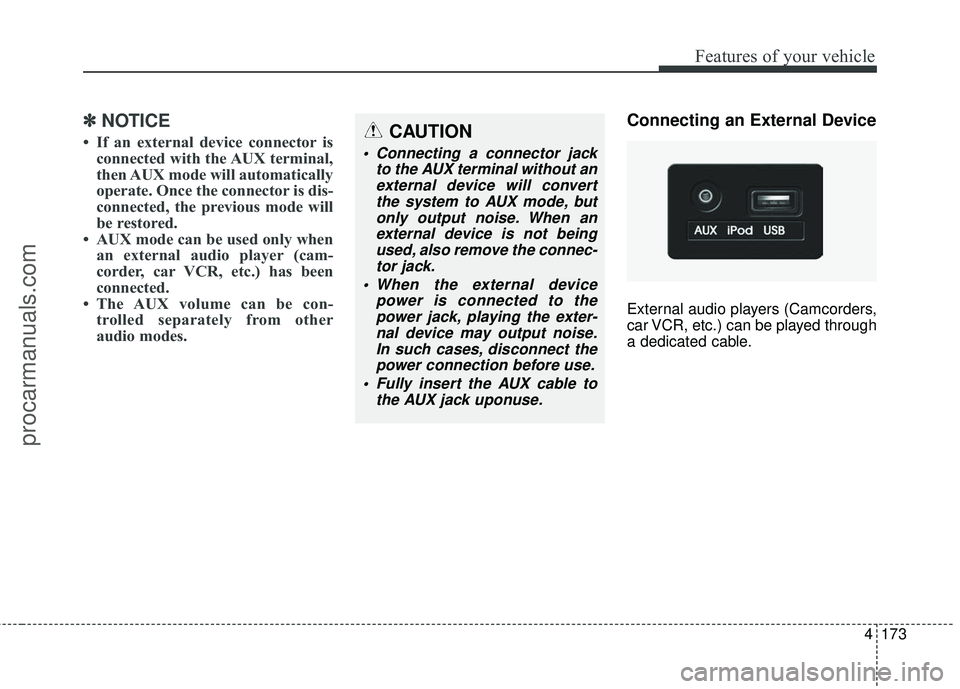
Connecting an External Device
External audio players (Camcorders,
car VCR, etc.) can be played through
a dedicated cable.
CAUTION
Connecting a connector jack
to the AUX terminal without anexternal device will convertthe system to AUX mode, butonly output noise. When anexternal device is not beingused, also remove the connec-tor jack.
When the external device power is connected to thepower jack, playing the exter-nal device may output noise.In such cases, disconnect thepower connection before use.
Fully insert the AUX cable to the AUX jack uponuse.
procarmanuals.com
Page 261 of 475
Features of your vehicle
178
4
Bluetooth®Wireless
Technology A UDIO MODE
Using Bluetooth®Wireless
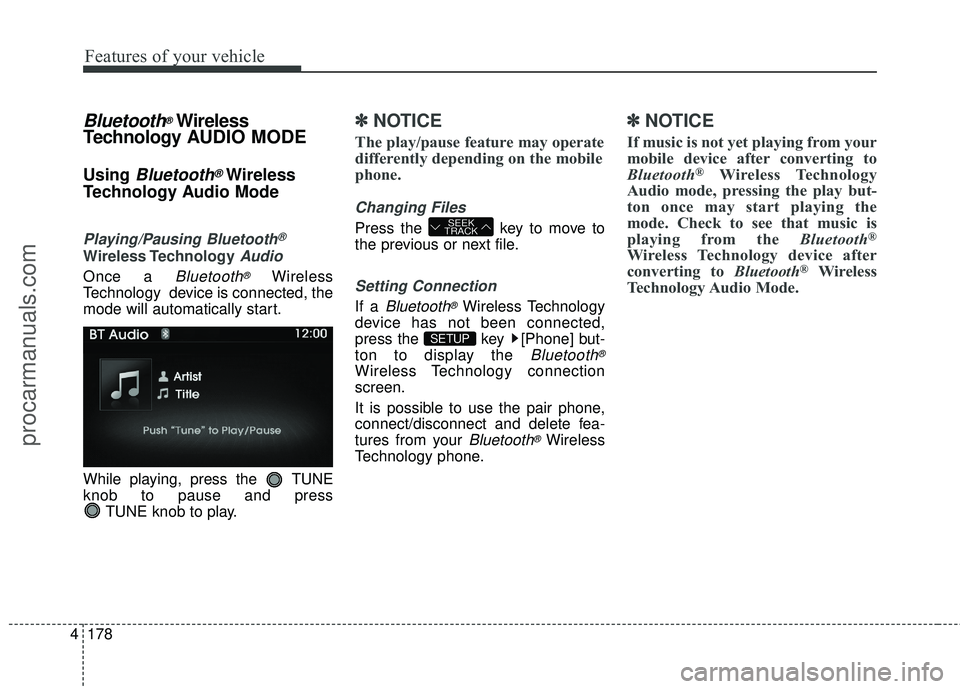
Technology Audio Mode
Playing/Pausing Bluetooth®
Wireless TechnologyAudio
Once a Bluetooth®Wireless
Technology device is connected, the
mode will automatically start.
While playing, press the TUNE
knob to pause and press TUNE knob to play.
✽ ✽NOTICE
The play/pause feature may operate
differently depending on the mobile
phone.
Changing Files
Press the key to move to
the previous or next file.
Setting Connection
If a Bluetooth®Wireless Technology
device has not been connected,
press the key [Phone] but-
ton to display the
Bluetooth®
Wireless Technology connection
screen.
It is possible to use the pair phone,
connect/disconnect and delete fea-
tures from your
Bluetooth®Wireless
Technology phone.
✽ ✽ NOTICE
If music is not yet playing from your
mobile device after converting to
Bluetooth
®Wireless Technology
Audio mode, pressing the play but-
ton once may start playing the
mode. Check to see that music is
playing from the Bluetooth
®
Wireless Technology device after
converting to Bluetooth®Wireless
Technology Audio Mode.
SETUP
SEEK
TRACK
procarmanuals.com
Page 262 of 475
4179
Features of your vehicle
Pairing a Bluetooth®Wireless
Technology Device
What is Bluetooth®Wireless
Technology Pairing?
Pairing refers to the process of syn-
chronizing your
Bluetooth®Wireless
Technology phone or device with the
car audio system for connection.
Pairing is necessary to connect and
use the
Bluetooth®Wireless
Technology feature.
Pairing key / key
on the Steering Remote
Controller
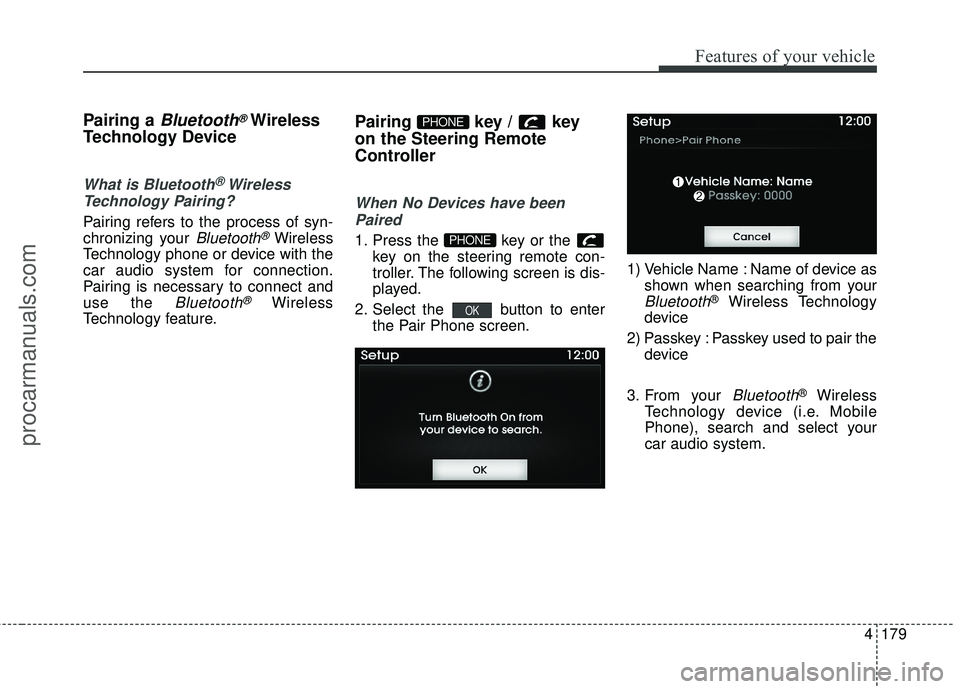
When No Devices have been
Paired
1. Press the key or the key on the steering remote con-
troller. The following screen is dis-
played.
2. Select the button to enter the Pair Phone screen. 1) Vehicle Name : Name of device as
shown when searching from your
Bluetooth®Wireless Technology
device
2) Passkey : Passkey used to pair the device
3. From your
Bluetooth®Wireless
Technology device (i.e. Mobile
Phone), search and select your
car audio system.
OK
PHONE
PHONE
procarmanuals.com
Page 263 of 475
![HYUNDAI COUPE 2016 Owners Manual Features of your vehicle
180
4
[Non SSP supported device]
(SSP: Secure Simple Pairing)
4. After a few moments, a screen is
displayed where the passkey is
entered.
Enter the passkey "0000" to pair
your](/img/35/57912/w960_57912-262.png "HYUNDAI COUPE 2016 Owners Manual Features of your vehicle
180
4
[Non SSP supported device]
(SSP: Secure Simple Pairing)
4. After a few moments, a screen is
displayed where the passkey is
entered.
Enter the passkey \"0000\" to pair
your")
Features of your vehicle
180
4
[Non SSP supported device]
(SSP: Secure Simple Pairing)
4. After a few moments, a screen is
displayed where the passkey is
entered.
Enter the passkey "0000" to pair
your
Bluetooth®Wireless
Technology device with the car
audio system.
[SSP supported device]
4. After a few moments, a screen is displayed 6 digits passkey.
Check the passkey on your
Bluetooth®Wireless Technology
device and confirm.
5. Once pairing is complete, the fol- lowing screen is displayed.
✽ ✽NOTICE
If Bluetooth®Wireless Technology
devices are paired but none are cur-
rently connected, pressing the key or the key on the
steering wheel displays the following
screen. Press the [Pair] button to
pair a new device or press the
[Connect] to connect a previously
paired device.
Pairing through [PHONE]
Setup
Press the key Select
[Phone] Select [Pair Phone]
Select TUNE knob
1. The following steps are the same
as those described in the section
"When No Devices have been
Paired" on the previous page.SETUP
PHONE
procarmanuals.com