ECO mode Hyundai Creta 2016 Owner's Guide
[x] Cancel search | Manufacturer: HYUNDAI, Model Year: 2016, Model line: Creta, Model: Hyundai Creta 2016Pages: 512, PDF Size: 11.54 MB
Page 299 of 512
![Hyundai Creta 2016 Owners Guide 4-81
Multimedia System
4
Information
To turn Bluetooth ®
Wireless Technology
back on, go to [Phone] and
press “Yes”.
System Setting
Memory Information
Press the key Select
[System] Select [M](/img/35/14533/w960_14533-298.png "Hyundai Creta 2016 Owners Guide 4-81
Multimedia System
4
Information
To turn Bluetooth ®
Wireless Technology
back on, go to [Phone] and
press “Yes”.
System Setting
Memory Information
Press the key Select
[System] Select [M")
4-81
Multimedia System
4
Information
To turn Bluetooth ®
Wireless Technology
back on, go to [Phone] and
press “Yes”.
System Setting
Memory Information
Press the key Select
[System] Select [Memory Information]
This feature displays information
related to system memory.
1) Using : Displays capacity currently in use
2) Capacity : Displays total capacity
Language (For Colombia Model)
Press the key Select
[System] Select [Language] ❈ This feature is used to change the
system and voice recognition lan-
guage.
❈ if the language is changed, the
system will restart and apply the
selected language.SETUP
SETUP
SETUP
i
Page 302 of 512
4-84
Multimedia System
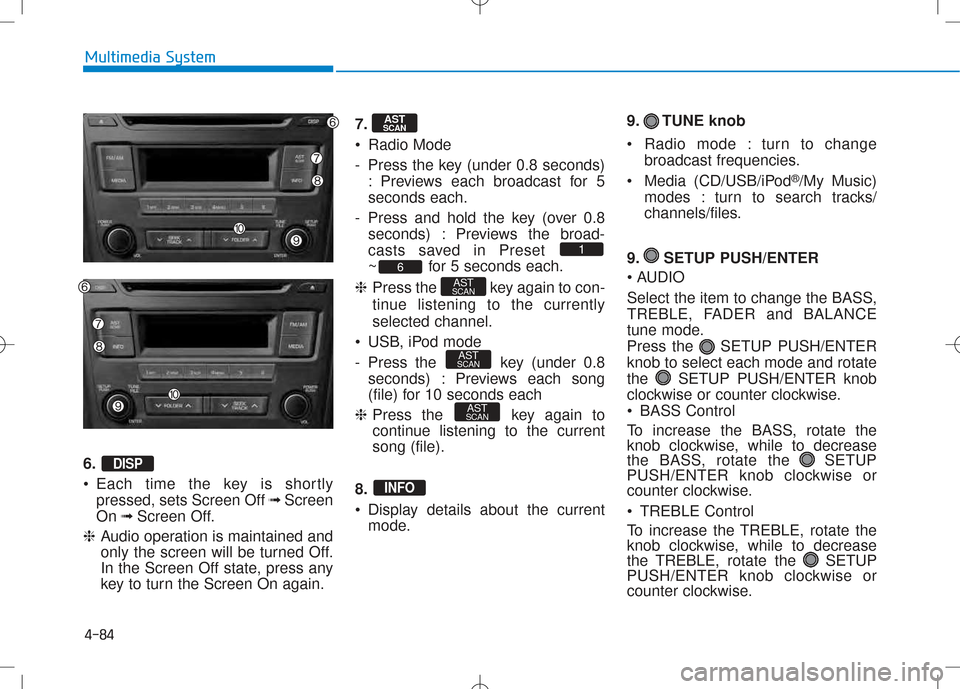
6. •Each time the key is shortly
pressed, sets Screen Off ➟Screen
On ➟Screen Off.
❈ Audio operation is maintained and
only the screen will be turned Off.
In the Screen Off state, press any
key to turn the Screen On again. 7.
Radio Mode
- Press the key (under 0.8 seconds)
: Previews each broadcast for 5 seconds each.
- Press and hold the key (over 0.8 seconds) : Previews the broad-
casts saved in Preset
~ for 5 seconds each.
❈ Press the key again to con-
tinue listening to the currentlyselected channel.
USB, iPod mode
- Press the key (under 0.8 seconds) : Previews each song
(file) for 10 seconds each
❈ Press the key again to
continue listening to the currentsong (file).
8.
Display details about the current mode. 9. TUNE knob
Radio mode : turn to change
broadcast frequencies.
Media (CD/USB/iPod ®
/My Music)
modes : turn to search tracks/
channels/files.
9. SETUP PUSH/ENTER
AUDIO
Select the item to change the BASS,
TREBLE, FADER and BALANCE
tune mode.
Press the SETUP PUSH/ENTERknob to select each mode and rotate
the SETUP PUSH/ENTER knob
clockwise or counter clockwise.
BASS Control
To increase the BASS, rotate the
knob clockwise, while to decrease
the BASS, rotate the SETUP
PUSH/ENTER knob clockwise or
counter clockwise.
TREBLE Control
To increase the TREBLE, rotate the
knob clockwise, while to decrease
the TREBLE, rotate the SETUP
PUSH/ENTER knob clockwise or
counter clockwise.
INFO
AST
SCAN
AST
SCAN
AST
SCAN6
1
AST
SCAN
DISP
Page 303 of 512
4-85
Multimedia System
4
•FADER Control
Turn the control SETUP PUSH/
ENTER knob clockwise to empha-
size rear speaker sound (front
speaker sound will be attenuated).
When the control SETUP PUSH/
ENTER knob is turned counterclock-
wise, front speaker sound will be
emphasized (rear speaker sound will
be attenuated).
BALANCE Control
Rotare the SETUP PUSH/
ENTER knob clockwise to empha-
size right speaker sound (left speak-
er sound will be attenuted). When the
control SETUP PUSH/ ENTER
knob is turnde counter clockwise, left
speaker sound will be emphasized
(right speaker sound will be attenuat-ed). 10.
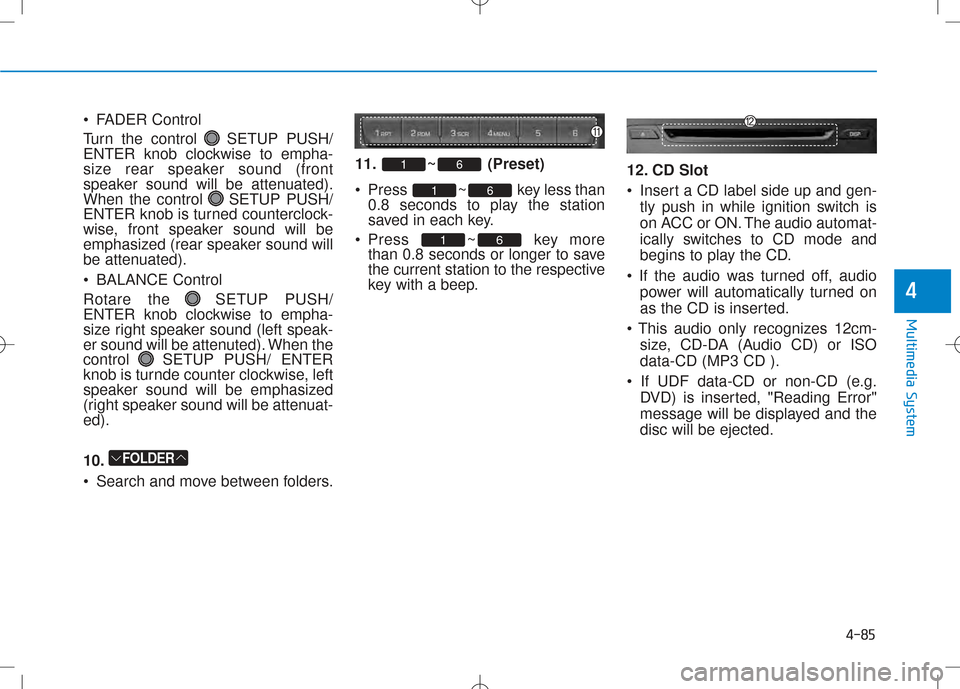
Search and move between folders. 11. ~ (Preset)
Press ~ key less
than
0.8 seconds to play the station
saved in each key.
Press ~ key more than 0.8 seconds or longer to save
the current station to the respective
key with a beep. 12. CD Slot
Insert a CD label side up and gen-
tly push in while ignition switch is
on ACC or ON. The audio automat-
ically switches to CD mode and
begins to play the CD.
power will automatically turned on
as the CD is inserted.
size, CD-DA (Audio CD) or ISOdata-CD (MP3 CD ).
DVD) is inserted, "Reading Error"
message will be displayed and thedisc will be ejected.
61
61
61
FOLDER
Page 305 of 512
4-87
Multimedia System
4
BBAA SSIICC MM EETT HH OO DD OO FF UU SSEE :: CC DD
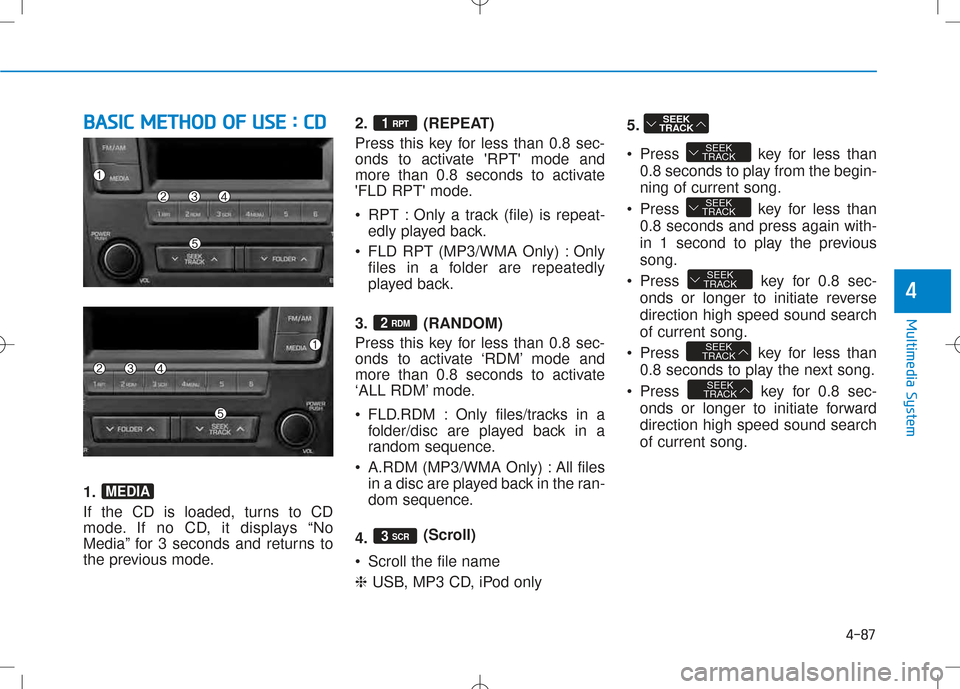
1.
If the CD is loaded, turns to CD
mode. If no CD, it displays “No
Media” for 3 seconds and returns to
the previous mode. 2. (REPEAT)
Press this key for less than 0.8 sec-
onds to activate 'RPT' mode and
more than 0.8 seconds to activate
'FLD RPT' mode.
RPT : Only a track (file) is repeat-
edly played back.
FLD RPT (MP3/WMA Only) : Only files in a folder are repeatedly
played back.
3. (RANDOM)
Press this key for less than 0.8 sec-
onds to activate ‘RDM’ mode and
more than 0.8 seconds to activate
‘ALL RDM’ mode.
FLD.RDM : Only files/tracks in a folder/disc are played back in a
random sequence.
A.RDM (MP3/WMA Only) : All files in a disc are played back in the ran-
dom sequence.
4. (Scroll)
Scroll the file name ❈ USB, MP3 CD, iPod only 5.
Press key for less than
0.8 seconds to play from the begin- ning of current song.
Press key for less than 0.8 seconds and press again with-
in 1 second to play the previoussong.
Press key for 0.8 sec- onds or longer to initiate reversedirection high speed sound searchof current song.
Press key for less than 0.8 seconds to play the next song.
Press key for 0.8 sec- onds or longer to initiate forwarddirection high speed sound searchof current song.
SEEK
TRACK
SEEK
TRACK
SEEK
TRACK
SEEK
TRACK
SEEK
TRACK
SEEK
TRACK
3 SCR
2 RDM
1 RPT
MEDIA
Page 307 of 512
4-89
Multimedia System
4
In using usb device
•To use an external USB device,
make sure the device is not
connected when starting up
the vehicle. Connect the device
after starting up.
•If you start the engine when
the USB device is connected, it
may damage the USB device.
(USB flashdrives are very sen-
sitive to electric shock.)
•If the engine is started up or
turned off while the external
USB device is connected, the
external USB device may not
work.
•It may not play inauthentic
MP3 or WMA files.
1) It can only play MP3 files with the compression rate between8Kbps~320Kbps.
2) It can only play WMA music files with the compression ratebetween 8Kbps~320Kbps.
(Continued)
CAUTION(Continued)
•Take precautions for static electricity when connecting or
disconnecting the external
USB device.
•An encrypted MP3 PLAYER is
not recognizable.
•Depending on the condition of
the external USB device, the
connected external USB
device can be unrecognizable.
•When the formatted byte/sec- tor setting of External USB
device is not either 512BYTE
or 2048BYTE, then the device
will not be recognized.
•Use only a USB device format-
ted to FAT 12/16/32.
•USB devices without USB I/F
authentication may not be
recognizable.
•Make sure the USB connec- tion terminal does not come in
contact with the human bodyor other objects.
(Continued)
(Continued)
•If you repeatedly connect or
disconnect the USB device in
a short period of time, it may
break the device.
•You may hear a strange noise when connecting or discon-
necting a USB device.
•If you disconnect the external
USB device during playback in
USB mode, the external USB
device can be damaged or may
malfunction. Therefore, discon-
nect the external USB devicewhen the audio is turned off or
in another mode. (e.g, Radio orCD)
•Depending on the type and
capacity of the external USB
device or the type of the files
stored in the device, there is a
difference in the time taken
for recognition of the device.
•Do not use the USB device for
purposes other than playing
music files.(Continued)
Page 309 of 512
4-91
Multimedia System
4
Information - USING THE
iPod®
DEVICE
Some iPod ®
models may not sup-
port communication protocol and
files may not properly play.
Supported iPod ®
models:
- iPod ®
Mini
- iPod ®
4th (Photo) ~ 6th (Classic)
generation
- iPod ®
Nano 1st~4th generation
- iPod ®
Touch 1st~2nd generation
The order of search or playback of songs in the iPod ®
can be different
from the order searched in the audio
system.
If the iPod ®
disabled due to its own
malfunction, reset the iPod ®
. (Reset:
Refer to iPod ®
manual)
An iPod ®
may not operate normally
on low battery.
To use iPod ®
features within the
audio, use the cable provided upon
purchasing an iPod ®
device.
Skipping or improper operation may occur depending on the characteris-
tics of your iPod ®
/iPhone ®
device.
(Continued) (Continued)
When connecting
iPod®
with the
iPod ®
Power Cable, insert the connec-
tor to the multimedia socket complete-
ly. If not inserted completely, commu-
nications between iPod®
and audio
may be interrupted.
When adjusting the sound effects of the iPod ®
and the audio system, the
sound effects of both devices will
overlap and might decrease or distort
the quality of the sound.
Deactivate (turn off) the equalizer function of an iPod®
when adjusting
the audio system’s volume, and turn
off the equalizer of the audio system
when using the equalizer of an iPod®
.
When not using iPod®
with car
audio, detach the iPod®
cable from
iPod ®
. Otherwise, iPod®
may remain
in accessory mode, and may not work
properly.
Beside support 1M cable when pur- chasing iPod/iPhone products, Long
Cable cannot be recognized.i
Page 310 of 512
4-92
Multimedia System
BBAA SSIICC MM EETT HH OO DD OO FF UU SSEE ::
U
U SSBB // iiPP oodd
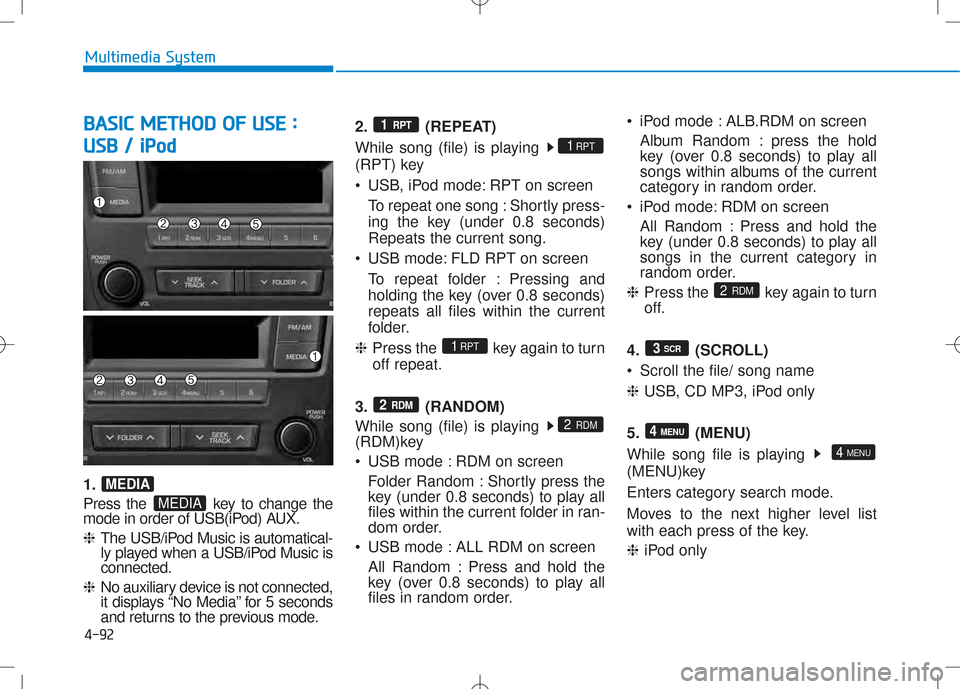
1.
Press the key to change the
mode in order of USB(iPod) AUX. ❈ The USB/iPod Music is automatical-
ly played when a USB/iPod Music isconnected.
❈ No auxiliary device is not connected,
it displays “No Media” for 5 seconds
and returns to the previous mode. 2. (REPEAT)
While song (file) is playing
(RPT) key
USB, iPod mode: RPT on screen
To repeat one song : Shortly press-
ing the key (under 0.8 seconds)Repeats the current song.
USB mode: FLD RPT on screen To repeat folder : Pressing and
holding the key (over 0.8 seconds)repeats all files within the current
folder.
❈ Press the key again to turnoff repeat.
3. (RANDOM)
While song (file) is playing
(RDM)key
USB mode : RDM on screen Folder Random : Shortly press the
key (under 0.8 seconds) to play all
files within the current folder in ran-
dom order.
USB mode : ALL RDM on screen
All Random : Press and hold the
key (over 0.8 seconds) to play all
files in random order. iPod mode : ALB.RDM on screen
Album Random : press the hold
key (over 0.8 seconds) to play all
songs within albums of the current
category in random order.
iPod mode: RDM on screen
All Random : Press and hold the
key (under 0.8 seconds) to play all
songs in the current category in
random order.
❈ Press the key again to turn
off.
4. (SCROLL)
Scroll the file/ song name❈ USB, CD MP3, iPod only
5. (MENU)
While song file is playing
(MENU)key
Enters category search mode.
Moves to the next higher level list
with each press of the key. ❈ iPod only
4 MENU
4 MENU
3
SCR
2
RDM
2 RDM
2 RDM
1RPT
1RPT
1 RPT
MEDIA
MEDIA
Page 311 of 512
4-93
Multimedia System
4
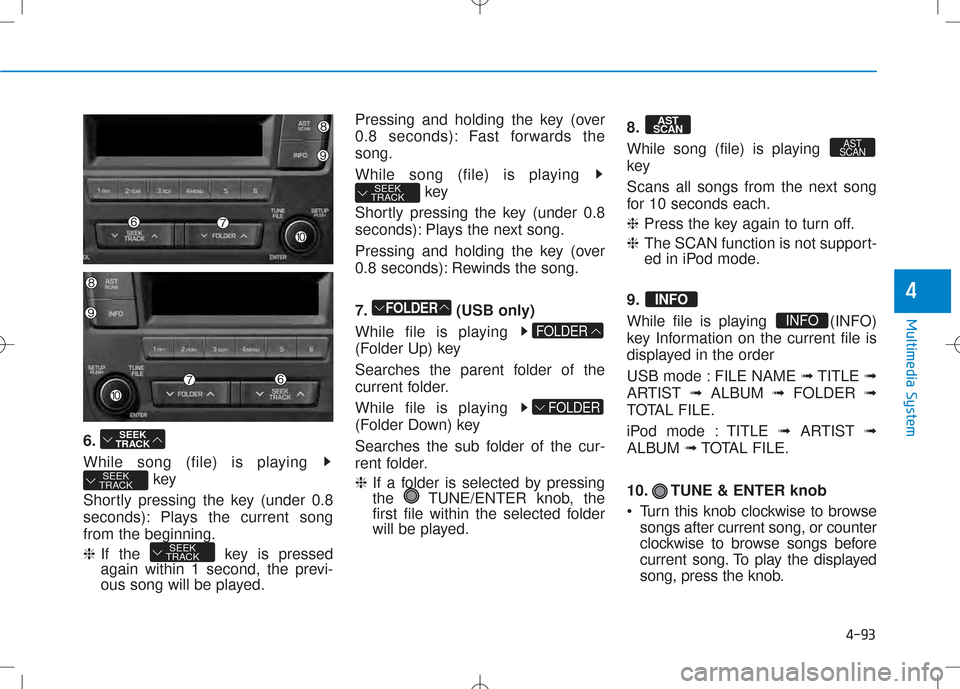
6.
While song (file) is playing key
Shortly pressing the key (under 0.8
seconds): Plays the current songfrom the beginning. ❈ If the key is pressed
again within 1 second, the previ-
ous song will be played. Pressing and holding the key (over
0.8 seconds): Fast forwards thesong.
While song (file) is playing
key
Shortly pressing the key (under 0.8
seconds): Plays the next song.
Pressing and holding the key (over
0.8 seconds): Rewinds the song.
7. (USB only)
While file is playing
(Folder Up) key
Searches the parent folder of the
current folder.
While file is playing
(Folder Down) key
Searches the sub folder of the cur-
rent folder. ❈ If a folder is selected by pressing
the TUNE/ENTER knob, the
first file within the selected folder
will be played. 8.
While song (file) is playing
key
Scans all songs from the next song
for 10 seconds each. ❈
Press the key again to turn off.
❈ The SCAN function is not support-
ed in iPod mode.
9.
While file is playing (INFO)
key Information on the current file is
displayed in the order
USB mode : FILE NAME ➟TITLE ➟
ARTIST ➟ALBUM ➟FOLDER ➟
TOTAL FILE.
iPod mode : TITLE ➟ARTIST ➟
ALBUM ➟TOTAL FILE.
10. TUNE & ENTER knob
Turn this knob clockwise to browse songs after current song, or counter
clockwise to browse songs before
current song. To play the displayed
song, press the knob.
INFO
INFO
AST
SCAN
AST
SCAN
FOLDER
FOLDER
FOLDER
SEEK
TRACK
SEEK
TRACK
SEEK
TRACK
SEEK
TRACK
Page 312 of 512
4-94
Multimedia System
AAUU XX
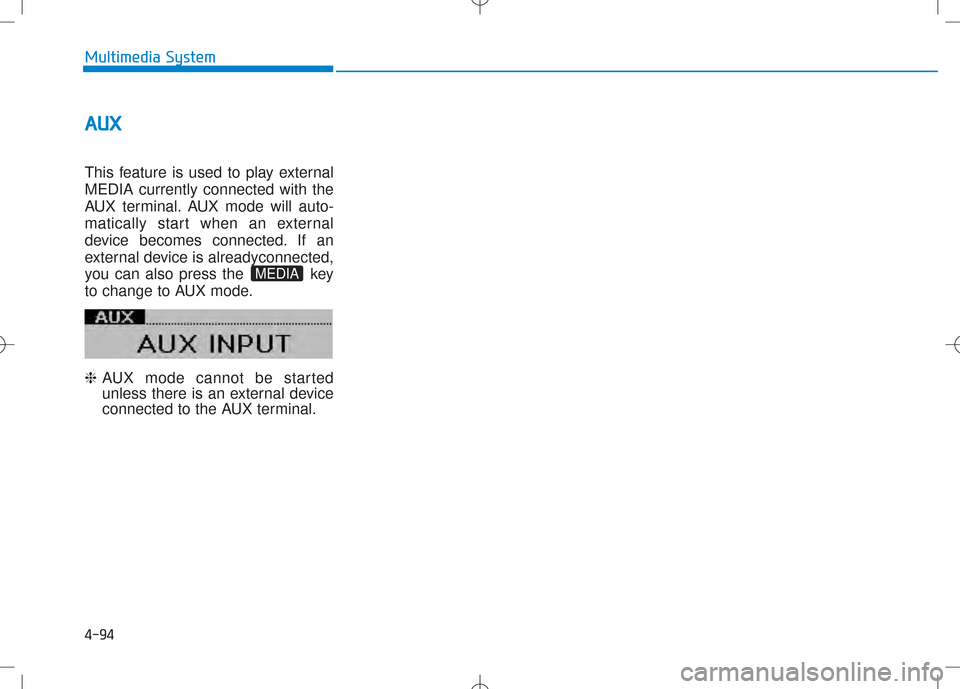
This feature is used to play external MEDIA currently connected with the
AUX terminal. AUX mode will auto-
matically start when an external
device becomes connected. If an
external device is alreadyconnected,
you can also press the key
to change to AUX mode. ❈ AUX mode cannot be started
unless there is an external device
connected to the AUX terminal.
MEDIA
Page 320 of 512
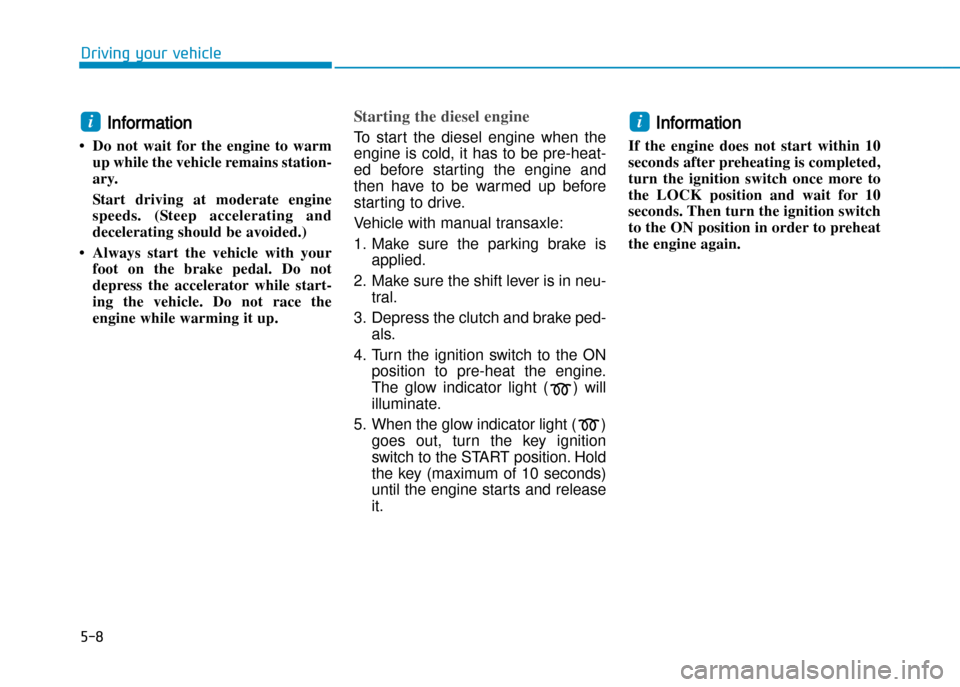
5-8
Driving your vehicle
Information
• Do not wait for the engine to warm up while the vehicle remains station
ary.
Start driving at moderate engine
speeds. (Steep accelerating and
decelerating should be avoided.)
• Always start the vehicle with your foot on the brake pedal. Do not
depress the accelerator while start
ing the vehicle. Do not race the
engine while warming it up.Starting the diesel engine
To start the diesel engine when the
engine is cold, it has to be preheat
ed before starting the engine and
then have to be warmed up before
starting to drive.
Vehicle with manual transaxle:
1. Make sure the parking brake is applied.
2. Make sure the shift lever is in neu tral.
3. Depress the clutch and brake ped als.
4. Turn the ignition switch to the ON position to preheat the engine.
The glow indicator light ( ) will
illuminate.
5. When the glow indicator light ( ) goes out, turn the key ignition
switch to the START position. Holdthe key (maximum of 10 seconds)
until the engine starts and release it. Information
If the engine does not start within 10
seconds after preheating is completed,
turn the ignition switch once more to
the LOCK position and wait for 10
seconds. Then turn the ignition switch
to the ON position in order to preheat
the engine again.ii