display Hyundai Creta 2016 Repair Manual
[x] Cancel search | Manufacturer: HYUNDAI, Model Year: 2016, Model line: Creta, Model: Hyundai Creta 2016Pages: 512, PDF Size: 11.54 MB
Page 278 of 512
![Hyundai Creta 2016 Repair Manual 4-60
Multimedia System
Phone Book
Press the key Select [Phone book]
The list of saved phone book entries
is displayed. Press the [Download]
button to download the call history.
1) Phone book List](/img/35/14533/w960_14533-277.png "Hyundai Creta 2016 Repair Manual 4-60
Multimedia System
Phone Book
Press the key Select [Phone book]
The list of saved phone book entries
is displayed. Press the [Download]
button to download the call history.
1) Phone book List")
4-60
Multimedia System
Phone Book
Press the key Select [Phone book]
The list of saved phone book entries
is displayed. Press the [Download]
button to download the call history.
1) Phone book List :- Displays downloaded phonebook entries
- Connects call upon selection
2) Download : Download phone book entries Information
Up to 1,000 phone book entries can be copied into car phone book.
Upon downloading phone book data, previously saved phone book data
will be deleted.
Downloading is not possible if the phone book download feature is
turned off within the Bluetooth®
Wireless Technology device. Also,
some devices may require device
authorization upon attempting to
download. If downloading cannot be
normally conducted, check the
Bluetooth ®
Wireless Technology
device setting or the screen state.
Caller ID information will not be displayed for unsaved callers.
(Continued)(Continued)
The download feature may not be
supported in some mobile phones.
Check to see that the Bluetooth®
Wireless Technology device sup-
ports the download feature.
i
PHONE
Page 279 of 512
4-61
Multimedia System
4
Pairing a Bluetooth®
Wireless
Technology Device (Except RDS Model)
What is Bluetooth®Wireless
Technology Pairing?
Pairing refers to the process of syn-
chronizing your
Bluetooth®Wireless
Technology phone or device with the
car audio system for connection.
Pairing is necessary to connect anduse the
Bluetooth®Wireless
Technology feature.
Pairing through key / key on the Steering Remote
Controller
When No Devices have been Paired
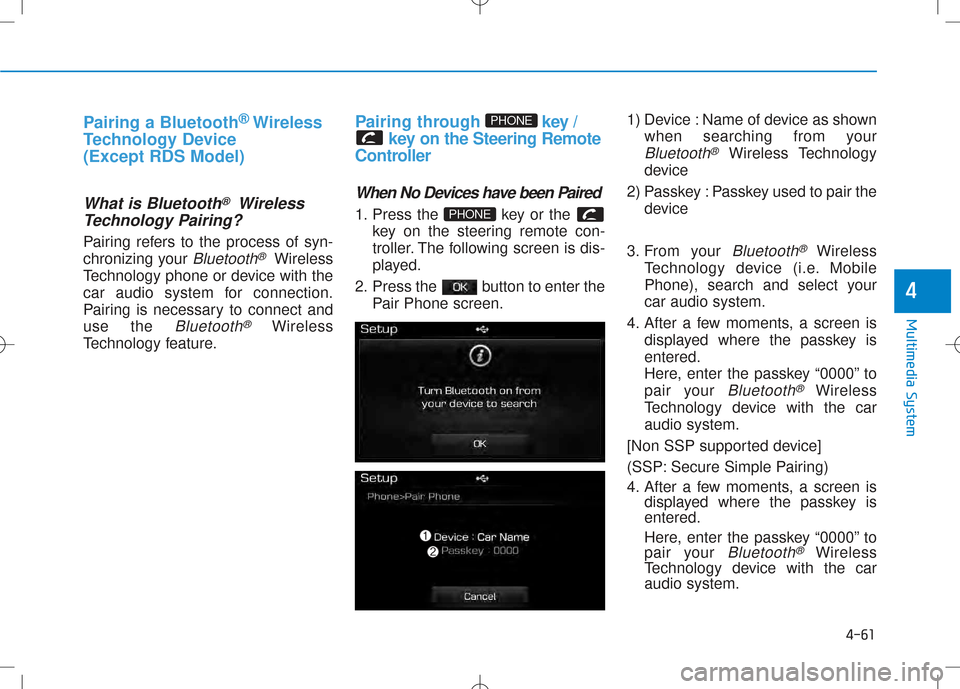
1. Press the key or the key on the steering remote con-
troller. The following screen is dis-
played.
2. Press the button to enter the Pair Phone screen. 1) Device : Name of device as shown
when searching from your
Bluetooth®Wireless Technology
device
2) Passkey : Passkey used to pair the device
3. From your
Bluetooth®Wireless
Technology device (i.e. Mobile
Phone), search and select yourcar audio system.
4. After a few moments, a screen is displayed where the passkey isentered.
Here, enter the passkey “0000” to
pair your
Bluetooth®Wireless
Technology device with the caraudio system.
[Non SSP supported device]
(SSP: Secure Simple Pairing)
4. After a few moments, a screen is displayed where the passkey is entered.
Here, enter the passkey “0000” to
pair your
Bluetooth®Wireless
Technology device with the caraudio system.
PHONE
PHONE
Page 280 of 512
![Hyundai Creta 2016 Repair Manual 4-62
Multimedia System
[SSP supported device]
4. After a few moments, a screen isdisplayed 6 digits passkey.
Hear, check the passkey on your
Bluetooth®Wireless Technology
device and confirm.
5. Once](/img/35/14533/w960_14533-279.png "Hyundai Creta 2016 Repair Manual 4-62
Multimedia System
[SSP supported device]
4. After a few moments, a screen isdisplayed 6 digits passkey.
Hear, check the passkey on your
Bluetooth®Wireless Technology
device and confirm.
5. Once")
4-62
Multimedia System
[SSP supported device]
4. After a few moments, a screen isdisplayed 6 digits passkey.
Hear, check the passkey on your
Bluetooth®Wireless Technology
device and confirm.
5. Once pairing is complete, the fol- lowing screen is displayed. Information
If Bluetooth ®
Wireless Technology
devices are paired but none are cur-
rently connected, pressing the key or the key on the
steering remote controller displays
the following screen. Press the [Pair]
button to pair a new device or press
the [Connect] to connect a previous-
ly pair device.
Pairing through [PHONE] Setup
Press the key Select
[Phone] Select [Pair Phone]
1. The following steps are the same
as the steps described in the
“When No Devices have been
Paired” section.SETUP
PHONE
i
Page 283 of 512
4-65
Multimedia System
4
Phone Menu Screen
Phone Menus
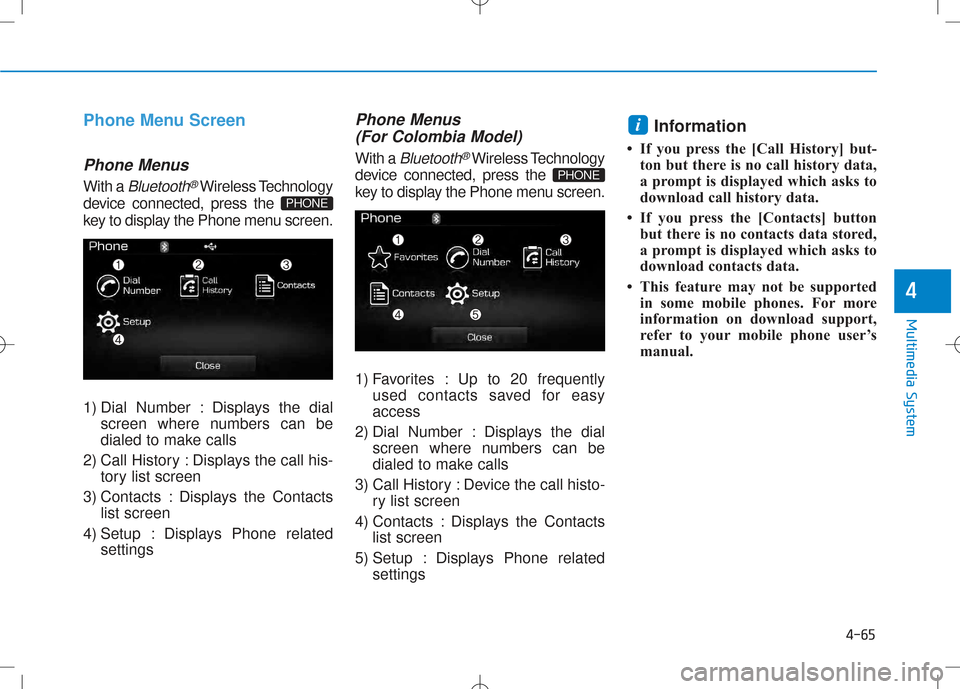
With a Bluetooth®Wireless Technology
device connected, press the
key to display the Phone menu screen.
1) Dial Number : Displays the dial screen where numbers can be
dialed to make calls
2) Call History : Displays the call his- tory list screen
3) Contacts : Displays the Contacts list screen
4) Setup : Displays Phone related settings
Phone Menus
(For Colombia Model)
With a Bluetooth®Wireless Technology
device connected, press the
key to display the Phone menu screen.
1) Favorites : Up to 20 frequently used contacts saved for easy access
2) Dial Number : Displays the dial screen where numbers can be
dialed to make calls
3) Call History : Device the call histo- ry list screen
4) Contacts : Displays the Contacts list screen
5) Setup : Displays Phone related settings Information
If you press the [Call History] but- ton but there is no call history data,
a prompt is displayed which asks to
download call history data.
If you press the [Contacts] button but there is no contacts data stored,
a prompt is displayed which asks to
download contacts data.
This feature may not be supported in some mobile phones. For more
information on download support,
refer to your mobile phone user’s
manual.
i
PHONE
PHONE
Page 285 of 512
4-67
Multimedia System
4
Answering Calls
Answering a Call
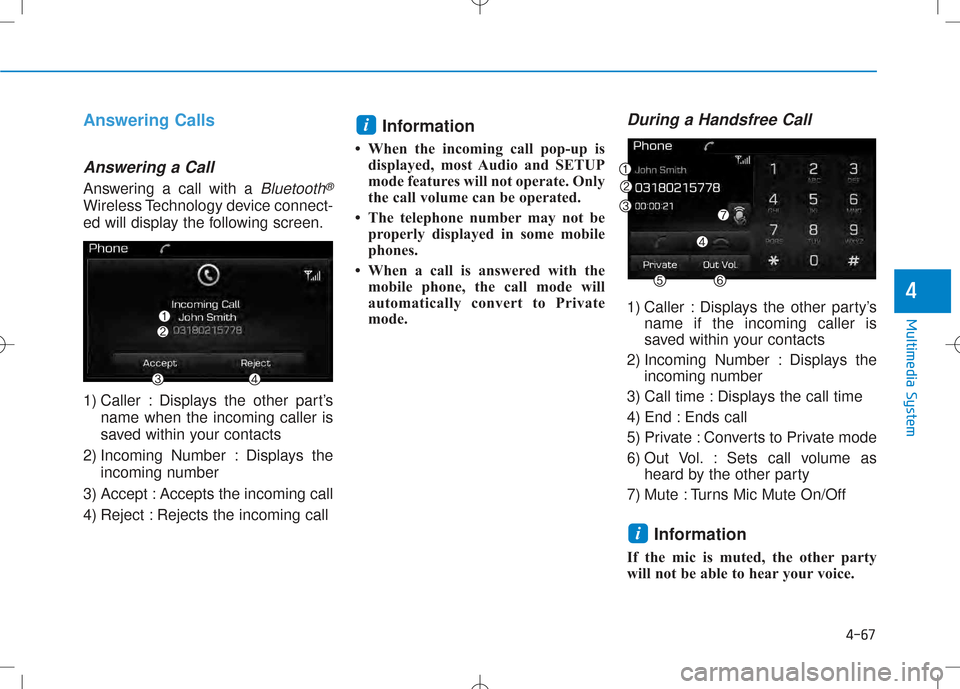
Answering a call with a Bluetooth®
Wireless Technology device connect-
ed will display the following screen.
1) Caller : Displays the other part’sname when the incoming caller is
saved within your contacts
2) Incoming Number : Displays the incoming number
3) Accept : Accepts the incoming call
4) Reject : Rejects the incoming call Information
When the incoming call pop-up is displayed, most Audio and SETUP
mode features will not operate. Only
the call volume can be operated.
The telephone number may not be properly displayed in some mobile
phones.
When a call is answered with the mobile phone, the call mode will
automatically convert to Private
mode.
During a Handsfree Call
1) Caller : Displays the other party’s name if the incoming caller is
saved within your contacts
2) Incoming Number : Displays the incoming number
3) Call time : Displays the call time
4) End : Ends call
5) Private : Converts to Private mode
6) Out Vol. : Sets call volume as heard by the other party
7) Mute : Turns Mic Mute On/Off
Information
If the mic is muted, the other party
will not be able to hear your voice.
i
i
Page 286 of 512
![Hyundai Creta 2016 Repair Manual 4-68
Call History
Press the key Select [Call
History] A list of incoming, outgoing and
missed calls is displayed.
Press the button to down-
load the call history.
1) Call History :- Displays r](/img/35/14533/w960_14533-285.png "Hyundai Creta 2016 Repair Manual 4-68
Call History
Press the key Select [Call
History] A list of incoming, outgoing and
missed calls is displayed.
Press the button to down-
load the call history.
1) Call History :- Displays r")
4-68
Call History
Press the key Select [Call
History] A list of incoming, outgoing and
missed calls is displayed.
Press the button to down-
load the call history.
1) Call History :- Displays recent calls (call history)
- Connects call upon selection
2) Download : Download Recent Call History
Contacts
Press the key Select [Contacts]
The list of saved phone book entries
is displayed. Press the but-
ton to download the Contacts.
1) Contacts List :
- Displays downloaded contactsentries
- Connects call upon selection
2) Download : Download contacts entries Information
Up to 1,000 contacts entries can be copied into car contacts.
Upon downloading contacts data, previously saved contacts data will
be deleted.
Downloading is not possible if the contacts download feature is turned
off within the Bluetooth®
Wireless
Technology device. Also, some
devices may require device authori-
zation upon attempting to down-
load. If downloading cannot be nor-
mally conducted, check the
Bluetooth ®
Wireless Technology
device setting or the screen state.
Caller ID information will not be displayed for unsaved callers.
The download feature may not be supported in some mobile phones.
Check to see that the Bluetooth®
Wireless Technology device sup-
ports the download feature.
i
Download
PHONE
Download
PHONE
Multimedia System
Page 287 of 512
![Hyundai Creta 2016 Repair Manual 4-69
Multimedia System
Contacts (For Colombia Model)
Press the key Select [Contacts]
The list of saved phone book entries
is displayed. Press the but-
ton to download the Contacts.1) Contacts List](/img/35/14533/w960_14533-286.png "Hyundai Creta 2016 Repair Manual 4-69
Multimedia System
Contacts (For Colombia Model)
Press the key Select [Contacts]
The list of saved phone book entries
is displayed. Press the but-
ton to download the Contacts.1) Contacts List")
4-69
Multimedia System
Contacts (For Colombia Model)
Press the key Select [Contacts]
The list of saved phone book entries
is displayed. Press the but-
ton to download the Contacts.1) Contacts List :
- Displays downloaded contactsentries
- Connects call upon selection
2) Sort by : Find a contact in an alphabetical order.
3) Download : Download contacts entries
Information (For Colombia Model)
Up to 1,000 contacts saved in your Bluetooth ®
Wireless Technology
phone can be downloaded into the
car contacts. Contacts that have
been downloaded to the car cannot
be edited or deleted on the phone.
Mobile phone contacts are managed separately for each paired Bluetooth®
Wireless Technology device (max 5
devices x 1,000 contacts each).
Previously downloaded data is main-
tained even if the Bluetooth®
Wireless
Technology device has been discon-
nected. (However , the contacts and call
history saved to the phone will be delet-
ed if a paired phone is deleted.)
(Continued)(Continued)
It is possible to download contacts
during Bluetooth streaming audio.
When downloading contacts, the icon will be displayed within the sta-
tus bar.
It is not possible to begin download- ing a contact list when the contact
download feature has been turned
off within the Bluetooth®
Wireless
Technology device. In addition,
some devices may require device
authorization upon attempting to
download contacts. If downloading
does not normally occur, check the
Bluetooth ®
Wireless Technology
device settings or the screen state.
The contacts download feature may not be supported in some mobile
phones. For more information of
supported Bluetooth®
devices and
function support, refer to your
phone’s user manual.
i
Download
PHONE
4
Page 288 of 512
![Hyundai Creta 2016 Repair Manual 4-70
Multimedia System
SSEE TT UU PP ((FF oorr RR DD SS MM ooddeell))
Starting Mode
Press the key to display the Setup screen.
You can select and control options
related to [Display], [Sound], [P](/img/35/14533/w960_14533-287.png "Hyundai Creta 2016 Repair Manual 4-70
Multimedia System
SSEE TT UU PP ((FF oorr RR DD SS MM ooddeell))
Starting Mode
Press the key to display the Setup screen.
You can select and control options
related to [Display], [Sound], [P")
4-70
Multimedia System
SSEE TT UU PP ((FF oorr RR DD SS MM ooddeell))
Starting Mode
Press the key to display the Setup screen.
You can select and control options
related to [Display], [Sound], [Phone]and [System].
Display Settings
Adjusting the Brightness
Press the key Select
[Display] Select [Brightness]
Use the , buttons to adjust the
screen brightness or set the
Brightness on Automatic, Day, or
Night mode.
Press the button to reset.
1) Automatic : Adjusts the brightness
automatically
2) Day : Always maintains the bright- ness on high
3) Night : Always maintains the
brightness on low
Pop-up Mode
Press the key Select
[Display] Select [Pop-up Mode]
This feature is used to display the
Pop-up Mode screen when entering
radio and media modes.
When this feature is turned on,
pressing the or key
will display the Pop-up Mode screen.
Information
The media Pop-up Mode screen can
be displayed only when two or more
media modes have been connected.
i
MEDIA FM/AM
SETUP
Default
SETUP
SETUP
Page 289 of 512
![Hyundai Creta 2016 Repair Manual 4-71
Multimedia System
4
Scroll Text
Press the key Select
[Display] Select [Scroll text]
This feature is used to scroll text dis-
played on the screen when it is too
long to be displayed at once.](/img/35/14533/w960_14533-288.png "Hyundai Creta 2016 Repair Manual 4-71
Multimedia System
4
Scroll Text
Press the key Select
[Display] Select [Scroll text]
This feature is used to scroll text dis-
played on the screen when it is too
long to be displayed at once.")
4-71
Multimedia System
4
Scroll Text
Press the key Select
[Display] Select [Scroll text]
This feature is used to scroll text dis-
played on the screen when it is too
long to be displayed at once.
When turned on, the text is repeat-
edly scrolled. When turned off, the
text is scrolled just once.
Song Info
Press the key Select
[Display] Select [Song Info]
This feature is used to change the
information displayed within USB
and MP3 CD modes.
1) Folder File : Displays file nameand folder name
2) Album Artist Song : Displays album name/artist name/song
Sound Settings
Audio Settings
Press the key Select
[Sound] Select [Audio Settings]
Use the , , , buttons to
adjust the Fader/Balance settings.
Use the , buttons to adjust the
Bass/Middle/Treble settings.
Press the button to reset.
Default
SETUP
SETUP SETUP
Page 292 of 512
![Hyundai Creta 2016 Repair Manual 4-74
Multimedia System
Downloading Phone books
Press the key Select
[Phone] Select [Phone book
Download]
The Phone book is downloaded from
the mobile phone and the download
progress is displayed.I](/img/35/14533/w960_14533-291.png "Hyundai Creta 2016 Repair Manual 4-74
Multimedia System
Downloading Phone books
Press the key Select
[Phone] Select [Phone book
Download]
The Phone book is downloaded from
the mobile phone and the download
progress is displayed.I")
4-74
Multimedia System
Downloading Phone books
Press the key Select
[Phone] Select [Phone book
Download]
The Phone book is downloaded from
the mobile phone and the download
progress is displayed.Information
Up to 1,000 phone book entries can be copied into car phone book.
Up to 1,000 phone book entries can be saved for each paired device.
Upon downloading phone book data, previously saved phone book
data will be deleted. However,
Phone book entries saved to other
paired phones are not deleted.
Auto Download (Phone Book)
Press the key Select
[Phone] Select [Auto Download]
This feature is used to automatically
download mobile phone book entriesonce a
Bluetooth®Wireless Technology
phone is connected.
Information
The Auto Download feature will download mobile phone book
entries every time the phone is con-
nected. The download time may dif-
fer depending on the number of
saved phone book entries and the
communication state.
When downloading a phone book, first check to see that your mobile
phone supports the phone book
download feature.
Outgoing Volume
Press the key Select
[Phone] Select [Outgoing Volume]
Use the , buttons to adjust
the outgoing volume level.SETUP
i
SETUP
i
SETUP