warning Hyundai Creta 2019 Owner's Manual
[x] Cancel search | Manufacturer: HYUNDAI, Model Year: 2019, Model line: Creta, Model: Hyundai Creta 2019Pages: 472, PDF Size: 13.39 MB
Page 212 of 472
3-127
Convenient features of your vehicle
3
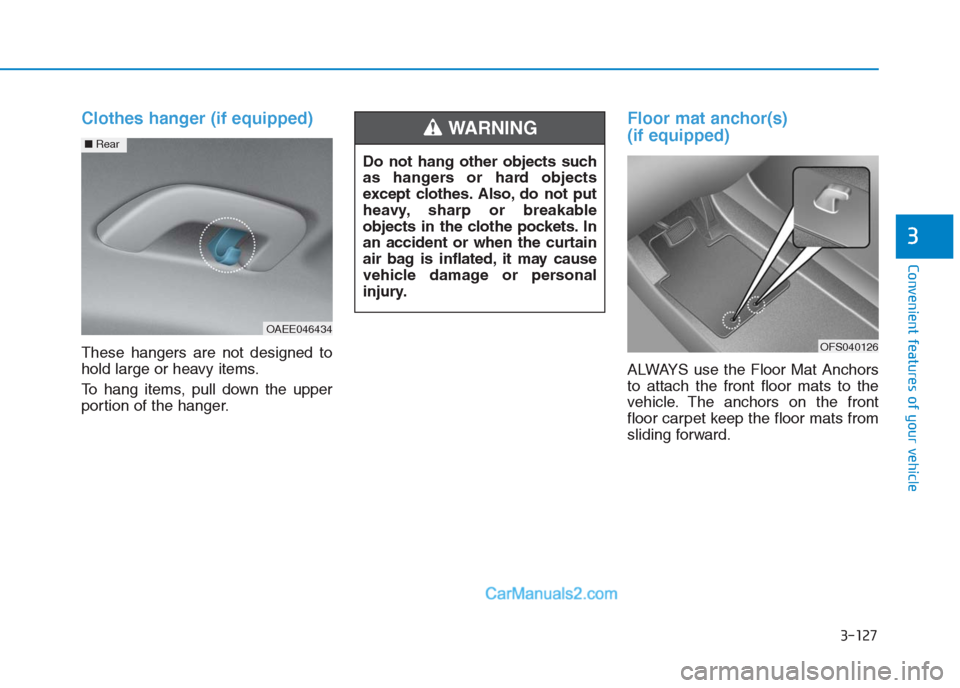
Clothes hanger (if equipped)
These hangers are not designed to
hold large or heavy items.
To hang items, pull down the upper
portion of the hanger.
Floor mat anchor(s)
(if equipped)
ALWAYS use the Floor Mat Anchors
to attach the front floor mats to the
vehicle. The anchors on the front
floor carpet keep the floor mats from
sliding forward. Do not hang other objects such
as hangers or hard objects
except clothes. Also, do not put
heavy, sharp or breakable
objects in the clothe pockets. In
an accident or when the curtain
air bag is inflated, it may cause
vehicle damage or personal
injury.
WARNING
OFS040126
OAEE046434
■Rear
Page 213 of 472
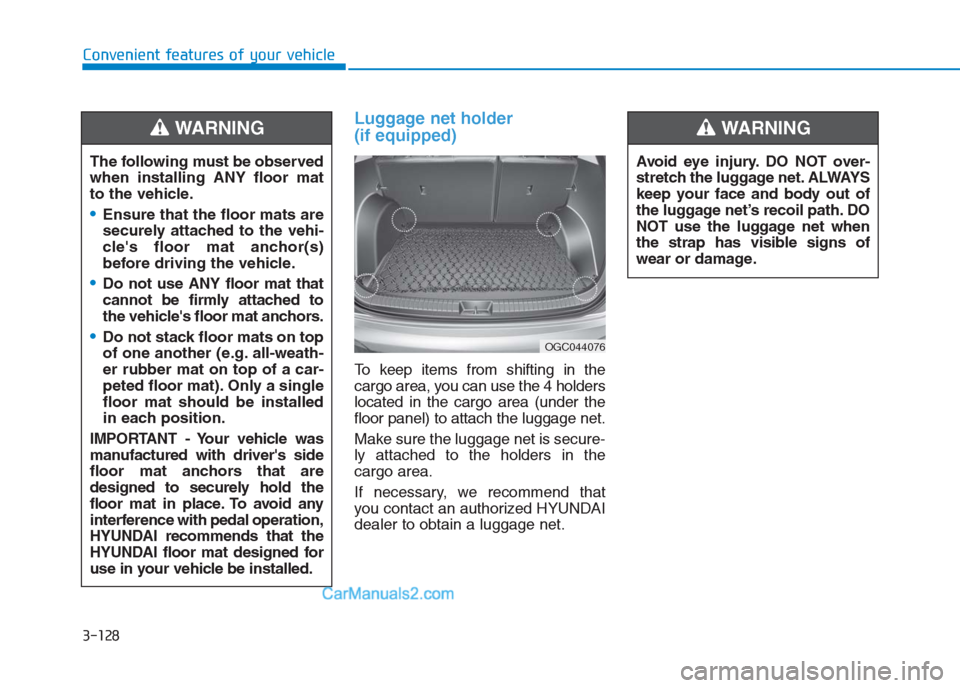
Luggage net holder
(if equipped)
To keep items from shifting in the
cargo area, you can use the 4 holders
located in the cargo area (under the
floor panel) to attach the luggage net.
Make sure the luggage net is secure-
ly attached to the holders in the
cargo area.
If necessary, we recommend that
you contact an authorized HYUNDAI
dealer to obtain a luggage net. The following must be observed
when installing ANY floor mat
to the vehicle.
Ensure that the floor mats are
securely attached to the vehi-
cle's floor mat anchor(s)
before driving the vehicle.
Do not use ANY floor mat that
cannot be firmly attached to
the vehicle's floor mat anchors.
Do not stack floor mats on top
of one another (e.g. all-weath-
er rubber mat on top of a car-
peted floor mat). Only a single
floor mat should be installed
in each position.
IMPORTANT - Your vehicle was
manufactured with driver's side
floor mat anchors that are
designed to securely hold the
floor mat in place. To avoid any
interference with pedal operation,
HYUNDAI recommends that the
HYUNDAI floor mat designed for
use in your vehicle be installed.
WARNING
OGC044076
Avoid eye injury. DO NOT over-
stretch the luggage net. ALWAYS
keep your face and body out of
the luggage net’s recoil path. DO
NOT use the luggage net when
the strap has visible signs of
wear or damage.
WARNING
Convenient features of your vehicle
3-128
Page 214 of 472
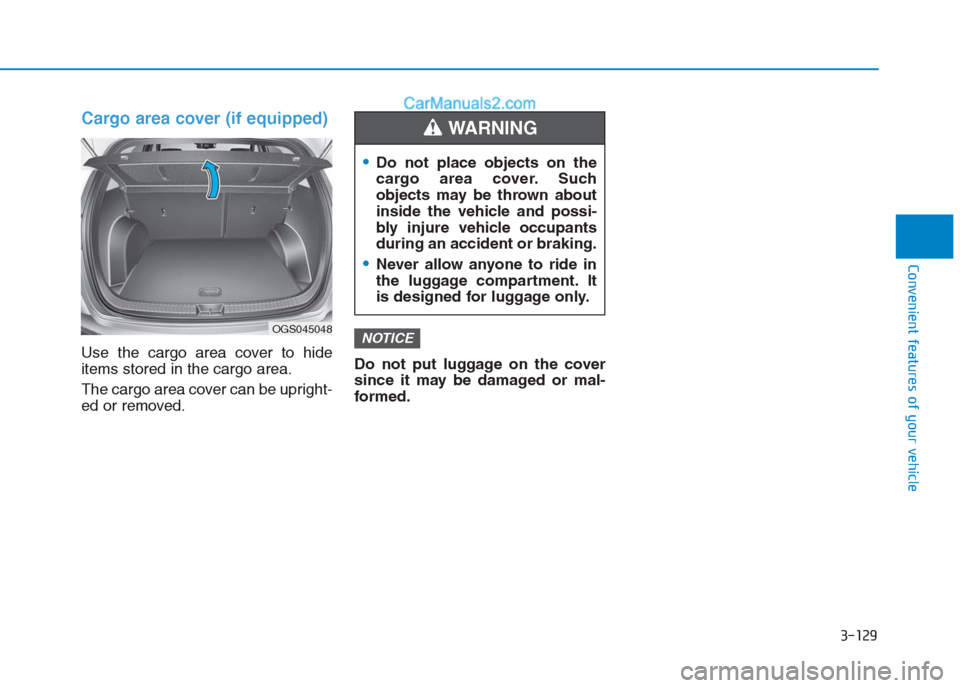
Cargo area cover (if equipped)
Use the cargo area cover to hide
items stored in the cargo area.
The cargo area cover can be upright-
ed or removed.Do not put luggage on the cover
since it may be damaged or mal-
formed.NOTICEOGS045048
Do not place objects on the
cargo area cover. Such
objects may be thrown about
inside the vehicle and possi-
bly injure vehicle occupants
during an accident or braking.
Never allow anyone to ride in
the luggage compartment. It
is designed for luggage only.
WARNING
3
Convenient features of your vehicle
3-129
Page 215 of 472
Multimedia System
Multimedia system .................................................4-2
USB and iPod®port ..........................................................4-2
Antenna ...............................................................................4-2
Steering wheel audio control .........................................4-3
Bluetooth
®Wireless Technology Hands-Free ...........4-4
How vehicle audio works ................................................4-5
Audio (Without Touch Screen) ............................4-8
Feature of Your Audio .....................................................4-9
Radio...................................................................................4-14
Radio Mode.......................................................................4-14
Media..................................................................................4-15
Phone .................................................................................4-22
Setup ..................................................................................4-30
Audio (With Touch Screen) ................................4-33
Feature of Your Audio ...................................................4-34
Radio...................................................................................4-38
Media..................................................................................4-40
Phone ................................................................................4-49
Setup ..................................................................................4-57
Declaration of conformity ..................................4-59
CE REd For EU .................................................................4-59
FCC Warning .....................................................................4-60
IFETEL for Mexico ..........................................................4-61
4
Page 226 of 472
4-12
Multimedia System
- Press in Bluetooth
®Handsfree
mode to switch to the waiting call.
When pressed and held (more
than 1.0 seconds)
- If not in Bluetooth
®Handsfree
mode or receiving a phone call,
the most recently Dialed Call
number is dialed.
- When pressed in Bluetooth
®
Handsfree mode to switch the
call to your cell phone.
- When pressed in cell phone
mode to switch to Bluetooth
®
Handsfree mode.
- If Bluetooth
®is not connected,
displays Bluetooth®Pair/
Connection screen.
(6) END
When pressed during a call, ends
the phone call.
When pressed in the incoming call
screen, rejects the call. Do not stare at the screen
while driving. Staring at the
screen for prolonged periods
of time could lead to traffic
accidents.
Do not disassemble, assem-
ble, or modify the audio sys-
tem. Such acts could result in
accidents, fire, or electric
shock.
Using the phone while driving
may lead to a lack of attention
of traffic conditions and
increase the likelihood of
accidents. Use the phone fea-
ture after parking the vehicle.
Exercise caution not to spill
water or introduce foreign
objects into the device. Such
acts could lead to smoke, fire,
or product malfunction.
(Continued)
WARNING(Continued)
Please refrain from use if the
screen is blank or no sound
can be heard as these signs
may indicate product malfunc-
tion. Continued use in such
conditions could lead to acci-
dents (fires, electric shock) or
product malfunctions.
Do not touch the antenna dur-
ing thunder or lightning
because such an act may
cause electric shock.
Do not stop or park in park-
ing-restricted areas to operate
the product. Such acts could
lead to traffic accidents.
Use the system with the vehicle
engine turned on. Prolonged
use with the ignition turned
on only could result in battery
discharge.
Page 227 of 472
4-13
Multimedia System
4
Operating the device while driv-
ing could lead to accidents due
to a lack of attention to external
surroundings. First park the
vehicle before operating the
device.
Adjust the volume to levels that
allow the driver to hear sounds
from outside of the vehicle.
Driving in a state where external
sounds cannot be heard may
lead to accidents.
Pay attention to the volume set-
ting when turning the device on.
A sudden output of extreme vol-
ume upon turning the device on
could lead to hearing impair-
ment. (Adjust the volume to a
suitable level before turning off
the device.)
Turn on the car engine before
using this device. Do not oper-
ate the audio system for long
periods of time only with the
ignition turned on as such oper-
ations may lead to battery dis-
charge.
(Continued)(Continued)
Do not subject the device to
severe shock or impact. Direct
pressure onto the front side of
the monitor may cause damage
to the LCD.
When cleaning the device, make
sure to turn off the device and
use a dry and smooth cloth.
Never use tough materials,
chemical cloths, or solvents
(alcohol, benzene, thinners, etc.).
As such materials may damage
the device panel or cause
color/quality deterioration.
Do not place beverages close to
the audio system. Spilling bever-
ages may lead to system mal-
function.
In this case of product malfunc-
tion, please contact your place of
purchase or After Service center.
Placing the audio system within
an electromagnetic environment
may result in noise interference.
Prevent caustic solutions such
as perfume and cosmetic oil
from contacting the dashboard
because they may cause dam-
age or discoloration.
NOTICE
Driving while distracted can
result in a loss of vehicle con-
trol that may lead to an acci-
dent, severe personal injury,
and death. The driver’s primary
responsibility is in the safe and
legal operation of a vehicle, and
use of any handheld devices,
other equipment, or vehicle sys-
tems which take the driver’s
eyes, attention and focus away
from the safe operation of a
vehicle or which are not permis-
sible by law should never be
used during operation of the
vehicle.
WARNING
Page 237 of 472
4-23
Multimedia System
4
Bluetooth®is a feature that
enables drivers to make hands-
free calls. Connecting the head
unit with a Bluetooth
®phone
allows the user to conveniently
make calls, receive calls, and
manage the phonebook. Before
using Bluetooth
®, carefully read
the contents of this user’s man-
ual.
Excessive use or operations
while driving may lead to negli-
gent driving practices and be
the cause of accidents. Do not
operate the device excessively
while driving.
Viewing the screen for pro-
longed periods of time is dan-
gerous and may lead to acci-
dents. When driving, view the
screen only for short periods of
time. Before connecting the head unit
with the Bluetooth
®device, check
to see that the mobile device sup-
ports Bluetooth
®features.
Even if the mobile device supports
Bluetooth
®, the device will not
be found during device searches
if the device has been set to hid-
den state or the Bluetooth
®
power is turned off. Disable the
hidden state or turn on the
Bluetooth
®power prior to
searching/connecting with the
head unit.
If a Bluetooth
®device becomes
disconnected due to being out
of communication range, turn-
ing the device OFF, or a
Bluetooth
®communication
error, corresponding Bluetooth®
devices are automatically
searched and reconnected.
(Continued)
NOTICENOTICE
Focus on the road while driv-
ing. The driver’s primary
responsibility is in the safe
and legal operation of the
vehicle. Drivers should not
use any hand held devices or
other equipment or vehicle
systems that distract the driv-
er during vehicle operation.
Do not stare at the multimedia
screen for long periods of
time while driving. Staring at
the screen for prolonged peri-
ods of time can lead to traffic
accidents and can result in
personal injuries.
Pairing Bluetooth
®devices
and use of other Bluetooth®
features are not supported
when the vehicle is in motion.
For safety, please first park
your vehicle.
WARNING
Page 250 of 472
4-36
Multimedia System
(6)END
Press in Bluetooth
®Handsfree
mode to end the phone call.
Press in the incoming call screen
to reject the call. Do not stare at the screen
while driving. Staring at the
screen for prolonged periods
of time could lead to traffic
accidents.
Do not disassemble, assem-
ble, or modify the audio sys-
tem. Such acts could result in
accidents, fire, or electric
shock.
Using the phone while driving
may lead to a lack of attention
of traffic conditions and
increase the likelihood of
accidents. Use the phone fea-
ture after parking the vehicle.
Exercise caution not to spill
water or introduce foreign
objects into the device. Such
acts could lead to smoke, fire,
or product malfunction.
(Continued)WARNING(Continued)
Please refrain from use if the
screen is blank or no sound
can be heard as these signs
may indicate product malfunc-
tion. Continued use in such
conditions could lead to acci-
dents (fires, electric shock) or
product malfunctions.
Do not touch the antenna dur-
ing thunder or lightning
because such an act may
cause electric shock.
Do not stop or park in park-
ing-restricted areas to operate
the product. Such acts could
lead to traffic accidents.
Use the system with the vehi-
cle engine turned on.
Prolonged use with the igni-
tion turned on only could
result in battery discharge.
Page 251 of 472
4-37
Multimedia System
4
Operating the device while driv-
ing could lead to accidents due
to a lack of attention to external
surroundings. First park the
vehicle before operating the
device.
Adjust the volume to levels that
allow the driver to hear sounds
from outside of the vehicle.
Driving in a state where external
sounds cannot be heard may
lead to accidents.
Pay attention to the volume set-
ting when turning the device on.
A sudden output of extreme vol-
ume upon turning the device on
could lead to hearing impair-
ment. (Adjust the volume to a
suitable level before turning off
the device.)
Turn on the car engine before
using this device. Do not oper-
ate the audio system for long
periods of time only with the
ignition turned on as such oper-
ations may lead to battery dis-
charge.
(Continued)(Continued)
Do not subject the device to
severe shock or impact. Direct
pressure onto the front side of
the monitor may cause damage
to the LCD.
When cleaning the device, make
sure to turn off the device and
use a dry and smooth cloth.
Never use tough materials,
chemical cloths, or solvents
(alcohol, benzene, thinners,
etc.). As such materials may
damage the device panel or
cause color/quality deterioration
Do not place beverages close to
the audio system. Spilling bever-
ages may lead to system mal-
function.
In this case of product malfunc-
tion, please contact your place of
purchase or After Service center.
Placing the audio system within
an electromagnetic environment
may result in noise interference.
Prevent caustic solutions such
as perfume and cosmetic oil
from contacting the dashboard
because they may cause dam-
age or discoloration.
NOTICE
Driving while distracted can
result in a loss of vehicle con-
trol that may lead to an acci-
dent, severe personal injury,
and death. The driver’s primary
responsibility is in the safe and
legal operation of a vehicle, and
use of any handheld devices,
other equipment, or vehicle sys-
tems which take the driver’s
eyes, attention and focus away
from the safe operation of a
vehicle or which are not permis-
sible by law should never be
used during operation of the
vehicle.
WARNING
Page 271 of 472
![Hyundai Creta 2019 Owners Manual 4-57
Multimedia System
4
Setup
Setup is the screen to control Audio
system settings.
Press the [SETUP]button on the
audio system.
Display
Press the [SETUP]button on the
audio system ➟Select [Displa](/img/35/14529/w960_14529-270.png "Hyundai Creta 2019 Owners Manual 4-57
Multimedia System
4
Setup
Setup is the screen to control Audio
system settings.
Press the [SETUP]button on the
audio system.
Display
Press the [SETUP]button on the
audio system ➟Select [Displa")
4-57
Multimedia System
4
Setup
Setup is the screen to control Audio
system settings.
Press the [SETUP]button on the
audio system.
Display
Press the [SETUP]button on the
audio system ➟Select [Display].
Mode: Set the screen brightness to
be adjusted automatically accord-
ing to ambient lighting conditions
or set the screen to stay bright or
dark continuously.
Illumination: The brightness of the
audio screen can be changed.
Text Scroll: If text is too long to be
displayed on the screen, enable
the text scroll function.
Sound
Press the [SETUP]button on the
audio system ➟Select [Sound].
Position: Sound balance and fader
can be adjusted.
Tone: Sound tone color can be
adjusted.
Back-up Warning Priority:
- Automatically lower audio vol-
ume while reversing.
- Control the audio volume level
automatically in R-Position.
If volume level over “5 level” then
down to “5 level”.If volume level under “5 level”
then maintain the volume level.
Return the volume level when R-
Position was cancelled.
In R-Positon, if driver change the
volume level then volume
changed.
Apply the volume control option
“On/Off ” in “Setup”: Default is
“On”.
Speed Dependent Volume:
Automatically adjust volume based
on vehicle speed.
Beep: Select whether to play a
beep sound when the screen is
touched.