audio Hyundai Elantra 2013 User Guide
[x] Cancel search | Manufacturer: HYUNDAI, Model Year: 2013, Model line: Elantra, Model: Hyundai Elantra 2013Pages: 383, PDF Size: 8.94 MB
Page 186 of 383
Features of your vehicle
108 4
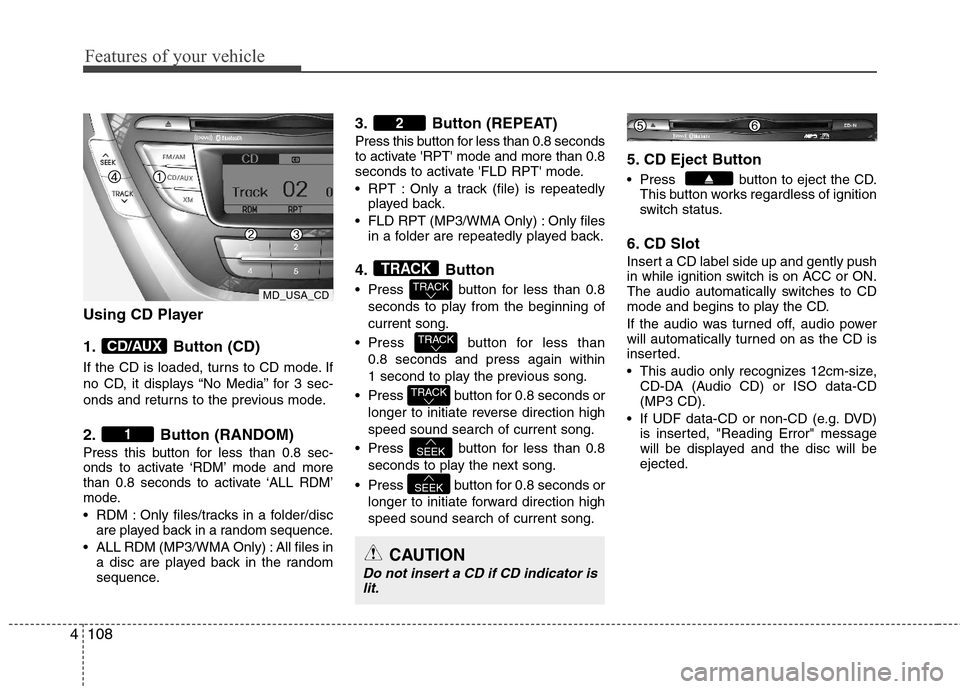
Using CD Player
1. Button (CD)
If the CD is loaded, turns to CD mode. If
no CD, it displays “No Media” for 3 sec-
onds and returns to the previous mode.
2. Button (RANDOM)
Press this button for less than 0.8 sec-
onds to activate ‘RDM’ mode and more
than 0.8 seconds to activate ‘ALL RDM’
mode.
RDM : Only files/tracks in a folder/disc
are played back in a random sequence.
ALL RDM (MP3/WMA Only) : All files in
a disc are played back in the random
sequence.
3. Button (REPEAT)
Press this button for less than 0.8 seconds
to activate 'RPT' mode and more than 0.8
seconds to activate 'FLD RPT' mode.
RPT : Only a track (file) is repeatedly
played back.
FLD RPT (MP3/WMA Only) : Only files
in a folder are repeatedly played back.
4. Button
Press button for less than 0.8
seconds to play from the beginning of
current song.
Press button for less than
0.8 seconds and press again within
1 second to play the previous song.
Press button for 0.8 seconds or
longer to initiate reverse direction high
speed sound search of current song.
Press button for less than 0.8
seconds to play the next song.
Press button for 0.8 seconds or
longer to initiate forward direction high
speed sound search of current song.
5. CD Eject Button
Press button to eject the CD.
This button works regardless of ignition
switch status.
6. CD Slot
Insert a CD label side up and gently push
in while ignition switch is on ACC or ON.
The audio automatically switches to CD
mode and begins to play the CD.
If the audio was turned off, audio power
will automatically turned on as the CD is
inserted.
This audio only recognizes 12cm-size,
CD-DA (Audio CD) or ISO data-CD
(MP3 CD).
If UDF data-CD or non-CD (e.g. DVD)
is inserted, "Reading Error" message
will be displayed and the disc will be
ejected.
SEEK
SEEK
TRACK
TRACK
TRACK
TRACK
2
1
CD/AUX
CAUTION
Do not insert a CD if CD indicator is
lit.
MD_USA_CD
Page 187 of 383
4109
Features of your vehicle
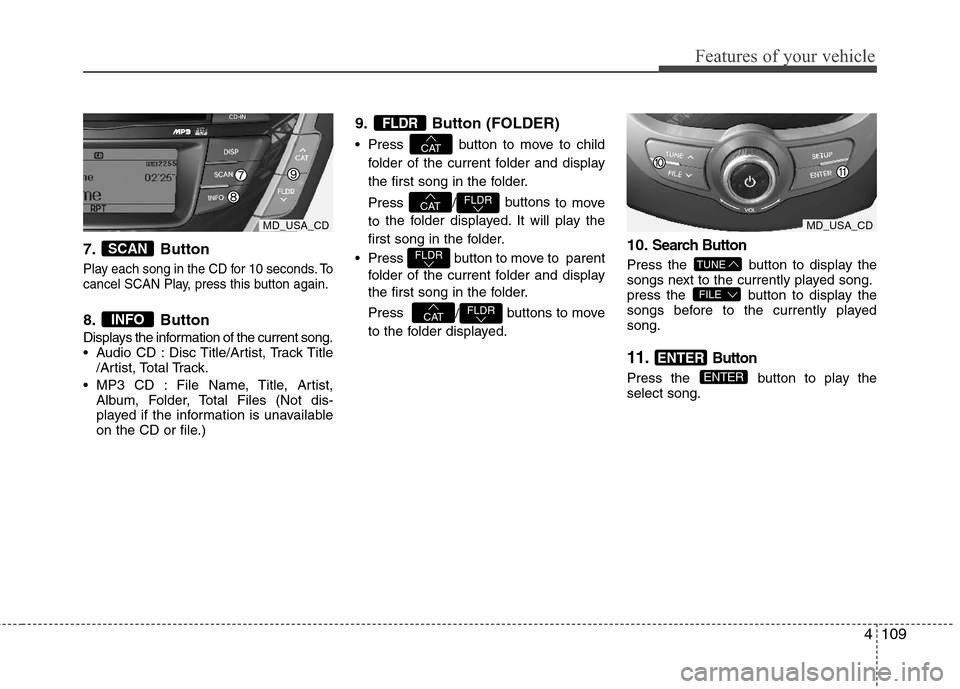
7. Button
Play each song in the CD for 10 seconds. To
cancel SCAN Play, press this button again.
8. Button
Displays the information of the current song.
Audio CD : Disc Title/Artist, Track Title
/Artist, Total Track.
MP3 CD : File Name, Title, Artist,
Album, Folder, Total Files (Not dis-
played if the information is unavailable
on the CD or file.)
9. Button (FOLDER)
Press button to move to child
folder of the current folder and display
the first song in the folder.
Press /buttons
to move
to the folder displayed. It will play the
first song in the folder.
Press button to move to parent
folder of the current folder and display
the first song in the folder.
Press
/buttons to move
to the folder displayed.
10.Search Button
Press the button to display the
songs next to the currently played song.
press the button to display the
songs before to the currently played
song.
11.Button
Press the button to play the
select song.ENTER
ENTER
FILE
TUNE
FLDRCAT
FLDR
FLDRCAT
CAT
FLDR
INFO
SCAN
MD_USA_CDMD_USA_CD
Page 189 of 383
4111
Features of your vehicle
CAUTION IN USING
USB DEVICE
To use an external USB device,
make sure the device is not con-
nected when starting up the vehi-
cle. Connect the device after
starting up.
If you start the engine when the
USB device is connected, it may
damage the USB device. (USB
flashdrives are very sensitive to
electric shock.)
If the engine is started up or
turned off while the external USB
device is connected, the external
USB device may not work.
It may not play inauthentic MP3 or
WMA files.
1) It can only play MP3 files with
the compression rate between
8Kbps~320Kbps.
2) It can only play WMA music
files with the compression rate
between 8Kbps~320Kbps.
Take precautions for static electrici-
ty when connecting or disconnect-
ing the external USB device.
(Continued)
(Continued)
An encrypted MP3 PLAYER is not
recognizable.
Depending on the condition of
the external USB device, the con-
nected external USB device can
be unrecognizable.
When the formatted byte/sector
setting of External USB device is
not either 512BYTE or 2048BYTE,
then the device will not be recog-
nized.
Use only a USB device formatted
to FAT 12/16/32.
USB devices without USB I/F
authentication may not be recog-
nizable.
Make sure the USB connection
terminal does not come in contact
with the human body or other
objects.
If you repeatedly connect or dis-
connect the USB device in a short
period of time, it may break the
device.
You may hear a strange noise
when connecting or disconnect-
ing a USB device.
(Continued)(Continued)
If you disconnect the external USB
device during playback in USB
mode, the external USB device can
be damaged or may malfunction.
Therefore, disconnect the external
USB device when the audio is
turned off or in another mode. (e.g,
Radio, XM or CD)
Depending on the type and capac-
ity of the external USB device or
the type of the files stored in the
device, there is a difference in the
time taken for recognition of the
device.
Do not use the USB device for pur-
poses other than playing music files.
Playing videos through the USB
is not supported.
Use of USB accessories such as
rechargers or heaters using USB
I/F may lower performance or
cause trouble.
If you use devices such as a USB
hub purchased separately, the
vehicle’s audio system may not
recognize the USB device. In that
case, connect the USB device
directly to the multimedia termi-
nal of the vehicle.
(Continued)
Page 190 of 383
Features of your vehicle
112 4
(Continued)
If the USB device is divided by
logical drives, only the music files
on the highest-priority drive are
recognized by car audio.
Devices such as MP3 Player/
Cellular phone/Digital camera can
be unrecognizable by standard
USB I/F can be unrecognizable.
Charging through the USB may
not be supported in some mobile
devices.
❋ A car exclusive cable (Provided
or sold separately) is required
to use the iPod.
Some non-standard USB devices
(METAL COVER TYPE USB) can be
unrecognizable.
Some USB flash memory readers
(such as CF, SD, microSD, etc.) or
external-HDD type devices can be
unrecognizable.
Music files protected by DRM
(DIGITAL RIGHTS MANAGEMENT)
are not recognizable.
The data in the USB memory may
be lost while using this audio.
Always back up important data on
a personal storage device.
(Continued)
(Continued)
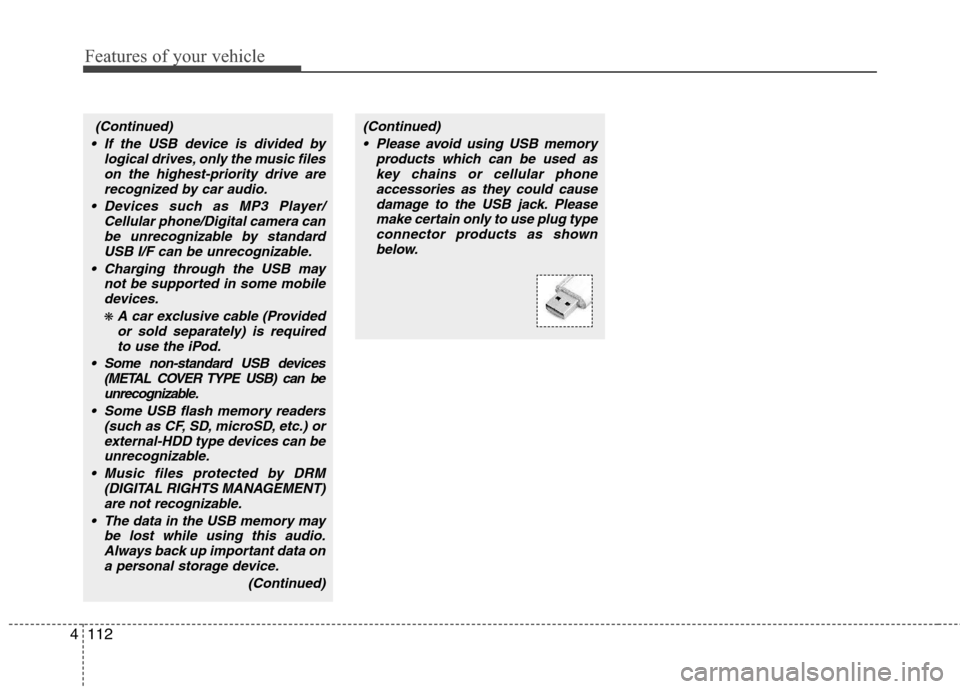
Please avoid using USB memory
products which can be used as
key chains or cellular phone
accessories as they could cause
damage to the USB jack. Please
make certain only to use plug type
connector products as shown
below.
Page 193 of 383
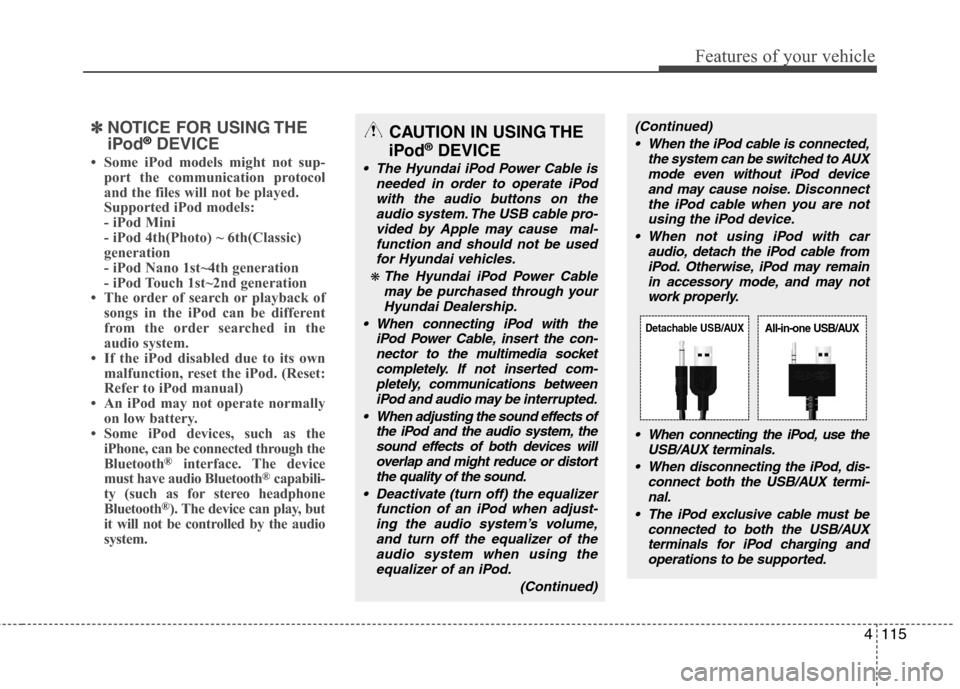
4115
Features of your vehicle
✽ ✽
NOTICE FOR USING THE
iPod®DEVICE
• Some iPod models might not sup-
port the communication protocol
and the files will not be played.
Supported iPod models:
- iPod Mini
- iPod 4th(Photo) ~ 6th(Classic)
generation
- iPod Nano 1st~4th generation
- iPod Touch 1st~2nd generation
• The order of search or playback of
songs in the iPod can be different
from the order searched in the
audio system.
• If the iPod disabled due to its own
malfunction, reset the iPod. (Reset:
Refer to iPod manual)
• An iPod may not operate normally
on low battery.
• Some iPod devices, such as the
iPhone, can be connected through the
Bluetooth
®interface. The device
must have audio Bluetooth®capabili-
ty (such as for stereo headphone
Bluetooth
®). The device can play, but
it will not be controlled by the audio
system.
(Continued)
When the iPod cable is connected,
the system can be switched to AUX
mode even without iPod device
and may cause noise. Disconnect
the iPod cable when you are not
using the iPod device.
When not using iPod with car
audio, detach the iPod cable from
iPod. Otherwise, iPod may remain
in accessory mode, and may not
work properly.
When connecting the iPod, use the
USB/AUX terminals.
When disconnecting the iPod, dis-
connect both the USB/AUX termi-
nal.
The iPod exclusive cable must be
connected to both the USB/AUX
terminals for iPod charging and
operations to be supported.CAUTION IN USING THE
iPod®DEVICE
The Hyundai iPod Power Cable is
needed in order to operate iPod
with the audio buttons on the
audio system. The USB cable pro-
vided by Apple may cause mal-
function and should not be used
for Hyundai vehicles.
❋ The Hyundai iPod Power Cable
may be purchased through your
Hyundai Dealership.
When connecting iPod with the
iPod Power Cable, insert the con-
nector to the multimedia socket
completely. If not inserted com-
pletely, communications between
iPod and audio may be interrupted.
When adjusting the sound effects of
the iPod and the audio system, the
sound effects of both devices will
overlap and might reduce or distort
the quality of the sound.
Deactivate (turn off) the equalizer
function of an iPod when adjust-
ing the audio system’s volume,
and turn off the equalizer of the
audio system when using the
equalizer of an iPod.
(Continued)
Detachable USB/AUXAll-in-one USB/AUX
Page 198 of 383
Features of your vehicle
120 4
NOTE:
Bluetooth phone compatibility can be
checked by visiting
www.hyundaiusa.com and under the
SERVICE & PARTS - BLUETOOTH
COMPATIBILITY menu.
Areas that can be checked - 9 areas,
such as Pairing, Connection,
Handsfree Calling, Streaming, etc.CAUTION IN USING
BLUETOOTH®CELLULAR
PHONE
Do not use a cellular phone or
perform Bluetooth®settings (e.g.
pairing a phone) while driving.
Some Bluetooth
®-enabled phones
may not be recognized by the
system or fully compatible with
the system.
Before using Bluetooth
®related
features of the audio system,
refer your phone’s User’s Manual
for phone-side Bluetooth
®opera-
tions.
The phone must be paired to the
audio system to use Bluetooth®
related features.
You will not be able to use the
hands-free feature when your
phone (in the car) is outside of
the cellular service area (e.g. in a
tunnel, in a underground, in a
mountainous area, etc.).
If the cellular phone signal is poor
or the vehicles interior noise is
too loud, it may be difficult to hear
the other person’s voice during a
call.
(Continued)
(continued)
Do not place the phone near or
inside metallic objects, otherwise
communications with Bluetooth
®
system or cellular service sta-
tions can be disturbed.
While a phone is connected
through Bluetooth
®your phone
may discharge quicker than usual
for additional Bluetooth
®-related
operations.
Some cellular phones or other
devices may cause interference
noise or malfunction to audio
system. In this case, storing the
device in a different location may
resolve the situation.
Please save your phone name in
English, or your phone name may
not be displayed correctly.
Page 199 of 383
4121
Features of your vehicle
BLUETOOTH®PHONE OPERATION
(if equipped)
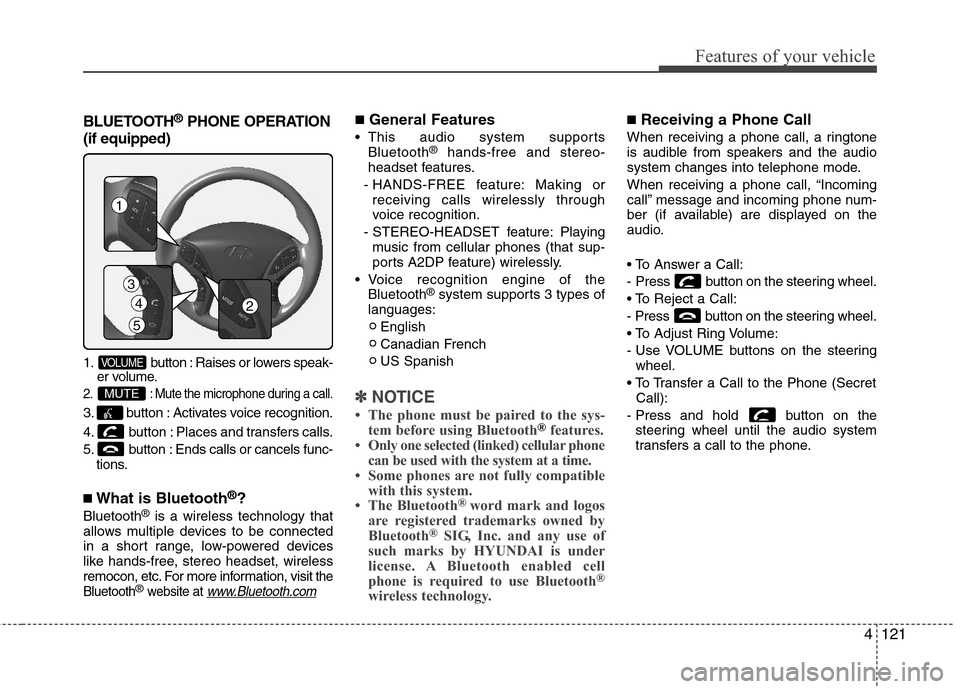
1. button : Raises or lowers speak-
er volume.
2. : Mute the microphone during a call.
3. button : Activates voice recognition.
4. button : Places and transfers calls.
5. button : Ends calls or cancels func-
tions.
■What is Bluetooth®?
Bluetooth®is a wireless technology that
allows multiple devices to be connected
in a short range, low-powered devices
like hands-free, stereo headset, wireless
remocon, etc. For more information, visit
the
Bluetooth®website at www.Bluetooth.com
■General Features
This audio system supports
Bluetooth®hands-free and stereo-
headset features.
- HANDS-FREE feature: Making or
receiving calls wirelessly through
voice recognition.
- STEREO-HEADSET feature: Playing
music from cellular phones (that sup-
ports A2DP feature) wirelessly.
Voice recognition engine of the
Bluetooth
®system supports 3 types of
languages:
English
Canadian French
US Spanish
✽ ✽
NOTICE
• The phone must be paired to the sys-
tem before using Bluetooth®features.
• Only one selected (linked) cellular phone
can be used with the system at a time.
• Some phones are not fully compatible
with this system.
• The Bluetooth
® word mark and logos
are registered trademarks owned by
Bluetooth
®SIG, Inc. and any use of
such marks by HYUNDAI is under
license. A Bluetooth enabled cell
phone is required to use Bluetooth
®
wireless technology.
■Receiving a Phone Call
When receiving a phone call, a ringtone
is audible from speakers and the audio
system changes into telephone mode.
When receiving a phone call, “Incoming
call” message and incoming phone num-
ber (if available) are displayed on the
audio.
- Press button on the steering wheel.
- Press button on the steering wheel.
- Use VOLUME buttons on the steering
wheel.
Call):
- Press and hold button on the
steering wheel until the audio system
transfers a call to the phone.
MUTE
VOLUME
4
5
3
1
2
Page 200 of 383
Features of your vehicle
122 4
■Talking on the Phone
When talking on the phone, “Active Call”
message and the other party’s phone
number (if available) are displayed on the
audio.
- Press button on the steering wheel.
✽ ✽
NOTICE
In the following situations, you or the
other party may have difficulty hearing
each other:
1. Speaking at the same time, your voice
may not reach each other parties. (This
is not a malfunction.) Speak alternate-
ly with the other party on the phone.
2. Keep the Bluetooth
®volume to a low
level. High-level volume may result in
distortion and echo.
3. When driving on a rough road.
4. When driving at high speeds.
5. When the window is open.
6. When the air conditioning vents are
facing the microphone.
7. When the sound of the air condition-
ing fan is loud.
■Bluetooth®Audio Music Streaming
The audio system supports Bluetooth®
A2DP (Audio Advanced Distribution
Profile) and AVRCP (Audio Video
Remote Control Profile) technologies.
Both profiles provide steaming of music
via compatible “PAIRED” Bluetooth
®
Cellular phone.
To stream music from the Bluetooth® cel-
lular phone, play your music files on your
cellular phone according to your cellular
phone user’s manual and press the
button on the audio system until
“MP3 play” is displayed on the LCD.
The audio system head unit displays
‘MP3 MODE’.
NOTE:
all music and sound files your cellu-
lar phone supports can be played
by the audio system.
®compatible cellular
phones must include A2DP and
AVRCP capabilities.
AVRCP compatible
Bluetooth
®cellular phones may not
play music through the audio sys-
tem initially. These cellular phones
may need to have the Bluetooth
®
streaming enabled, for example;
i.e : Menu
➟Filemanager➟Music➟Option➟Play via Bluetooth
cellular phone for more information.
To cancel Bluetooth
®cellular phone
music streaming, stop music play-
back on the cellular phone or
change the audio mode to AM/FM,
XM, CD, iPod, ect.
CD/AUX
Page 201 of 383
4123
Features of your vehicle
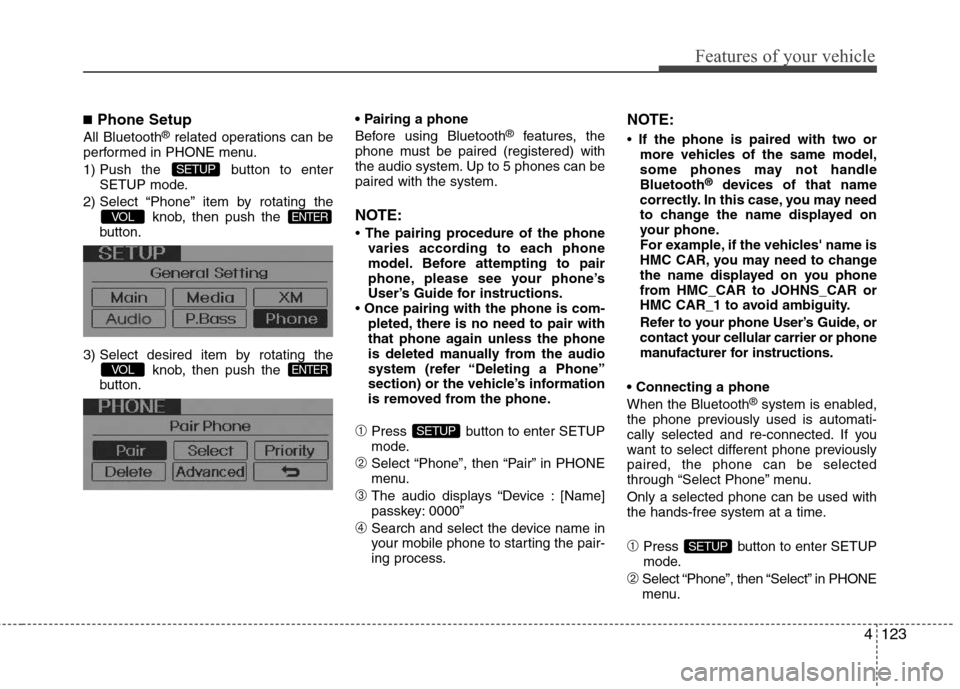
■Phone Setup
All Bluetooth®related operations can be
performed in PHONE menu.
1) Push the button to enter
SETUP mode.
2) Select “Phone” item by rotating the
knob, then push the
button.
3) Select desired item by rotating the
knob, then push the
button.
Before using Bluetooth®features, the
phone must be paired (registered) with
the audio system. Up to 5 phones can be
paired with the system.
NOTE:
• The pairing procedure of the phone
varies according to each phone
model. Before attempting to pair
phone, please see your phone’s
User’s Guide for instructions.
• Once pairing with the phone is com-
pleted, there is no need to pair with
that phone again unless the phone
is deleted manually from the audio
system (refer “Deleting a Phone”
section) or the vehicle’s information
is removed from the phone.
➀Press button to enter SETUP
mode.
➁Select “Phone”, then “Pair” in PHONE
menu.
➂The audio displays “Device : [Name]
passkey: 0000”
➃Search and select the device name in
your mobile phone to starting the pair-
ing process.
NOTE:
• If the phone is paired with two or
more vehicles of the same model,
some phones may not handle
Bluetooth
®devices of that name
correctly. In this case, you may need
to change the name displayed on
your phone.
For example, if the vehicles' name is
HMC CAR, you may need to change
the name displayed on you phone
from HMC_CAR to JOHNS_CAR or
HMC CAR_1 to avoid ambiguity.
Refer to your phone User’s Guide, or
contact your cellular carrier or phone
manufacturer for instructions.
When the Bluetooth
®system is enabled,
the phone previously used is automati-
cally selected and re-connected. If you
want to select different phone previously
paired, the phone can be selected
through “Select Phone” menu.
Only a selected phone can be used with
the hands-free system at a time.
➀Press button to enter SETUP
mode.
➁Select “Phone”, then “Select” in PHONE
menu.
SETUP
SETUP
ENTERVOL
ENTERVOL
SETUP
Page 202 of 383
Features of your vehicle
124 4
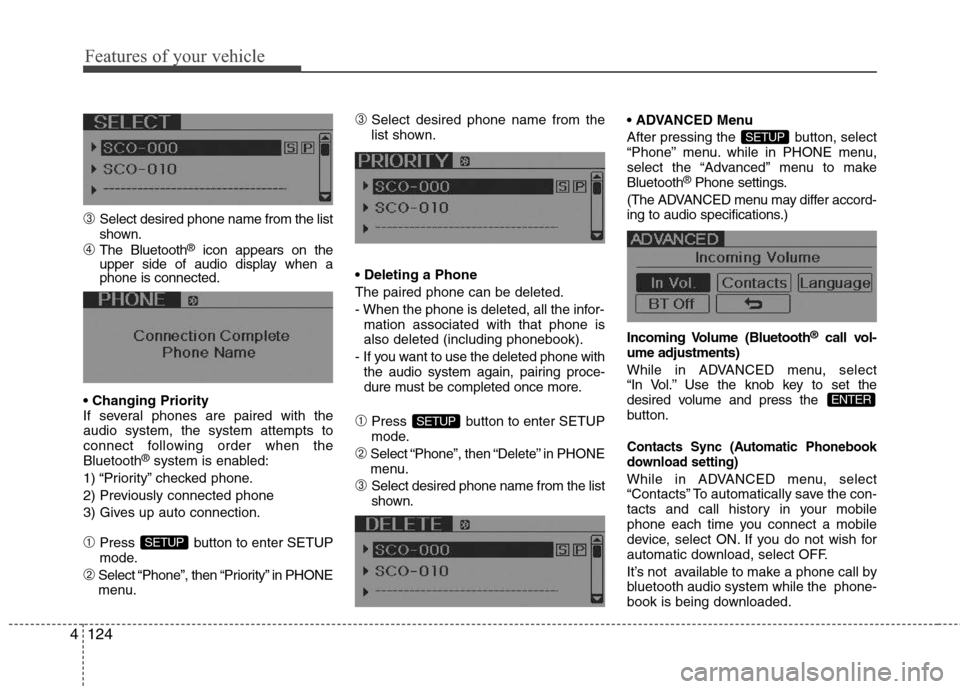
➂Select desired phone name from the list
shown.
➃The Bluetooth®icon appears on the
upper side of audio display when a
phone is connected.
If several phones are paired with the
audio system, the system attempts to
connect following order when the
Bluetooth
®system is enabled:
1) “Priority” checked phone.
2) Previously connected phone
3) Gives up auto connection.
➀Press button to enter SETUP
mode.
➁Select “Phone”, then “Priority” in PHONE
menu.
➂Select desired phone name from the
list shown.
The paired phone can be deleted.
- When the phone is deleted, all the infor-
mation associated with that phone is
also deleted (including phonebook).
- If you want to use the deleted phone with
the audio system again, pairing proce-
dure must be completed once more.
➀Press button to enter SETUP
mode.
➁Select “Phone”, then “Delete” in PHONE
menu.
➂Select desired phone name from the list
shown. Menu
After pressing the button, select
“Phone” menu. while in PHONE menu,
select the “Advanced” menu to make
Bluetooth
®Phone settings.
(The ADVANCED menu may differ accord-
ing to audio specifications.)
Incoming Volume (Bluetooth
®call vol-
ume adjustments)
While in ADVANCED menu, select
“In Vol.” Use the knob key to set the
desired volume and press the
button.
Contacts Sync (Automatic Phonebook
download setting)
While in ADVANCED menu, select
“Contacts” To automatically save the con-
tacts and call history in your mobile
phone each time you connect a mobile
device, select ON. If you do not wish for
automatic download, select OFF.
It’s not available to make a phone call by
bluetooth audio system while the phone-
book is being downloaded.
ENTER
SETUP
SETUP
SETUP