wheel Hyundai Elantra 2014 Owner's Guide
[x] Cancel search | Manufacturer: HYUNDAI, Model Year: 2014, Model line: Elantra, Model: Hyundai Elantra 2014Pages: 668, PDF Size: 35.58 MB
Page 323 of 668
4237
Features of your vehicle
VOICE RECOGNITION
Using Voice Recognition
Starting Voice Recognition
Shortly press the key on the
steering wheel remote controller. Say
a command.
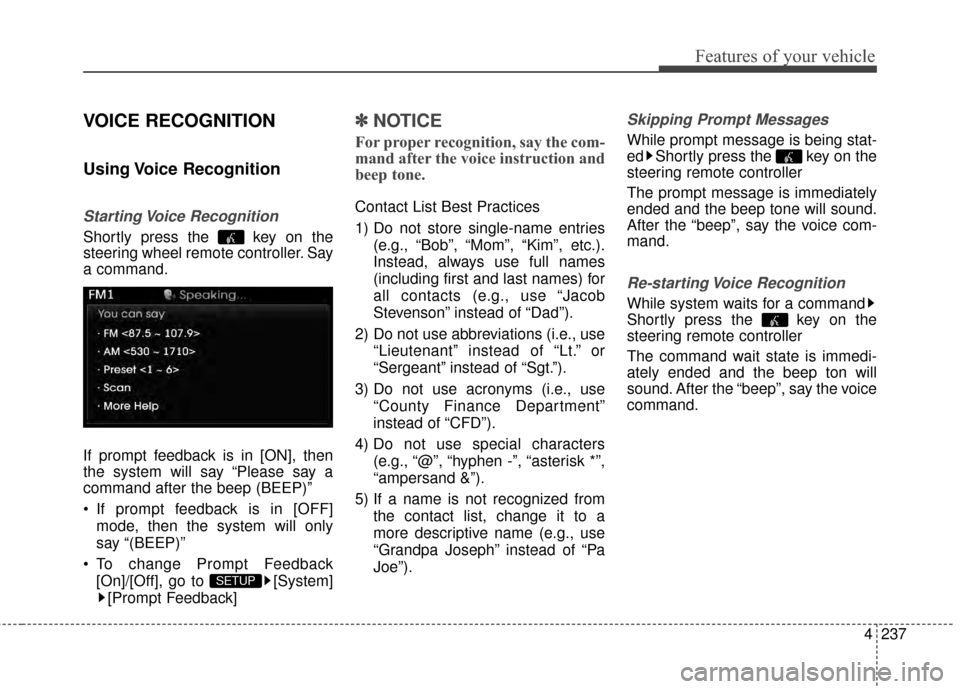
If prompt feedback is in [ON], then
the system will say “Please say a
command after the beep (BEEP)”
If prompt feedback is in [OFF]mode, then the system will only
say “(BEEP)”
To change Prompt Feedback [On]/[Off], go to [System][Prompt Feedback]
✽ ✽ NOTICE
For proper recognition, say the com-
mand after the voice instruction and
beep tone.
Contact List Best Practices
1) Do not store single-name entries
(e.g., “Bob”, “Mom”, “Kim”, etc.).
Instead, always use full names
(including first and last names) for
all contacts (e.g., use “Jacob
Stevenson” instead of “Dad”).
2) Do not use abbreviations (i.e., use “Lieutenant” instead of “Lt.” or
“Sergeant” instead of “Sgt.”).
3) Do not use acronyms (i.e., use “County Finance Department”
instead of “CFD”).
4) Do not use special characters (e.g., “@”, “hyphen -”, “asterisk *”,
“ampersand &”).
5) If a name is not recognized from the contact list, change it to a
more descriptive name (e.g., use
“Grandpa Joseph” instead of “Pa
Joe”).
Skipping Prompt Messages
While prompt message is being stat-
ed Shortly press the key on the
steering remote controller
The prompt message is immediately
ended and the beep tone will sound.
After the “beep”, say the voice com-
mand.
Re-starting Voice Recognition
While system waits for a command
Shortly press the key on the
steering remote controller
The command wait state is immedi-
ately ended and the beep ton will
sound. After the “beep”, say the voice
command.
SETUP
Page 337 of 668
4251
Features of your vehicle
3. Route Preview
“Route Preview” VR command allows
the user to preview the route instruc-
tions (upcoming maneuver instruc-
tions) at any time during the route
guidance.
4. Destinations List
“Destinations List” VR command
allows the user to preview and delete
the stored destinations with their
associated voice tags in the Turn by
Turn destinations directory.
5. Voice Guidance
“Voice Guidance” VR command allows
the user to mute/unmute the Turn by
Turn(TBT) direction announcements.
6. Suspend Route
“Suspend Route” VR command
allows the user to suspend and
pause Turn by Turn(TBT) route guid-
ance while in the guidance mode.7. Resume Route
“Resume Route” VR command
allows the user to resume Turn by
Turn(TBT) route guidance.
➂
(Blue Link
®for SOS)
In the case of an emergency,
requests for help to the Blue Link
®
center.
Call is connected to the Blue Link
®
emergency rescue center. Re-press-
ing the key will end the call.
If already on a Bluetooth
®phone call,
the call will end to connect you to the
Blue Link
®Emergency Rescue
Center.
CAUTION
You cannot talk simultaneous- ly on the Bluetooth®phone
and Blue Link®phone.
While on a Bluetooth®call,
pressing the key or key will display a messageindicating that you are cur-rently on a call.
A message will be displayed if you receive a Bluetooth
®
Bluetooth®Wireless Technology
call while already on a Blue Link
®call. At this time, press
the key on the steering wheel remote controller toaccept the call. The phone bellwill not ring.
Page 365 of 668
4279
Features of your vehicle
PHONE (IF EQUIPPED)
Before using the Bluetooth®
Wireless Technology phone features
In order to use
Bluetooth®Wireless
Technology phone, you must first
pair and connect the
Bluetooth®
Wireless Technology mobile phone.
If the mobile phone is not paired or connected, it is not possible to
enter Phone mode. Once a phone
is paired or connected, the guid-
ance screen will be displayed.
If Priority is set upon vehicle igni- tion(IGN/ACC ON), the
Bluetooth®
Wireless Technology phone will be
automatically connected. Even if
you are outside, the first
Bluetooth®
Wireless Technology phone will be
automatically connected once you
are in the vicinity of the vehicle. If you
do not want automatic
Bluetooth®
Wireless Technology phone connec-
tion, set the
Bluetooth®Wireless
Technology power to OFF.
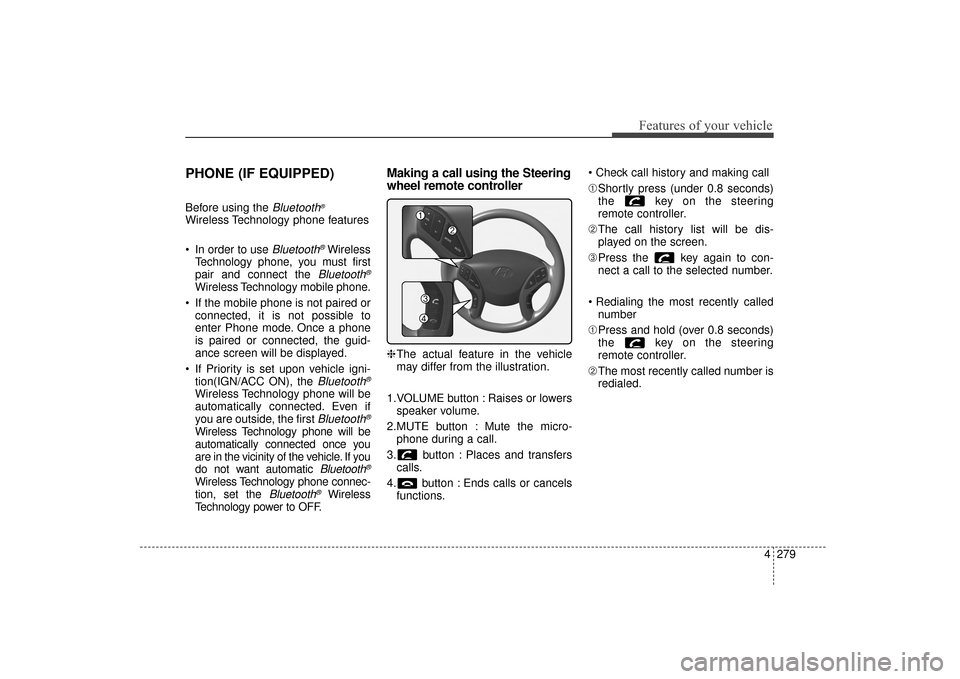
Making a call using the Steering
wheel remote controller
❈ The actual feature in the vehicle
may differ from the illustration.
1.VOLUME button : Raises or lowers speaker volume.
2.MUTE button : Mute the micro- phone during a call.
3. button : Places and transfers calls.
4. button : Ends calls or cancels functions.
➀
Shortly press (under 0.8 seconds)
the key on the steering
remote controller.
➁ The call history list will be dis-
played on the screen.
\b Press the key again to con-
nect a call to the selected number.
number
➀ Press and hold (over 0.8 seconds)
the key on the steering
remote controller.
➁ The most recently called number is
redialed.
UD(FL) HMA 4C(254~AUDIO2).QXP 8/28/2014 5:26 PM Page 279
Page 368 of 668
Features of your vehicle
282
4
During the pairing process, make sure
that all connection requests on the
phone are accepted for phonebook
download and to allow acceptance of
all future connection requests. Visit
http://www.hyundaiusa.com/Bluetooth
for additional information on pairing
your Bluetooth-enabled mobile
phone, and to view a phone compat-
ibility list.
✽ ✽
NOTICE
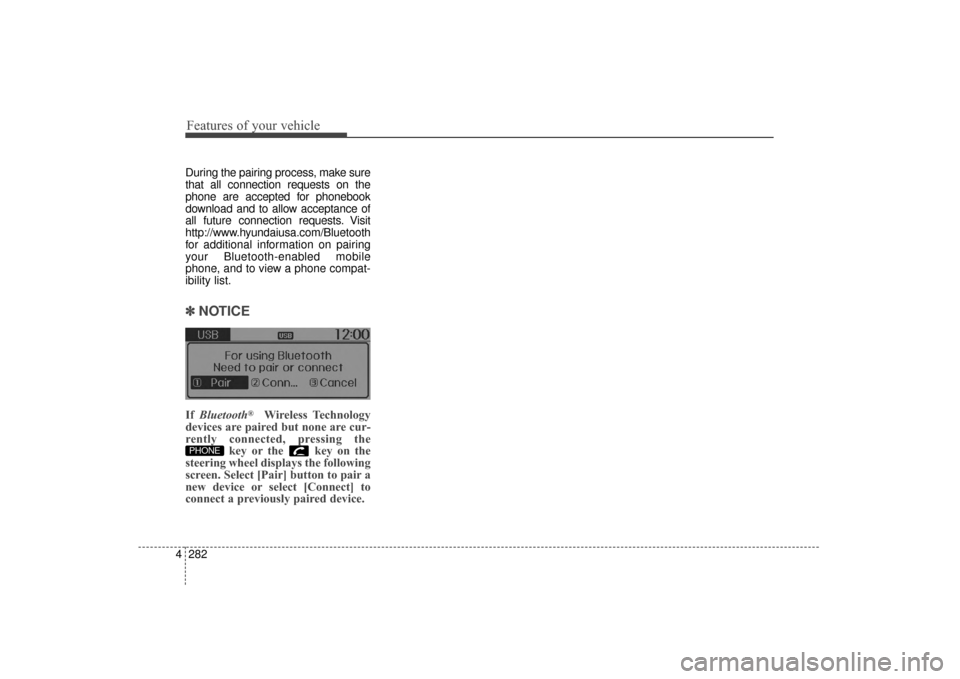
If Bluetooth®Wireless Technology
devices are paired but none are cur-
rently connected, pressing the key or the key on the
steering wheel displays the following
screen. Select [Pair] button to pair a
new device or select [Connect] to
connect a previously paired device.
PHONE
UD(FL) HMA 4C(254~AUDIO2).QXP 8/28/2014 5:27 PM Page 282
Page 373 of 668
4287
Features of your vehicle
USING Bluetooth®
WIRELESS TECHNOLOGY
(IF EQUIPPED)
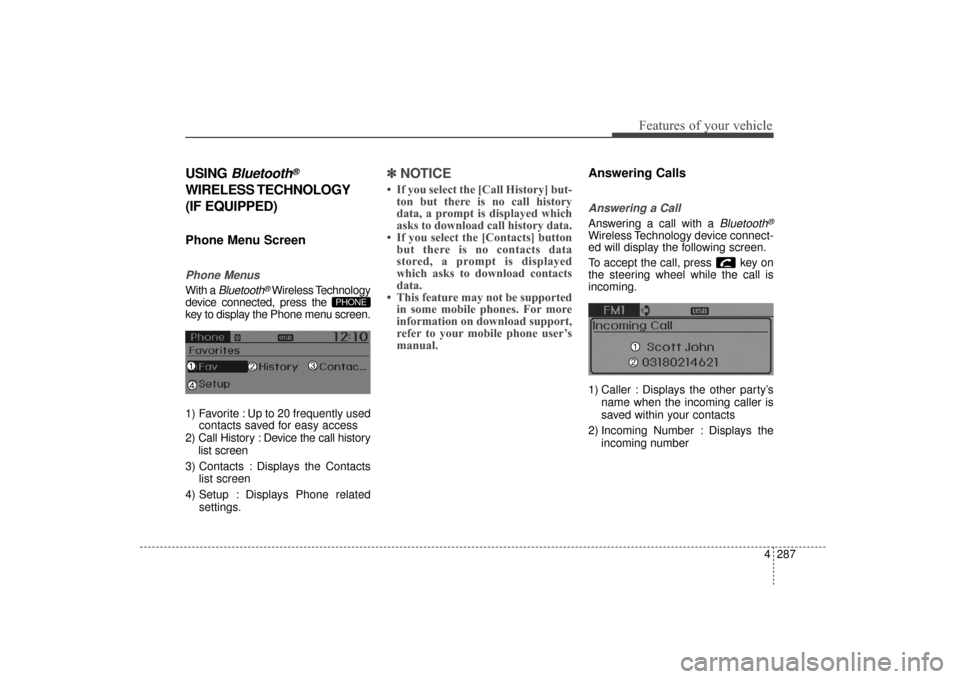
Phone Menu Screen
Phone Menus
With a Bluetooth®Wireless Technology
device connected, press the
key to display the Phone menu screen.
1) Favorite : Up to 20 frequently used contacts saved for easy access
2) Call History : Device the call history list screen
3) Contacts : Displays the Contacts list screen
4) Setup : Displays Phone related settings.
✽ ✽NOTICE
• If you select the [Call History] but-
ton but there is no call history
data, a prompt is displayed which
asks to download call history data.
• If you select the [Contacts] button but there is no contacts data
stored, a prompt is displayed
which asks to download contacts
data.
• This feature may not be supported in some mobile phones. For more
information on download support,
refer to your mobile phone user’s
manual.
Answering Calls
Answering a Call
Answering a call with a Bluetooth®
Wireless Technology device connect-
ed will display the following screen.
To accept the call, press key on
the steering wheel while the call is
incoming.
1) Caller : Displays the other party’s
name when the incoming caller is
saved within your contacts
2) Incoming Number : Displays the incoming number
PHONE
UD(FL) HMA 4C(254~AUDIO2).QXP 8/28/2014 5:27 PM Page 287
Page 379 of 668
![Hyundai Elantra 2014 Owners Guide 4293
Features of your vehicle
VOICE RECOGNITION
Using Voice Recognition
Starting Voice Recognition
Shortly press the key on the
steering wheel. Say a command.
If prompt feedback is in [ON], then
th](/img/35/14572/w960_14572-378.png "Hyundai Elantra 2014 Owners Guide 4293
Features of your vehicle
VOICE RECOGNITION
Using Voice Recognition
Starting Voice Recognition
Shortly press the key on the
steering wheel. Say a command.
If prompt feedback is in [ON], then
th")
4293
Features of your vehicle
VOICE RECOGNITION
Using Voice Recognition
Starting Voice Recognition
Shortly press the key on the
steering wheel. Say a command.
If prompt feedback is in [ON], then
the system will say “Please say a
command after the beep (BEEP)”
If prompt feedback is in [OFF]mode, then the system will only
say “(BEEP)”
To change Prompt Feedback [On]/[Off], go to [System][Prompt Feedback]
✽ ✽ NOTICE
For proper recognition, say the com-
mand after the voice instruction and
beep tone.
Contact List Best Practices
1) Do not store single-name entries
(e.g., “Bob”, “Mom”, “Kim”, etc.).
Instead, always use full names
(including first and last names) for
all contacts (e.g., use “Jacob
Stevenson” instead of “Dad”).
2) Do not use abbreviations (i.e., use “Lieutenant” instead of “Lt.” or
“Sergeant” instead of “Sgt.”).
3) Do not use acronyms (i.e., use “County Finance Department”
instead of “CFD”).
4) Do not use special characters (e.g., “@”, “hyphen -”, “asterisk *”,
“ampersand &”).
5) If a name is not recognized from the contact list, change it to a
more descriptive name (e.g., use
“Grandpa Joseph” instead of “Pa
Joe”).
Skipping Prompt Messages
While prompt message is being stat-
ed Shortly press the key on the
steering remote controller
The prompt message is immediately
ended and the beep tone will sound.
After the “beep”, say the voice com-
mand.
Re-starting Voice Recognition
While system waits for a command
Shortly press the key on the
steering remote controller
The command wait state is immedi-
ately ended and the beep ton will
sound. After the “beep”, say the voice
command.
SETUP
UD(FL) HMA 4C(254~AUDIO2).QXP 8/28/2014 5:27 PM Page 293
Page 380 of 668
Features of your vehicle
294
4
ENDING VOICE
RECOGNITION
While Voice Recognition is operating
Press and hold the key on the
steering remote controller
✽ ✽ NOTICE
• While using voice command,
pressing any steering wheel con-
trol or a different key will end
voice command.
• When the system is waiting for a voice command, say “cancel” or
“end” to end voice command.
• When the system is waiting for a voice command, press and hold
the key on the steering wheel
to end voice command.
Voice Recognition and Phone
Contact Tips:
The Hyundai Voice Recognition
System may have difficulty under-
standing some accents or uncom-
mon names.
When using Voice Recognition to
place a call, speak in a moderate
tone, with clear pronunciation To
maximize the use of Voice
Recognition, consider these guide-
lines when storing contacts:
Do not store single-name entries
(e.g., “Bob”, “Mom”, etc.). Instead,
always use full names (including first
and last names) for these contacts
Do not use special characters (e.g., '@', '-', '*', '&', etc.)
Do not use abbreviations (i.e., use "Lieutenant" instead of "Lt.") or
acronyms (i.e., use "County Finance
Department" instead of "C. F. D."; Be
sure to say the name exactly as it is
entered in the contacts list
UD(FL) HMA 4C(254~AUDIO2).QXP 8/28/2014 5:27 PM Page 294
Page 396 of 668
Features of your vehicle
310
4
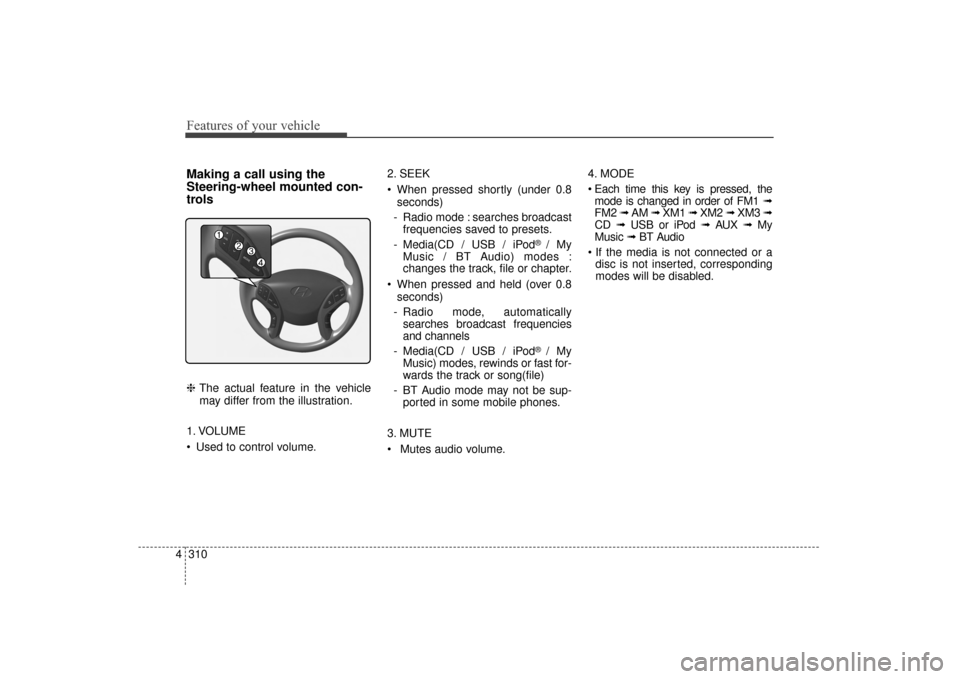
Making a call using the
Steering-wheel mounted con-
trols
❈ The actual feature in the vehicle
may differ from the illustration.
1. VOLUME
Used to control volume. 2. SEEK
When pressed shortly (under 0.8
seconds)
- Radio mode : searches broadcast frequencies saved to presets.
- Media(CD / USB / iPod
® / My
Music / BT Audio) modes :
changes the track, file or chapter.
When pressed and held (over 0.8 seconds)
- Radio mode, automatically searches broadcast frequencies
and channels
- Media(CD / USB / iPod
® / My
Music) modes, rewinds or fast for-
wards the track or song(file)
- BT Audio mode may not be sup- ported in some mobile phones.
3. MUTE
Mutes audio volume. 4. MODE
mode is changed in order of FM1 ➟
FM2 ➟ AM ➟ XM1 ➟ XM2 ➟ XM3 ➟
CD ➟ USB or iPod ➟ AUX ➟ My
Music ➟ BT Audio
disc is not inserted, corresponding
modes will be disabled.
UD(FL) HMA 4C(254~AUDIO2).QXP 8/28/2014 5:28 PM Page 310
Page 428 of 668
![Hyundai Elantra 2014 Owners Guide [Non SSP supported device]
(SSP: Secure Simple Pairing)
4. After a few moments, a screen isdisplayed where the passkey is
entered.
Hear, enter the passkey “0000” to
pair your
Bluetooth®Wireless](/img/35/14572/w960_14572-427.png "Hyundai Elantra 2014 Owners Guide [Non SSP supported device]
(SSP: Secure Simple Pairing)
4. After a few moments, a screen isdisplayed where the passkey is
entered.
Hear, enter the passkey “0000” to
pair your
Bluetooth®Wireless")
[Non SSP supported device]
(SSP: Secure Simple Pairing)
4. After a few moments, a screen isdisplayed where the passkey is
entered.
Hear, enter the passkey “0000” to
pair your
Bluetooth®Wireless
Technology device with the car
audio system.
[SSP supported device]
4. After a few moments, a screen is displayed 6 digits passkey.
Hear, check the passkey on your
Bluetooth®Wireless Technology
device and confirm.
5. Once pairing is complete, the fol- lowing screen is displayed.
✽ ✽NOTICE
If Bluetooth®Wireless Technology
devices are paired but none are cur-
rently connected, pressing the key or the key on the
steering wheel displays the following
screen. Press the [Pair] button to
pair a new device or press the
[Connect] to connect a previously
paired device.
Pairing through [PHONE]
Setup
Press the key Select
[Phone] Select [Pair Phone]
Select TUNE knob
1.The following steps are the same
as those described in the section
"When No Devices have been
Paired" on the previous page.SETUP
PHONE
4 342
Features of your vehicle
UD(FL) HMA 4C(254~AUDIO2).QXP 8/28/2014 5:29 PM Page 342
Page 440 of 668
![Hyundai Elantra 2014 Owners Guide VOICE RECOGNITION
Using Voice Recognition
Starting Voice Recognition
Shortly press the key on the
steering wheel remote controller. Say
a command.
If prompt feedback is in [ON], then
the system wil](/img/35/14572/w960_14572-439.png "Hyundai Elantra 2014 Owners Guide VOICE RECOGNITION
Using Voice Recognition
Starting Voice Recognition
Shortly press the key on the
steering wheel remote controller. Say
a command.
If prompt feedback is in [ON], then
the system wil")
VOICE RECOGNITION
Using Voice Recognition
Starting Voice Recognition
Shortly press the key on the
steering wheel remote controller. Say
a command.
If prompt feedback is in [ON], then
the system will say “Please say a
command after the beep (BEEP)”
If prompt feedback is in [OFF]mode, then the system will only
say “(BEEP)”
To change Prompt Feedback [On]/[Off], go to [System][Prompt Feedback]
✽ ✽ NOTICE
For proper recognition, say the com-
mand after the voice instruction and
beep tone.
Contact List Best Practices
1) Do not store single-name entries
(e.g., “Bob”, “Mom”, “Kim”, etc.).
Instead, always use full names
(including first and last names) for
all contacts (e.g., use “Jacob
Stevenson” instead of “Dad”).
2) Do not use abbreviations (i.e., use “Lieutenant” instead of “Lt.” or
“Sergeant” instead of “Sgt.”).
3) Do not use acronyms (i.e., use “County Finance Department”
instead of “CFD”).
4) Do not use special characters (e.g., “@”, “hyphen -”, “asterisk *”,
“ampersand &”).
5) If a name is not recognized from the contact list, change it to a
more descriptive name (e.g., use
“Grandpa Joseph” instead of “Pa
Joe”).
Skipping Prompt Messages
While prompt message is being stat-
ed Shortly press the key on the
steering remote controller
The prompt message is immediately
ended and the beep tone will sound.
After the “beep”, say the voice com-
mand.
Re-starting Voice Recognition
While system waits for a command
Shortly press the key on the
steering remote controller
The command wait state is immedi-
ately ended and the beep ton will
sound. After the “beep”, say the voice
command.
SETUP
4 354
Features of your vehicle
UD(FL) HMA 4C(254~AUDIO2).QXP 8/28/2014 5:29 PM Page 354