phone Hyundai Elantra 2016 - RHD (UK. Australia) Owner's Guide
[x] Cancel search | Manufacturer: HYUNDAI, Model Year: 2016, Model line: Elantra, Model: Hyundai Elantra 2016Pages: 498, PDF Size: 9.45 MB
Page 286 of 498

Features of your vehicle
206 4
Bluetooth®Wireless Technology
(Bluetooth®Wireless
Technologyequipped model)
Using
Bluetooth®Wireless
Technology Handsfree
•Bluetooth®Wireless Technology
refers to a short-distance wireless
networking technology which uses
a 2.45GHz frequency to connect
various devices within a certain dis-
tance.
• Supported within PCs, external
devices,
Bluetooth®Wireless
Technology phones, PDAs, vari-
ous electronic devices, and auto-
motive environments.
Bluetooth®
Wireless Technology allows data
to be transmitted at high speeds
without having to use a connector
cable.•
Bluetooth®Wireless Technology
Handsfree refers to a device
which allows the user to conve-
niently make phone calls with
Bluetooth®Wireless Technology
mobile phones through the audio
system.
CAUTION
• Bluetooth®Wireless Technology
Handsfree is a feature that
enables drivers to practice safe
driving. Connecting the vehi-
cle's audio system with a
Bluetooth
®Wireless Technology
phone allows the user to conve-
niently make calls, receive calls,
and manage the phone book.
Before using the Bluetooth
®
Wireless Technology, carefully
read the contents of this user’s
manual.
• Excessive use or operations
whilst driving may lead to neg-
ligent driving practices and be
the cause of accidents.
• Do not operate the device
excessively whilst driving.
• Viewing the screen for pro-
longed periods of time is dan-
gerous and may lead to acci-
dents. When driving, view the
screen only for short periods
of time.
Page 287 of 498
4207
Features of your vehicle
✽NOTICE - USING UPON
CONNECTING
Bluetooth®
Wireless Technology
PHONE
• Before connecting the audio system
with the mobile phone, check to see
that the mobile phone supports
Bluetooth
®Wireless Technology
features.
• Even if the phone supports
Bluetooth
®Wireless Technology,
the phone will not be found during
device searches if the phone has
been set to hidden state or the
Bluetooth
®Wireless Technology
power is turned off. Disable the
hidden state or turn on the
Bluetooth
®Wireless Technology
power prior to searching/connect-
ing with the audio system.
• If you do not want to automatical-
ly connect yourBluetooth
®
Wireless Technology phone, try
the following.
1. Turn off the Bluetooth
®
Wireless Technology feature on
your mobile phone.
(Continued)(Continued)
- For more information on
Bluetooth
®Wireless Technology
features within your mobile,
refer to your mobile phone
user’s manual.
2. Turn off the Bluetooth
®
Wireless Technology feature on
your audio system.
- To turn off the Bluetooth
®
Wireless Technology feature on
your audio system, go to
> [Phone] and [turn off] the
Bluetooth
®Wireless Technology
feature.
• Park the vehicle when connecting
the audio system with your mobile
phone.
•Bluetooth
®Wireless Technology
connection may become intermit-
tently disconnected on some
mobile phones. Follow these steps
to try again.
1. Turn the Bluetooth
®Wireless
Technology function within the
mobile phone off/on and try
again.
(Continued)
SETUP
(Continued)
2. Turn the mobile phone power
Off/On and try again.
3. Completely remove the mobile
phone battery, reboot, and then
try again.
4. Reboot the audio system and try
again.
5. Delete all paired devices, pair
and try again.
• The Handsfree call volume and
quality may differ depending on
the mobile phone.
•Bluetooth
®Wireless Technology
features supported within the vehi-
cle are as follows. Some features
may not be supported depending on
yourBluetooth
®Wireless
Technology device.
- Answering and placing
Bluetooth
®Wireless Technology
Handsfree calls
- Menu operation during call
(Switch to Private, Switch to
call waiting, Outgoing volume)
- Download Call History
(Continued)
Page 288 of 498

Features of your vehicle
208 4
(Continued)
- Download Mobile Phone book
- Phone book/Call History Auto
Download
-Bluetooth
®Wireless Technology
device auto connection -
Bluetooth
®Wireless Technology
Audio
• It is possible to pair up to five
Bluetooth
®Wireless Technology
devices to the audio system.
• Only one Bluetooth
®Wireless
Technology device can be connect-
ed at a time.
• Other devices cannot be paired
whilst a Bluetooth
®Wireless
Technology device is already con-
nected.
• When a Bluetooth
®Wireless
Technology device is being connect-
ed, the connection process cannot be
cancelled.
•Only Bluetooth
®Wireless
Technology Handsfree and
Bluetooth
®Wireless Technology
audio related features will operate
within this system.
(Continued)(Continued)
• Normal operation is possible only
for devices that support Handsfree
or audio features, such as a
Bluetooth
®Wireless Technology
mobile phone or a Bluetooth®
Wireless Technology audio device.
• Only one function can be used at a
time between the Bluetooth
®
Wireless Technology Handsfree and
Bluetooth®Wireless Technology
audio. (Whilst playing Bluetooth®
Wireless Technology audio, stream-
ing will end upon entering the
Bluetooth
®Wireless Technology
phone screen.)
• If a connected Bluetooth
®Wireless
Technology device becomes dis-
connected for various reasons,
such as being out of range, turning
the device OFF, or a Bluetooth
®
Wireless Technology communica-
tion error, Bluetooth®Wireless
Technology devices are automati-
cally searched and connected.
• Placing the audio system within
an electromagnetic environment
may result in noise interference.
Page 289 of 498
4209
Features of your vehicle
Bluetooth® Wireless Technology
(for Bluetooth®Wireless
Technologyequipped model)
Pairing a
Bluetooth®Wireless
Technology wireless technolo-
gy Device
What is
Bluetooth®Wireless
Technology Pairing?
Pairing refers to the process of syn-
chronising your
Bluetooth®Wireless
Technology phone or device with the
vehicle's audio system for connec-
tion. Pairing is necessary to connect
and use the
Bluetooth®Wireless
Technology feature.
Pairing Key / Key
on the Steering Remote
Controls
When No Devices have been
Paired
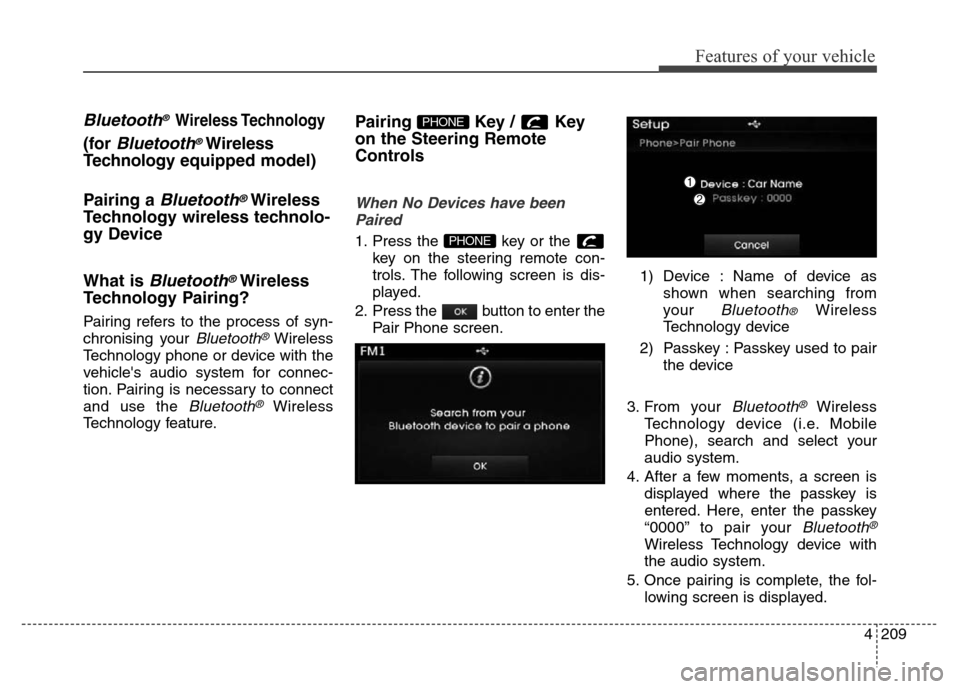
1. Press the key or the
key on the steering remote con-
trols. The following screen is dis-
played.
2. Press the button to enter the
Pair Phone screen.1) Device : Name of device as
shown when searching from
your
Bluetooth® Wireless
Technology device
2) Passkey : Passkey used to pair
the device
3. From your
Bluetooth®Wireless
Technology device (i.e. Mobile
Phone), search and select your
audio system.
4. After a few moments, a screen is
displayed where the passkey is
entered. Here, enter the passkey
“0000” to pair your
Bluetooth®
Wireless Technology device with
the audio system.
5. Once pairing is complete, the fol-
lowing screen is displayed.
PHONE
PHONE
Page 290 of 498
Features of your vehicle
210 4
✽NOTICE
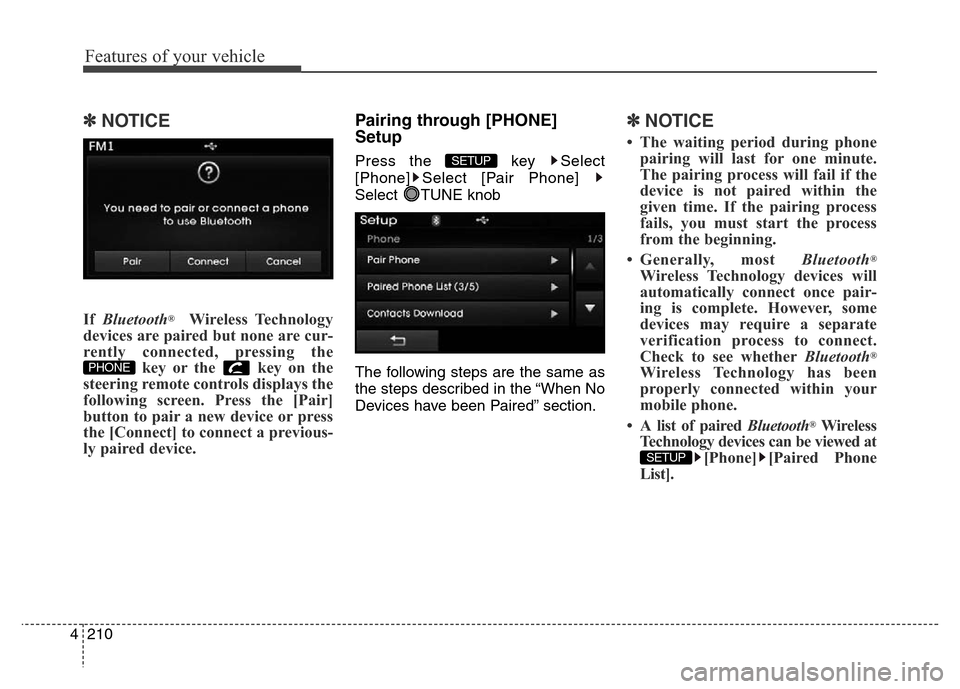
If Bluetooth®Wireless Technology
devices are paired but none are cur-
rently connected, pressing the
key or the key on the
steering remote controls displays the
following screen. Press the [Pair]
button to pair a new device or press
the [Connect] to connect a previous-
ly paired device.
Pairing through [PHONE]
Setup
Press the key Select
[Phone] Select [Pair Phone]
Select TUNE knob
The following steps are the same as
the steps described in the “When No
Devices have been Paired” section.
✽NOTICE
• The waiting period during phone
pairing will last for one minute.
The pairing process will fail if the
device is not paired within the
given time. If the pairing process
fails, you must start the process
from the beginning.
• Generally, most Bluetooth
®
Wireless Technology devices will
automatically connect once pair-
ing is complete. However, some
devices may require a separate
verification process to connect.
Check to see whetherBluetooth
®
Wireless Technology has been
properly connected within your
mobile phone.
• A list of paired Bluetooth
®Wireless
Technology devices can be viewed at
[Phone] [Paired Phone
List].
SETUP
SETUP
PHONE
Page 291 of 498
![Hyundai Elantra 2016 - RHD (UK. Australia) Owners Guide 4211
Features of your vehicle
Connecting a Device
Press the key Select
[Phone] Select [Paired Phone List]
1) Connected Phone : Device that is
currently connected
2) Paired Phone : Device that is
pai](/img/35/14552/w960_14552-290.png "Hyundai Elantra 2016 - RHD (UK. Australia) Owners Guide 4211
Features of your vehicle
Connecting a Device
Press the key Select
[Phone] Select [Paired Phone List]
1) Connected Phone : Device that is
currently connected
2) Paired Phone : Device that is
pai")
4211
Features of your vehicle
Connecting a Device
Press the key Select
[Phone] Select [Paired Phone List]
1) Connected Phone : Device that is
currently connected
2) Paired Phone : Device that is
paired but not connectedFrom the paired phone list, select the
device you want to connect and
press the button.
Changing Priority
What is Priority?
It is possible to pair up to five
Bluetooth®Wireless Technology
devices with the audio system. As a
result, the “Change Priority’ feature is
used to set the connection priority of
paired phones. However, the most
recently connected phone will always
be set as the highest priority.
Press the key Select
[Phone] Select [Paired Phone List]
SETUP
ConnectSETUP
Page 292 of 498
Features of your vehicle
212 4
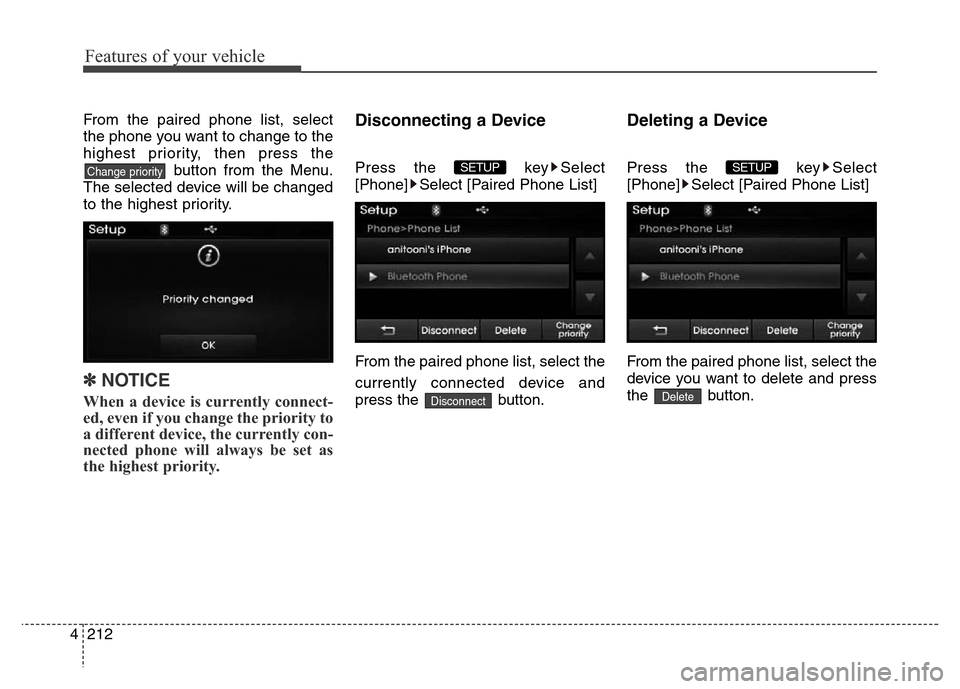
From the paired phone list, select
the phone you want to change to the
highest priority, then press the
button from the Menu.
The selected device will be changed
to the highest priority.
✽NOTICE
When a device is currently connect-
ed, even if you change the priority to
a different device, the currently con-
nected phone will always be set as
the highest priority.
Disconnecting a Device
Press the key Select
[Phone] Select [Paired Phone List]
From the paired phone list, select the
currently connected device and
press the button.
Deleting a Device
Press the key Select
[Phone] Select [Paired Phone List]
From the paired phone list, select the
device you want to delete and press
the button.
Delete
SETUP
Disconnect
SETUP Change priority
Page 293 of 498
4213
Features of your vehicle
✽NOTICE
• When deleting the currently con-
nected device, the device will auto-
matically be disconnected to pro-
ceed with the deleting process.
• If a paired Bluetooth
®Wireless
Technology device is deleted, the
device’s call history and contacts
data will also be deleted.
• To re-use a deleted device, you
must pair the device again.
USING Bluetooth®Wireless
Technology
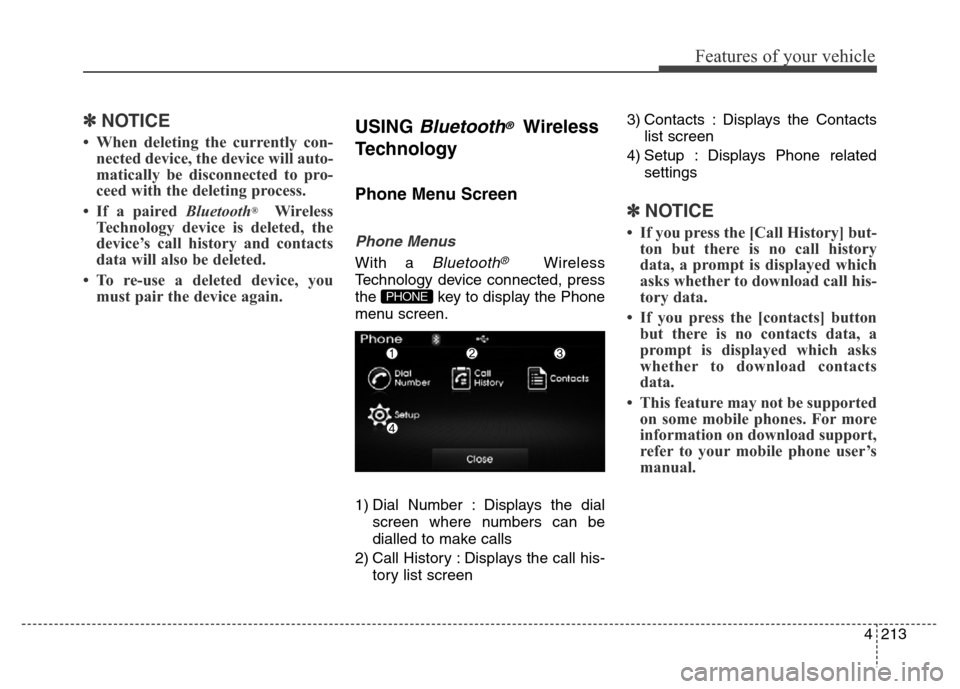
Phone Menu Screen
Phone Menus
With a Bluetooth®Wireless
Technology device connected, press
the key to display the Phone
menu screen.
1) Dial Number : Displays the dial
screen where numbers can be
dialled to make calls
2) Call History : Displays the call his-
tory list screen3) Contacts : Displays the Contacts
list screen
4) Setup : Displays Phone related
settings
✽NOTICE
• If you press the [Call History] but-
ton but there is no call history
data, a prompt is displayed which
asks whether to download call his-
tory data.
• If you press the [contacts] button
but there is no contacts data, a
prompt is displayed which asks
whether to download contacts
data.
• This feature may not be supported
on some mobile phones. For more
information on download support,
refer to your mobile phone user’s
manual.
PHONE
Page 294 of 498
![Hyundai Elantra 2016 - RHD (UK. Australia) Owners Guide Features of your vehicle
214 4
Calling by Dialling a Number
Press the key Select [Dial
Number]
1) Dial Pad : Used to enter phone
number
2) Call : If a number has been
entered, calls the number. If no](/img/35/14552/w960_14552-293.png "Hyundai Elantra 2016 - RHD (UK. Australia) Owners Guide Features of your vehicle
214 4
Calling by Dialling a Number
Press the key Select [Dial
Number]
1) Dial Pad : Used to enter phone
number
2) Call : If a number has been
entered, calls the number. If no")
Features of your vehicle
214 4
Calling by Dialling a Number
Press the key Select [Dial
Number]
1) Dial Pad : Used to enter phone
number
2) Call : If a number has been
entered, calls the number. If no
number has been entered, switch-
es to call history screen
3) End : Deletes the entered phone
number
4) Delete : Deletes entered numbers
one digit at a time
Answering Calls
Answering a Call
Answering a call with a Bluetooth®
Wireless Technology device connect-
ed will display the following screen.
1) Caller : Displays the party’s name
when the incoming caller is saved
within your contacts
2) Incoming Number : Displays the
incoming number
3) Accept : Accept the incoming call
4) Reject : Reject the incoming call
✽NOTICE
• When the incoming call pop-up is
displayed, most Audio and SETUP
mode features will not operate.
Only the call volume can be oper-
ated.
• The telephone number may not be
properly displayed on some
mobile phones.
• When a call is answered with the
mobile phone, the call mode will
automatically convert to Private
mode.
PHONE
Page 295 of 498
4215
Features of your vehicle
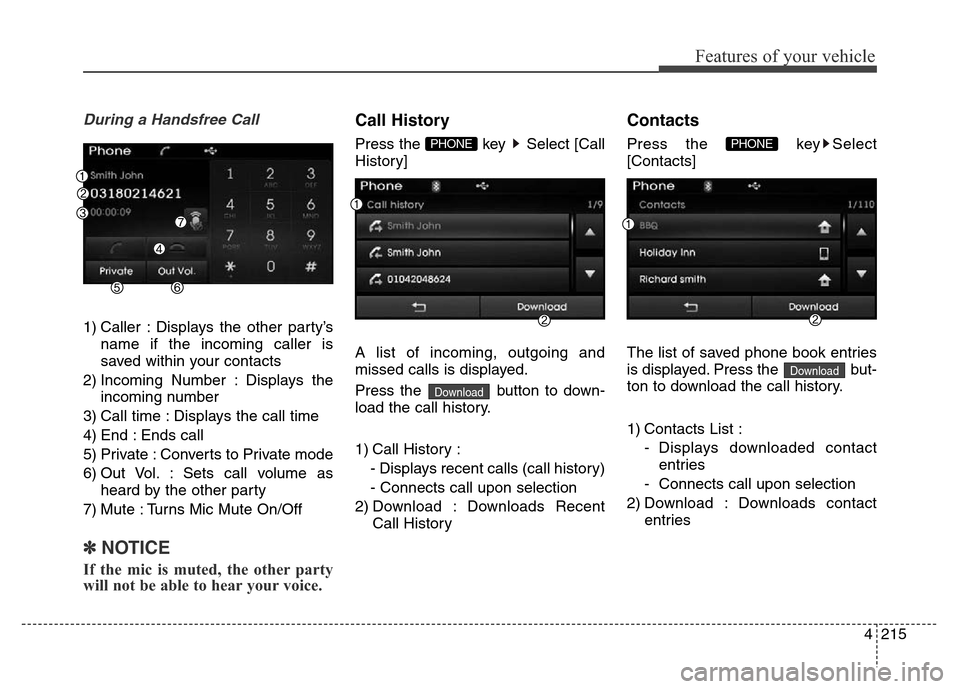
During a Handsfree Call
1) Caller : Displays the other party’s
name if the incoming caller is
saved within your contacts
2) Incoming Number : Displays the
incoming number
3) Call time : Displays the call time
4) End : Ends call
5) Private : Converts to Private mode
6) Out Vol. : Sets call volume as
heard by the other party
7) Mute : Turns Mic Mute On/Off
✽NOTICE
If the mic is muted, the other party
will not be able to hear your voice.
Call History
Press the key Select [Call
History]
A list of incoming, outgoing and
missed calls is displayed.
Press the button to down-
load the call history.
1) Call History :
- Displays recent calls (call history)
- Connects call upon selection
2) Download : Downloads Recent
Call History
Contacts
Press the key Select
[Contacts]
The list of saved phone book entries
is displayed. Press the but-
ton to download the call history.
1) Contacts List :
- Displays downloaded contact
entries
- Connects call upon selection
2) Download : Downloads contact
entries
Download
PHONE
Download
PHONE