phone Hyundai Elantra 2016 Owner's Manual - RHD (UK. Australia)
[x] Cancel search | Manufacturer: HYUNDAI, Model Year: 2016, Model line: Elantra, Model: Hyundai Elantra 2016Pages: 498, PDF Size: 9.45 MB
Page 2 of 498
F2
Your Hyundai should not be modified in any way without the approval of Hyundai. Any modifications
may adversely affect the safety, durability and performance of your Hyundai. In addition, those com-
ponents which are subjected to modification or are added to the vehicle specification, and any result-
ant consequential damage will not be covered by the vehicle manufacturer's warranty.
Your vehicle is equipped with electronic fuel injection and other electronic components. It is possible
for an improperly installed/adjusted two-way radio to adversely affect electronic systems. For this rea-
son, we recommend that you carefully follow the radio manufacturer's instructions or consult your
Hyundai dealer for precautionary measures or special instructions.
CAUTION: MODIFICATIONS TO YOUR HYUNDAI
TWO-WAY RADIO OR MOBILE TELEPHONE INSTALLATION
Page 85 of 498
45
Features of your vehicle
Ty p e C
To unfold the key, press the release
button then the key will unfold auto-
matically.
To fold the key, fold the key manually
whilst pressing the release button.Remote key precautions
The remote key will not work if any of
the following occur:
• The key is in the ignition switch.
• You exceed the operating distance
limit (about 30 m [90 feet]).
• The remote key battery is weak.
• Other vehicles or objects may be
blocking the signal.
• The weather is extremely cold.
• The remote key is close to a radio
transmitter such as a radio station
or an airport which can interfere
with normal operation of the
remote key.
When the remote key does not work
correctly, open and close the door
with the mechanical key. If you have
a problem with the remote key, it is
recommanded that you contact an
authorised HYUNDAI dealer.
(Continued)(Continued)
If the remote key is in close proximi-
ty to your mobile phone, the signal
could be blocked by your mobile
phones normal operational signals.
This is especially important when the
phone is active such as making and
receiving calls, text messaging,
and/or sending/receiving emails.
Avoid placing the remote key and
your mobile phone in the same loca-
tions and always try to maintain an
adequate distance between the two
devices.
CAUTION
Do not fold the key without
pressing the release button.
This may damage the key.
Page 90 of 498
Features of your vehicle
10 4
Loss of a smart key
A maximum of two smart keys can be
registered to a single vehicle. If you
happen to lose your smart key, it is
recommanded that you should imme-
diately take the vehicle and remaining
key to your authorised HYUNDAI
dealer or tow the vehicle, if necessary.
Smart key precautions
The smart key will not work if any of
the following occur:
• The smart key is close to a radio
transmitter such as a radio station
or an airport which can interfere
with normal operation of the trans-
mitter.
• The smart key is near a mobile two
way radio system or a mobile
phone.
• Another vehicle’s smart key is being
operated close to your vehicle.
When the smart key does not work
correctly, open and close the door
with the mechanical key. If you have
a problem with the smart key, it is
recommended that you contact an
authorised HYUNDAI dealer.
(Continue)(Continue)
If the smart key is in close proximity
to your mobile phone, the signal
could be blocked by your mobile
phones normal operational signals.
This is especially important when the
phone is active such as making and
receiving calls, text messaging,
and/or sending/receiving emails.
Avoid placing the smart key and your
mobile phone in the same location
and always try to maintain an ade-
quate distance between the two
devices.
Page 110 of 498
Features of your vehicle
30 4
(Continued)
• Do not use mobile phones
whilst refuelling. Electric cur-
rent and/or electronic interfer-
ence from mobile phones can
potentially ignite fuel vapours
and cause a fire.
• Do not get back into a vehicle
once you have begun refu-
elling. You can generate a
build-up of static electricity by
touching, rubbing or sliding
against any item or fabric capa-
ble of producing static electric-
ity. Static electricity discharge
can ignite fuel vapourscaus-
ing a fire. If you must re-enter
the vehicle, you should once
again eliminate potentially dan-
gerous static electricity dis-
charge by touching a metal
part of the vehicle, away from
the fuel filler neck, nozzle or
other petrol source, with your
bare hand.
(Continued)WARNING
Petrol is highly flammable and
explosive. Failure to follow
these guidelines may result in
SERIOUS INJURY or DEATH:
• Read and follow all warnings
posted at the service station.
• Before refuelling, note the
location of the Emergency
Petrol Shut-Off, if available, at
the service station.
• Before touching the fuel noz-
zle, you should eliminate the
potential build-up of static
electricity by touching a metal
part of the vehicle, a safe dis-
tance away from the fuel filler
neck, nozzle, or other petrol
source, with your bare hand.
(Continued)
(Continued)
• When using an approved
portable fuel container, be
sure to place the container on
the ground prior to refuelling.
Static electricity discharge
from the container can ignite
fuel vapours causing a fire.
Once refuelling has begun,
contact between your bare
hand and the vehicle should
be maintained until the filling
is complete.
• Use only approved portable
plastic fuel containers
designed to carry and store
petrol.
(Continued)
Page 205 of 498
4125
Features of your vehicle
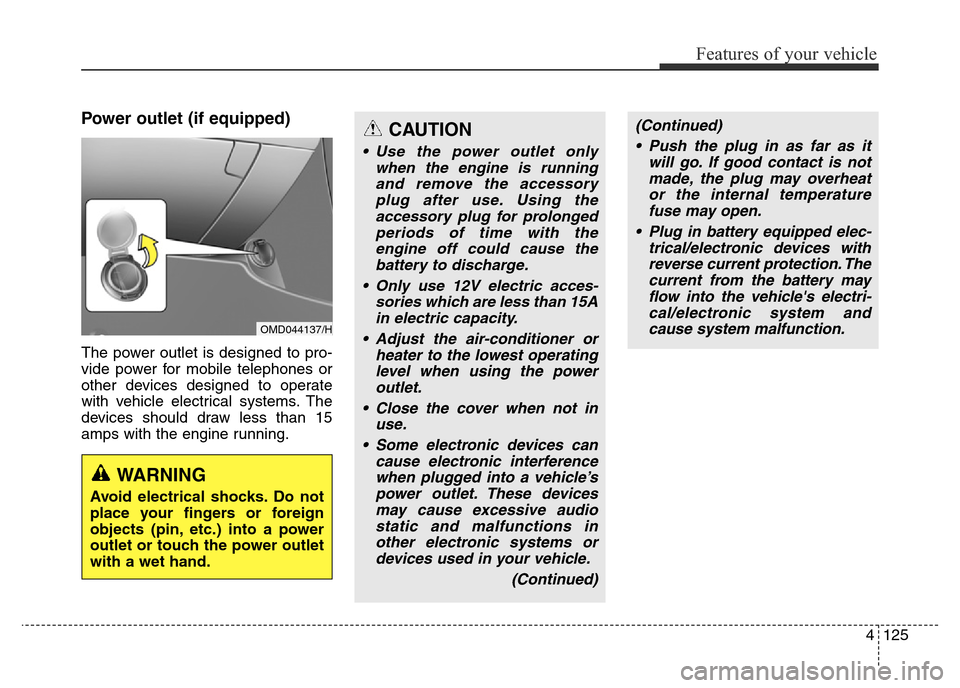
Power outlet (if equipped)
The power outlet is designed to pro-
vide power for mobile telephones or
other devices designed to operate
with vehicle electrical systems. The
devices should draw less than 15
amps with the engine running.
OMD044137/H
CAUTION
• Use the power outlet only
when the engine is running
and remove the accessory
plug after use. Using the
accessory plug for prolonged
periods of time with the
engine off could cause the
battery to discharge.
• Only use 12V electric acces-
sories which are less than 15A
in electric capacity.
• Adjust the air-conditioner or
heater to the lowest operating
level when using the power
outlet.
• Close the cover when not in
use.
• Some electronic devices can
cause electronic interference
when plugged into a vehicle’s
power outlet. These devices
may cause excessive audio
static and malfunctions in
other electronic systems or
devices used in your vehicle.
(Continued)
WARNING
Avoid electrical shocks. Do not
place your fingers or foreign
objects (pin, etc.) into a power
outlet or touch the power outlet
with a wet hand.
(Continued)
• Push the plug in as far as it
will go. If good contact is not
made, the plug may overheat
or the internal temperature
fuse may open.
• Plug in battery equipped elec-
trical/electronic devices with
reverse current protection. The
current from the battery may
flow into the vehicle's electri-
cal/electronic system and
cause system malfunction.
Page 210 of 498
Features of your vehicle
130 4
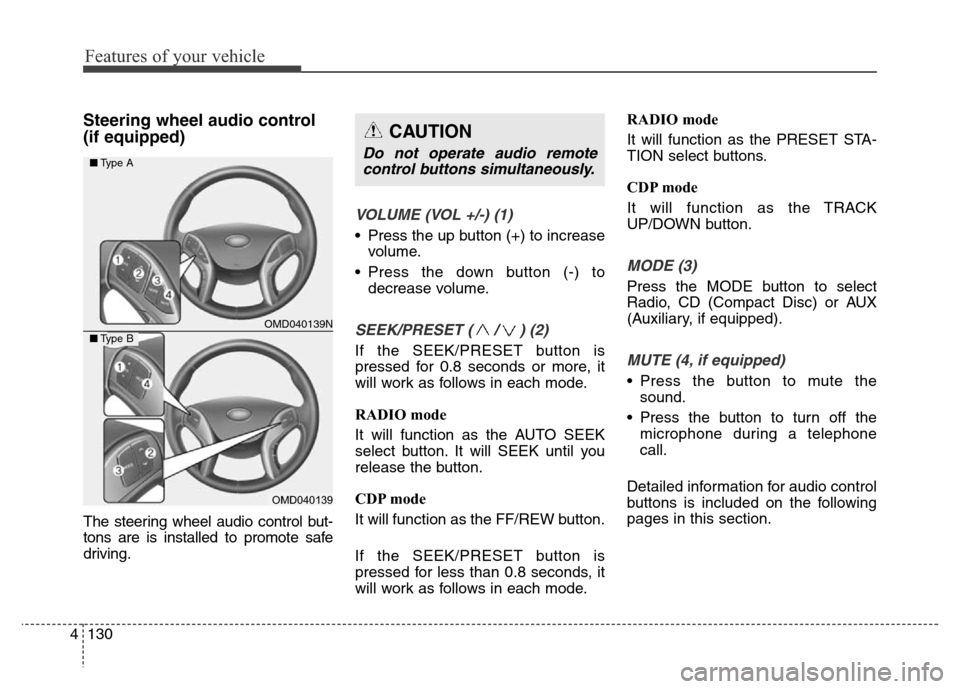
Steering wheel audio control
(if equipped)
The steering wheel audio control but-
tons are is installed to promote safe
driving.
VOLUME (VOL +/-) (1)
• Press the up button (+) to increase
volume.
• Press the down button (-) to
decrease volume.
SEEK/PRESET ( / ) (2)
If the SEEK/PRESET button is
pressed for 0.8 seconds or more, it
will work as follows in each mode.
RADIO mode
It will function as the AUTO SEEK
select button. It will SEEK until you
release the button.
CDP mode
It will function as the FF/REW button.
If the SEEK/PRESET button is
pressed for less than 0.8 seconds, it
will work as follows in each mode.RADIO mode
It will function as the PRESET STA-
TION select buttons.
CDP mode
It will function as the TRACK
UP/DOWN button.
MODE (3)
Press the MODE button to select
Radio, CD (Compact Disc) or AUX
(Auxiliary, if equipped).
MUTE (4, if equipped)
• Press the button to mute the
sound.
• Press the button to turn off the
microphone during a telephone
call.
Detailed information for audio control
buttons is included on the following
pages in this section.
CAUTION
Do not operate audio remote
control buttons simultaneously.
OMD040139N
OMD040139
■Type A
■Type B
Page 213 of 498
4133
Features of your vehicle
Using a mobile phone or a two-
way radio
When a mobile phone is used inside
the vehicle, noise may be produced
from the audio system. This does not
mean that something is wrong with
the audio equipment. In such a case,
use the mobile phone at a place as
far as possible from the audio equip-
ment.
Caring for disc
• If the temperature inside the vehicle
is too high, open the windows to
ventilate the vehicle before using the
system.
• It is illegal to copy and use
MP3/WMA files without permission.
Use CDs that are created only by
lawful means.
• Do not apply volatile agents, such as
benzene and thinner, normal clean-
ers and magnetic sprays made for
analogue discs onto CDs.
• To prevent the disc surface from get-
ting damaged, hold CDs by the
edges or the centre hole only.
• Clean the disc surface with a piece
of soft cloth before playback (wipe it
from the centre to the outside edge).
• Do not damage the disc surface or
attach pieces of sticky tape or paper.
• Make certain only CDs are inserted
into the CD player (Do not insert
more than one CD at a time).
• Keep CDs in their cases after use to
protect them from scratches or dirt.
CAUTION
When using a communication
system such as a mobile phone
or a radio set inside the vehicle,
a separate external antenna
must be fitted. When a mobile
phone or a radio set is used
with an internal antenna alone,
it may interfere with the vehi-
cle's electrical system and
adversely affect safe operation
of the vehicle.
WARNING
Do not use a mobile phone
whilst driving. Stop at a safe
location to use a mobile phone.
Page 215 of 498
4135
Features of your vehicle
WARNING
• Do not stare at the screen
whilst driving. Staring at the
screen for prolonged periods
of time could lead to traffic
accidents.
• Do not disassemble, assem-
ble, or modify the audio sys-
tem. Such acts could result in
accidents, fire, or electric
shock.
• Using the phone whilst driv-
ing may lead to a lack of atten-
tion of traffic conditions and
increase the likelihood of
accidents. Use the phone fea-
ture after parking the vehicle.
• Heed caution not to spill water
or introduce foreign objects
into the device. Such acts
could lead to smoke, fire, or
product malfunction.
(Continued)
(Continued)
• Driving whilst distracted can
result in a loss of vehicle control
that may lead to an accident,
severe personal injury, and
death. The driver’s primary
responsibility is in the safe and
legal operation of a vehicle, and
use of any handheld devices,
other equipment, or vehicle sys-
tems which take the driver’s
eyes, attention and focus away
from the safe operation of a vehi-
cle or which are not permissible
by law should never be used
during operation of the vehicle.(Continued)
• Please refrain from use if the
screen is blank or no sound
can be heard as these signs
may indicate product malfunc-
tion. Continued use in such
conditions could lead to acci-
dents (fires, electric shock) or
product malfunctions.
• Do not touch the antenna dur-
ing thunder or lightening as
such acts may lead to light-
ning induced electric shock.
• Do not stop or park in park-
ing-restricted areas to operate
the product. Such acts could
lead to traffic accidents.
• Use the system with the vehi-
cle ignition turned on.
Prolonged use with the igni-
tion turned off could result in
battery discharge.
(Continued)
Page 218 of 498
Features of your vehicle
138 4
(Continued)
• If you use devices such as a USB
hub purchased separately, the
vehicle’s audio system may not
recognise the USB device. In that
case, connect the USB device
directly to the multimedia termi-
nal of the vehicle.
• If the USB device is divided by log-
ical drives, only the music files on
the highest-priority drive are
recognised by the vehicle's audio
system.
• Devices such as MP3
players/mobile phones/digital
cameras can be unrecognisable.
• Charging through the USB may
not be supported in some mobile
devices.
• USB HDD or USB types liable to
connection failures due to vehicle
vibrations are not supported (i-
stick type).
• Some non-standard USB devices
(METAL COVER TYPE USB)
can be unrecognisable.
(Continued)(Continued)
• Some USB flash memory readers
(such as CF, SD, micro SD, etc.) or
external-HDD type devices can be
unrecognisable.
• Music files protected by DRM
(DIGITAL RIGHTS MANAGE-
MENT) are not recognisable.
• The data in the USB memory may
be lost whilst using this audio.
Always reverse important data on
a personal storage device.
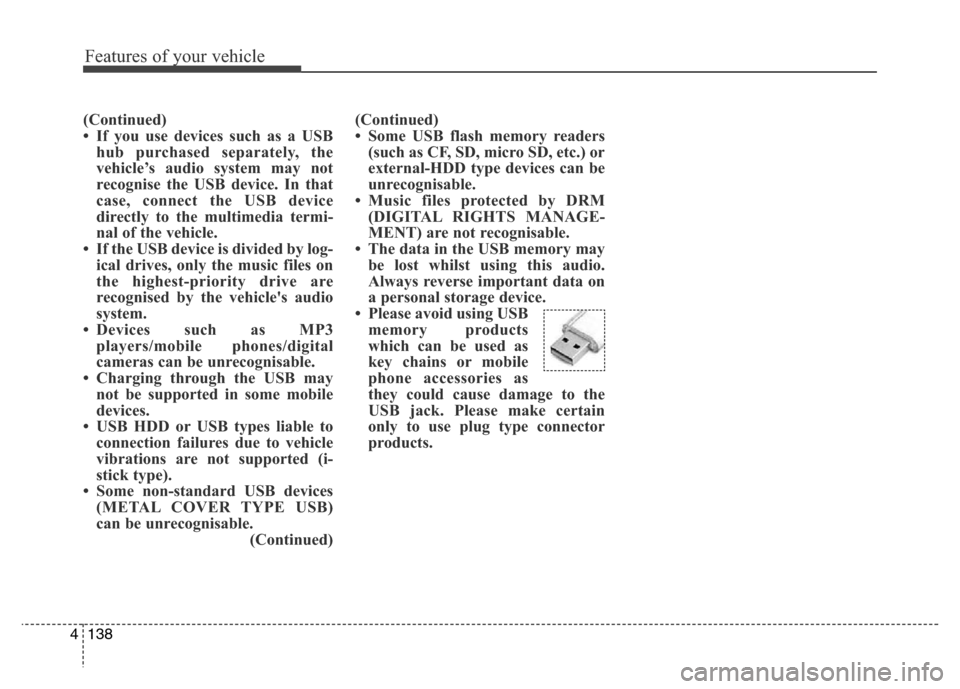
• Please avoid using USB
memory products
which can be used as
key chains or mobile
phone accessories as
they could cause damage to the
USB jack. Please make certain
only to use plug type connector
products.
Page 219 of 498
4139
Features of your vehicle
✽NOTICE - USING THE iPod®
DEVICE
• Some iPod®models may not sup-
port communication protocol and
files may not play properly.
Supported iPod
®models:
- iPod®Mini
- iPod®4th (Photo) ~ 6th (Classic)
generation
- iPod
®Nano 1st~4th generation
- iPod®Touch 1st~2nd generation
• The order of search or playback of
songs in the iPod
®can be different
from the order searched in the
audio system.
• If the iPod
®is disabled due to its
own malfunction, reset the iPod®
(Reset: Refer to the iPod®manu-
al).
• An iPod
®may not operate nor-
mally on low battery.
(Continued)(Continued)
• Some iPod
®devices, such as the
iPhone®, can be connected through
the Bluetooth®Wireless Technology
interface. The device must have
audio Bluetooth
®Wireless
Technology capability (such as for
stereo headphone Bluetooth
®
Wireless Technology). The device
can play, but it will not be con-
trolled by the audio system.
• To use iPod
®features within the
audio, use the cable provided upon
purchasing an iPod
®device.
• Skipping or improper operation may
occur depending on the characteris-
tics of your iPod
®/iPhone®device.
• If your iPhone®is connected to both
the Bluetooth®Wireless Technology
and USB, the sound may not be cor-
rectly played. In your iPhone
®, select
the Dock connector orBluetooth®
Wireless Technology to change the
sound output (source).
(Continued)
(Continued)
• When connecting an iPod®with the
iPod®Power Cable, insert the con-
nector to the multimedia socket
completely. If not inserted com-
pletely, communications between
the iPod
®and audio may be inter-
rupted.
• When adjusting the sound effects
of the iPod
®and the audio system,
the sound effects of both devices
will overlap and might reduce or
distort the quality of the sound.
• Deactivate (turn off) the equalizer
function of an iPod
®when adjust-
ing the audio system’s volume, and
turn off the equalizer of the audio
system when using the equalizer of
an iPod
®.
• When not using an iPod®with the
vehicle's audio system, detach the
iPod
®cable from the iPod®.
Otherwise, the iPod®may remain
in accessory mode, and may not
play properly.