Audio Hyundai Elantra 2016 Repair Manual
[x] Cancel search | Manufacturer: HYUNDAI, Model Year: 2016, Model line: Elantra, Model: Hyundai Elantra 2016Pages: 669, PDF Size: 31.96 MB
Page 320 of 669
Features of your vehicle
234
4
Answering Calls
Answering a Call
Answering a call with a Bluetooth®
Wireless Technology device connect-
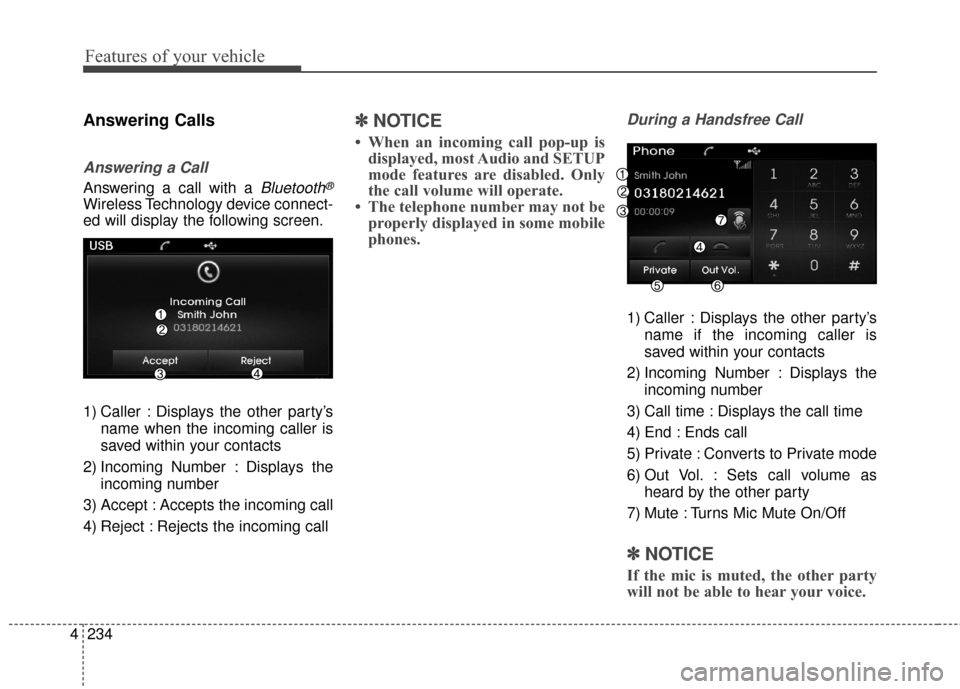
ed will display the following screen.
1) Caller : Displays the other party’s
name when the incoming caller is
saved within your contacts
2) Incoming Number : Displays the incoming number
3) Accept : Accepts the incoming call
4) Reject : Rejects the incoming call
✽ ✽ NOTICE
• When an incoming call pop-up is
displayed, most Audio and SETUP
mode features are disabled. Only
the call volume will operate.
• The telephone number may not be properly displayed in some mobile
phones.
During a Handsfree Call
1) Caller : Displays the other party’s
name if the incoming caller is
saved within your contacts
2) Incoming Number : Displays the incoming number
3) Call time : Displays the call time
4) End : Ends call
5) Private : Converts to Private mode
6) Out Vol. : Sets call volume as heard by the other party
7) Mute : Turns Mic Mute On/Off
✽ ✽ NOTICE
If the mic is muted, the other party
will not be able to hear your voice.
Page 321 of 669
![Hyundai Elantra 2016 Repair Manual 4235
Features of your vehicle
Bluetooth®Wireless
Technology Setting
Pairing a New Device
Press the key Select
[Phone] Select [Pair Phone]
(For USA)
(For CANADA)
Bluetooth®Wireless Technology
device](/img/35/14551/w960_14551-320.png "Hyundai Elantra 2016 Repair Manual 4235
Features of your vehicle
Bluetooth®Wireless
Technology Setting
Pairing a New Device
Press the key Select
[Phone] Select [Pair Phone]
(For USA)
(For CANADA)
Bluetooth®Wireless Technology
device")
4235
Features of your vehicle
Bluetooth®Wireless
Technology Setting
Pairing a New Device
Press the key Select
[Phone] Select [Pair Phone]
(For USA)
(For CANADA)
Bluetooth®Wireless Technology
devices can be paired with the audio
system.
For more information, refer to the
"Pairing through Phone Setup" sec-
tion within
Bluetooth®Wireless
Technology.
Viewing Paired Phone List
Press the key Select
[Phone] Select [Paired Phone List]
This feature is used to view mobile
phones that have been paired with
the audio system. Upon selecting a
paired phone, the setup menu is dis-
played. For more information, refer to the
"Setting
Bluetooth®Wireless
Technology Connection" section
within
Bluetooth®Wireless
Technology.
1) : Moves to the previous
screen
2) Connect/Disconnect Phone : Connect/ disconnects currently
selected phone
3) Delete : Deletes the currently selected phone
4) Change Priority : Sets currently selected phone to highest connec-
tion priority
SETUP
SETUP
Page 323 of 669
![Hyundai Elantra 2016 Repair Manual 4237
Features of your vehicle
Turning Bluetooth System Off
Press the key Select
[Phone] Select [Bluetooth System Off]
Once
Bluetooth®Wireless Technology
is turned off,
Bluetooth®Wireless
Technolo](/img/35/14551/w960_14551-322.png "Hyundai Elantra 2016 Repair Manual 4237
Features of your vehicle
Turning Bluetooth System Off
Press the key Select
[Phone] Select [Bluetooth System Off]
Once
Bluetooth®Wireless Technology
is turned off,
Bluetooth®Wireless
Technolo")
4237
Features of your vehicle
Turning Bluetooth System Off
Press the key Select
[Phone] Select [Bluetooth System Off]
Once
Bluetooth®Wireless Technology
is turned off,
Bluetooth®Wireless
Technology related features will not
be supported within the audio system.
(For USA)
(For CANADA)
✽ ✽ NOTICE
To turn Bluetooth®Wireless
Technology back on, go to
[Phone] and press "Yes".SETUP
SETUP
Page 327 of 669
4241
Features of your vehicle
CommandFunction
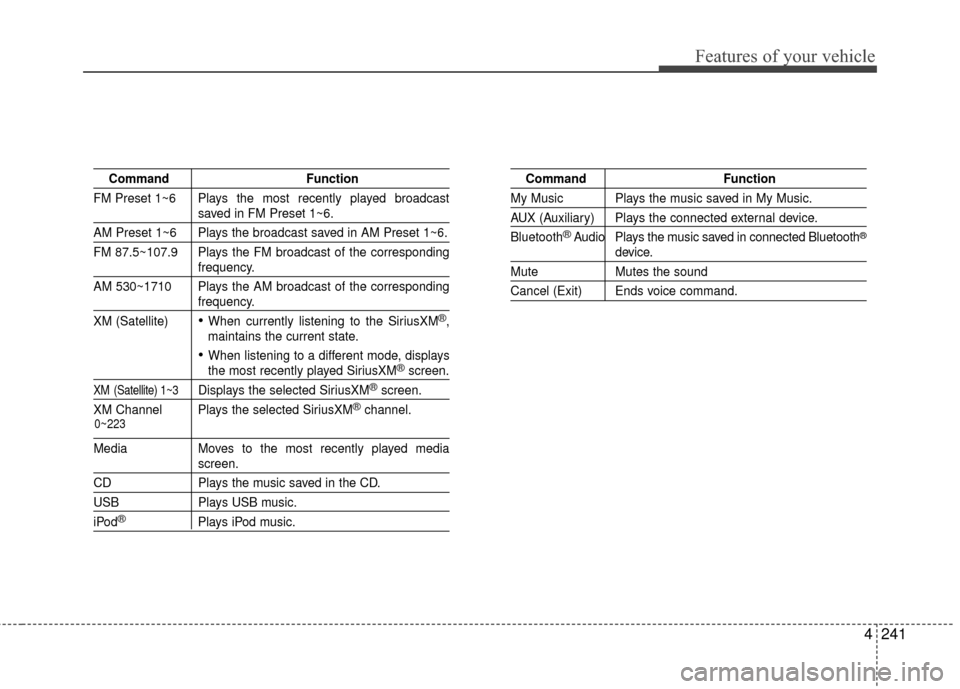
FM Preset 1~6 Plays the most recently played broadcast
saved in FM Preset 1~6.
AM Preset 1~6 Plays the broadcast saved in AM Preset 1~6.
FM 87.5~107.9 Plays the FM broadcast of the corresponding
frequency.
AM 530~1710 Plays the AM broadcast of the corresponding
frequency.
XM (Satellite)
When currently listening to the SiriusXM®,
maintains the current state.
When listening to a different mode, displaysthe most recently played SiriusXM®screen.
XM (Satellite) 1~3Displays the selected SiriusXM®screen.
XM Channel Plays the selected SiriusXM
®channel.
Media Moves to the most recently played mediascreen.
CD Plays the music saved in the CD.
USBPlays USB music.
iPod®Plays iPod music.
Command Function
My Music Plays the music saved in My Music.
AUX (Auxiliary) Plays the connected external device.
Bluetooth
®Audio Plays the music saved in connected Bluetooth®
device.
Mute Mutes the sound
Cancel (Exit) Ends voice command.
0~223
Page 329 of 669
4243
Features of your vehicle
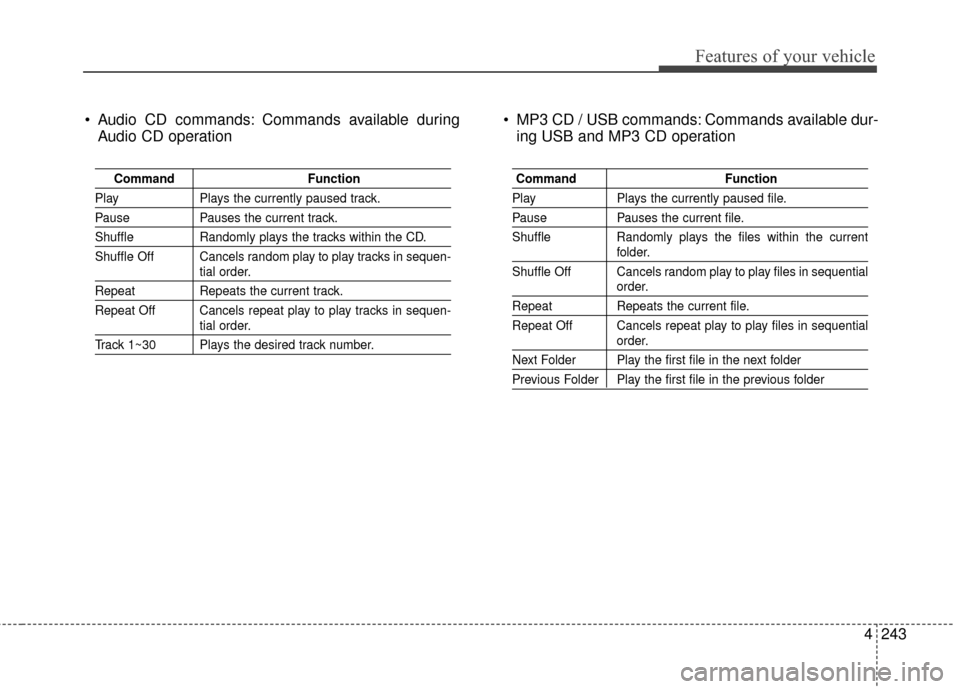
Audio CD commands: Commands available duringAudio CD operation MP3 CD / USB commands: Commands available dur-
ing USB and MP3 CD operation
Command Function
PlayPlays the currently paused track.
PausePauses the current track.
ShuffleRandomly plays the tracks within the CD.
Shuffle Off Cancels random play to play tracks in sequen-
tial order.
Repeat Repeats the current track.
Repeat Off Cancels repeat play to play tracks in sequen-
tial order.
Track 1~30 Plays the desired track number.
Command Function
PlayPlays the currently paused file.
PausePauses the current file.
Shuffle Randomly plays the files within the current
folder.
Shuffle Off Cancels random play to play files in sequential
order.
Repeat Repeats the current file.
Repeat Off Cancels repeat play to play files in sequential
order.
Next Folder Play the first file in the next folder
Previous Folder Play the first file in the previous folder
Page 334 of 669
![Hyundai Elantra 2016 Repair Manual Features of your vehicle
248
4
Blue Link Voice Volume
Press the key Select [Sound]
Select [Blue Link Voice Vol.]
Turn the TUNE knob to adjust the
Blue Link Voice Volume.
❈ Blue Link
®may differ](/img/35/14551/w960_14551-333.png "Hyundai Elantra 2016 Repair Manual Features of your vehicle
248
4
Blue Link Voice Volume
Press the key Select [Sound]
Select [Blue Link Voice Vol.]
Turn the TUNE knob to adjust the
Blue Link Voice Volume.
❈ Blue Link
®may differ")
Features of your vehicle
248
4
Blue Link Voice Volume
Press the key Select [Sound]
Select [Blue Link Voice Vol.]
Turn the TUNE knob to adjust the
Blue Link Voice Volume.
❈ Blue Link
®may differ depending
on the selected audio.
System Setting
Memory Information
Press the key Select
[System] Select [Memory Information]
This feature displays information
related to system memory.
1) Using : Displays capacity currently in use
2) Capacity : Displays total capacity
Prompt Feedback
Press the key Select
[System] Select [Prompt Feedback]
This feature is used to select the
desired prompt feedback option from
ON and OFF.
1) ON : When using voice recognition, provides detailed guidance prompts
2) OFF : When using voice recogni- tion, omits some guidance promptsSETUP
SETUP
SETUP
Page 342 of 669
Features of your vehicle
256
4
SYSTEM CONTROLLERS
AND FUNCTIONS
Audio Head Unit
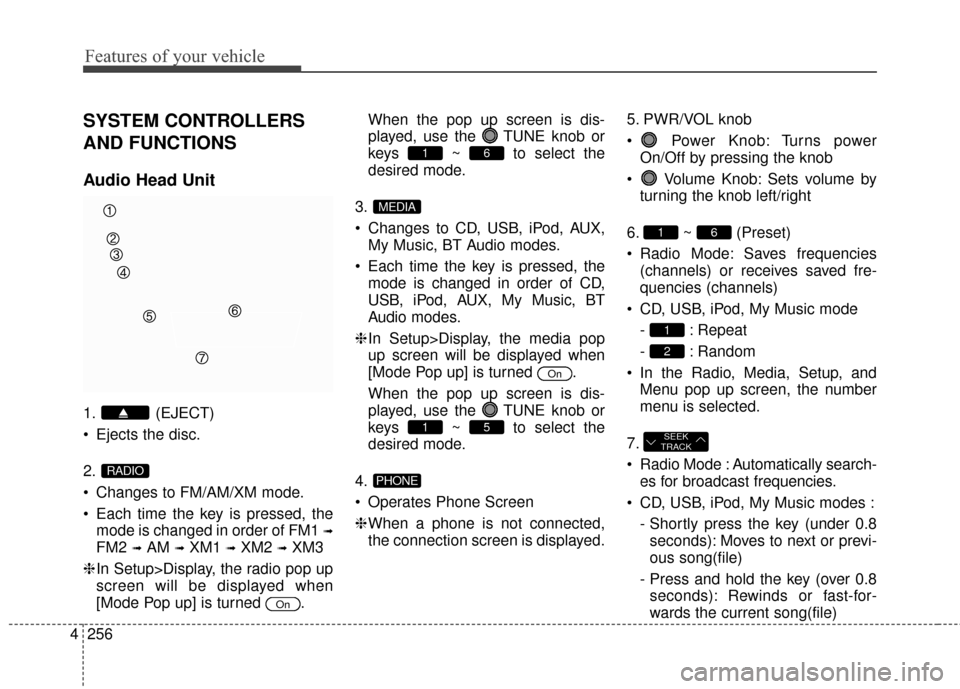
1. (EJECT)
Ejects the disc.
2.
Changes to FM/AM/XM mode.
Each time the key is pressed, the
mode is changed in order of FM1
➟
FM2 ➟AM ➟XM1 ➟XM2 ➟XM3
❈ In Setup>Display, the radio pop up
screen will be displayed when
[Mode Pop up] is turned . When the pop up screen is dis-
played, use the TUNE knob or
keys ~ to select the
desired mode.
3.
Changes to CD, USB, iPod, AUX, My Music, BT Audio modes.
Each time the key is pressed, the mode is changed in order of CD,
USB, iPod, AUX, My Music, BT
Audio modes.
❈ In Setup>Display, the media pop
up screen will be displayed when
[Mode Pop up] is turned .
When the pop up screen is dis-
played, use the TUNE knob or
keys ~ to select the
desired mode.
4.
Operates Phone Screen
❈ When a phone is not connected,
the connection screen is displayed. 5. PWR/VOL knob
Power Knob: Turns power
On/Off by pressing the knob
Volume Knob: Sets volume by turning the knob left/right
6. ~ (Preset)
Radio Mode: Saves frequencies (channels) or receives saved fre-
quencies (channels)
CD, USB, iPod, My Music mode - : Repeat
- : Random
In the Radio, Media, Setup, and Menu pop up screen, the number
menu is selected.
7.
Radio Mode : Automatically search- es for broadcast frequencies.
CD, USB, iPod, My Music modes : - Shortly press the key (under 0.8seconds): Moves to next or previ-
ous song(file)
- Press and hold the key (over 0.8 seconds): Rewinds or fast-for-
wards the current song(file)
SEEK
TRACK
2
1
61
PHONE
51
On
MEDIA
61
On
RADIO
Page 343 of 669
4257
Features of your vehicle
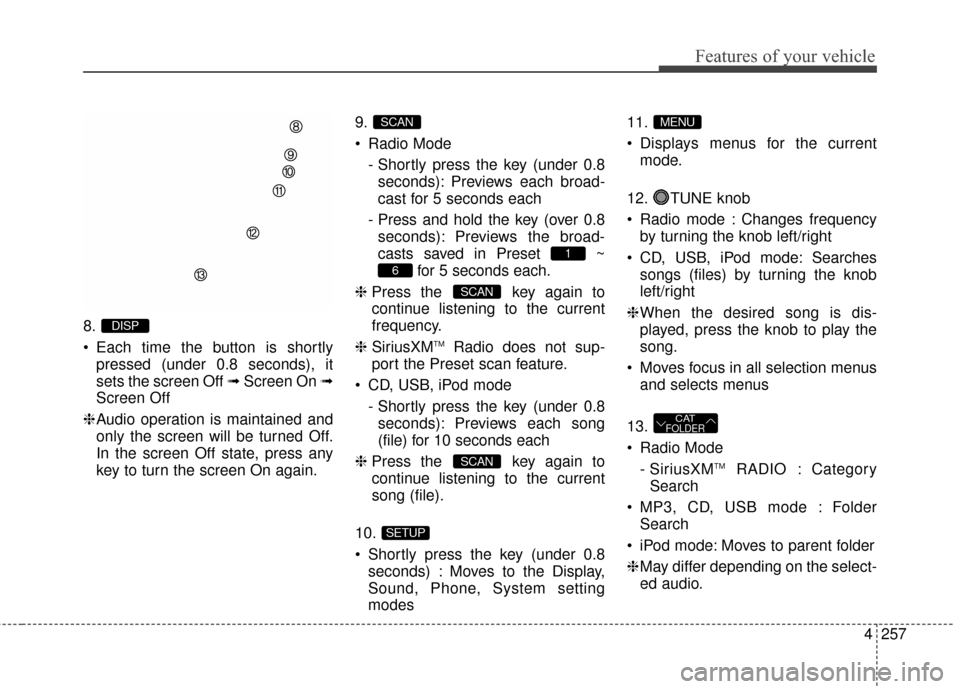
8.
Each time the button is shortlypressed (under 0.8 seconds), it
sets the screen Off ➟ Screen On ➟
Screen Off
❈ Audio operation is maintained and
only the screen will be turned Off.
In the screen Off state, press any
key to turn the screen On again. 9.
Radio Mode
- Shortly press the key (under 0.8seconds): Previews each broad-
cast for 5 seconds each
- Press and hold the key (over 0.8 seconds): Previews the broad-
casts saved in Preset ~ for 5 seconds each.
❈ Press the key again to
continue listening to the current
frequency.
❈ SiriusXM
TMRadio does not sup-
port the Preset scan feature.
CD, USB, iPod mode - Shortly press the key (under 0.8seconds): Previews each song
(file) for 10 seconds each
❈ Press the key again to
continue listening to the current
song (file).
10.
Shortly press the key (under 0.8 seconds) : Moves to the Display,
Sound, Phone, System setting
modes 11.
Displays menus for the current
mode.
12. TUNE knob
Radio mode : Changes frequency by turning the knob left/right
CD, USB, iPod mode: Searches songs (files) by turning the knob
left/right
❈ When the desired song is dis-
played, press the knob to play the
song.
Moves focus in all selection menus and selects menus
13.
Radio Mode - SiriusXM
TMRADIO : Category
Search
MP3, CD, USB mode : Folder Search
iPod mode: Moves to parent folder
❈ May differ depending on the select-
ed audio.
CATFOLDER
MENU
SETUP
SCAN
SCAN
6
1
SCAN
DISP
Page 344 of 669
Features of your vehicle
258
4
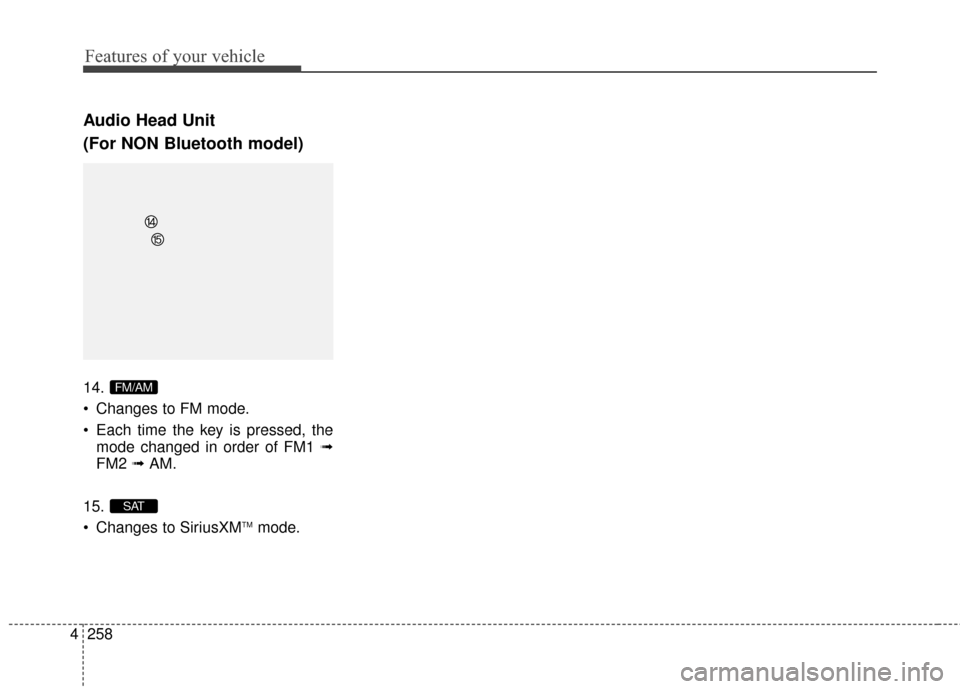
Audio Head Unit
(For NON Bluetooth model)
14.
Changes to FM mode.
Each time the key is pressed, the
mode changed in order of FM1 ➟
FM2 ➟ AM.
15.
Changes to SiriusXM
TMmode.
SAT
FM/AM
Page 347 of 669
4261
Features of your vehicle
SYSTEM CONTROLLERS
AND FUNCTIONS
Audio Head Unit
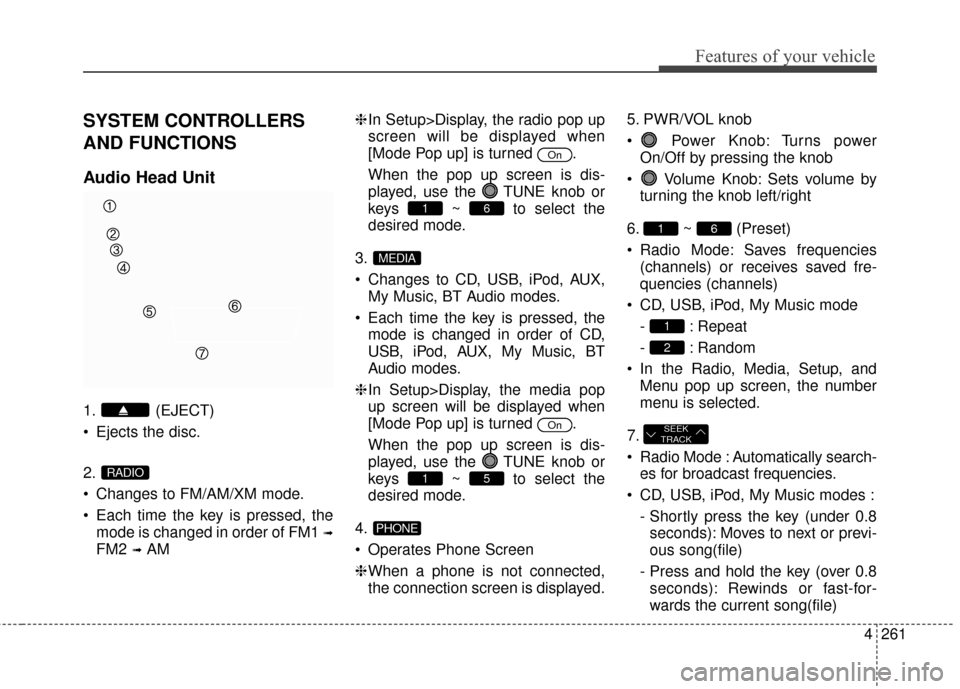
1. (EJECT)
Ejects the disc.
2.
Changes to FM/AM/XM mode.
Each time the key is pressed, themode is changed in order of FM1
➟
FM2 ➟AM ❈
In Setup>Display, the radio pop up
screen will be displayed when
[Mode Pop up] is turned .
When the pop up screen is dis-
played, use the TUNE knob or
keys ~ to select the
desired mode.
3.
Changes to CD, USB, iPod, AUX, My Music, BT Audio modes.
Each time the key is pressed, the mode is changed in order of CD,
USB, iPod, AUX, My Music, BT
Audio modes.
❈ In Setup>Display, the media pop
up screen will be displayed when
[Mode Pop up] is turned .
When the pop up screen is dis-
played, use the TUNE knob or
keys ~ to select the
desired mode.
4.
Operates Phone Screen
❈ When a phone is not connected,
the connection screen is displayed. 5. PWR/VOL knob
Power Knob: Turns power
On/Off by pressing the knob
Volume Knob: Sets volume by turning the knob left/right
6. ~ (Preset)
Radio Mode: Saves frequencies (channels) or receives saved fre-
quencies (channels)
CD, USB, iPod, My Music mode - : Repeat
- : Random
In the Radio, Media, Setup, and Menu pop up screen, the number
menu is selected.
7.
Radio Mode : Automatically search- es for broadcast frequencies.
CD, USB, iPod, My Music modes : - Shortly press the key (under 0.8seconds): Moves to next or previ-
ous song(file)
- Press and hold the key (over 0.8 seconds): Rewinds or fast-for-
wards the current song(file)
SEEK
TRACK
2
1
61
PHONE
51
On
MEDIA
61
On
RADIO