change time Hyundai Elantra 2017 - RHD (UK. Australia) Workshop Manual
[x] Cancel search | Manufacturer: HYUNDAI, Model Year: 2017, Model line: Elantra, Model: Hyundai Elantra 2017Pages: 571, PDF Size: 65.66 MB
Page 335 of 571
4-86
Multimedia System
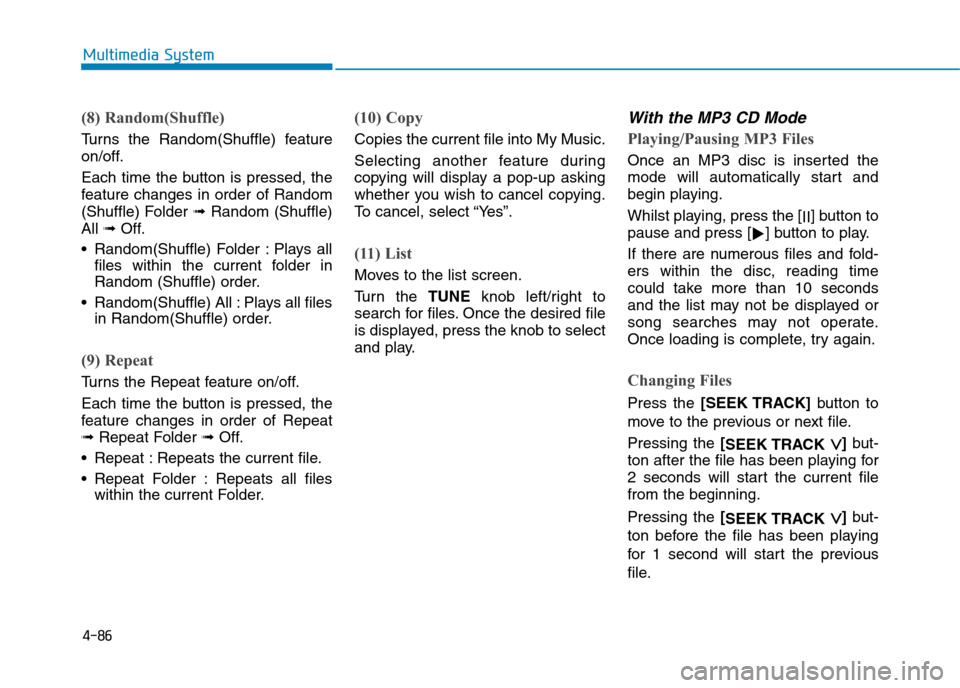
(8) Random(Shuffle)
Tu r n s t h e R a n d o m ( S h u f f l e ) f e a t u r e
on/off.
Each time the button is pressed, the
feature changes in order of Random
(Shuffle) Folder➟Random (Shuffle)
All➟Off.
•Random(Shuffle) Folder :Plays all
files within the current folder in
Random (Shuffle) order.
•Random(Shuffle) All :Plays all files
in Random(Shuffle) order.
(9) Repeat
Tu r n s t h e R e p e a t f e a t u r e o n / o f f .
Each time the button is pressed, the
feature changes in order of Repeat
➟Repeat Folder ➟Off.
•Repeat :Repeats the current file.
•Repeat Folder :Repeats all files
within the current Folder.
(10) Copy
Copies the current file into My Music.
Selecting another feature during
copying will display a pop-up asking
whether you wish to cancel copying.
To c a n c e l , s e l e c t “ Ye s ” .
(11) List
Moves to the list screen.
Tu r n t h e TUNEknob left/right to
search for files. Once the desired file
is displayed, press the knob to select
and play.
With the MP3 CD Mode
Playing/Pausing MP3 Files
Once an MP3 disc is inserted the
mode will automatically start and
begin playing.
Whilst playing, press the [II]button to
pause and press [!]button to play.
If there are numerous files and fold-
ers within the disc, reading time
could take more than 10 seconds
and the list may not be displayed or
song searches may not operate.
Once loading is complete, try again.
Changing Files
Press the [SEEK TRACK]button to
move to the previous or next file.
Pressing the [SEEK TRACK ∨∨]but-
ton after the file has been playing for
2 seconds will start the current file
from the beginning.
Pressing the [SEEK TRACK ∨∨]but-
ton before the file has been playing
for 1 second will star t the previous
file.
Page 337 of 571
4-88
Multimedia System
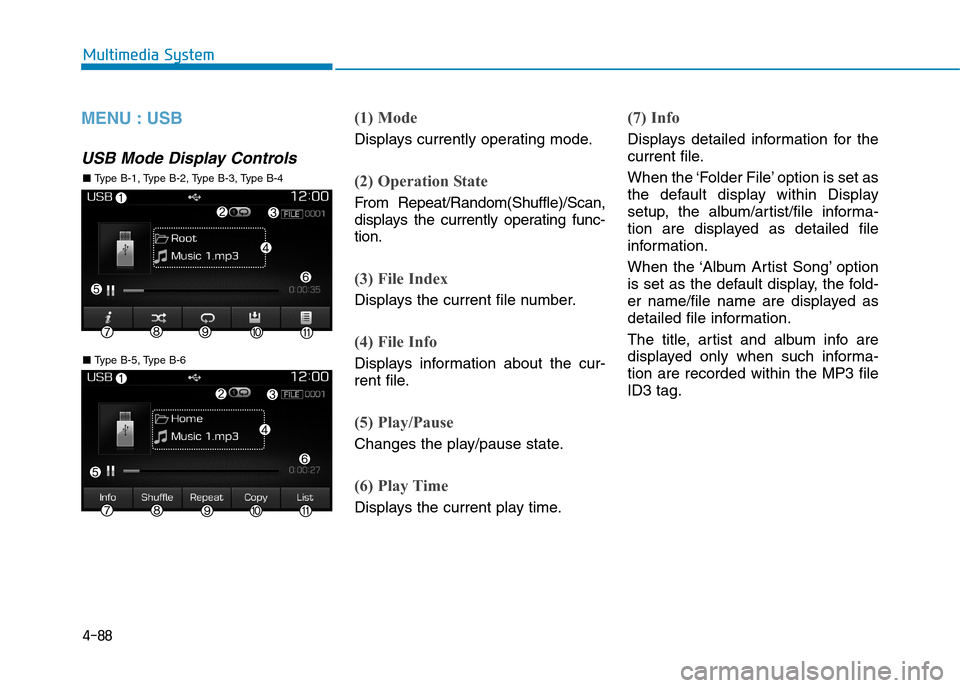
MENU : USB
USB Mode Display Controls
(1) Mode
Displays currently operating mode.
(2) Operation State
From Repeat/Random(Shuffle)/Scan,
displays the currently operating func-
tion.
(3) File Index
Displays the current file number.
(4) File Info
Displays information about the cur-
rent file.
(5) Play/Pause
Changes the play/pause state.
(6) Play Time
Displays the current play time.
(7) Info
Displays detailed information for the
current file.
When the ‘Folder File’ option is set as
the default display within Display
setup, the album/artist/file informa-
tion are displayed as detailed file
information.
When the ‘Album Artist Song’ option
is set as the default display, the fold-
er name/file name are displayed as
detailed file information.
The title, artist and album info are
displayed only when such informa-
tion are recorded within the MP3 file
ID3 tag.
■ Ty p e B - 5 , Ty p e B - 6
■ Ty p e B - 1 , Ty p e B - 2 , Ty p e B - 3 , Ty p e B - 4
Page 338 of 571
4-89
Multimedia System
4
(8) Random(Shuffle)
Tu r n s t h e R a n d o m ( S h u f f l e ) f e a t u r e
on/off.
Each time the button is pressed, the
feature changes in order of
Random(Shuffle) Folder ➟Random
(Shuffle) All ➟Off.
•Random(Shuffle) Folder :Plays the
files in the current folder in ran-
dom(Shuffle) order.
•Random(Shuffle) All :Plays all files
in random(Shuffle) order.
(9) Repeat
Tu r n s t h e R e p e a t f e a t u r e o n / o f f .
Each time the button is pressed, the
feature changes in order of Repeat
➟Repeat Folder ➟Off.
•Repeat :Repeats the current file.
•Repeat Folder :Repeats all files
within the current folder.
(10) Copy
Copies the current file into My Music.
Selecting another feature during
copying will display a pop-up asking
whether you wish to cancel copying.
To c a n c e l , s e l e c t “ Ye s ” .
(11) List
Moves to the list screen.
Tu r n t h e TUNEknob left/right to
search for files. Once the desired file
is displayed, press the knob to select
and play.
With the USB Mode
Playing/Pausing USB Files
Once a USB is connected, the mode
will automatically start and begin
playing a USB file.
Whilst playing, press the [II]button to
pause and press [!]button to play.
Loading may require additional time
if there are many files and folders
within the USB and result in faulty list
display or file searching. Normal
operations will resume once loading
is complete.
The device may not support normal
operation when using a USB memo-
ry type besides (Metal Cover Type)
USB Memory.
Page 340 of 571
4-91
Multimedia System
4
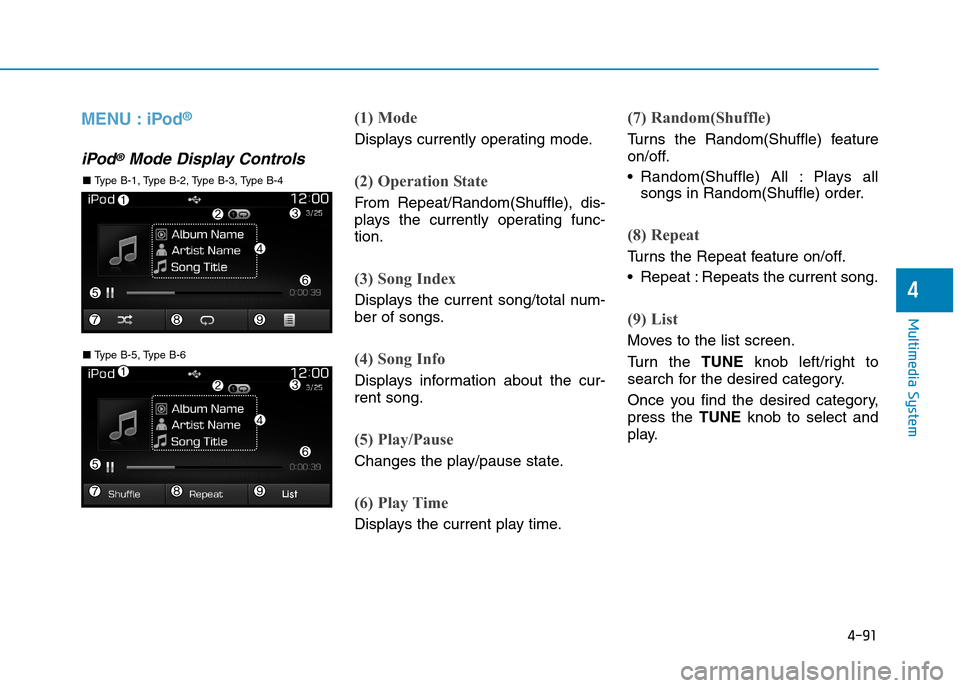
MENU : iPod®
iPod®Mode Display Controls
(1) Mode
Displays currently operating mode.
(2) Operation State
From Repeat/Random(Shuffle), dis-
plays the currently operating func-
tion.
(3) Song Index
Displays the current song/total num-
ber of songs.
(4) Song Info
Displays information about the cur-
rent song.
(5) Play/Pause
Changes the play/pause state.
(6) Play Time
Displays the current play time.
(7) Random(Shuffle)
Tu r n s t h e R a n d o m ( S h u f f l e ) f e a t u r e
on/off.
•Random(Shuffle) All : Plays all
songs in Random(Shuffle) order.
(8) Repeat
Tu r n s t h e R e p e a t f e a t u r e o n / o f f .
•Repeat :Repeats the current song.
(9) List
Moves to the list screen.
Tu r n t h e TUNEknob left/right to
search for the desired category.
Once you find the desired category,
press the TUNEknob to select and
play.
■ Ty p e B - 5 , Ty p e B - 6
■ Ty p e B - 1 , Ty p e B - 2 , Ty p e B - 3 , Ty p e B - 4
Page 343 of 571
4-94
Multimedia System
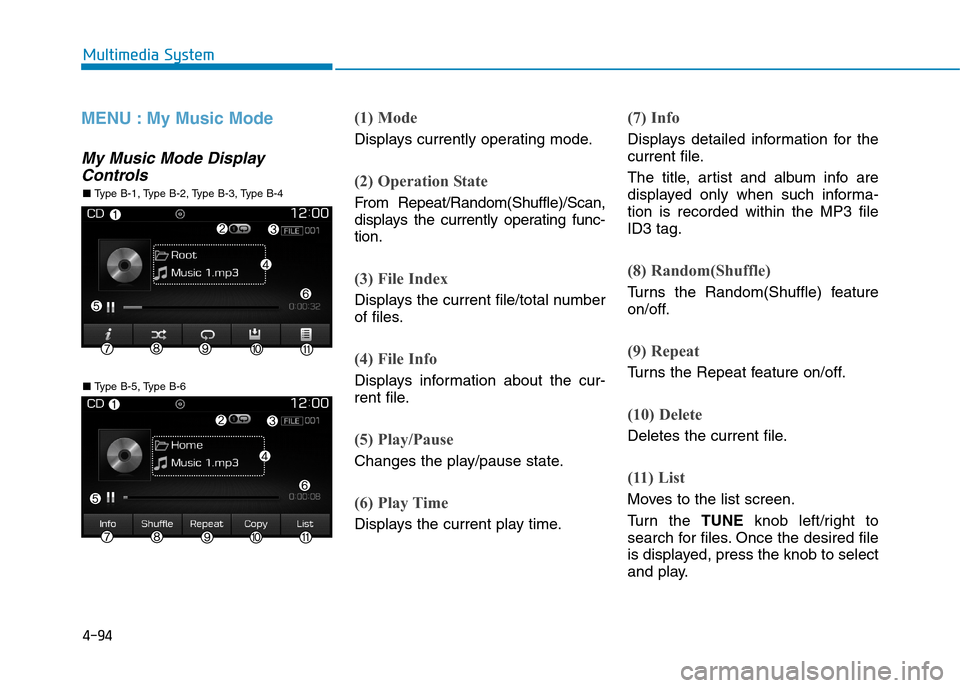
MENU : My Music Mode
My Music Mode Display
Controls
(1) Mode
Displays currently operating mode.
(2) Operation State
From Repeat/Random(Shuffle)/Scan,
displays the currently operating func-
tion.
(3) File Index
Displays the current file/total number
of files.
(4) File Info
Displays information about the cur-
rent file.
(5) Play/Pause
Changes the play/pause state.
(6) Play Time
Displays the current play time.
(7) Info
Displays detailed information for the
current file.
The title, artist and album info are
displayed only when such informa-
tion is recorded within the MP3 file
ID3 tag.
(8) Random(Shuffle)
Tu r n s t h e R a n d o m ( S h u f f l e ) f e a t u r e
on/off.
(9) Repeat
Tu r n s t h e R e p e a t f e a t u r e o n / o f f .
(10) Delete
Deletes the current file.
(11) List
Moves to the list screen.
Tu r n t h e TUNEknob left/right to
search for files. Once the desired file
is displayed, press the knob to select
and play.
■ Ty p e B - 5 , Ty p e B - 6
■ Ty p e B - 1 , Ty p e B - 2 , Ty p e B - 3 , Ty p e B - 4
Page 346 of 571
4-97
Multimedia System
4
Phone Mode
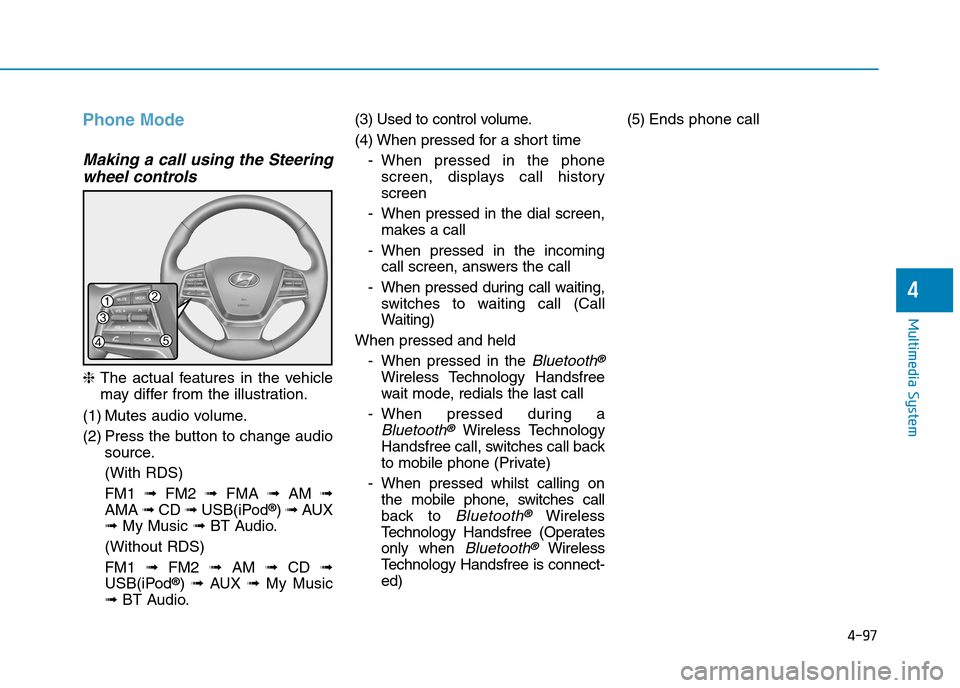
Making a call using the Steering
wheel controls
❈The actual features in the vehicle
may differ from the illustration.
(1) Mutes audio volume.
(2) Press the button to change audio
source.
(With RDS)
FM1 ➟FM2 ➟FMA ➟AM ➟
AMA ➟CD ➟USB(iPod®) ➟AUX
➟My Music ➟BT Audio.
(Without RDS)
FM1 ➟FM2➟AM ➟CD ➟
USB(iPod®) ➟AUX ➟My Music
➟BT Audio.
(3) Used to control volume.
(4) When pressed for a shor t time
-When pressed in the phone
screen, displays call history
screen
-When pressed in the dial screen,
makes a call
-When pressed in the incoming
call screen, answers the call
-When pressed during call waiting,
switches to waiting call (Call
Waiting)
When pressed and held
-When pressed in the Bluetooth®
Wireless Technology Handsfree
wait mode, redials the last call
-When pressed during a
Bluetooth®Wireless Technology
Handsfree call, switches call back
to mobile phone (Private)
-When pressed whilst calling on
the mobile phone, switches call
back to Bluetooth®Wireless
Te c h n o l o g y H a n d s f r e e ( O p e r a t e s
only when Bluetooth®Wireless
Te c h n o l o g y H a n d s f r e e i s c o n n e c t -
ed)
(5) Ends phone call
Page 350 of 571
4-101
Multimedia System
4
Changing Priority
It is possible to pair up to five
Bluetooth®Wireless Technology
devices with the audio system.
The “Change Priority” feature is used
to set the connection priority of
paired phones. However, the most
recently connected phone will always
be set as the highest priority.
From the paired phone list, select
the phone you want to switch to the
highest priority, then press the
[Change priority](4) button. The
selected device will be changed to
the highest priority.
When a device is currently connect-
ed, even if you change the priority to
a different device, the currently con-
nected phone will always be set as
the highest priority.
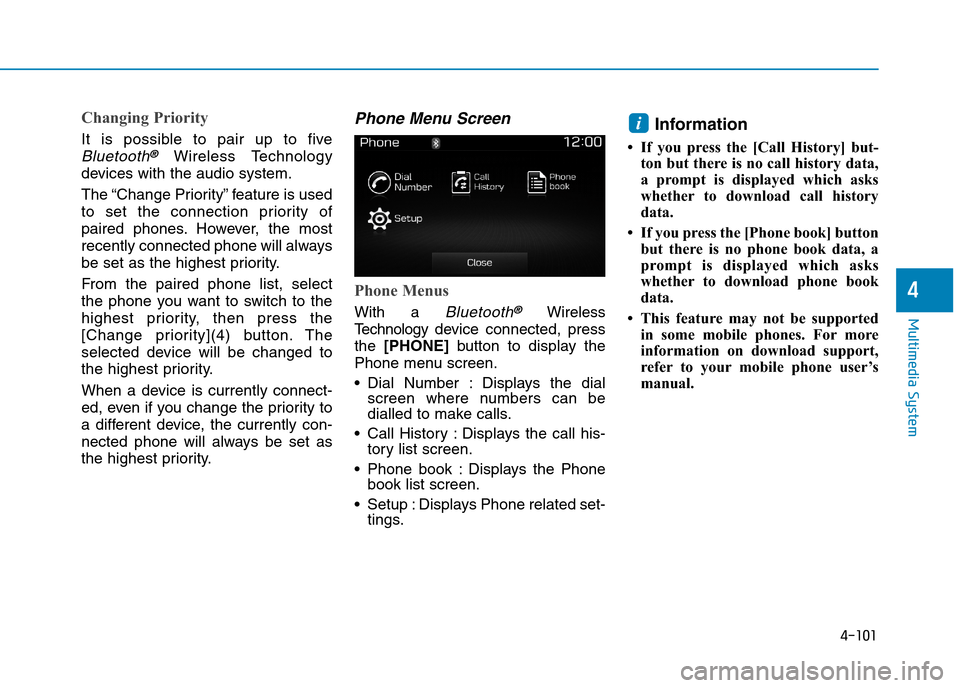
Phone Menu Screen
Phone Menus
With a Bluetooth®Wireless
Te c h n o l o g y d evice connected, press
the [PHONE]button to display the
Phone menu screen.
•Dial Number : Displays the dialscreen where numbers can bedialled to make calls.
•Call History :Displays the call his-tory list screen.
•Phone book :Displays the Phonebook list screen.
•Setup :Displays Phone related set-tings.
Information
• If you press the [Call History] but-
ton but there is no call history data,
a prompt is displayed which asks
whether to download call history
data.
• If you press the [Phone book] button
but there is no phone book data, a
prompt is displayed which asks
whether to download phone book
data.
• This feature may not be supported
in some mobile phones. For more
information on download support,
refer to your mobile phone user’s
manual.
i
Page 357 of 571
4-108
Multimedia System
Changing Priority
It is possible to pair up to five
Bluetooth®Wireless Technology
devices with the audio system. The
“Change Priority” feature is used to
set the connection priority of paired
phones. However, the most recently
connected phone will always be set
as the highest priority.
From the paired phone list, select
the phone you want to switch to the
highest priority, then press the
[Change priority](4) button. The
selected device will be changed to
the highest priority.
When a device is currently connect-
ed, even if you change the priority to
a different device, the currently con-
nected phone will always be set as
the highest priority.
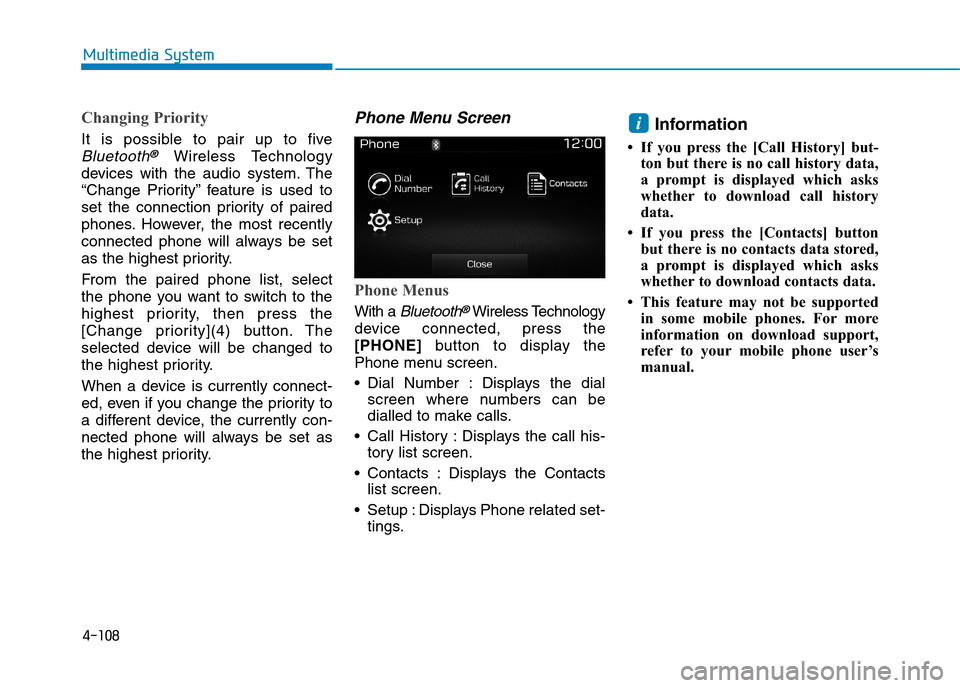
Phone Menu Screen
Phone Menus
With a Bluetooth®Wireless Technology
device connected, press the
[PHONE]button to display the
Phone menu screen.
•Dial Number : Displays the dial
screen where numbers can be
dialled to make calls.
•Call History :Displays the call his-
tory list screen.
•Contacts :Displays the Contacts
list screen.
•Setup :Displays Phone related set-
tings.
Information
• If you press the [Call History] but-
ton but there is no call history data,
a prompt is displayed which asks
whether to download call history
data.
• If you press the [Contacts] button
but there is no contacts data stored,
a prompt is displayed which asks
whether to download contacts data.
• This feature may not be supported
in some mobile phones. For more
information on download support,
refer to your mobile phone user’s
manual.
i
Page 362 of 571
4-113
Multimedia System
4
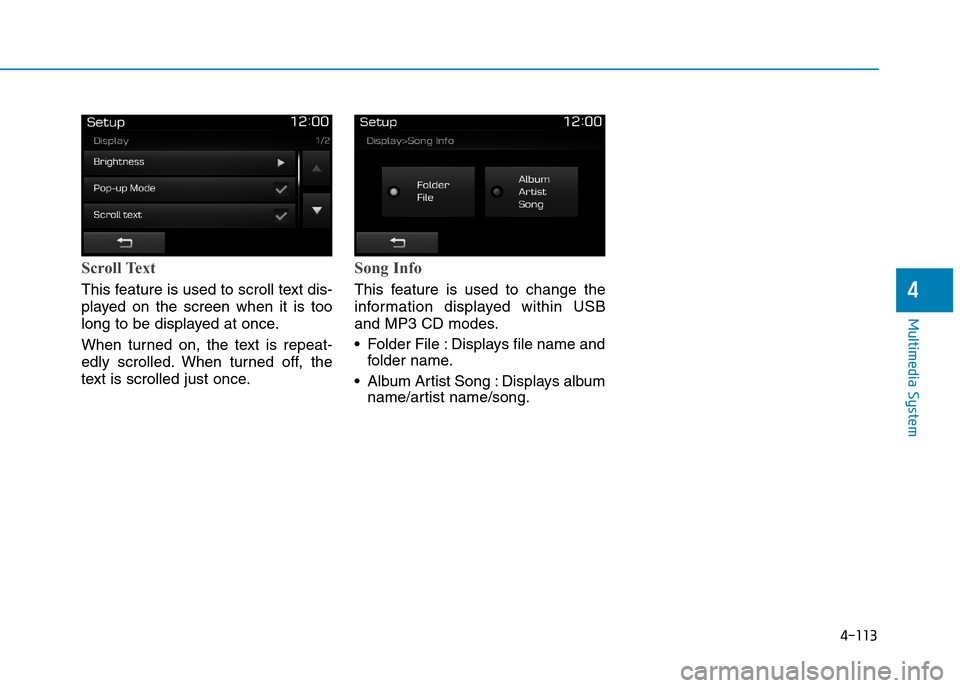
Scroll Text
This feature is used to scroll text dis-
played on the screen when it is too
long to be displayed at once.
When turned on, the text is repeat-
edly scrolled. When turned off, the
text is scrolled just once.
Song Info
This feature is used to change the
information displayed within USB
and MP3 CD modes.
•Folder File :Displays file name and
folder name.
•Album Artist Song :Displays album
name/artist name/song.
Page 364 of 571
![Hyundai Elantra 2017 - RHD (UK. Australia) Workshop Manual 4-115
Multimedia System
4
With the Clock/Day Button
Press the [SETUP]button!Select
[Clock/Day]
Yo u c a n s e l e c t a n d c o n t r o l o p t i o n s
related to [Clock Settings], [Day](/img/35/14544/w960_14544-363.png "Hyundai Elantra 2017 - RHD (UK. Australia) Workshop Manual 4-115
Multimedia System
4
With the Clock/Day Button
Press the [SETUP]button!Select
[Clock/Day]
Yo u c a n s e l e c t a n d c o n t r o l o p t i o n s
related to [Clock Settings], [Day")
4-115
Multimedia System
4
With the Clock/Day Button
Press the [SETUP]button!Select
[Clock/Day]
Yo u c a n s e l e c t a n d c o n t r o l o p t i o n s
related to [Clock Settings], [Day
Settings], [Time Format], [Clock
Display(Power off)] and [Automatic
RDS Time].
Clock Settings
Use the [Up/Down] buttons to set the
Hour, Minutes and AM/PM setting.
Press and hold the [CLOCK]button
to display the Clock/Day screen.
Day Settings
Use the [Up/Down] buttons to set the
Day, Month and Year setting.
Time Format
This feature is used to change the
clock format between 12hr or 24hr.
Clock Display (Power Off)
This feature is used to display a clock
on the screen when the audio sys-
tem is turned off.
Automatic RDS Time
This feature is used to set time auto-
matically by synchronising with RDS.