change time Hyundai Elantra 2018 Owner's Guide
[x] Cancel search | Manufacturer: HYUNDAI, Model Year: 2018, Model line: Elantra, Model: Hyundai Elantra 2018Pages: 526, PDF Size: 17.2 MB
Page 212 of 526
3-135
Convenient features of your vehicle
3
C
CL
LI
IM
M A
AT
TE
E
C
C O
O N
NT
TR
R O
O L
L
A
A D
DD
DI
IT
T I
IO
O N
NA
AL
L
F
F E
E A
A T
TU
U R
RE
ES
S
(
( I
IF
F
E
E Q
Q U
UI
IP
P P
PE
ED
D )
)
Automatic Ventilation
(if equipped)
When the ignition switch is in the ON
position or when the engine is running
and temperature is below 59°F (15°C)
with the recirculated air position selected
more than five minutes, the air intake
position will automatically change to the
outside (fresh) air position.
To cancel or reset the Automatic
Ventilation
When the air conditioning system is on,
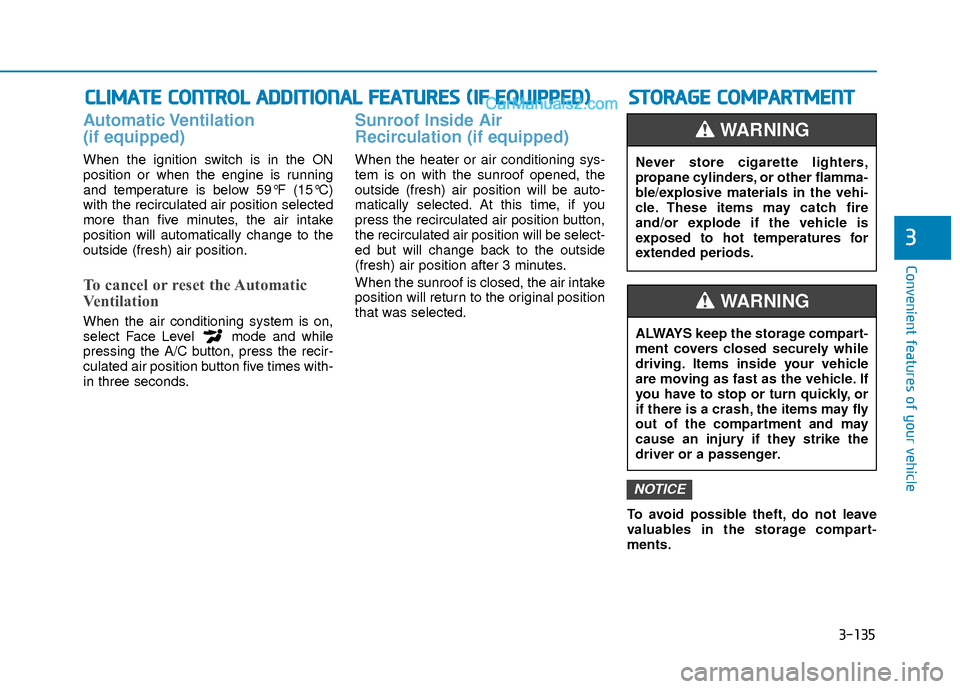
select Face Level mode and while
pressing the A/C button, press the recir-
culated air position button five times with-
in three seconds.
Sunroof Inside Air
Recirculation (if equipped)
When the heater or air conditioning sys-
tem is on with the sunroof opened, the
outside (fresh) air position will be auto-
matically selected. At this time, if you
press the recirculated air position button,
the recirculated air position will be select-
ed but will change back to the outside
(fresh) air position after 3 minutes.
When the sunroof is closed, the air intake
position will return to the original position
that was selected.
To avoid possible theft, do not leave
valuables in the storage compart-
ments.
NOTICE
S
ST
T O
O R
RA
A G
G E
E
C
C O
O M
M P
PA
A R
RT
TM
M E
EN
N T
T
Never store cigarette lighters,
propane cylinders, or other flamma-
ble/explosive materials in the vehi-
cle. These items may catch fire
and/or explode if the vehicle is
exposed to hot temperatures for
extended periods.
WARNING
ALWAYS keep the storage compart-
ment covers closed securely while
driving. Items inside your vehicle
are moving as fast as the vehicle. If
you have to stop or turn quickly, or
if there is a crash, the items may fly
out of the compartment and may
cause an injury if they strike the
driver or a passenger.
WARNING
Page 231 of 526
(Continued)
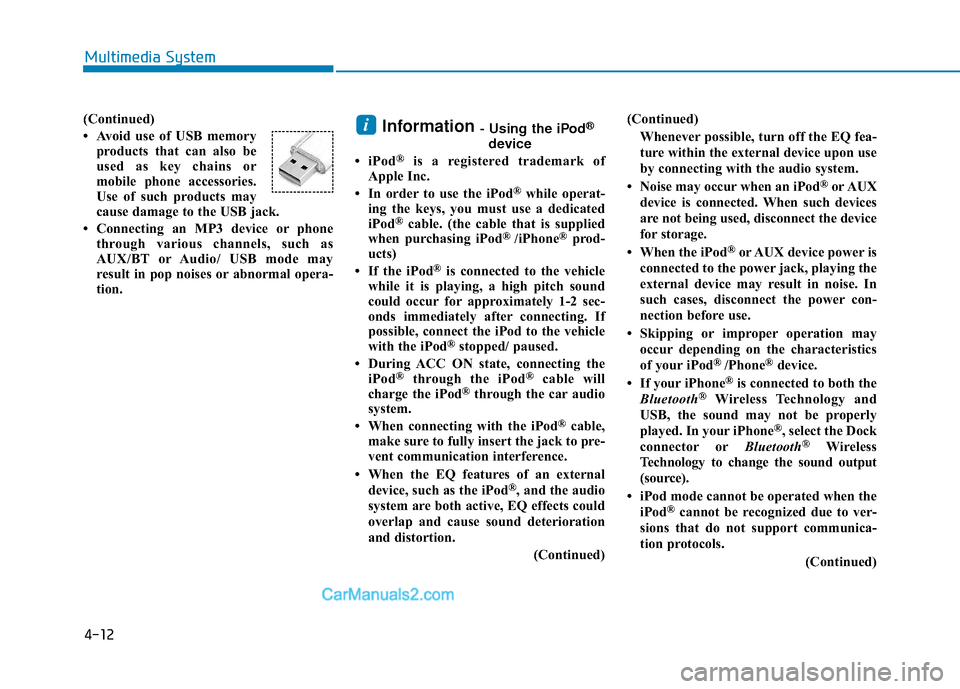
• Avoid use of USB memoryproducts that can also be
used as key chains or
mobile phone accessories.
Use of such products may
cause damage to the USB jack.
• Connecting an MP3 device or phone through various channels, such as
AUX/BT or Audio/ USB mode may
result in pop noises or abnormal opera-
tion.Information - Using the iPod®
device
• iPod®is a registered trademark of
Apple Inc.
• In order to use the iPod
®while operat-
ing the keys, you must use a dedicated
iPod
®cable. (the cable that is supplied
when purchasing iPod® /iPhone®prod-
ucts)
• If the iPod
®is connected to the vehicle
while it is playing, a high pitch sound
could occur for approximately 1-2 sec-
onds immediately after connecting. If
possible, connect the iPod to the vehicle
with the iPod
®stopped/ paused.
• During ACC ON state, connecting the iPod
®through the iPod®cable will
charge the iPod®through the car audio
system.
• When connecting with the iPod
®cable,
make sure to fully insert the jack to pre-
vent communication interference.
• When the EQ features of an external device, such as the iPod
®, and the audio
system are both active, EQ effects could
overlap and cause sound deterioration
and distortion.
(Continued)(Continued)
Whenever possible, turn off the EQ fea-
ture within the external device upon use
by connecting with the audio system.
• Noise may occur when an iPod
®or AUX
device is connected. When such devices
are not being used, disconnect the device
for storage.
• When the iPod
®or AUX device power is
connected to the power jack, playing the
external device may result in noise. In
such cases, disconnect the power con-
nection before use.
• Skipping or improper operation may occur depending on the characteristics
of your iPod
® /Phone®device.
• If your iPhone®is connected to both the
Bluetooth®Wireless Technology and
USB, the sound may not be properly
played. In your iPhone
®, select the Dock
connector or Bluetooth®Wireless
Technology to change the sound output
(source).
• iPod mode cannot be operated when the iPod
®cannot be recognized due to ver-
sions that do not support communica-
tion protocols.
(Continued)
i
4-12
Multimedia System
Page 236 of 526
4-17
Multimedia System
4
Features of Your Audio
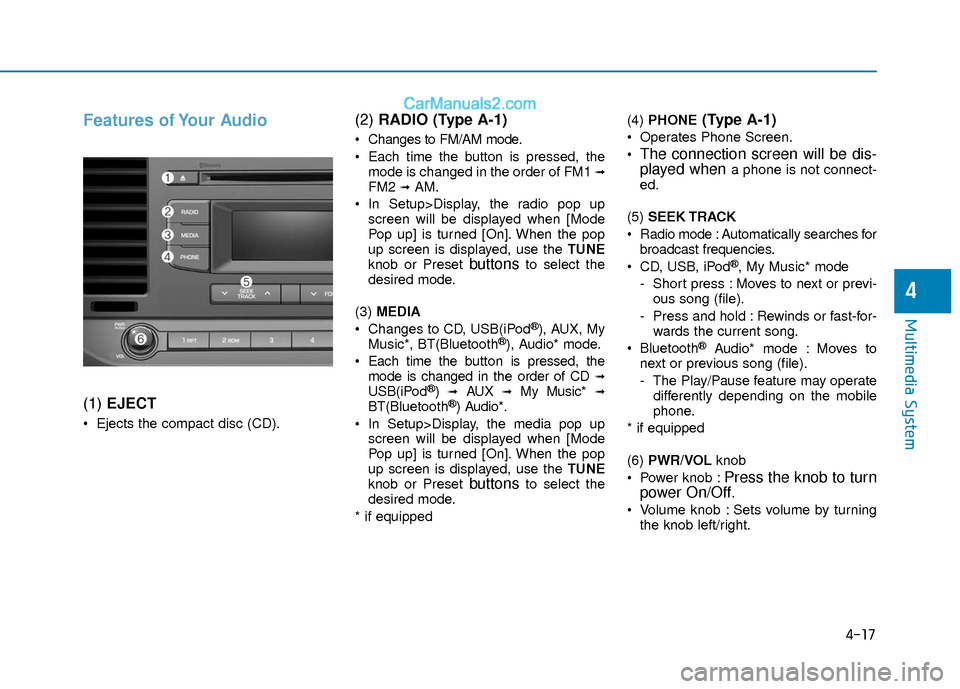
(1) EJECT
Ejects the compact disc (CD).
(2) RADIO (Type A-1)
Changes to FM/AM mode.
Each time the button is pressed, the
mode is changed in the order of FM1
➟FM2 ➟AM.
In Setup>Display, the radio pop up screen will be displayed when [Mode
Pop up] is turned [On]. When the pop
up screen is displayed, use the TUNE
knob or Preset
buttonsto select the
desired mode.
(3) MEDIA
Changes to CD, USB(iPod
®), AUX, My
Music*, BT(Bluetooth®), Audio* mode.
Each time the button is pressed, the mode is changed in the order of CD
➟USB(iPod®)➟AUX➟My Music*➟BT(Bluetooth®) Audio*.
In Setup>Display, the media pop up screen will be displayed when [Mode
Pop up] is turned [On]. When the pop
up screen is displayed, use the TUNE
knob or Preset
buttonsto select the
desired mode.
* if equipped (4)
PHONE
(Type A-1)
Operates Phone Screen.
The connection screen will be dis-
played whena phone is not connect-
ed.
(5) SEEK TRACK
Radio mode : Automatically searches for broadcast frequencies.
CD, USB, iPod
®, My Music* mode
- Short press : Moves to next or previ- ous song (file).
- Press and hold : Rewinds or fast-for- wards the current song.
Bluetooth
®Audio* mode : Moves to
next or previous song (file).
- The Play/Pause feature may operate differently depending on the mobile
phone.
* if equipped
(6) PWR/VOL knob
Power knob :
Press the knob to turn
power On/Off.
Volume knob : Sets volume by turning
the knob left/right.
Page 238 of 526
4-19
Multimedia System
4
(11) MENU
Displays menus for the current mode.
®List : Move to parent category.
(12) FOLDER
MP3 CD/USB mode - Folder Search
(13) TUNE knob
Radio mode : Changes frequency by turning the knob left/right.
CD, USB, iPod
®, My Music* mode :
Searches songs (files) by turning the
knob left/right. When the desired song
is displayed, press the knob to play the
song.
Moves focus in all selection menus and selects menus.
* if equipped (14)
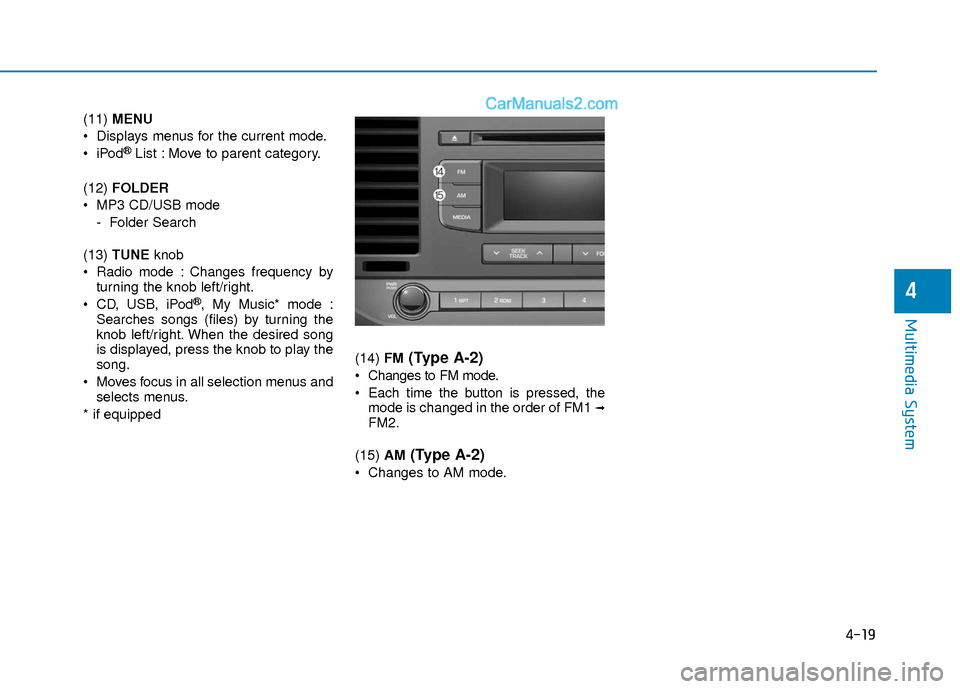
FM
(Type A-2)
Changes to FM mode.
Each time the button is pressed, the
mode is changed in the order of FM1
➟FM2.
(15) AM
(Type A-2)
Changes to AM mode.
Page 240 of 526
4-21
Multimedia System
4
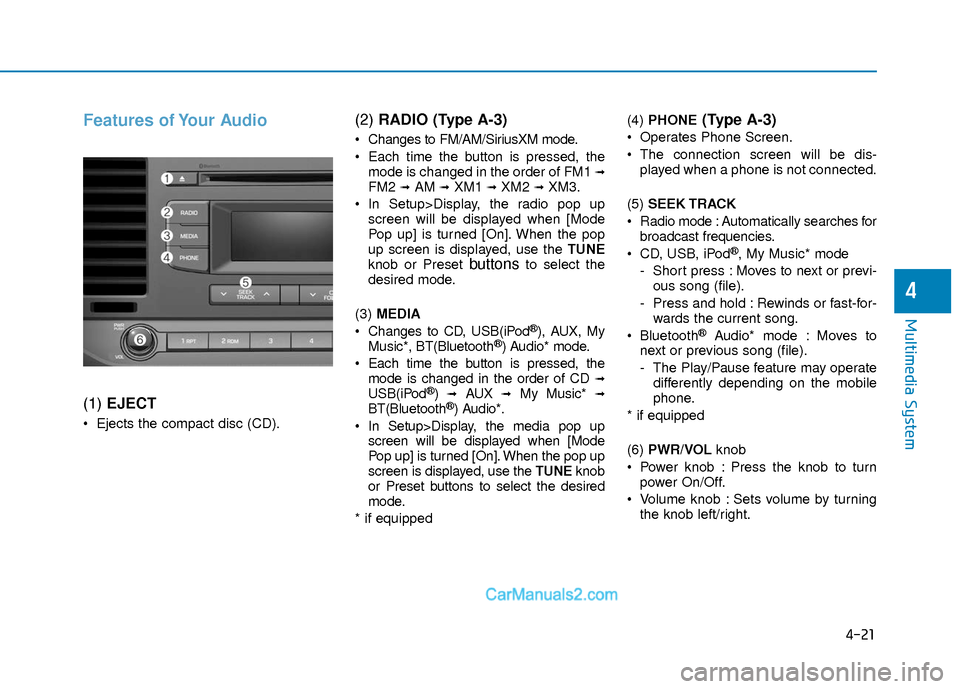
Features of Your Audio
(1) EJECT
Ejects the compact disc (CD).
(2) RADIO (Type A-3)
Changes to FM/AM/SiriusXM mode.
Each time the button is pressed, the
mode is changed in the order of FM1
➟FM2 ➟AM ➟XM1 ➟XM2 ➟XM3.
In Setup>Display, the radio pop up screen will be displayed when [Mode
Pop up] is turned [On]. When the pop
up screen is displayed, use the TUNE
knob or Preset
buttonsto select the
desired mode.
(3) MEDIA
Changes to CD, USB(iPod
®), AUX, My
Music*, BT(Bluetooth®) Audio* mode.
Each time the button is pressed, the mode is changed in the order of CD
➟USB(iPod®)➟AUX➟My Music*➟BT(Bluetooth®) Audio*.
In Setup>Display, the media pop up screen will be displayed when [Mode
Pop up] is turned [On]. When the pop up
screen is displayed, use the TUNE knob
or Preset buttons to select the desired
mode.
* if equipped (4)
PHONE
(Type A-3)
Operates Phone Screen.
The connection screen will be dis-
played when a phone is not connected.
(5) SEEK TRACK
Radio mode : Automatically searches for broadcast frequencies.
CD, USB, iPod
®, My Music* mode
- Short press : Moves to next or previ- ous song (file).
- Press and hold : Rewinds or fast-for- wards the current song.
Bluetooth
®Audio* mode : Moves to
next or previous song (file).
- The Play/Pause feature may operate differently depending on the mobile
phone.
* if equipped
(6) PWR/VOL knob
Power knob : Press the knob to turn power On/Off.
Volume knob : Sets volume by turning the knob left/right.
Page 242 of 526
4-23
Multimedia System
4
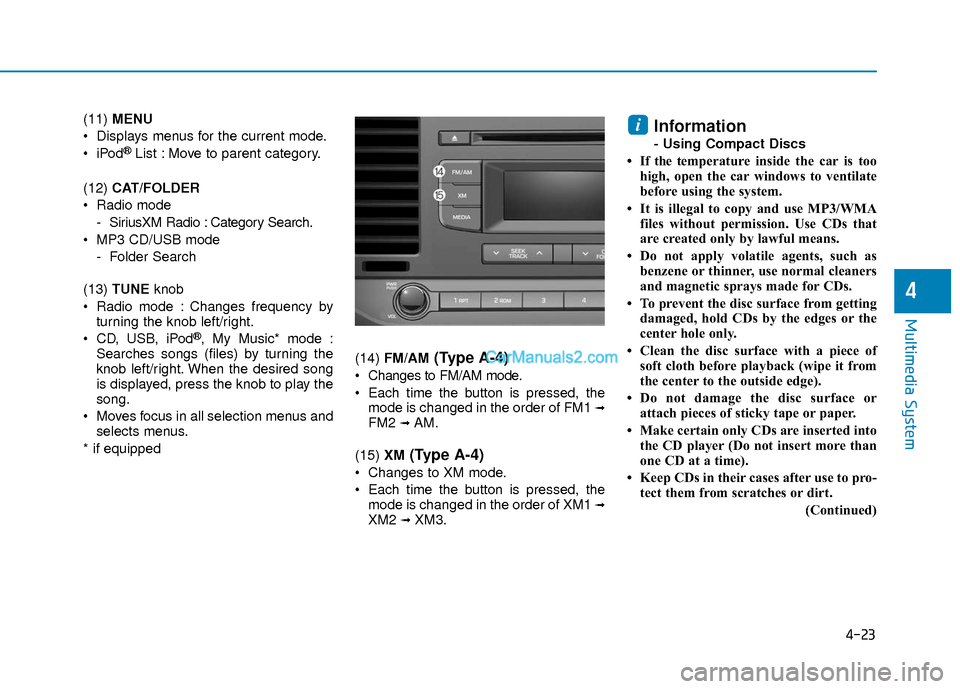
(11) MENU
Displays menus for the current mode.
®List : Move to parent category.
(12) CAT/FOLDER
Radio mode - SiriusXM Radio : Category Search.
MP3 CD/USB mode - Folder Search
(13) TUNE knob
Radio mode : Changes frequency by turning the knob left/right.
CD, USB, iPod
®, My Music* mode :
Searches songs (files) by turning the
knob left/right. When the desired song
is displayed, press the knob to play the
song.
Moves focus in all selection menus and selects menus.
* if equipped (14)
FM/AM
(Type A-4)
Changes to FM/AM mode.
Each time the button is pressed, the
mode is changed in the order of FM1
➟FM2 ➟ AM.
(15) XM
(Type A-4)
Changes to XM mode.
Each time the button is pressed, the
mode is changed in the order of XM1
➟XM2 ➟ XM3.
Information
- Using Compact Discs
• If the temperature inside the car is too high, open the car windows to ventilate
before using the system.
• It is illegal to copy and use MP3/WMA files without permission. Use CDs that
are created only by lawful means.
• Do not apply volatile agents, such as benzene or thinner, use normal cleaners
and magnetic sprays made for CDs.
• To prevent the disc surface from getting damaged, hold CDs by the edges or the
center hole only.
• Clean the disc surface with a piece of soft cloth before playback (wipe it from
the center to the outside edge).
• Do not damage the disc surface or attach pieces of sticky tape or paper.
• Make certain only CDs are inserted into the CD player (Do not insert more than
one CD at a time).
• Keep CDs in their cases after use to pro- tect them from scratches or dirt.
(Continued)
i
Page 250 of 526
4-31
Multimedia System
4
Information
- Using Voice Recognition(if equipped)
• When using the voice recognition fea- ture, only commands listed within the
user's manual are supported.
• Be aware that when the voice recogni- tion system is active, pressing any but-
ton other than the button terminates
voice recognition mode.
• For optimal voice recognition perform- ance, position your head below the
microphone located above the driver’s
seat and maintain proper position when
speaking voice commands.
• Within the following situations, voice recognition may not function properly
due to external sound.
- When the windows and sunroof areopen
- When the blower AC/heater is set to high
- When entering and passing through tunnels
- When driving on rugged and uneven roads
(Continued)(Continued)
- During severe rain (heavy rains,windstorms)
• Phone related voice commands can be used only when a Bluetooth
®Wireless
Technology device is connected.
• When making calls by name, the corre- sponding contact must be downloaded
and stored within the audio system.
• After downloading the phone book, it takes some time to convert the phone
book data into voice information.
During this time, voice recognition may
not operate properly.
• Pressing and holding the button : While holding the button, frequency changes
without stopping. When the button is
released, the system automatically
searches for the next frequency from
that point.
i
Page 251 of 526
![Hyundai Elantra 2018 Owners Guide 4-32
Multimedia System
Radio Mode
With the Radio Mode Button
Seek
Press the [SEEK TRACK]button.
Short press : Automatically searches for the next station.
Press and hold : While holding the but- ton](/img/35/14540/w960_14540-250.png "Hyundai Elantra 2018 Owners Guide 4-32
Multimedia System
Radio Mode
With the Radio Mode Button
Seek
Press the [SEEK TRACK]button.
Short press : Automatically searches for the next station.
Press and hold : While holding the but- ton")
4-32
Multimedia System
Radio Mode
With the Radio Mode Button
Seek
Press the [SEEK TRACK]button.
Short press : Automatically searches for the next station.
Press and hold : While holding the but- ton, frequency changes without stop-
ping. When the button is released, the
system automatically searches for the
next frequency from that point.
Preset
Press the [1] ~ [6] button.
Short press : Plays the frequency saved in the corresponding button.
Press and hold : Pressing and holding the desired button from [1]~ [6] will
save the currently playing broadcast to
the selected button and sound a BEEP.
Scan
Press the [SCAN] button.
Short press : The broadcast frequency increases and previews each broad-
cast for 5 seconds each. After scan-
ning all frequencies, returns and plays
the current broadcast frequency.
Press and hold : Previews the broad- casts saved in Preset [1] ~ [6] for 5
seconds each.
Selecting through manual search
Turn the TUNE knob left/right to adjust
the radio frequency.
MENU : Radio
Within [MENU] button is the A.Store
(Auto Store).
A.Store (Auto Store) : [1] Button
Select A.Store (Auto Store) to save fre-
quencies with superior reception to pre-
sets [1]~ [6]. If no frequencies are
received, then the most recently received
frequency will be broadcast.
Page 253 of 526
4-34
Multimedia System
NOTE :
SiriusXM services require a subscrip-
tion sold separately, or as a package,
by Sirius XM Radio Inc. If you decide
to continue service after your trial, the
subscription plan you choose will
automatically renew thereafter and
you will be charged according to your
chosen payment method at then-cur-
rent rates. Fees and taxes apply. To
cancel you must call SiriusXM at 1-
866-635-2349. See SiriusXM Customer
Agreement for complete terms at
www.siriusxm.com. SiriusXM U.S.
satellite and data services are avail-
able only in the 48 contiguous states,
DC and Puerto Rico (with coverage
limitations). SiriusXM satellite service
is also available in Canada; see
www.siriusxm.ca. All fees and pro-
gramming subject to change. Sirius,
XM and all related marks and logos
are trademarks of Sirius XM Radio Inc.
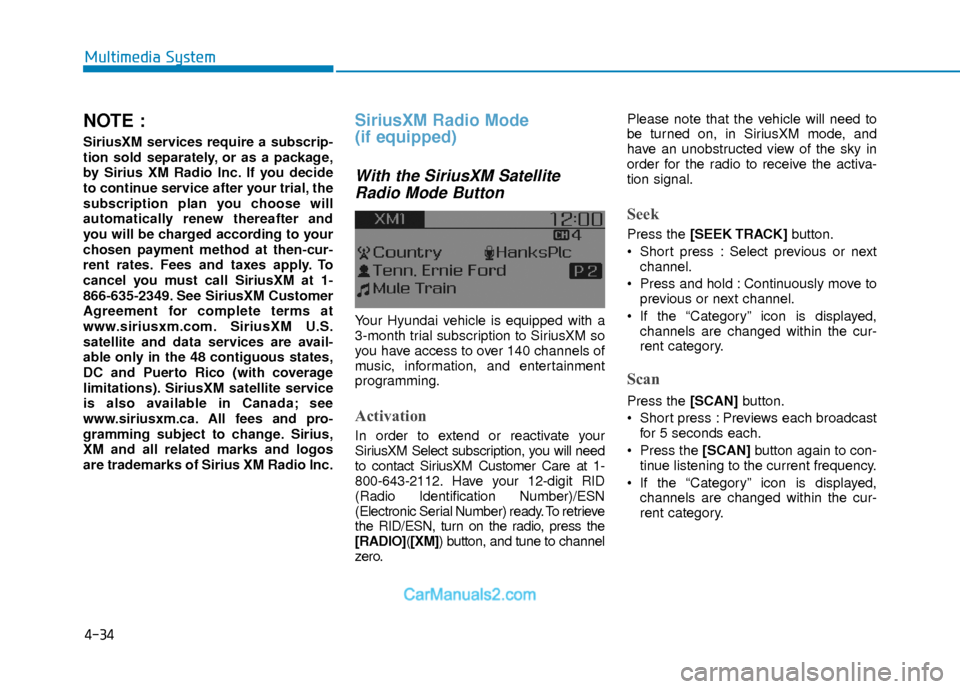
SiriusXM Radio Mode
(if equipped)
With the SiriusXM SatelliteRadio Mode Button
Your Hyundai vehicle is equipped with a
3-month trial subscription to SiriusXM so
you have access to over 140 channels of
music, information, and entertainment
programming.
Activation
In order to extend or reactivate your
SiriusXM Select subscription, you will need
to contact SiriusXM Customer Care at 1-
800-643-2112. Have your 12-digit RID
(Radio Identification Number)/ESN
(Electronic Serial Number) ready. To retrieve
the RID/ESN, turn on the radio, press the
[RADIO]( [XM]) button, and tune to channel
zero. Please note that the vehicle will need to
be turned on, in SiriusXM mode, and
have an unobstructed view of the sky in
order for the radio to receive the activa-
tion signal.
Seek
Press the [SEEK TRACK]
button.
Short press : Select previous or next channel.
Press and hold : Continuously move to previous or next channel.
If the “Category” icon is displayed, channels are changed within the cur-
rent category.
Scan
Press the [SCAN] button.
Short press : Previews each broadcast for 5 seconds each.
Press the [SCAN] button again to con-
tinue listening to the current frequency.
If the “Category” icon is displayed, channels are changed within the cur-
rent category.
Page 254 of 526
![Hyundai Elantra 2018 Owners Guide 4-35
Multimedia System
4
Category
Press the [CAT/FOLDER]button.
The display will indicate the category menus, highlight the category that the
current channel belongs to.
In the Category List Mode, p](/img/35/14540/w960_14540-253.png "Hyundai Elantra 2018 Owners Guide 4-35
Multimedia System
4
Category
Press the [CAT/FOLDER]button.
The display will indicate the category menus, highlight the category that the
current channel belongs to.
In the Category List Mode, p")
4-35
Multimedia System
4
Category
Press the [CAT/FOLDER]button.
The display will indicate the category menus, highlight the category that the
current channel belongs to.
In the Category List Mode, press the [CAT/FOLDER] button to navigate cat-
egory list.
Press the tune knob to select the low- est channel in the highlighted category.
If channel is selected by selecting cat- egory, then the “CATEGORY” icon is
displayed at the top of the screen.
Preset
Press the [1] ~ [6] button
Short press : Plays the channel saved in the corresponding button.
Press and hold : Pressing and holding the desired button from [1]~ [6] will
save the current broadcast to the
selected button and sound a BEEP.
Information
- Troubleshooting
1. Antenna Error If this message is displayed, the anten-
na or antenna cable is broken or
unplugged. Please consult with your
Hyundai dealership.
2. No Signal If this message is displayed, it means
that the antenna is covered and that the
SiriusXM Satellite Radio signal is not
available. Ensure the antenna is uncov-
ered and has a clear view of the sky.
Tune
Rotate TUNEknob : Changes the
channel number or scrolls category
list.
Press
TUNEknob : Selects the menu.
Menu : SiriusXM Radio
Press the [MENU] button.
Info (Information) : [1]Button
Displays the Artist/Song info of the cur-
rent song.
i