navigation HYUNDAI ELANTRA 2021 Owners Manual
[x] Cancel search | Manufacturer: HYUNDAI, Model Year: 2021, Model line: ELANTRA, Model: HYUNDAI ELANTRA 2021Pages: 570, PDF Size: 52.21 MB
Page 33 of 570
3-2
You will find many safety precautions
and recommendations throughout this
section, and throughout this manual.
The safety precautions in this section are
among the most important.
Always Wear Your Seat Belt
A seat belt is your best protection in all
types of accidents. Air bags are designed
to supplement seat belts, not replace
them. So even though your vehicle is
equipped with air bags, ALWAYS make
sure you and your passengers wear your
seat belts, and wear them properly.
Restrain All Children
All children under age 13 should ride
in your vehicle properly restrained in a
rear seat, not the front seat. Infants and
small children should be restrained in
an appropriate child restraint. Larger
children should use a booster seat with
the lap/shoulder belt until they can use
the seat belt properly without a booster
seat.
Air Bag Hazards
While air bags can save lives, they can
also cause serious or fatal injuries to
occupants who sit too close to them, or
who are not properly restrained. Infants,
young children, and shorter adults are at
the greatest risk of being injured by an
inflating air bag. Follow all instructions
and warnings in this manual.
Driver Distraction
Driver distraction presents a serious and
potentially deadly danger, especially for
inexperienced drivers. Safety should be
the first concern when behind the wheel,
and drivers need to be aware of the wide
array of potential distractions, such as
drowsiness, reaching for objects, eating,
personal grooming, other passengers,
and using cellular phones.Drivers can become distracted when
they take their eyes and attention off
the road or their hands off the wheel to
focus on activities other than driving. To
reduce your risk of distraction or getting
into an accident:
•
ALWAYS set up your mobile devices
(i.e., MP3 players, phones, navigation
units, etc.) when your vehicle is
parked or safely stopped.
• ONLY use your mobile device when
allowed by laws and when conditions
permit safe use. NEVER text or email
while driving. Most states have laws
prohibiting drivers from texting. Some
states and cities also prohibit drivers
from using handheld phones.
• NEVER let the use of a mobile device
distract you from driving. You have a
responsibility to your passengers and
others on the road to always drive
safely, with your hands on the wheel
as well as your eyes and attention on
the road.
Control Your Speed
Excessive speed is a major factor in crash
injuries and deaths. Generally, the higher
the speed, the greater the risk, but
serious injuries can also occur at lower
speeds. Never drive faster than is safe
for current conditions, regardless of the
maximum speed posted.
Keep Your Vehicle in Safe
Condition
Having a tire blowout or a mechanical
failure can be extremely hazardous. To
reduce the possibility of such problems,
check your tire pressures and condition
frequently, and perform all regularly
scheduled maintenance.
Important Safety precautIonS
Seats & Safety System
Page 112 of 570
Instrument Cluster4-26
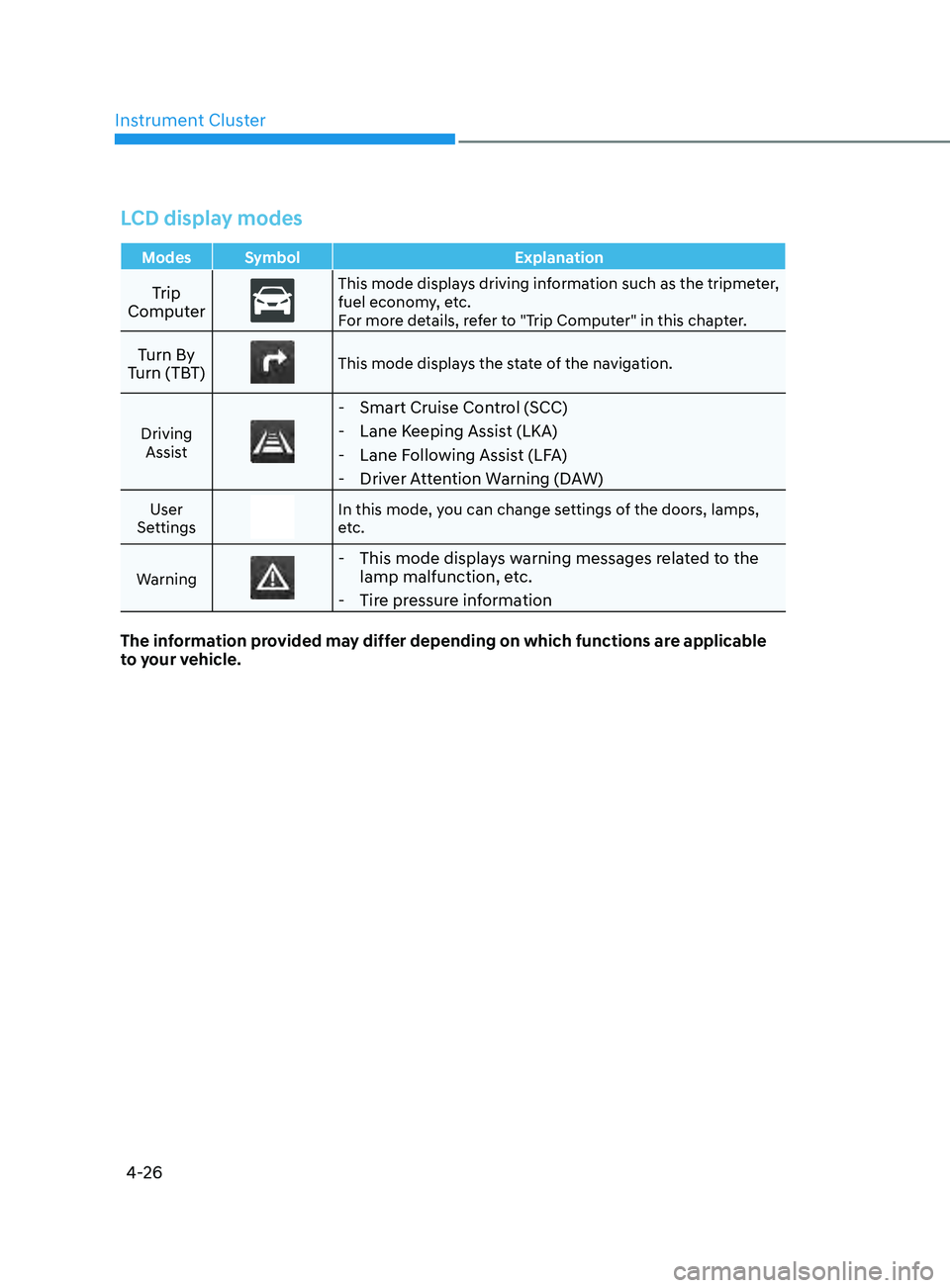
LCD display modes
Modes Symbol Explanation
Trip
ComputerThis mode displays driving information such as the tripmeter,
fuel economy, etc.
For more details, refer to "Trip Computer" in this chapter.
Turn By
Turn (TBT)This mode displays the state of the navigation.
Driving Assist
- Smart Cruise Control (SCC)
- Lane Keeping Assist (LKA)
- Lane Following Assist (LFA)
- Driver Attention Warning (DAW)
User
SettingsIn this mode, you can change settings of the doors, lamps,
etc.
Warning
- This mode displays warning messages related to the lamp malfunction, etc.
- Tire pressure information
The information provided may differ depending on which functions are applicable
to your vehicle.
Page 113 of 570
04
4-27
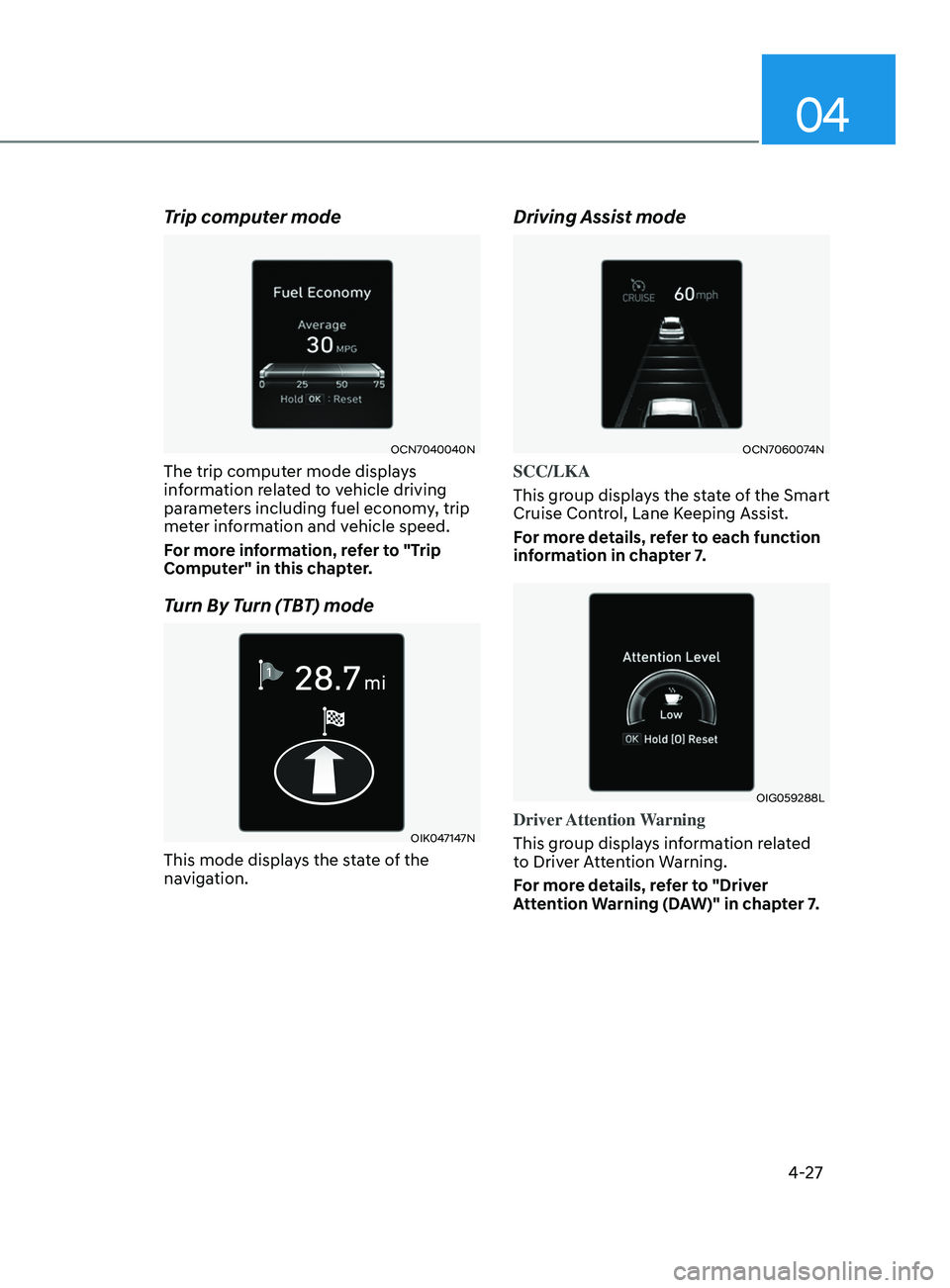
Trip computer mode
OCN7040040N
The trip computer mode displays
information related to vehicle driving
parameters including fuel economy, trip
meter information and vehicle speed.
For more information, refer to "Trip
Computer" in this chapter.
Turn By Turn (TBT) mode
OIK047147N
This mode displays the state of the
navigation.
Driving Assist mode
OCN7060074N
SCC/LKA
This group displays the state of the Smart
Cruise Control, Lane Keeping Assist.
For more details, refer to each function
information in chapter 7.
OIG059288L
Driver Attention Warning
This group displays information related
to Driver Attention Warning.
For more details, refer to "Driver
Attention Warning (DAW)" in chapter 7.
Page 127 of 570
04
4-41
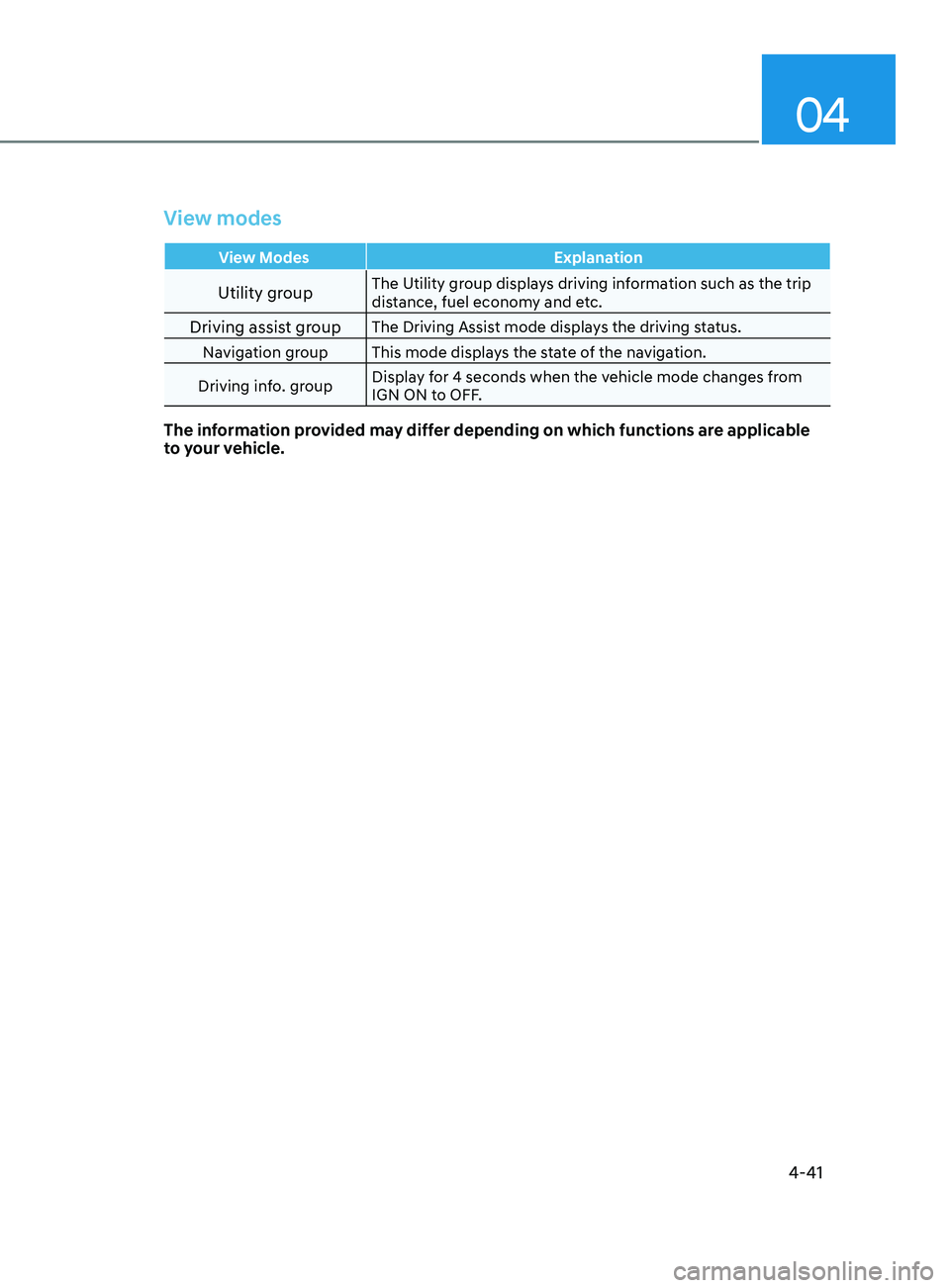
View modes
View ModesExplanation
Utility groupThe Utility group displays driving information such as the trip
distance, fuel economy and etc.
Driving assist groupThe Driving Assist mode displays the driving status.
Navigation group This mode displays the state of the navigation.
Driving info. group Display for 4 seconds when the vehicle mode changes from
IGN ON to OFF.
The information provided may differ depending on which functions are applicable
to your vehicle.
Page 129 of 570
04
4-43
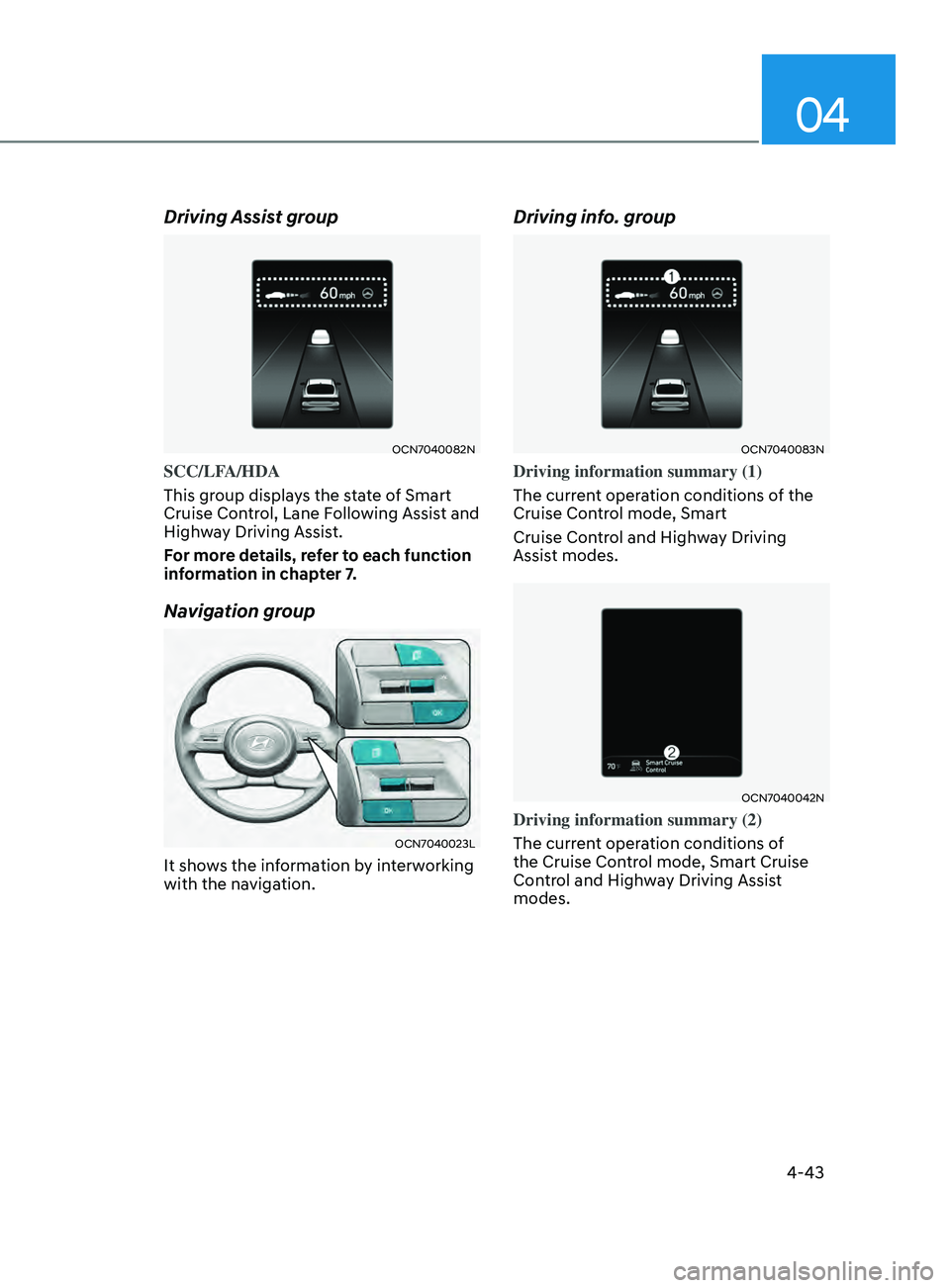
Driving Assist group
OCN7040082N
SCC/LFA/HDA
This group displays the state of Smart
Cruise Control, Lane Following Assist and
Highway Driving Assist.
For more details, refer to each function
information in chapter 7.
Navigation group
OCN7040023L
It shows the information by interworking
with the navigation.
Driving info. group
OCN7040083N
Driving information summary (1)
The current operation conditions of the
Cruise Control mode, Smart
Cruise Control and Highway Driving
Assist modes.
OCN7040042N
Driving information summary (2)
The current operation conditions of
the Cruise Control mode, Smart Cruise
Control and Highway Driving Assist
modes.
Page 166 of 570
Convenient Features
5-30
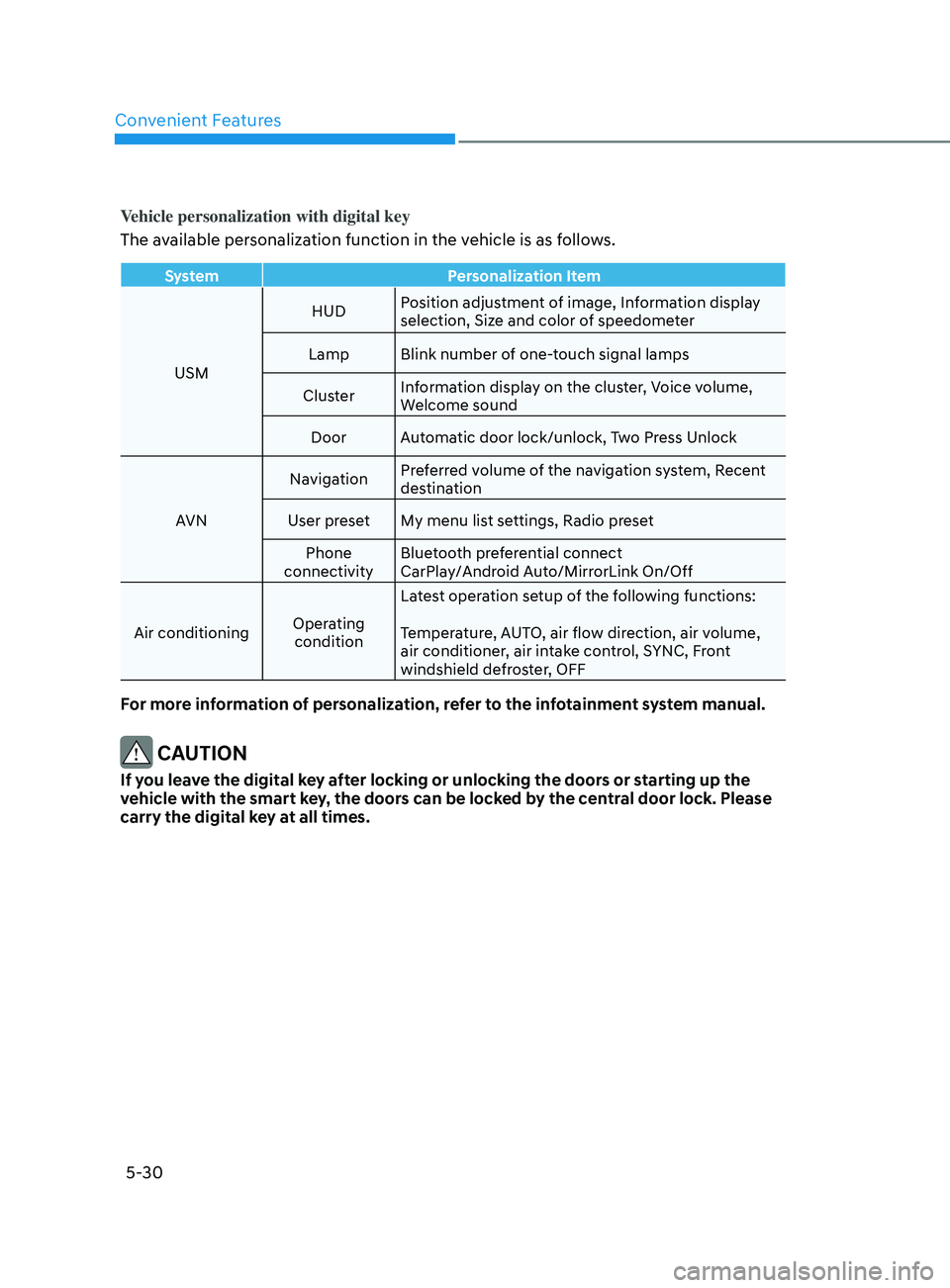
Vehicle personalization with digital key
The available personalization function in the vehicle is as follows.
SystemPersonalization Item
USM HUD
Position adjustment of image, Information display
selection, Size and color of speedometer
Lamp Blink number of one-touch signal lamps
Cluster Information display on the cluster, Voice volume,
Welcome sound
Door Automatic door lock/unlock, Two Press Unlock
AVN Navigation
Preferred volume of the navigation system, Recent
destination
User preset My menu list settings, Radio preset Phone
connectivity Bluetooth preferential connect
CarPlay/Android Auto/MirrorLink On/Off
Air conditioning Operating
condition Latest operation setup of the following functions:
Temperature, AUTO, air flow direction, air volume,
air conditioner, air intake control, SYNC, Front
windshield defroster, OFF
For more information of personalization, refer to the infotainment system manual.
CAUTION
If you leave the digital key after locking or unlocking the doors or starting up the
vehicle with the smart key, the doors can be locked by the central door lock. Please
carry the digital key at all times.
Page 171 of 570
05
5-35
Automatic Door Lock and Unlock
Features
Impact sensing door unlock system
(if equipped)
All doors will be automatically unlocked
when an impact causes the air bags to
deploy.
You can activate or deactivate the Auto
Door Lock/Unlock features from the User
Settings Mode on the LCD display.
For more details, refer to “LCD Display”
in chapter 4. If your vehicle is equipped
with additional navigation, please refer
to the infotainment system manual
separately supplied.
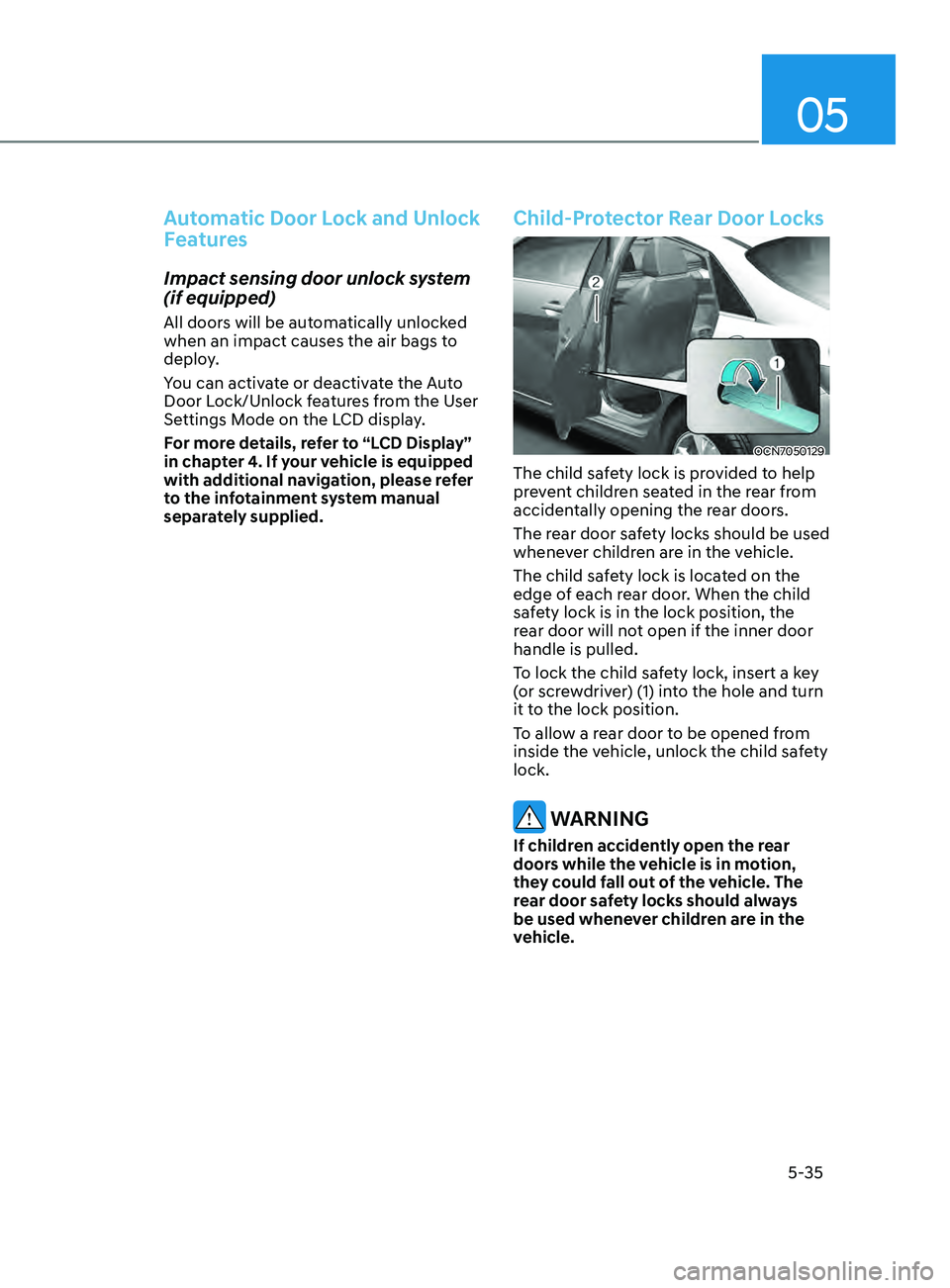
Child-Protector Rear Door Locks
OCN7050129
The child safety lock is provided to help
prevent children seated in the rear from
accidentally opening the rear doors.
The rear door safety locks should be used
whenever children are in the vehicle.
The child safety lock is located on the
edge of each rear door. When the child
safety lock is in the lock position, the
rear door will not open if the inner door
handle is pulled.
To lock the child safety lock, insert a key
(or screwdriver) (1) into the hole and turn
it to the lock position.
To allow a rear door to be opened from
inside the vehicle, unlock the child safety
lock.
WARNING
If children accidently open the rear
doors while the vehicle is in motion,
they could fall out of the vehicle. The
rear door safety locks should always
be used whenever children are in the
vehicle.
Page 172 of 570
Convenient Features
5-36
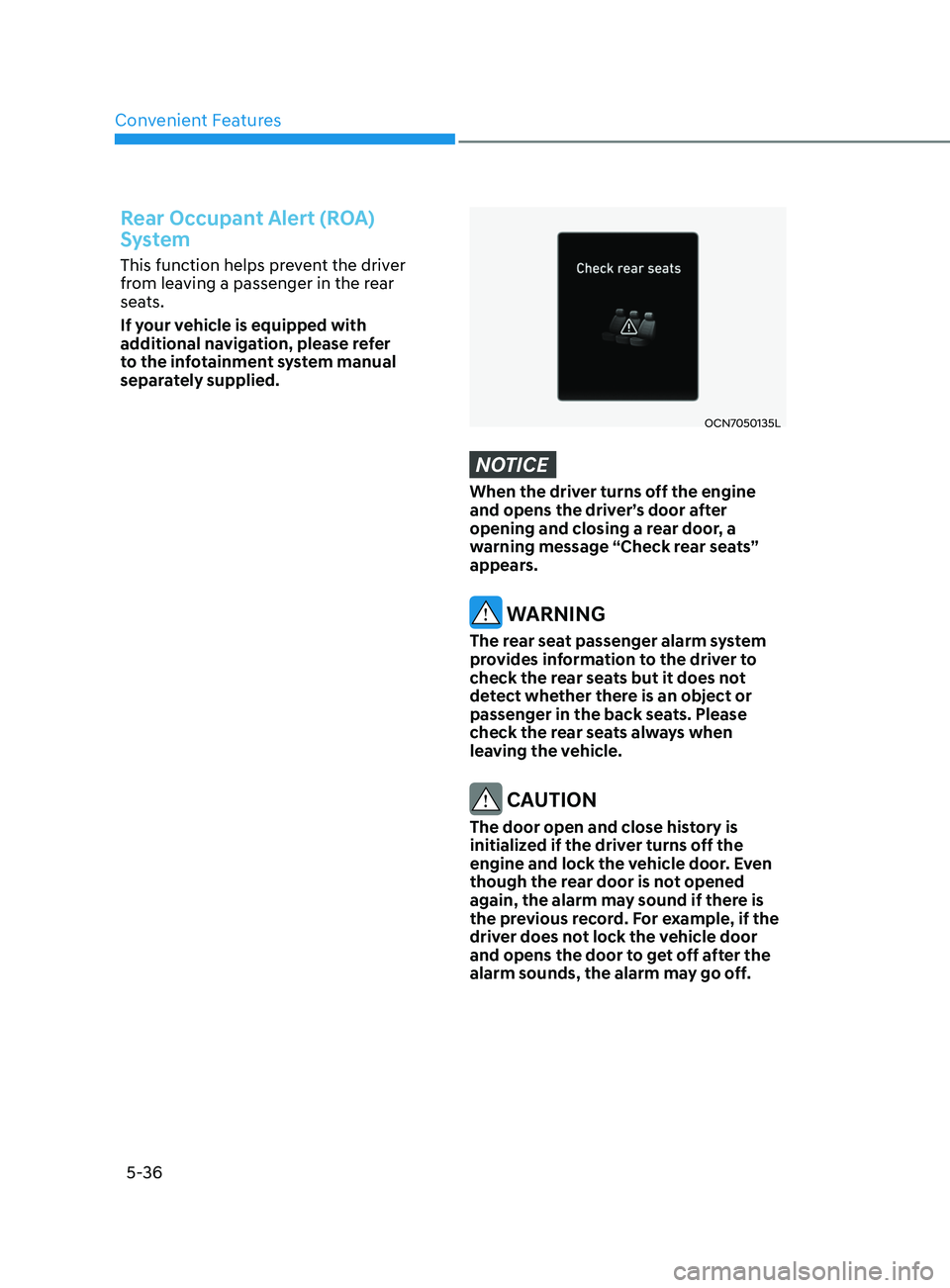
Rear Occupant Alert (ROA)
System
This function helps prevent the driver
from leaving a passenger in the rear
seats.
If your vehicle is equipped with
additional navigation, please refer
to the infotainment system manual
separately supplied.
OCN7050135L
NOTICE
When the driver turns off the engine
and opens the driver’s door after
opening and closing a rear door, a
warning message “Check rear seats”
appears.
WARNING
The rear seat passenger alarm system
provides information to the driver to
check the rear seats but it does not
detect whether there is an object or
passenger in the back seats. Please
check the rear seats always when
leaving the vehicle.
CAUTION
The door open and close history is
initialized if the driver turns off the
engine and lock the vehicle door. Even
though the rear door is not opened
again, the alarm may sound if there is
the previous record. For example, if the
driver does not lock the vehicle door
and opens the door to get off after the
alarm sounds, the alarm may go off.
Page 199 of 570
05
5-63
Smart Trunk release
(if equipped)
OCN7050041L
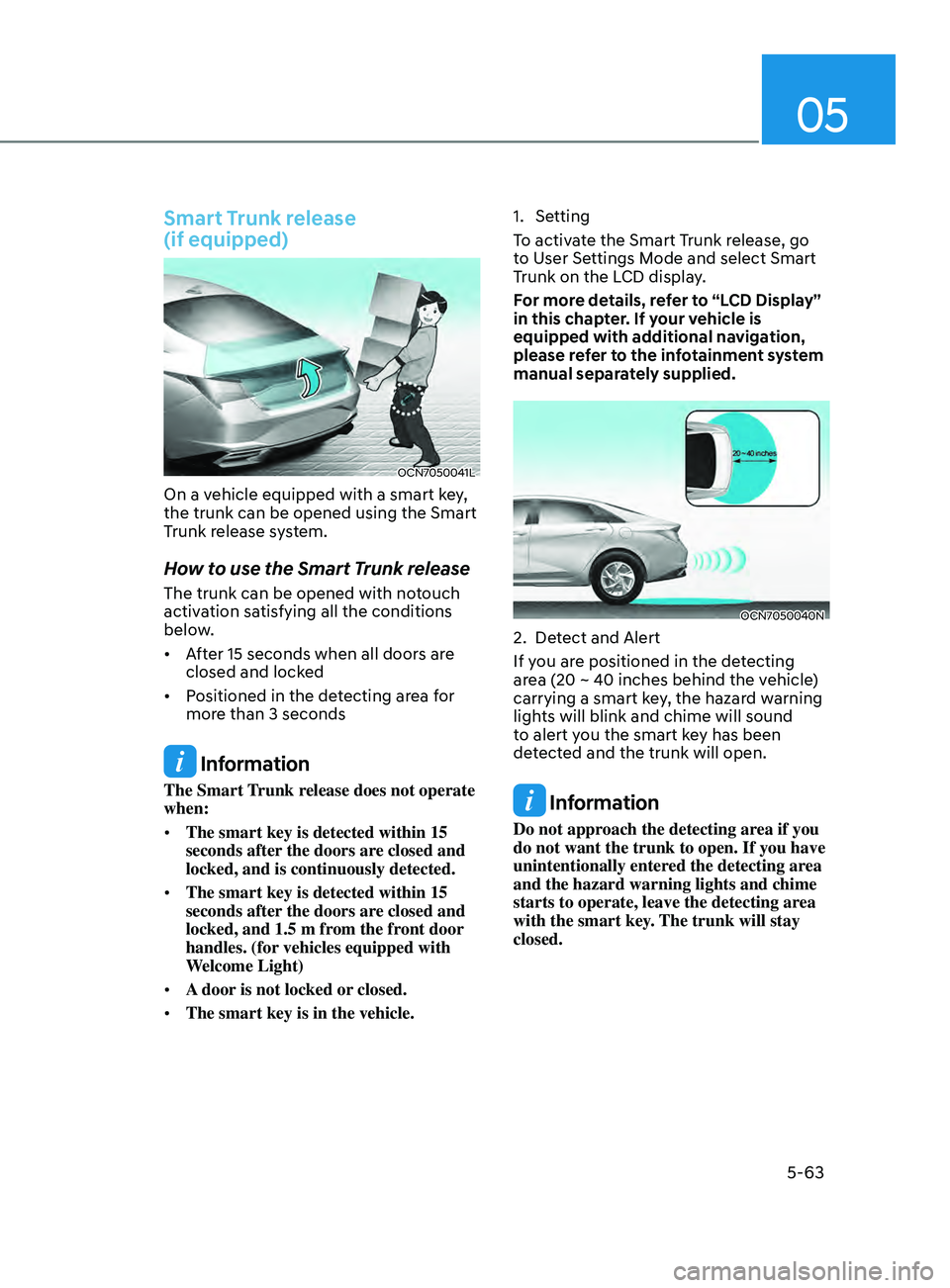
On a vehicle equipped with a smart key,
the trunk can be opened using the Smart
Trunk release system.
How to use the Smart Trunk release
The trunk can be opened with notouch
activation satisfying all the conditions
below.
• After 15 seconds when all doors are
closed and locked
• Positioned in the detecting area for
more than 3 seconds
Information
The Smart Trunk release does not operate
when:
• The smart key is detected within 15
seconds after the doors are closed and
locked, and is continuously detected.
• The smart key is detected within 15
seconds after the doors are closed and
locked, and 1.5 m from the front door
handles. (for vehicles equipped with
Welcome Light)
• A door is not locked or closed.
• The smart key is in the vehicle. 1.
Setting
T
o activate the Smart Trunk release, go
to User Settings Mode and select Smart
Trunk on the LCD display.
For more details, refer to “LCD Display”
in this chapter. If your vehicle is
equipped with additional navigation,
please refer to the infotainment system
manual separately supplied.
OCN7050040N
2. Detect and Alert
If y ou are positioned in the detecting
area (20 ~ 40 inches behind the vehicle)
carrying a smart key, the hazard warning
lights will blink and chime will sound
to alert you the smart key has been
detected and the trunk will open.
Information
Do not approach the detecting area if you
do not want the trunk to open. If you have
unintentionally entered the detecting area
and the hazard warning lights and chime
starts to operate, leave the detecting area
with the smart key. The trunk will stay
closed.
Page 206 of 570
Convenient Features
5-70
ODN8A059204
To flash the high beam headlamp, pull
the lever towards you, then release the
lever. The high beams will remain ON as
long as you hold the lever towards you.
Turn signals and lane change
signals
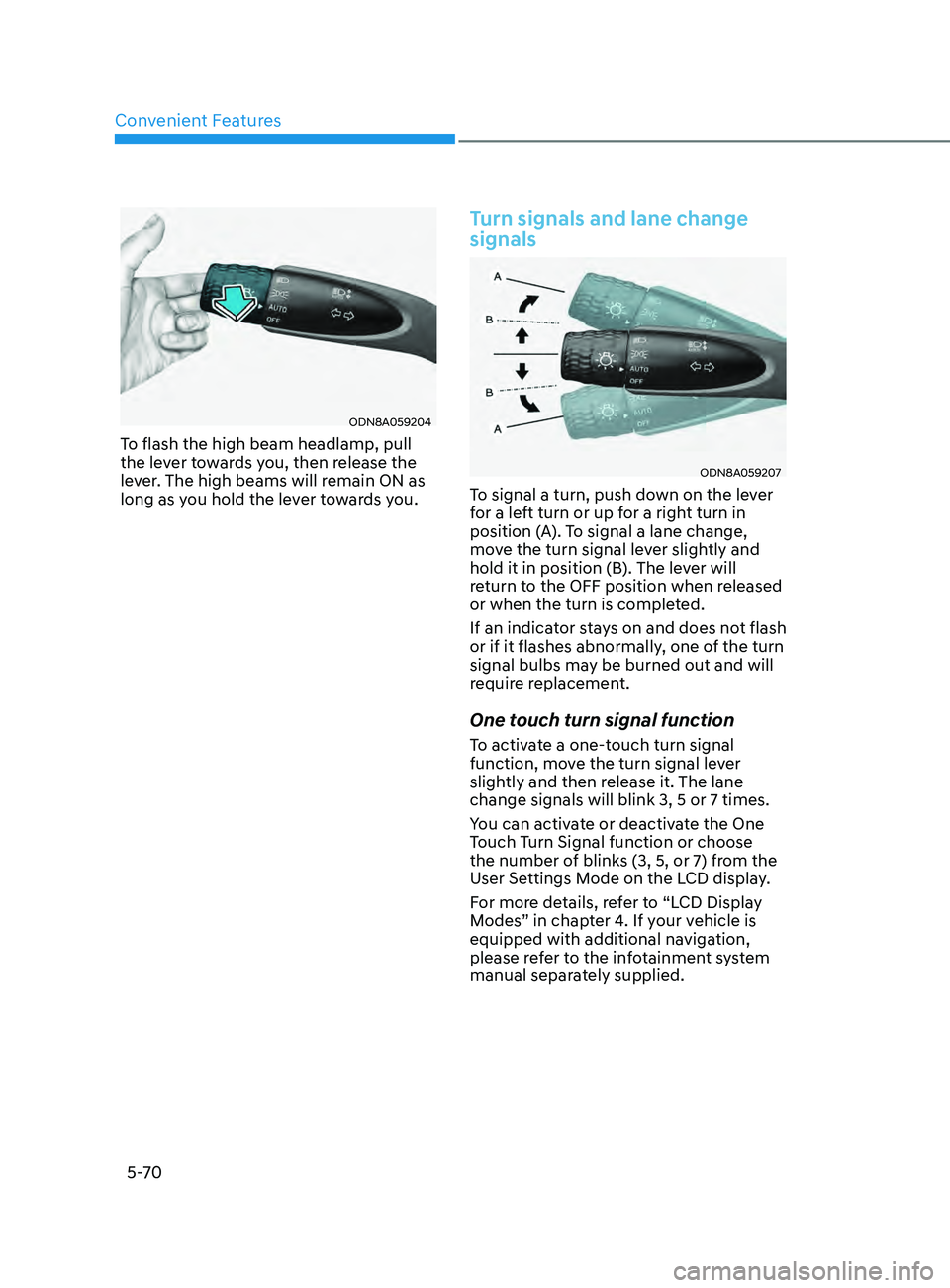
ODN8A059207
To signal a turn, push down on the lever
for a left turn or up for a right turn in
position (A). To signal a lane change,
move the turn signal lever slightly and
hold it in position (B). The lever will
return to the OFF position when released
or when the turn is completed.
If an indicator stays on and does not flash
or if it flashes abnormally, one of the turn
signal bulbs may be burned out and will
require replacement.
One touch turn signal function
To activate a one-touch turn signal
function, move the turn signal lever
slightly and then release it. The lane
change signals will blink 3, 5 or 7 times.
You can activate or deactivate the One
Touch Turn Signal function or choose
the number of blinks (3, 5, or 7) from the
User Settings Mode on the LCD display.
For more details, refer to “LCD Display
Modes” in chapter 4. If your vehicle is
equipped with additional navigation,
please refer to the infotainment system
manual separately supplied.