ESP Hyundai Elantra Coupe 2016 Owner's Guide
[x] Cancel search | Manufacturer: HYUNDAI, Model Year: 2016, Model line: Elantra Coupe, Model: Hyundai Elantra Coupe 2016Pages: 526, PDF Size: 9.99 MB
Page 279 of 526
![Hyundai Elantra Coupe 2016 Owners Guide Features of your vehicle
194 4
MEDIA MODE
Pressing the key will change
the operating mode in order of CD
➟
USB(iPod®) ➟ AUX ➟ My Music ➟BT
Audio.
If [Mode Pop up] is turned on within
[Displ](/img/35/14620/w960_14620-278.png "Hyundai Elantra Coupe 2016 Owners Guide Features of your vehicle
194 4
MEDIA MODE
Pressing the key will change
the operating mode in order of CD
➟
USB(iPod®) ➟ AUX ➟ My Music ➟BT
Audio.
If [Mode Pop up] is turned on within
[Displ")
Features of your vehicle
194 4
MEDIA MODE
Pressing the key will change
the operating mode in order of CD
➟
USB(iPod®) ➟ AUX ➟ My Music ➟BT
Audio.
If [Mode Pop up] is turned on within
[Display], then pressing the
key will display the Media
Pop-up Mode screen.
Turn the TUNE knob to move the
focus. Press the knob to select.
✽NOTICE
The media mode pop up screen can
be displayed only when there are two
or more media modes turned on.
Title Icon
When a Bluetooth®Wireless
Technology, iPod®, USB, or AUX
device is connected or a CD is
inserted, the corresponding mode
icon will be displayed.
Icon Title
Bluetooth®Wireless Technology
CD
iPod®
USB
AUXMEDIA
SETUP
MEDIA
Page 306 of 526
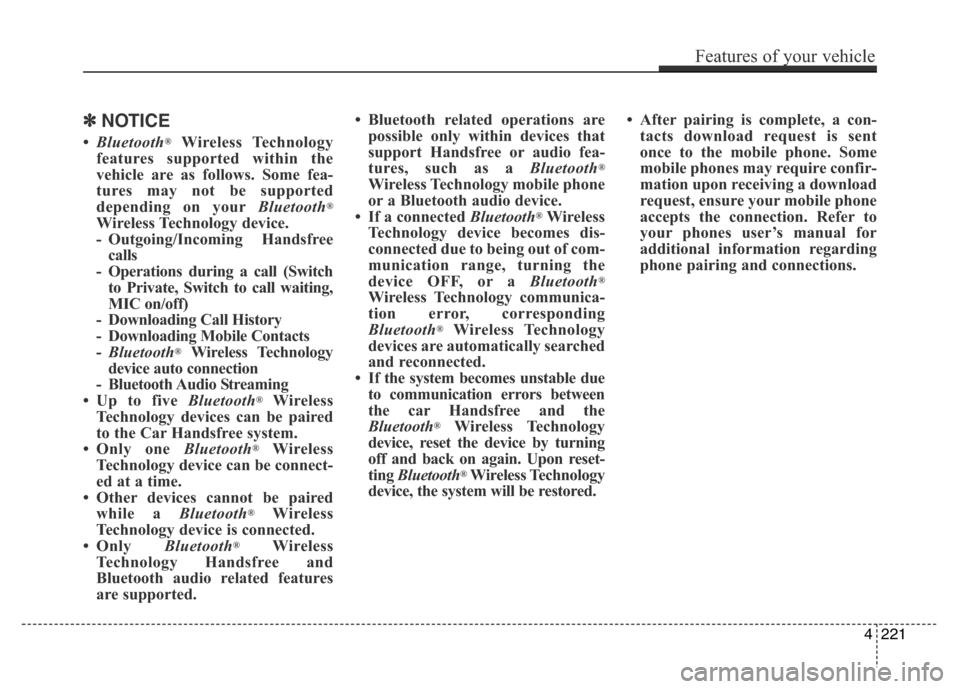
✽NOTICE
•Bluetooth®Wireless Technology
features supported within the
vehicle are as follows. Some fea-
tures may not be supported
depending on yourBluetooth
®
Wireless Technology device.
- Outgoing/Incoming Handsfree
calls
- Operations during a call (Switch
to Private, Switch to call waiting,
MIC on/off)
- Downloading Call History
- Downloading Mobile Contacts
-Bluetooth
®Wireless Technology
device auto connection
- Bluetooth Audio Streaming
• Up to five Bluetooth
®Wireless
Technology devices can be paired
to the Car Handsfree system.
• Only one Bluetooth
®Wireless
Technology device can be connect-
ed at a time.
• Other devices cannot be paired
while a Bluetooth
®Wireless
Technology device is connected.
•Only Bluetooth
®Wireless
Technology Handsfree and
Bluetooth audio related features
are supported.• Bluetooth related operations are
possible only within devices that
support Handsfree or audio fea-
tures, such as a Bluetooth
®
Wireless Technology mobile phone
or a Bluetooth audio device.
• If a connected Bluetooth
®Wireless
Technology device becomes dis-
connected due to being out of com-
munication range, turning the
device OFF, or a Bluetooth
®
Wireless Technology communica-
tion error, corresponding
Bluetooth
®Wireless Technology
devices are automatically searched
and reconnected.
• If the system becomes unstable due
to communication errors between
the car Handsfree and the
Bluetooth
®Wireless Technology
device, reset the device by turning
off and back on again. Upon reset-
ting Bluetooth
®Wireless Technology
device, the system will be restored.• After pairing is complete, a con-
tacts download request is sent
once to the mobile phone. Some
mobile phones may require confir-
mation upon receiving a download
request, ensure your mobile phone
accepts the connection. Refer to
your phones user’s manual for
additional information regarding
phone pairing and connections.
Features of your vehicle
221 4
Page 315 of 526
✽NOTICE BEFORE DOWN-
LOADING CONTACTS
• Only contacts within connected
phones can be downloaded. Also
check to see that your mobile
phone supports the download fea-
ture.
• To learn more about whether your
mobile phone supports contacts
downloads, refer to your mobile
phone user’s manual.
• The contacts for only the connect-
ed phone can be downloaded.
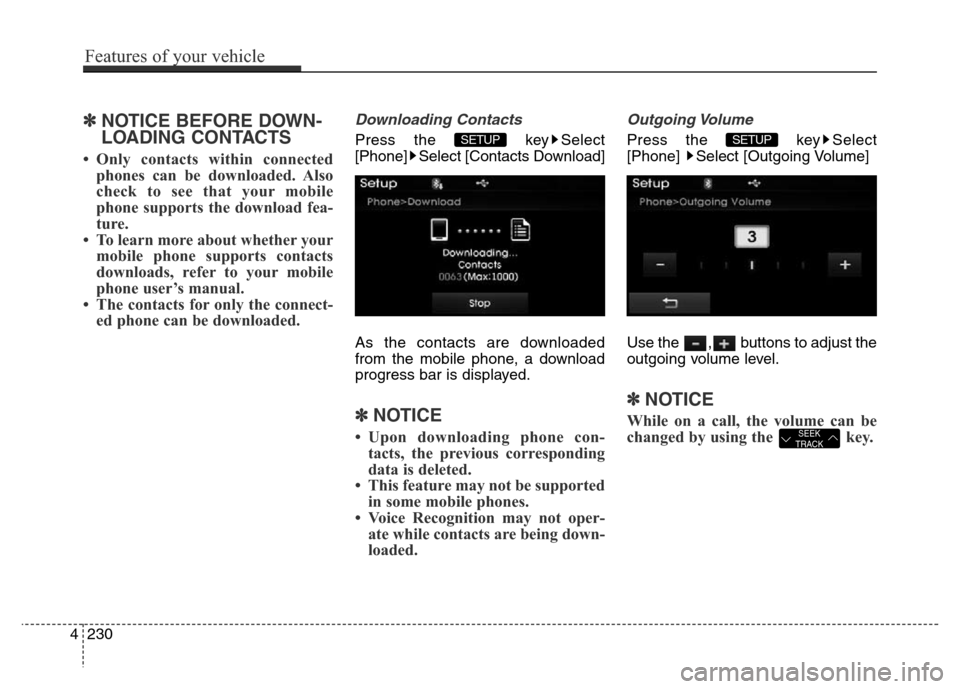
Downloading Contacts
Press the key Select
[Phone] Select [Contacts Download]
As the contacts are downloaded
from the mobile phone, a download
progress bar is displayed.
✽NOTICE
• Upon downloading phone con-
tacts, the previous corresponding
data is deleted.
• This feature may not be supported
in some mobile phones.
• Voice Recognition may not oper-
ate while contacts are being down-
loaded.
Outgoing Volume
Press the key Select
[Phone] Select [Outgoing Volume]
Use the , buttons to adjust the
outgoing volume level.
✽NOTICE
While on a call, the volume can be
changed by using the key.SEEK
TRACK
SETUP SETUP
4230
Features of your vehicle
Page 319 of 526
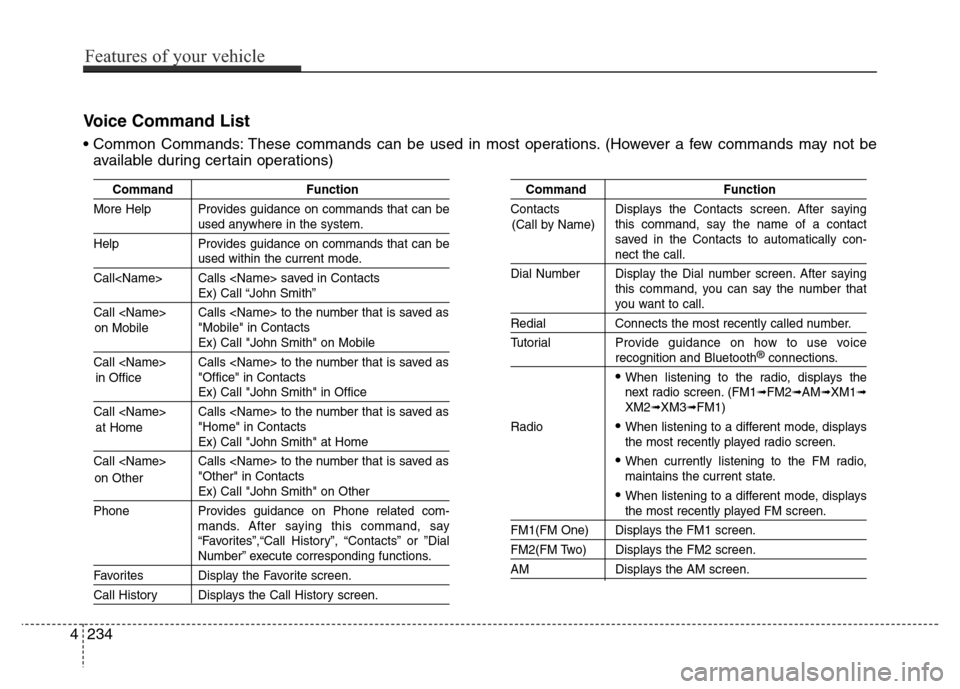
Command Function
More Help Provides guidance on commands that can be
used anywhere in the system.
Help Provides guidance on commands that can be
used within the current mode.
Call
Ex) Call “John Smith”
Call
"Mobile" in Contacts
Ex) Call "John Smith" on Mobile
Call
"Office" in Contacts
Ex) Call "John Smith" in Office
Call
"Home" in Contacts
Ex) Call "John Smith" at Home
Call
"Other" in Contacts
Ex) Call "John Smith" on Other
Phone Provides guidance on Phone related com-
mands. After saying this command, say
“Favorites”,“Call History”, “Contacts” or ”Dial
Number” execute corresponding functions.
Favorites Display the Favorite screen.
Call History Displays the Call History screen.
Command Function
Contacts Displays the Contacts screen. After saying
this command, say the name of a contact
saved in the Contacts to automatically con-
nect the call.
Dial Number Display the Dial number screen. After saying
this command, you can say the number that
you want to call.
Redial Connects the most recently called number.
Tutorial Provide guidance on how to use voice
recognition and Bluetooth®connections.
• When listening to the radio, displays the
next radio screen. (FM1➟FM2➟AM➟XM1➟XM2➟XM3➟FM1)
Radio
• When listening to a different mode, displays
the most recently played radio screen.
• When currently listening to the FM radio,
maintains the current state.
• When listening to a different mode, displaysthe most recently played FM screen.
FM1(FM One) Displays the FM1 screen.
FM2(FM Two) Displays the FM2 screen.
AM Displays the AM screen.(Call by Name)
Voice Command List
• Common Commands: These commands can be used in most operations. (However a few commands may not be
available during certain operations)
4234
Features of your vehicle
on Mobile
in Office
at Home
on Other
Page 320 of 526
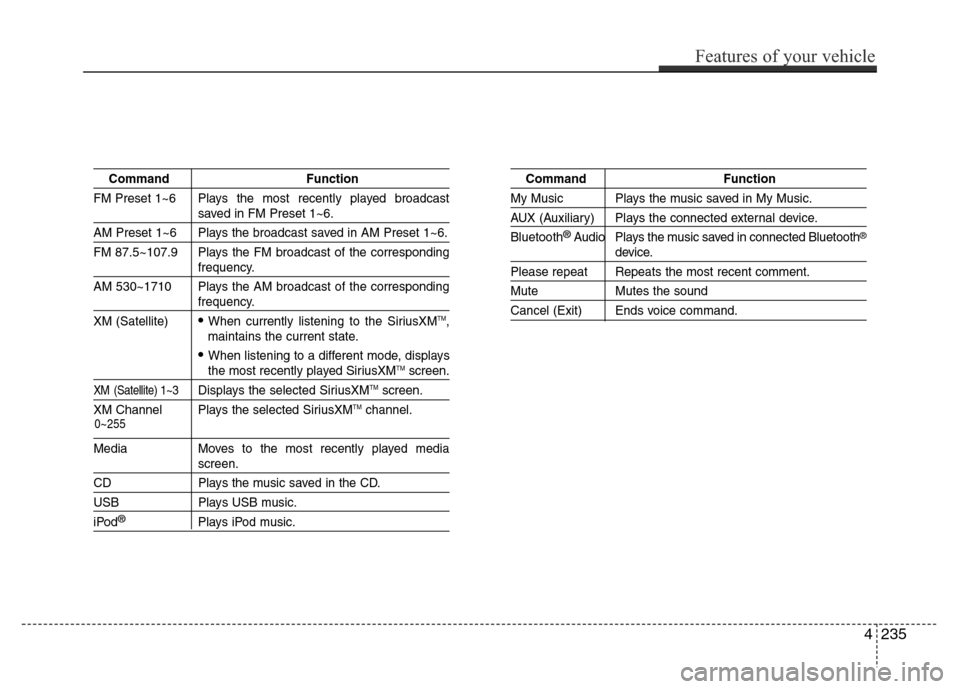
Command Function
FM Preset 1~6 Plays the most recently played broadcast
saved in FM Preset 1~6.
AM Preset 1~6 Plays the broadcast saved in AM Preset 1~6.
FM 87.5~107.9 Plays the FM broadcast of the corresponding
frequency.
AM 530~1710 Plays the AM broadcast of the corresponding
frequency.
XM (Satellite)
• When currently listening to the SiriusXMTM,
maintains the current state.
• When listening to a different mode, displaysthe most recently played SiriusXMTMscreen.
XM (Satellite) 1~3Displays the selected SiriusXMTMscreen.
XM Channel Plays the selected SiriusXMTMchannel.
Media Moves to the most recently played mediascreen.
CD Plays the music saved in the CD.
USB Plays USB music.
iPod®Plays iPod music.
Command Function
My Music Plays the music saved in My Music.
AUX (Auxiliary) Plays the connected external device.
Bluetooth
®Audio Plays the music saved in connected Bluetooth®
device.
Please repeat Repeats the most recent comment.
Mute Mutes the sound
Cancel (Exit) Ends voice command.
0~255
Features of your vehicle
235 4
Page 337 of 526
Driving your vehicle
4 5
WARNING
NEVER drink or take drugs and
drive. Drinking or taking drugs
and driving is dangerous and
may result in an accident and
SERIOUS INJURY or DEATH.
Drunk driving is the number
one contributor to the highway
death toll each year. Even a
small amount of alcohol will
affect your reflexes, percep-
tions and judgment. Just one
drink can reduce your ability to
respond to changing conditions
and emergencies and your reac-
tion time gets worse with each
additional drink.
Driving while under the influ-
ence of drugs is as dangerous
or more dangerous than driving
under the influence of alcohol.
(Continued)
(Continued)
You are much more likely to
have a serious accident if you
drink or take drugs and drive. If
you are drinking or taking
drugs, don’t drive. Do not ride
with a driver who has been
drinking or taking drugs.
Choose a designated driver or
call a taxi.
Page 353 of 526
Driving your vehicle
20 5
Good driving practices
• Never take the vehicle out of gear
and coast down a hill. This is
extremely dangerous.
• Don't "ride" the brakes. This can
cause the brakes and related parts
to overheat and malfunction.
When you are driving down a long
hill, slow down and shift to a lower
gear. Engine braking will help slow
down the vehicle.
• Slow down before shifting to a
lower gear. This will help avoid
over-revving the engine, which can
cause damage.
• Slow down when you encounter
cross winds. This gives you much
better control of your vehicle.
• Be sure the vehicle is completely
stopped before you shift into R
(Reverse) to prevent damage to
the transaxle.• Exercise extreme caution when
driving on a slippery surface. Be
especially careful when braking,
accelerating or shifting gears. On a
slippery surface, an abrupt change
in vehicle speed can cause the
drive wheels to lose traction and
may cause loss of vehicle control
resulting in an accidentCAUTION
To prevent damage to the
engine, clutch and transaxle:
• When downshifting from 5th
gear to 4th gear, be careful not
to inadvertently push the shift
lever sideways engaging the
2nd gear. A drastic downshift
may cause the engine speed
to increase to the point the
tachometer will enter the red-
zone.
• Do not downshift more than 2
gears or downshift the gear
when the engine is running at
high speed (5,000 RPM or
higher). Such a downshifting
may damage the engine,
clutch and the transaxle.
WARNING
Do not use the engine brake
(shifting from a higher gear to
lower gear) rapidly on slippery
roads. The vehicle may slip
causing an accident.
Page 355 of 526
Driving your vehicle
22 5
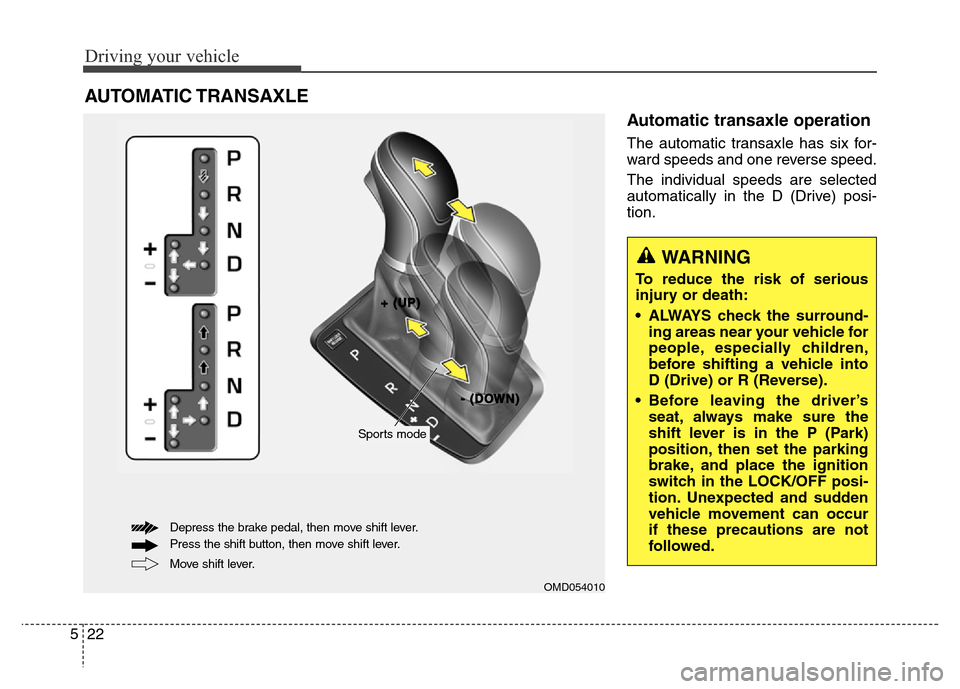
Automatic transaxle operation
The automatic transaxle has six for-
ward speeds and one reverse speed.
The individual speeds are selected
automatically in the D (Drive) posi-
tion.
AUTOMATIC TRANSAXLE
OMD054010
+ +
( (
U U
P P
) )
- -
( (
D D
O O
W W
N N
) )
Sports mode
Move shift lever. Depress the brake pedal, then move shift lever.
Press the shift button, then move shift lever.
WARNING
To reduce the risk of serious
injury or death:
• ALWAYS check the surround-
ing areas near your vehicle for
people, especially children,
before shifting a vehicle into
D (Drive) or R (Reverse).
• Before leaving the driver’s
seat, always make sure the
shift lever is in the P (Park)
position, then set the parking
brake, and place the ignition
switch in the LOCK/OFF posi-
tion. Unexpected and sudden
vehicle movement can occur
if these precautions are not
followed.
Page 361 of 526
Driving your vehicle
28 5
• Always apply the parking brake
when leaving the vehicle. Do not
depend on placing the transaxle in
P (Park) to keep the vehicle from
moving.
• Exercise extreme caution when
driving on a slippery surface. Be
especially careful when braking,
accelerating or shifting gears. On a
slippery surface, an abrupt change
in vehicle speed can cause the
drive wheels to lose traction and
may cause loss of vehicle control
resulting in an accident
• Optimum vehicle performance and
economy is obtained by smoothly
depressing and releasing the
accelerator.
WARNING
To reduce the risk of SERIOUS
INJURY or DEATH:
• ALWAYS wear your seatbelt.
In a collision, an unbelted
occupant is significantly more
likely to be seriously injured
or killed than a properly belt-
ed occupant.
• Avoid high speeds when cor-
nering or turning.
• Do not make quick steering
wheel movements, such as
sharp lane changes or fast,
sharp turns.
• The risk of rollover is greatly
increased if you lose control
of your vehicle at highway
speeds.
• Loss of control often occurs if
two or more wheels drop off
the roadway and the driver
over steers to reenter the
roadway.
(Continued)
(Continued)
• In the event your vehicle
leaves the roadway, do not
steer sharply. Instead, slow
down before pulling back into
the travel lanes.
• HYUNDAI recommends you
follow all posted speed limits.
• Avoid depressing the brake
and accelerator pedals simul-
taneously. If both pedals are
depressed simultaneously,
the brake system will override
the accelerator and the vehi-
cle speed will reduce.
Page 366 of 526
533
Driving your vehicle
ABS is an electronic braking system
that helps prevent a braking skid.
ABS allows the driver to steer and
brake at the same time.
Using ABS
To obtain the maximum benefit from
your ABS in an emergency situation,
do not attempt to modulate your
brake pressure and do not try to
pump your brakes. Depress your
brake pedal as hard as possible.
When you apply your brakes under
conditions which may lock the
wheels, you may hear sounds from
the brakes, or feel a corresponding
sensation in the brake pedal. This is
normal and it means your ABS is
active.
ABS does not reduce the time or dis-
tance it takes to stop the vehicle.
Always maintain a safe distance from
the vehicle in front of you.
ABS will not prevent a skid that
results from sudden changes in
direction, such as trying to take a
corner too fast or making a sudden
lane change. Always drive at a safe
speed for the road and weather con-
ditions.ABS cannot prevent a loss of stabili-
ty. Always steer moderately when
braking hard. Severe or sharp steer-
ing wheel movement can still cause
your vehicle to veer into oncoming
traffic or off the road.
On loose or uneven road surfaces,
operation of the anti-lock brake sys-
tem may result in a longer stopping
distance than for vehicles equipped
with a conventional brake system.
The ABS warning light ( ) will stay
on for several seconds after the igni-
tion switch is in the ON position.
During that time, the ABS will go
through self-diagnosis and the light
will go off if everything is normal. If
the light stays on, you may have a
problem with your ABS. Contact an
authorized HYUNDAI dealer as soon
as possible.(Continued)
Drive your vehicle at reduced
speeds during the following
conditions:
• Rough, gravel or snow-cov-
ered roads.
• On roads where the road sur-
face is pitted or has different
surface height.
The safety features of an ABS
or ESC equipped vehicle should
not be tested by high speed
driving or cornering. This could
endanger the safety of yourself
or others.