engine HYUNDAI ELANTRA HYBRID 2021 Owners Manual
[x] Cancel search | Manufacturer: HYUNDAI, Model Year: 2021, Model line: ELANTRA HYBRID, Model: HYUNDAI ELANTRA HYBRID 2021Pages: 555, PDF Size: 56.08 MB
Page 375 of 555
Driver assistance system
7-54
Function disabled
OCN7070041L
When the rear bumper around the rear
corner radar or sensor is covered with
foreign material, such as snow or rain,
or installing a trailer or carrier, it can
reduce the detecting performance and
temporarily limit or disable Safe Exit
Warning.
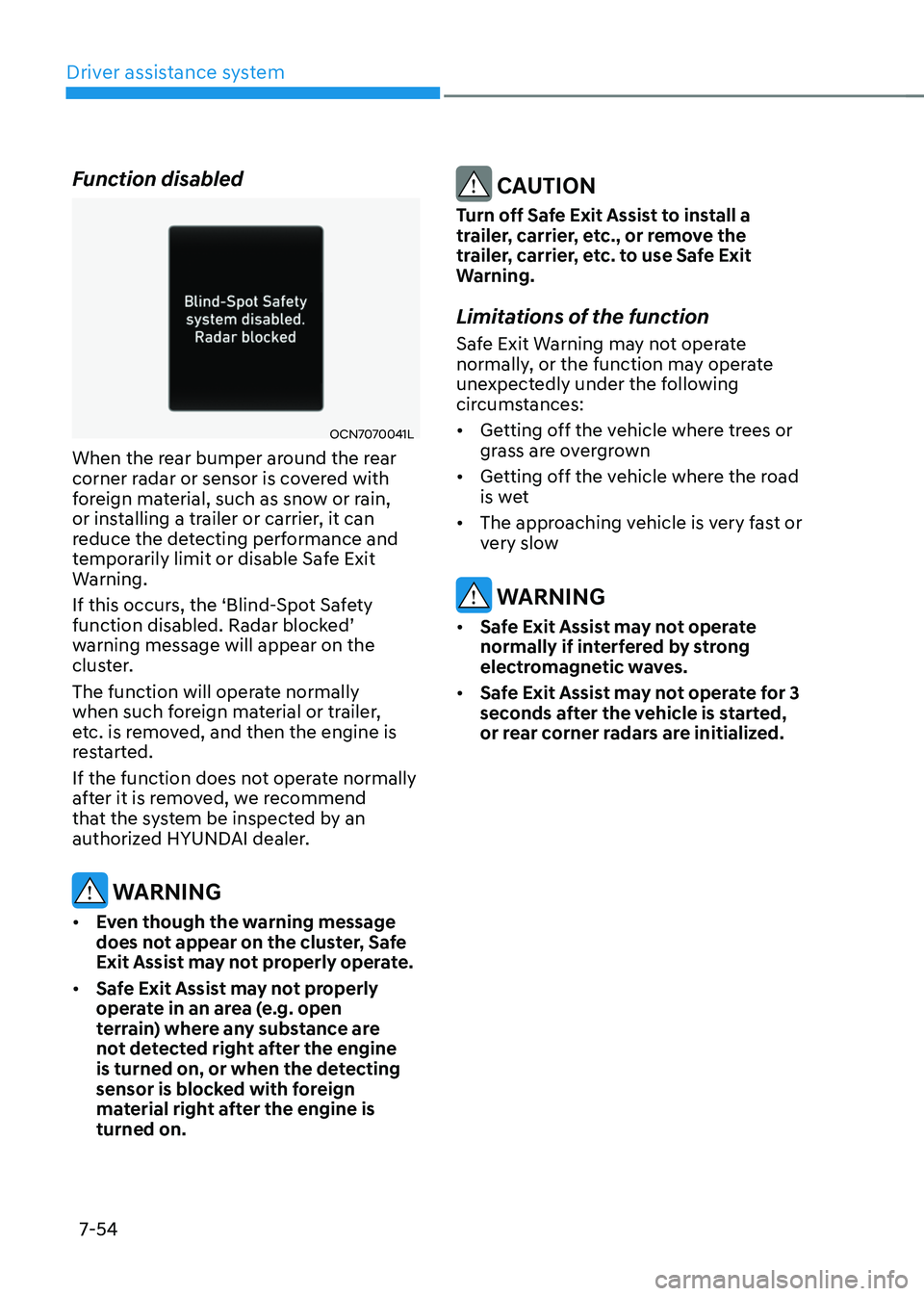
If this occurs, the ‘Blind-Spot Safety
function disabled. Radar blocked’ warning message will appear on the
cluster.
The function will operate normally
when such foreign material or trailer,
etc. is removed, and then the engine is
restarted.
If the function does not operate normally
after it is removed, we recommend
that the system be inspected by an
authorized HYUNDAI dealer.
WARNING
• Even though the warning message
does not appear on the cluster, Safe
Exit Assist may not properly operate.
• Safe Exit Assist may not properly
operate in an area (e.g. open
terrain) where any substance are
not detected right after the engine
is turned on, or when the detecting
sensor is blocked with foreign
material right after the engine is
turned on.
CAUTION
Turn off Safe Exit Assist to install a
trailer, carrier, etc., or remove the
trailer, carrier, etc. to use Safe Exit
Warning.
Limitations of the function
Safe Exit Warning may not operate
normally, or the function may operate
unexpectedly under the following
circumstances:
• Getting off the vehicle where trees or
grass are overgrown
• Getting off the vehicle where the road
is wet
• The approaching vehicle is very fast or
very slow
WARNING
• Safe Exit Assist may not operate
normally if interfered by strong
electromagnetic waves.
• Safe Exit Assist may not operate for 3
seconds after the vehicle is started,
or rear corner radars are initialized.
Page 376 of 555
07
7-55
Basic function
Driver Attention Warning can help
determine the driver's attention level by
analyzing driving pattern, driving time,
etc. while vehicle is being driven. The
system can recommend a break when
the driver’s attention level falls below a certain level.
Leading Vehicle Departure Alert
function
Leading Vehicle Departure Alert function
can inform the driver when the front
vehicle departs from a stop.
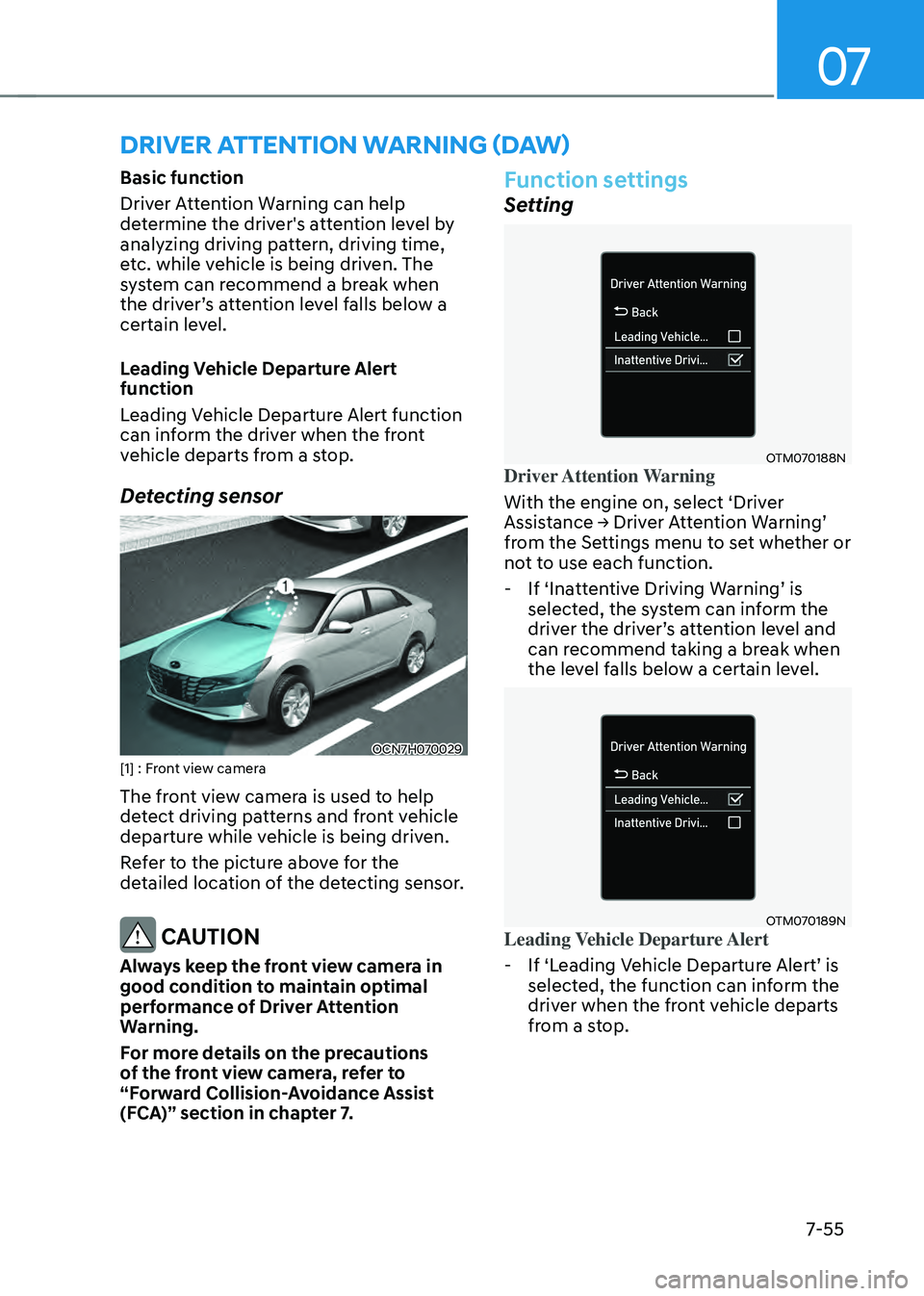
Detecting sensor
OCN7H070029[1] : Front view camera
The front view camera is used to help
detect driving patterns and front vehicle
departure while vehicle is being driven.
Refer to the picture above for the
detailed location of the detecting sensor.
CAUTION
Always keep the front view camera in
good condition to maintain optimal
performance of Driver Attention
Warning.
For more details on the precautions
of the front view camera, refer to
“Forward Collision-Avoidance Assist
(FCA)” section in chapter 7.
Function settings
Setting
OTM070188NDriver Attention Warning
With the engine on, select ‘Driver
Assistance → Driver Attention Warning’ from the Settings menu to set whether or
not to use each function.
-If ‘Inattentive Driving Warning’ is selected, the system can inform the driver the driver’s attention level and can recommend taking a break when
the level falls below a certain level.
OTM070189NLeading Vehicle Departure Alert
-If ‘Leading Vehicle Departure Alert’ is selected, the function can inform the
driver when the front vehicle departs
from a stop.
DRIVER ATTENTION WARNING (DAW)
Page 377 of 555
Driver assistance system
7-56
OTM070140N
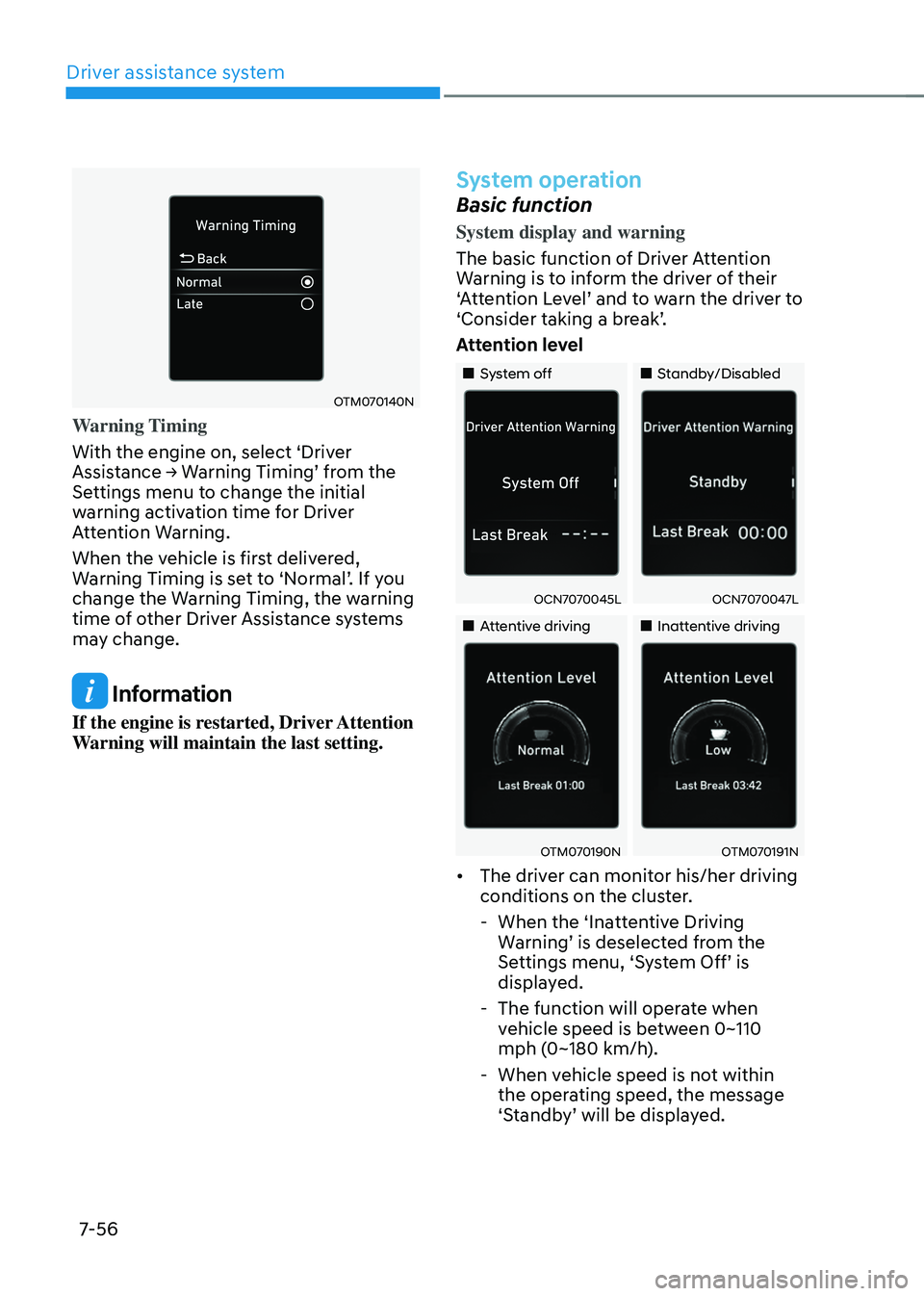
Warning Timing
With the engine on, select ‘Driver
Assistance → Warning Timing’ from the Settings menu to change the initial
warning activation time for Driver
Attention Warning.
When the vehicle is first delivered,
Warning Timing is set to ‘Normal’. If you change the Warning Timing, the warning
time of other Driver Assistance systems
may change.
Information
If the engine is restarted, Driver Attention
Warning will maintain the last setting.
System operation
Basic function
System display and warning
The basic function of Driver Attention
Warning is to inform the driver of their
‘Attention Level’ and to warn the driver to ‘Consider taking a break’.
Attention level
„„System off„„Standby/Disabled
OCN7070045LOCN7070047L
„„Attentive driving„„Inattentive driving
OTM070190NOTM070191N
• The driver can monitor his/her driving
conditions on the cluster.
-When the ‘Inattentive Driving Warning’ is deselected from the Settings menu, ‘System Off’ is displayed.
-The function will operate when
vehicle speed is between 0~110
mph (0~180 km/h).
-When vehicle speed is not within
the operating speed, the message
‘Standby’ will be displayed.
Page 378 of 555
07
7-57
• The driver’s attention lev el is display ed on the scale of 1 to 5. The lower the
level is, the more inattentive the driver
is.
• The level decreases when the driver
does not take a break for a certain
period of time.
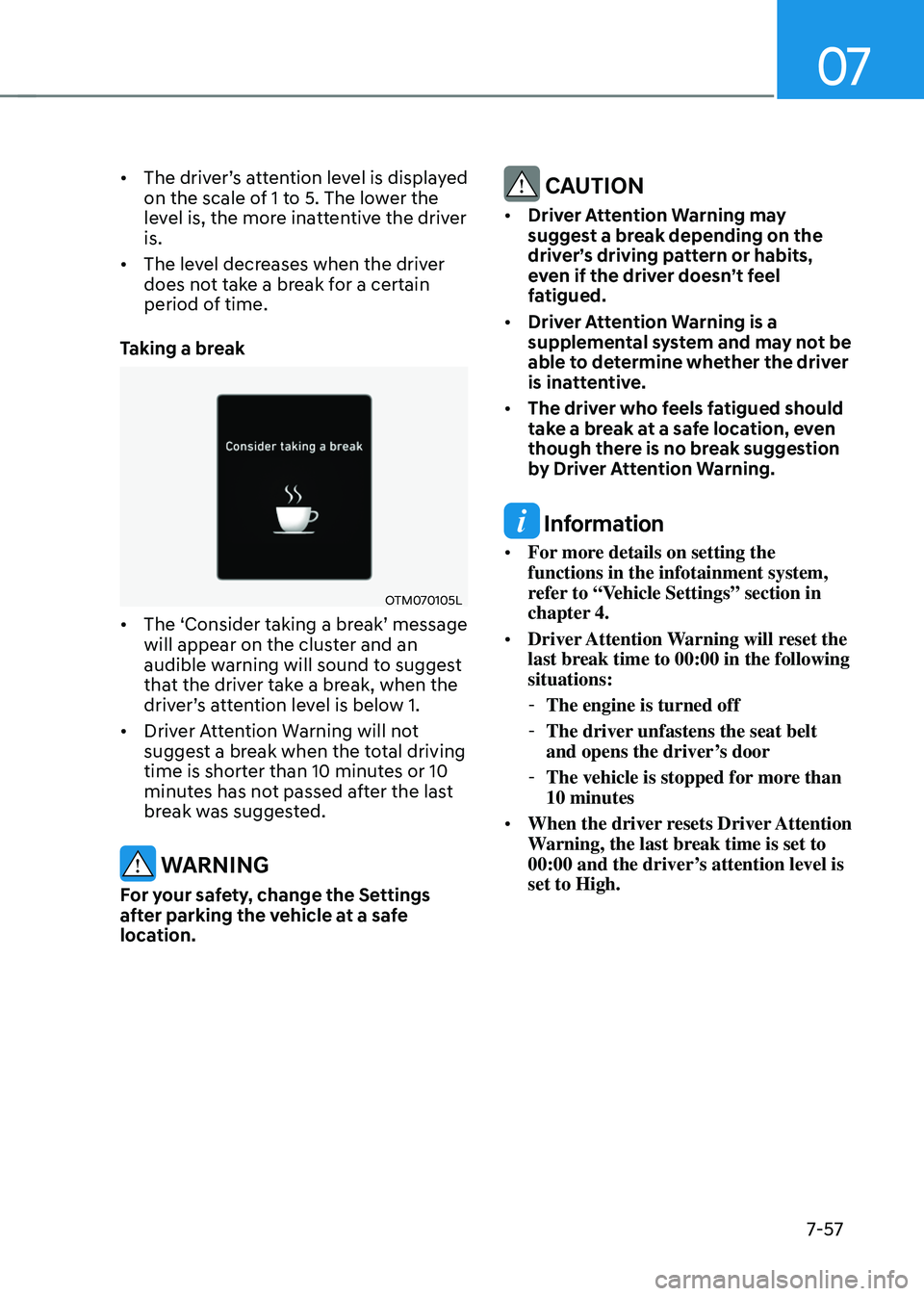
Taking a break
OTM070105L
• The ‘Consider taking a break’ message will appear on the cluster and an
audible warning will sound to suggest
that the driver take a break, when the
driver’s attention level is below 1.
• Driver Attention Warning will not
suggest a break when the total driving
time is shorter than 10 minutes or 10
minutes has not passed after the last
break was suggested.
WARNING
For your safety, change the Settings
after parking the vehicle at a safe
location.
CAUTION
• Driver Attention Warning may
suggest a break depending on the
driver’s driving pattern or habits,
even if the driver doesn’t feel
fatigued.
• Driver Attention Warning is a
supplemental system and may not be
able to determine whether the driver
is inattentive.
• The driver who feels fatigued should
take a break at a safe location, even
though there is no break suggestion
by Driver Attention Warning.
Information
• For more details on setting the
functions in the infotainment system,
refer to “Vehicle Settings” section in
chapter 4.
• Driver Attention Warning will reset the
last break time to 00:00 in the following
situations:
-The engine is turned off
-The driver unfastens the seat belt
and opens the driver’s door
-The vehicle is stopped for more than
10 minutes
• When the driver resets Driver Attention
Warning, the last break time is set to
00:00 and the driver’s attention level is
set to High.
Page 387 of 555
Driver assistance system
7-66
Function settings
Setting
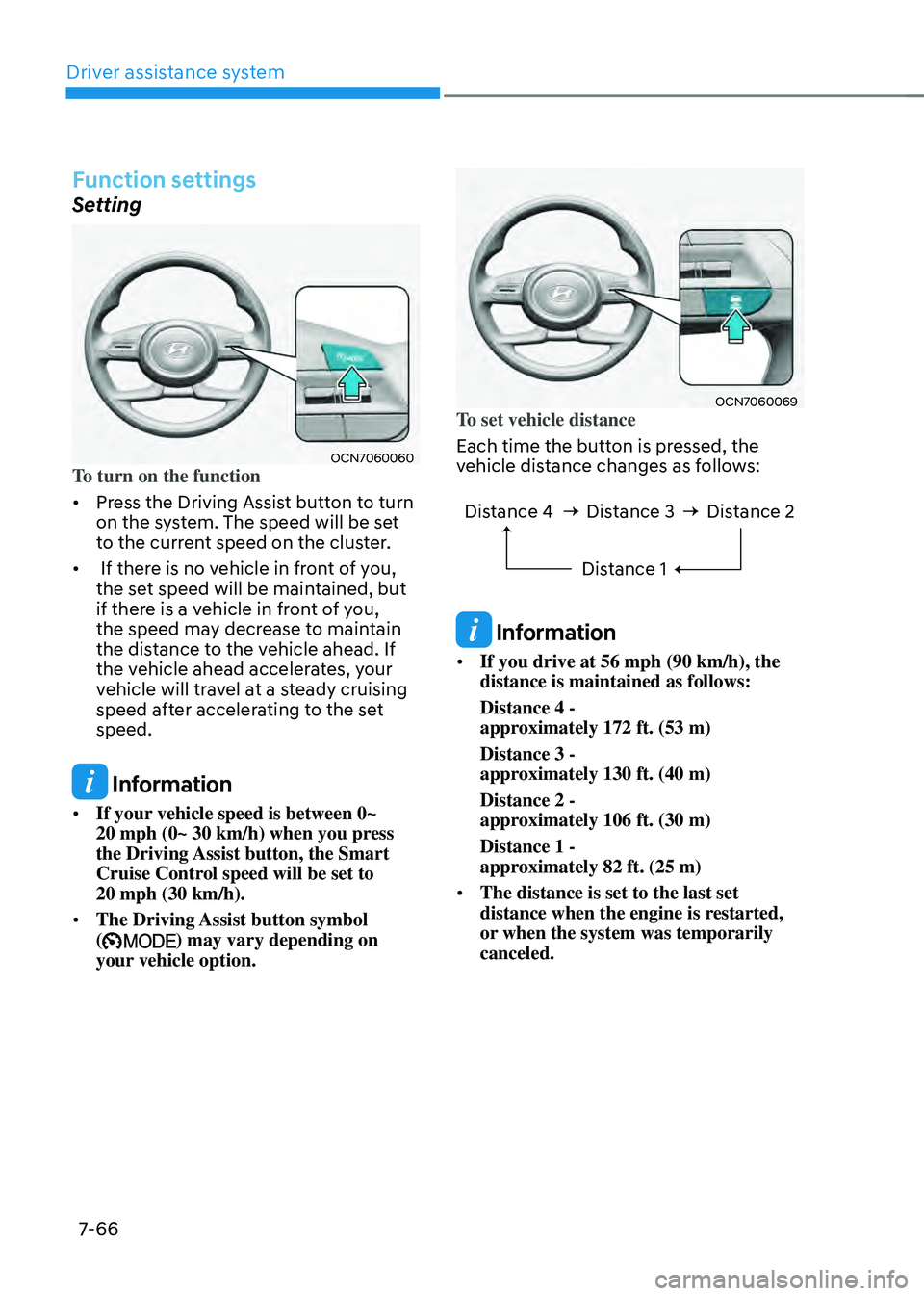
OCN7060060To turn on the function
• Press the Driving Assist button to turn
on the system. The speed will be set
to the current speed on the cluster.
• If there is no vehicle in front of you,
the set speed will be maintained, but
if there is a vehicle in front of you,
the speed may decrease to maintain
the distance to the vehicle ahead. If
the vehicle ahead accelerates, your
vehicle will travel at a steady cruising
speed after accelerating to the set
speed.
Information
• If your vehicle speed is between 0~ 20 mph (0~ 30 km/h) when you press the Driving Assist button, the Smart
Cruise Control speed will be set to
20 mph (30 km/h).
• The Driving Assist button symbol
() may vary depending on
your vehicle option.
OCN7060069To set vehicle distance
Each time the button is pressed, the
vehicle distance changes as follows:
Distance 4 Distance 3
Distance 1Distance 2
Information
• If you drive at 56 mph (90 km/h), the
distance is maintained as follows:
Distance 4 -
approximately 172 ft. (53 m)
Distance 3 -
approximately 130 ft. (40 m)
Distance 2 -
approximately 106 ft. (30 m)
Distance 1 -
approximately 82 ft. (25 m)
• The distance is set to the last set
distance when the engine is restarted,
or when the system was temporarily
canceled.
Page 390 of 555
07
7-69
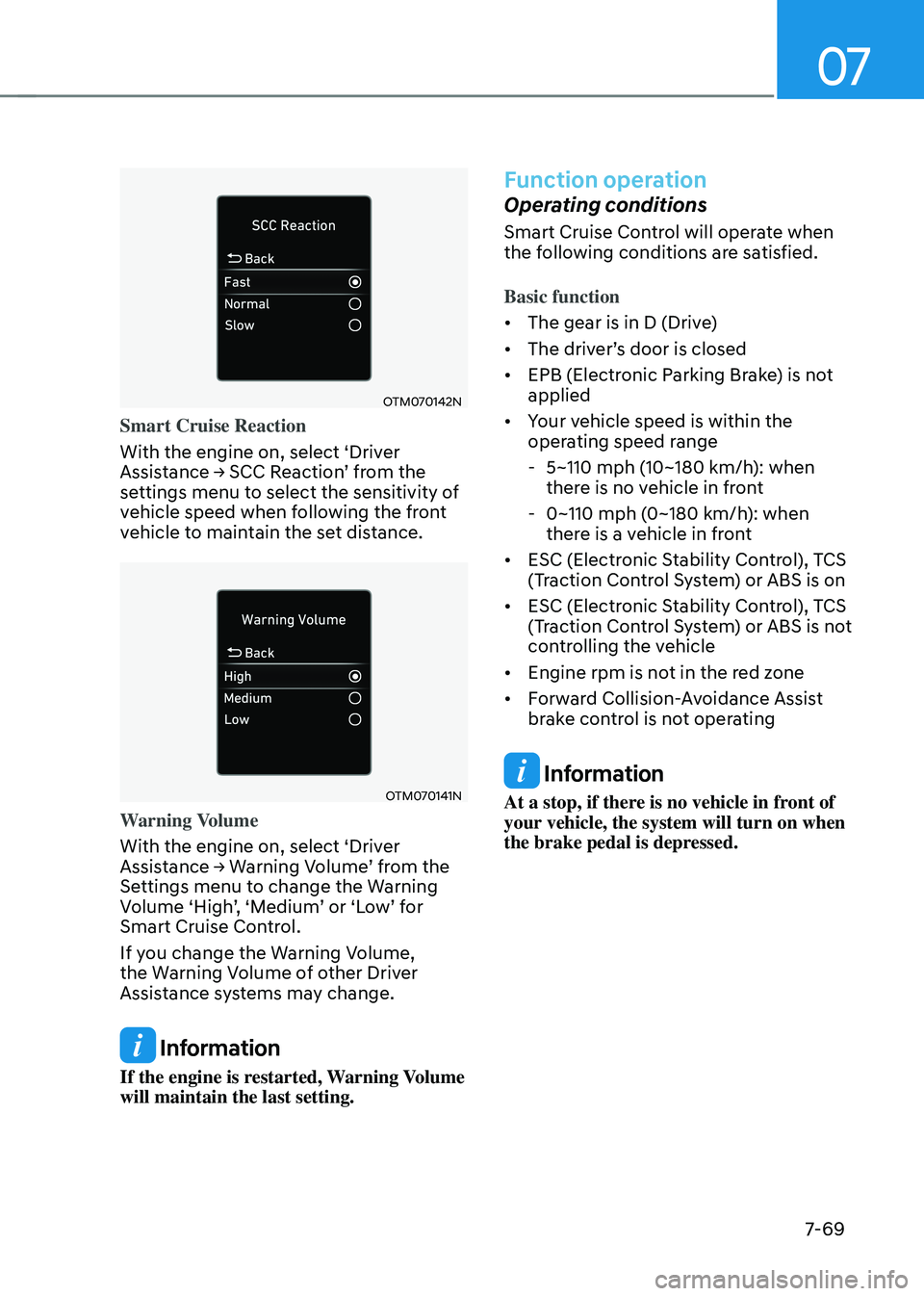
OTM070142N
Smart Cruise Reaction
With the engine on, select ‘Driver
Assistance → SCC Reaction’ from the settings menu to select the sensitivity of
vehicle speed when following the front
vehicle to maintain the set distance.
OTM070141N
Warning Volume
With the engine on, select ‘Driver
Assistance → Warning Volume’ from the Settings menu to change the Warning Volume ‘High’, ‘Medium’ or ‘Low’ for Smart Cruise Control.
If you change the Warning Volume,
the Warning Volume of other Driver
Assistance systems may change.
Information
If the engine is restarted, Warning Volume
will maintain the last setting.
Function operation
Operating conditions
Smart Cruise Control will operate when
the following conditions are satisfied.
Basic function
• The gear is in D (Drive)
•
The driver’s door is closed
• EPB (Electronic Parking Brake) is not
applied
• Your vehicle speed is within the
operating speed range
-5~110 mph (10~180 km/h): when
there is no vehicle in front
-0~110 mph (0~180 km/h): when
there is a vehicle in front
• ESC (Electronic Stability Control), TCS
(Traction Control System) or ABS is on
• ESC (Electronic Stability Control), TCS
(Traction Control System) or ABS is not
controlling the vehicle
• Engine rpm is not in the red zone
• Forward Collision-Avoidance Assist
brake control is not operating
Information
At a stop, if there is no vehicle in front of
your vehicle, the system will turn on when
the brake pedal is depressed.
Page 397 of 555
Driver assistance system
7-76
Function disabled
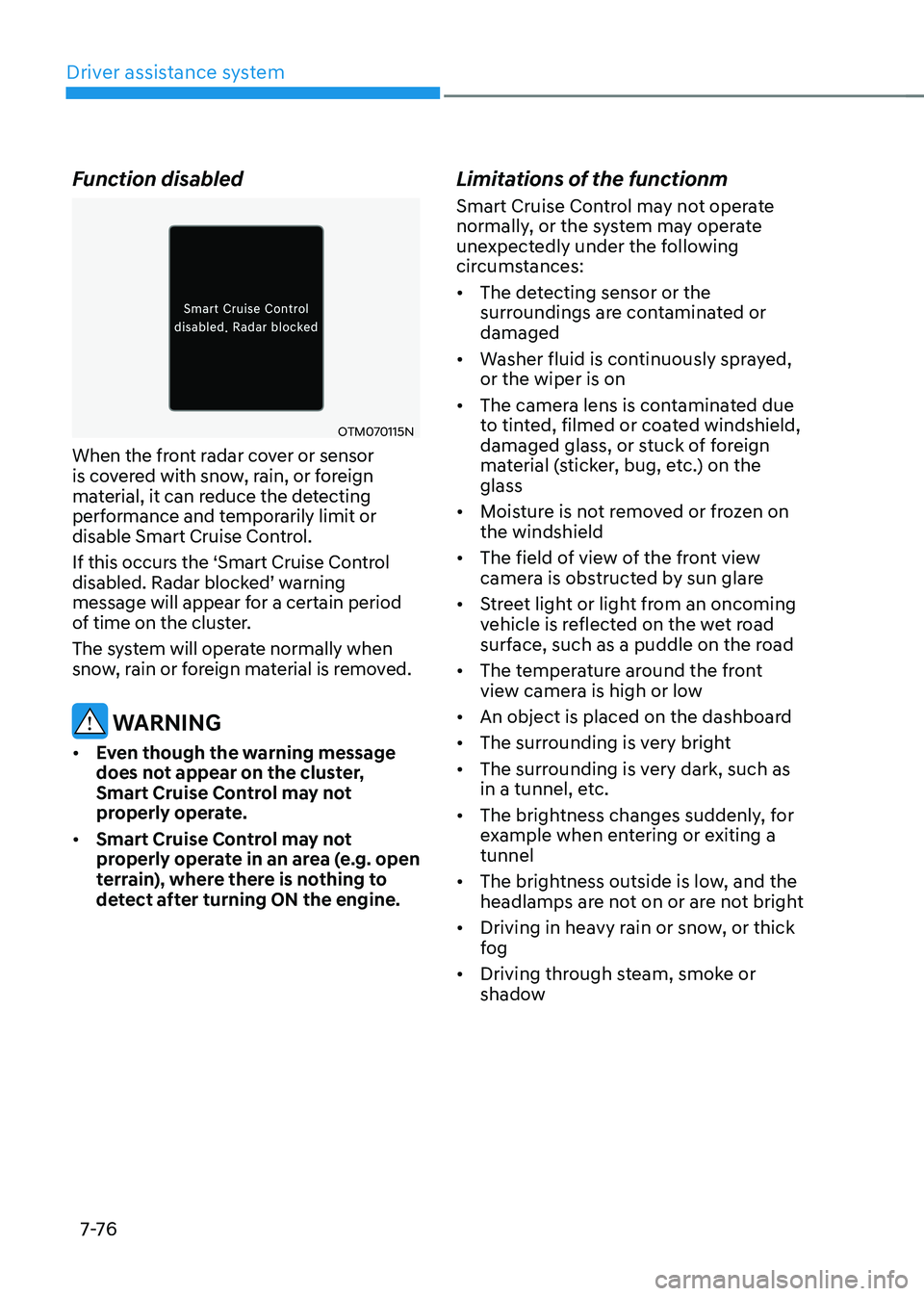
OTM070115N
When the front radar cover or sensor
is covered with snow, rain, or foreign
material, it can reduce the detecting
performance and temporarily limit or
disable Smart Cruise Control.
If this occurs the ‘Smart Cruise Control
disabled. Radar blocked’ warning message will appear for a certain period
of time on the cluster.
The system will operate normally when
snow, rain or foreign material is removed.
WARNING
• Even though the warning message
does not appear on the cluster,
Smart Cruise Control may not
properly operate.
• Smart Cruise Control may not
properly operate in an area (e.g. open
terrain), where there is nothing to
detect after turning ON the engine.
Limitations of the functionm
Smart Cruise Control may not operate
normally, or the system may operate
unexpectedly under the following
circumstances:
• The detecting sensor or the
surroundings are contaminated or
damaged
• Washer fluid is continuously sprayed,
or the wiper is on
• The camera lens is contaminated due
to tinted, filmed or coated windshield,
damaged glass, or stuck of foreign
material (sticker, bug, etc.) on the
glass
• Moisture is not removed or frozen on
the windshield
• The field of view of the front view
camera is obstructed by sun glare
• Street light or light from an oncoming
vehicle is reflected on the wet road
surface, such as a puddle on the road
• The temperature around the front
view camera is high or low
• An object is placed on the dashboard
• The surrounding is very bright
• The surrounding is very dark, such as
in a tunnel, etc.
• The brightness changes suddenly, for
example when entering or exiting a
tunnel
• The brightness outside is low, and the
headlamps are not on or are not bright
• Driving in heavy rain or snow, or thick
fog
• Driving through steam, smoke or
shadow
Page 403 of 555
Driver assistance system
7-82
Navigation-based Smart Cruise Control
can help automatically adjust vehicle
speed when driving on highways (or
motorways) by using road information
from the navigation system while Smart
Cruise Control is operating.
Information
• Navigation-based Smart Cruise Control
is available only on controlled access
road of certain highways.
ÃControlled access road indicates
roads with limited entrances and
exits that allow uninterrupted high
speed traffic flow. Only passenger
cars and are allowed on controlled
access roads.
• Additional highways may be expanded
by future navigation updates.
Information
Navigation-based Smart Cruise Control
operates on main roads of highways (or
motorways), and does not operate on
interchanges or junctions.
Highway Curve Zone Auto Slowdown
If vehicle speed is high, Highway Curve
Zone Auto Slowdown function can
temporarily decelerate your vehicle or
limit acceleration to help you drive on
a curve based on the curve information
from the navigation.
Highway Set Speed Auto Change
Highway Set Speed Auto Change
function automatically changes Smart
Cruise Control set speed based on
the speed limit information from the
navigation.
Function settings
Setting
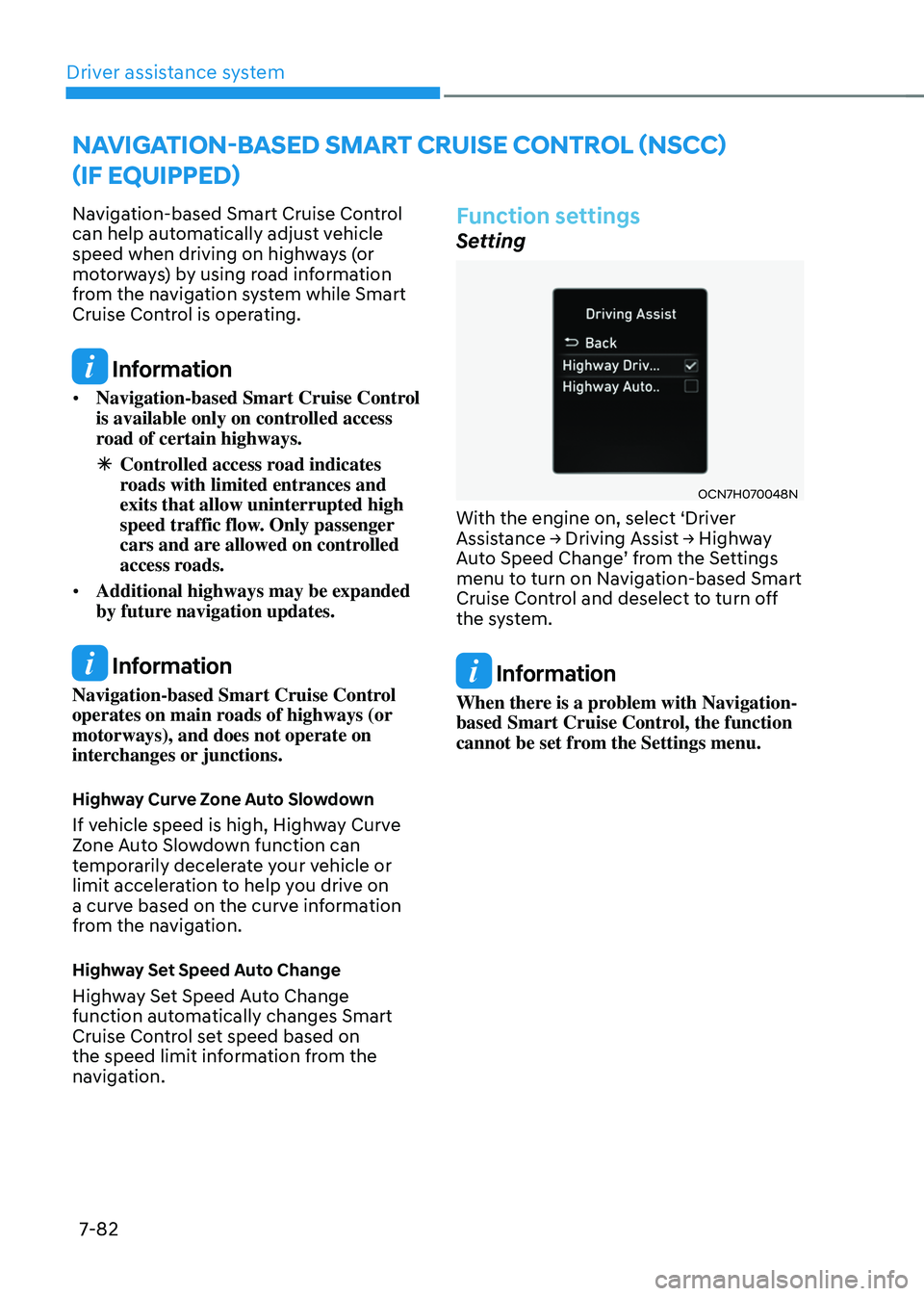
OCN7H070048N
With the engine on, select ‘Driver Assistance → Driving Assist → Highway Auto Speed Change’ from the Settings menu to turn on Navigation-based Smart
Cruise Control and deselect to turn off
the system.
Information
When there is a problem with Navigation-
based Smart Cruise Control, the function
cannot be set from the Settings menu.
NAVIGATION-BASED SMART CRUISE CONTROL (NSCC)
(IF EQUIPPED)
Page 409 of 555
Driver assistance system
7-88
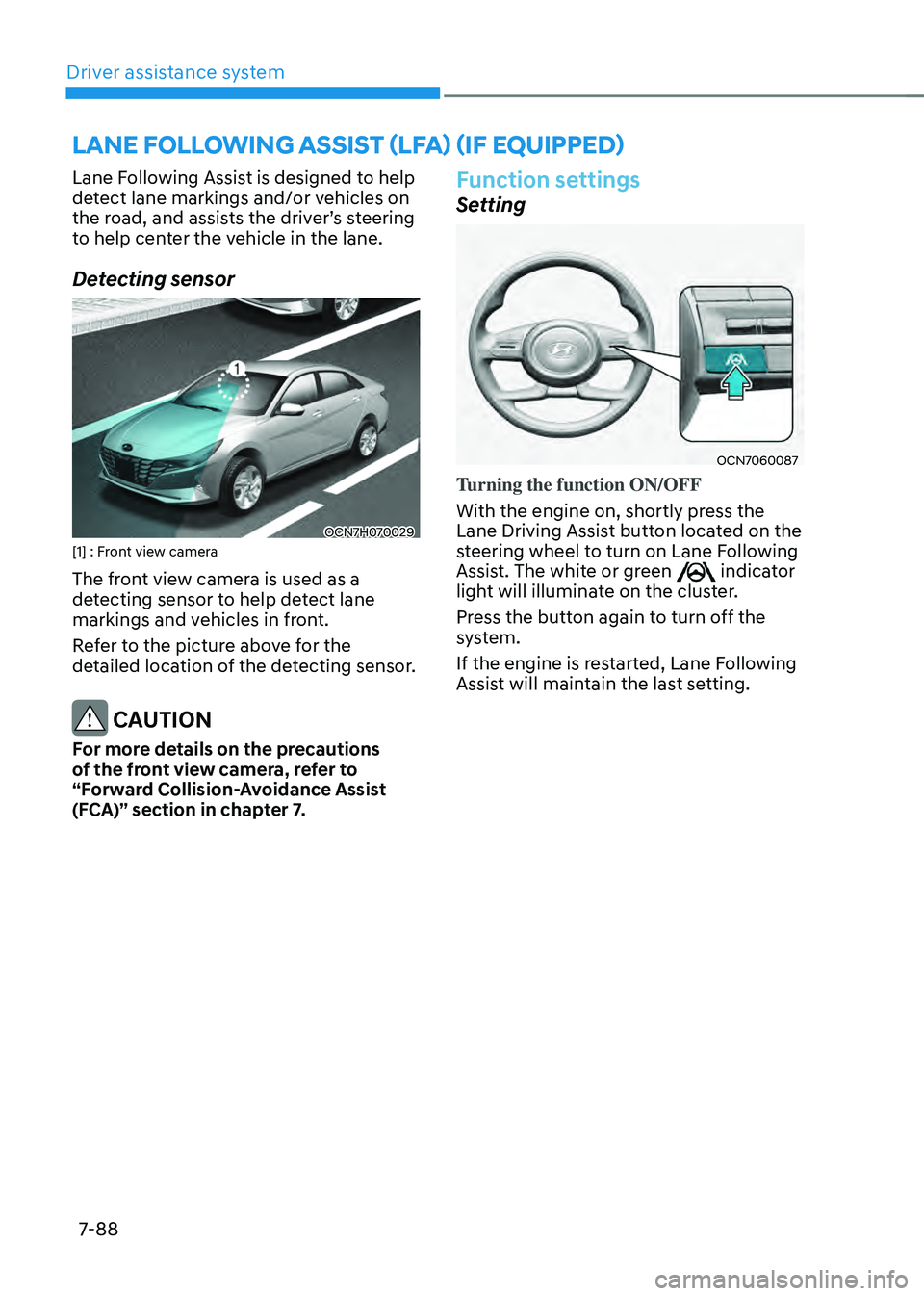
Lane Following Assist is designed to help
detect lane markings and/or vehicles on
the road, and assists the driver’s steering to help center the vehicle in the lane.
Detecting sensor
OCN7H070029[1] : Front view camera
The front view camera is used as a
detecting sensor to help detect lane
markings and vehicles in front.
Refer to the picture above for the
detailed location of the detecting sensor.
CAUTION
For more details on the precautions
of the front view camera, refer to
“Forward Collision-Avoidance Assist
(FCA)” section in chapter 7.
Function settings
Setting
OCN7060087
Turning the function ON/OFF
With the engine on, shortly press the
Lane Driving Assist button located on the
steering wheel to turn on Lane Following
Assist. The white or green
indicator light will illuminate on the cluster.
Press the button again to turn off the
system.
If the engine is restarted, Lane Following
Assist will maintain the last setting.
LANE FOLLOWING ASSIST (LFA) (IF EQUIPPED)
Page 410 of 555
07
7-89
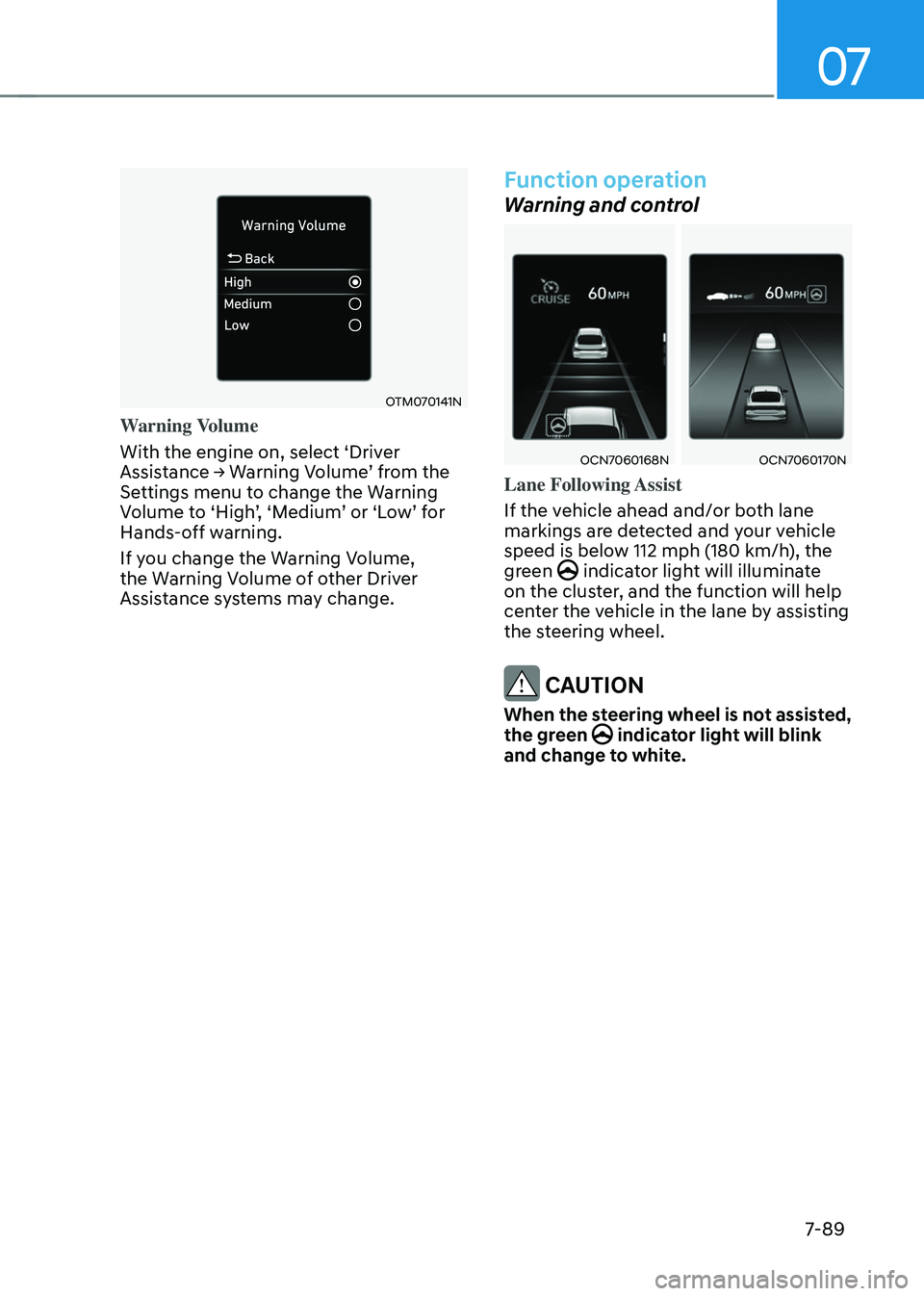
OTM070141N
Warning Volume
With the engine on, select ‘Driver
Assistance → Warning Volume’ from the Settings menu to change the Warning Volume to ‘High’, ‘Medium’ or ‘Low’ for Hands-off warning.
If you change the Warning Volume,
the Warning Volume of other Driver
Assistance systems may change.
Function operation
Warning and control
OCN7060168NOCN7060170N
Lane Following Assist
If the vehicle ahead and/or both lane
markings are detected and your vehicle
speed is below 112 mph (180 km/h), the
green
indicator light will illuminate on the cluster, and the function will help
center the vehicle in the lane by assisting
the steering wheel.
CAUTION
When the steering wheel is not assisted,
the green indicator light will blink and change to white.