trunk HYUNDAI ELANTRA HYBRID 2021 User Guide
[x] Cancel search | Manufacturer: HYUNDAI, Model Year: 2021, Model line: ELANTRA HYBRID, Model: HYUNDAI ELANTRA HYBRID 2021Pages: 555, PDF Size: 56.08 MB
Page 158 of 555
05
5-5
Trunk unlocking
To unlock the trunk :
1. Press and hold the Trunk Unlock
button (3) on the remote key for more
than one second.
2. The hazard warning lights will blink
two times and the trunk will be
unlocked.
3. Once the trunk is opened and then
closed, the trunk will automatically
lock.
Information
The word “HOLD” is written on the
button to inform you that you must press
and hold the button for more than one
second.
Panic button
Press and hold the Panic button (4) for
more than one second. The horn sounds
and hazard warning lights flash for about
30 seconds.
To cancel the panic mode, press any
button on the remote key.
Start-up
For information, refer to the “Key
Ignition Switch” section in chapter 6.
NOTICE
To prevent damaging the remote key:
• Keep the remote key away from
water or any liquid and fire. Internal
circuits may malfunction if the inside
of the remote key gets damp (from
liquids or moisture) or if it is heated.
This can exclude the remote key from
being covered under warranty.
• Avoid dropping or throwing the
remote key.
• Protect the remote key from extreme
temperatures.
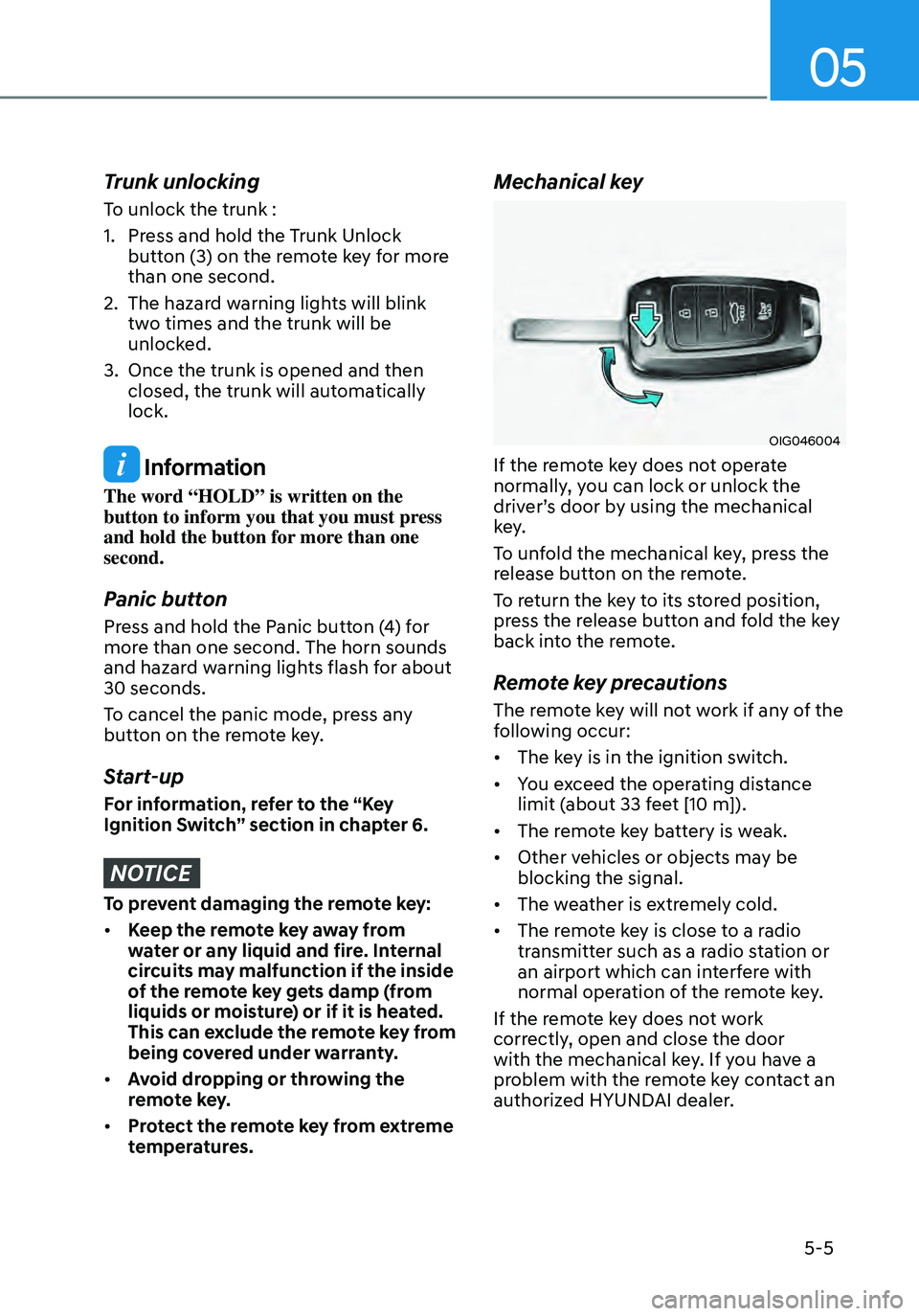
Mechanical key
OIG046004
If the remote key does not operate
normally, you can lock or unlock the
driver’s door by using the mechanical
key.
To unfold the mechanical key, press the
release button on the remote.
To return the key to its stored position,
press the release button and fold the key
back into the remote.
Remote key precautions
The remote key will not work if any of the
following occur:
• The key is in the ignition switch.
• You exceed the operating distance
limit (about 33 feet [10 m]).
• The remote key battery is weak.
• Other vehicles or objects may be
blocking the signal.
• The weather is extremely cold.
• The remote key is close to a radio
transmitter such as a radio station or
an airport which can interfere with
normal operation of the remote key.
If the remote key does not work
correctly, open and close the door
with the mechanical key. If you have a
problem with the remote key contact an
authorized HYUNDAI dealer.
Page 160 of 555
05
5 -7
Smart Key (if equipped)
„„Type A
OCN7050004
„„Type B
OCN7050005
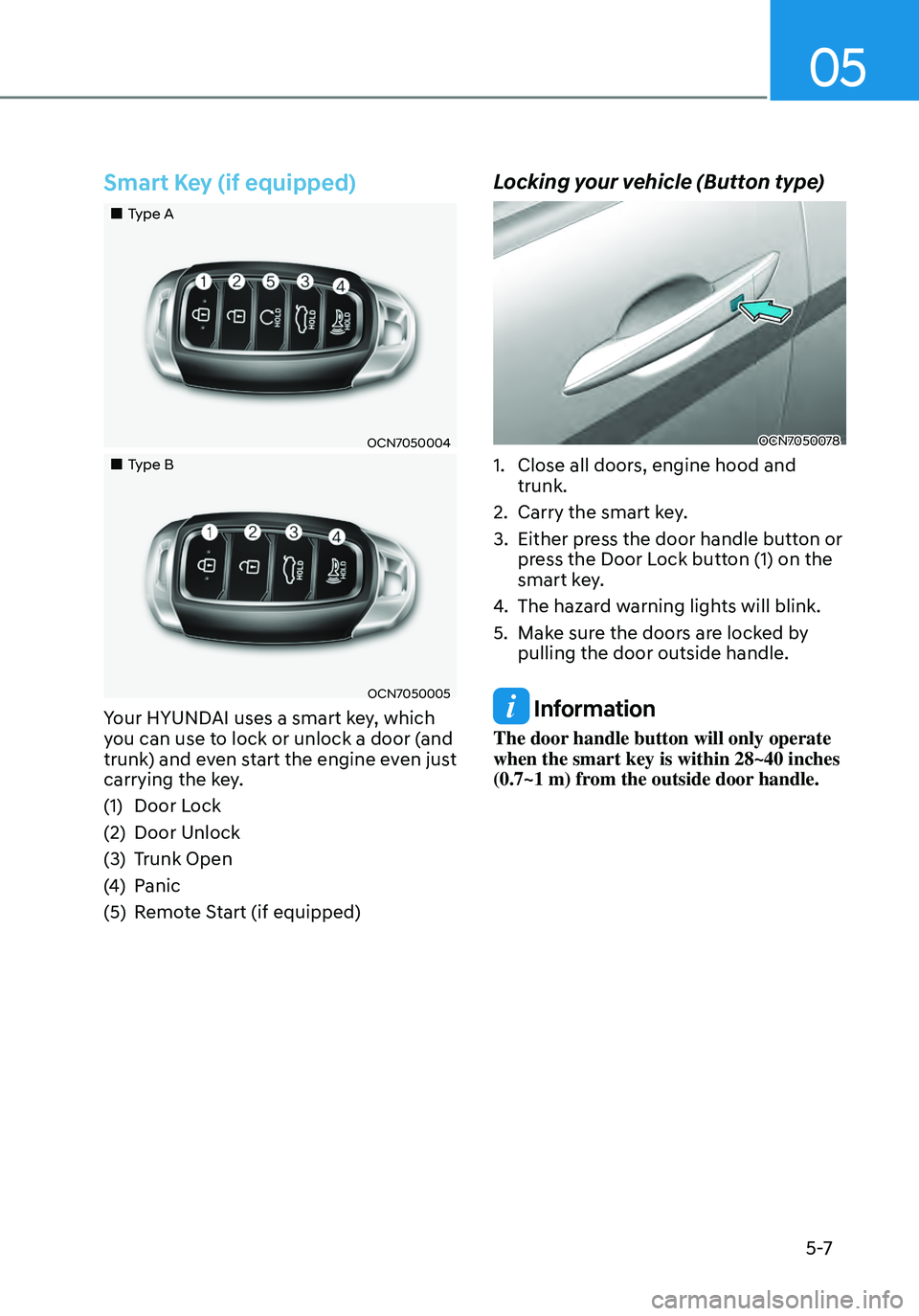
Your HYUNDAI uses a smart key, which
you can use to lock or unlock a door (and
trunk) and even start the engine even just
carrying the key.
(1) Door Lock
(2) Door Unlock
(3) Trunk Open
(4) Panic
(5) Remote Start (if equipped)
Locking your vehicle (Button type)
OCN7050078
1. Close all doors, engine hood and
trunk.
2. Carry the smart key.
3. Either press the door handle button or
press the Door Lock button (1) on the
smart key.
4. The hazard warning lights will blink.
5. Make sure the doors are locked by
pulling the door outside handle.
Information
The door handle button will only operate
when the smart key is within 28~40 inches
(0.7~1 m) from the outside door handle.
Page 161 of 555
Convenient Features
5-8
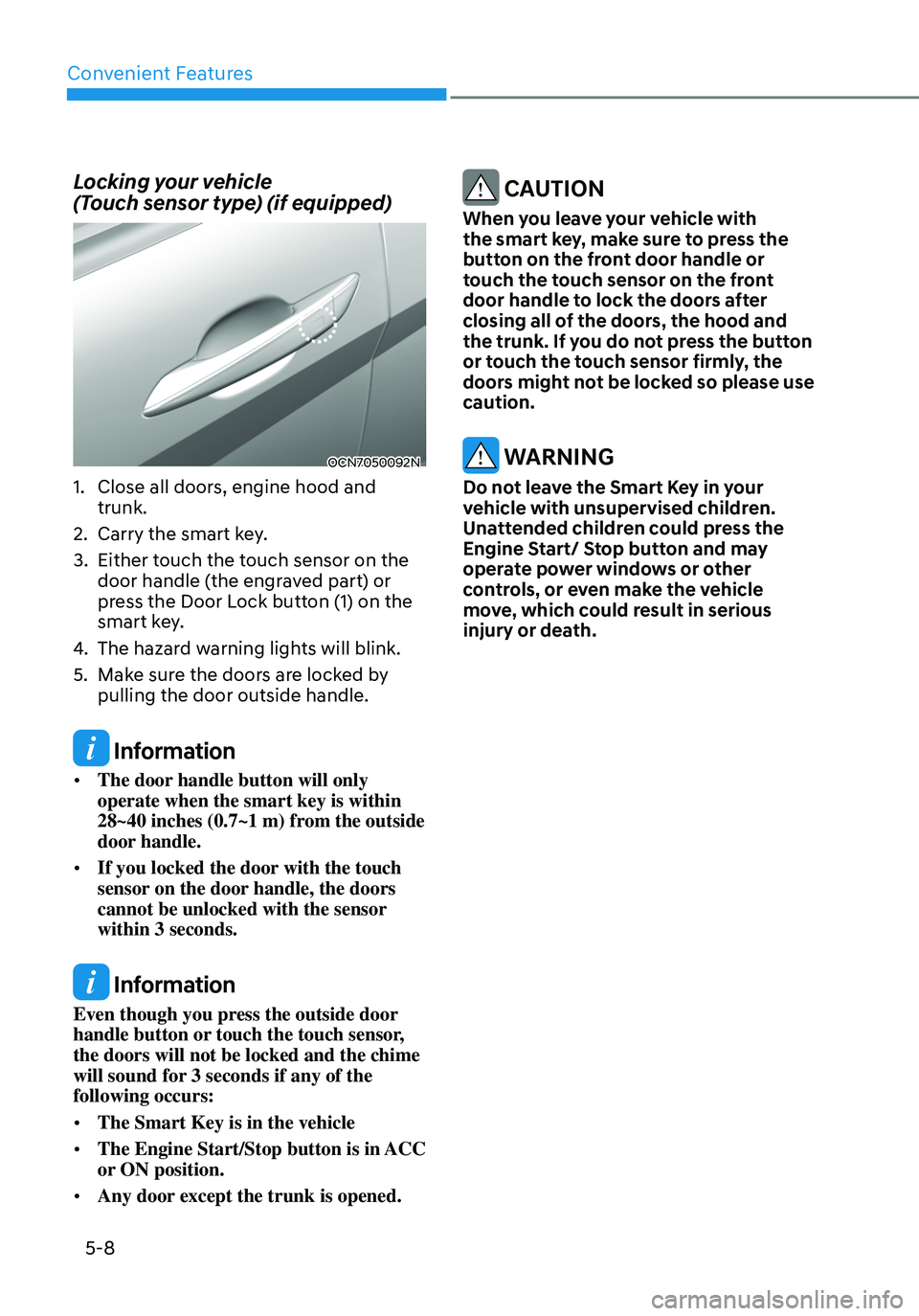
Locking your vehicle
(Touch sensor type) (if equipped)
OCN7050092N
1. Close all doors, engine hood and
trunk.
2. Carry the smart key.
3. Either touch the touch sensor on the
door handle (the engraved part) or
press the Door Lock button (1) on the
smart key.
4. The hazard warning lights will blink.
5. Make sure the doors are locked by
pulling the door outside handle.
Information
• The door handle button will only
operate when the smart key is within
28~40 inches (0.7~1 m) from the outside
door handle.
• If you locked the door with the touch
sensor on the door handle, the doors
cannot be unlocked with the sensor
within 3 seconds.
Information
Even though you press the outside door
handle button or touch the touch sensor,
the doors will not be locked and the chime
will sound for 3 seconds if any of the
following occurs:
• The Smart Key is in the vehicle
• The Engine Start/Stop button is in ACC
or ON position.
• Any door except the trunk is opened.
CAUTION
When you leave your vehicle with
the smart key, make sure to press the
button on the front door handle or
touch the touch sensor on the front
door handle to lock the doors after
closing all of the doors, the hood and
the trunk. If you do not press the button
or touch the touch sensor firmly, the
doors might not be locked so please use
caution.
WARNING
Do not leave the Smart Key in your
vehicle with unsupervised children.
Unattended children could press the
Engine Start/ Stop button and may
operate power windows or other
controls, or even make the vehicle
move, which could result in serious
injury or death.
Page 163 of 555
Convenient Features
5-10
Two Press Unlock Feature
The priority for unlocking the driver door
only, or unlocking all the doors with
one press may be adjusted in the User
Settings mode in the cluster LCD display.
The Two Press Unlock feature, when
enabled, will require the user to press
the door unlock button once for driver
door only and twice for unlocking all the
doors.
Select or Deselect the Two Press Unlock
feature in the User Settings mode in the
cluster LCD display. The option can be
found under the following menu:
User Settings → Door → Two Press Unlock
Information
If you press the front passenger outside
door handle with the smart key in your
possession, all the doors will unlock.
Trunk opening
To open:
1. Make sure you have the smart key
in your possession and either press
inside the trunk emblem or press the
Trunk Unlock button (3) on the smart
key for more than one second.
2. Once the trunk is opened, the hazard
warning lights will blink two times.
• The trunk handle button will only
operate when the smart key is within
28~40 inches (0.7 ~1 m) from the trunk
handle.
• Once the trunk is opened and then
closed, the trunk will automatically
lock.
Panic button
Press and hold the Panic button (4) for
more than one second. The horn sounds
and hazard warning lights flash for about
30 seconds. To cancel the panic mode,
press any button on the smart key.
Page 164 of 555
05
5-11
Remote start (if equipped)
You can start the engine and turn on the
climate system by pressing the remote
start button (5) outside the vehicle.
To start and stop engine remotely :
1. Press the door lock button (1), and
then the hazard warning lights blink
once to alert you.
2. Press the Remote Start button (5)
for more than 2 seconds to start the
engine within 4 seconds after pressing
the door lock button (1).
3. If you want to stop the engine, press
the Remote Start button (5) again.
In case of the manual operation,
the climate control system will be
maintained even when the engine is
turned OFF. However, the automatic
operation is set to 72°F (22°C).
If someone without a designated smart
key attempts to drive your vehicle after
you remotely started it, the engine will
be stopped.
Information
After remotely starting the vehicle, the
engine will turn off after 10 minutes if the
vehicle is not driven.
CAUTION
• The remote start will not work if you
exceed the operating distance limit
(about 10 m).
• Avoid idling the engine for prolonged
periods to follow the emission
regulations in your locality.
• Laws in your locality may restrict the
use of remote start. You should check
locality regulations before using this
remote starting system.
• It is only possible to start the engine
remotely when shifted to P (Park).
• If the hood or the trunk is opened,
you cannot start the engine
remotely.
Information
If the smart key is not moved for some
time, the detection function for smart key
operation will pause. Lift the smart key to
activate the detection again.
Page 171 of 555
Convenient Features
5-18
Set up main vehicle
You can manage multiple digital keys
from the Digital key app. From the list of
digital keys you own, select the vehicle
you want to make your priority vehicle.
For more information, please refer to
the ‘Tutorial’ on your Digital key app.
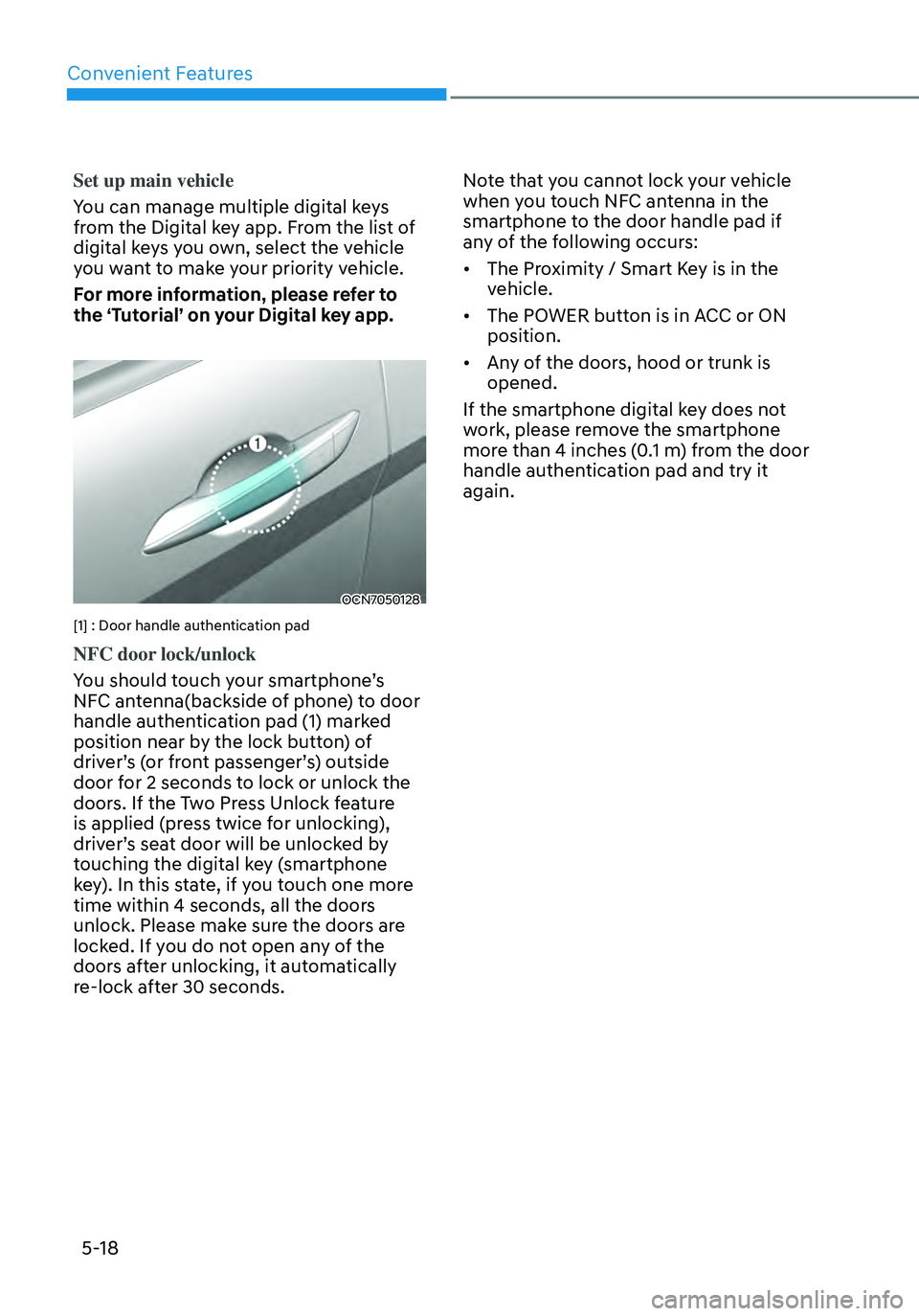
OCN7050128
[1] : Door handle authentication pad
NFC door lock/unlock
You should touch your smartphone’s
NFC antenna(backside of phone) to door
handle authentication pad (1) marked
position near by the lock button) of
driver’s (or front passenger’s) outside
door for 2 seconds to lock or unlock the
doors. If the Two Press Unlock feature
is applied (press twice for unlocking),
driver’s seat door will be unlocked by
touching the digital key (smartphone
key). In this state, if you touch one more
time within 4 seconds, all the doors
unlock. Please make sure the doors are
locked. If you do not open any of the
doors after unlocking, it automatically
re-lock after 30 seconds.Note that you cannot lock your vehicle
when you touch NFC antenna in the
smartphone to the door handle pad if
any of the following occurs:
•
The Proximity / Smart Key is in the
vehicle.
• The POWER button is in ACC or ON
position.
• Any of the doors, hood or trunk is
opened.
If the smartphone digital key does not
work, please remove the smartphone
more than 4 inches (0.1 m) from the door
handle authentication pad and try it
again.
Page 173 of 555
Convenient Features
5-20
Remote Control with Digital Key
To use the remote control function with
your android smartphone, Bluetooth
must be turned on.
Remote Control Connection with Digital
Key
1. Open Hyundai digital key application
on the smartphone. Select the
vehicle to activate the remote control
function as a main vehicle.
2. Approach with the activated
smartphone app to your vehicle
and you can check whether the
connection is available. If it enables
your smartphone to connect, connect
with your vehicle by pressing the
connect button. The remote control
function is activated after completing
the process.
Remote Control Operation with Digital
Key
You can execute the remote control
operation including door lock/unlock,
panic on/off, remote start / remote
stop and trunk opening. The icon for
each function will be highlighted and
alarm/vibration also provided when the
operation is performed.
Note that you cannot lock your vehicle
using the Hyundai digital key app if any
of the following occurs:
• The POWER button is in ACC or ON
position.
• Any doors are open.
When the smartphone and the vehicle
are connected by the Bluetooth function
but the remote control command
cannot be received over 5 minutes, the
remote control connection is cancelled
automatically.
CAUTION
• If metallic window tint was applied
to your vehicle, it may cause
bad Bluetooth connection or
performance degradation of the
digital key.
• If multiple users operate the remote
control function simultaneously, the
connection between the digital key
and the vehicle might result in failed
commands. Please connect and
operate the remote control function
only with the necessary user.
• When using the remote control
operation, the driver (the remote
control user) should leave the vehicle
after confirming the door lock (the
chime sounds once and the hazard
warning lights blink).
• The remote functions of the Digital
Key app enables the vehicle to be
controlled from a set distance. If
the digital key or the vehicle goes
beyond the operable distance, the
remote control function might be
disconnected or cancelled.
• If the digital key (smartphone) is
connected with the vehicle for the
remote control, the driver with the
key goes far away from the vehicle,
the function might not work.
• If the remote control operation
is executed where the mobile
connection is weak, Bluetooth
connection is poor due to several
Bluetooth devices or there is an
object such as metal or concrete, it
might be delayed or the operable
distance might decrease. You should
not cover the smartphone with your
hand or place other devices which
can cause frequency interference. It
may result in poor performance.
• If the remote control function is not
available, please use NFC function to
lock or unlock the doors.
Page 174 of 555
05
5-21
Remote Start with Digital Key
• When the shift lever of your vehicle
is in P (Park) and all of the doors
including trunk and hood is locked
and the vehicle is off, press the Door
Lock button in the Hyundai Digital
Key app then press the Remote Start
button within 4 seconds.
You can confirm the engine is on if the
hazard warning lights blinks two times
and the chime sounds.
• If you want to turn off the engine,
press Remote Engine Stop. Air
Conditioner / Heating system
maintains the same status as when
you last used the vehicle.
• Unless you put the registered digital
key(smartphone) on the interior
authentication pad (wireless charger)
when the remote start function is on,
the engine will turn off.
• If you do not get into the vehicle
within 10 minutes after the engine
turns on, the vehicle will turn off.
For more information, refer to the Engine
Start/Stop button in chapter 6.
Vehicle information Display
The digital key application displays
the vehicle information such as
driving or door conditions through the
communication with the vehicle.
• How to check : Select the vehicle
what you want to check and touch
the vehicle image, then vehicle
information display page will be
shown.
• Contents : accumulated odometer,
latest fuel economy, driving range,
fuel remaining, tire pressure, doors
lock/unlock status and last data
updated time.
ÃDisplayed vehicle data could be
differed from the current vehicle
condition.
ÃFor more information, please refer to
the ‘Tutorial’ on your Digital key app. Smartphone change/App deletion
If you change your smartphone or delete
the Hyundai Digital Key App, please refer
to the following to set up your Digital
Key:
Smartphone Change/ Reset
If you change or reset the smartphone,
the registered digital key in your previous
smartphone may not be used. Please
refer to following procedure to use the
digital key.
1. Install the digital key application and
log in.
2. If you are the owner, retry the Digital
key save process.
3. If you are the sharer, need to re-share
the key from owner.
App delete & reinstall/ Delete App data
You can re-download the digital key from
the server and follow these procedures.
1. Reinstall the application and log in.
2. Input the PIN number for user
verification.
3. If PIN is correct, digital key data
will be re-downloaded to your
smartphone and you can use it
without any further registration or
sharing.
Smartphone operability with Digital Key
The digital key application may not be
available to older type smartphones.
Please check the available smartphone
models with your dealer. NFC antenna
position on the smartphone can be
confirmed on each smartphone’s manual
or contact to customer service center of
the smartphone manufacturer.
Page 178 of 555
05
5-25
• To delete the saved digital key (card
key), the smart key must be inside the
vehicle.
• The deleted digital key (card key) can
be re-registered before registering a
new digital key (card key).
• If you register a new digital key (card
key), the previously registered digital
key (card key) cannot be used again.
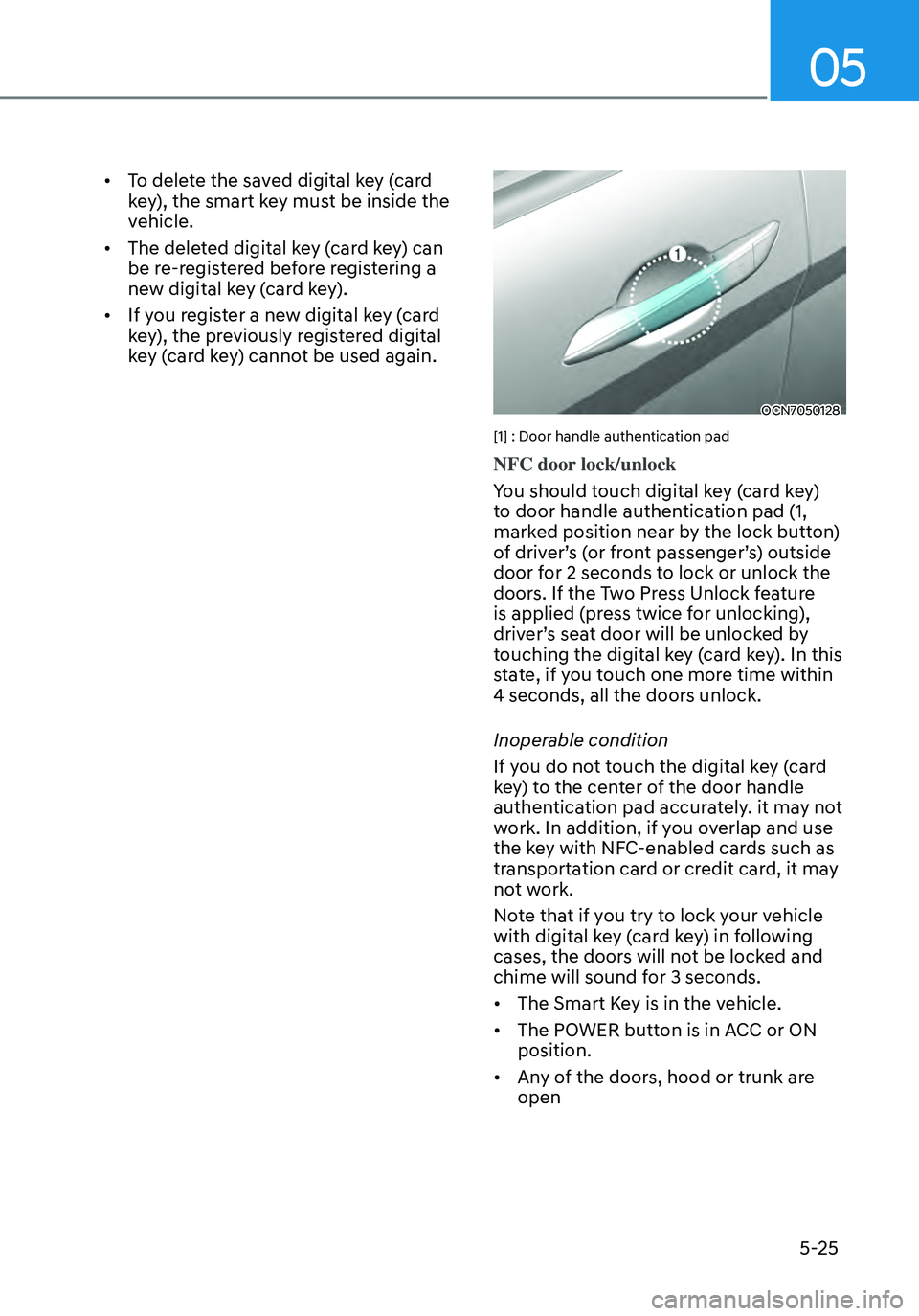
OCN7050128
[1] : Door handle authentication pad
NFC door lock/unlock
You should touch digital key (card key)
to door handle authentication pad (1,
marked position near by the lock button)
of driver’s (or front passenger’s) outside
door for 2 seconds to lock or unlock the
doors. If the Two Press Unlock feature
is applied (press twice for unlocking),
driver’s seat door will be unlocked by
touching the digital key (card key). In this
state, if you touch one more time within
4 seconds, all the doors unlock.
Inoperable condition
If you do not touch the digital key (card
key) to the center of the door handle
authentication pad accurately. it may not
work. In addition, if you overlap and use
the key with NFC-enabled cards such as
transportation card or credit card, it may
not work.
Note that if you try to lock your vehicle
with digital key (card key) in following
cases, the doors will not be locked and
chime will sound for 3 seconds.
• The Smart Key is in the vehicle.
• The POWER button is in ACC or ON
position.
• Any of the doors, hood or trunk are
open
Page 190 of 555
05
5-37
THEFT-ALARM SYSTEM
This system helps to protect your vehicle
and valuables. The horn will sound and
the hazard warning lights will blink
continuously if any of the following
occur:
-A door is opened without using the
remote key or smart key.
-The trunk is opened without using the
remote key or smart key.
-The engine hood is opened.
The alarm continues for 30 seconds, then
the system resets. To turn off the alarm,
unlock the doors with the remote key or
smart key.
The Theft Alarm System automatically
sets 30 seconds after you lock the doors
and the trunk. For the system to activate,
you must lock the doors and the trunk
from outside the vehicle with the remote
key or smart key or by pressing the
button on the outside of the door handle
with the smart key in your possession.
The hazard warning lights will blink and
the chime will sound once to indicate the
system is armed.
Once the security system is set, opening
any door, the trunk, or the hood without
using the remote key or smart key will
cause the alarm to activate.
The Theft Alarm System will not set if the
hood, the trunk, or any door is not fully
closed. If the system will not set, check
the hood, the trunk, or the doors are fully
closed.
Do not attempt to alter this system or
add other devices to it.
Information
• Do not lock the doors until all
passengers have left the vehicle. If the
remaining passenger leaves the vehicle
when the system is armed, the alarm
will be activated.
• If the vehicle is not disarmed with the
remote key or smart key, open the
doors by using the mechanical key and
place the ignition switch in the ON
position (for remote key) or start the
engine (for smart key) and wait for 30
seconds.
• When the system is disarmed but a
door or trunk is not opened within 30
seconds, the system will be rearmed.