key HYUNDAI ELANTRA SE 2017 Owner's Guide
[x] Cancel search | Manufacturer: HYUNDAI, Model Year: 2017, Model line: ELANTRA SE, Model: HYUNDAI ELANTRA SE 2017Pages: 586, PDF Size: 15.29 MB
Page 207 of 586
3-113
Convenient features of your vehicle
3
Onetouch turn signal function
To activate the One Touch Turn
Signal function, push the turn signal
lever up or down to position (B) and
then release it.
The lane change signals will blink 3,
5 or 7 times.
You can activate or deactivate the
One Touch Turn Signal function or
choose the number of blinking (3, 5,
or 7) from the User Settings Mode
(Light) on the LCD display.
For more information, refer to the
"LCD Display" section in this
chapter.
Battery saver function
The purpose of this feature is to pre-
vent the battery from being dis-
charged. The system automatically
turns off the parking lamp when the
key is removed (remote key) or when
the driver turns the engine off (smart
key) and opens the driver-side door.
With this feature, the parking lamps
will turn off automatically if the driver
parks on the side of road at night.
If necessary, to keep the lamps on
when the engine is turned off, perform
the following:
1) Open the driver-side door.
2) Turn the parking lamps OFF andON again using the light switch on
the steering column.
Headlamp delay function (if equipped)
If the key is removed from the ignition
switch or placed in the ACC position
or the LOCK/OFF position with the
headlamps ON, the headlamps
(and/or parking lamps) remain on for
about 5 minutes. However, if the dri-
ver’s door is opened and closed, the
headlights are turned off after 15
seconds. Also, with the engine off if
the driver's door is opened and
closed, the headlamps (and/or park-
ing lamps) are turned off after 15
seconds.
The headlamps (and/or parking
lamps) can be turned off by pressing
the lock button on the remote key or
smart key twice or turning the light
switch to the OFF or AUTO position.
You can activate or deactivate the
Headlamp Delay function from the
User Settings Mode (Light) on the
LCD display.
For more information, refer to the
"LCD Display" section in this
chapter.
Page 209 of 586
3-115
Convenient features of your vehicle
3
Interior Lights
Do not use the interior lights for
extended periods when the engine
is turned off or the battery will dis-
charge.
Interior lamp AUTO cut
The interior lamps will automatically
go off approximately 20 minutes after
the engine is turned off and the
doors closed. If a door is opened, the
lamp will go off 40 minutes after the
engine is turned off. If the doors are
locked by the remote key or smart
key and the vehicle enters the armed
stage of the theft alarm system, the
lamps will go off five seconds later.
Front lamps
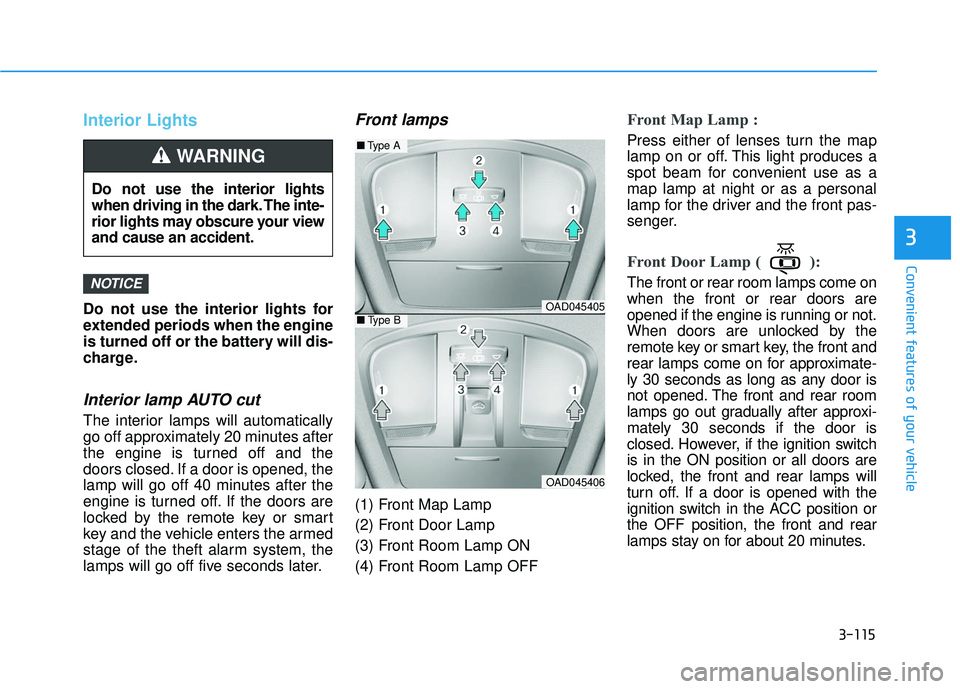
(1) Front Map Lamp
(2) Front Door Lamp
(3) Front Room Lamp ON
(4) Front Room Lamp OFF
Front Map Lamp :
Press either of lenses turn the map
lamp on or off. This light produces a
spot beam for convenient use as a
map lamp at night or as a personal
lamp for the driver and the front pas-
senger.
Front Door Lamp ( ):
The front or rear room lamps come on
when the front or rear doors are
opened if the engine is running or not.
When doors are unlocked by the
remote key or smart key, the front and
rear lamps come on for approximate-
ly 30 seconds as long as any door is
not opened. The front and rear room
lamps go out gradually after approxi-
mately 30 seconds if the door is
closed. However, if the ignition switch
is in the ON position or all doors are
locked, the front and rear lamps will
turn off. If a door is opened with the
ignition switch in the ACC position or
the OFF position, the front and rear
lamps stay on for about 20 minutes.NOTICE
Do not use the interior lights
when driving in the dark. The inte-
rior lights may obscure your view
and cause an accident.
WARNING
OAD045405
OAD045406
■Type A
■Type B
Page 211 of 586
3-117
Convenient features of your vehicle
3
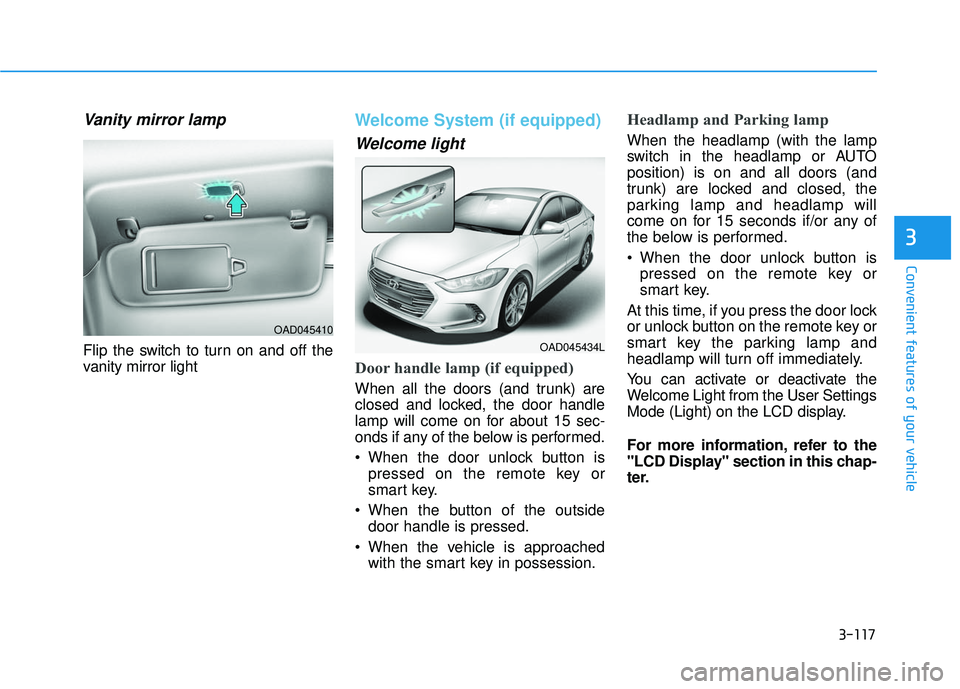
Vanity mirror lamp
Flip the switch to turn on and off the
vanity mirror light
Welcome System (if equipped)
Welcome light
Door handle lamp (if equipped)
When all the doors (and trunk) are
closed and locked, the door handle
lamp will come on for about 15 sec-
onds if any of the below is performed.
When the door unlock button ispressed on the remote key or
smart key.
When the button of the outside door handle is pressed.
When the vehicle is approached with the smart key in possession.
Headlamp and Parking lamp
When the headlamp (with the lamp
switch in the headlamp or AUTO
position) is on and all doors (and
trunk) are locked and closed, the
parking lamp and headlamp will
come on for 15 seconds if/or any of
the below is performed.
When the door unlock button ispressed on the remote key or
smart key.
At this time, if you press the door lock
or unlock button on the remote key or
smart key the parking lamp and
headlamp will turn off immediately.
You can activate or deactivate the
Welcome Light from the User Settings
Mode (Light) on the LCD display.
For more information, refer to the
"LCD Display" section in this chap-
ter.
OAD045410
OAD045434L
Page 212 of 586
3-118
Convenient features of your vehicle
Interior lamp
When the interior lamp switch is in
the DOOR position and all doors (and
trunk) are closed and locked, the
room lamp will come on for 30 sec-
onds if any of the below is performed.
When the door unlock button ispressed on the remote key or
smart key.
When the button of the outside door handle is pressed.
At this time, if you press the door lock
or unlock button on the remote key or
smart key the room lamp will turn off
immediately.
Page 265 of 586
(Continued)
• Avoid use of USB mem-ory products that can
also be used as key
chains or mobile phone
accessories. Use of such products
may cause damage to the USB jack.
• Connecting an MP3 device or phone through various channels, such as
AUX/BT or Audio/ USB mode may
result in pop noises or abnormal
operation.Information - Using theiPod®device
• iPod
®is a registered trademark of
Apple Inc.
• In order to use the iPod
®while oper-
ating the keys, you must use a dedi-
cated iPod
®cable. (the cable that is
supplied when purchasing iPod®
/iPhone®products)
• If the iPod
®is connected to the vehi-
cle while it is playing, a high pitch
sound could occur for approximate-
ly 1-2 seconds immediately after
connecting. If possible, connect the
iPod to the vehicle with the iPod
®
stopped/ paused.
• During ACC ON state, connecting the iPod
®through the iPod®cable
will charge the iPod®through the
car audio system.
• When connecting with the iPod
®
cable, make sure to fully insert the
jack to prevent communication
interference. (Continued)(Continued)
• When the EQ features of an exter-
nal device, such as the iPod
®, and
the audio system are both active, EQ
effects could overlap and cause
sound deterioration and distortion.
Whenever possible, turn off the EQ
feature within the external device
upon use by connecting with the
audio system.
• Noise may occur when an iPod
®or
AUX device is connected. When
such devices are not being used, dis-
connect the device for storage.
• When the iPod
®or AUX device
power is connected to the power
jack, playing the external device
may result in noise. In such cases,
disconnect the power connection
before use.
• Skipping or improper operation may occur depending on the charac-
teristics of your iPod
® /Phone®
device.
(Continued)
i
4-13
Multimedia System
4
Page 268 of 586
(Continued)
• Park the vehicle when connectingthe head unit with the mobile phone.
• Bluetooth
®connection may become
intermittently disconnected in some
mobile phones. Follow these steps to
try again.
1. Within the mobile phone, turn the Bluetooth
®function off/on and try
again.
2. Turn the mobile phone power Off/On and try again.
3. Completely remove the mobile phone battery, reboot, and then
again.
4. Reboot the Audio System and try again.
5. Delete all paired devices, pair and try again.
• Handsfree call quality and volume may differ depending on the model
of your mobile phone.
Information - Using the voicerecognition
• When using the voice recognition feature, only commands listed with-
in the user's manual are supported.
• Be aware that during the operation of the voice recognition system,
pressing any key other than the
key terminate the voice recognition
mode.
• For superior voice recognition per- formance, position the microphone
used for voice recognition above the
head of the driver’s seat and main-
tain a proper position when saying
commands.
• Within the following situations, voice recognition may not function
properly due to external sound.
- When the windows and sunroofare open
- When the wind of the cooling / heating device is strong
- When entering and passing through tunnels
(Continued)(Continued)
- When driving on rugged anduneven roads
- During severe rain (heavy rains, windstorms)
• Phone related voice commands can be used only when a Bluetooth
®
Wireless Technology device is con-
nected.
• When making calls by stating a name, the corresponding contact
must be downloaded and stored
within the audio system.
• After downloading the Bluetooth
®
Wireless Technology phone book, it
takes some times to convert the
phone book data into voice informa-
tion. During this time, voice recogni-
tion may not properly operate.
• Pronounce the voice commands nat- urally and clearly as if in a normal
conversation.
i
4-16
Multimedia System
Page 281 of 586
4-29
Multimedia System
4
(Continued)
• Some USB flash memory readers(such as CF, SD, micro SD, etc.) or
external-HDD type devices can be
unrecognizable.
• Music files protected by DRM (DIGI- TAL RIGHTS MANAGEMENT) are
not recognizable.
• The data in the USB memory may be lost while using this audio.
Always back up important data on a
personal storage device.
• Please avoid using USB memory products which
can be used as key
chains or cellular phone
accessories as they could cause dam-
age to the USB jack. Please make
certain only to use plug type connec-
tor products.Information
- Using iPod®Device
iPod
®is a registered trademark of
Apple inc.
• Some iPod
®models may not sup-
port communication protocol and
files may not play properly.
Supported iPod
®models :
- iPhone
®3GS/4
- iPod
®touch 1st~4th generation
- iPod
®nano 1st~6th generation
- iPod
®classic
• The order of search or playback of songs in the iPod
®can be different
from the order searched in the audio
system.
• If the iPod
®is disabled due to its
own malfunction, reset the iPod®.
(Reset: Refer to iPod®manual)
• An iPod
®may not operate normally
on low battery.
(Continued)(Continued)
• Some iPod
®devices, such as the
iPhone®, can be connected through
the Bluetooth®Wireless Technology
interface. The device must have
audio Bluetooth
®Wireless Technology
capability (such as for stereo head-
phone Bluetooth
®Wireless Technology).
The device can play, but it will not
be controlled by the audio system.
• To use iPod
®features within the
audio mode, use the cable with
iPod
®device.
• Skipping or improper operation may occur depending on the charac-
teristics of your iPod
®/iPhone®
device.
• If your iPhone
®is connected to both
the Bluetooth®Wireless Technology
and USB, only iPod®mode will be
supported during Bluetooth®Audio
treaming. To use Bluetooth®Audio
Streaming, disconnect iPod®/iPhone®
cable.
(Continued)
i
Page 297 of 586
4-45
Multimedia System
4
Phone Mode (if equipped)
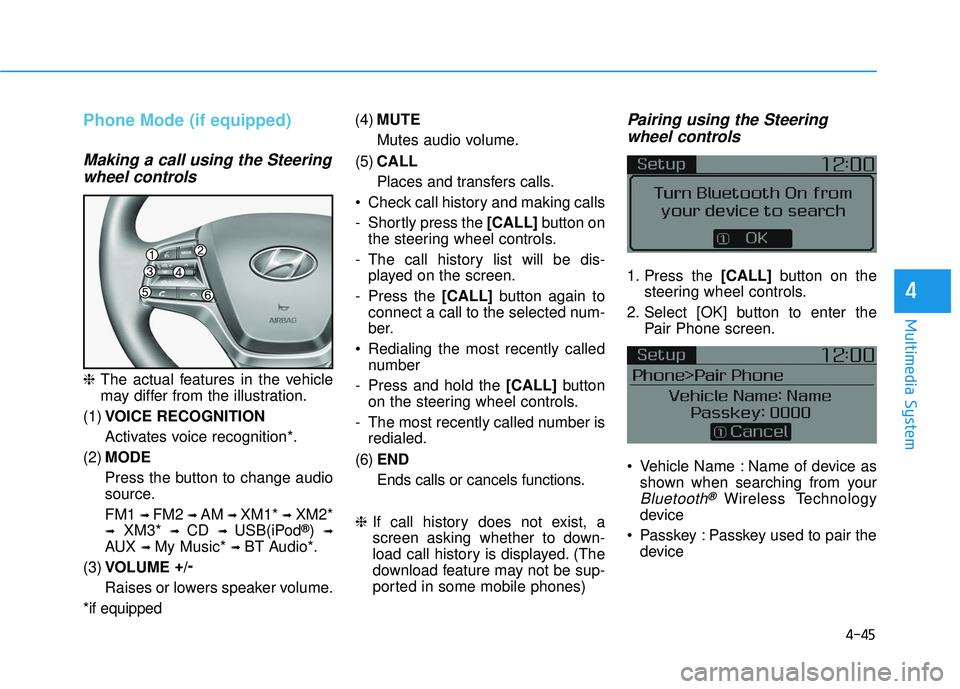
Making a call using the Steeringwheel controls
❈ The actual features in the vehicle
may differ from the illustration.
(1) VOICE RECOGNITION
Activates voice recognition*.
(2) MODE
Press the button to change audio
source.
FM1
➟ FM2 ➟ AM ➟ XM1*➟XM2*
➟XM3*➟ CD ➟ USB(iPod®) ➟
AUX ➟ My Music*➟ BT Audio*.
(3) VOLUME +
/-
Raises or lowers speaker volume.
*if equipped (4)
MUTE
Mutes audio volume.
(5) CALL
Places and transfers calls.
Check call history and making calls
- Shortly press the [CALL] button on
the steering wheel controls.
- The call history list will be dis- played on the screen.
- Press the [CALL] button again to
connect a call to the selected num-
ber.
Redialing the most recently called number
- Press and hold the [CALL] button
on the steering wheel controls.
- The most recently called number is redialed.
(6) END
Ends calls or cancels functions.
❈ If call history does not exist, a
screen asking whether to down-
load call history is displayed. (The
download feature may not be sup-
ported in some mobile phones)
Pairing using the Steering wheel controls
1. Press the [CALL] button on the
steering wheel controls.
2. Select [OK] button to enter the Pair Phone screen.
Vehicle Name : Name of device as shown when searching from your
Bluetooth®Wireless Technology
device
Passkey : Passkey used to pair the device
Page 298 of 586
4-46
Multimedia System
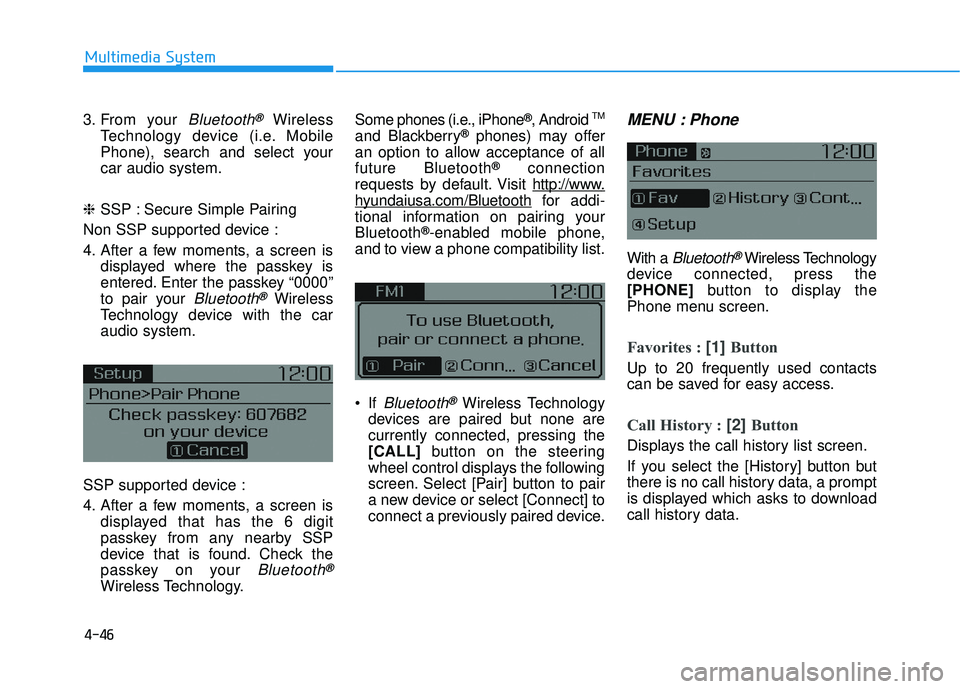
3. From your
Bluetooth®Wireless
Technology device (i.e. Mobile
Phone), search and select your
car audio system.
❈ SSP : Secure Simple Pairing
Non SSP supported device :
4. After a few moments, a screen is displayed where the passkey is
entered. Enter the passkey “0000”
to pair your
Bluetooth®Wireless
Technology device with the car
audio system.
SSP supported device :
4. After a few moments, a screen is displayed that has the 6 digit
passkey from any nearby SSP
device that is found. Check the
passkey on your
Bluetooth®
Wireless Technology. Some phones (i.e., iPhone
®, Android TM
and Blackberry®phones) may offer
an option to allow acceptance of all
future Bluetooth
®connection
requests by default. Visit http://www
.
hyundaiusa.com/Bluetoothfor addi-
tional information on pairing your
Bluetooth
®-enabled mobile phone,
and to view a phone compatibility list.
If
Bluetooth®Wireless Technology
devices are paired but none are
currently connected, pressing the
[CALL] button on the steering
wheel control displays the following
screen. Select [Pair] button to pair
a new device or select [Connect] to
connect a previously paired device.
MENU : Phone
With a Bluetooth®Wireless Technology
device connected, press the
[PHONE] button to display the
Phone menu screen.
Favorites : [1] Button
Up to 20 frequently used contacts
can be saved for easy access.
Call History : [2] Button
Displays the call history list screen.
If you select the [History] button but
there is no call history data, a prompt
is displayed which asks to download
call history data.
Page 321 of 586
Driving your vehicle
5
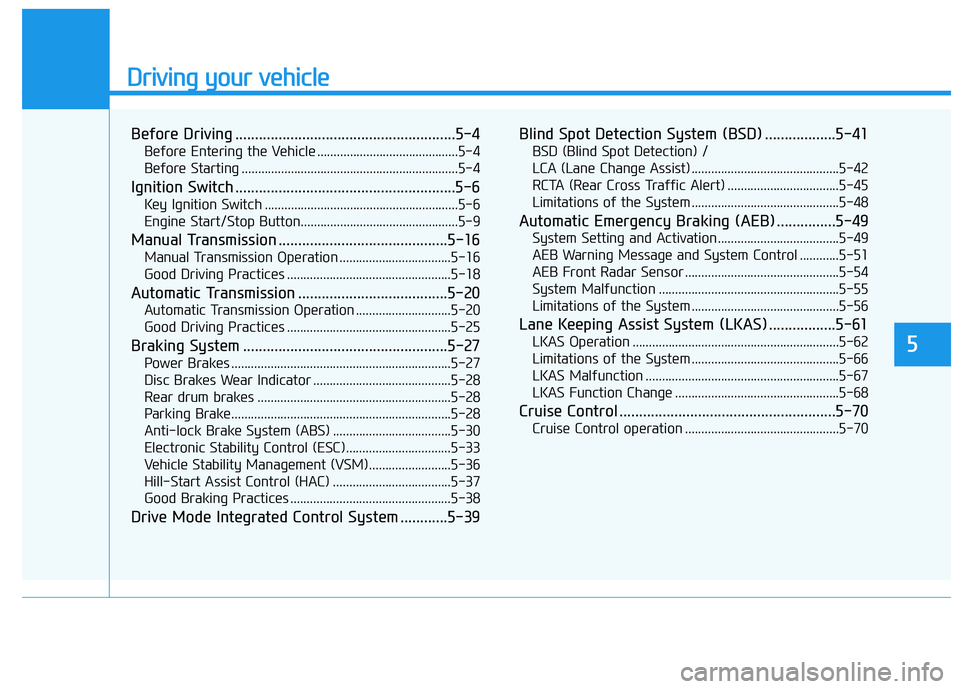
Before Driving ........................................................5-4
Before Entering the Vehicle ...........................................5-4
Before Starting ..................................................................5-4
Ignition Switch ........................................................5-6
Key Ignition Switch ...........................................................5-6
Engine Start/Stop Button................................................5-9
Manual Transmission ...........................................5-16
Manual Transmission Operation ..................................5-16
Good Driving Practices ..................................................5-18
Automatic Transmission ......................................5-20
Automatic Transmission Operation .............................5-20
Good Driving Practices ..................................................5-25
Braking System ....................................................5-27
Power Brakes ...................................................................5-27
Disc Brakes Wear Indicator ..........................................5-28
Rear drum brakes ...........................................................5-28
Parking Brake...................................................................5-28
Anti-lock Brake System (ABS) ....................................5-30
Electronic Stability Control (ESC)................................5-33
Vehicle Stability Management (VSM).........................5-36
Hill-Start Assist Control (HAC) ....................................5-37
Good Braking Practices .................................................5-38
Drive Mode Integrated Control System ............5-39Blind Spot Detection System (BSD) ..................5-41
BSD (Blind Spot Detection) /
LCA (Lane Change Assist) .............................................5-42
RCTA (Rear Cross Traffic Alert) ..................................5-45
Limitations of the System .............................................5-48
Automatic Emergency Braking (AEB) ...............5-49
System Setting and Activation.....................................5-49
AEB Warning Message and System Control ............5-51
AEB Front Radar Sensor ...............................................5-54
System Malfunction .......................................................5-55
Limitations of the System .............................................5-56
Lane Keeping Assist System (LKAS) .................5-61
LKAS Operation ...............................................................5-62
Limitations of the System .............................................5-66
LKAS Malfunction ...........................................................5-67
LKAS Function Change ..................................................5-68
Cruise Control .......................................................5-70
Cruise Control operation ...............................................5-70