phone HYUNDAI ELANTRA SEL 2021 Owner's Manual
[x] Cancel search | Manufacturer: HYUNDAI, Model Year: 2021, Model line: ELANTRA SEL, Model: HYUNDAI ELANTRA SEL 2021Pages: 570, PDF Size: 52.21 MB
Page 165 of 570
05
5-29
Vehicle personalization operation
The personalization function linked with
digital key works as following conditions:
• Contact the driver’s door handle with
the profile linked smart phone to lock
or unlock the doors (Personalization
does not operate when locking or
unlocking the front passenger door.)
• Remote door unlock with the profile
linked smartphone digital key app.
The profile linked with digital key can be
changed manually in the infotainment
system setup screen. Precaution for digital key profile link and
unlink
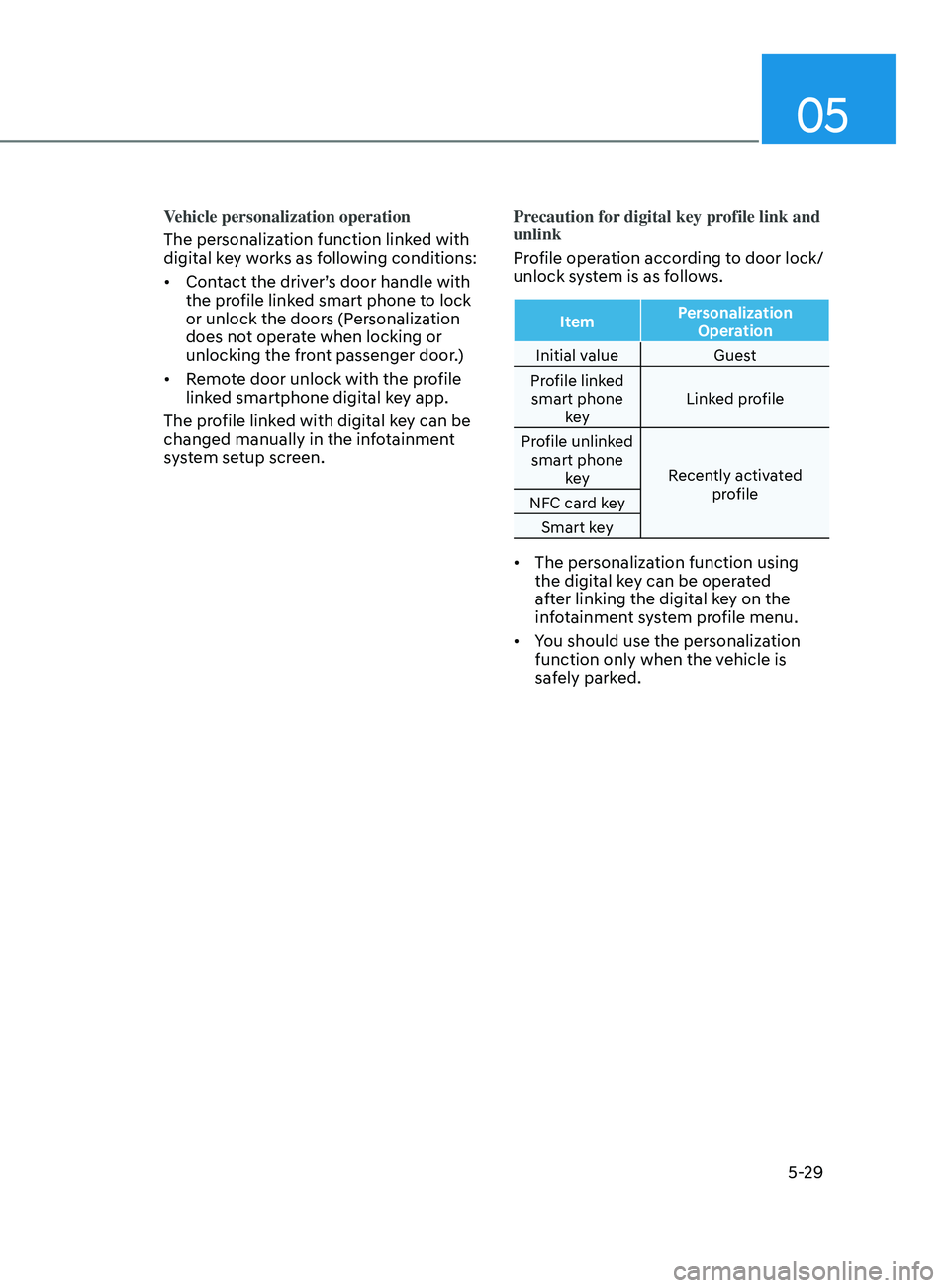
Profile operation according to door lock/
unlock system is as follows.
Item
Personalization
Operation
Initial value Guest
Profile linked smart phone key Linked profile
Profile unlinked smart phone key Recently activated
profile
NFC card key
Smart key
• The personalization function using
the digital key can be operated
after linking the digital key on the
infotainment system profile menu.
• You should use the personalization
function only when the vehicle is
safely parked.
Page 166 of 570
Convenient Features
5-30
Vehicle personalization with digital key
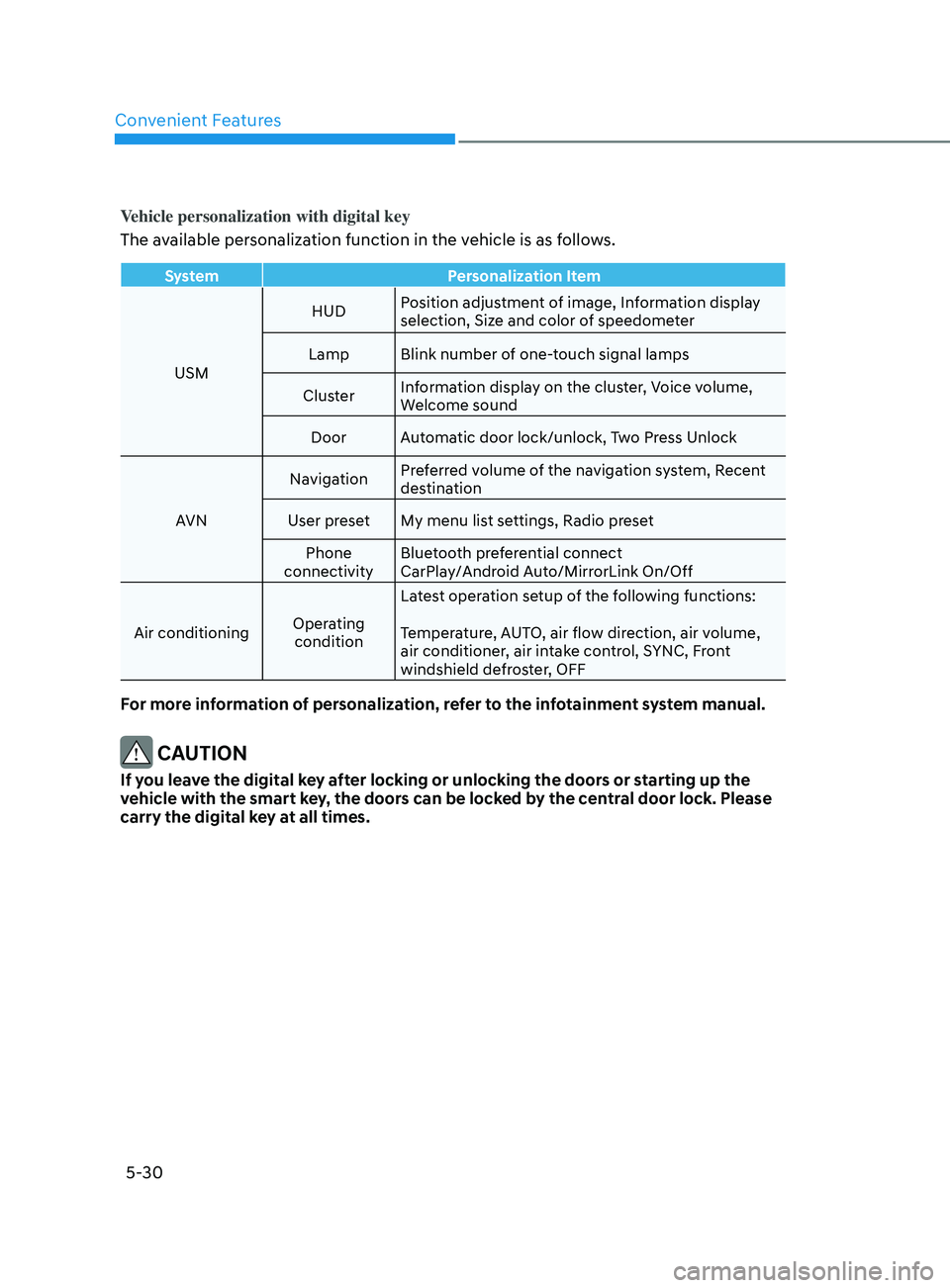
The available personalization function in the vehicle is as follows.
SystemPersonalization Item
USM HUD
Position adjustment of image, Information display
selection, Size and color of speedometer
Lamp Blink number of one-touch signal lamps
Cluster Information display on the cluster, Voice volume,
Welcome sound
Door Automatic door lock/unlock, Two Press Unlock
AVN Navigation
Preferred volume of the navigation system, Recent
destination
User preset My menu list settings, Radio preset Phone
connectivity Bluetooth preferential connect
CarPlay/Android Auto/MirrorLink On/Off
Air conditioning Operating
condition Latest operation setup of the following functions:
Temperature, AUTO, air flow direction, air volume,
air conditioner, air intake control, SYNC, Front
windshield defroster, OFF
For more information of personalization, refer to the infotainment system manual.
CAUTION
If you leave the digital key after locking or unlocking the doors or starting up the
vehicle with the smart key, the doors can be locked by the central door lock. Please
carry the digital key at all times.
Page 201 of 570
05
5-65
Information
• If you press the door unlock button
(2), the Smart Trunk release function
will be deactivated temporarily. But,
if you do not open any door for 30
seconds, the smart trunk function will
be activated again.
• If you press the trunk open button
(3) for more than 1 second, the trunk
opens.
• If you press the door lock button (1) or
trunk open button (3) when the Smart
Trunk release function is not in the
Detect and Alert stage, the smart trunk
function will not be deactivated.
• In case you have deactivated the Smart
Trunk function by pressing the smart
key button and opened a door, the
Smart Trunk release function can be
activated again by closing and locking
all doors.
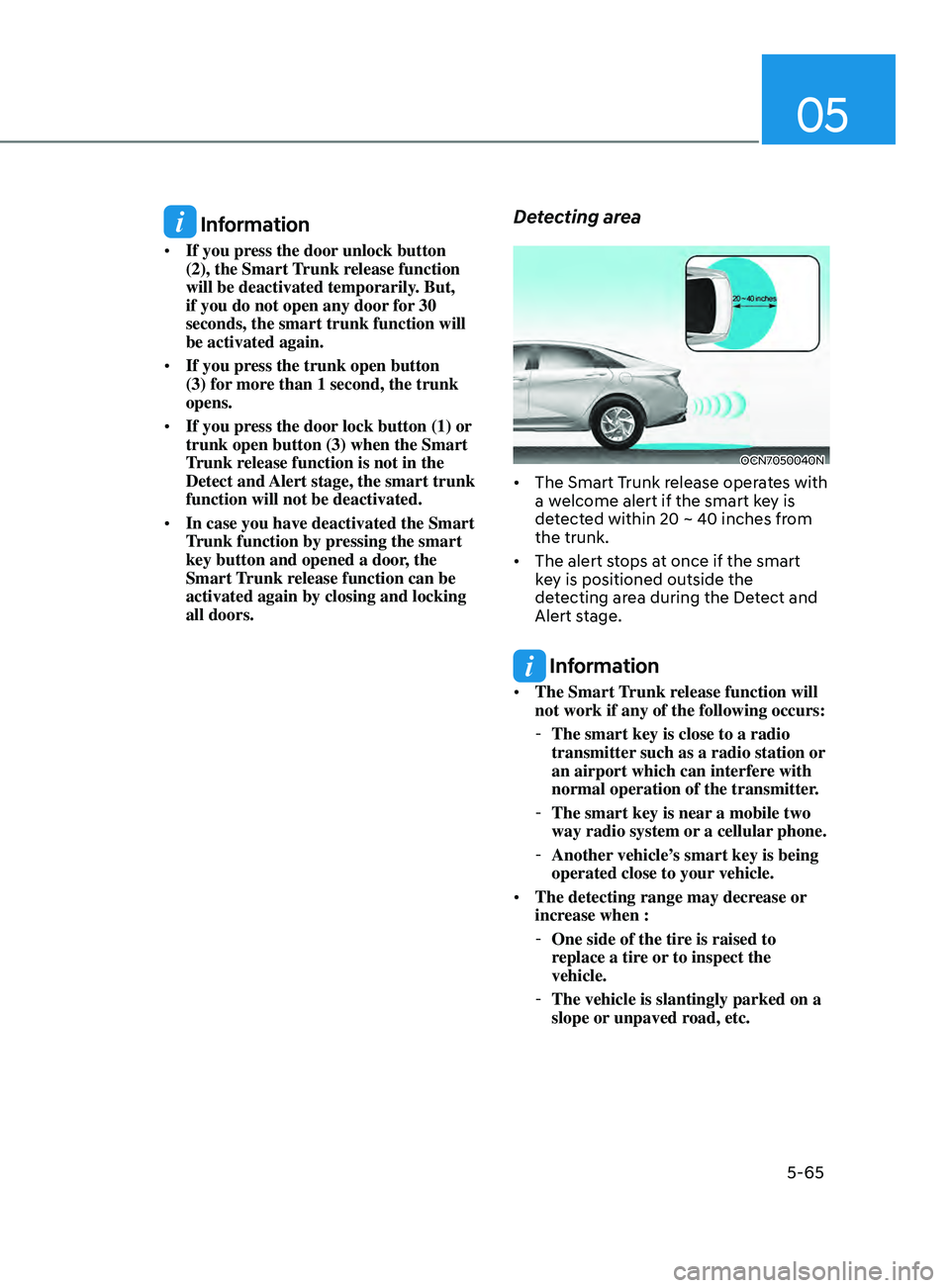
Detecting area
OCN7050040N
• The Smart Trunk release operates with
a welcome alert if the smart key is
detected within 20 ~ 40 inches from
the trunk.
• The alert stops at once if the smart
key is positioned outside the
detecting area during the Detect and
Alert stage.
Information
• The Smart Trunk release function will
not work if any of the following occurs:
-The smart key is close to a radio
transmitter such as a radio station or
an airport which can interfere with
normal operation of the transmitter.
- The smart key is near a mobile two
way radio system or
a cellular phone.
-Another vehicle’
s smart key is being
operated close to your vehicle.
• The detecting range may decrease or
increase when :
-One side of the tire is raised to
r
eplace a tire or to inspect the
vehicle.
- The vehicle is slantingly parked on a
slope or unpaved r
oad, etc.
Page 202 of 570
Convenient Features5-66
Fuel Filler Door
Opening the fuel filler door
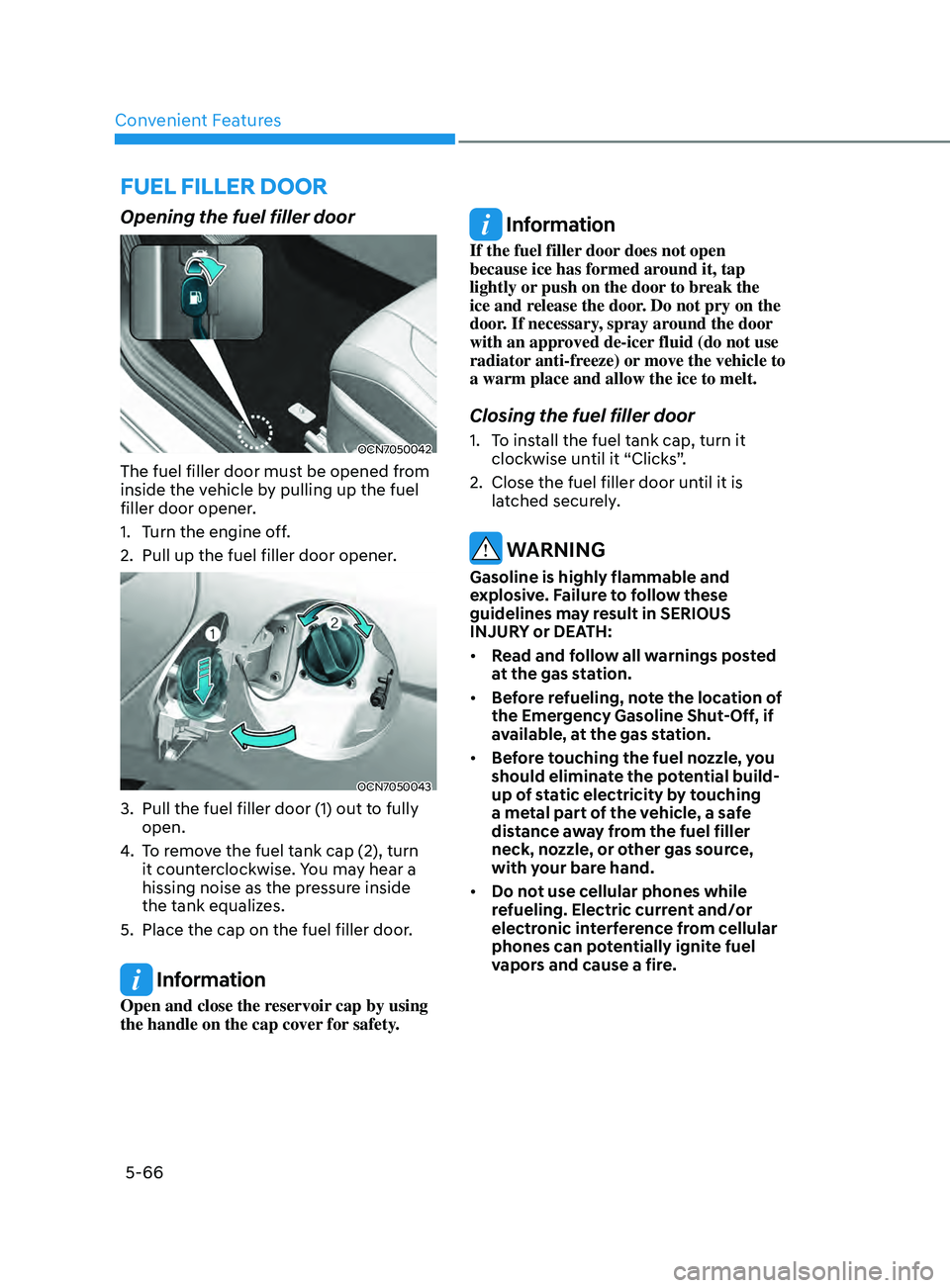
OCN7050042
The fuel filler door must be opened from
inside the vehicle by pulling up the fuel
filler door opener.
1.
Turn the engine o
ff.
2.
Pull up the fuel filler door opener.
OCN7050043
3. Pull the fuel filler door (1) out to fully
open.
4.
To r
emove the fuel tank cap (2), turn
it counterclockwise. You may hear a
hissing noise as the pressure inside
the tank equalizes.
5.
Place the cap on the fuel filler door.
Information
Open and close the reservoir cap by using
the handle on the cap cover for safety.
Information
If the fuel filler door does not open
because ice has formed around it, tap
lightly or push on the door to break the
ice and release the door. Do not pry on the
door. If necessary, spray around the door
with an approved de-icer fluid (do not use
radiator anti-freeze) or move the vehicle to
a warm place and allow the ice to melt.
Closing the fuel filler door
1. To install the fuel tank cap, turn it
clockwise un til it “Clicks”.
2.
Close the fuel filler door until it is
la
tched securely.
WARNING
Gasoline is highly flammable and
explosive. Failure to follow these
guidelines may result in SERIOUS
INJURY or DEATH:
• Read and follow all warnings posted
at the gas station.
• Before refueling, note the location of
the Emergency Gasoline Shut-Off, if
available, at the gas station.
• Before touching the fuel nozzle, you
should eliminate the potential build-
up of static electricity by touching
a metal part of the vehicle, a safe
distance away from the fuel filler
neck, nozzle, or other gas source,
with your bare hand.
• Do not use cellular phones while
refueling. Electric current and/or
electronic interference from cellular
phones can potentially ignite fuel
vapors and cause a fire.
Page 248 of 570
Convenient Features
5-112
Sunvisor
OIG046437
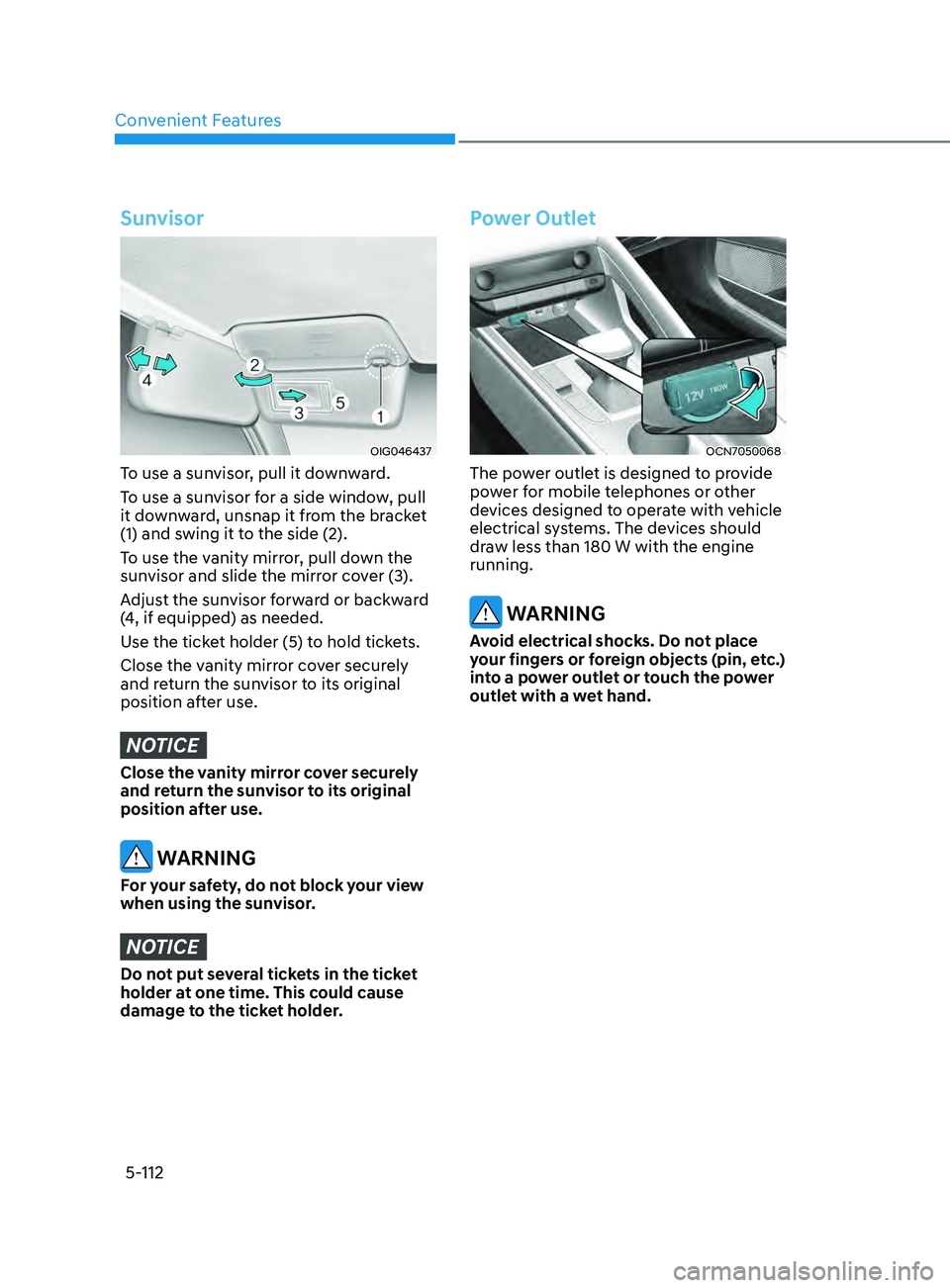
To use a sunvisor, pull it downward.
To use a sunvisor for a side window, pull
it downward, unsnap it from the bracket
(1) and swing it to the side (2).
To use the vanity mirror, pull down the
sunvisor and slide the mirror cover (3).
Adjust the sunvisor forward or backward
(4, if equipped) as needed.
Use the ticket holder (5) to hold tickets.
Close the vanity mirror cover securely
and return the sunvisor to its original
position after use.
NOTICE
Close the vanity mirror cover securely
and return the sunvisor to its original
position after use.
WARNING
For your safety, do not block your view
when using the sunvisor.
NOTICE
Do not put several tickets in the ticket
holder at one time. This could cause
damage to the ticket holder.
Power Outlet
OCN7050068
The power outlet is designed to provide
power for mobile telephones or other
devices designed to operate with vehicle
electrical systems. The devices should
draw less than 180 W with the engine
running.
WARNING
Avoid electrical shocks. Do not place
your fingers or foreign objects (pin, etc.)
into a power outlet or touch the power
outlet with a wet hand.
Page 249 of 570
05
5-113
NOTICE
To prevent damage to the Power
Outlets:
• Use the power outlet only when the
engine is running and remove the
accessory plug after use. Using the
accessory plug for prolonged periods
of time with the engine off could
cause the battery to discharge.
• Only use 12V electric accessories
which are less than 180 W in electric
capacity.
• Adjust the air-conditioner or heater
to the lowest operating level when
using the power outlet.
• Close the cover when not in use.
• Some electronic devices can
cause electronic interference
when plugged into a vehicle’s
power outlet. These devices may
cause excessive audio static and
malfunctions in other electronic
systems or devices used in your
vehicle.
• Push the plug in as far as it will go. If
good contact is not made, the plug
may overheat and the fuse may open.
• Plug in battery equipped electrical/
electronic devices with reverse
current protection. The current
from the battery may flow into the
vehicle’s electrical/electronic system
and cause system malfunction.
USB Charger
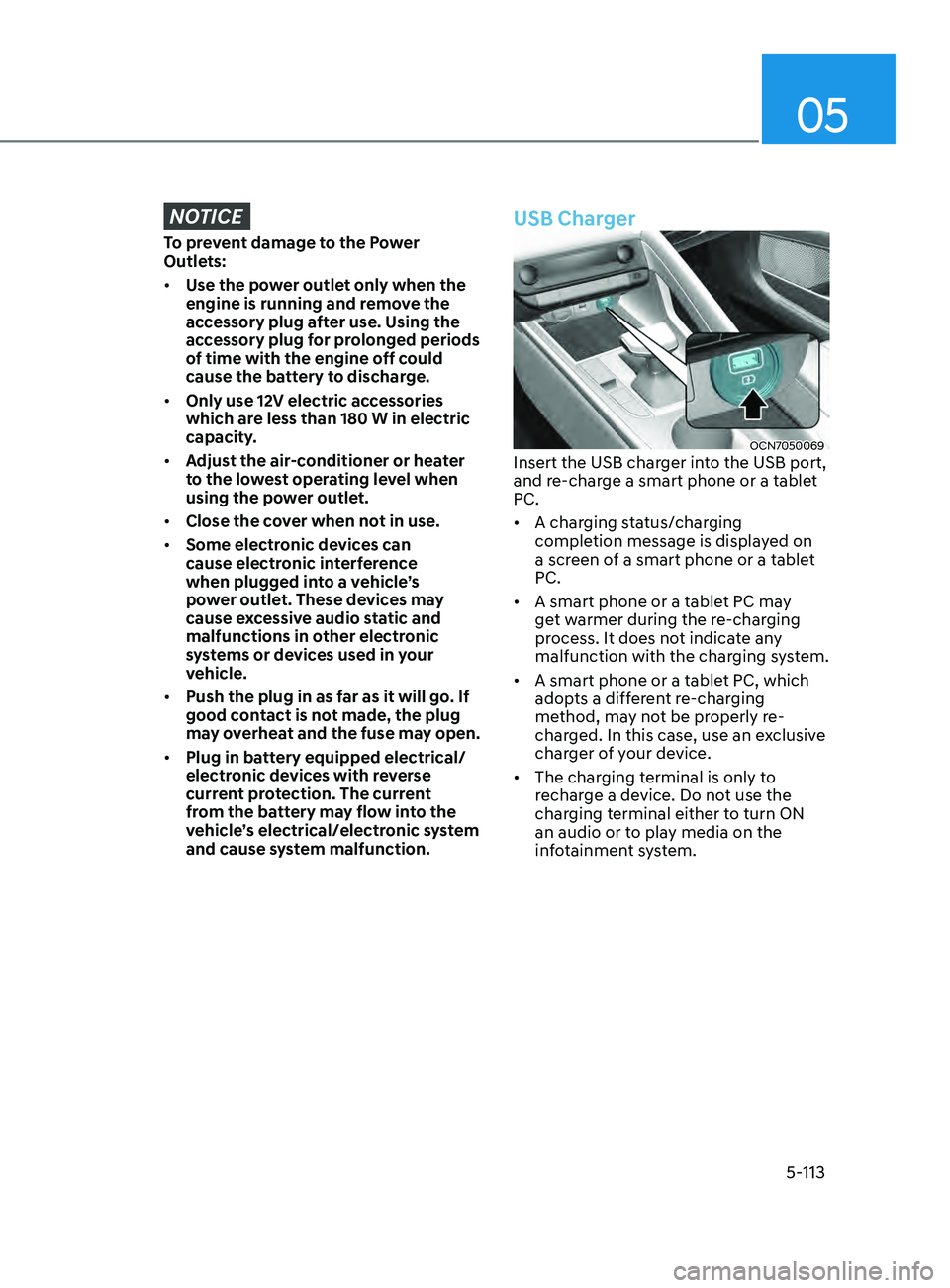
OCN7050069Insert the USB charger into the USB port,
and re-charge a smart phone or a tablet
PC.
• A charging status/charging
completion message is displayed on
a screen of a smart phone or a tablet
PC.
• A smart phone or a tablet PC may
get warmer during the re-charging
process. It does not indicate any
malfunction with the charging system.
• A smart phone or a tablet PC, which
adopts a different re-charging
method, may not be properly re-
charged. In this case, use an exclusive
charger of your device.
• The charging terminal is only to
recharge a device. Do not use the
charging terminal either to turn ON
an audio or to play media on the
infotainment system.
Page 250 of 570
![HYUNDAI ELANTRA SEL 2021 Owners Manual Convenient Features
5-114
Wireless Cellular Phone
Charging System (if equipped)
OCN7050070
[A] : Charging pad
There is a wireless cellular phone charger
inside the front console.
The system is ava](/img/35/56089/w960_56089-249.png "HYUNDAI ELANTRA SEL 2021 Owners Manual Convenient Features
5-114
Wireless Cellular Phone
Charging System (if equipped)
OCN7050070
[A] : Charging pad
There is a wireless cellular phone charger
inside the front console.
The system is ava")
Convenient Features
5-114
Wireless Cellular Phone
Charging System (if equipped)
OCN7050070
[A] : Charging pad
There is a wireless cellular phone charger
inside the front console.
The system is available when all doors
are closed, and when the ignition switch
is in the ACC/ON position.
To charge a cellular phone
The wireless cellular phone charging
system charges only the Qi-enabled
cellular phones. Read the label on the
cellular phone accessory cover or visit
your cellular phone manufacturer’s
website to check whether your cellular
phone supports the Qi technology.
The wireless charging process starts
when you put a Qi-enabled cellular
phone on the wireless charging unit.
1.
Remo
ve other items, including the
smart key, from the wireless charging
unit. If not, the wireless charging
process may be interrupted. Place the
cellular phone on the center of the
charging pad (
).
2.
When charging s
tarts, a charging
icon is displayed on the infotainment
system screen. However, depending
on the infotainment system screen,
the wireless charging icon may not be
displayed. See the infotainment web
manual for details.
3.
You can turn ON or OFF the wir
eless
charging function in the user settings
mode on the instrument cluster. For
further information, refer to the “LCD
Display Modes” in this chapter.
The system warns you with a message
on the LCD display if the cellular phone
is still on the wireless charging unit after
the engine is turned OFF and the front
door is opened.
Page 251 of 570
5-115
05
Information
For some manufacturers’ cellular phones,
the system may not warn you even though
the cellular phone is left on the wireless
charging unit. This is due to the particular
characteristic of the cellular phone and
not a malfunction of the wireless charging.
NOTICE
• The wireless cellular phone charging
system may not support certain
cellular phones, which are not
verified for the Qi specification (
).
•
When placing your c
ellular phone
on the charging mat, position the
phone in the middle of the mat for
optimal charging performance. If
your cellular phone is off to the side,
the charging rate may be less and in
some cases the cellular phone may
experience higher heat conduction.
•
In some cases, the wireless char
ging
may stop temporarily when the
Remote Key or Smart Key is used,
either when starting the vehicle or
locking/unlocking the doors, etc.
•
The wireless char
ging process may
temporarily stop, when temperature
abnormally increases inside the
wireless cellular phone charging
system. Stop the charging cellular
phone and wait until temperature
falls to a certain level.
•
The wireless char
ging process may
temporarily stop when there is
any metallic item, such as a coin,
between the wireless cellular phone
charging system and the cellular
phone. •
When charging some c
ellular phones
with a self-protection feature,
the wireless charging speed may
decrease and the wireless charging
may stop.
•
If the c
ellular phone has a thick
cover, the wireless charging may not
be possible.
•
If the c
ellular phone is not
completely contacting the charging
pad, wireless charging may not
operate properly.
• Some magnetic it ems like credit
cards, phone cards or rail tickets may
be damaged if left with the cellular
phone during the charging process.
•
When any c
ellular phone without
a wireless charging function or a
metallic object is placed on the
charging pad, a small noise may
sound. This small sound is due to the
vehicle discerning compatibility of
the object placed on the charging
pad. It does not affect your vehicle or
the cellular phone in any way.
Information
If the ignition switch is in the LOCK/ OFF
position, the charging also stops.
Information
This device complies with part 15 of the
FCC Rules.
Operation is subject to the following two
conditions:
1.
This device may not cause harmful
interference, and
2.
This device must accept any
interference r
eceived, including
interference that may cause undesired
operation.
Page 256 of 570
Convenient Features
5-120
Infotainment system (if equipped)
If your vehicle is equipped with
additional navigation, please refer to the
infotainment system manual separately
supplied.
Voice recognition (if equipped)
OCN7050081
A wide range of infotainment functions
can be commanded with voice
recognition.
If your vehicle is equipped with
additional navigation, please refer
to the infotainment system manual
separately supplied.
Bluetooth® Wireless Technology
hands-free (if equipped)
OCN7050075
OCN7050076
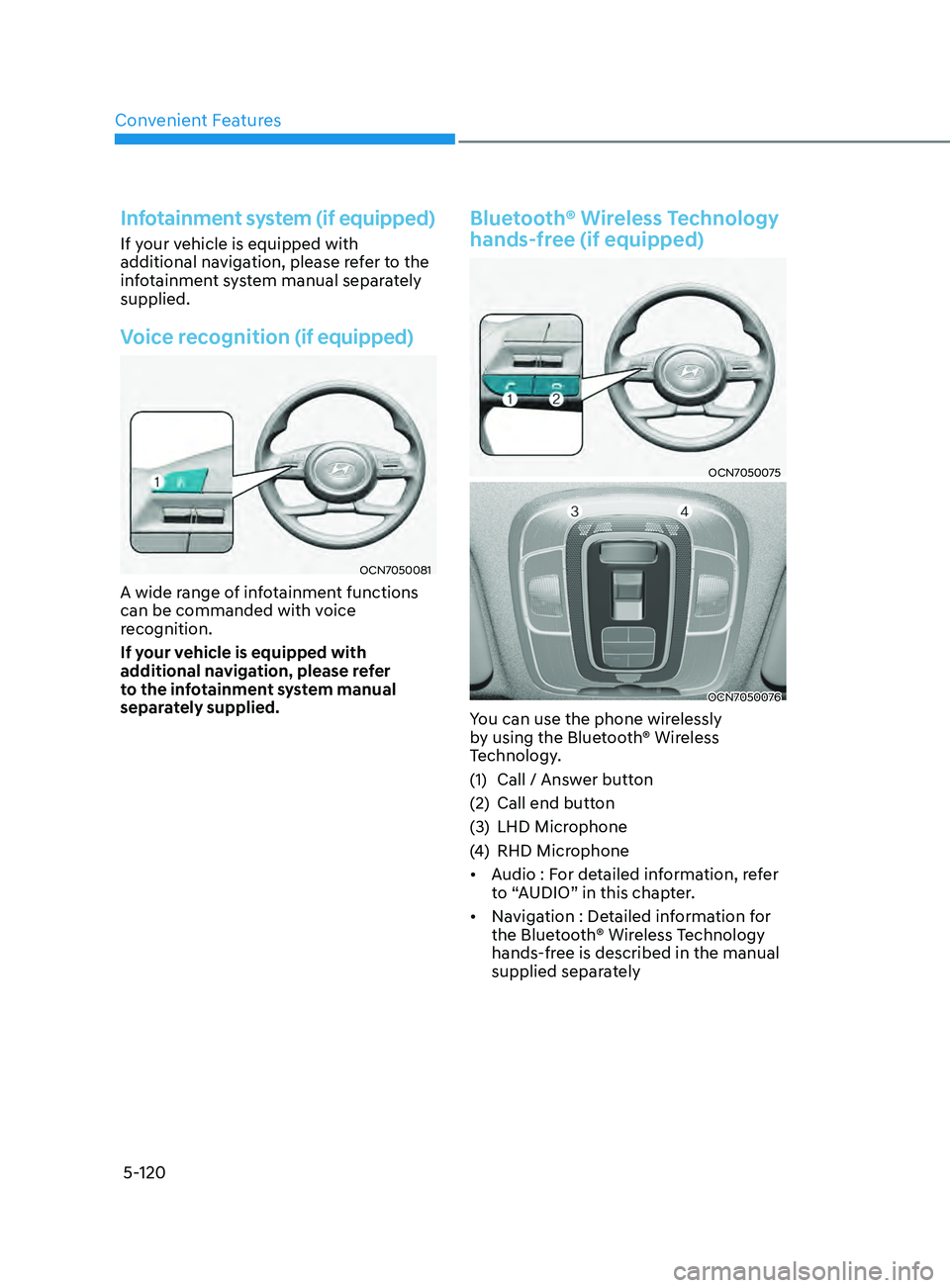
You can use the phone wirelessly
by using the Bluetooth® Wireless
Technology.
(1)
Call / Answ
er button
(2)
Call end button
(3
)
LHD Microphone
(4
)
RHD Microphone
• A
udio : For detailed information, refer
to “AUDIO” in this chapter.
• Navigation : Detailed information for
the Bluetooth® Wireless Technology
hands-free is described in the manual
supplied separately
Page 259 of 570
05
5-123
OJF045311L
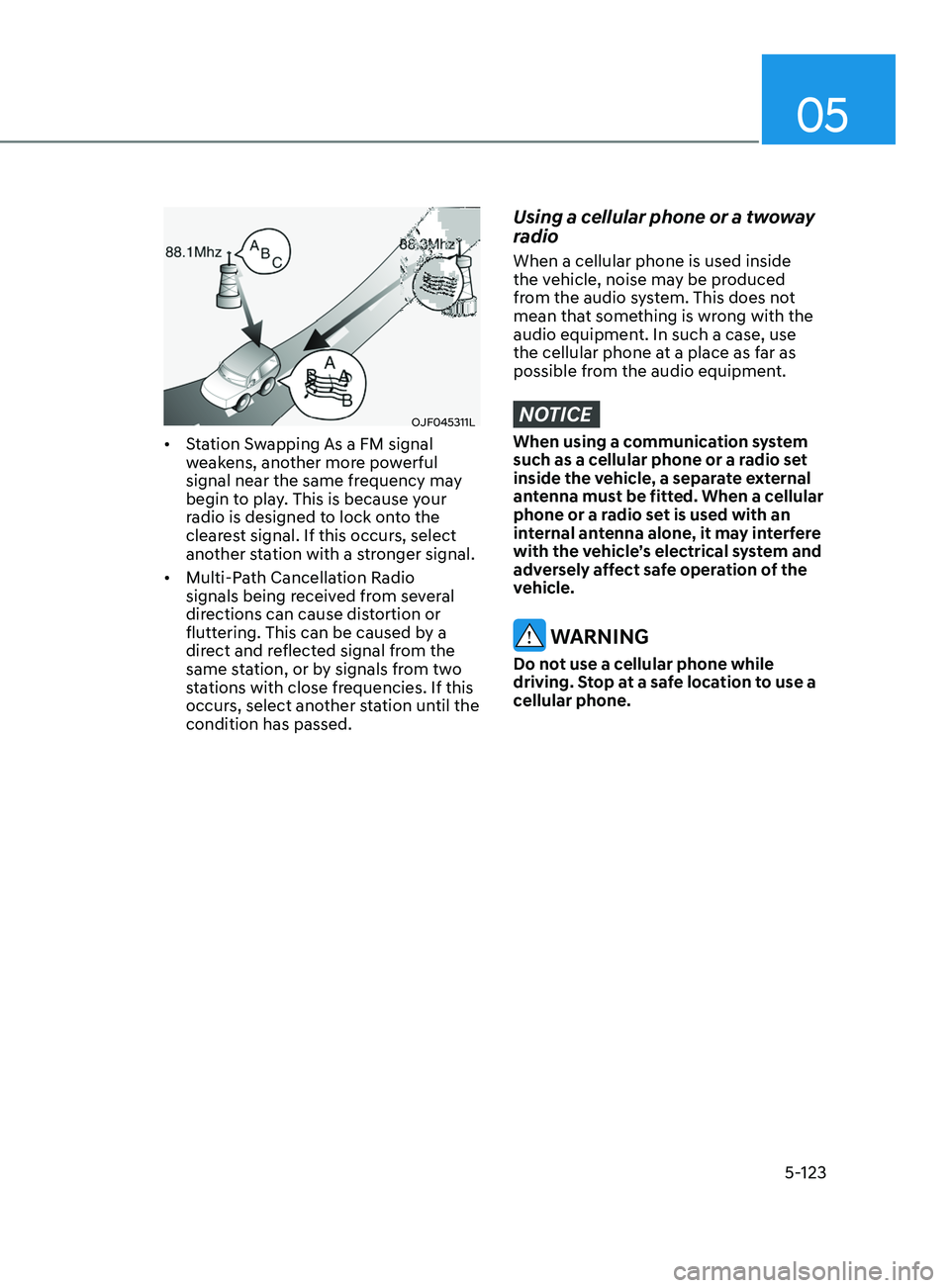
• Station Swapping As a FM signal
weakens, another more powerful
signal near the same frequency may
begin to play. This is because your
radio is designed to lock onto the
clearest signal. If this occurs, select
another station with a stronger signal.
• Multi-Path Cancellation Radio
signals being received from several
directions can cause distortion or
fluttering. This can be caused by a
direct and reflected signal from the
same station, or by signals from two
stations with close frequencies. If this
occurs, select another station until the
condition has passed.
Using a cellular phone or a twoway
radio
When a cellular phone is used inside
the vehicle, noise may be produced
from the audio system. This does not
mean that something is wrong with the
audio equipment. In such a case, use
the cellular phone at a place as far as
possible from the audio equipment.
NOTICE
When using a communication system
such as a cellular phone or a radio set
inside the vehicle, a separate external
antenna must be fitted. When a cellular
phone or a radio set is used with an
internal antenna alone, it may interfere
with the vehicle’s electrical system and
adversely affect safe operation of the
vehicle.
WARNING
Do not use a cellular phone while
driving. Stop at a safe location to use a
cellular phone.