lock HYUNDAI ENTOURAGE 2009 Repair Manual
[x] Cancel search | Manufacturer: HYUNDAI, Model Year: 2009, Model line: ENTOURAGE, Model: HYUNDAI ENTOURAGE 2009Pages: 402, PDF Size: 9.08 MB
Page 142 of 402
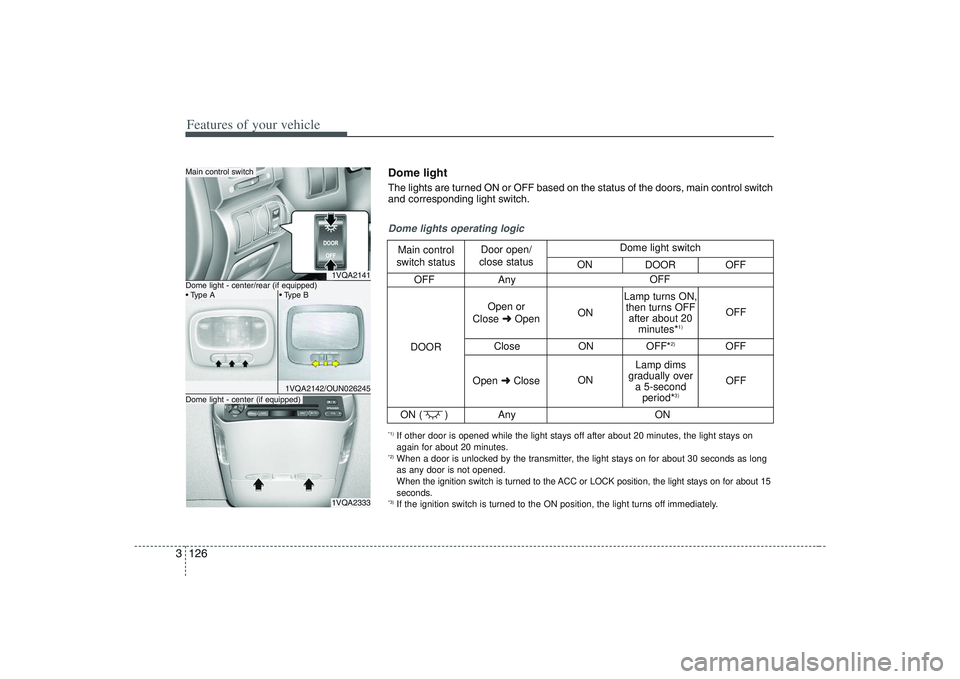
Features of your vehicle126 3
1VQA2141
1VQA2142/OUN026245
1VQA2333
Main control switchDome light - center (if equipped)
OFF Any
Close ON OFF*
2)
OFF
ON ( ) Any
Dome lights operating logicMain control
switch statusDoor open/
close status
DOOROpen or
Close ➜OpenON
ONOFF
OFF Lamp turns ON,
then turns OFF
after about 20
minutes*
1)
Lamp dims
gradually over
a 5-second
period*
3)
Open ➜CloseOFF
ON Dome light switch
ON
DOOR OFF
*1) If other door is opened while the light stays off after about 20 minutes, the light stays on
again for about 20 minutes.*2) When a door is unlocked by the transmitter, the light stays on for about 30 seconds as long
as any door is not opened.
When the ignition switch is turned to the ACC or LOCK position, the light stays on for about 15
seconds.*3) If the ignition switch is turned to the ON position, the light turns off immediately.Dome lightThe lights are turned ON or OFF based on the status of the doors, main control switch
and corresponding light switch.
Dome light - center/rear (if equipped)
Page 187 of 402
3 171
Features of your vehicle
Rolling code programmingTo train a garage door opener (or other
rolling code equipped devices) with the
rolling code feature, follow these instruc-
tions after completing the “Programming”
portion of this text. (A second person
may make the following training proce-
dures quicker & easier.)
4. Locate the “learn” or “smart” button on
the device’s motor head unit. Exact
location and color of the button may
vary by product brand. If there is diffi-
culty locating the “learn” or “smart” but-
ton, reference the device’s owner’s
manual or contact HomeLink at 1-800-
355-3515 or on the internet at
www.homelink.com.
5. Press and release the “learn” or
“smart” button on the device’s motor
head unit. You have 30 seconds to
complete step number 6.
6. Return to the vehicle and firmly press
and release the programmed
HomeLink button up to three times.
The rolling code equipped device
should now recognize the HomeLink
signal and activate when the
HomeLink button is pressed. The
remaining two buttons may now be
programmed if this has not previously
been done. Refer to the
“Programming” portion of this text.
Operating HomeLink To operate, simply press the pro-
grammed HomeLink button. Activation
will now occur for the trained product
(garage door, security system, entry door
lock, estate gate, or home or office light-
ing). For convenience, the hand-held
transmitter of the device may also be
used at any time. The HomeLink
Wireless Controls System (once pro-
grammed) or the original hand-held
transmitter may be used to activate the
device (e.g. garage door, entry door lock,
etc.). In the event that there are still pro-
gramming difficulties, contact HomeLink
at 1-800-355-3515 or on the internet at
www.homelink.com.
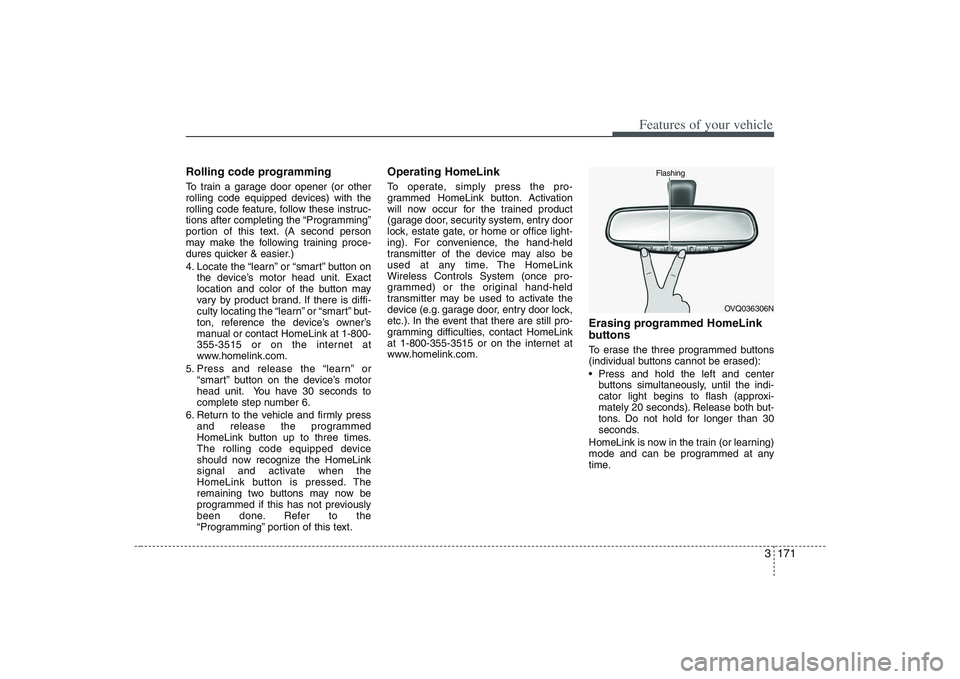
Erasing programmed HomeLink
buttonsTo erase the three programmed buttons
(individual buttons cannot be erased):
Press and hold the left and center
buttons simultaneously, until the indi-
cator light begins to flash (approxi-
mately 20 seconds). Release both but-
tons. Do not hold for longer than 30
seconds.
HomeLink is now in the train (or learning)
mode and can be programmed at any
time.
OVQ036306N Flashing
Page 190 of 402
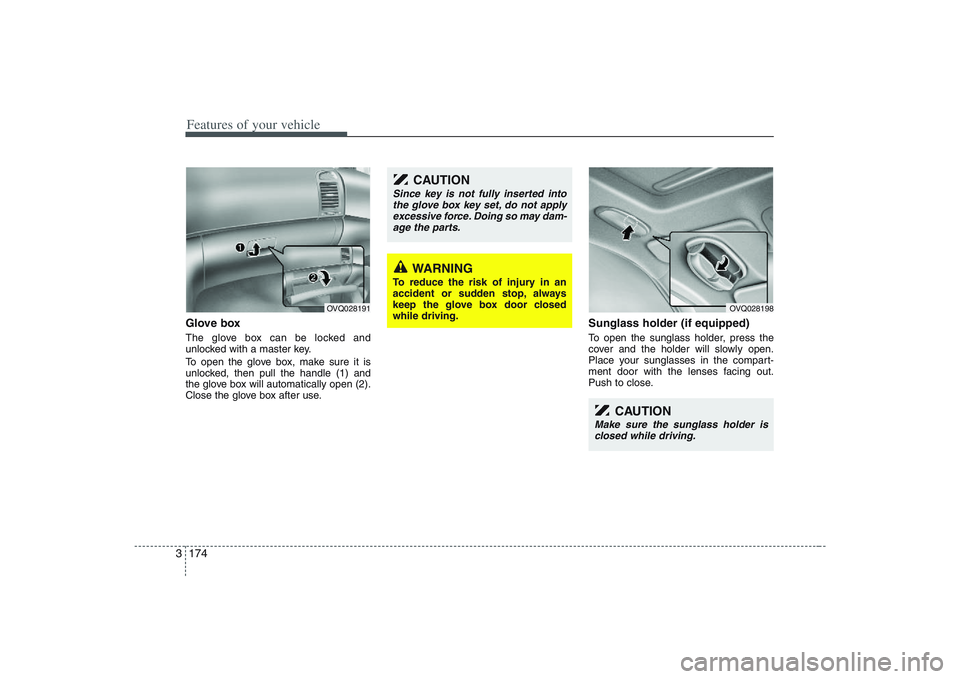
Features of your vehicle174 3Glove boxThe glove box can be locked and
unlocked with a master key.
To open the glove box, make sure it is
unlocked, then pull the handle (1) and
the glove box will automatically open (2).
Close the glove box after use.
Sunglass holder (if equipped)To open the sunglass holder, press the
cover and the holder will slowly open.
Place your sunglasses in the compart-
ment door with the lenses facing out.
Push to close.
OVQ028191
WARNING
To reduce the risk of injury in an
accident or sudden stop, always
keep the glove box door closed
while driving.
CAUTION
Since key is not fully inserted into
the glove box key set, do not apply
excessive force. Doing so may dam-
age the parts.
OVQ028198
CAUTION
Make sure the sunglass holder is
closed while driving.
Page 191 of 402
3 175
Features of your vehicle
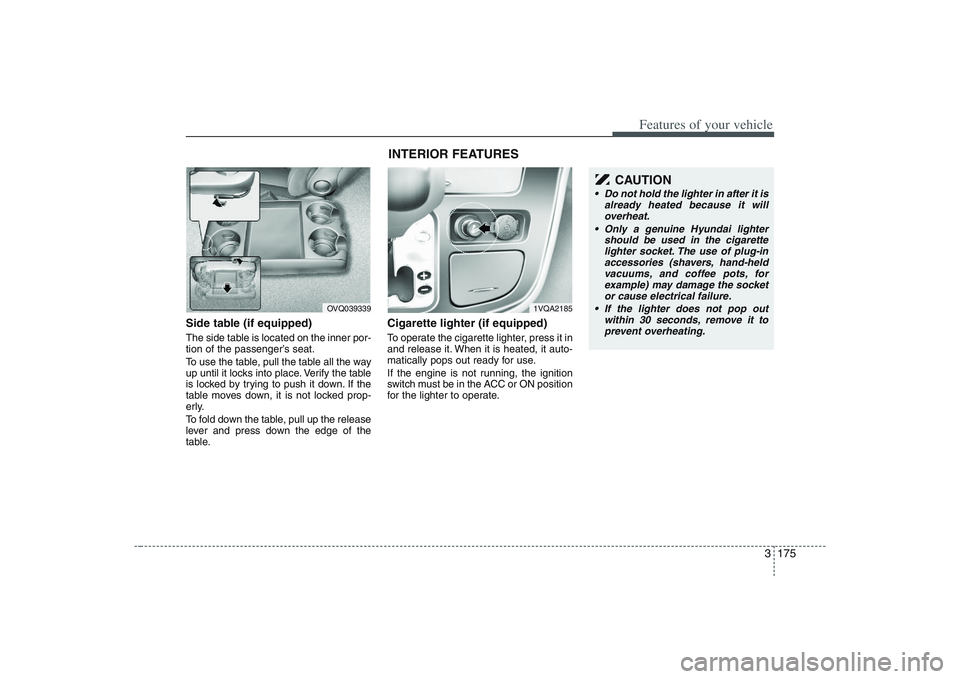
Side table (if equipped)The side table is located on the inner por-
tion of the passenger’s seat.
To use the table, pull the table all the way
up until it locks into place. Verify the table
is locked by trying to push it down. If the
table moves down, it is not locked prop-
erly.
To fold down the table, pull up the release
lever and press down the edge of the
table.
Cigarette lighter (if equipped)To operate the cigarette lighter, press it in
and release it. When it is heated, it auto-
matically pops out ready for use.
If the engine is not running, the ignition
switch must be in the ACC or ON position
for the lighter to operate.
OVQ039339
1VQA2185
CAUTION
Do not hold the lighter in after it is
already heated because it will
overheat.
Only a genuine Hyundai lighter
should be used in the cigarette
lighter socket. The use of plug-in
accessories (shavers, hand-held
vacuums, and coffee pots, for
example) may damage the socket
or cause electrical failure.
If the lighter does not pop out
within 30 seconds, remove it to
prevent overheating.
INTERIOR FEATURES
Page 193 of 402
3 177
Features of your vehicle
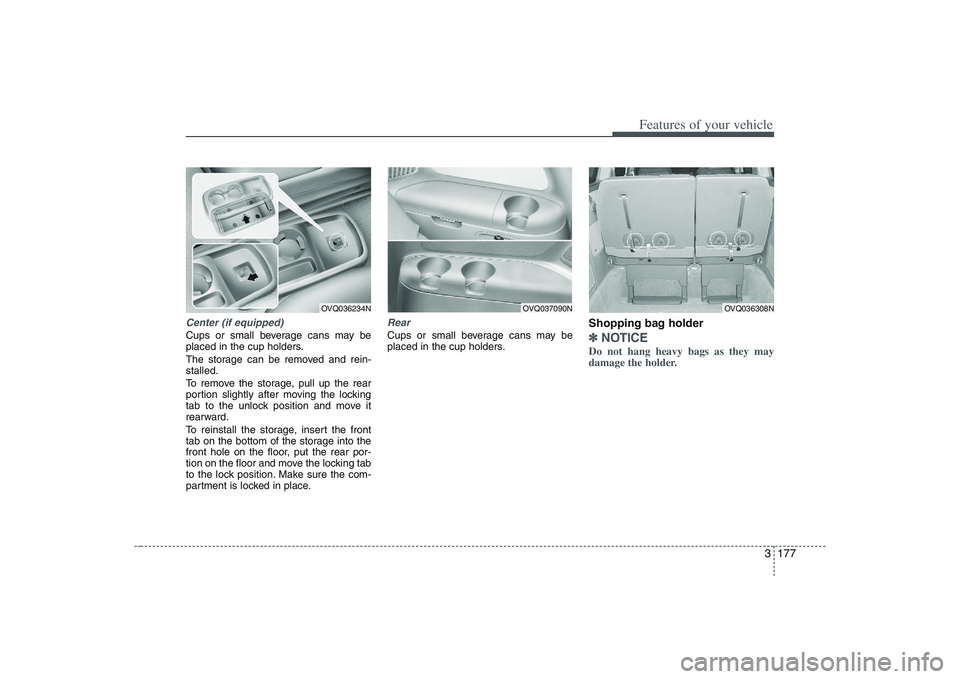
Center (if equipped)Cups or small beverage cans may be
placed in the cup holders.
The storage can be removed and rein-
stalled.
To remove the storage, pull up the rear
portion slightly after moving the locking
tab to the unlock position and move it
rearward.
To reinstall the storage, insert the front
tab on the bottom of the storage into the
front hole on the floor, put the rear por-
tion on the floor and move the locking tab
to the lock position. Make sure the com-
partment is locked in place.
RearCups or small beverage cans may be
placed in the cup holders.
Shopping bag holder ✽ ✽
NOTICEDo not hang heavy bags as they may
damage the holder.
OVQ036234N
OVQ037090N
OVQ036308N
Page 196 of 402
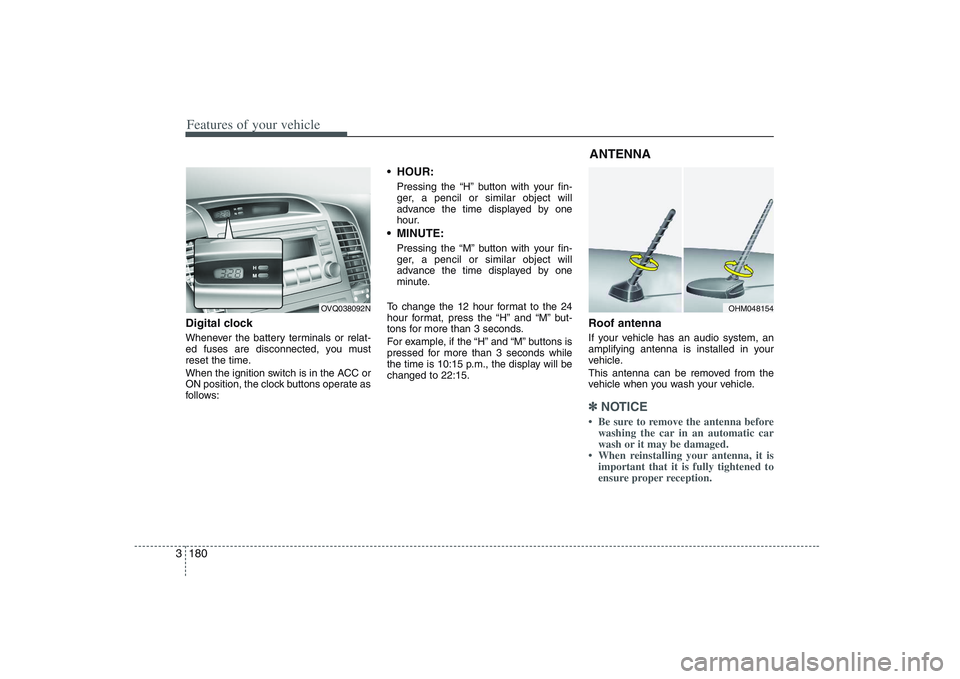
Features of your vehicle180 3Digital clockWhenever the battery terminals or relat-
ed fuses are disconnected, you must
reset the time.
When the ignition switch is in the ACC or
ON position, the clock buttons operate as
follows:
HOUR:Pressing the “H” button with your fin-
ger, a pencil or similar object will
advance the time displayed by one
hour. MINUTE:Pressing the “M” button with your fin-
ger, a pencil or similar object will
advance the time displayed by one
minute.
To change the 12 hour format to the 24
hour format, press the “H” and “M” but-
tons for more than 3 seconds.
For example, if the “H” and “M” buttons is
pressed for more than 3 seconds while
the time is 10:15 p.m., the display will be
changed to 22:15.
Roof antennaIf your vehicle has an audio system, an
amplifying antenna is installed in your
vehicle.
This antenna can be removed from the
vehicle when you wash your vehicle.✽ ✽
NOTICE• Be sure to remove the antenna before
washing the car in an automatic car
wash or it may be damaged.
• When reinstalling your antenna, it is
important that it is fully tightened to
ensure proper reception.
OVQ038092N
OHM048154
ANTENNA
Page 199 of 402
3183
Features of your vehicle
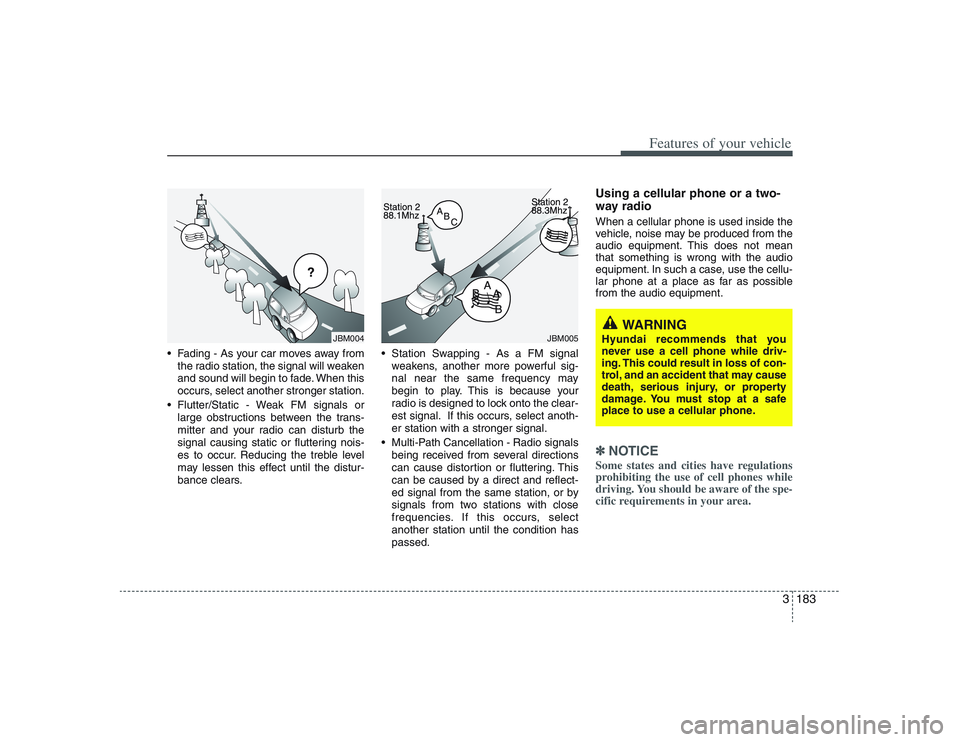
Fading - As your car moves away from
the radio station, the signal will weaken
and sound will begin to fade. When this
occurs, select another stronger station.
Flutter/Static - Weak FM signals or
large obstructions between the trans-
mitter and your radio can disturb the
signal causing static or fluttering nois-
es to occur. Reducing the treble level
may lessen this effect until the distur-
bance clears. Station Swapping - As a FM signal
weakens, another more powerful sig-
nal near the same frequency may
begin to play. This is because your
radio is designed to lock onto the clear-
est signal. If this occurs, select anoth-
er station with a stronger signal.
Multi-Path Cancellation - Radio signals
being received from several directions
can cause distortion or fluttering. This
can be caused by a direct and reflect-
ed signal from the same station, or by
signals from two stations with close
frequencies. If this occurs, select
another station until the condition has
passed.
Using a cellular phone or a two-
way radio When a cellular phone is used inside the
vehicle, noise may be produced from the
audio equipment. This does not mean
that something is wrong with the audio
equipment. In such a case, use the cellu-
lar phone at a place as far as possible
from the audio equipment.✽ ✽
NOTICESome states and cities have regulations
prohibiting the use of cell phones while
driving. You should be aware of the spe-
cific requirements in your area.
¢¢¢
JBM004
JBM005
WARNING
Hyundai recommends that you
never use a cell phone while driv-
ing. This could result in loss of con-
trol, and an accident that may cause
death, serious injury, or property
damage. You must stop at a safe
place to use a cellular phone.
Page 203 of 402
3187
Features of your vehicle
11. TUNE/ENTER KnobTurn this button clockwise by one notch
to increase frequency by 200KHz(AM:
10KHz) from current frequency.
Turn this button counterclockwise by one
notch to decrease frequency by 200KHz
(AM:10KHz)from current frequency.
Press this button while holding SETUP
button to activate / inactivate the item to.
Select SETUP item using left and right
function of the Tune button.12. Preset Selection ButtonPush [1]~[6] buttons less than 0.8 second
to play the channel saved in each button.
Push preset button for 0.8 second or
longer to save current channel to the
respective button with a beep.
Page 205 of 402
3189
Features of your vehicle
1. CD Loading SlotPlease face printed side upward and
gently push in. When the ignition switch
is on ACC or ON and power is off, power
is automatically turned on if the CD is
loaded. This CDP support Only 12 cm
CD. But if VCD, Data CD or DVD discs
are loaded, "Reading Error" message will
appear and CD will be ejected.2. CD Indicator When the ignition switch is in ACC or ON
and if the CD is loaded, this indicator is
lighted. If the CD is ejected the light is
turned off.3. CD Eject ButtonPush button to eject the CD during CD
playback. This button is enabled when
ignition switch is off.4. AUX Selection ButtonIf the auxiliary device is connected, it
turns to AUX MODE to play the sound
from the auxiliary player.
If no Disc and auxiliary device is connected,
it displays "NO Media" for 5 seconds and
returns to the previous mode.
5. Automatic Track Selection
Button Push [SEEK ] button for less than
0.8 second to play from the beginning
of current song.
Push [SEEK ] button for less than
0.8 second and press again within 1
second to play the previous song.
Push [SEEK ] button for 0.8 or
longer to initiate reverse direction high
speed sound search of current song.
Push [SEEK ] button for less than
0.8 second to play the next song.
Push [SEEK ] button for 0.8 or
longer to initiate high speed sound
search of current song.6. INFO Selection ButtonDisplays the information of the current
CD TRACK in the order of DISC TITLE
➟
DISC ARTIST
➟TRACK TITLE
➟TRACK
ARTIST
➟TOTAL TRACK
➟Play Screen
➟
DISC TITLE
➟... (not displayed if the infor-
mation is not available on the DISC.)
7. TUNE/ENTER KnobTurn this button clockwise to display
songs after current song.
Also, turn this button counterclockwise to
display songs before current song.
To listen to the displayed song, press the
button to skip to the song and play.8. REPEAT Selection ButtonRepeats current song when the button is
pressed for less than 0.8 second.
Repeats the entire DISC when the button
is pressed for 0.8 second or longer.9. RANDOM Selection ButtonTurns on/off the randomization of the
play list of files in the currently played
DISC.
To cancel the mode, press the button
once again.10. SCAN Selection ButtonPlays first 10 seconds of each song in
the DISC.
To cancel the mode, press the button
once again.
Page 209 of 402
3193
Features of your vehicle
Using a USB that is connected to the
multiple terminal inside the console on
the right hand side of the driver’s seat.
When USB is connected, the ‘USB’ icon
will be displayed on the top right corner
of the display screen.1. AUX Selection ButtonIf USB is not connected, it switches to the
USB mode from the Radio and CD mode
to play the song files stored in the USB.
If AUX is not connected, it is invalid button.2. Track Moving Button Press the [SEEK ] button for less
than 0.8 second to play from the begin-
ning of the song currently played.
Press the button for less than 0.8 sec-
ond and press it again within 1 second
to move to and play the previous track.
Press the button for 0.8 second or
longer to play the song in reverse direc-
tion in fast speed.
Press the [SEEK ] button for less
than 0.8 second to move to the next
track.
Press the button for 0.8 second or
longer to play the song in forward direc-
tion in fast speed.
3. INFO Selection ButtonDisplays the information of the file current-
ly played in the order of FILE NAME
➟
TITLE
➟ARTIST
➟ALBUM
➟FOLDER
➟TO
TAL FILE
➟PLAY SCREEN
➟FILE NAME
➟… (Displays no information if the file has
no song information.)4. Folder Moving Button Moves [FLDR ] button sub folder of
the current folder and displays the first
song in the folder. Press TUNE/ENTER
knob to move to the folder displayed. It
will play the first song in the folder.
Moves [FLDR ] button main folder
and displays the first song in the folder.
Press TUNE/ENTER knob to move to
the folder displayed. It will play the first
song in the folder.5. TUNE/ENTER KnobTurn this button clockwise to display the
songs next to the currently played song.
Turn the button counterclockwise to dis-
play the songs before the currently
played song.
Press the button to skip to and play the
selected song.
6. RANDOM Playback ButtonPress the button for less than 0.8 second
to start or stop the random playback of
the songs in the current folder.
Press the button for more than 0.8 sec-
ond to randomly play the entire songs in
the USB device.
Press the button again to cancel the mode.7. REPEAT Selection ButtonPress the button for less than 0.8 second
to repeat the song currently played.
Press the button for more than 0.8 sec-
ond to repeat the entire songs in the USB
device.8. SCAN Selection ButtonPlays 10 seconds of each song in the USB
device.
Press the button once again to cancel
scanning.